

Everyday life
Put a month of receipts in one file
Find the right receipts, put them in order, and reuse the same PDF steps next month.
- receipts
- 4
- combined PDF
- 1
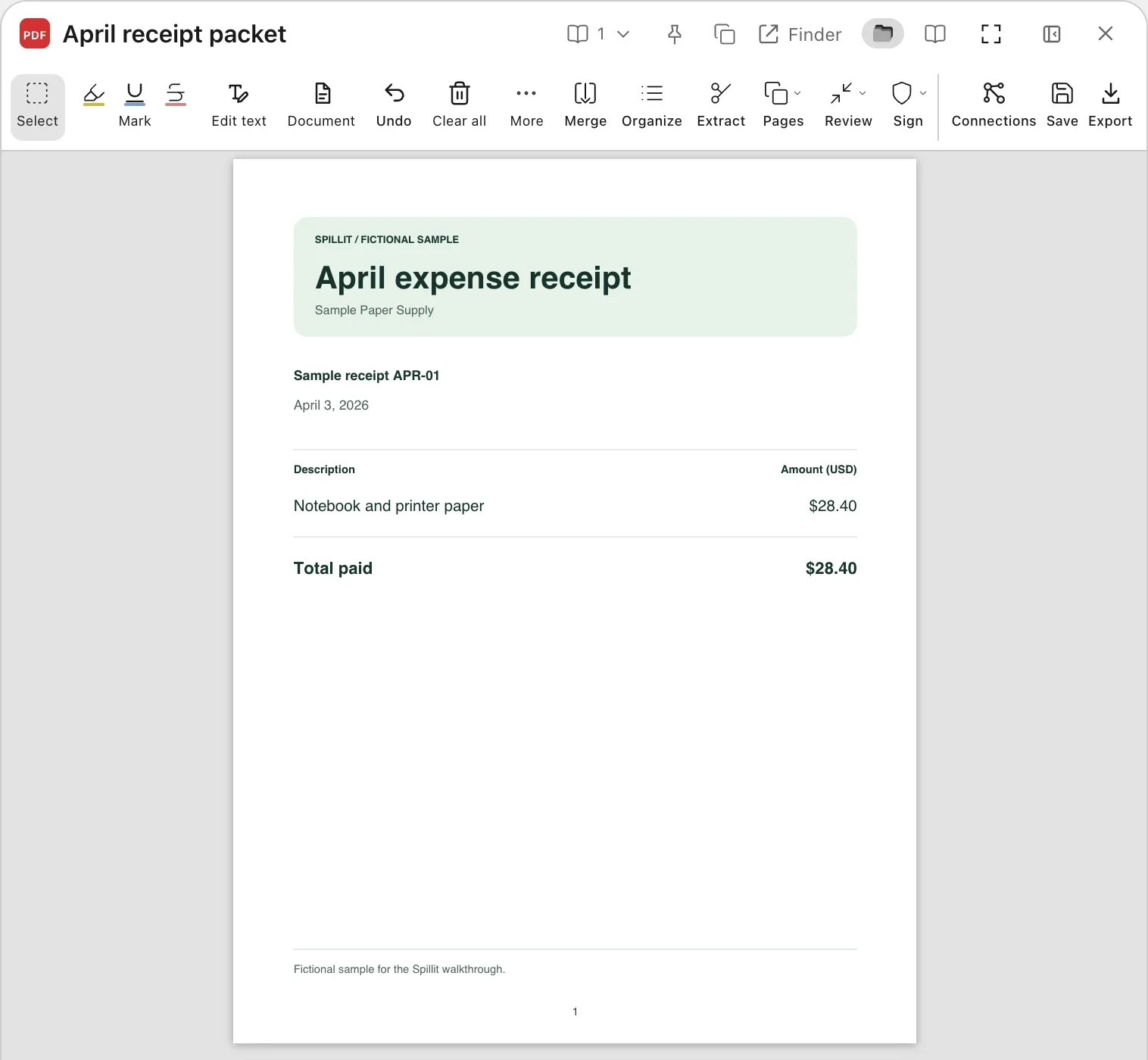
Before and after
Before
It’s early May. Four April receipts sit in a folder: paper, a transit day pass, a meeting room and postage. You want them in one numbered PDF, and you will do the same thing again next month.
- Receipts arrive one at a time and end up in different folders.
- Joining them by hand means opening each file and getting the order right every time.
- Next month you have to remember every setting again.
After A numbered packet ready for review
- One PDF with the four receipts in order, numbered 1 to 4.
- The original receipt files stay as they were.
- A saved workflow that does the same job for next month’s receipts.
Start with these files
Fictional sample data for desktop Spillit.
Step by step
How Spillit solves it
- Select the month’s receipts in a workflow
- Combine and number them as one PDF
- Save it and rerun it next month
Keep scrolling. The screen and the guide follow you.Swipe or tap the screen, or keep scrolling.



Step 1 of 11
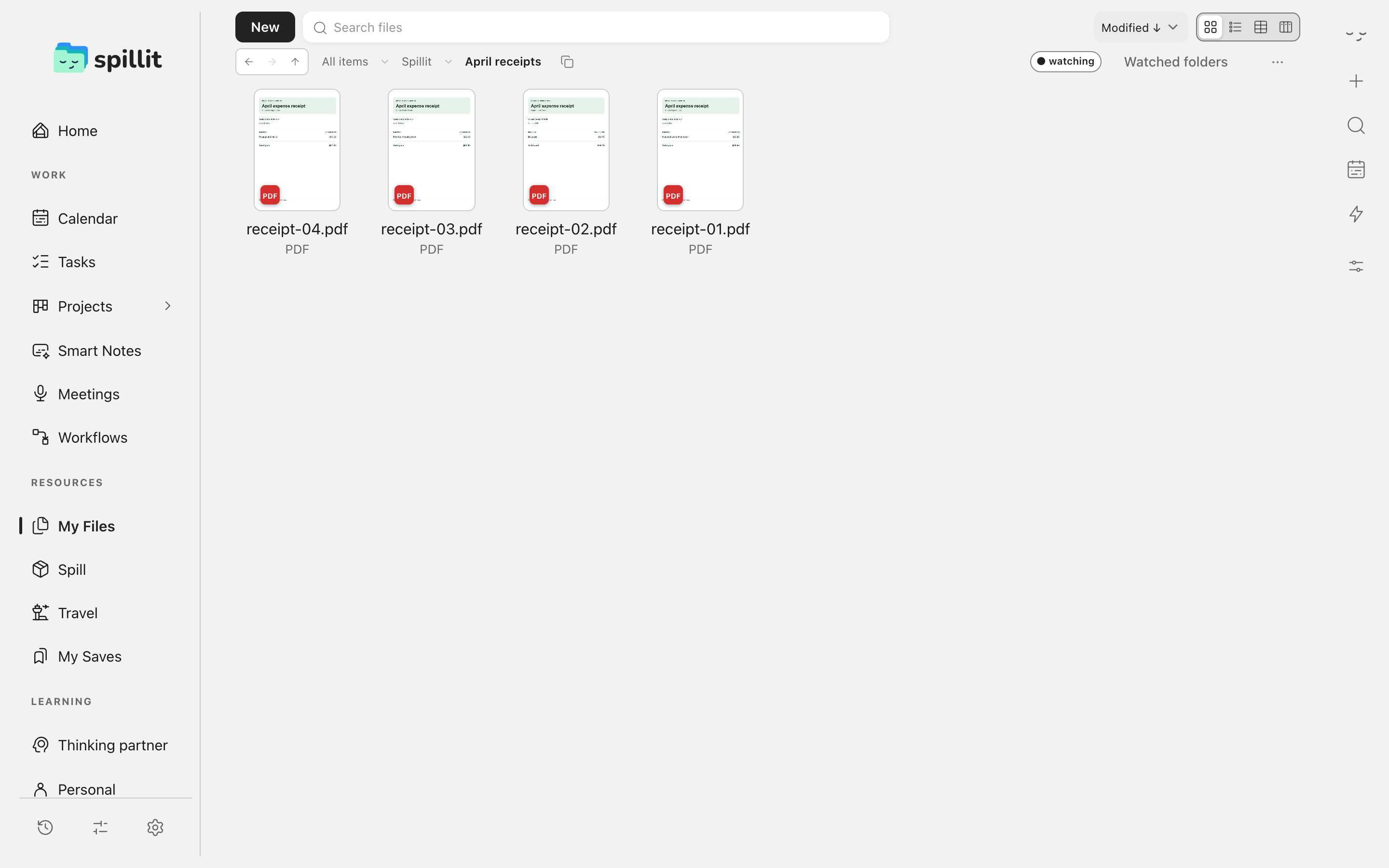
Bring four receipts into My Files
- Save: Unzip the April sample
- Open: Put the 4 PDFs in April receipts in My Files
Step 2 of 11
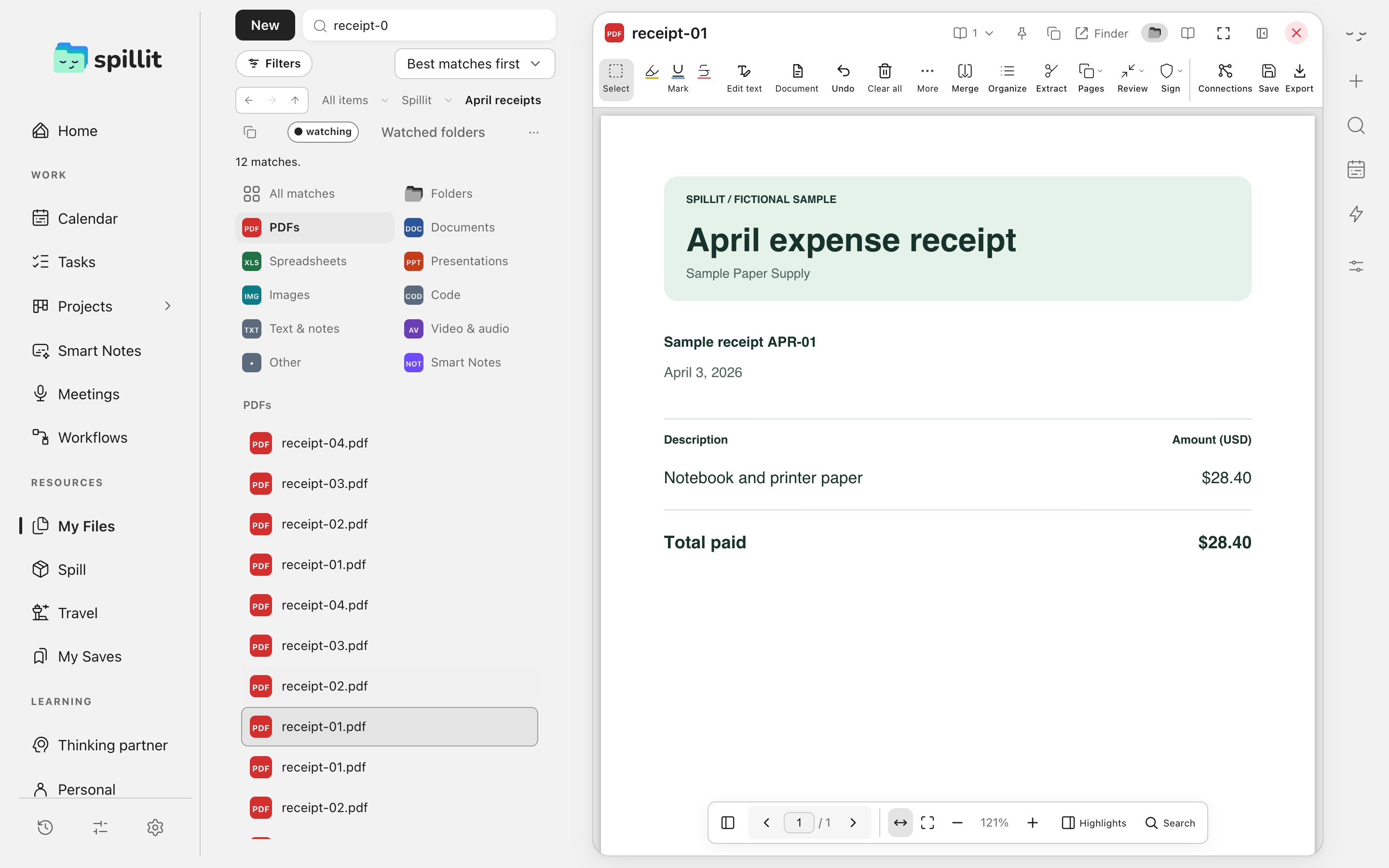
Find the receipts
- Type: Type receipt in the My Files search
- Choose: Choose PDFs under File types
Step 3 of 11
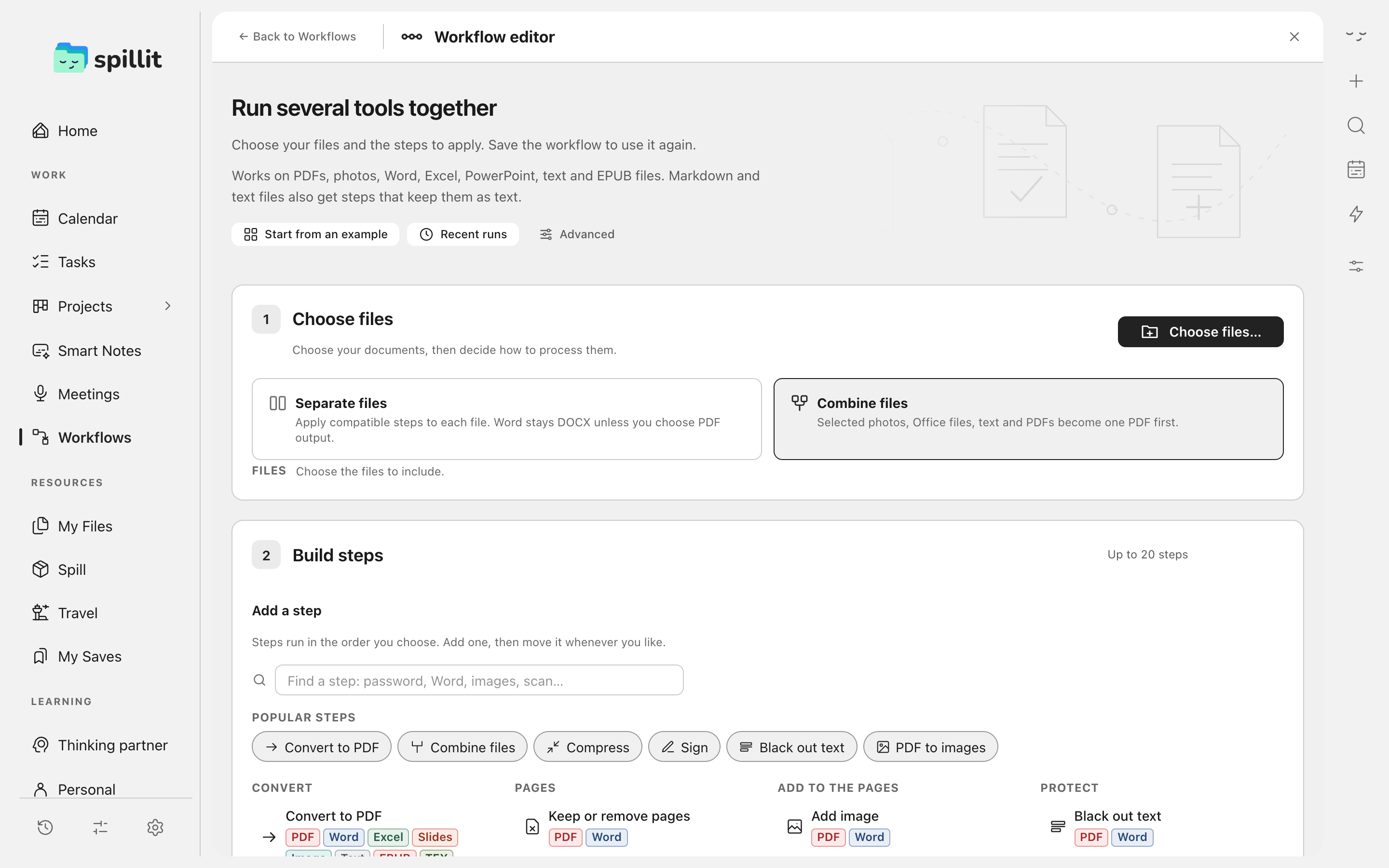
Start a workflow that combines files
- Click: Workflows, then Create workflow
- Choose: Select Combine files
Step 4 of 11
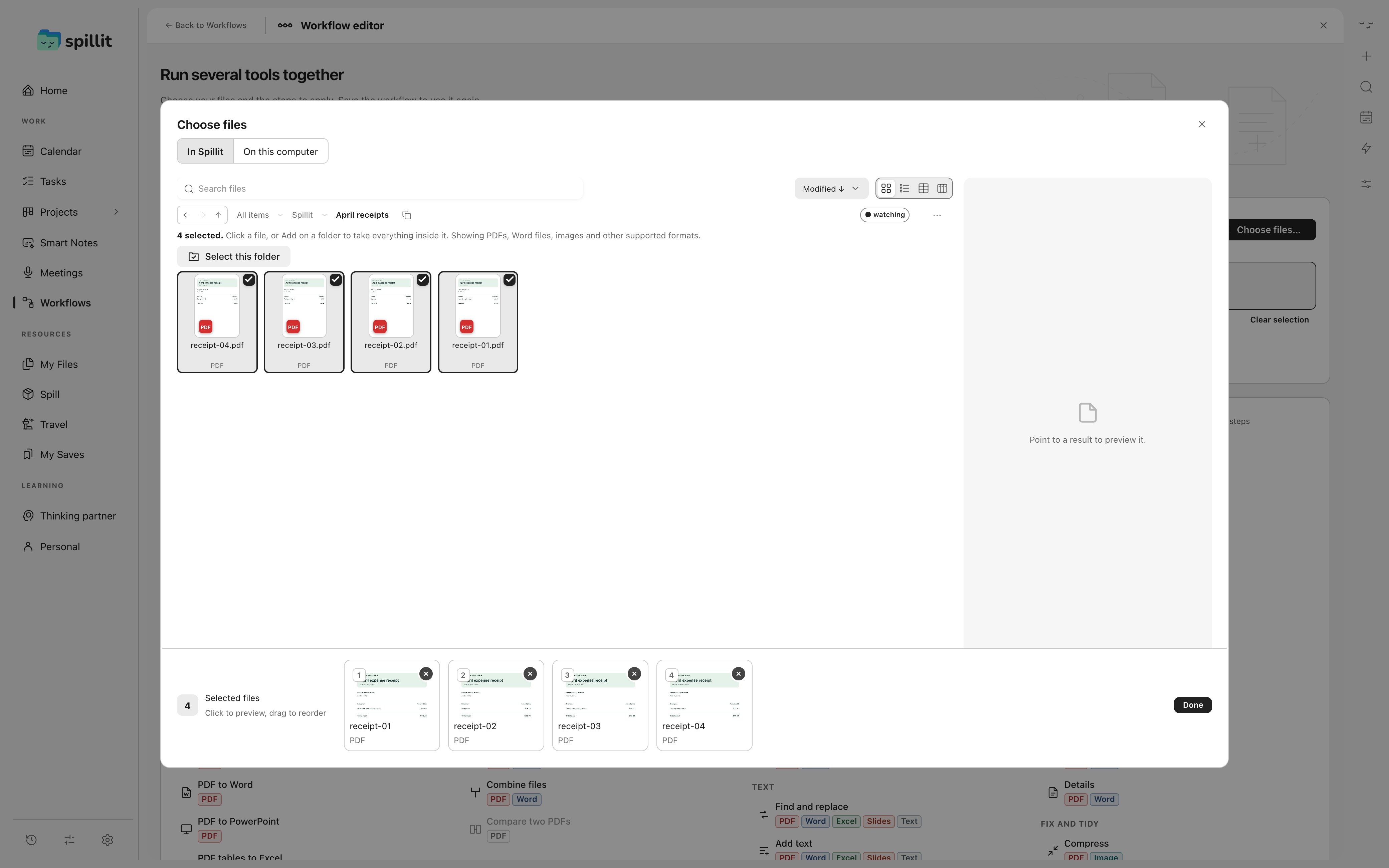
Select all four receipts
- Click: Choose files, then open April receipts
- Check: Tick receipt-01 to receipt-04, then Done
Step 5 of 11
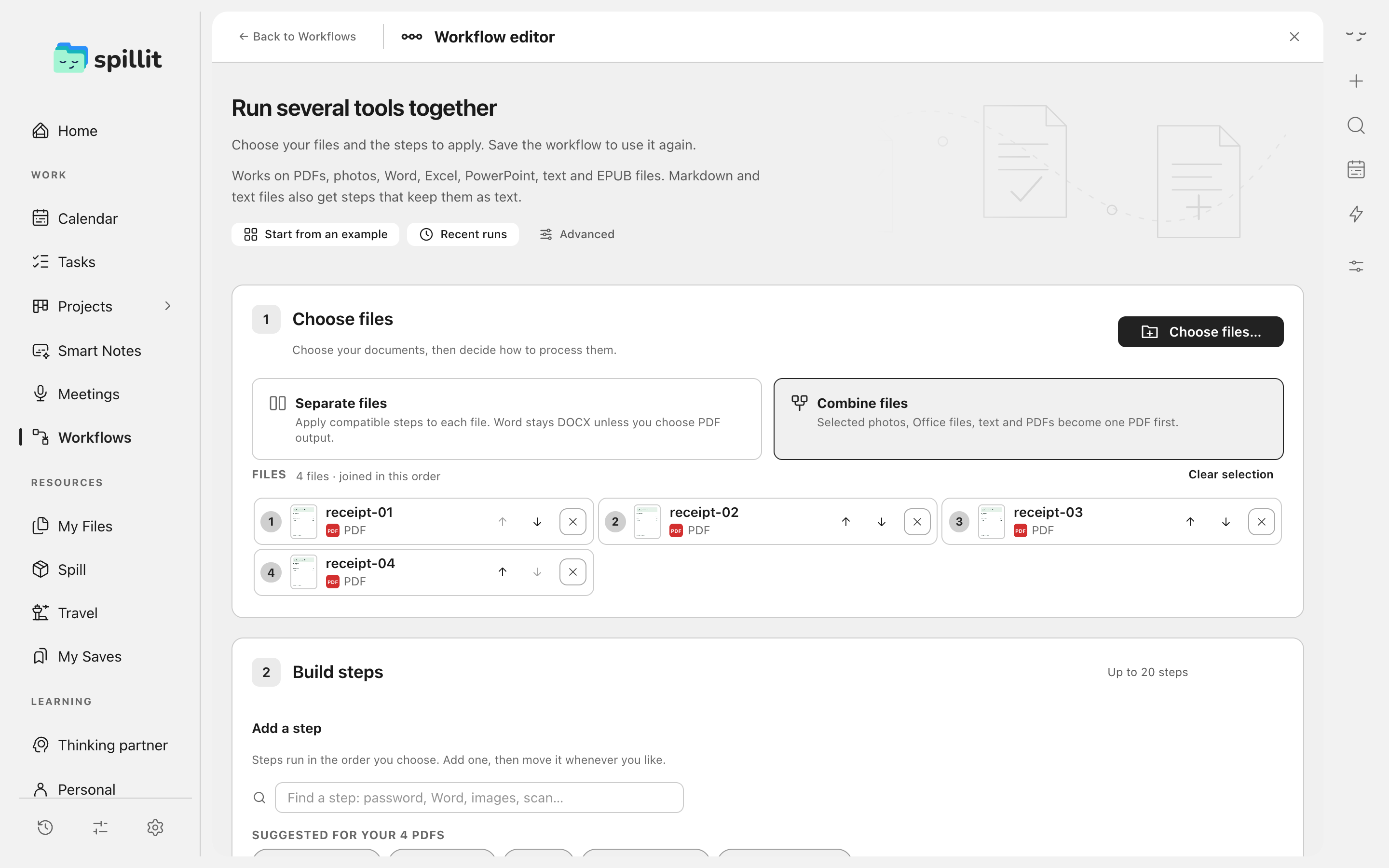
Check the file order
- Look: The list should read 01 to 04
- Click: Use the arrows beside a file to move it
Step 6 of 11
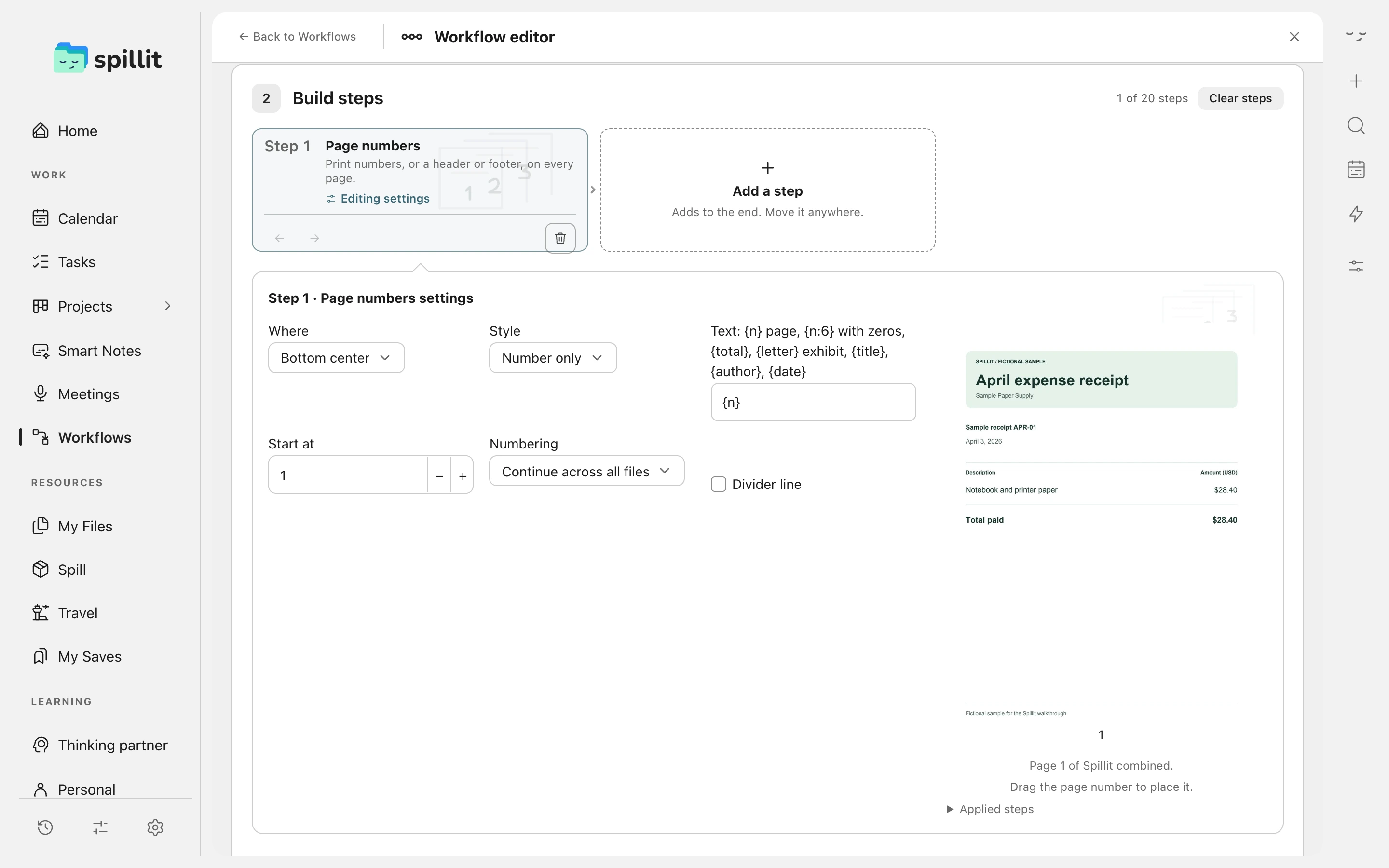
Add page numbers
- Click: Add a step, then Page numbers
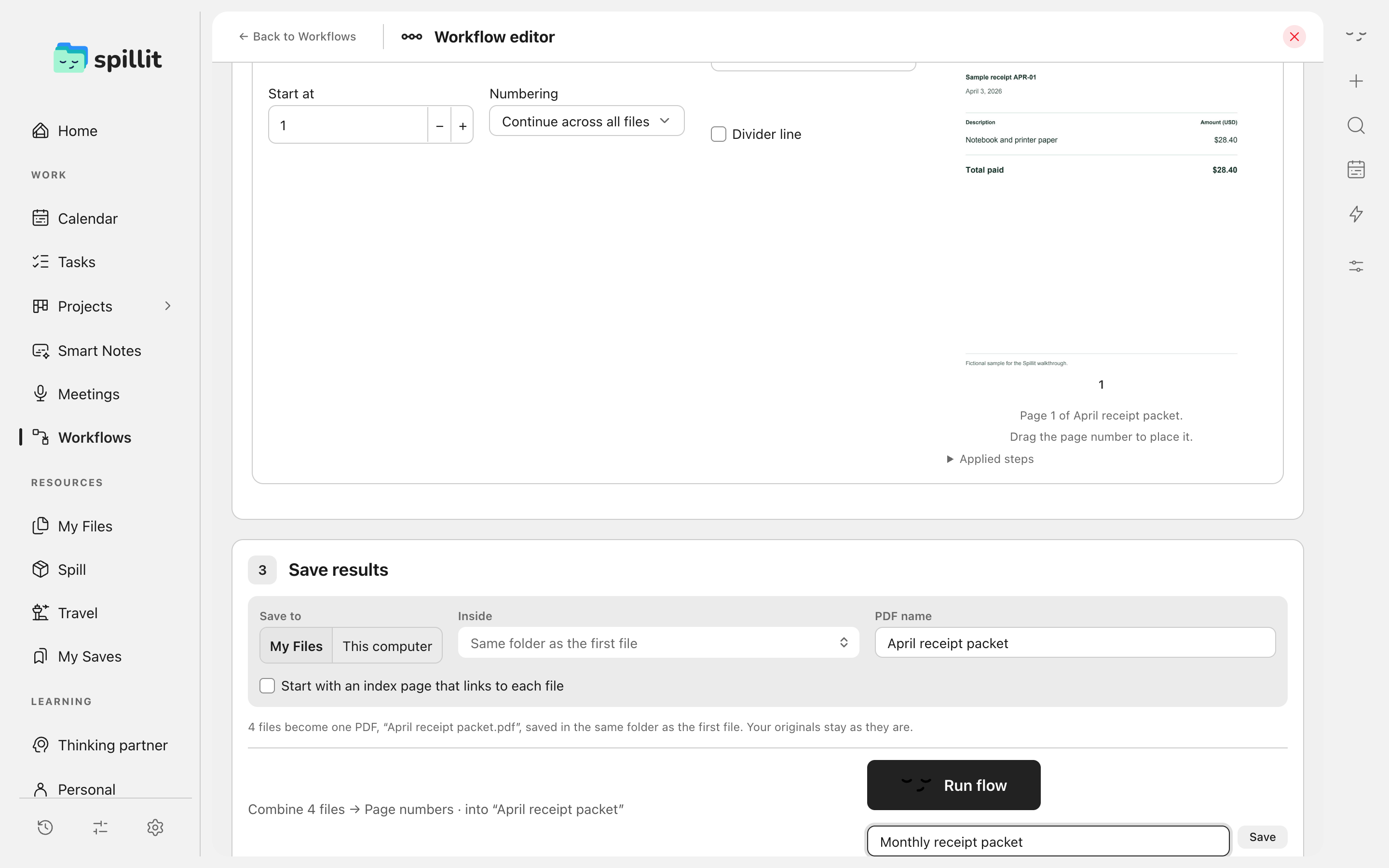
- Choose: Bottom center and Number only
- Choose: Numbering: Continue across all files
Step 7 of 11
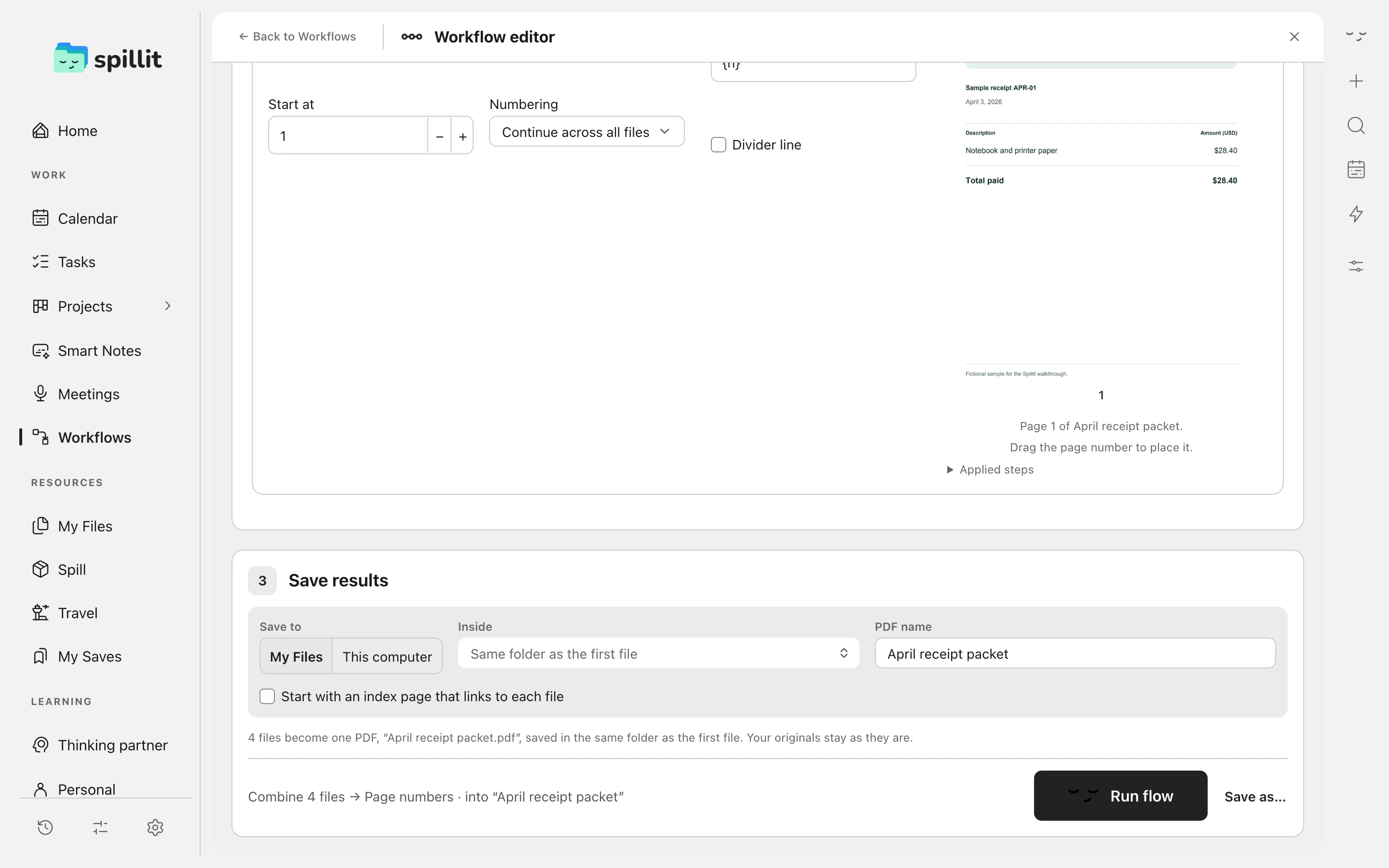
Name the PDF and run the workflow
- Type: PDF name: April receipt packet
- Run: Click Run flow
Step 8 of 11
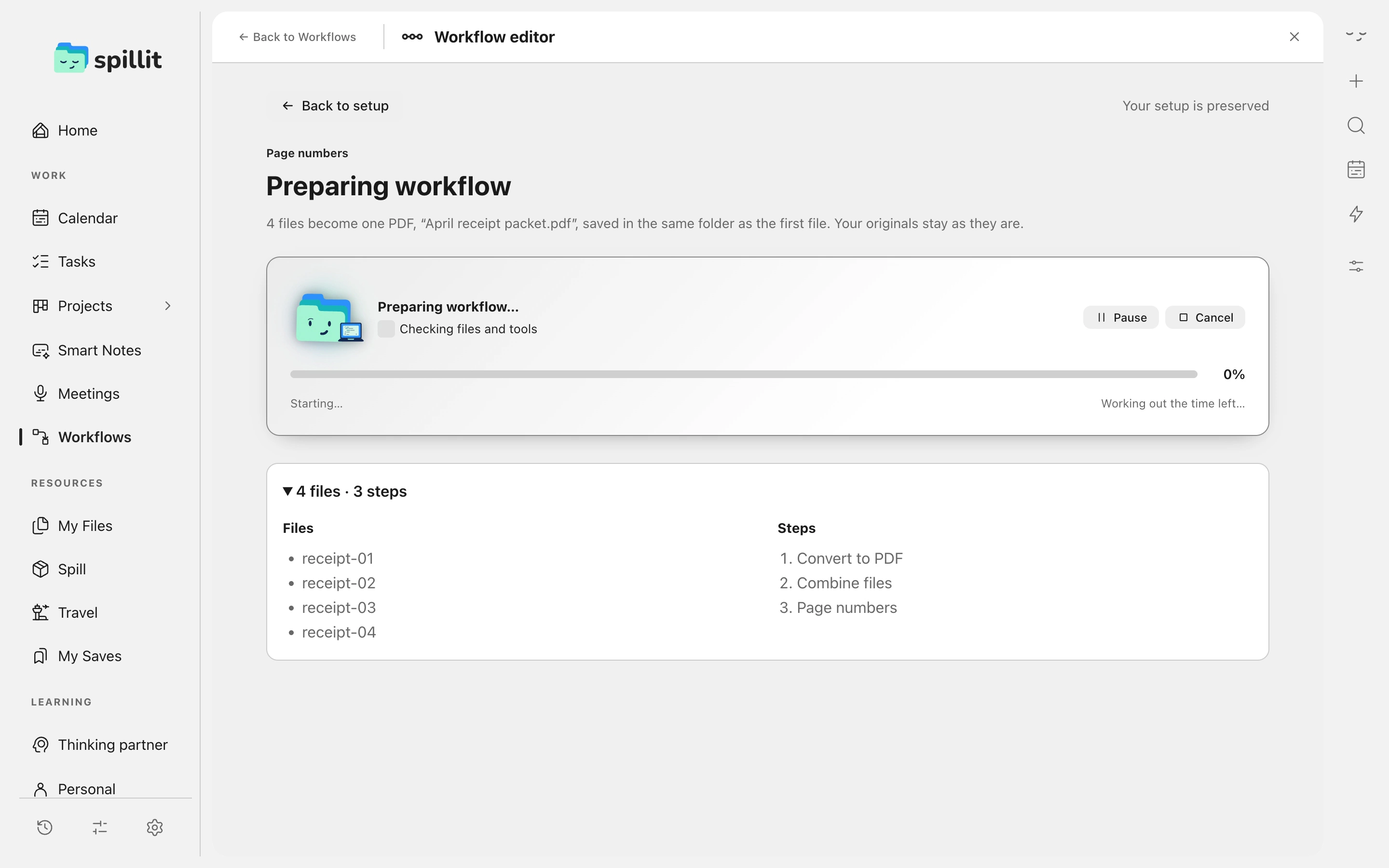
Wait for Workflow finished
- Wait: Watch the progress bar
- Check: Workflow finished with 1 result saved
Step 9 of 11
Save the workflow for next month
- Click: Back to setup, then Save as
- Type: Name it Monthly receipt packet
Step 10 of 11
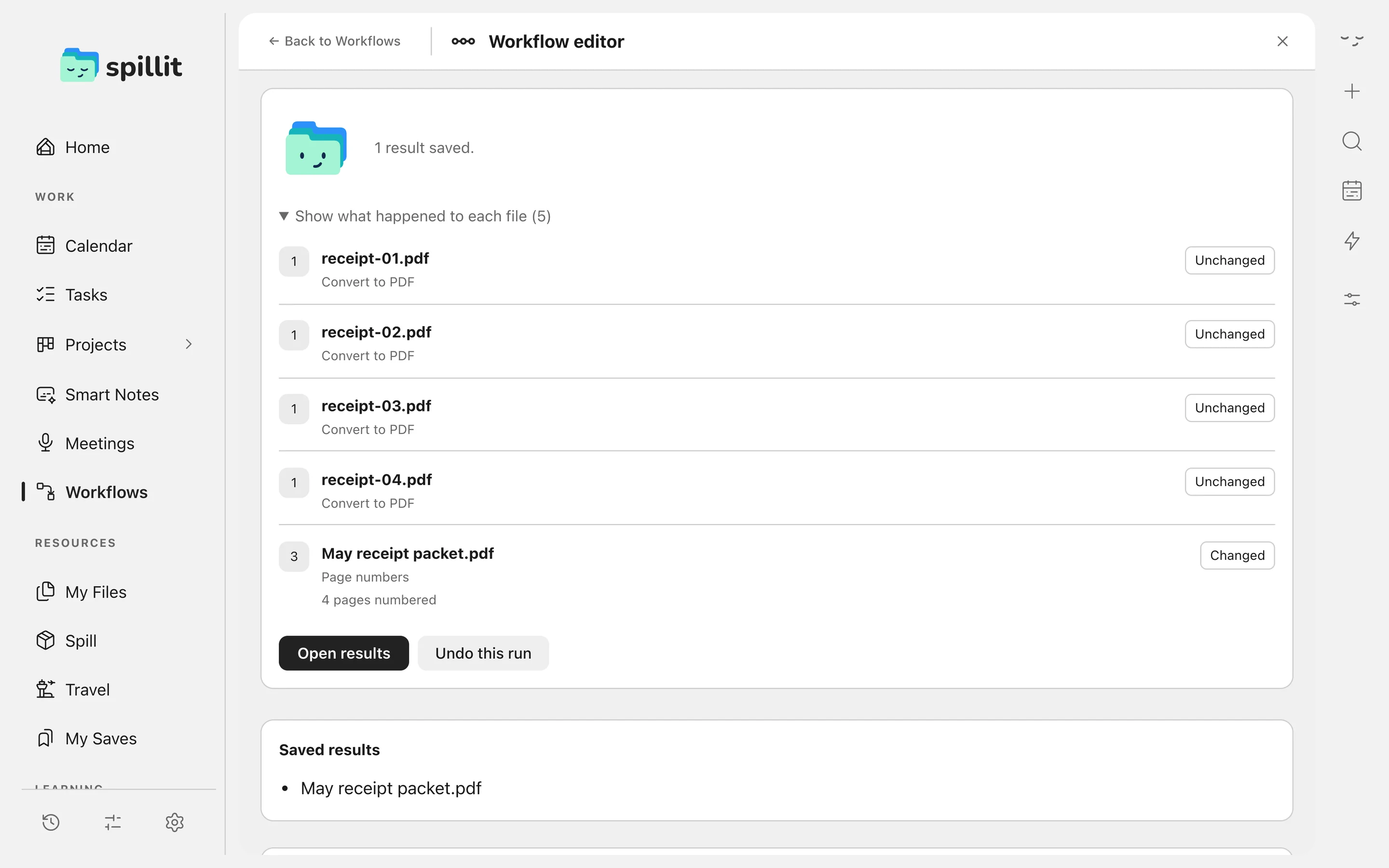
Next month, run it again
- Open: Your workflows, then Monthly receipt packet
- Choose: Choose the new month’s receipts
- Run: Name it May receipt packet and click Run flow
Step 11 of 11
Check the April packet
- Look: Receipt 01 is on page 1, receipt 04 on page 4