

Pictures
Mark the detail.
Keep the original.
Crop a picture, add labels or arrows, and save the edited version with the project.
Crop, mark, or remove the background
Swipe or use arrow keys to explore the window.
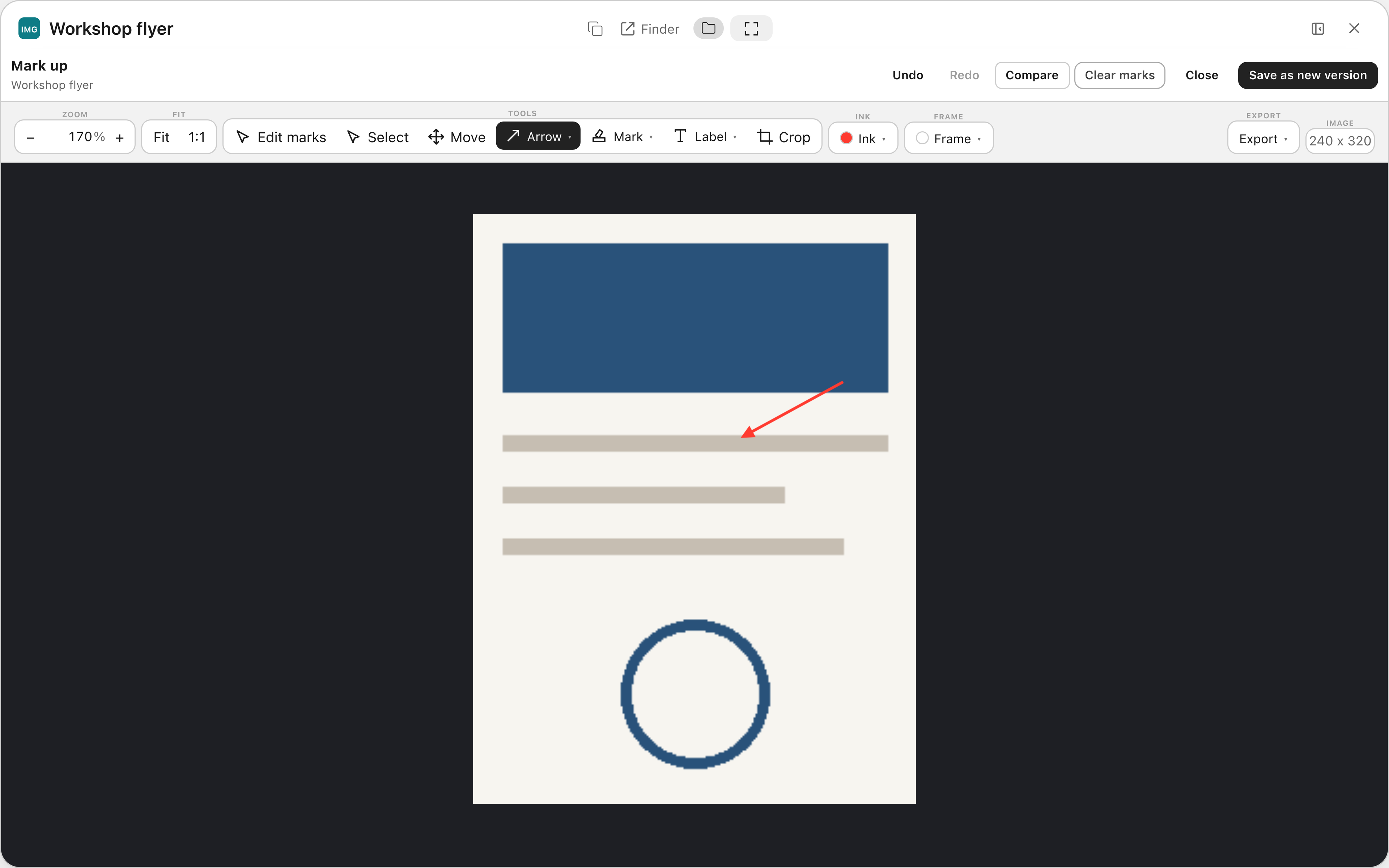
Crop an image, add arrows or labels, and compare edits with the original. Remove backgrounds on macOS 14 or later.
- Crop, rotate, or flip
- Draw arrows and labels
- Blur or redact details
- Remove a background on macOS 14+
Save versions and prepare picture batches
Swipe or use arrow keys to explore the window.
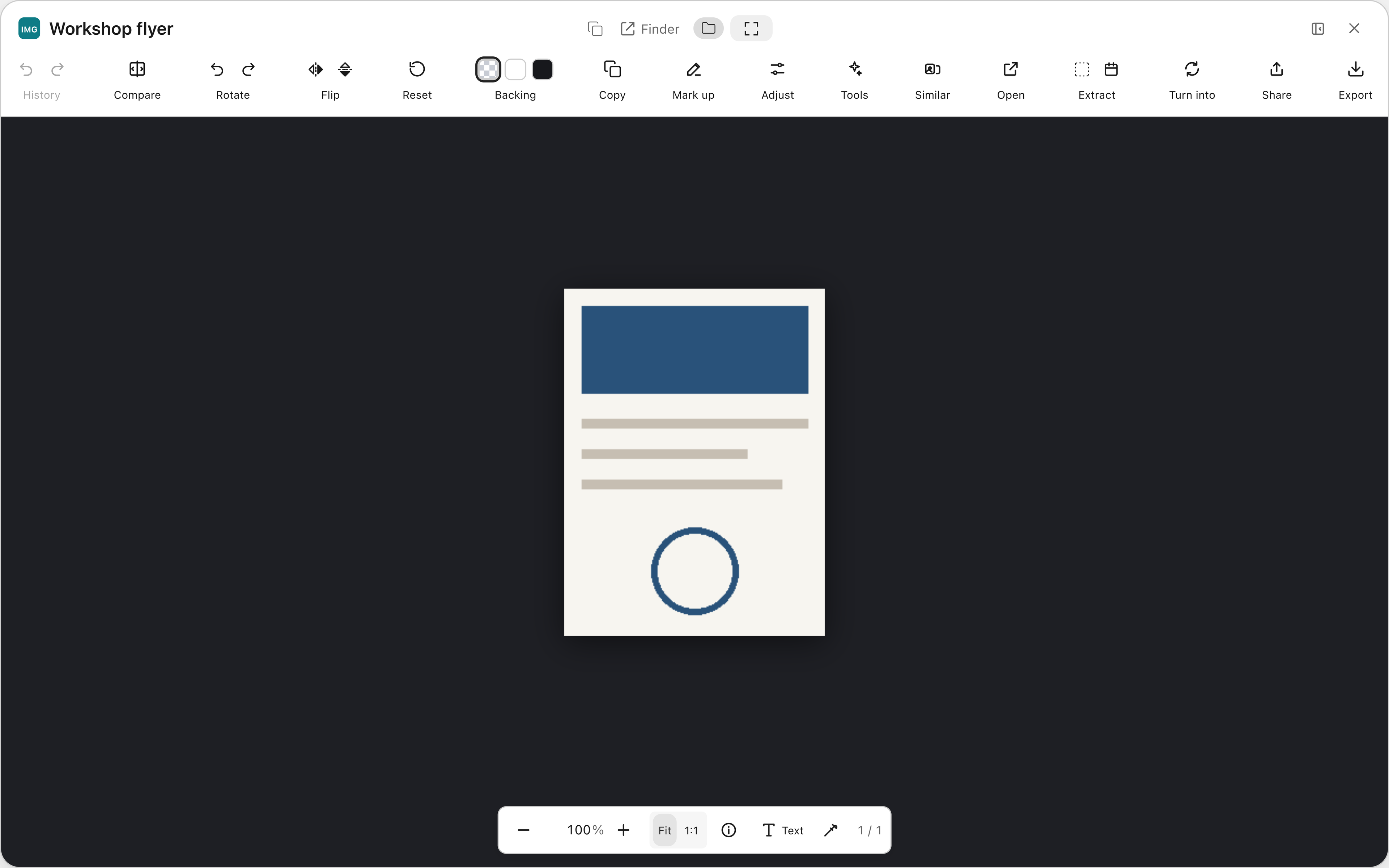
Save a version or export PNG and JPEG, with WebP where available. Use Workflows for batch resizing, conversion, compression, or metadata removal.
- Save a version or copy
- Choose an export format
- Resize, convert, or compress batches
- Remove photo-location metadata

Details and compatibility
More app views
Crop and mark up the picture.
Swipe or use arrow keys to explore the window.
Inspect the original
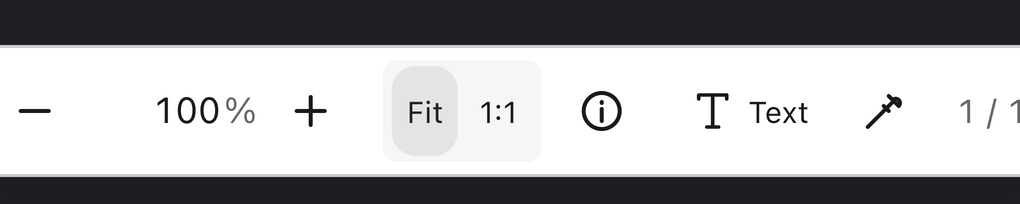
Fit and zoom controls are available below the picture. The original remains available when you compare edits.
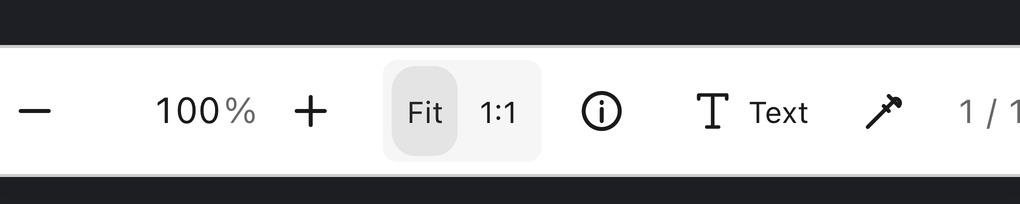
Swipe or use arrow keys to explore the window.
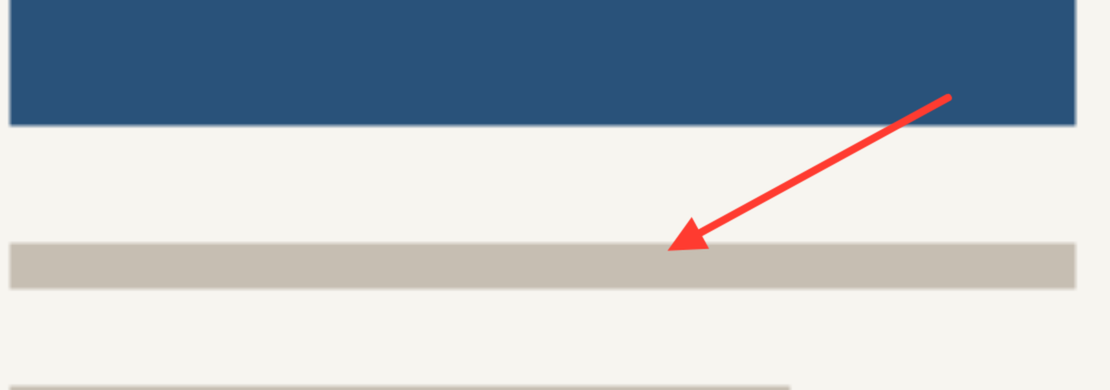
Point to the detail you mean
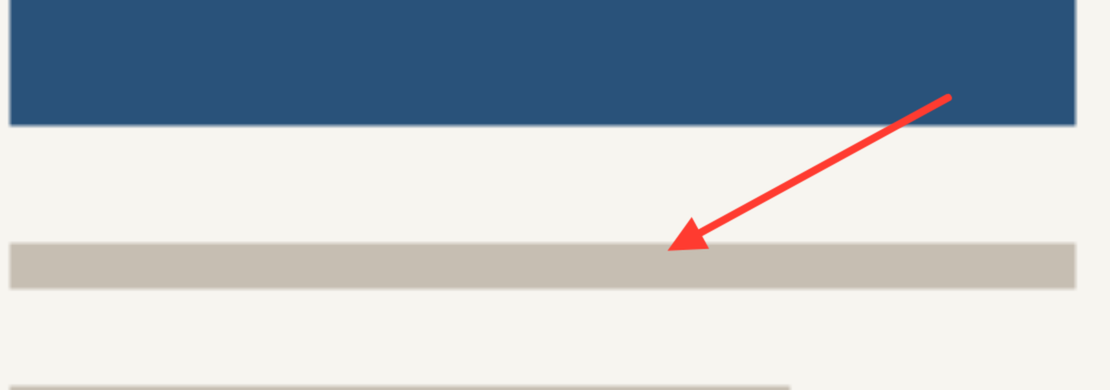
The red arrow was drawn with the native Arrow tool. Undo and Clear marks are available before saving a new version.
How it works
- Open the picture
Open a supported image in My Files. Use Fit, 1:1, or the zoom percentage to inspect it.
- Inspect or transform
Use the picture viewer to rotate, flip, compare the original, and inspect available image information.
- Mark it up
Choose Mark up to enter the image editor, then crop, draw, label, frame, blur, or redact the picture.
- Keep the result
Save your edits, copy the finished image, or choose an export. Review the result before using it elsewhere.
What's included
- Picture viewing inside My Files
- Cropping, framing, and background removal
- Pen, marker, arrows, shapes, labels, text, and numbered steps
- Redaction of selected image details
- Printed text extracted from supported pictures
- Original comparison, undo, redo, export, and copying the finished image
- Batch resizing, conversion, compression, and watermarking through Workflows
- Photo-location and camera metadata removed before sharing
- Pictures kept with the project's notes and documents
Good to know
- The images show the picture viewer and markup editor with fictional material.
- Background removal and text recognition depend on the picture. Review the result before exporting.
- Background removal uses Apple Vision and requires macOS 14 or later.
Next