

Meet your
Smart Notes.
Write your ideas, build a plan, and keep the sources behind it.
A block is a piece of your note: text, a table, an image, or a connected item from Spillit.
Choose a block, then edit, move, or remove it.
Add to your note
No matching content. Try another name or category.
Workshop plan
Start with one shared exercise and time for questions.
In the app, use / or the format bar for writing. Choose Insert from Spillit for connected records.
Write and plan
Make it a
working plan.
Put tables, tasks, and checklists in the note you're working on.
- Organize a schedule in a table
- Connect the tasks you want to track
- Check off the steps you finish
A welcoming first workshop
Edit the schedule. Add a row or check off a preparation step.
| Time | Activity |
|---|---|
Before Saturday
1 of 3 completeReading and references
Keep the source
with the sentence.
Bring references from My Library into your note. Choose how the citation appears and return to the source when you need it.
- Insert library references
- Choose a citation style
- Keep a bibliography with the draft
Give everyone time to try
Small groups give participants time to compare ideas and ask questions. Our first workshop will begin with one shared exercise. (Morgan & Reed, 2026)
References
Morgan, A., & Reed, S. (2026). Designing a welcoming first workshop. Community Practice Notes, 8(2), 12-20.
Source details
- Title
- Designing a welcoming first workshop
- Authors
- Ana Morgan and Sam Reed
- Year
- 2026
- Page cited
- 18
This is a fictional source prepared for this example.
Local Intelligence
Writing help
you control.
Select a passage to shorten, expand, or rewrite. Review the suggestion before applying it.
- Work on the passage you select
- Choose the kind of change
- Keep the wording you approve
Write a simple welcome
Choose a prepared suggestion. Apply it only when you want to change the passage.
Your passage
For our first workshop, we would like everyone to begin with one simple exercise that they can try with a partner. We want to keep the group small so there is enough time for people to ask questions and compare their ideas.
Prepared suggestion
Start with one simple exercise in pairs. Keep the group small so everyone can ask questions and compare ideas.
More tools for the way you workTemplates, page styles, history, import, export, and more.
- Text formatting
- Use bold, italic, strike, highlight, inline code, links, and clear formatting.
- Block controls
- Add below, duplicate, move, drag, or delete blocks. Align reference cards and choose wrapping.
- Save and history
- Save manually or use Autosave. Pin a note, review its versions, and restore an earlier version.
- Templates
- Start from a template, then edit its content.
- Page style
- Choose blank, ruled, grid, or dotted paper, with serif, sans, mono, or humanist writing fonts.
- Find and replace
- Find wording in the note and replace one match or all matches.
- Import
- Import supported document and note exports. Meeting-summary import lets you choose tasks and project deadlines.
- Export
- Export Markdown, PDF, DOCX, HTML, or TXT to a download, selected folder, or My Files.
- Local Intelligence
- Review outlines, summaries, gaps, next steps, and writing suggestions before adding text or replacing a selection.
- Dictation
- On macOS, dictate into the active app. Spoken history stays available in My Saves.
- Document windows
- Open supported documents beside a note, pop out readers, and move tabs between windows.
Arrange documents and windowsOpen a source beside your note when you need it.
Open files beside your note, detach documents, or group their tabs. Resize the document panes to suit your work.


Details and compatibility
More app views
Write the plan. Keep its sources.
Swipe or use arrow keys to explore the window.
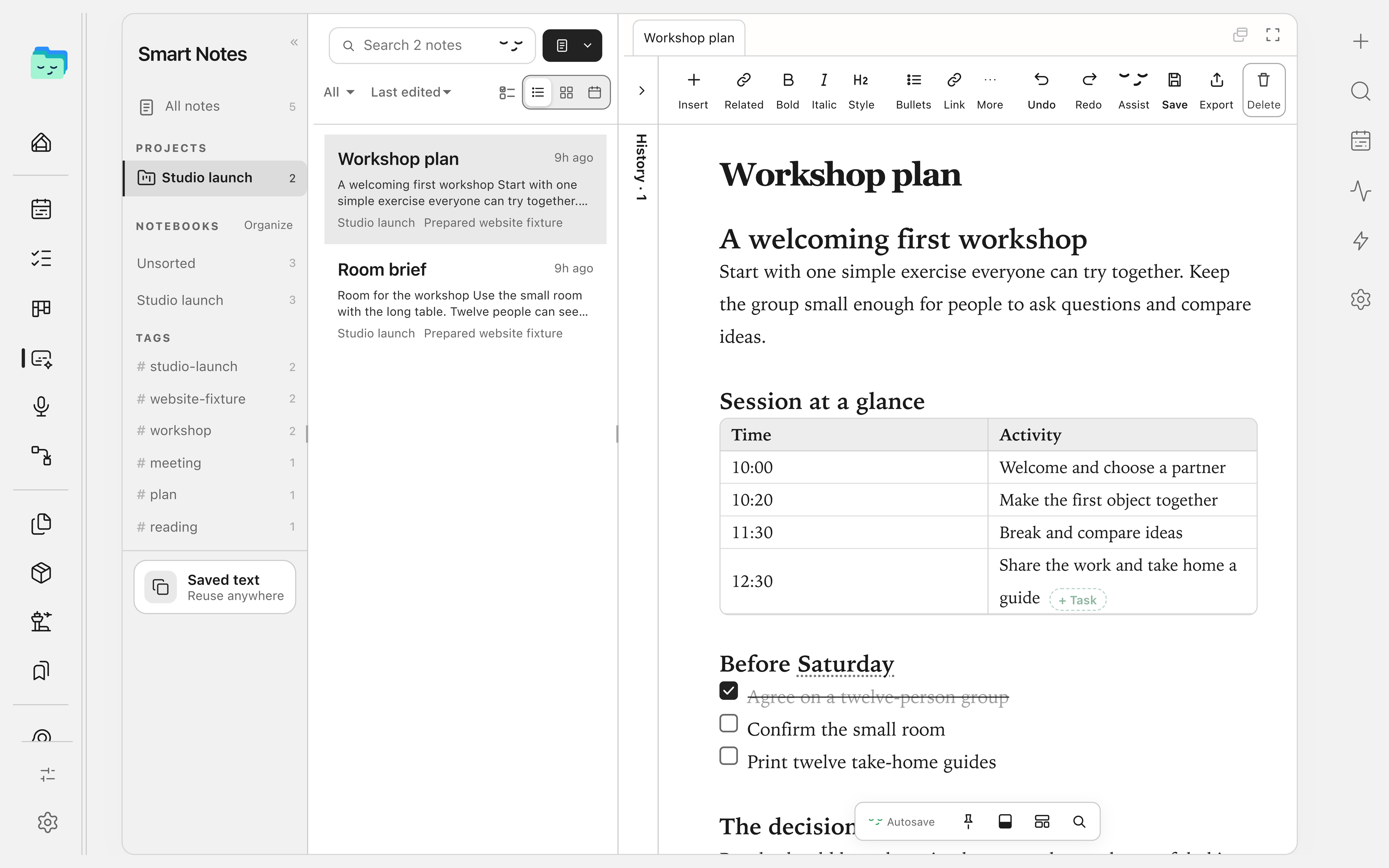
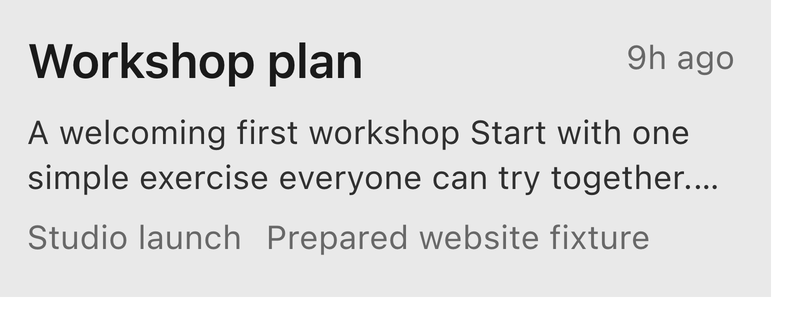
Find the note in its project
The note list shows its title, preview, and project. Open another note while keeping the editor available.
Swipe or use arrow keys to explore the window.
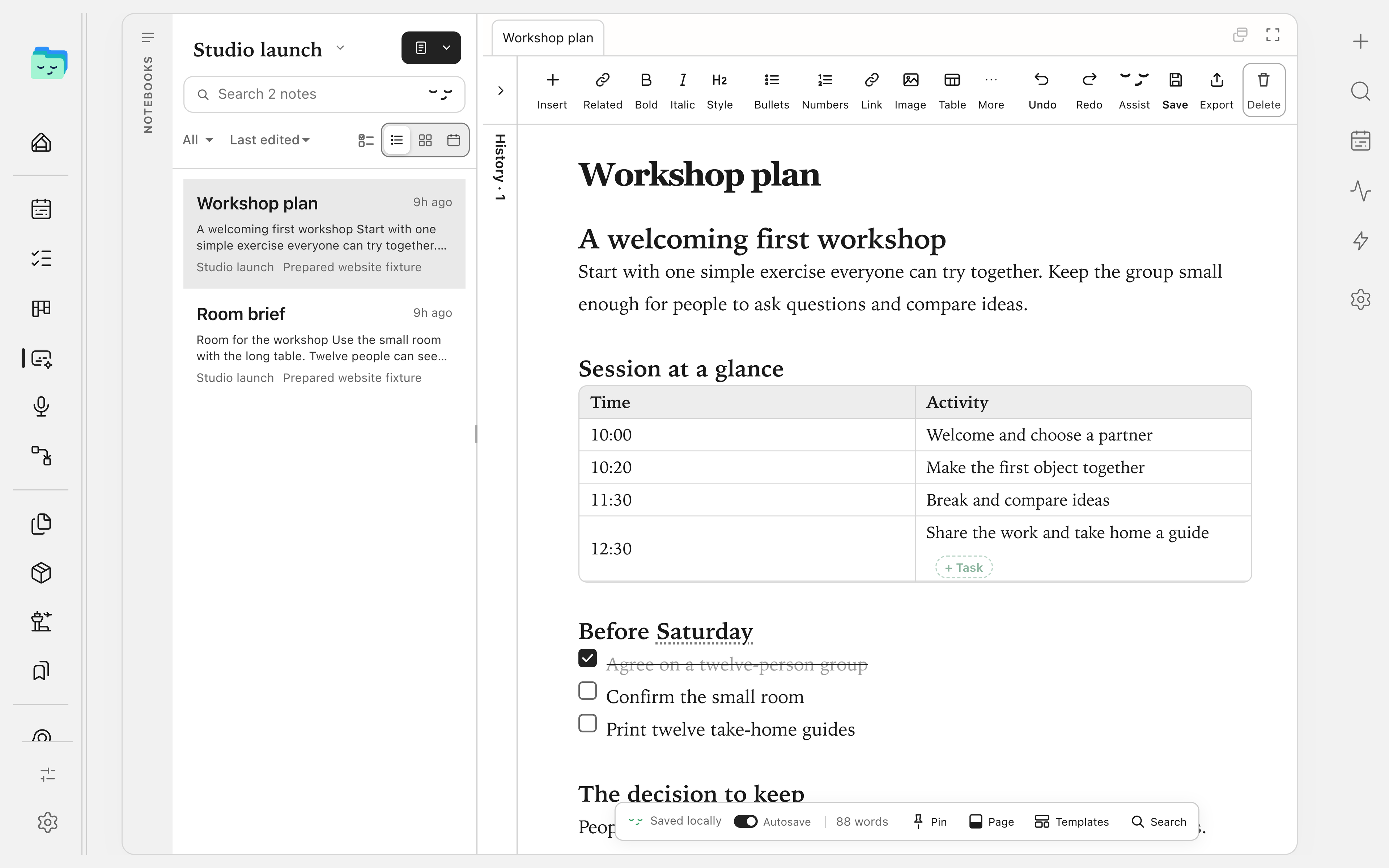
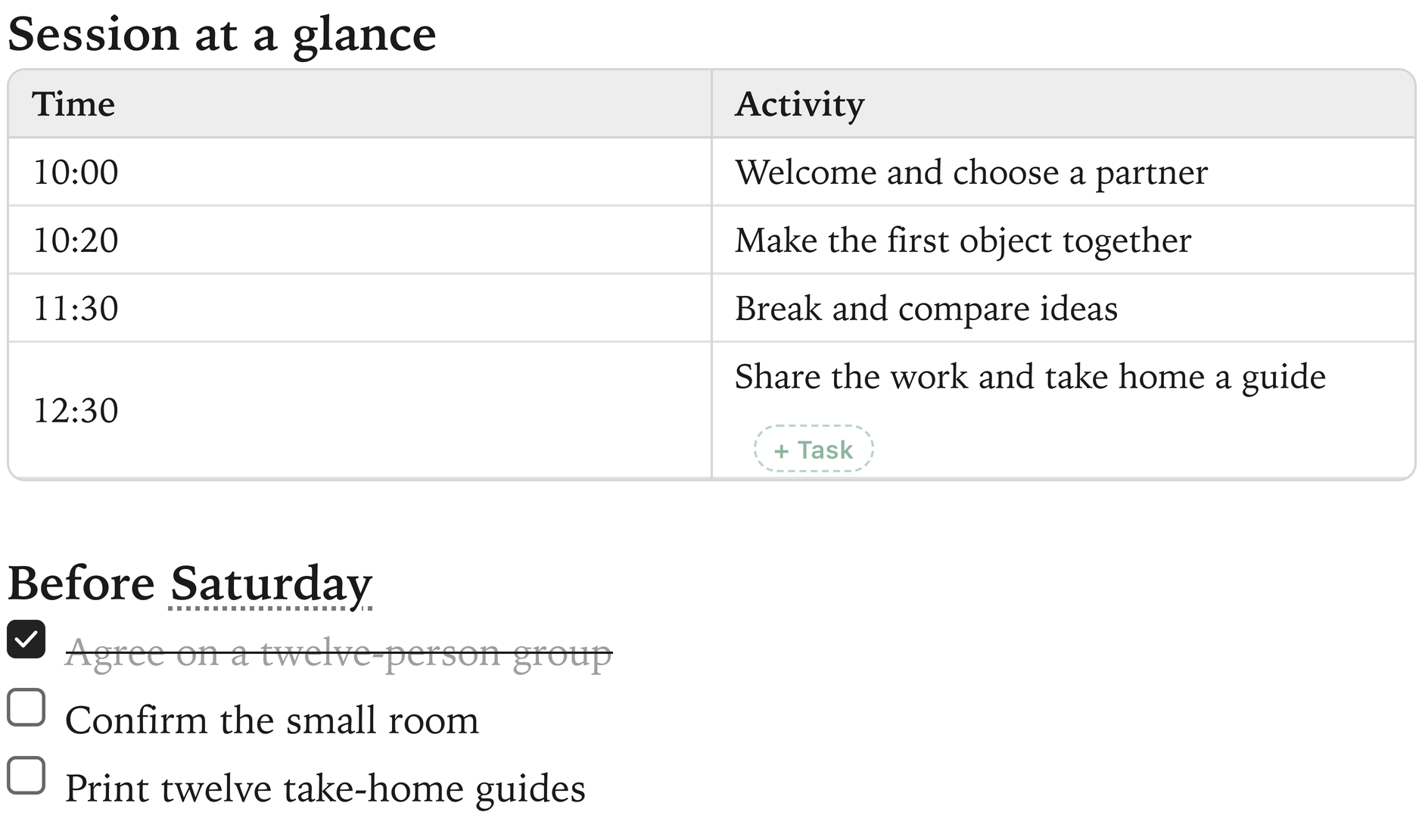
Put the plan into writing
The schedule, task link, and checked preparation step stay in the same note. Use the floating bar to manage the page.
Swipe or use arrow keys to explore the window.
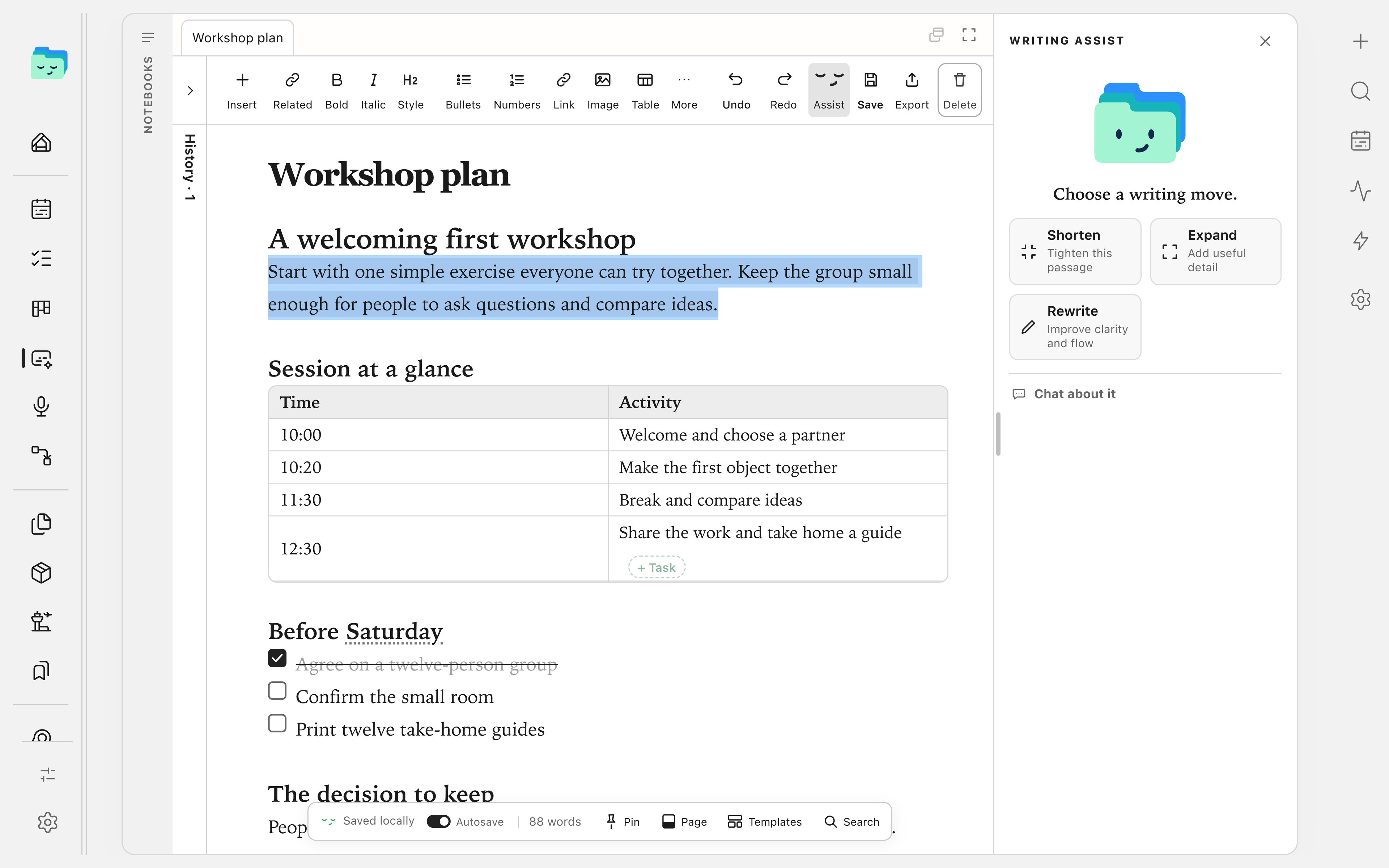
Ask for the change you need
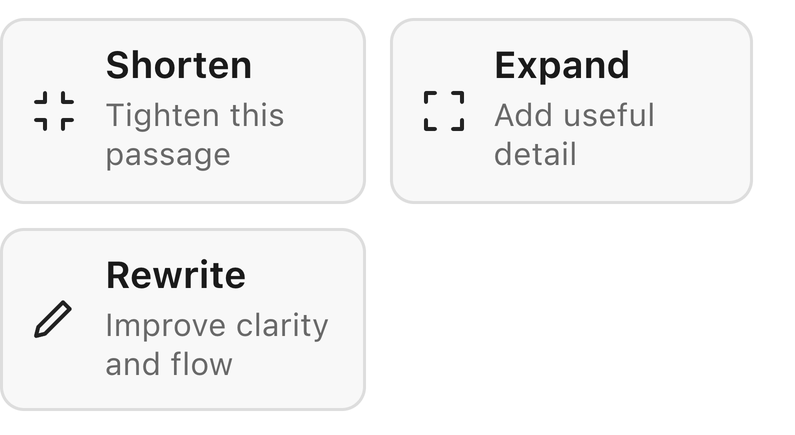
Choose a move for the selected passage. Review the response before using Replace selection; whole-note suggestions use Add it.
Swipe or use arrow keys to explore the window.
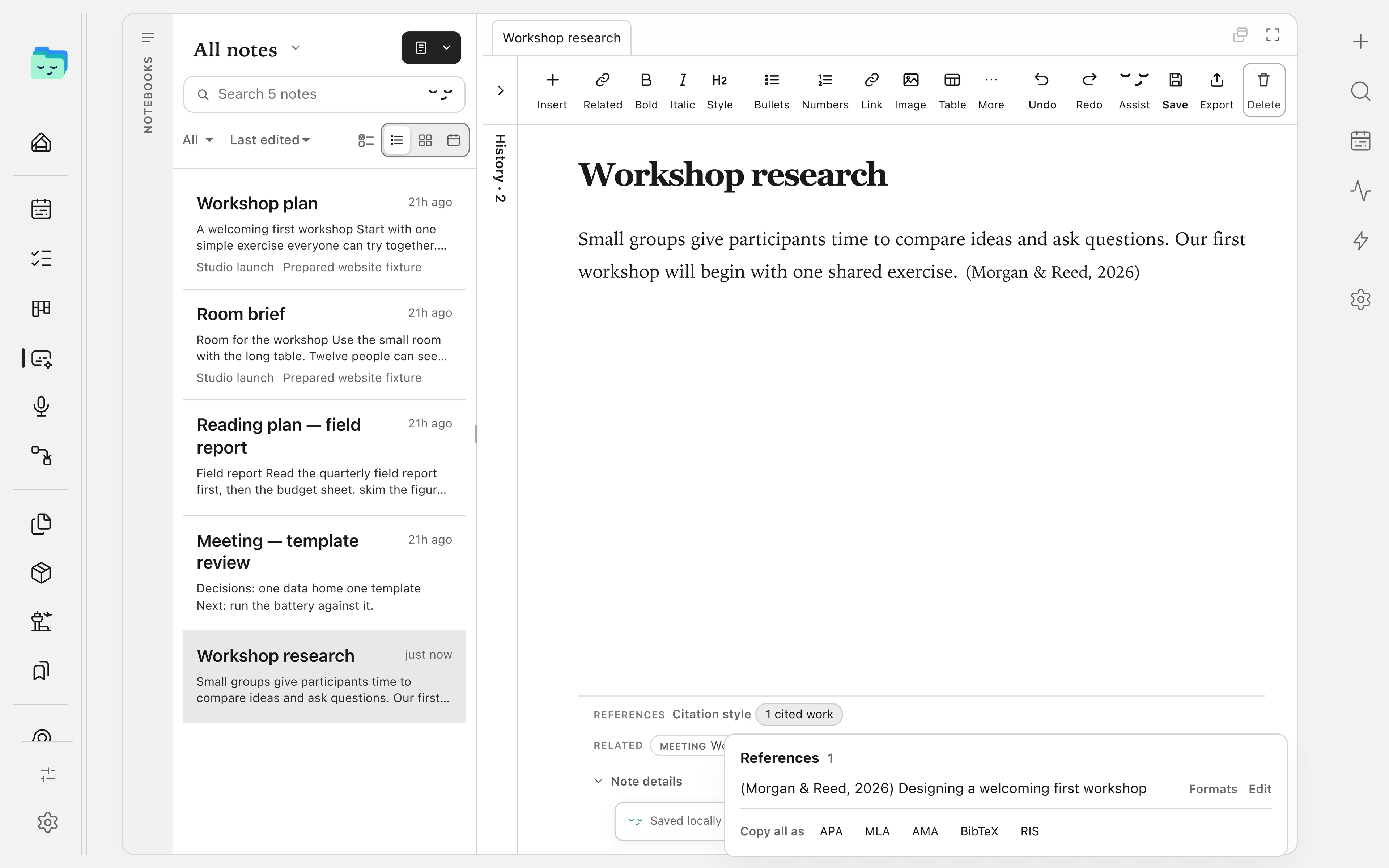
Keep the source inside your draft
The inserted citation appears in the paragraph. References keeps its library source available for review, style changes, and copying.

Swipe or use arrow keys to explore the window.
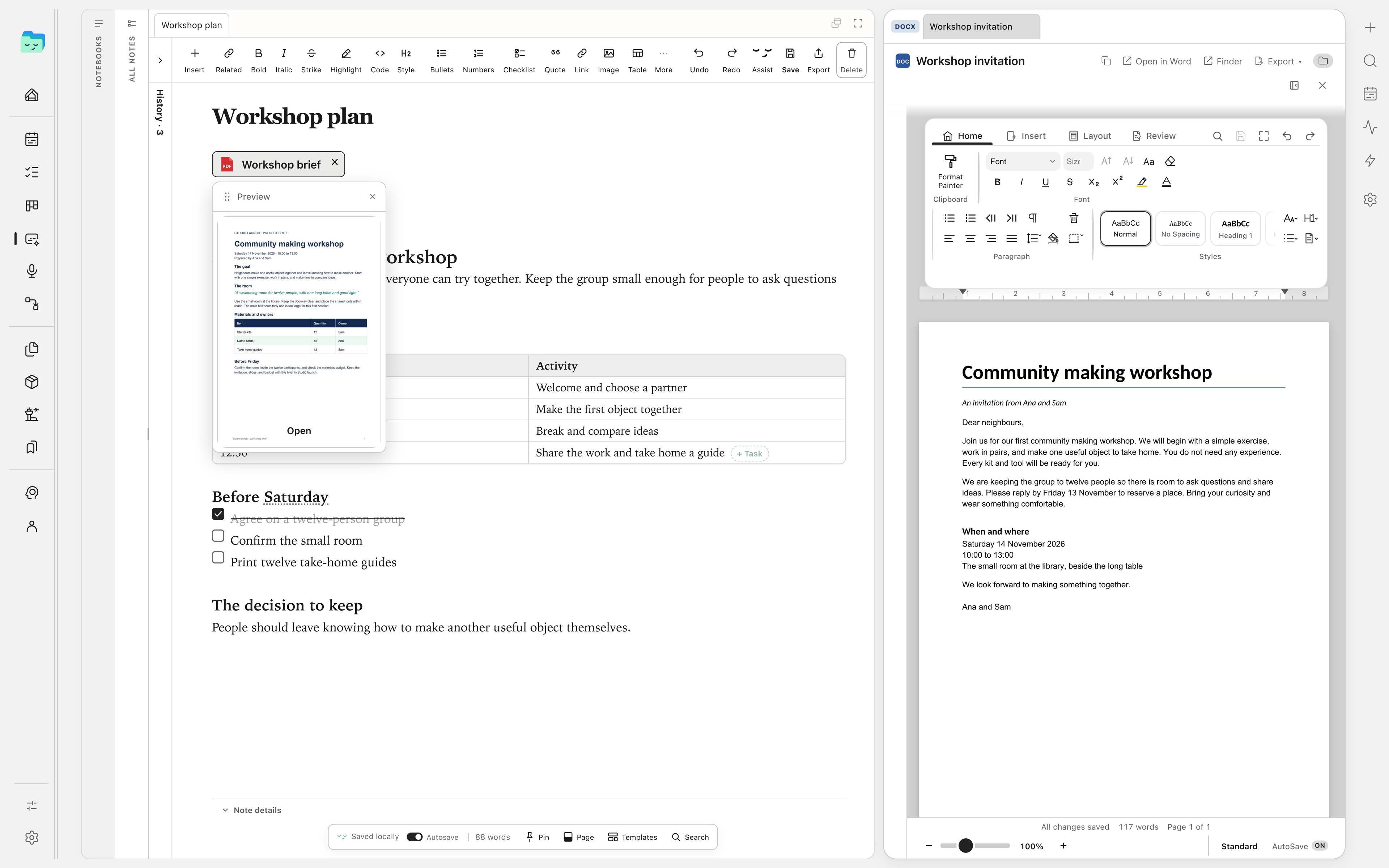
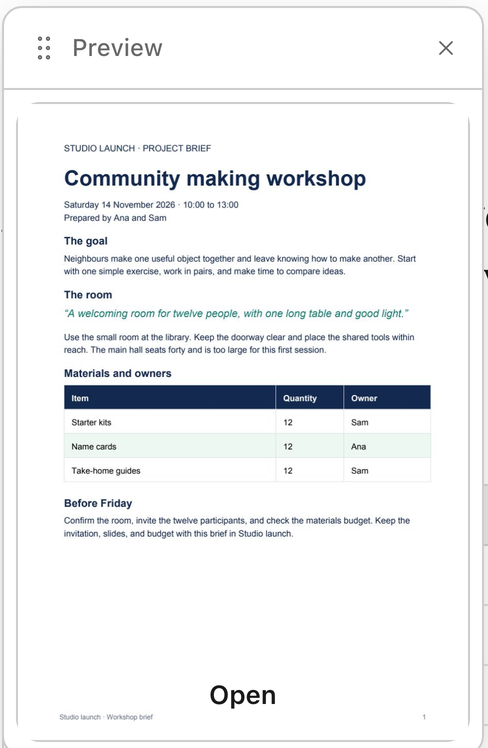
Preview the linked PDF
The native PDF preview stays available while you write beside the Word document.
Swipe or use arrow keys to explore the window.
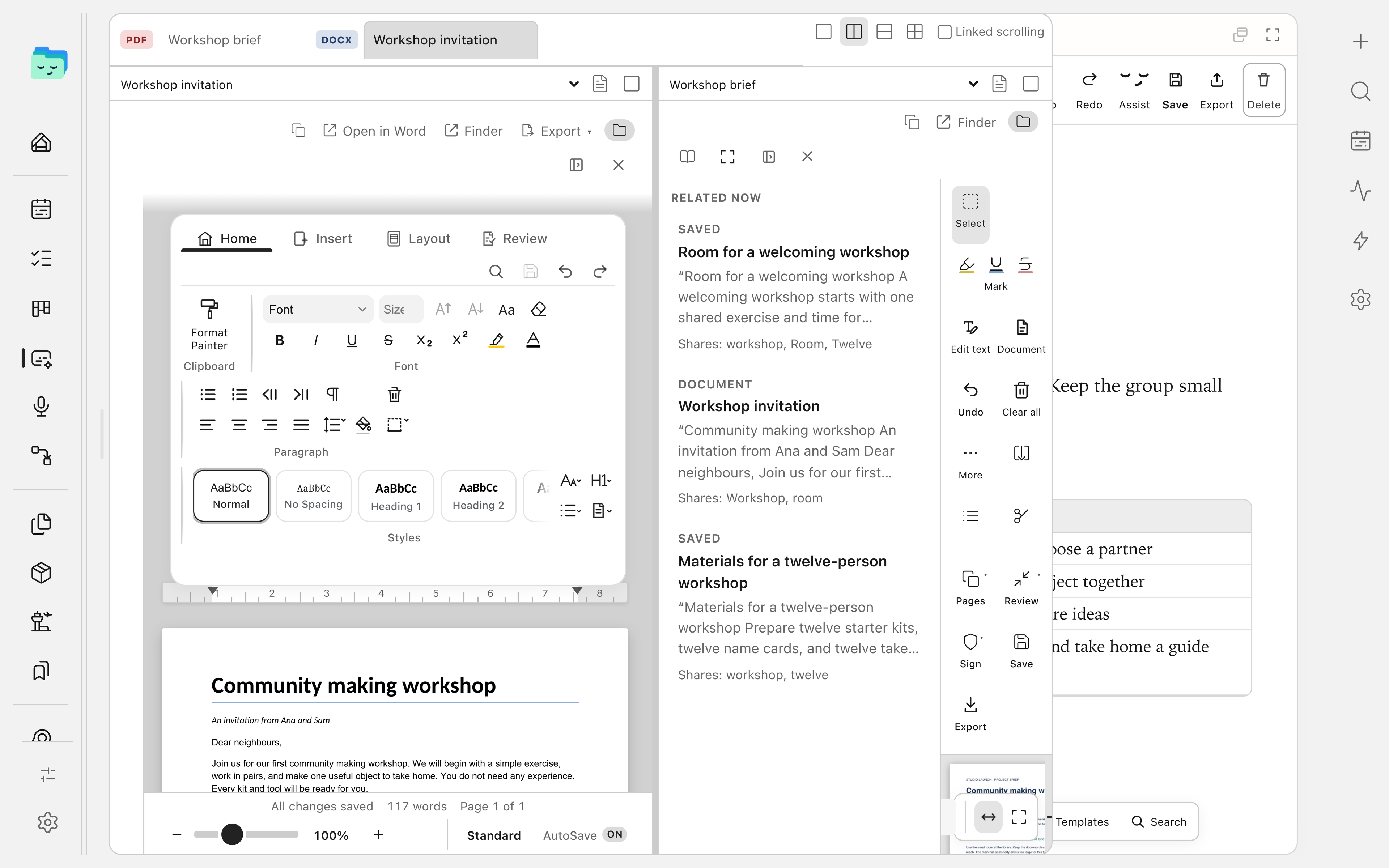
Choose the document layout
Both files share one viewer, with native layout and column controls.

How it works
- Start a note
Write with headings, lists, checklists, tables, code blocks, and material inserted from the workspace.
- Arrange the sources
Keep PDFs, Word documents, and Smart Notes in tabs, beside one another, or in separate readers. Move tabs together when needed.
- Keep a passage
Highlight a useful PDF passage and save it to Smart Notes with its file and page.
- Review writing help
Use Assist to shorten, expand, or rewrite selected text, or work with a whole note. Review the suggestion before applying it.
- Return to related work
Use related notes and backlinks to return to connected writing. The source passage and its reference stay with the note.
What's included
- Headings, lists, checklists, quotes, tables, code, and callouts
- Tasks, events, files, references, and today's agenda inserted into a note
- Citations and a bibliography inserted while writing
- Local Intelligence for outlines, summaries, gaps, next steps, and open questions
- Shorten, expand, or rewrite selected text, then review the suggestion
- Replace the selected passage or add the suggestion to the note
- PDF highlights saved with their file and page
- Related notes, backlinks, templates, and page styles
- Export to Word, PDF, web page, or text
- PDF, Word, and Smart Notes in tabs, side by side, or separate windows
Good to know
- Related notes match shared words, not meaning.
- Writing help uses Local Intelligence, which runs on your computer by default.
Often used for this
Notion
Notion supports viewing and editing downloaded pages offline. Its AI uses external model providers.
With Spillit
Work on notes and supported documents in Spillit. Use its included Local Intelligence with the material in your workspace.
See the full comparisonNext