

Workflows
Same job every week?
Make it a workflow.
Choose the documents, arrange the tools, and keep the steps for the next workshop pack.
Convert documents, then apply page tools
Swipe or use arrow keys to explore the window.
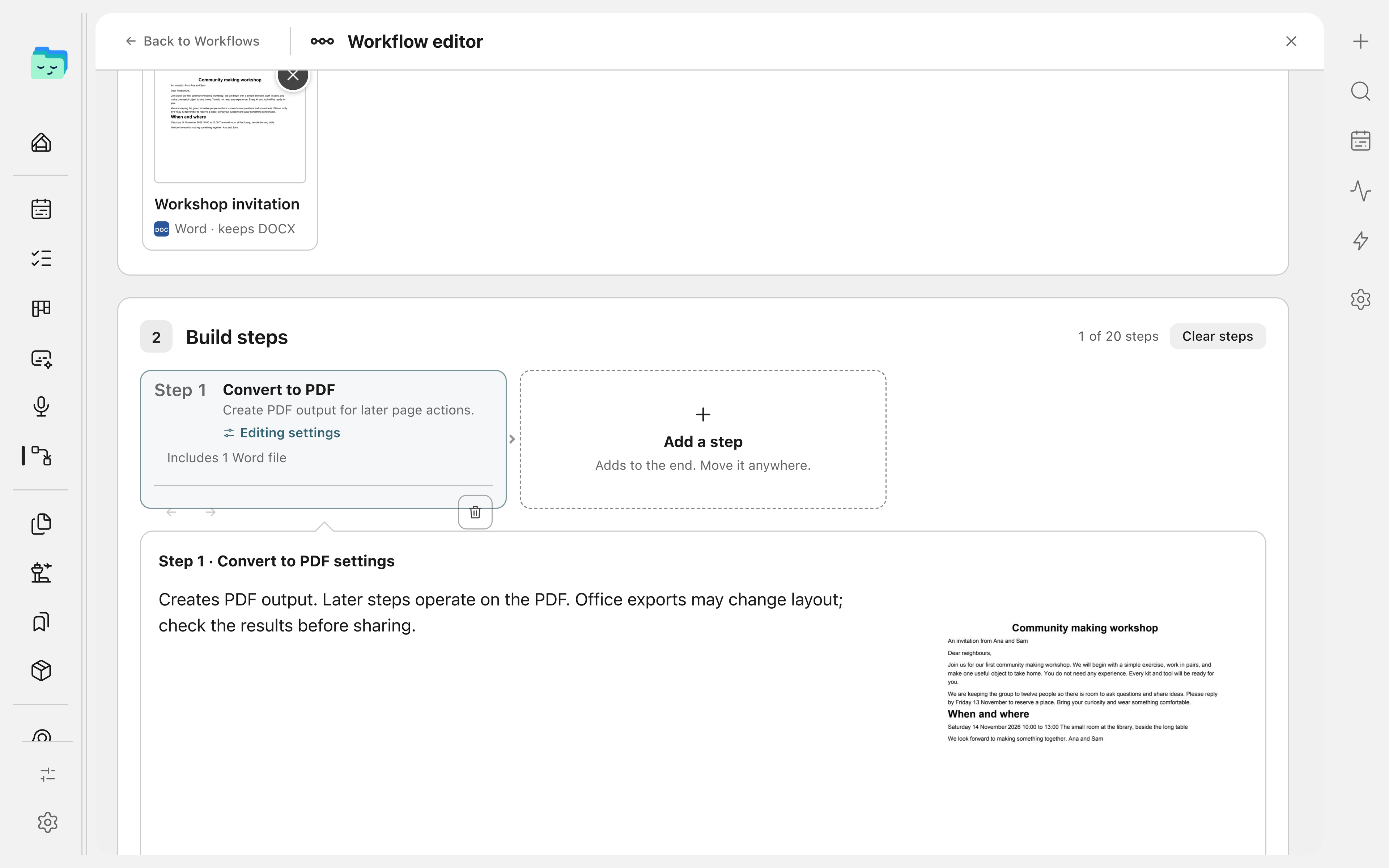
Choose Word, Excel, PowerPoint, PDF, picture, or text files. Convert to PDF before adding page numbers, watermarks, redaction, or compression.
- Choose files or folders
- Convert supported files to PDF
- Number, watermark, or redact pages
- Compress the PDF copies
Save the sequence and inspect each run
Swipe or use arrow keys to explore the window.
Save a routine for the next files. Choose a destination, run the steps, then review the history and open the results.
- Save and reuse selected steps
- Choose copies or new versions
- Review runs and open results
- Resume or undo supported work

Choose steps that support your files. Review the output before sharing.
Details and compatibility
More app views
Prepare the next workshop pack.
Swipe or use arrow keys to explore the window.
Combine documents in one PDF
Merge documents combines supported PDFs, pictures, Office files, and text in a single PDF.

Swipe or use arrow keys to explore the window.
Convert, then add the next step
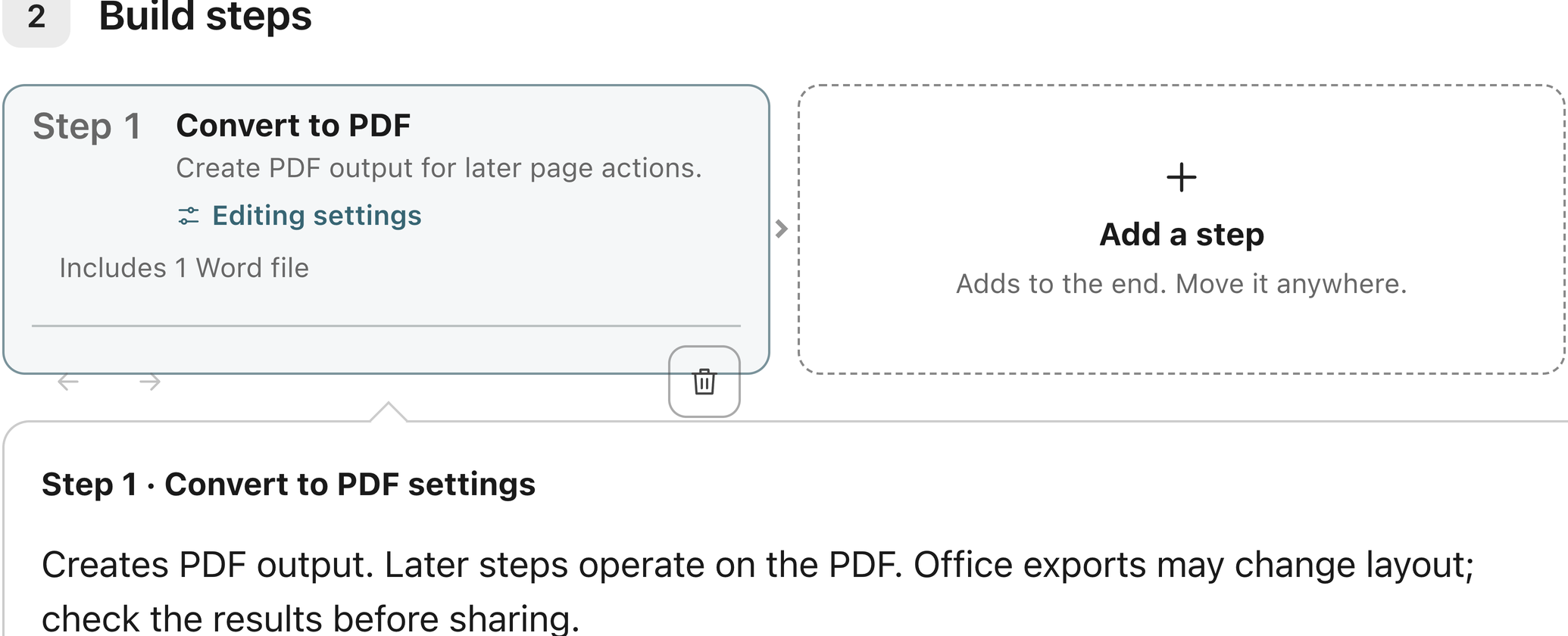
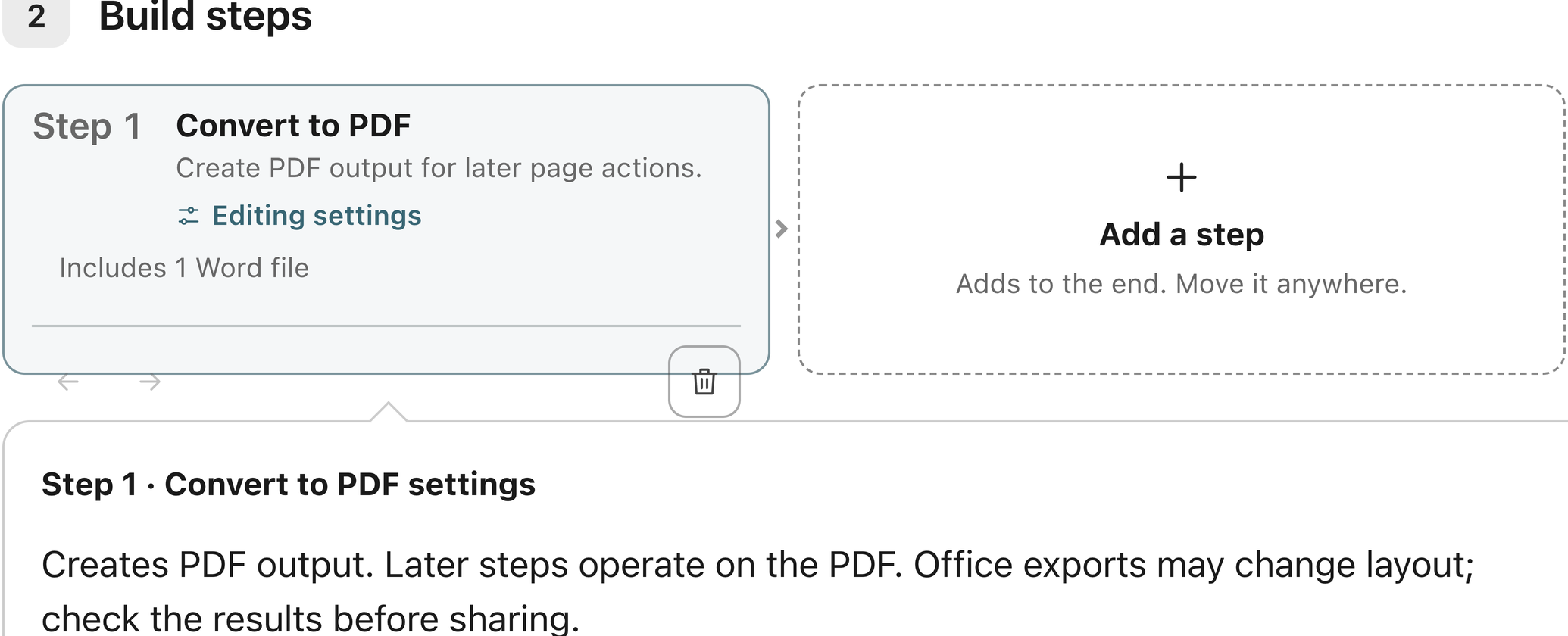
Convert the Word file to PDF before adding page tools. Keep the sequence for the next set of documents.
How it works
- Start from Workflows
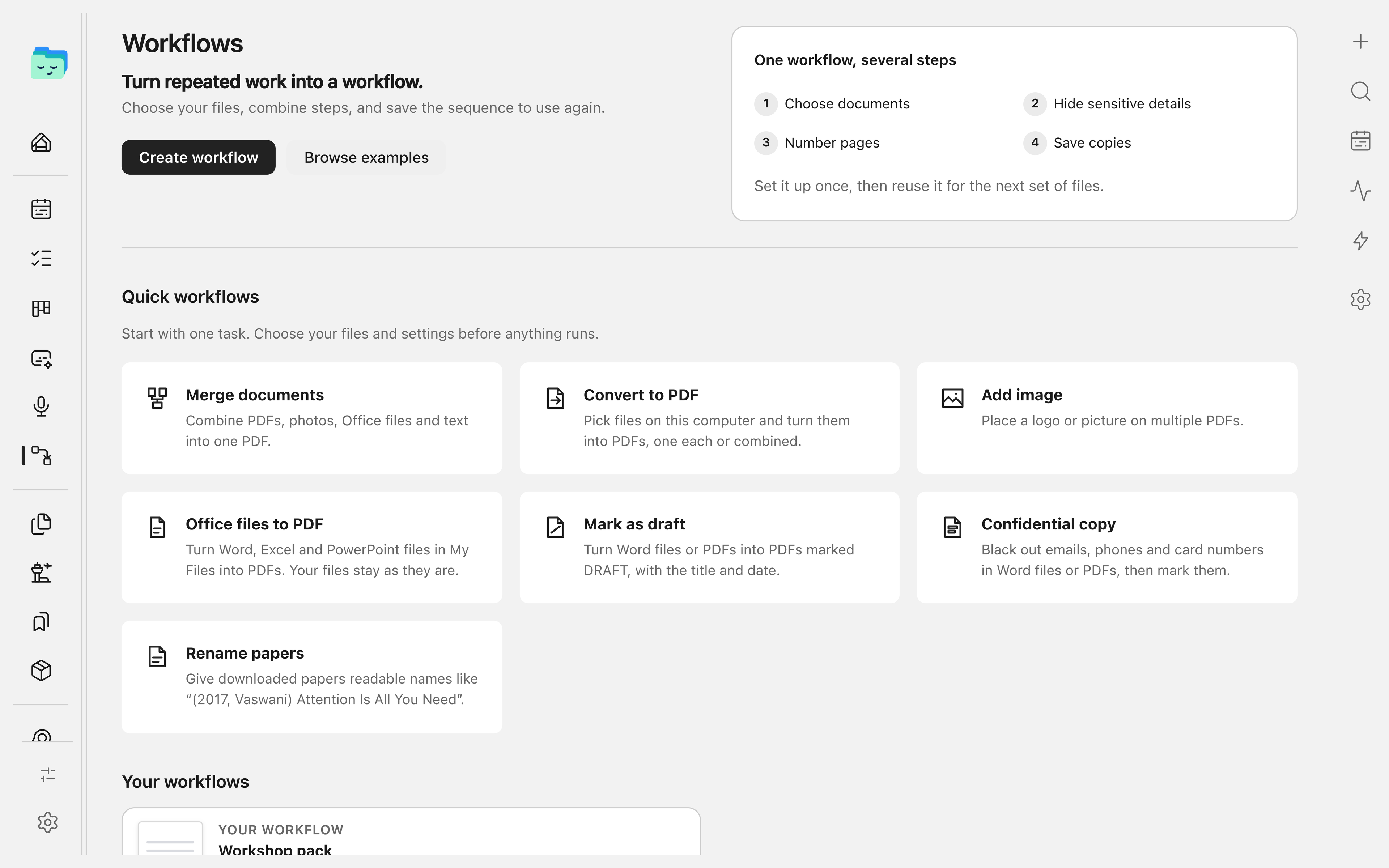
Use Create workflow to start a sequence of document tools. Open a saved sequence under Your workflows, or use Browse examples to choose a starting point.
- Choose files
Select the documents or folders you want to process.
- Build steps
Add and arrange operations, targeting selected pages, slides, worksheets, cells, or text.
- Save results
Choose the destination and result settings, run the workflow, then inspect the outputs and Workflow history.
- Save the routine
Use Save as… to name a reusable workflow. When editing a saved workflow, use Save as a new workflow… to keep another version.
What's included
- Saved routines for documents, images, spreadsheets, and text
- Specific pages, slides, worksheets, cells, or source text as operation targets
- PDF text to Word, tables to spreadsheets, pages to image slides, and text to Markdown
- Image conversion, resizing, compression, and watermarking
- Worksheet exports to CSV, a plain text table format
- Local Intelligence summaries as a step
- Form filling, redaction, metadata removal, protection, and repair
- Page ordering, cropping, splitting, merging, numbering, and stamps
- Watched folders and run history
- Retries, pause, cancel, and supported undo
- Saved sequence import and export
Good to know
- Available operations depend on the file types and targets you choose.
- PDF-to-slide conversion creates page images with text in speaker notes.
- Review output documents before sharing them. Undo applies to supported steps.
- Results are saved as copies by default. Review the destination and output before sharing.
Often used for this
Adobe Acrobat
Acrobat edits text and images, organizes pages, and merges or splits PDFs. Its tools also cover signing, sharing, and document review.
With Spillit
Use Spillit to read PDFs, annotate them, and make supported text edits. Fill forms, organize pages, merge or compress files, add watermarks, and redact text. Save repeated document steps as a workflow.
See the full comparisonNext