

My Files
Open and edit
your files in Spillit.
Documents, pictures, code, and media. Open them together in Spillit.
- WordDOCX
- ExcelXLSX
- PowerPointPPTX
- PDFPDF
- PicturesJPG · PNG · SVG
- VideoMP4 · MOV
- AudioMP3 · WAV
- E-booksEPUB
- MarkdownMD
- Code & textJS · PY · TXT
- Web pagesHTML
- LaTeX & TypstTEX · TYP
Find the file.
Or the words inside.
Search by filename, the words inside supported files, or meaning.
Swipe or use arrow keys to explore the window.
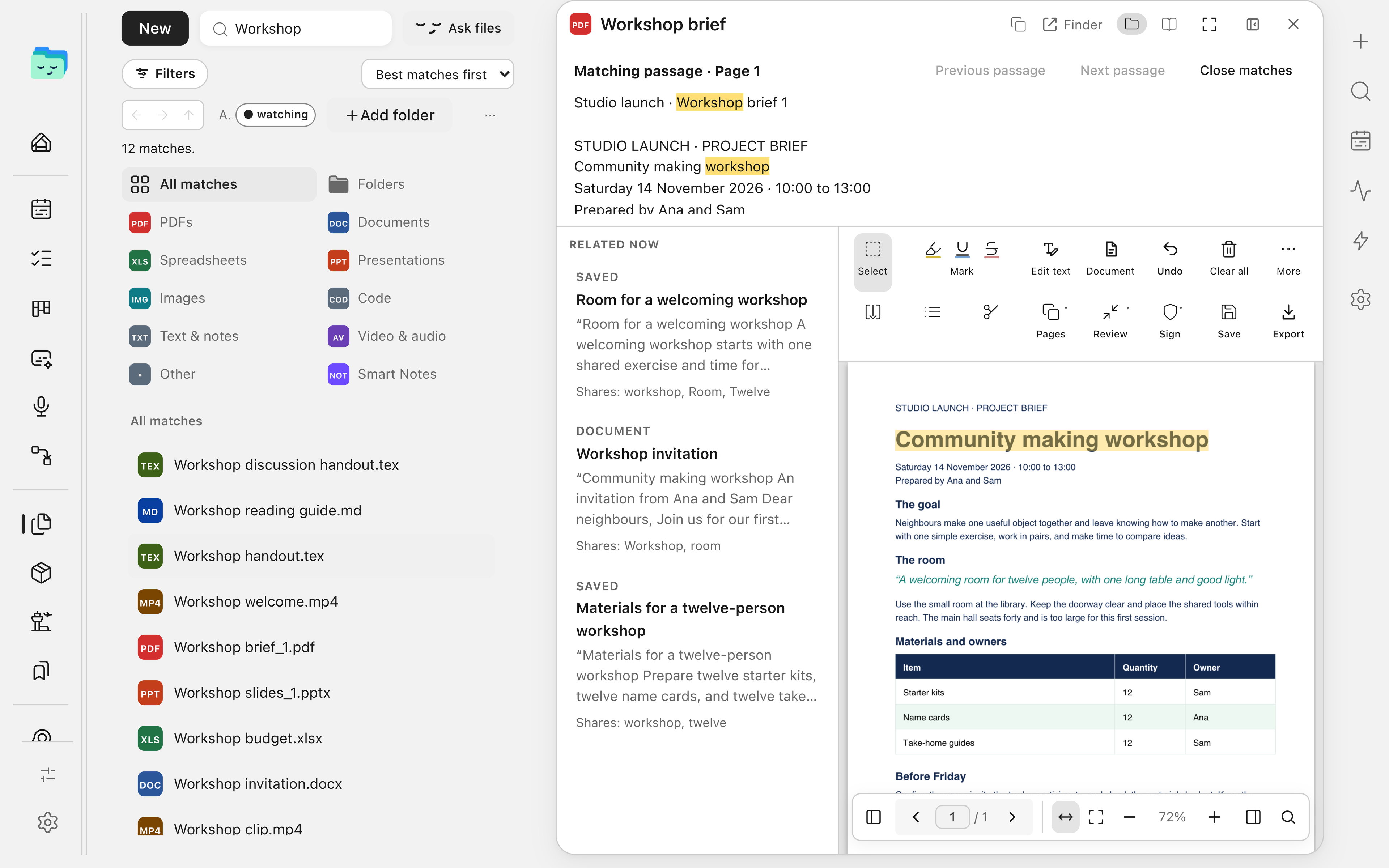
Open a matching passage with your search results still in view.
See the editing examplesOpen it.
Make your changes.
Write, calculate, design slides, mark up a picture, or trim a video. Keep working in the same app.
Word
Swipe or use arrow keys to explore the window.
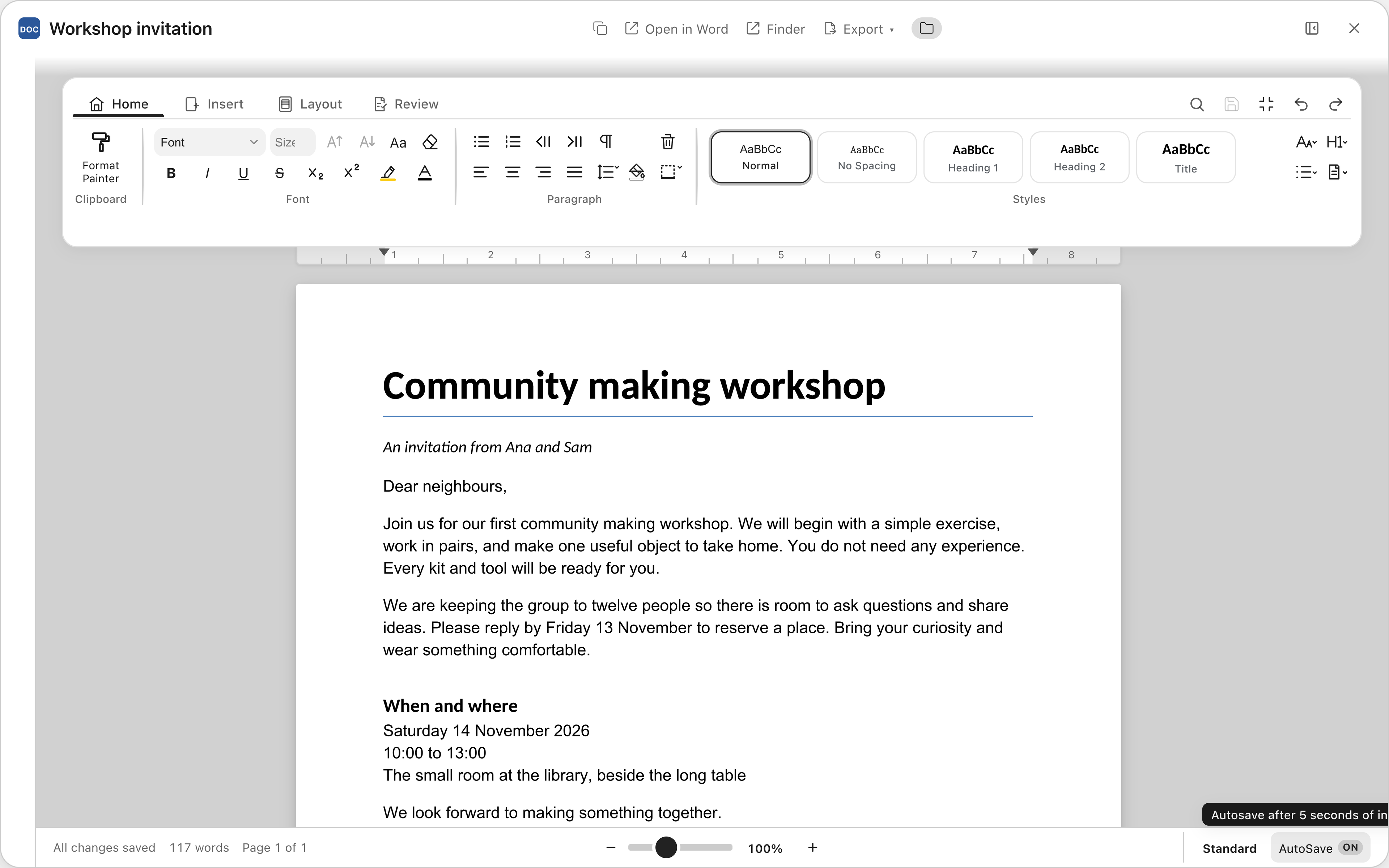
DOCX · Edit text, formatting, and comments.
Swipe or use arrow keys to explore the window.
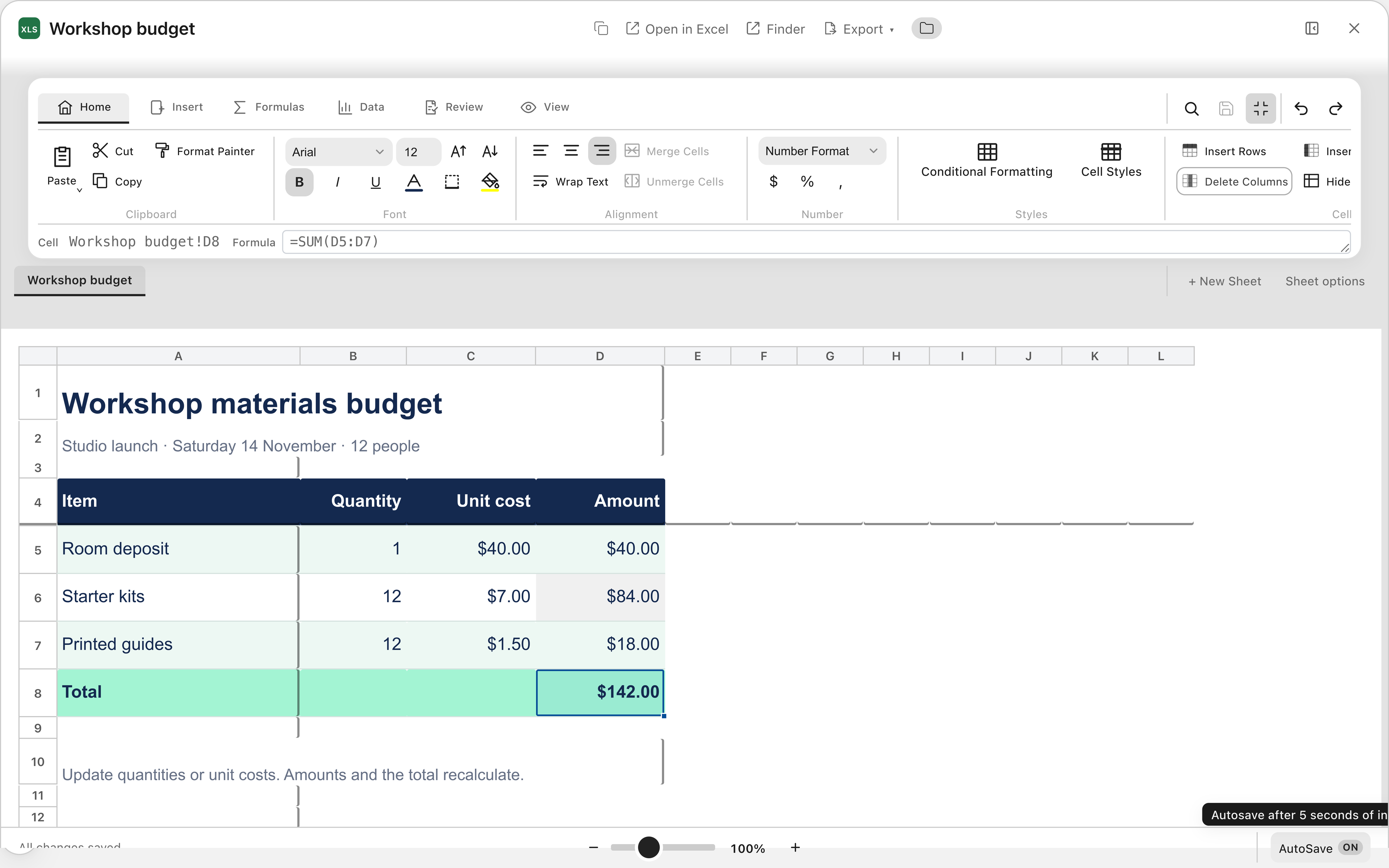
XLSX · Update costs and calculate totals.
Swipe or use arrow keys to explore the window.
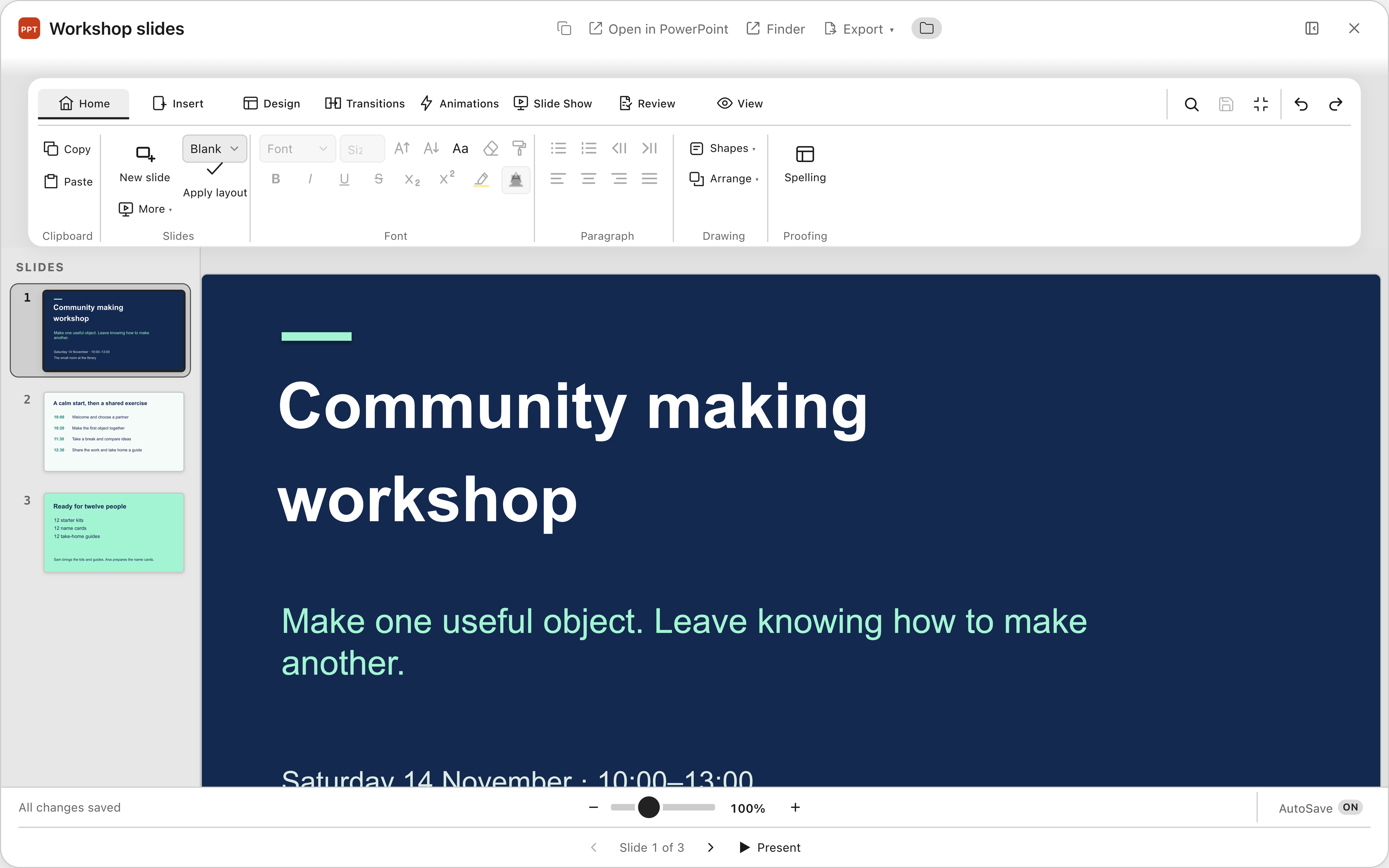
PPTX · Edit slide text, layouts, and speaker notes.
Swipe or use arrow keys to explore the window.
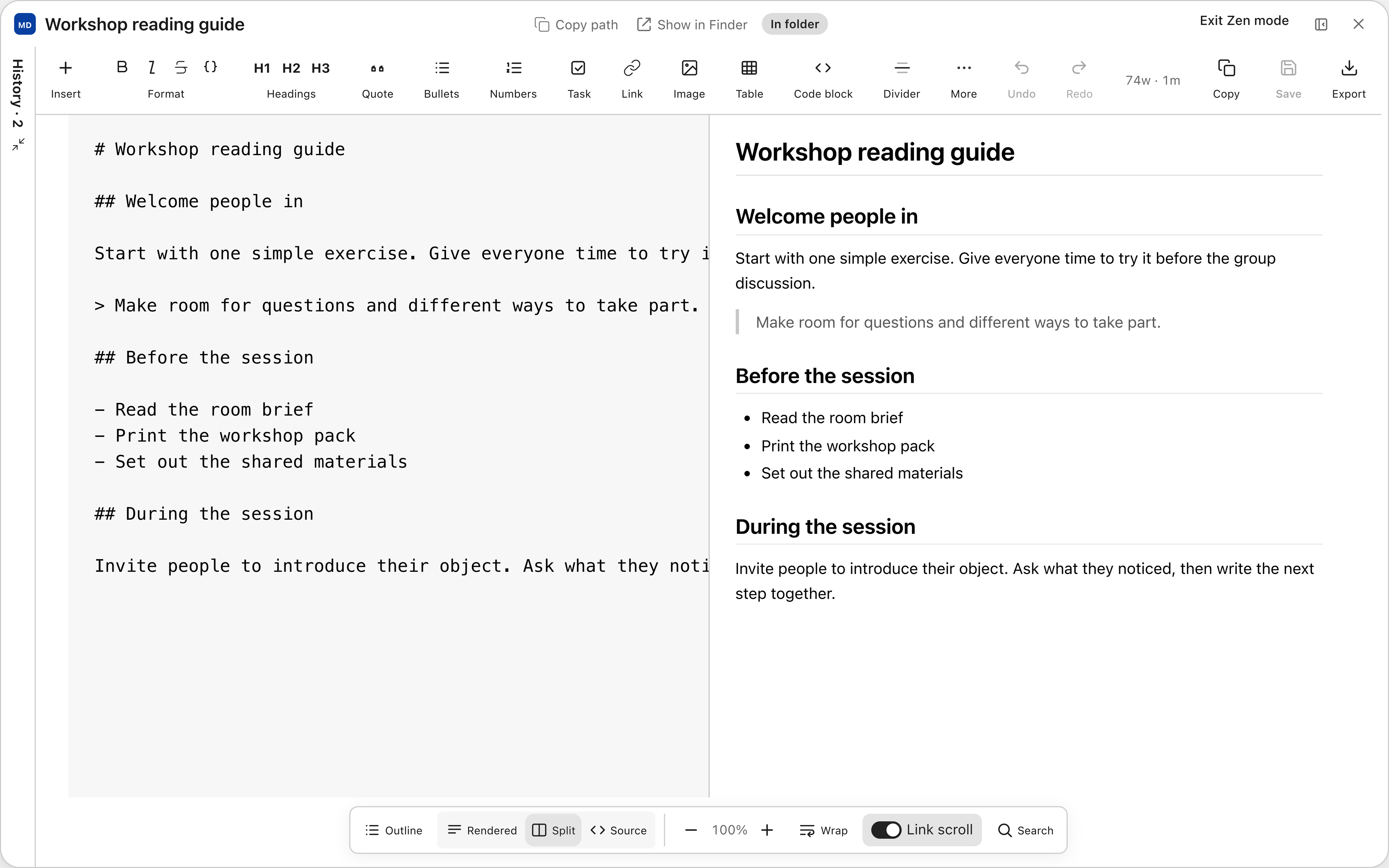
MD · Edit the source beside the formatted document.
Swipe or use arrow keys to explore the window.
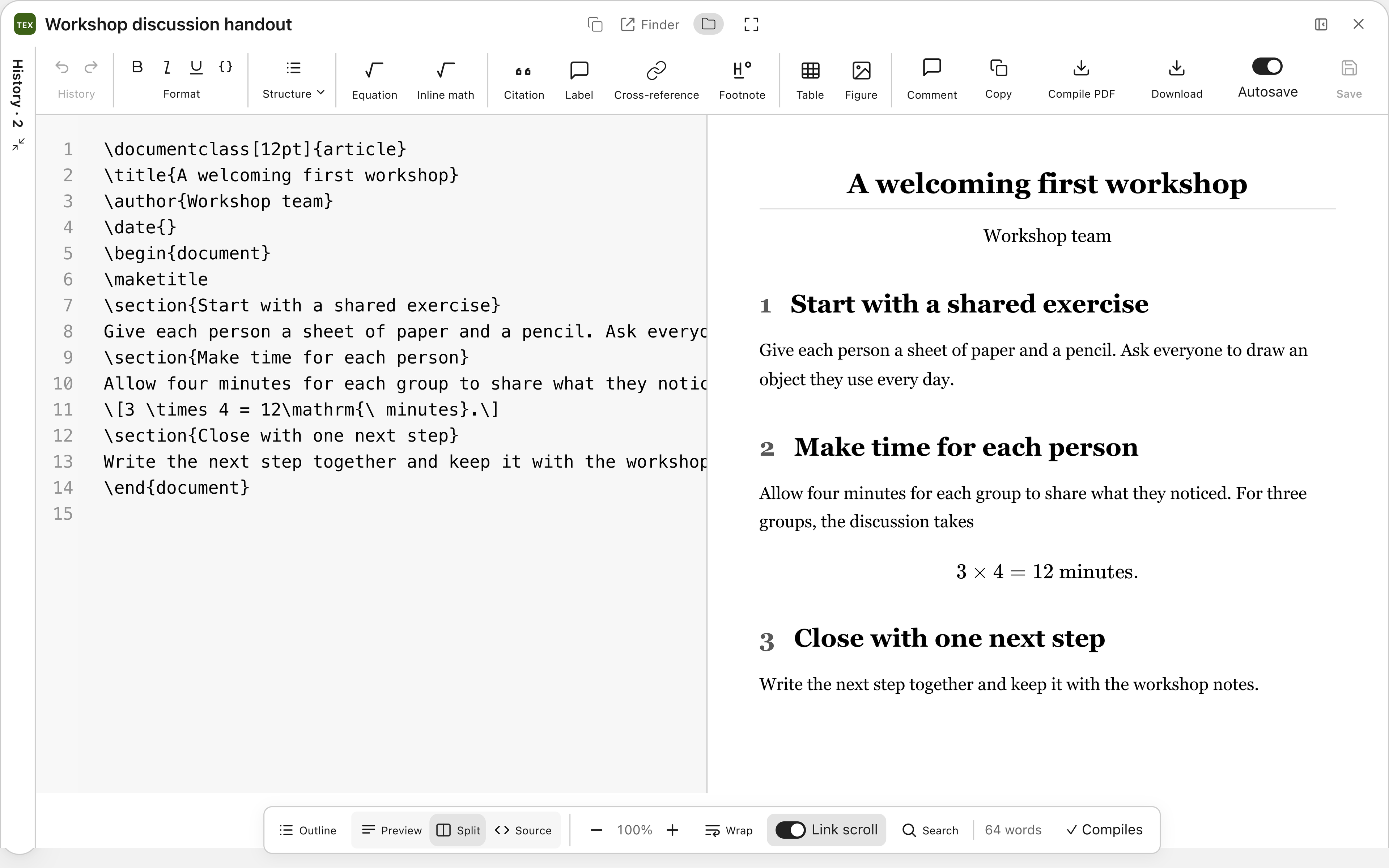
TEX · Write LaTeX source and check the rendered article beside it.
Swipe or use arrow keys to explore the window.
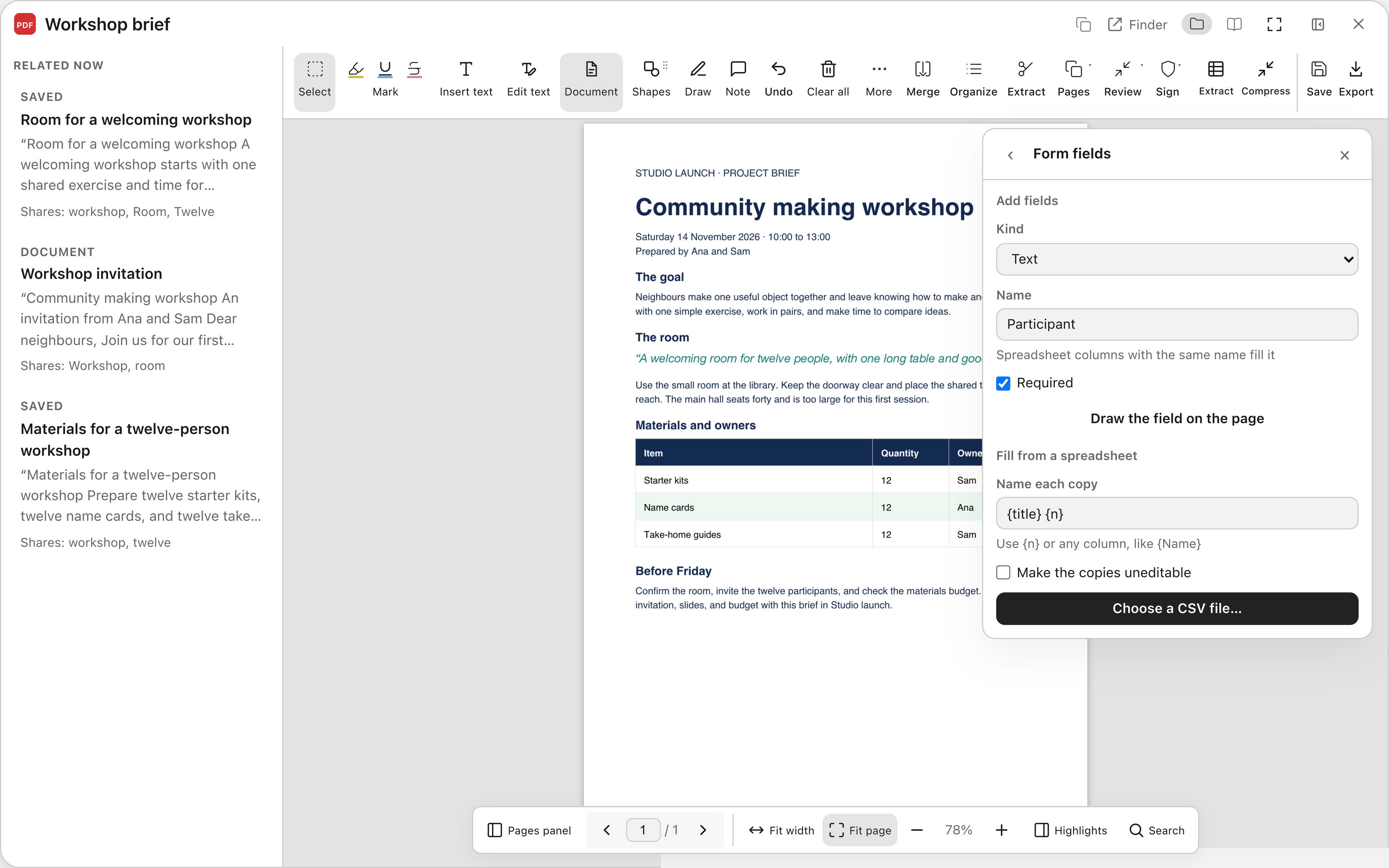
PDF · Name a field and draw it onto the page.
Swipe or use arrow keys to explore the window.
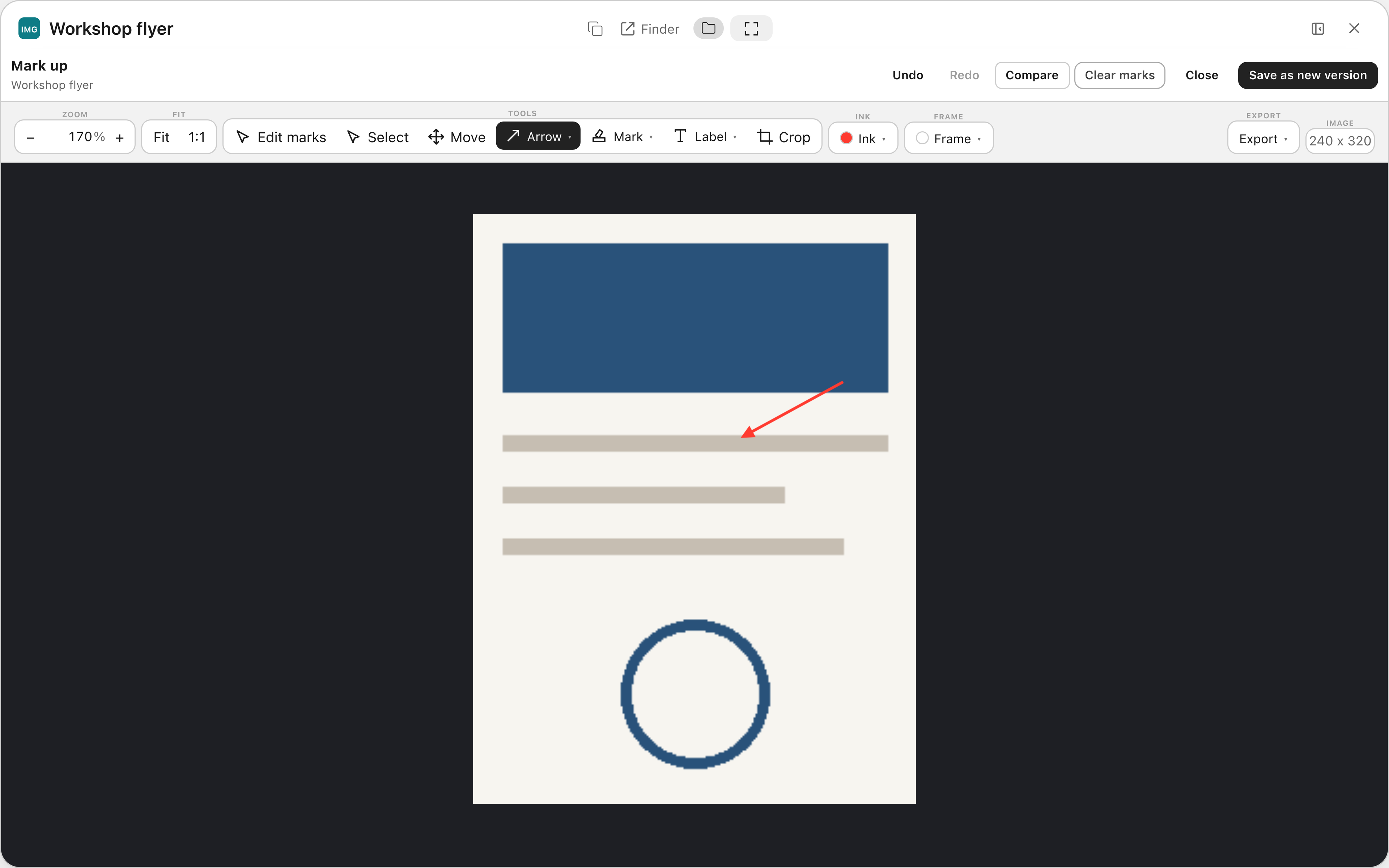
Pictures · Mark up a copy of Spillit’s icon.
Swipe or use arrow keys to explore the window.
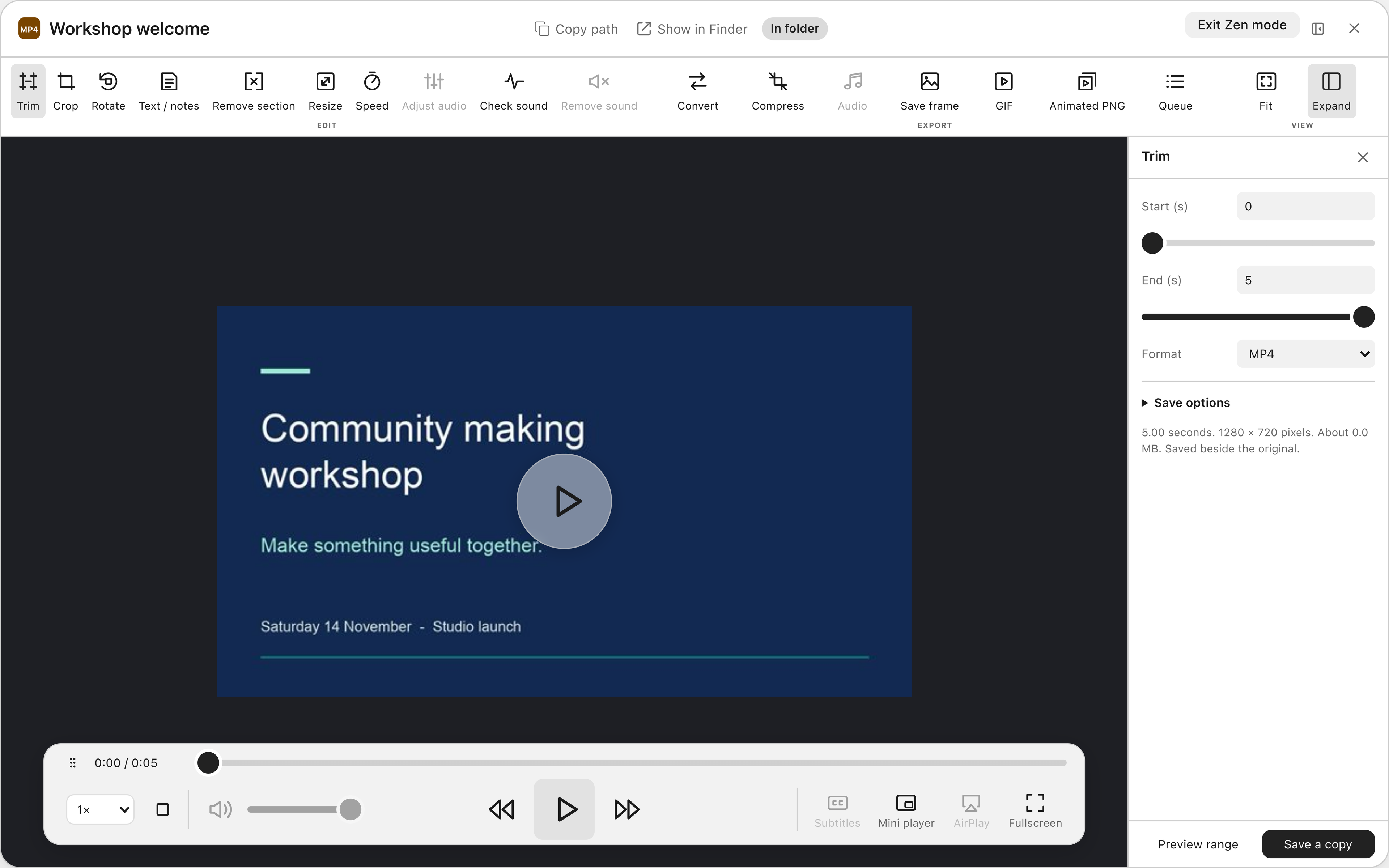
Video · Choose the clip’s start, end, and output format.
Illustrated edit on a real app screen.
Make older files editable again.
Open a supported older Office or LibreOffice file. Choose Edit as in the reader to make an editable copy and keep the original.
Word documents
.doc, .odt, .rtfEdit as .docx
Spreadsheets
.xls, .xlsb, .odsEdit as .xlsx
Presentations
.ppt, .odpEdit as .pptx
For example, open Workshop budget.xls and choose Edit as .xlsx. Check the formatting and any advanced features in the new copy.
Write in Typst.
Preview as PDF.
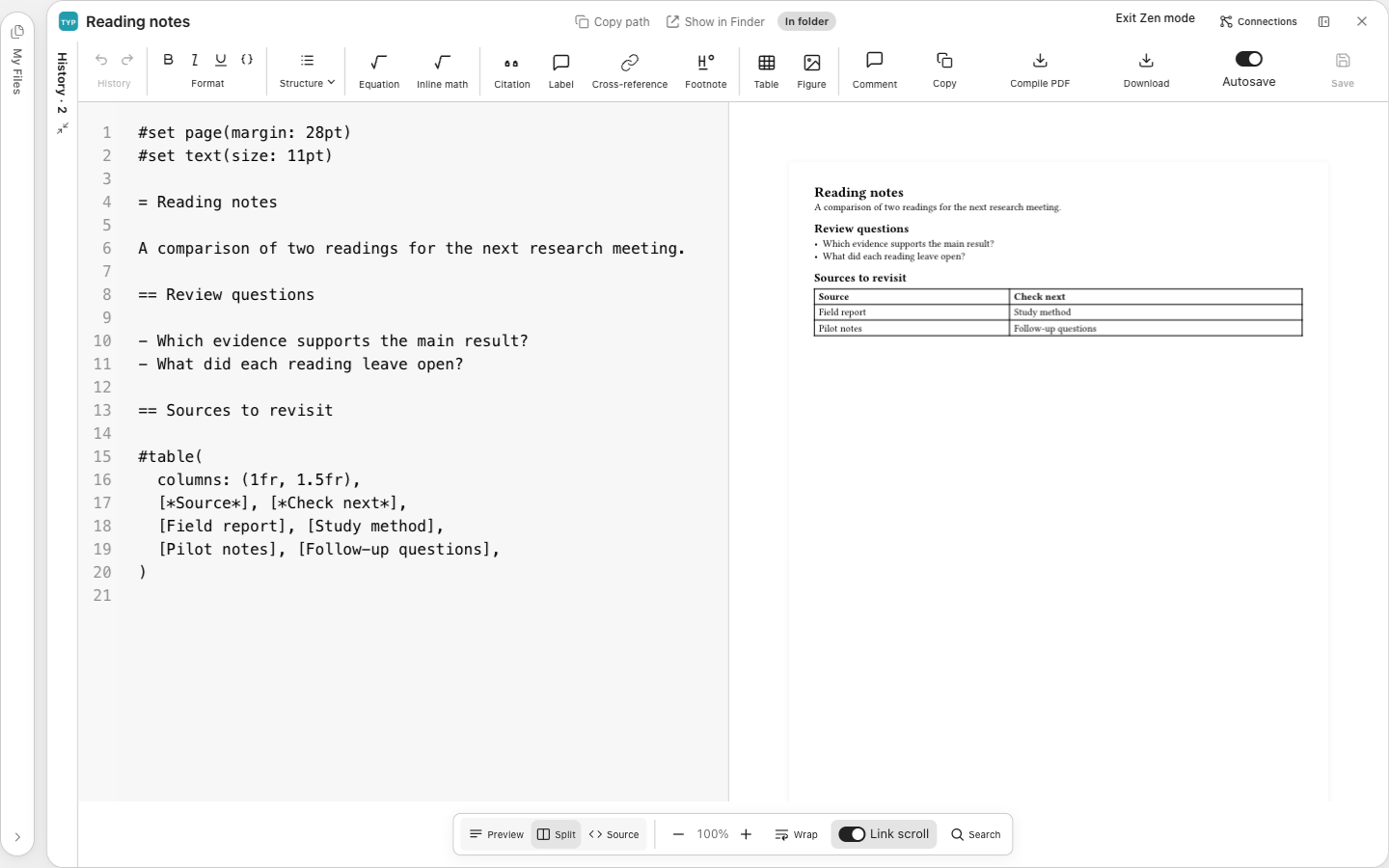
Typst is a text format for research papers, reports, and other formatted documents. Open a .typ file to edit its source beside the PDF preview.
Use the folders you already sync.
Link a cloud folder in My Files and open its files where they already live.
Link a folder
Open Cloud folders in My Files. Choose Link beside a folder Spillit finds on this computer.
Open the file
Choose Workshop budget.xlsx in the linked folder. Online-only files download when you open them.
Choose the current copy
If you see Conflicting edits, download both copies to compare them. Choose Use Spillit edit, Use folder edit, or Keep both files.
Illustrated steps with a fictional workshop file.
Find what changed.
History shows recent actions such as saving a file, editing a note, or completing a task.
Review a change
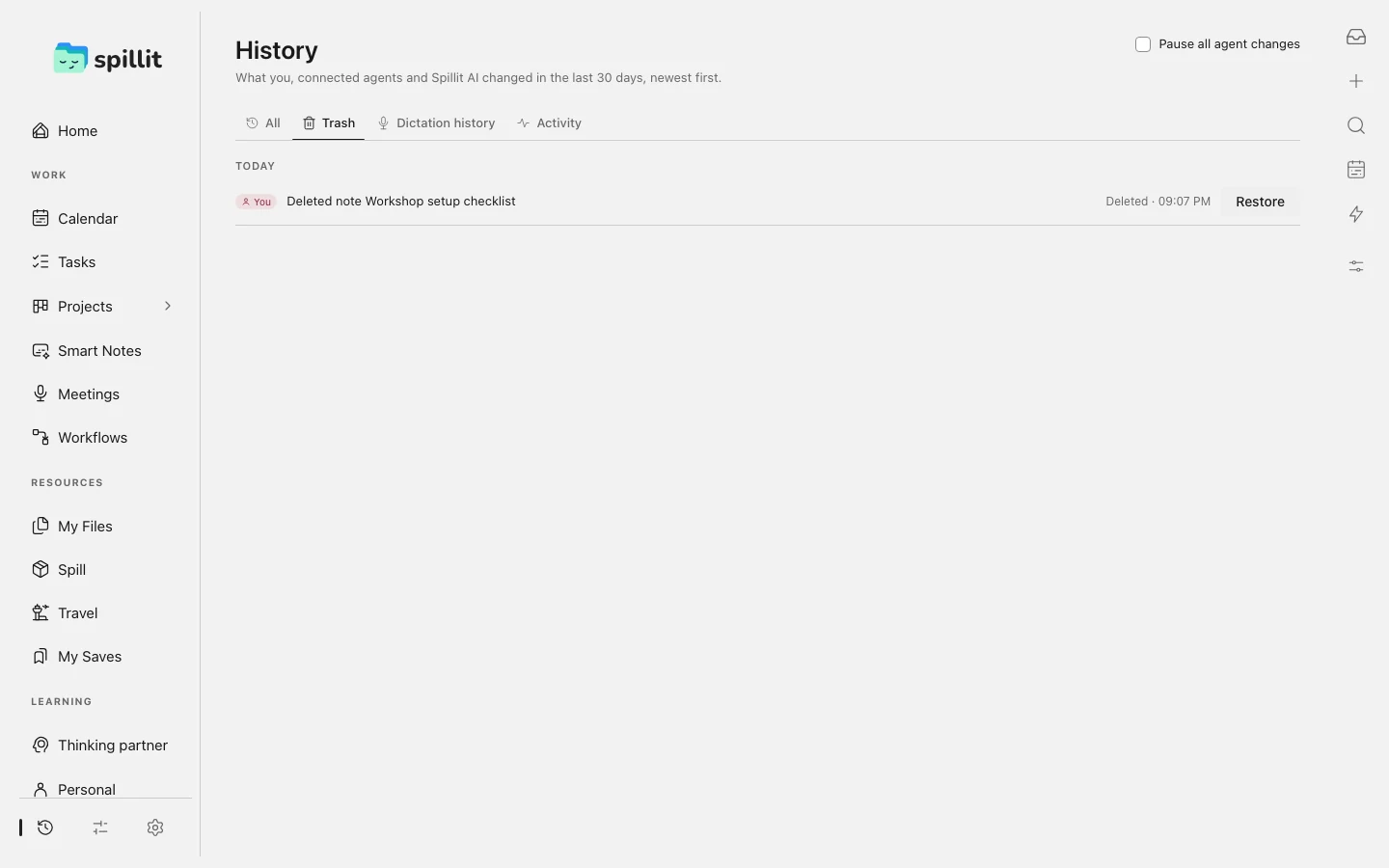
Open History and look for a recent save under All. Select the entry to reopen the file when available.
Find a deleted item
Choose Trash in History. Find the file, note, task, or calendar event you want to recover.
Restore an eligible item
If you see Restore, select it. Then check My Files or the area where the item belongs.
Spillit’s History with a fictional workshop note. Restore appears when a recoverable copy is available.
Details and compatibility
More app views
Find the passage you need.
Swipe or use arrow keys to explore the window.
Read the match in context
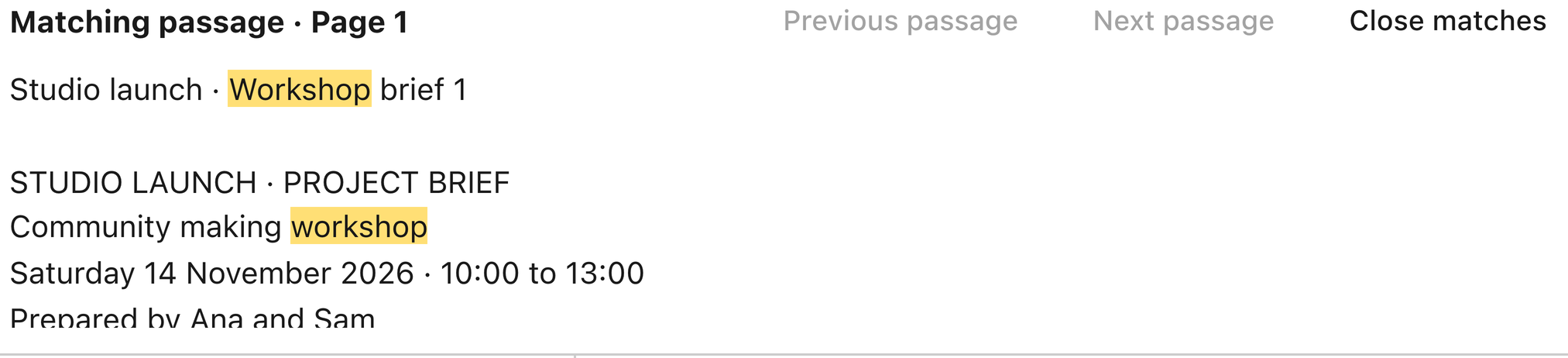
The search results stay beside the PDF. Matching words are highlighted in the passage and on the page.
Swipe or use arrow keys to explore the window.
Read and edit the guide
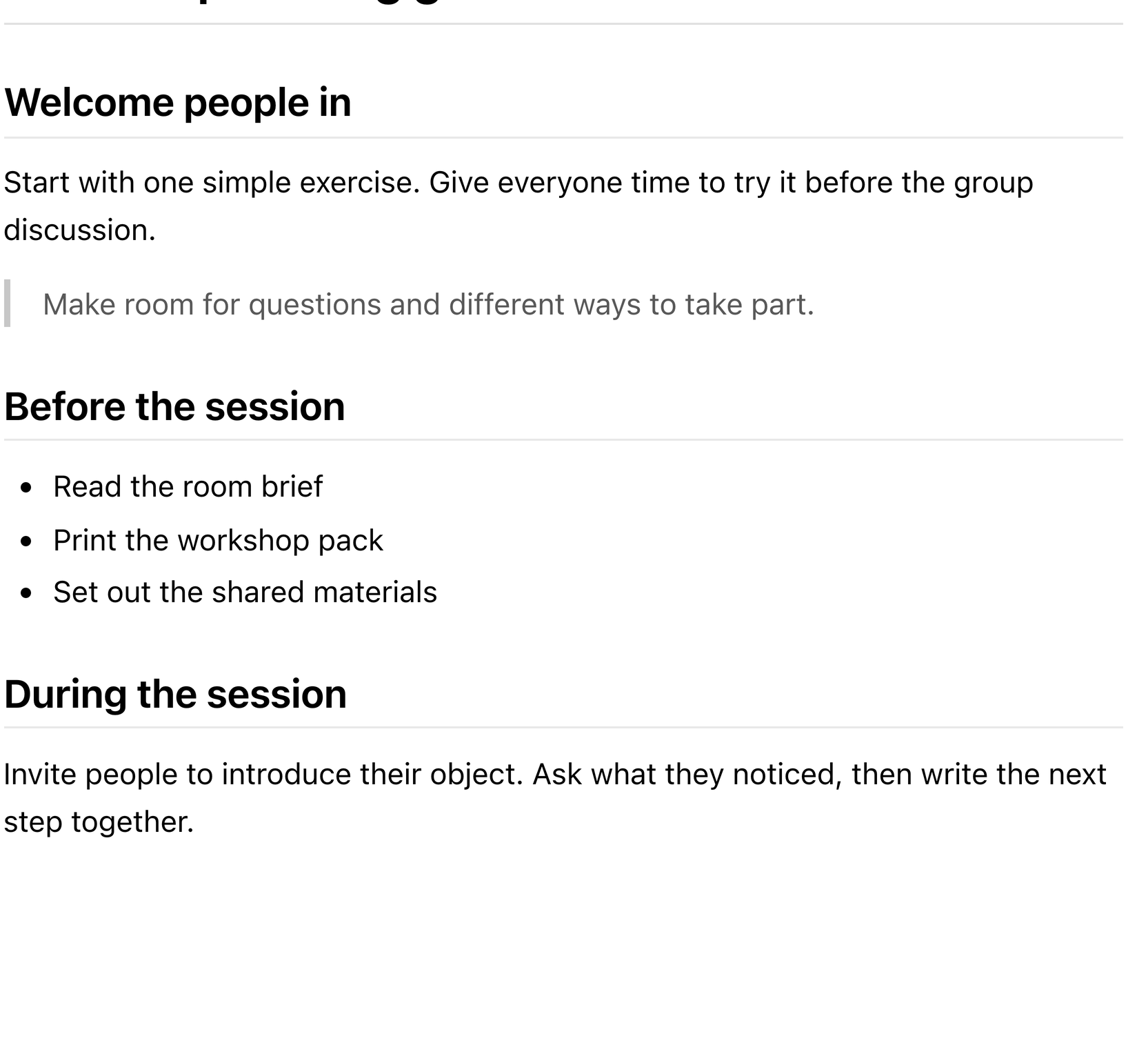
The guide shows headings, a quote, and a checklist beside the Markdown source.
Swipe or use arrow keys to explore the window.
Check the rendered equation
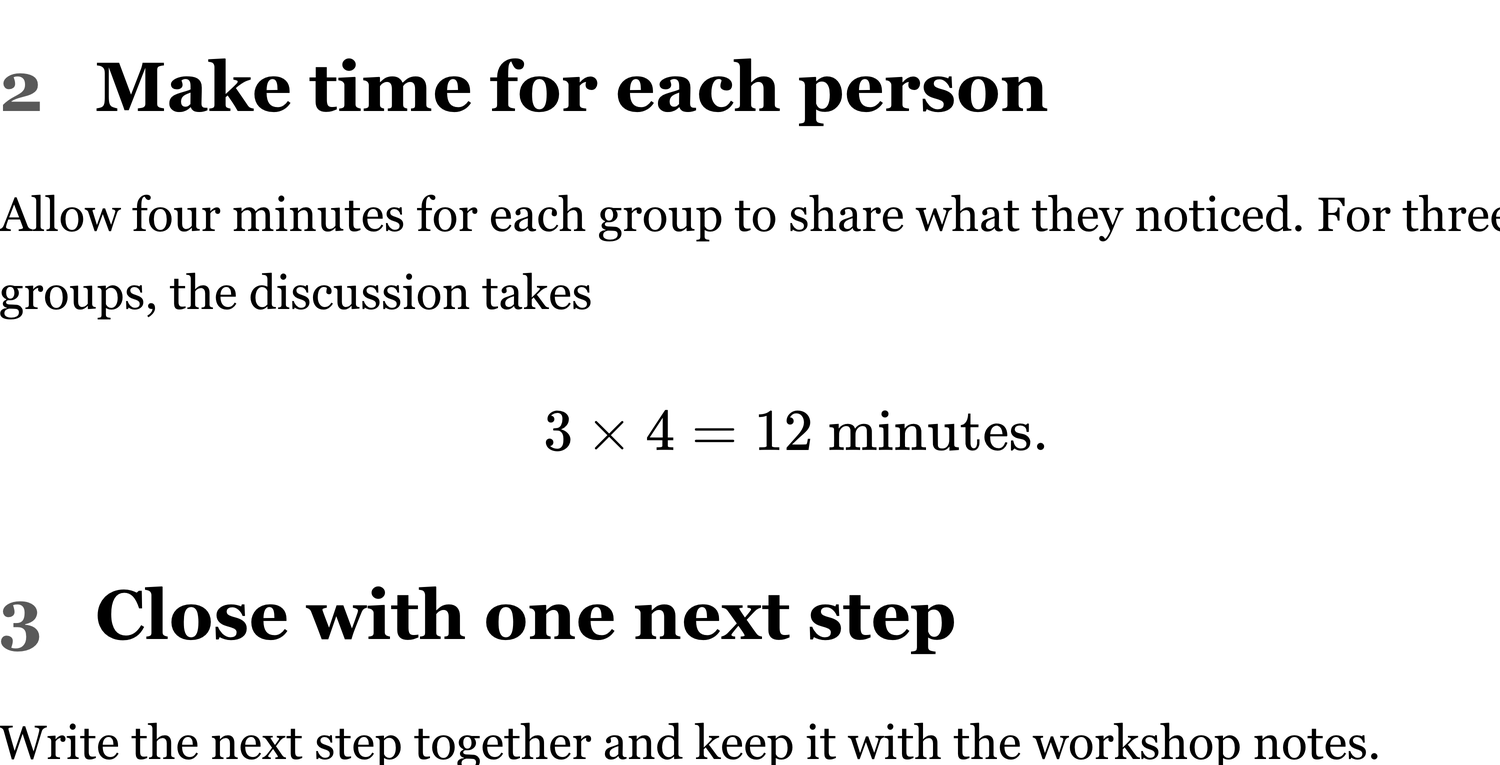
The preview renders the workshop equation beside the source. The editor reports that the document compiles.
How it works
- Choose a folder
Use Choose folder to browse an existing location, or connect a folder to My Files. Your files stay where they are.
- Find the material
Search names, contents, or meaning. Use Order files and Icon, List, Details, or Column view to browse.
- Open the file
Read supported documents, books, saved pages, code, pictures, and media in the workspace.
- Keep the change
Edit supported formats, then save. Use file history to inspect or restore an earlier version when needed.
- Open an Office file
Choose a supported Word document, spreadsheet, or presentation from My Files.
- Use its editor
Use the document-specific ribbon for text, cells, or slides. The selected item and its settings stay in view.
- Open sources beside the file
Open a PDF beside the document or move its tabs into the same reader. Pop out a separate reader when useful.
- Save or export
Use Find within the document, save your edits, or export supported Office documents to PDF.
What's included
- Search by name, content and meaning
- Icon, List, Details, and Column views with folder navigation
- Questions about selected text in supported readers
- Photo viewer, video player, and audio player
- Code with syntax colours
- Word, Excel and PowerPoint editing
- PDF annotate, merge, compress, watermark and number pages
- Scans made searchable
- E-books, Markdown and web pages
- Typst editing with PDF preview, source download, and PDF export
- Earlier file versions you can inspect and restore
- Changes kept as a separate document when you need another version
- Deleted versions returned to the file history
- Word text, formatting, tables, pictures, equations, comments, and tracked revisions
- Page sizes, margins, columns, headers, page numbers, footnotes, and endnotes
- References from your library inserted into Word
- Citation styles and bibliography updates inside Spillit
- Spreadsheet cells, formulas, charts, sheets, filters, and named ranges
- Conditional formatting and validation lists for spreadsheet entries
- Goal Seek, which finds an input value for a chosen formula result
- Slide text, shapes, images, tables, charts, audio, and video
- Slide design, supported transitions, and presenting with speaker notes
- Autosave, undo, and PDF export
- Office files, PDFs, and Smart Notes in movable tabs and separate windows
Good to know
- Complex formatting, formulas, media and playback can differ from the original app.
- The first search of a session takes longer than the ones after it.
- Typst compiles on your computer. The preview shows the first 12 pages. PDF export includes every page.
- Complex layouts, formulas, media, and presentation playback can differ from the original Office apps.
- The images show Spillit with fictional documents. Document editing and export run in the desktop app.
Often used for this
Word, Excel and PowerPoint
Word, Excel, and PowerPoint provide dedicated document, spreadsheet, and presentation editing. Their collaboration tools let people work together on shared files.
With Spillit
Edit supported DOCX, XLSX, and PPTX files in Spillit. Change text and formatting, use spreadsheet formulas and charts, and edit slides. Keep these files with notes and tasks, then export to PDF.
See the full comparisonNext