 SEARCH
 SIDE BY SIDE
 DOCX
 XLSX
 PPTX
 ZOTERO
 BIBLIOGRAPHY
 SUMMARY
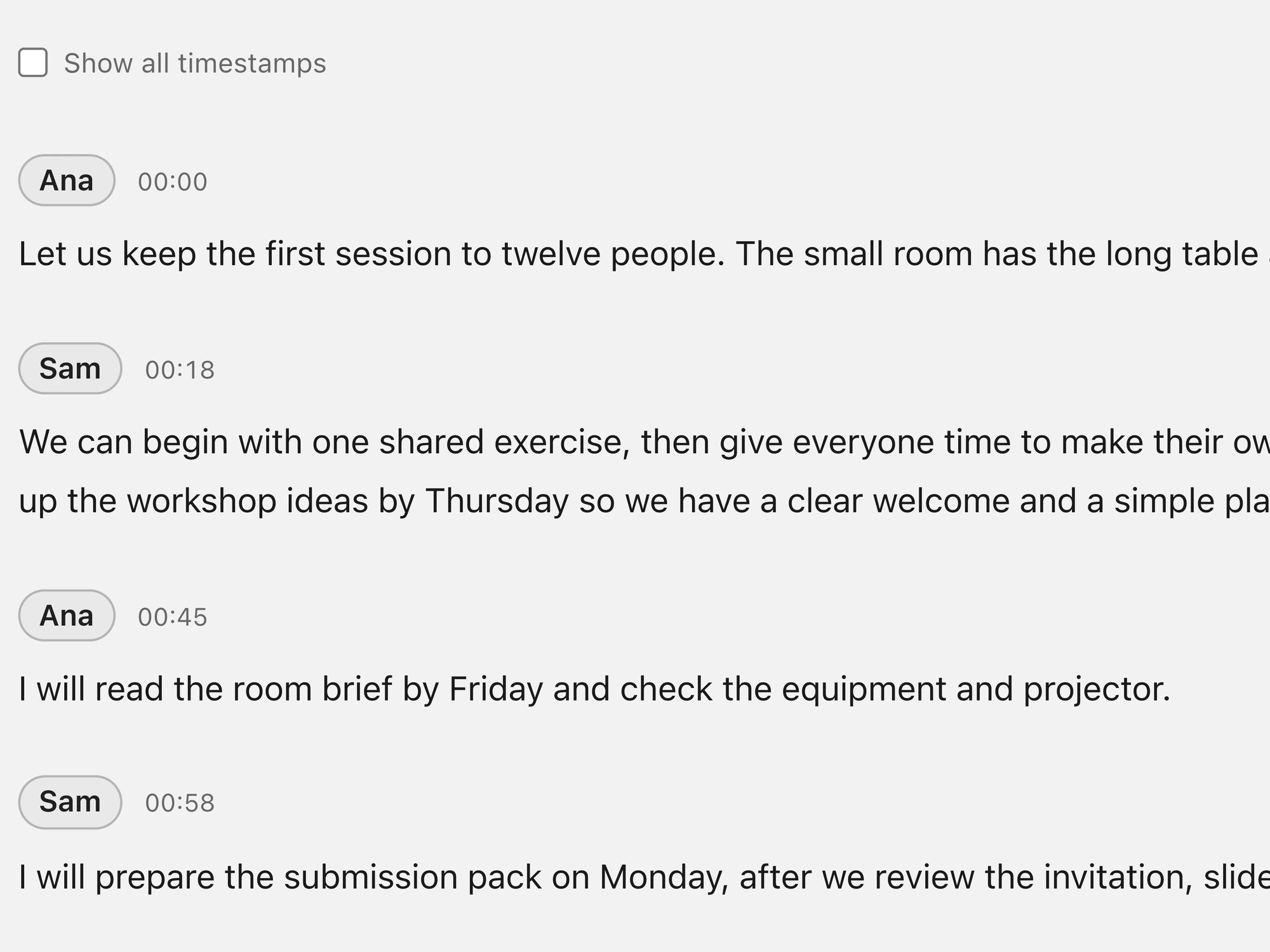 TRANSCRIPT
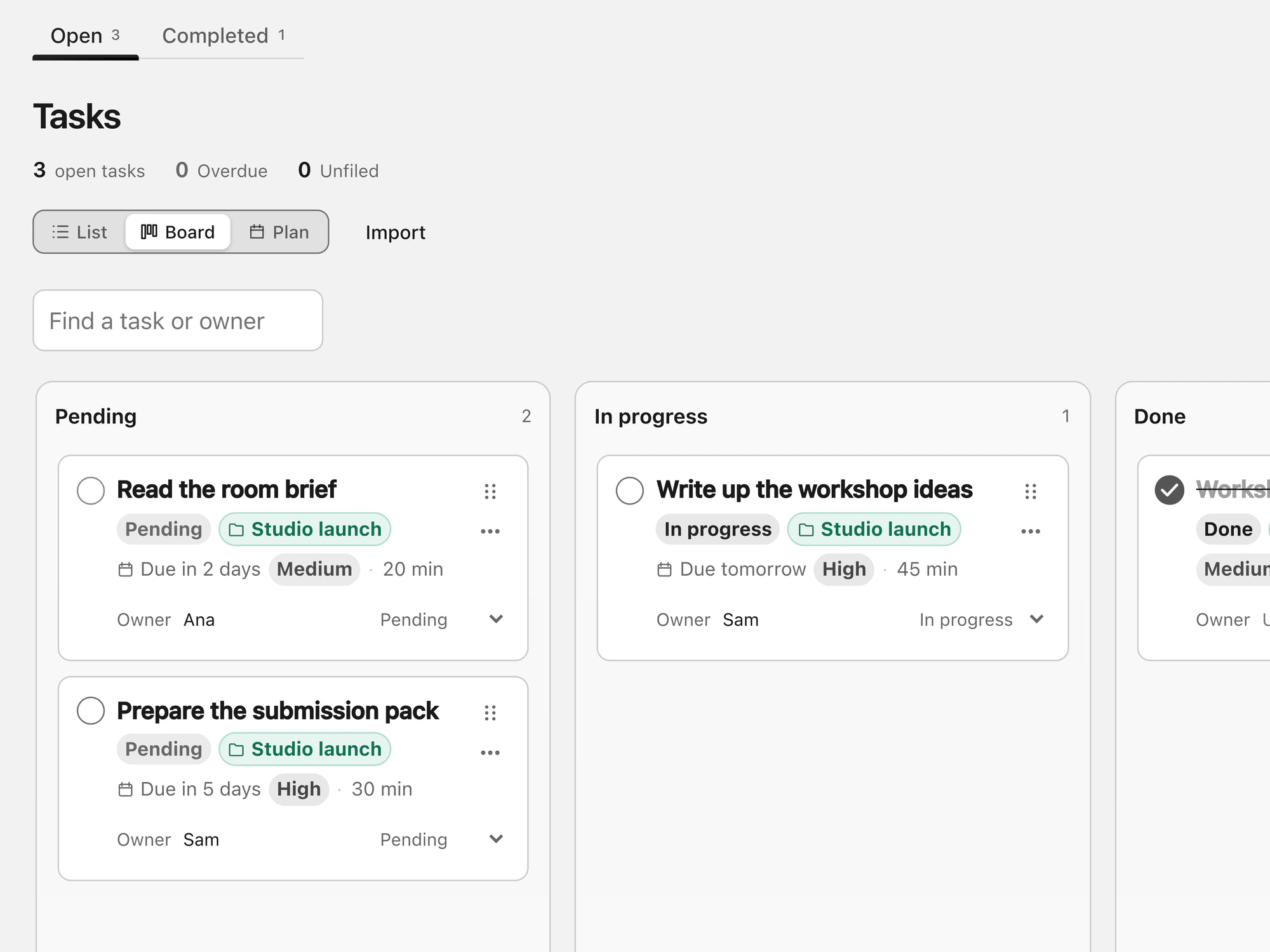 BOARD
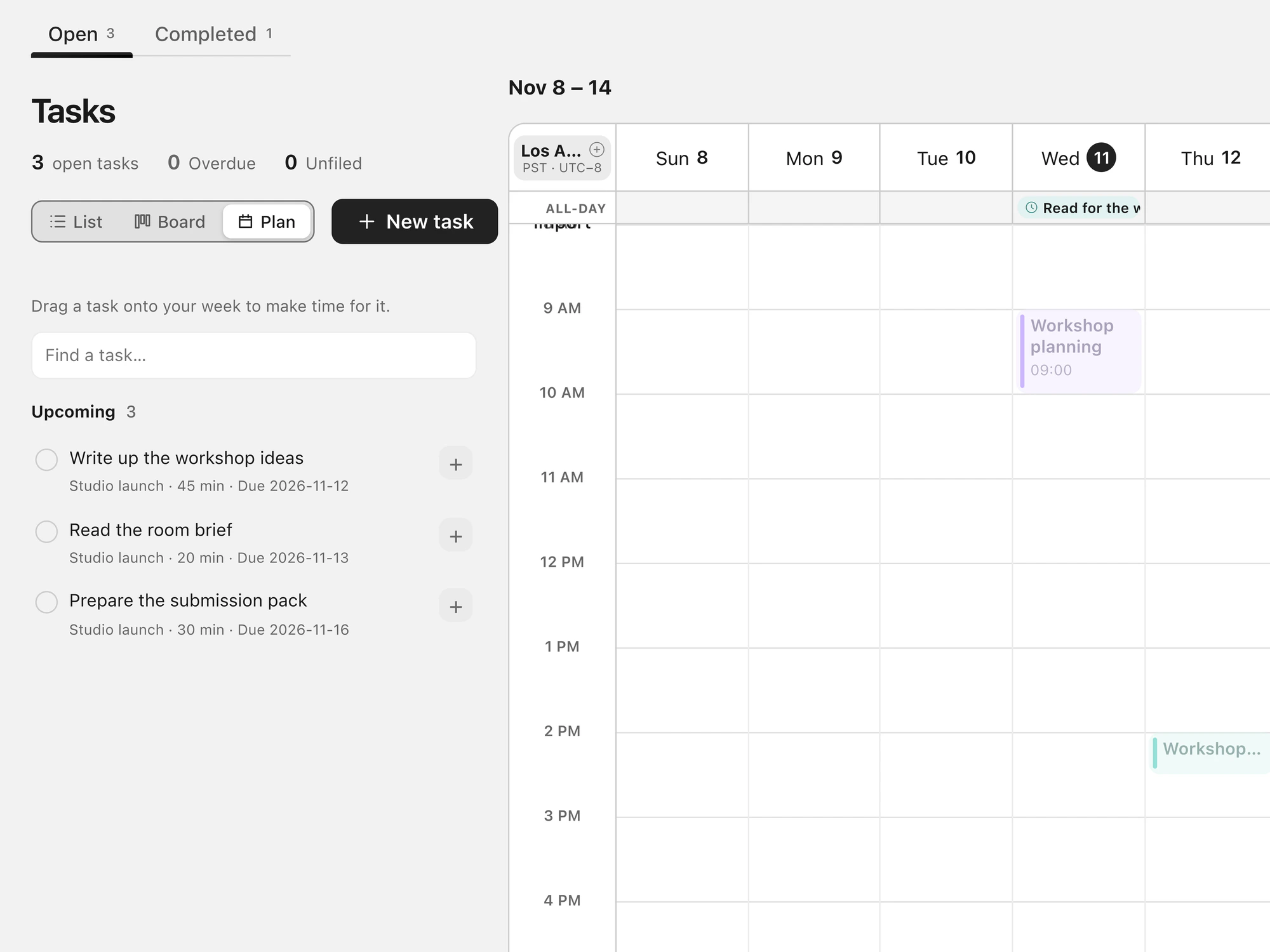 PLAN
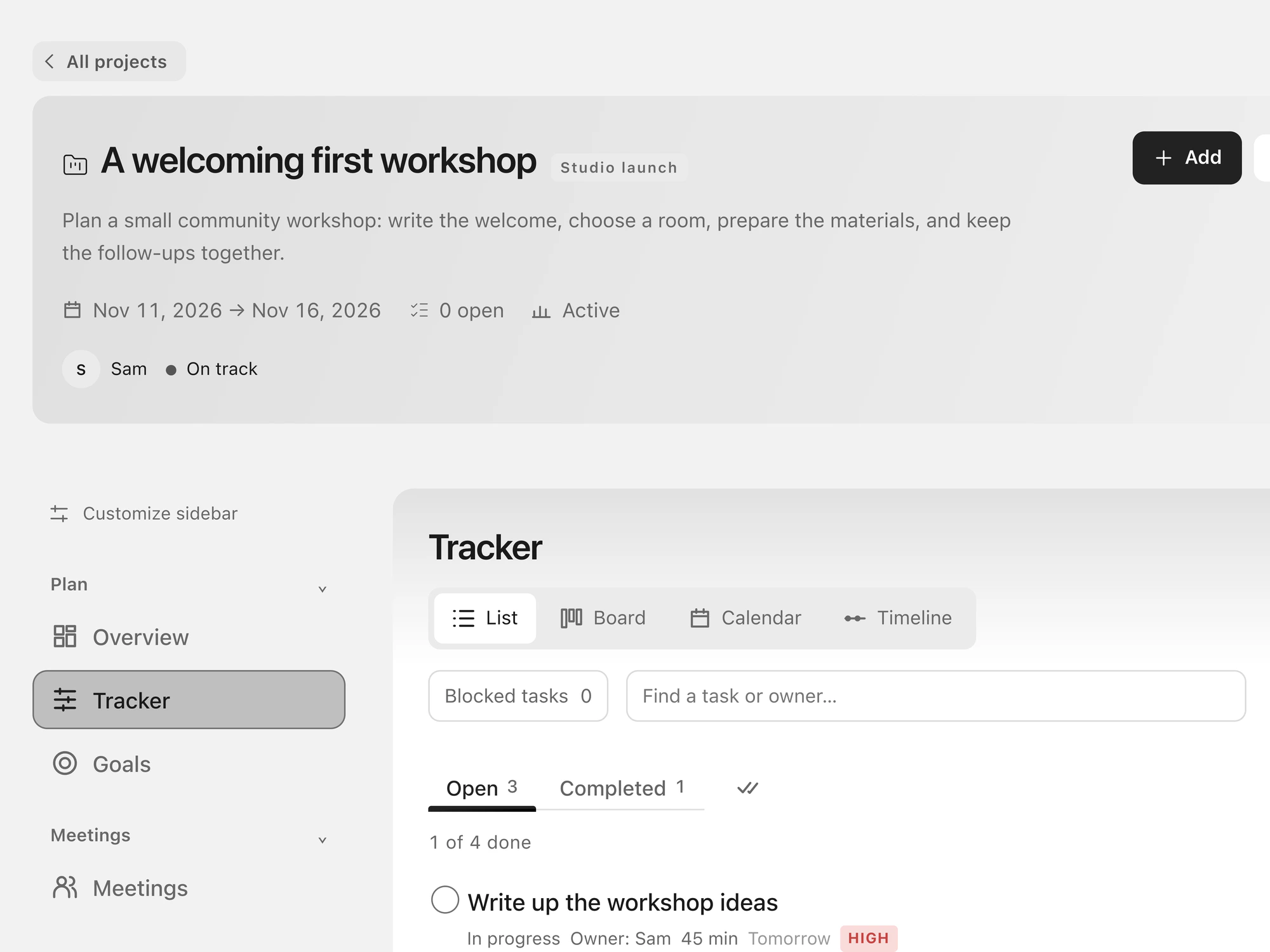 TRACKER
 BRIEF
 ORIGINAL
 QUICK WORKFLOWS
 BUILD STEPS
 WRITING ASSIST
Files and documents
Find the passage you need, then edit the file where it is.


Find the passage you need, then edit the file where it is.
Write the plan with its sources beside you.
Keep the follow-ups you choose, then make time for them.

One workspace. Six ways to work.
Fix the picture, trim the clip, and reuse the steps.
Get AI help where you already work. Choose AI on your Mac or Spillit AI in the cloud.
Plan trips, track costs, and make Spillit yours.
Find the passage you need, then edit the file where it is.
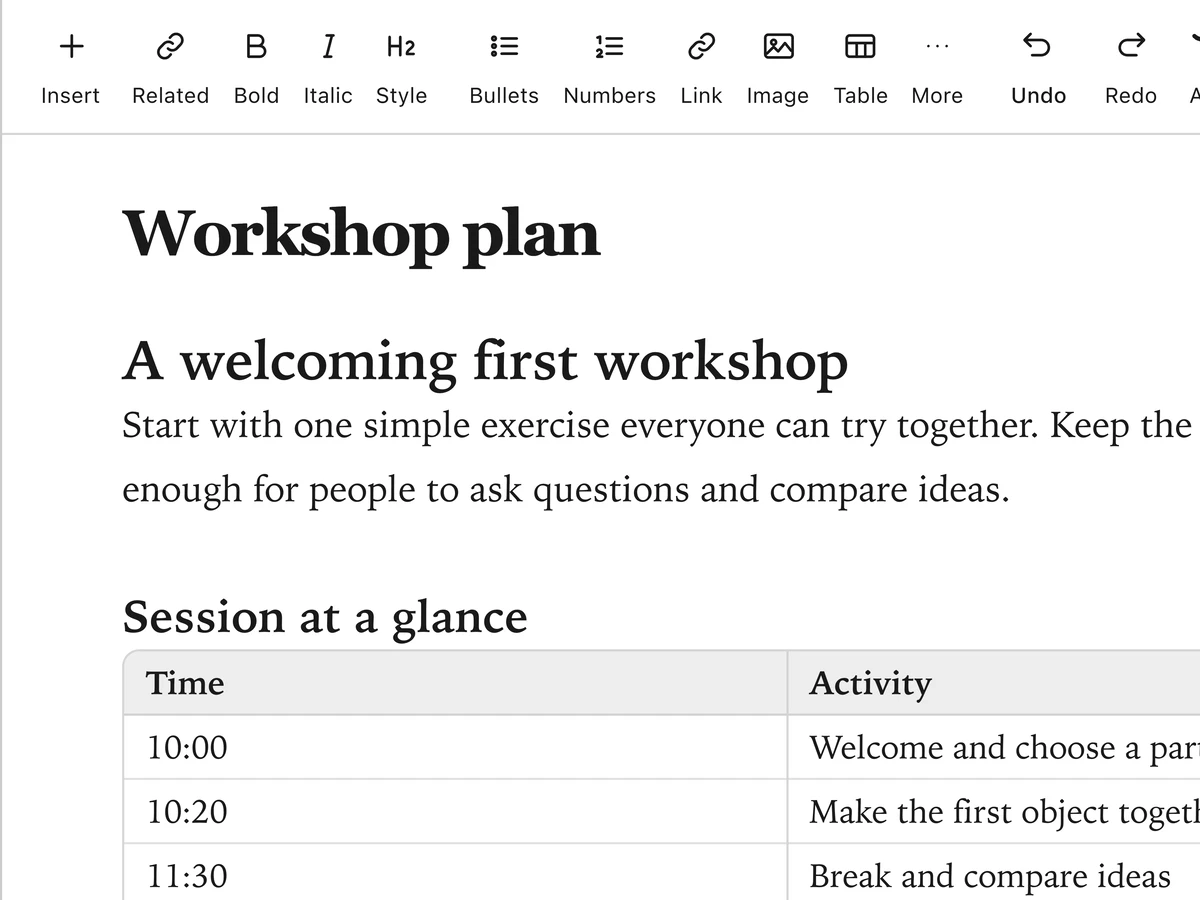
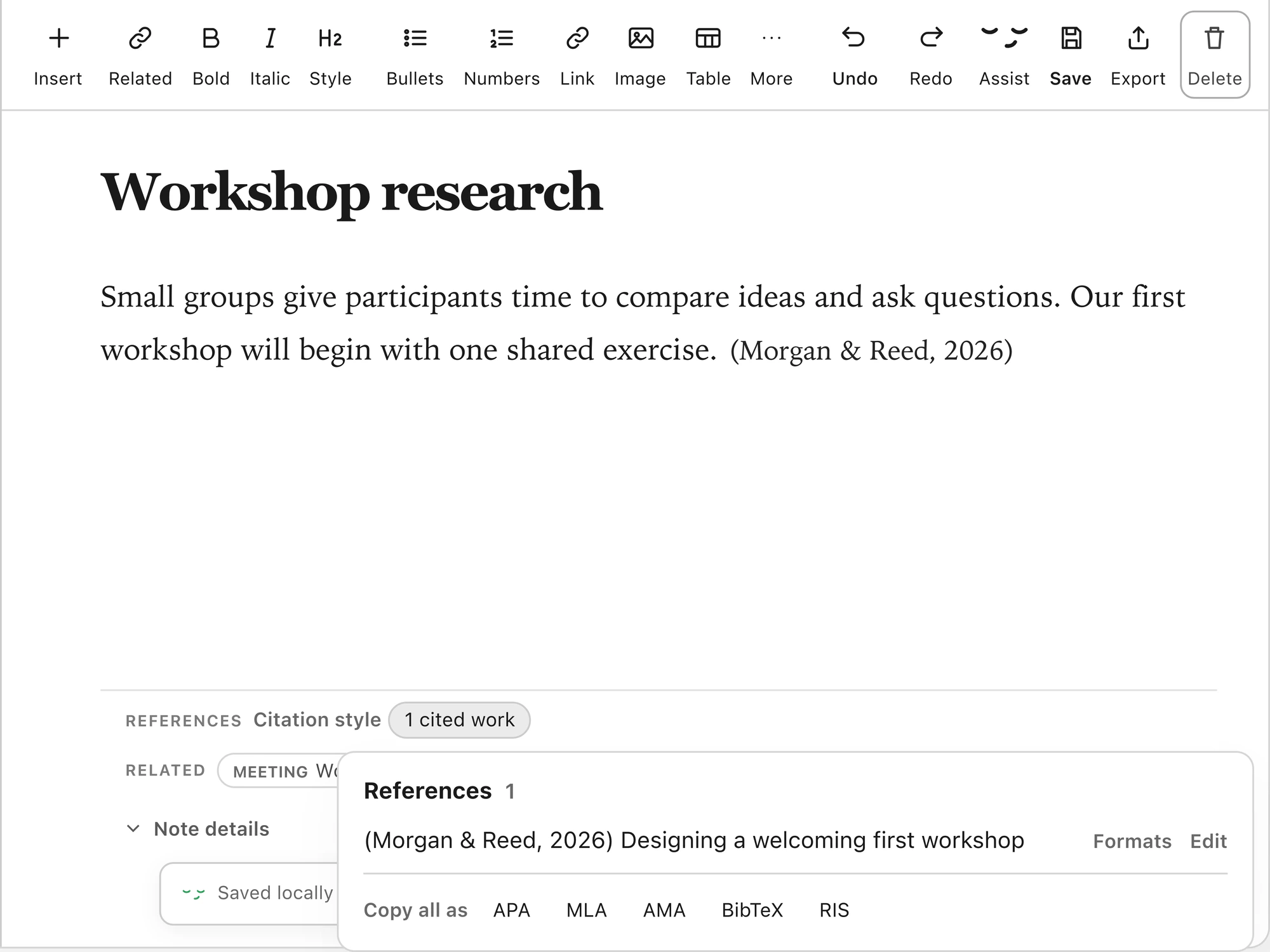
Write the plan with its sources beside you.
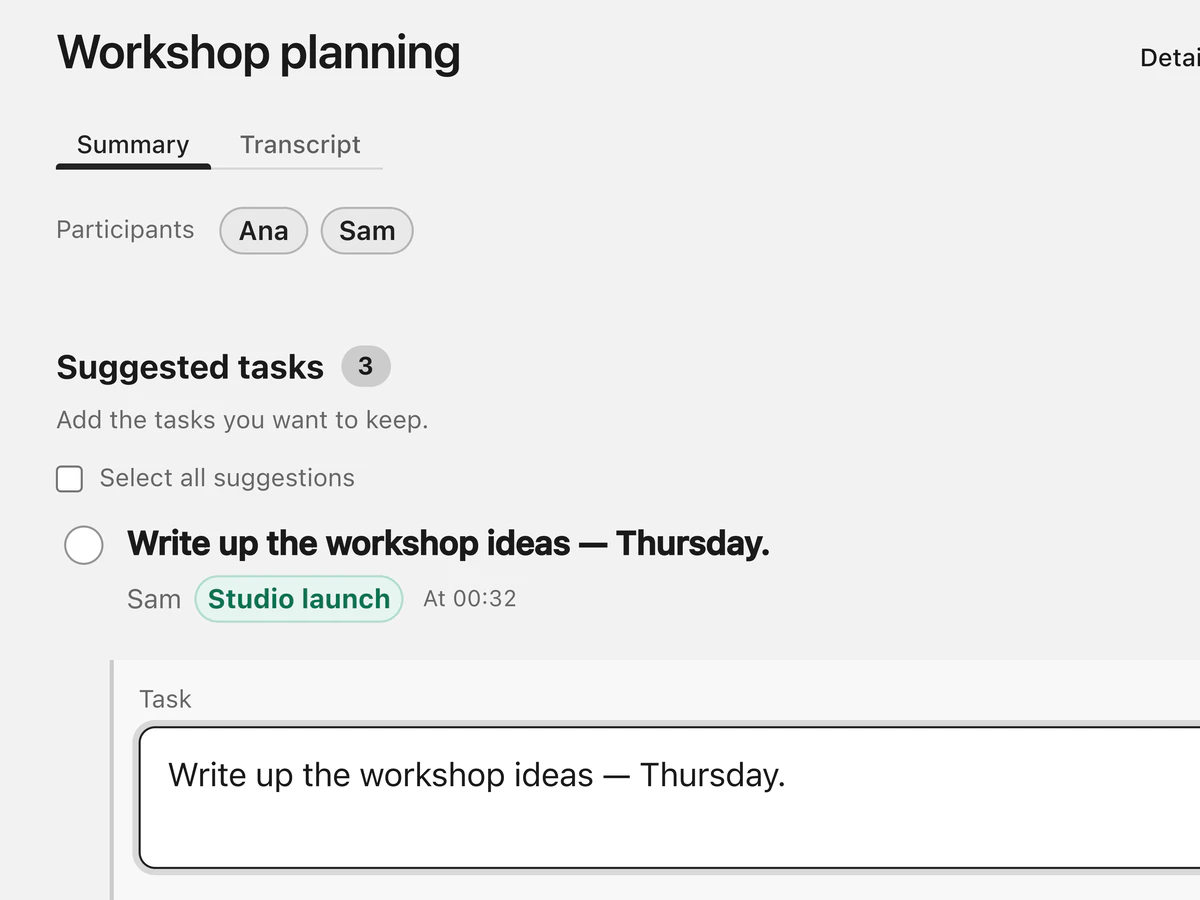
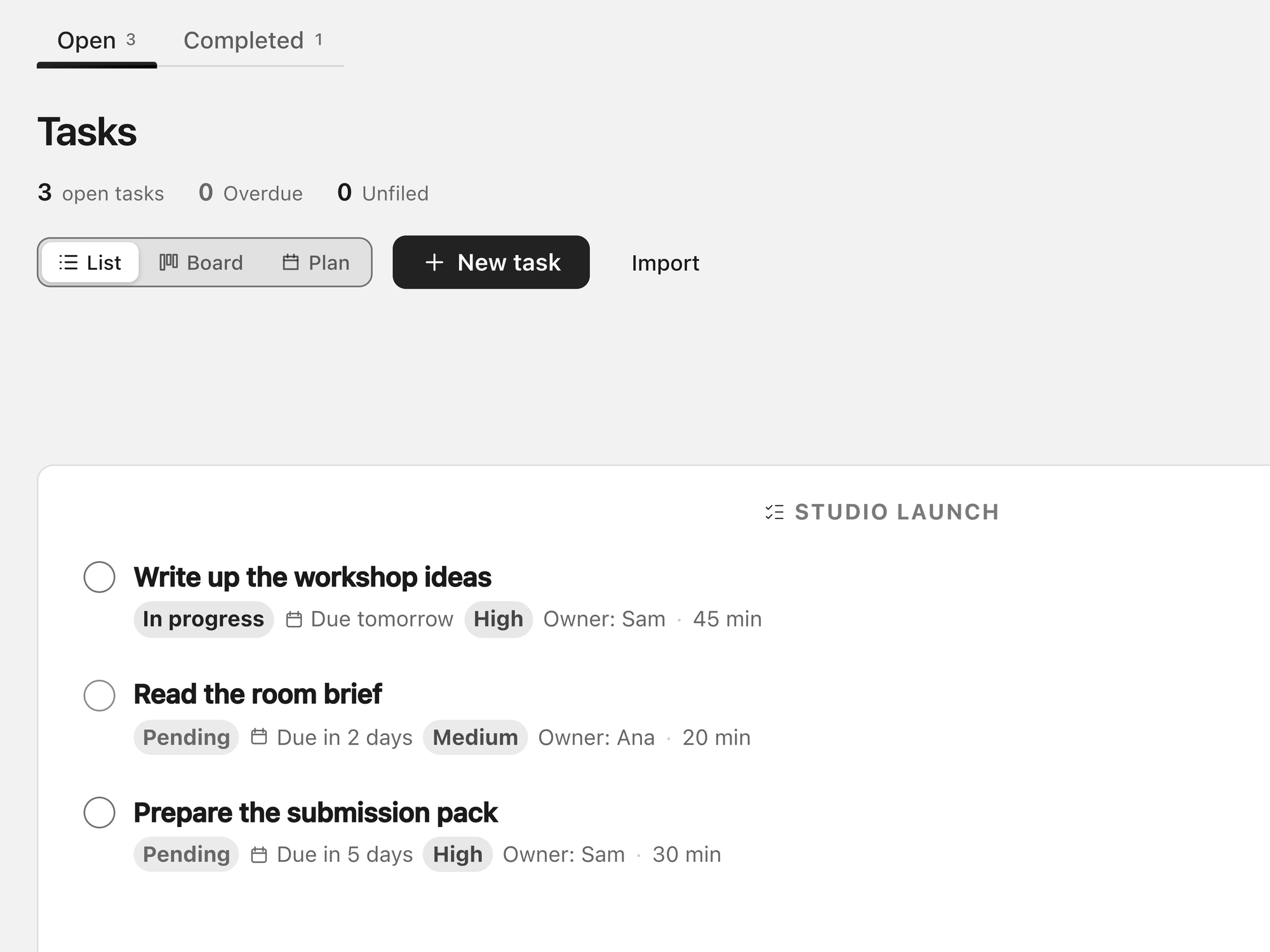
Keep the follow-ups you choose, then make time for them.
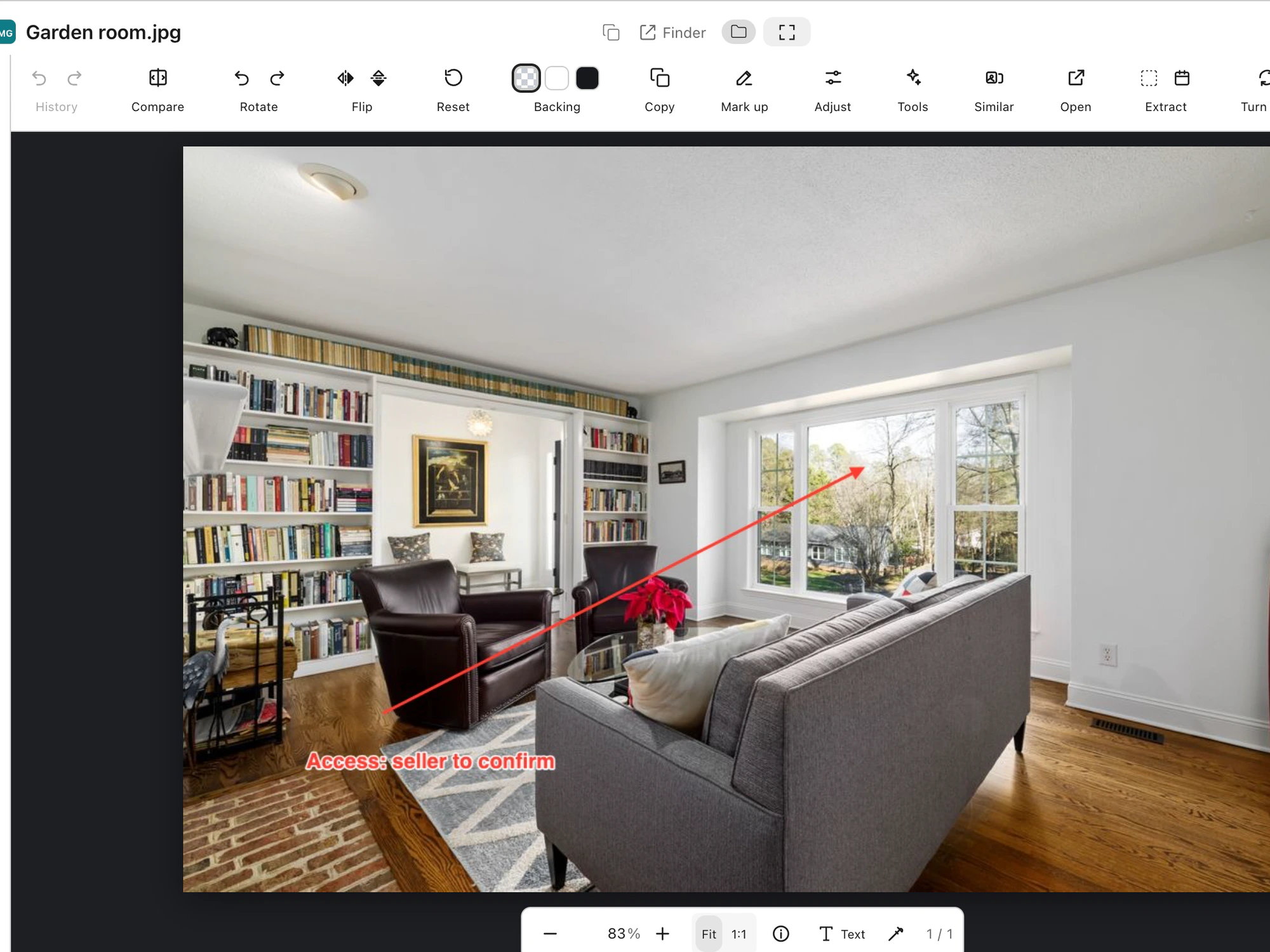
Fix the picture, trim the clip, and reuse the steps.
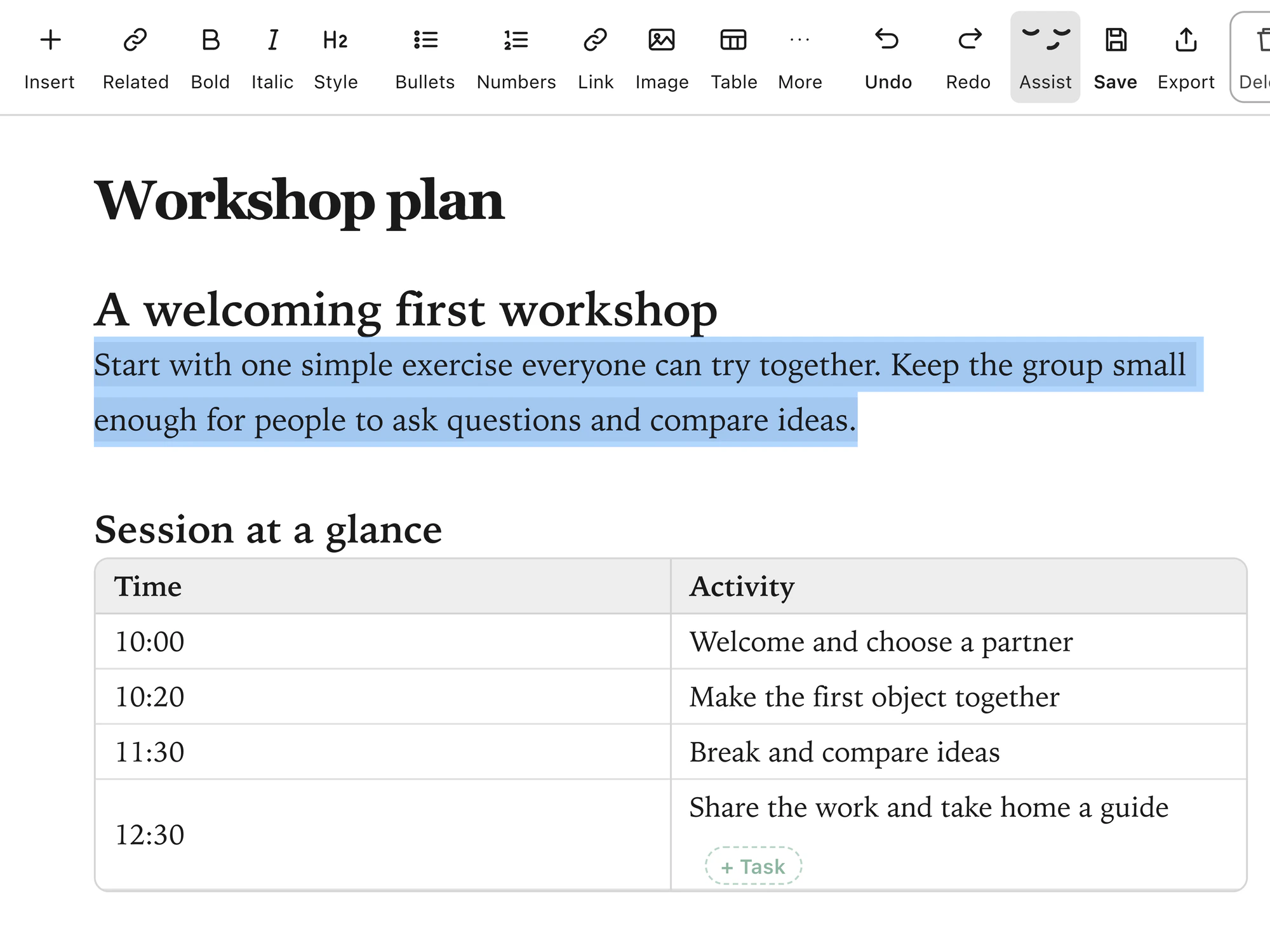
Get AI help where you already work. Choose AI on your Mac or Spillit AI in the cloud.

Plan trips, track costs, and make Spillit yours.
Open files from your existing folders in My Files and edit supported documents there.
Spillit app screen · Sample content
Swipe or use arrow keys to explore the window.
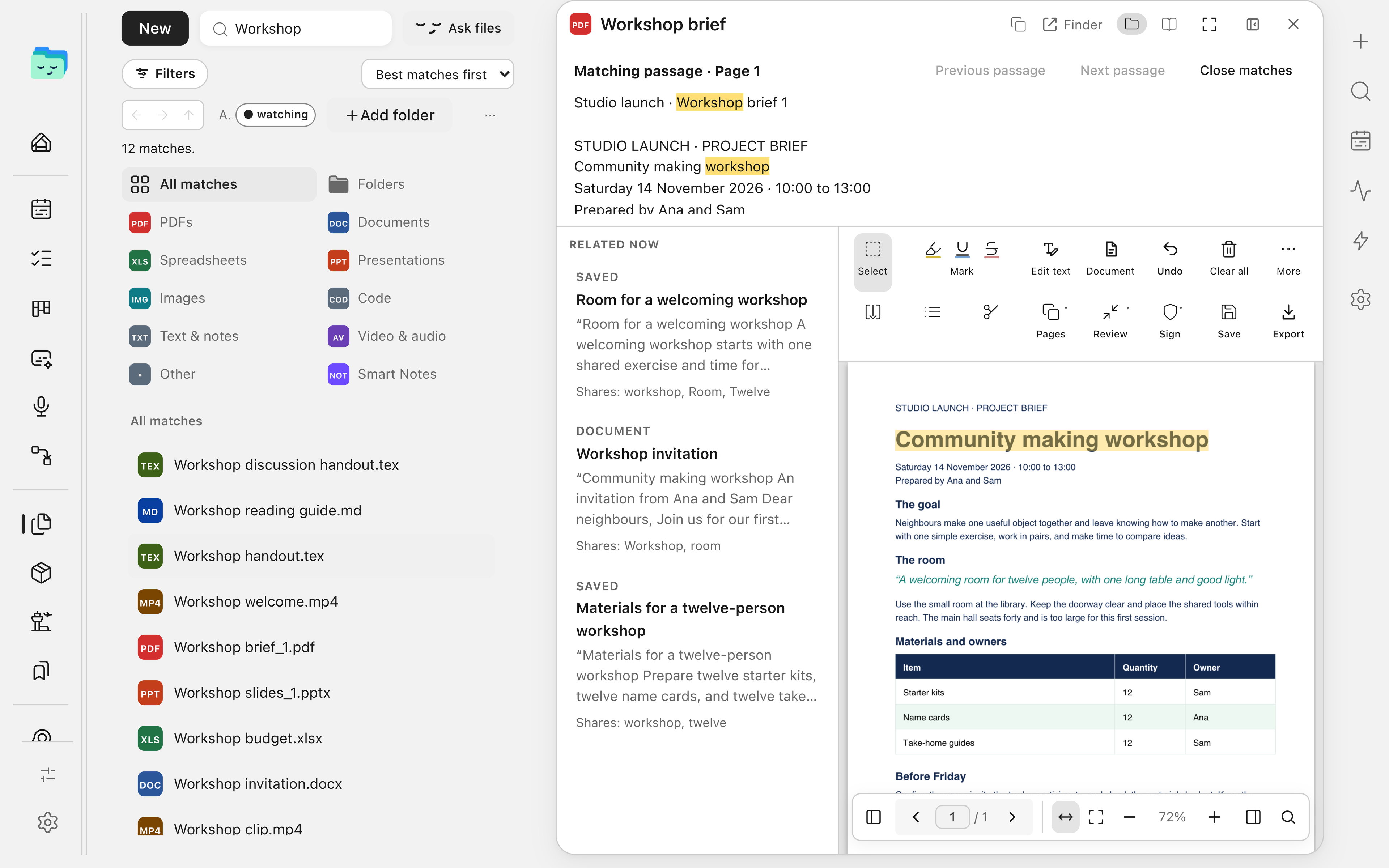
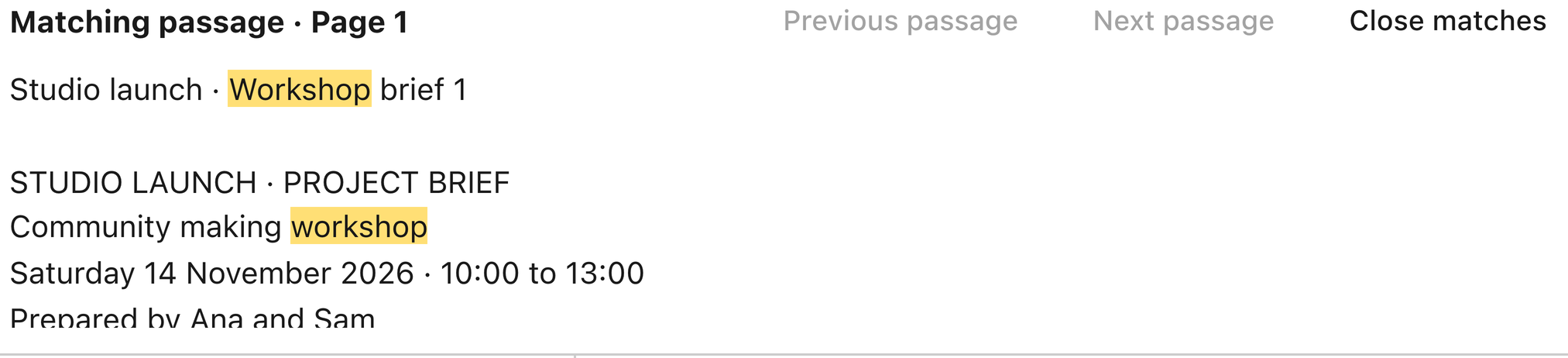
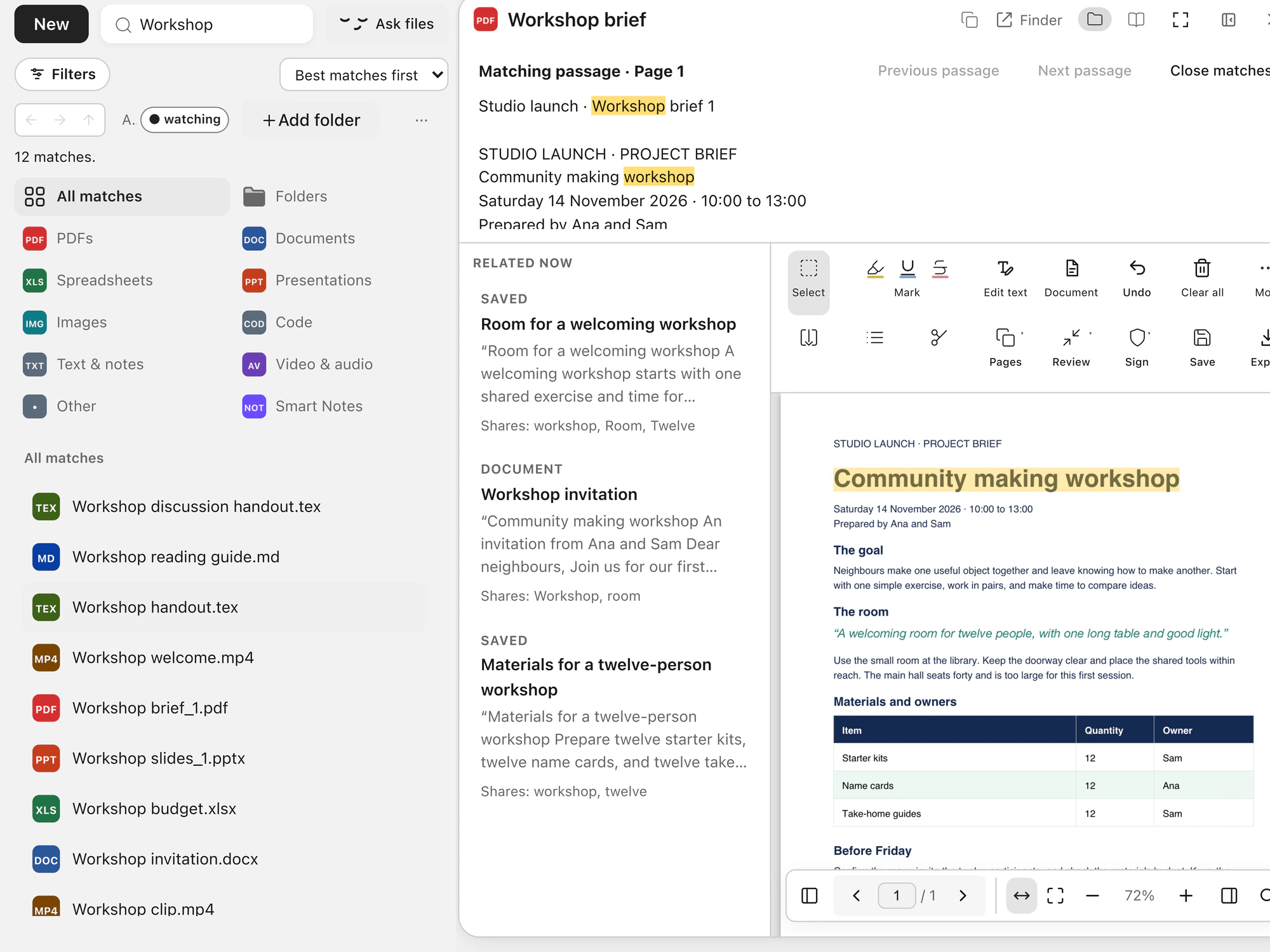
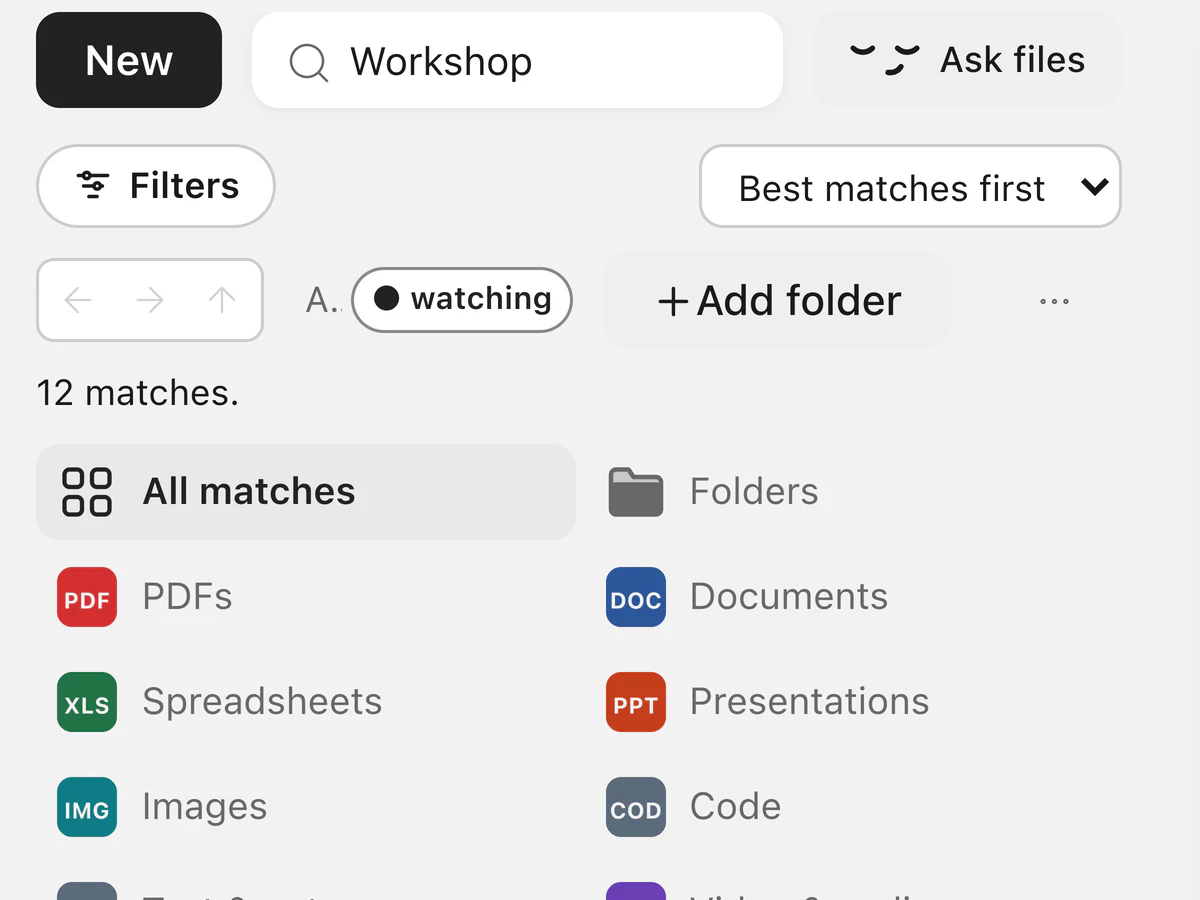
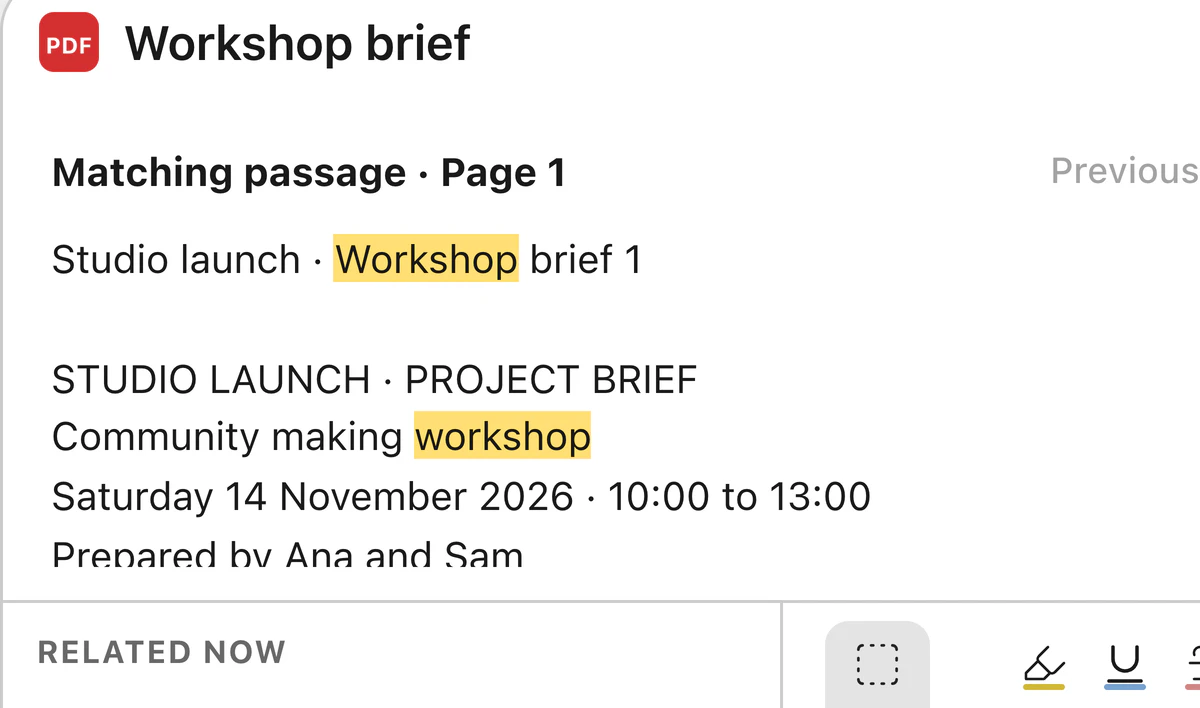
The search results stay beside the PDF. Matching words are highlighted in the passage and on the page.
Content search and previews depend on the file format. Review a restored document before continuing your edits.
Spillit app screen · Sample content
Swipe or use arrow keys to explore the window.
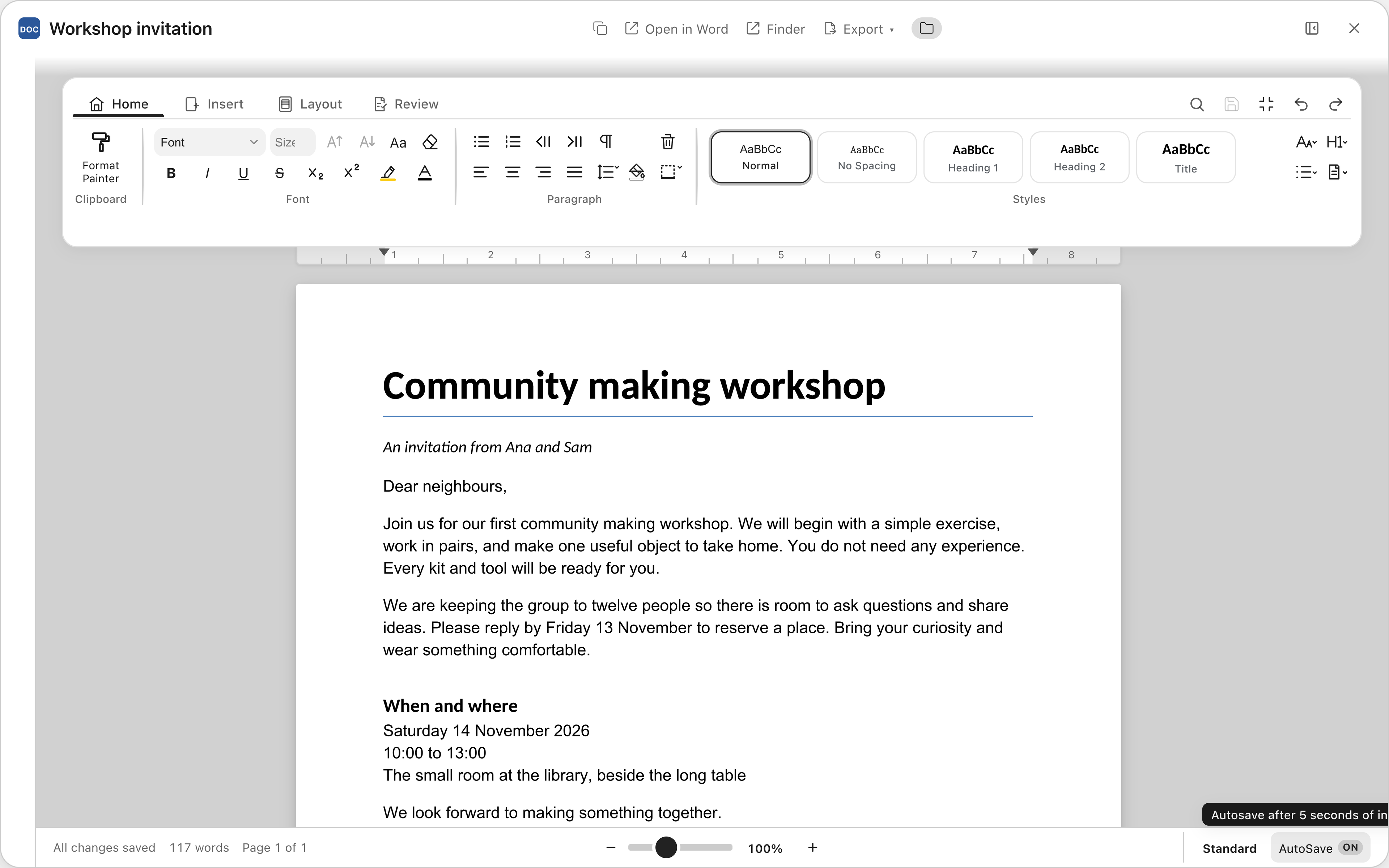
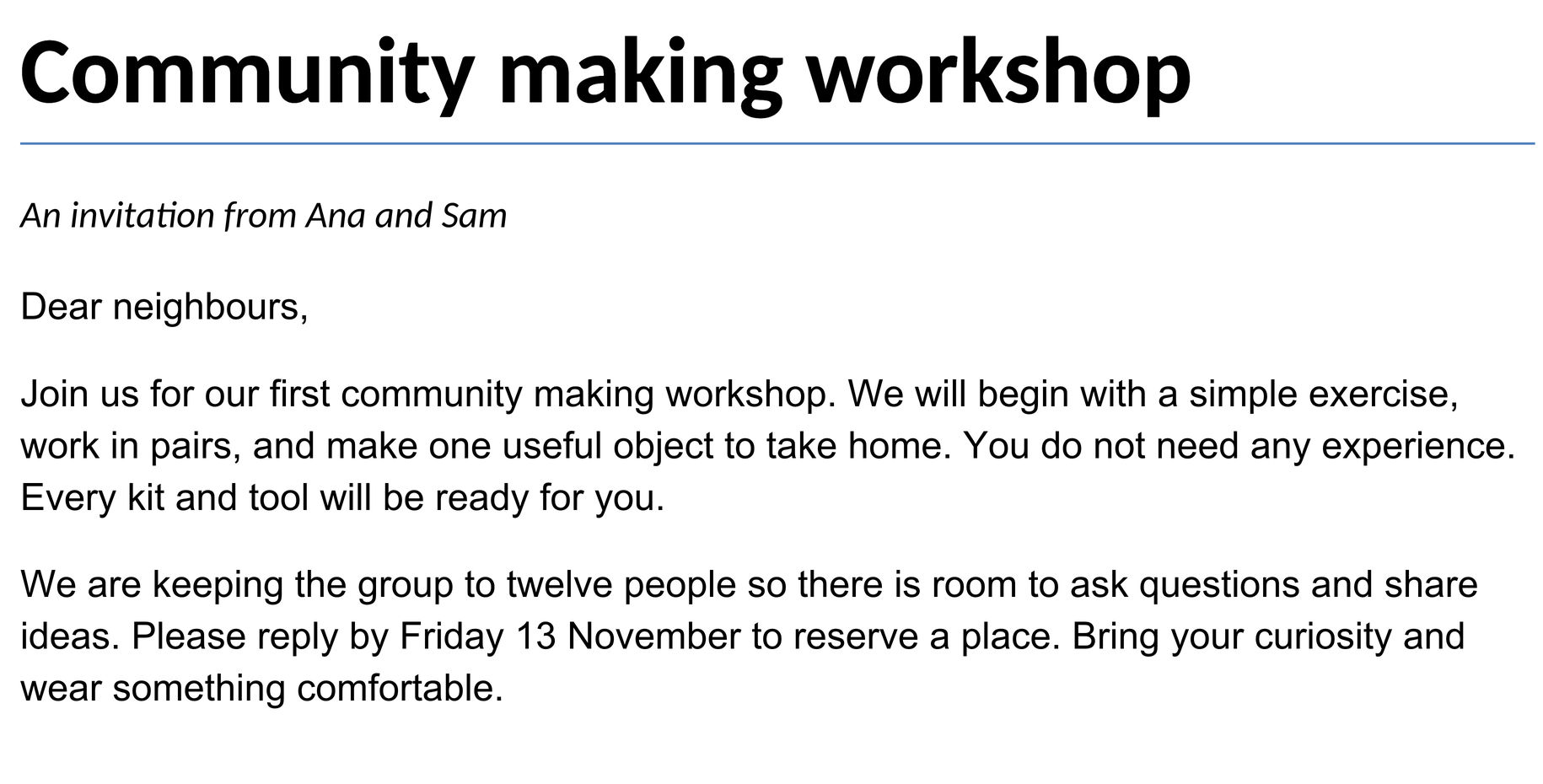
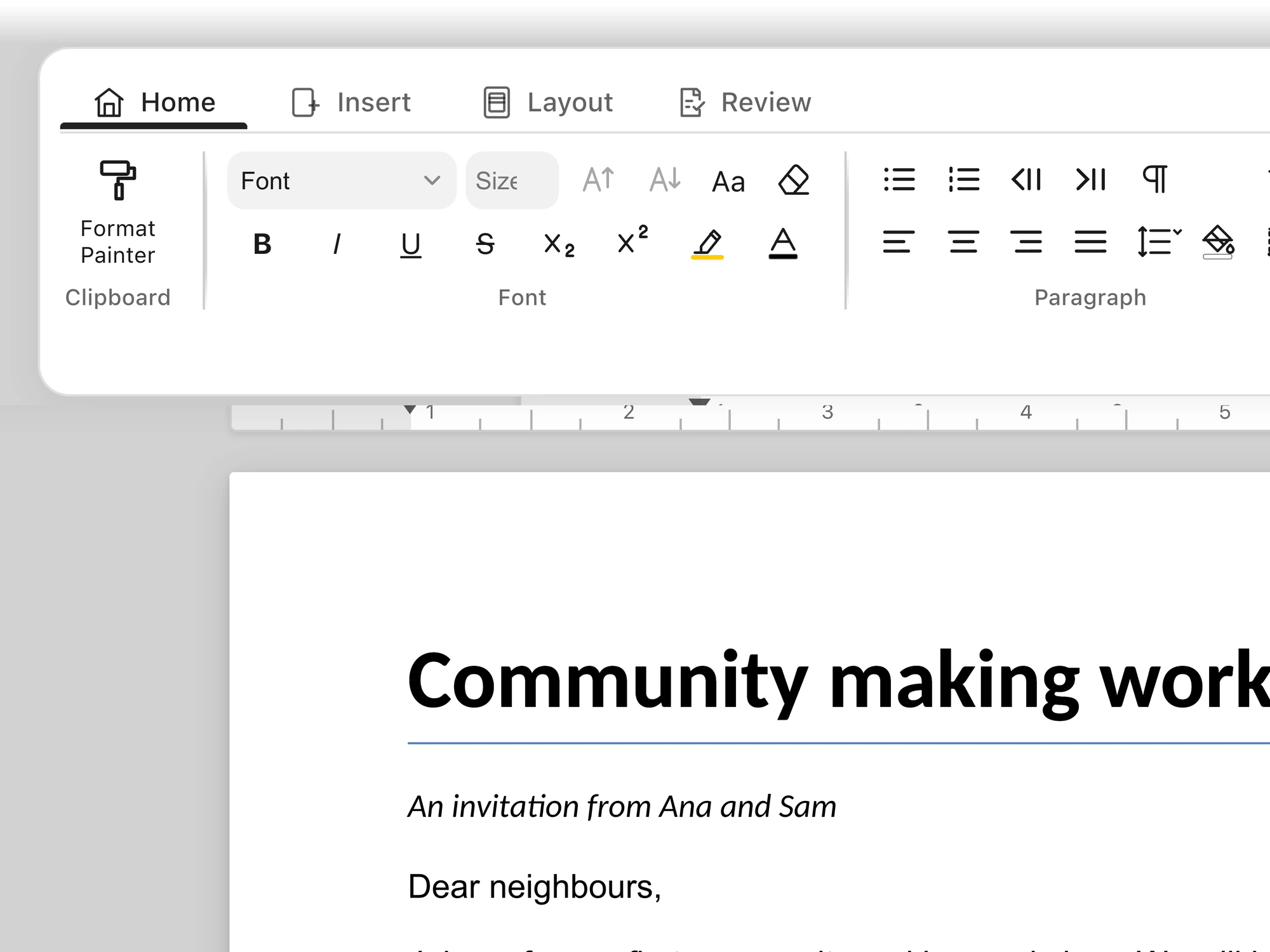
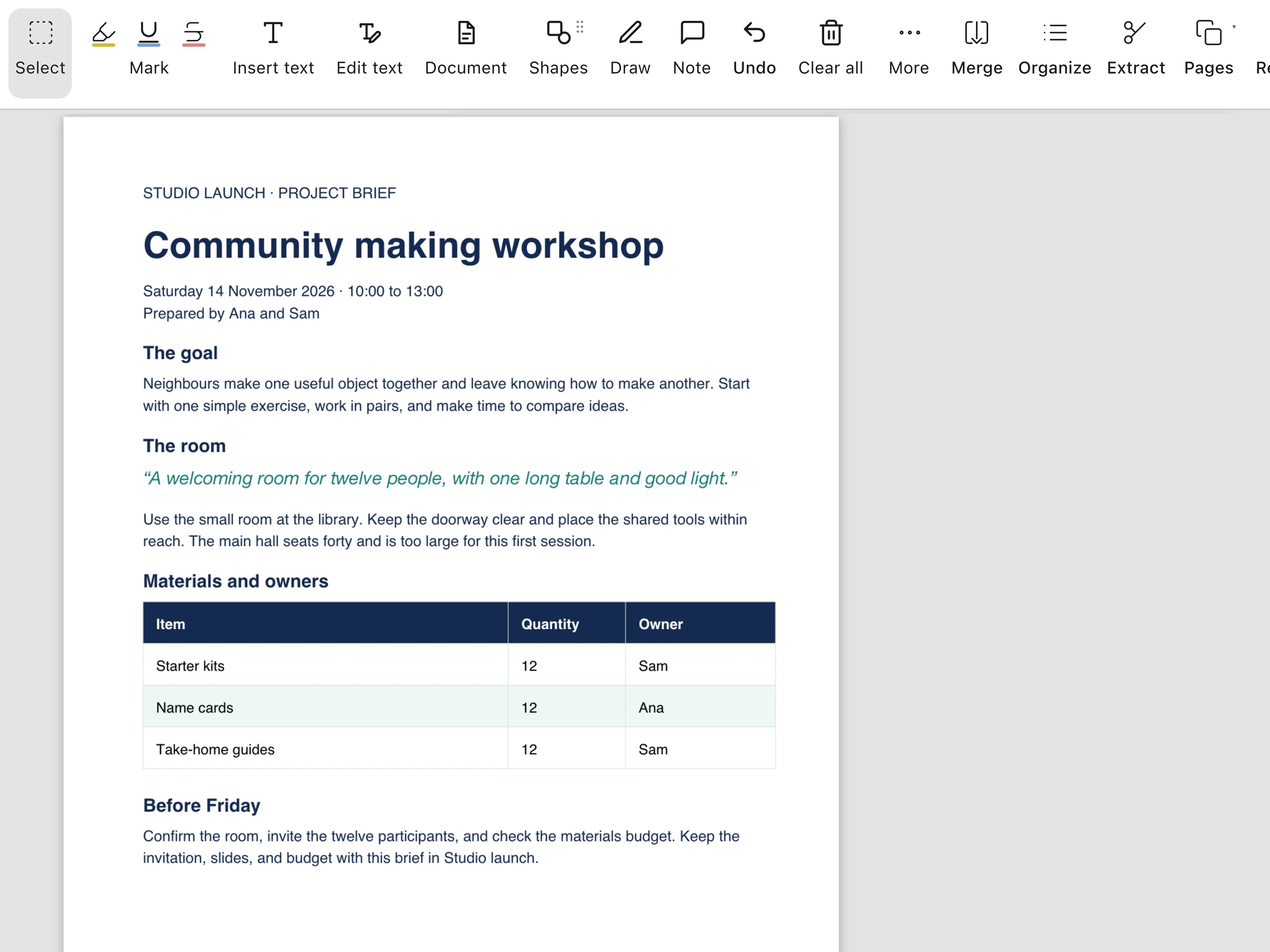
The document contains its title, invitation text, and workshop details. Formatting and review controls remain available.
Review advanced layouts, formulas, media, and converted text.
Spillit app screen · Sample content
Swipe or use arrow keys to explore the window.
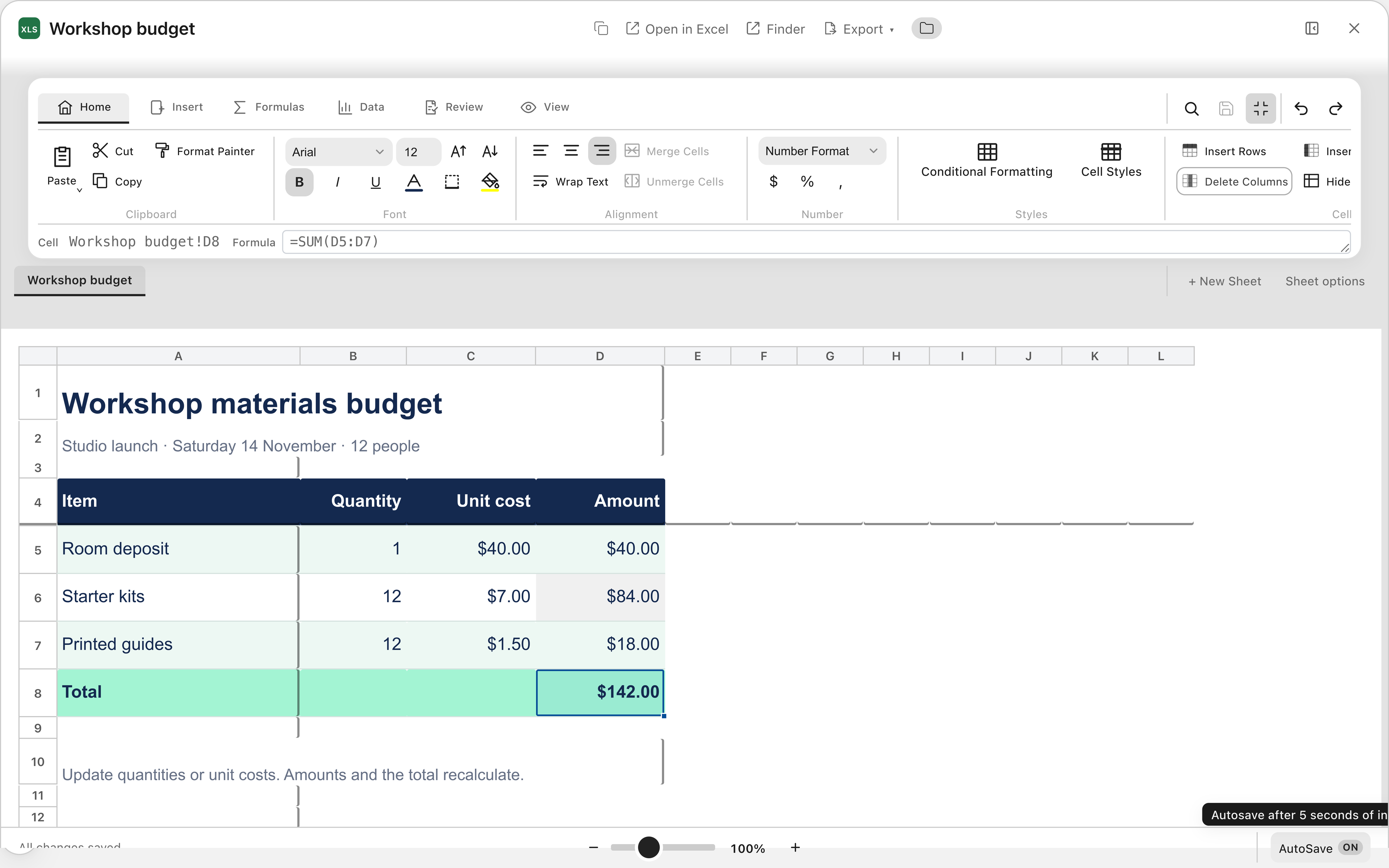
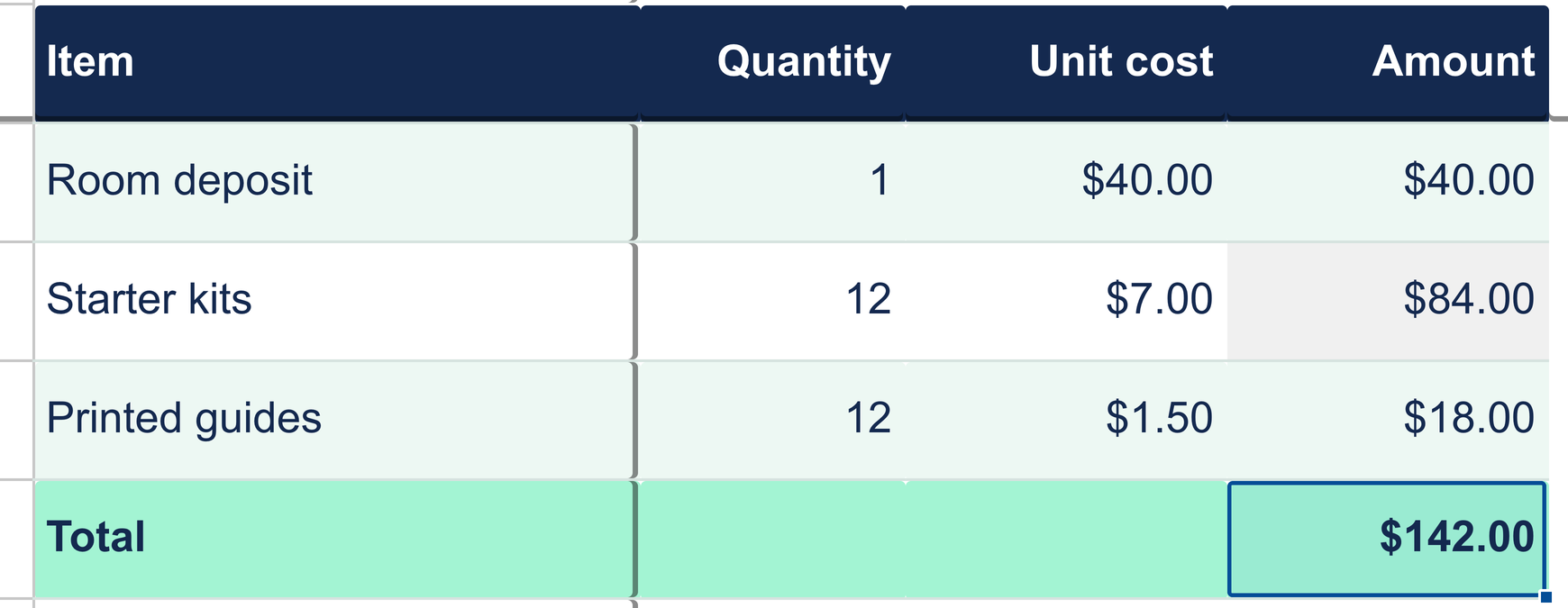
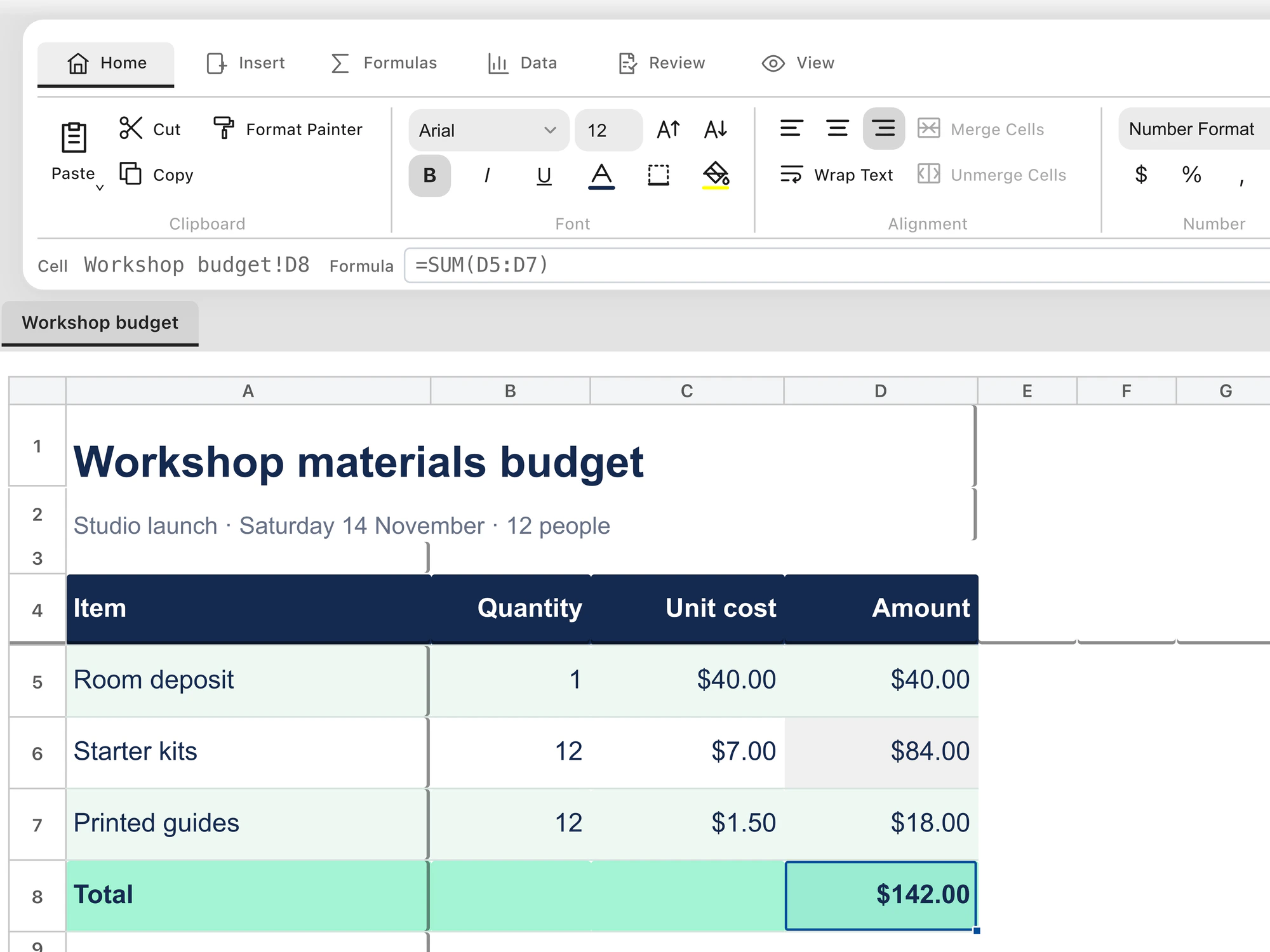
The worksheet contains the item costs and a selected total of $142.00. D8 uses =SUM(D5:D7).
Review advanced layouts, formulas, media, and converted text.
Spillit app screen · Sample content
Swipe or use arrow keys to explore the window.
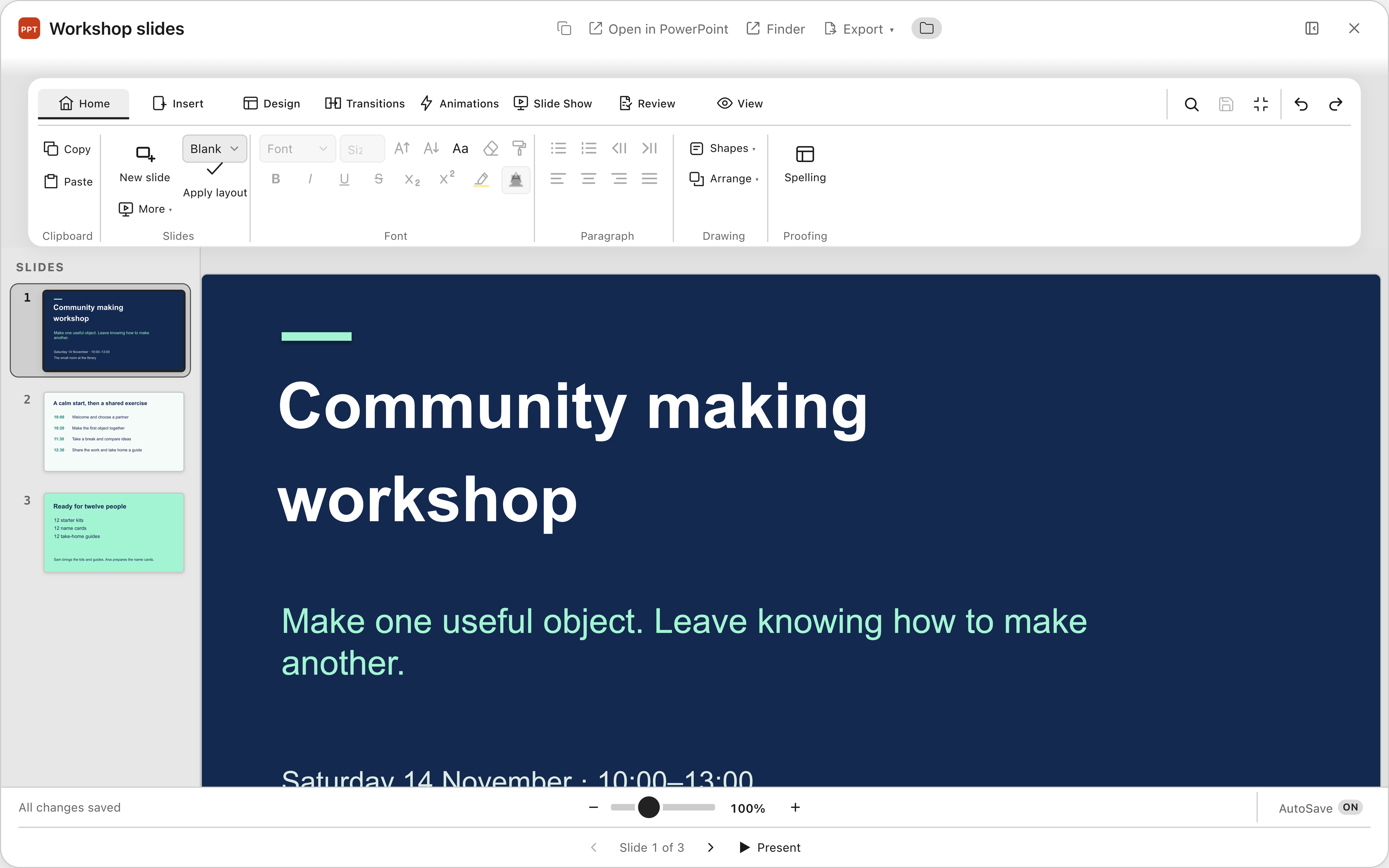
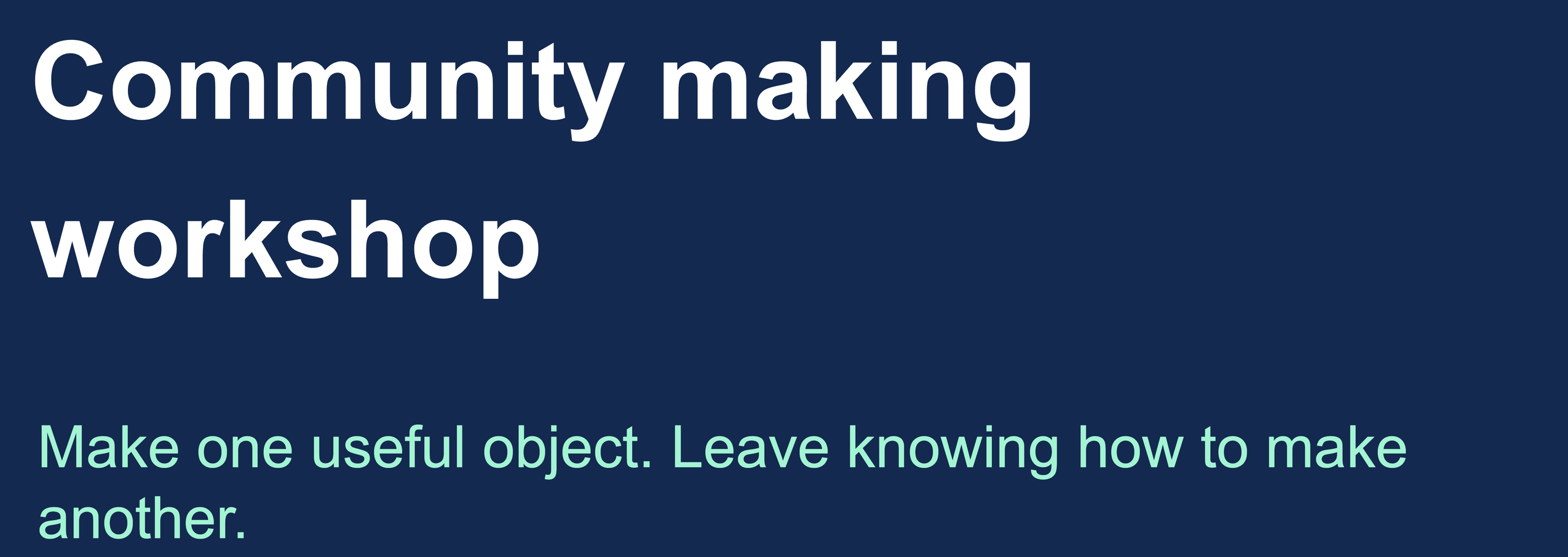
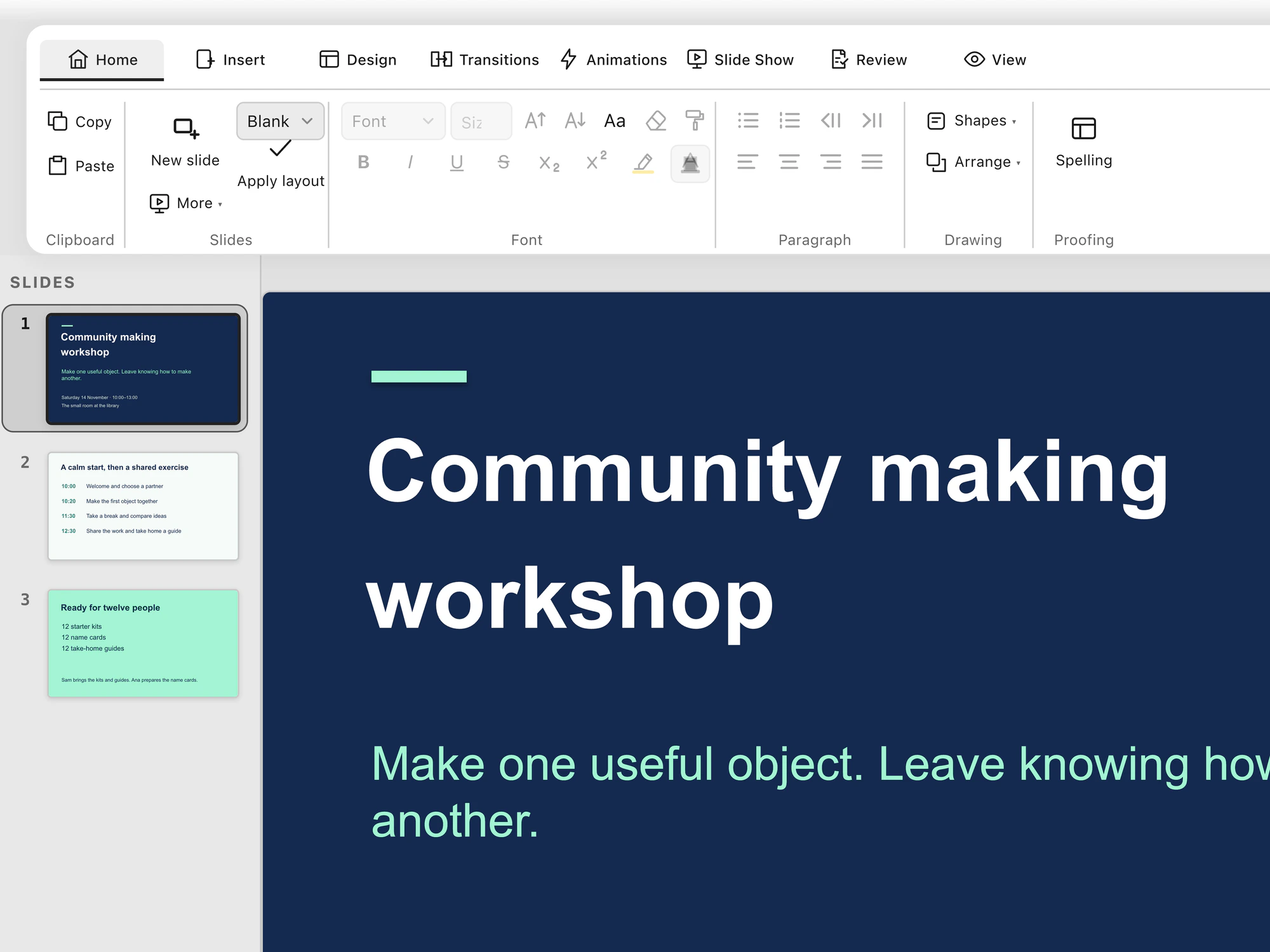
Keep the slide editable while you change its text, layout, and design. Use Present when the deck is ready.
Review advanced layouts, formulas, media, and converted text.
Spillit app screen · Sample content
Swipe or use arrow keys to explore the window.
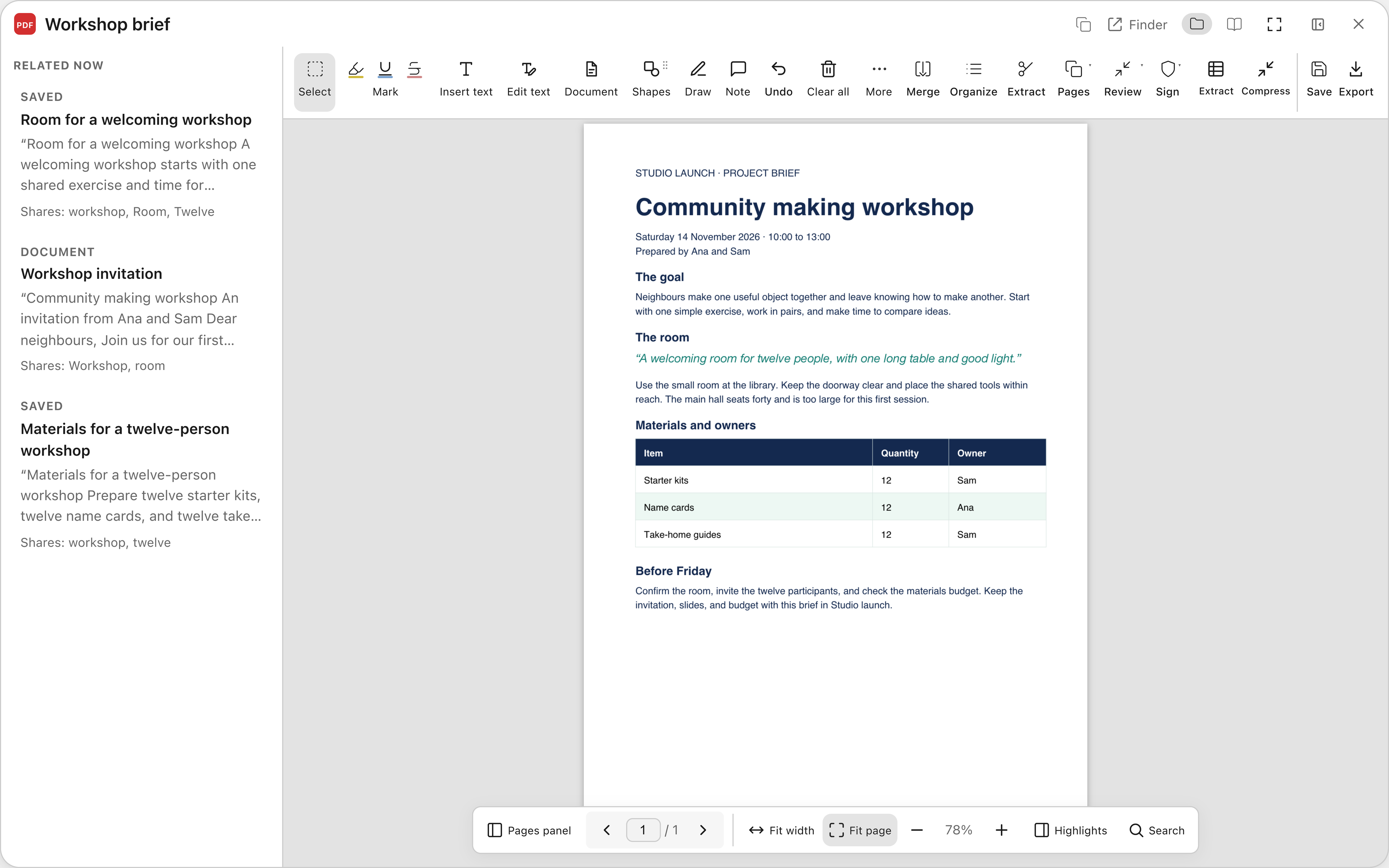
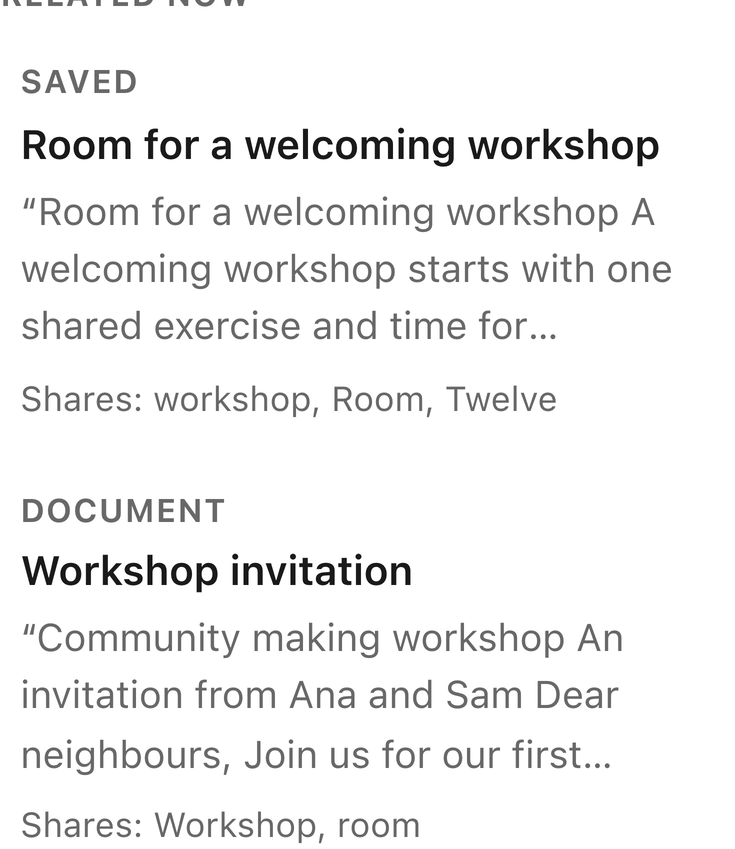
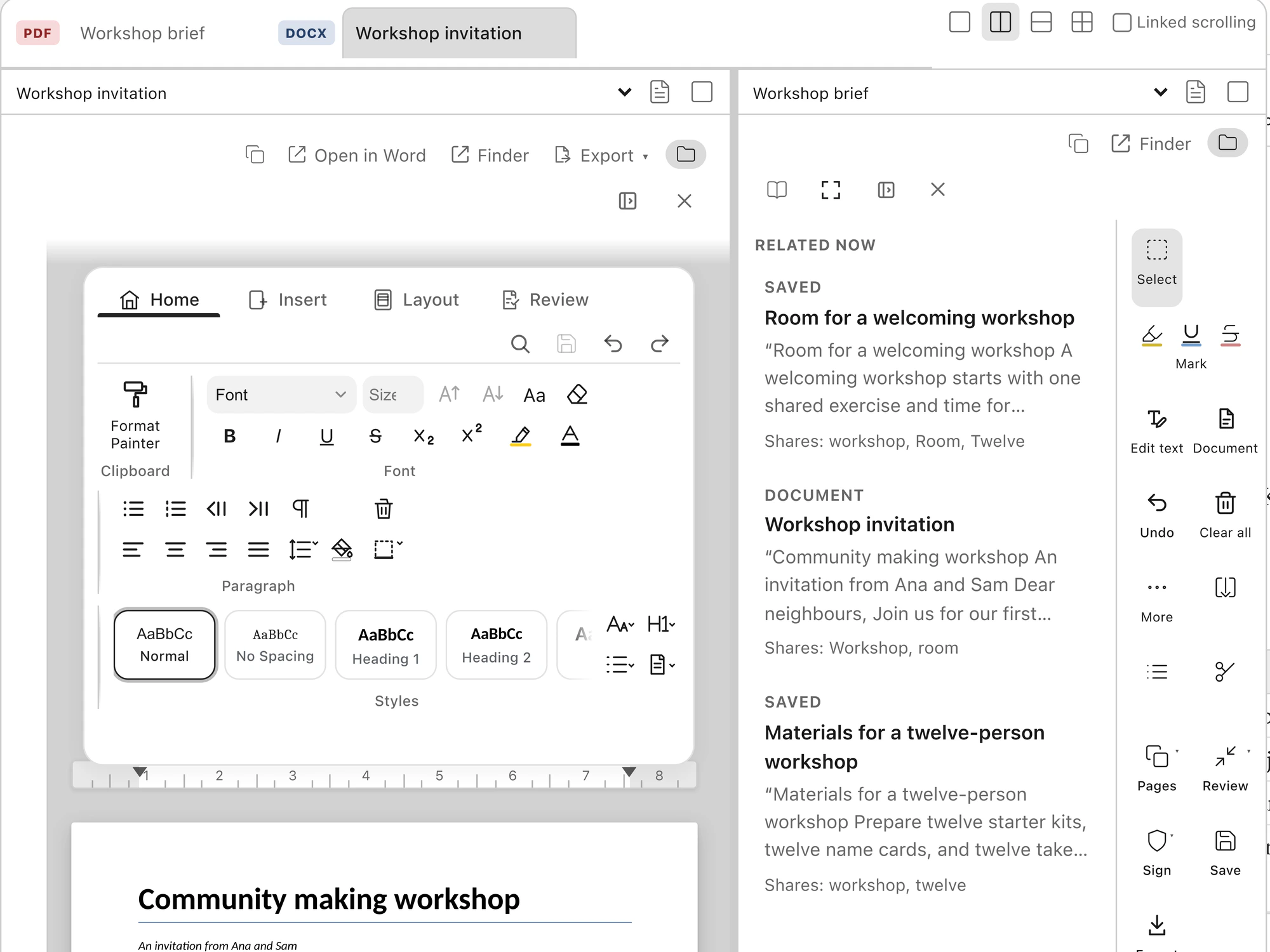
Open related documents and saved references beside the PDF. Keep the source material available while you read.
Review advanced layouts, formulas, media, and converted text.
PDF redaction flattens affected pages. PDF-to-slide conversion creates page images with text in speaker notes.
Spillit app screen · Sample content
Swipe or use arrow keys to explore the window.
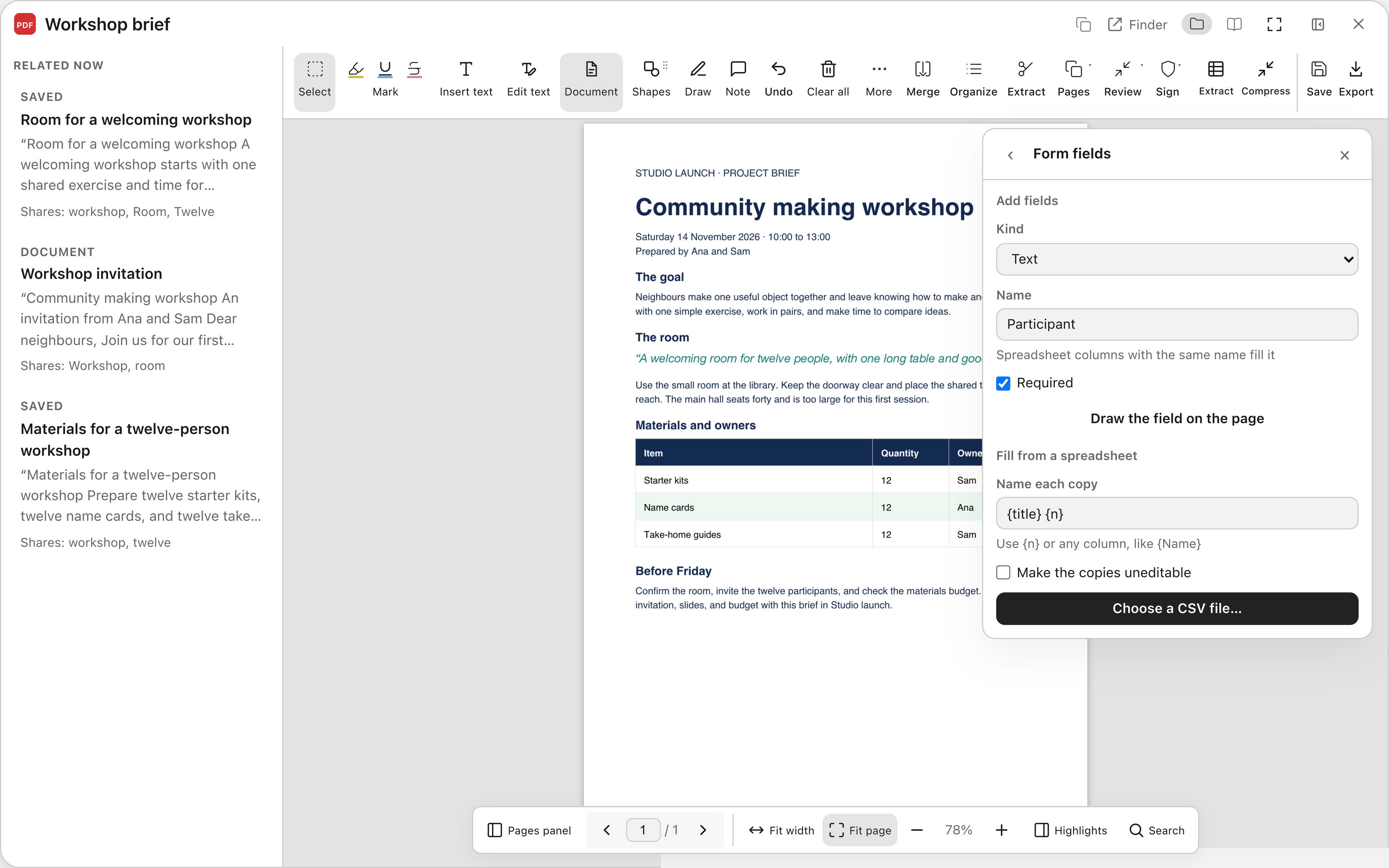
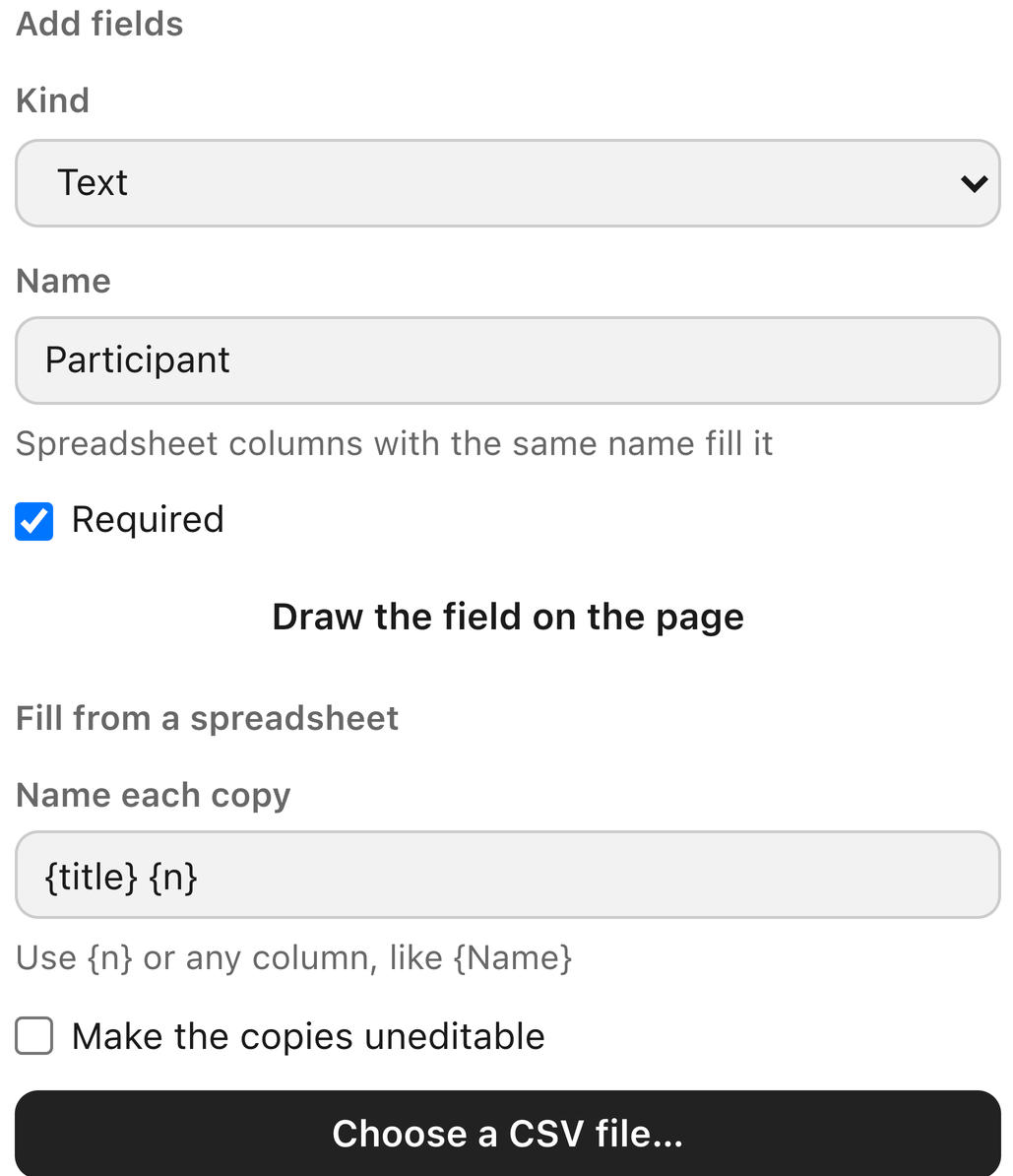
Participant is a required text field ready to draw. The same panel can fill copies from spreadsheet rows.
Review advanced layouts, formulas, media, and converted text.
PDF redaction flattens affected pages.
Spillit app screen · Sample content
Swipe or use arrow keys to explore the window.
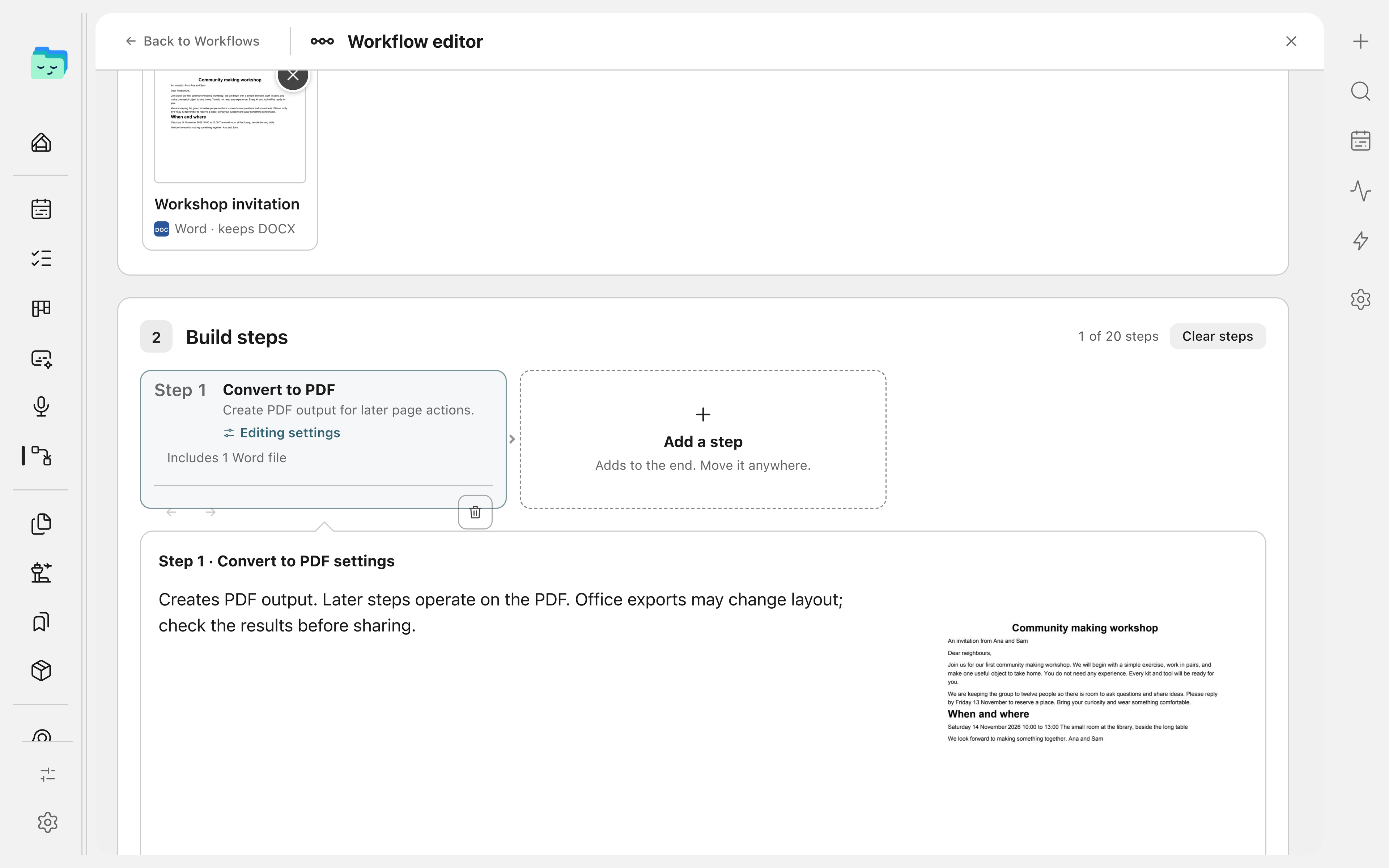
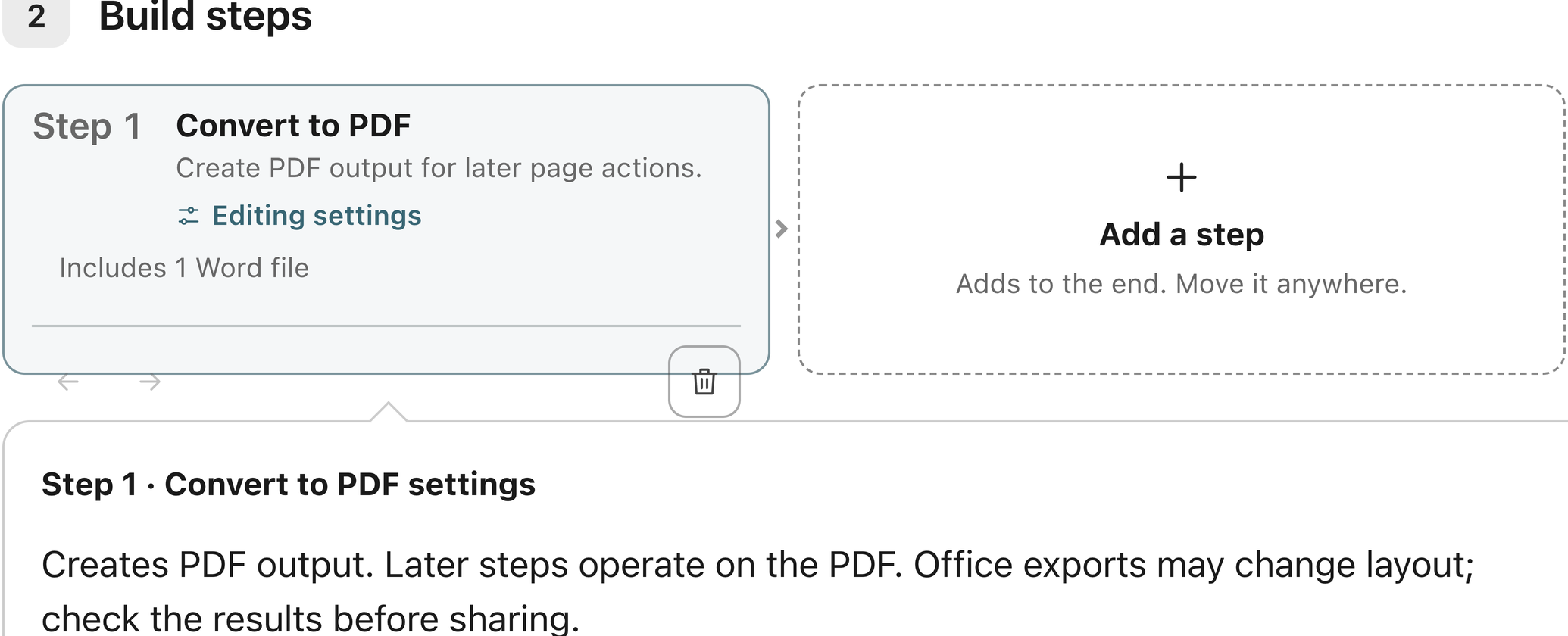
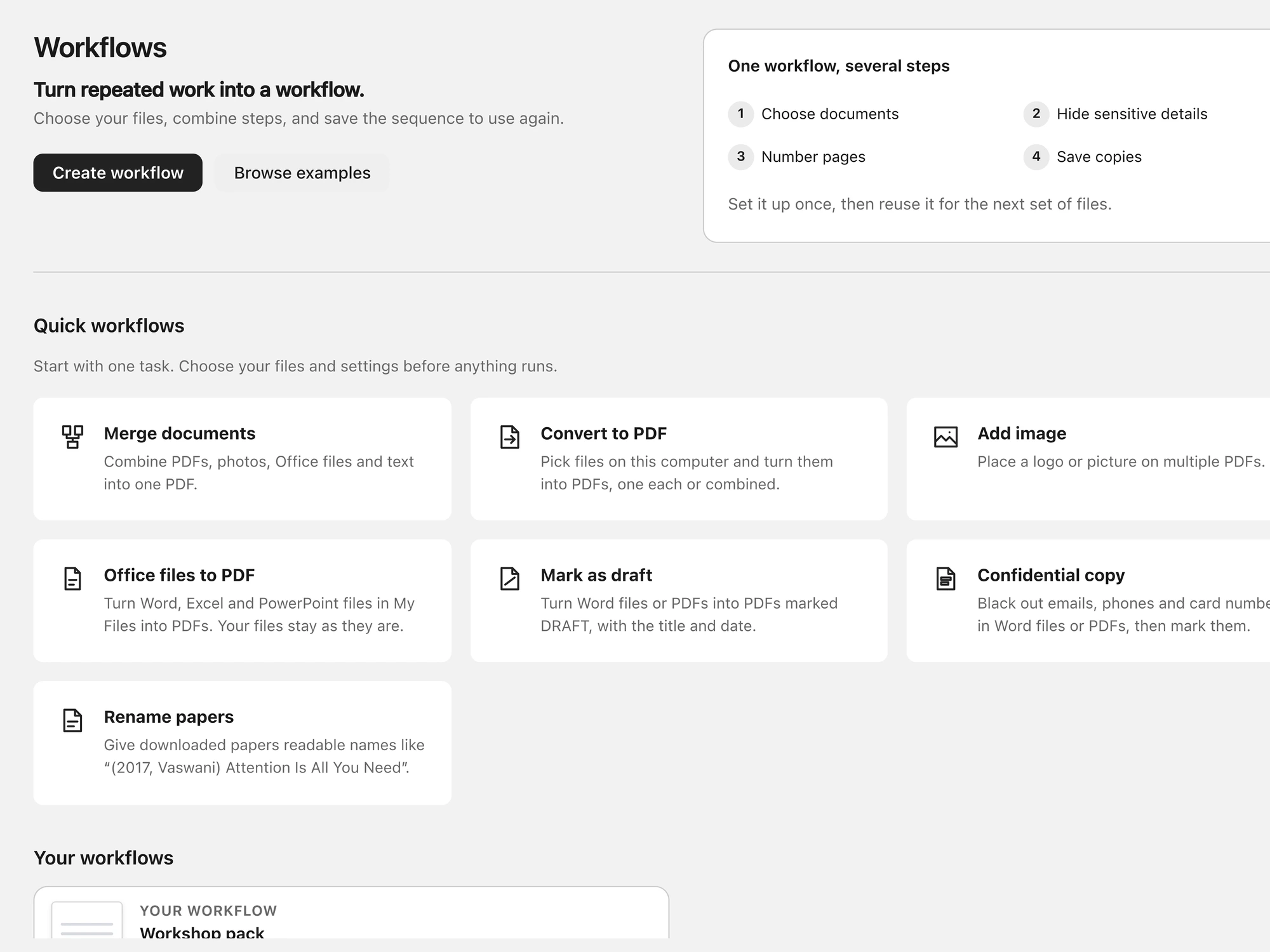
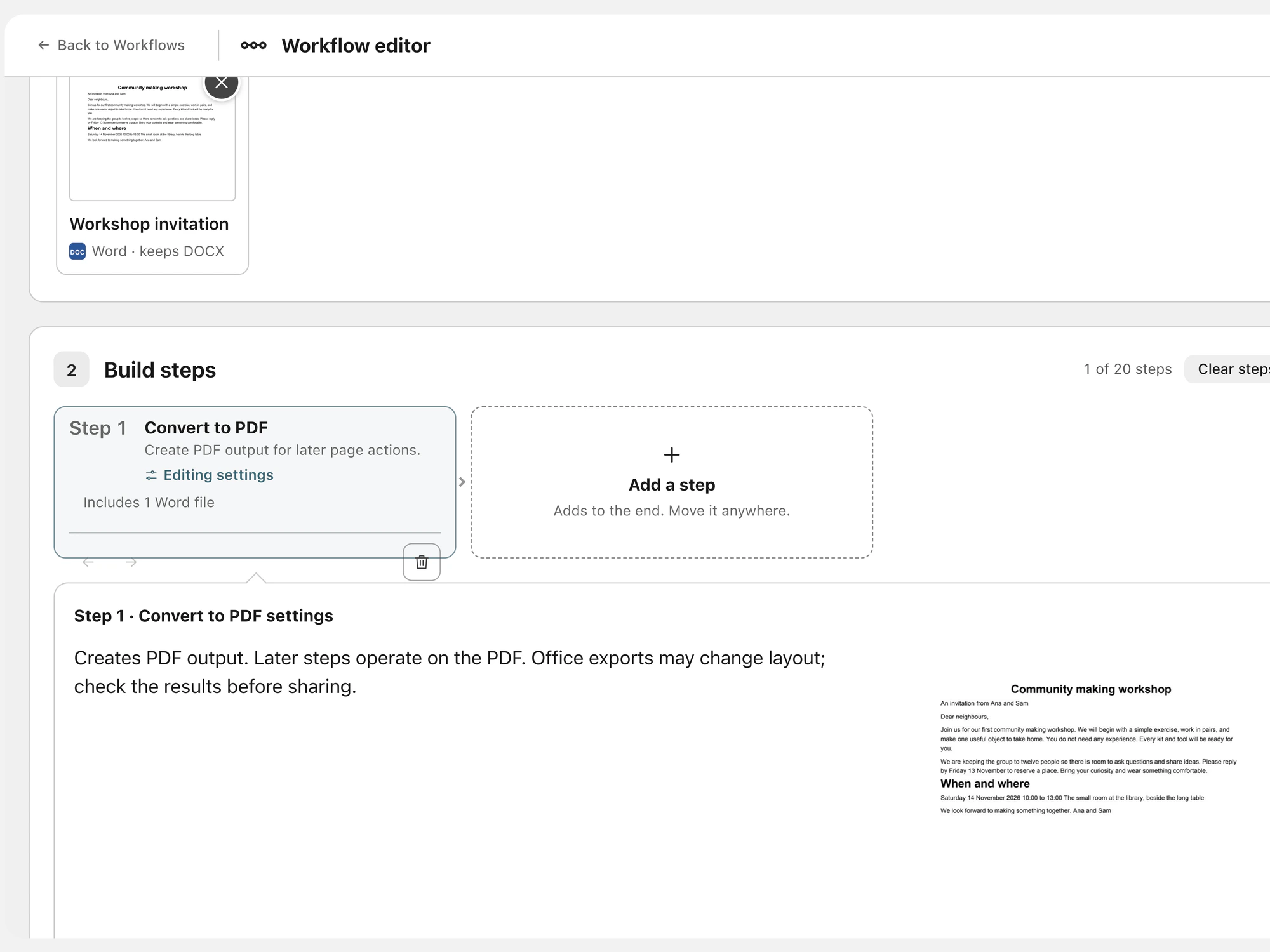
Convert the Word file to PDF before adding page tools. Keep the sequence for the next set of documents.
Review advanced layouts, formulas, media, and converted text.
Spillit app screen · Sample content
Swipe or use arrow keys to explore the window.
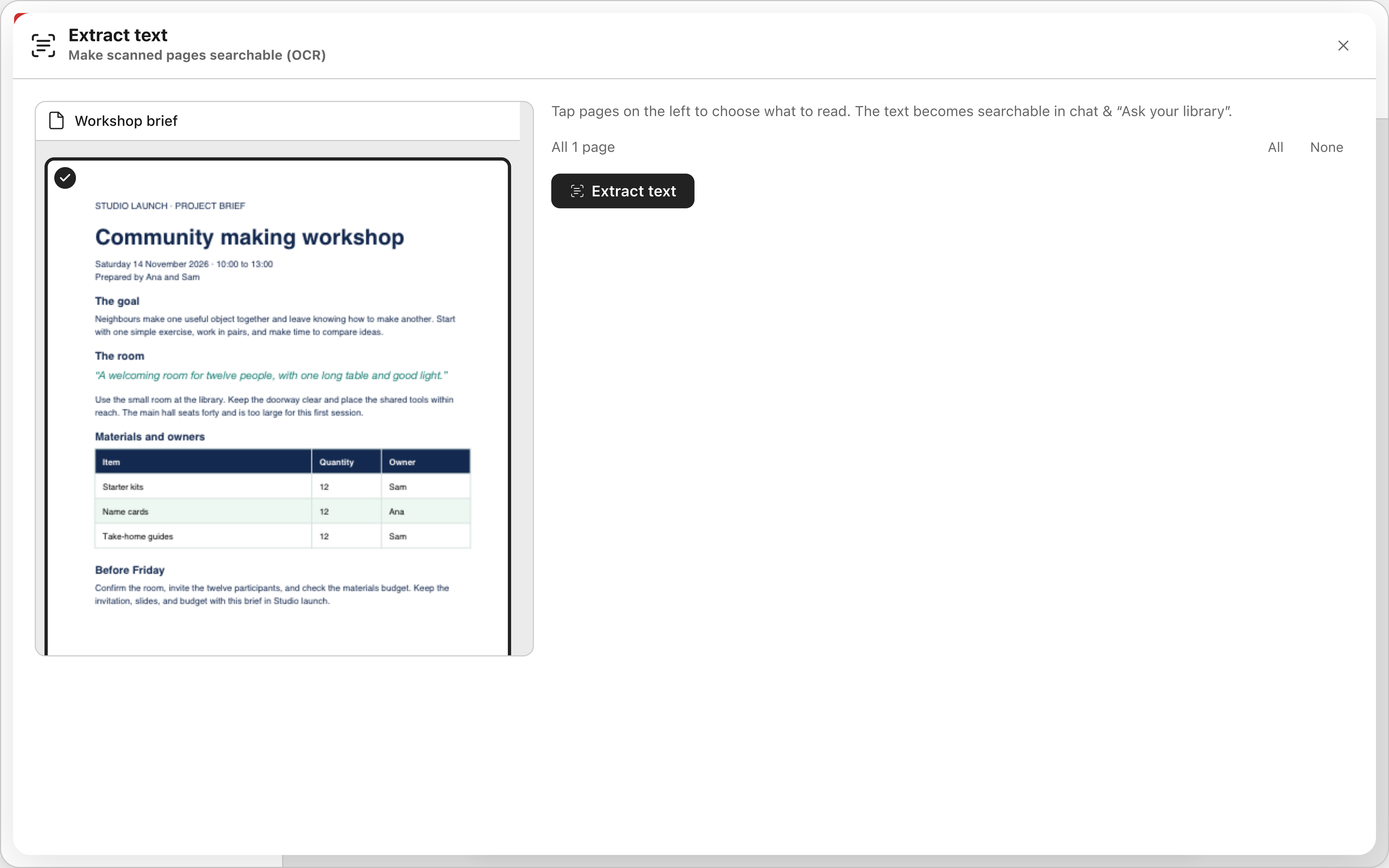
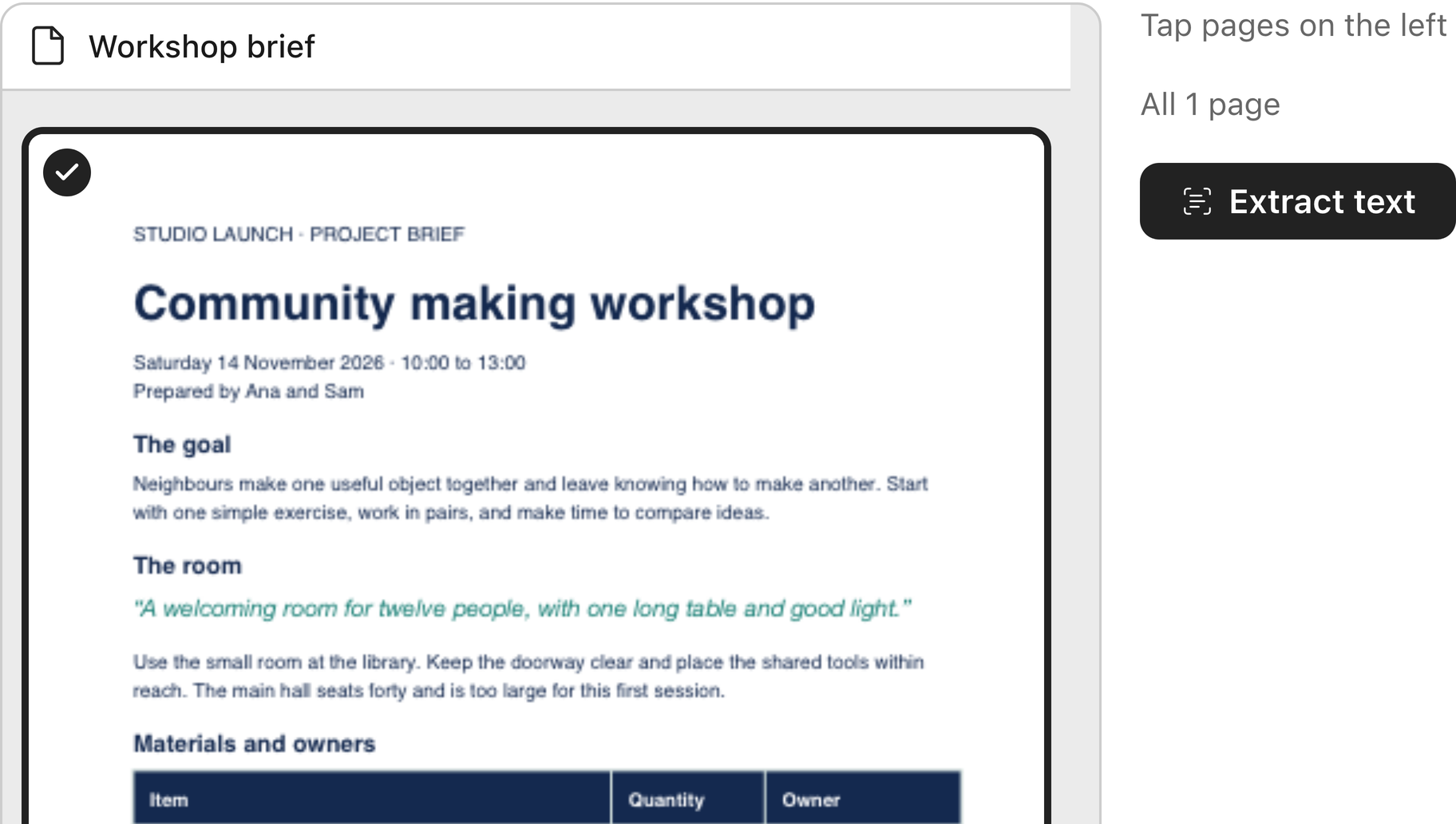
The workshop page is selected for Extract text. This capture shows the page choice before recognition runs.
Spillit app screen · Sample content
Swipe or use arrow keys to explore the window.
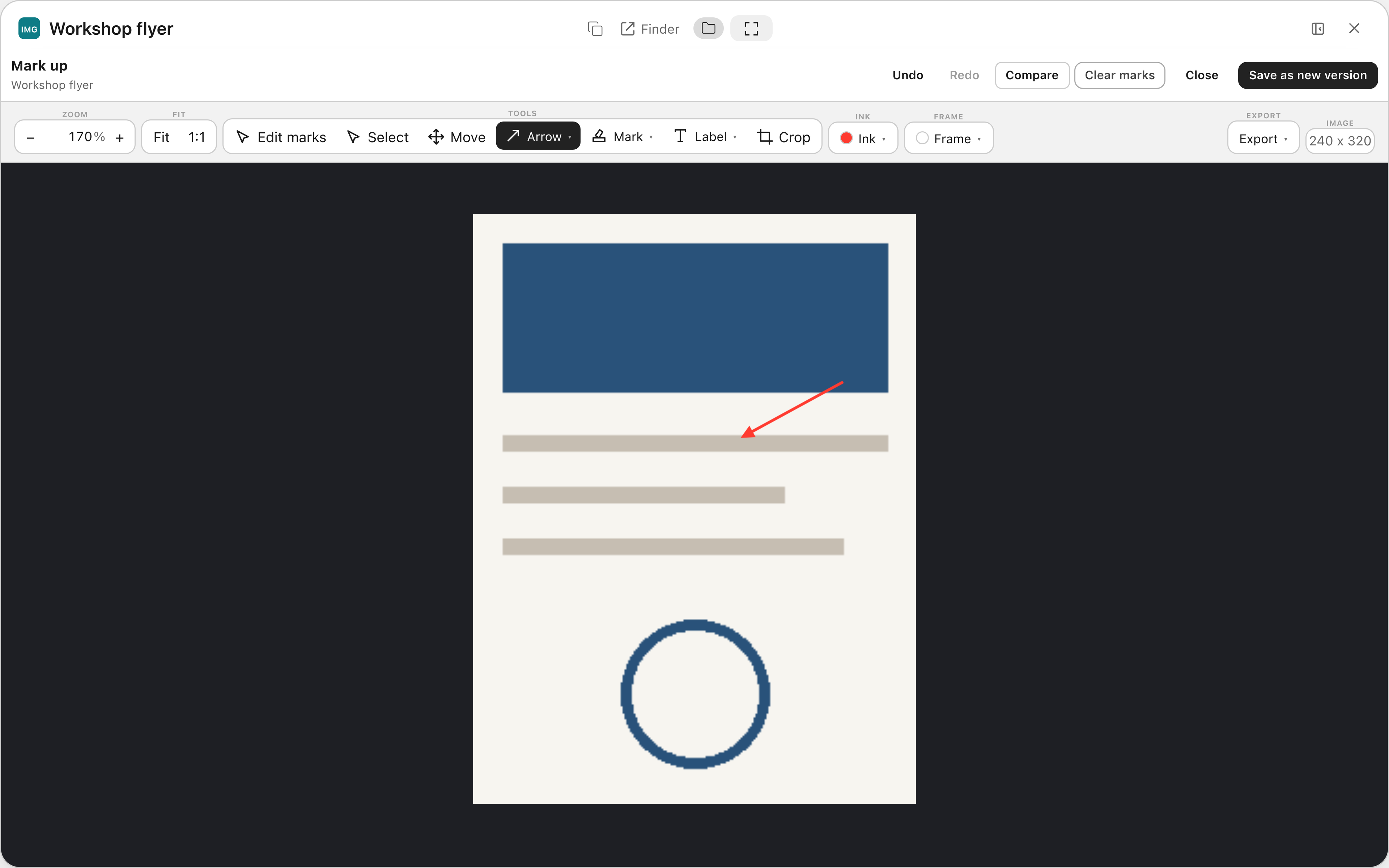
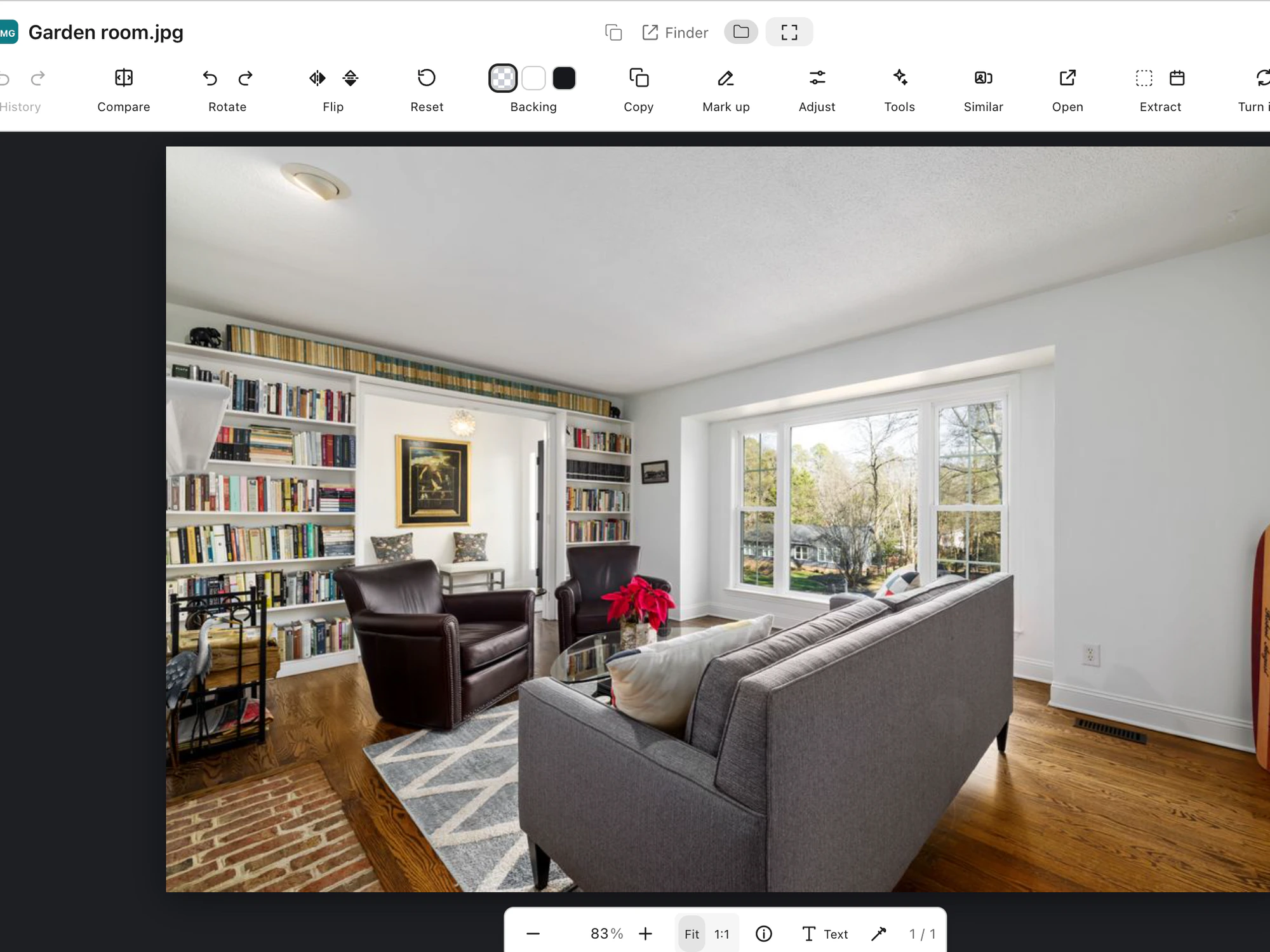
The red arrow was drawn with the native Arrow tool. Undo and Clear marks are available before saving a new version.
Background removal uses Apple Vision and requires macOS 14 or later.
Keep your writing beside the reading, references, and passages behind it.
Spillit app screen · Sample content
Swipe or use arrow keys to explore the window.
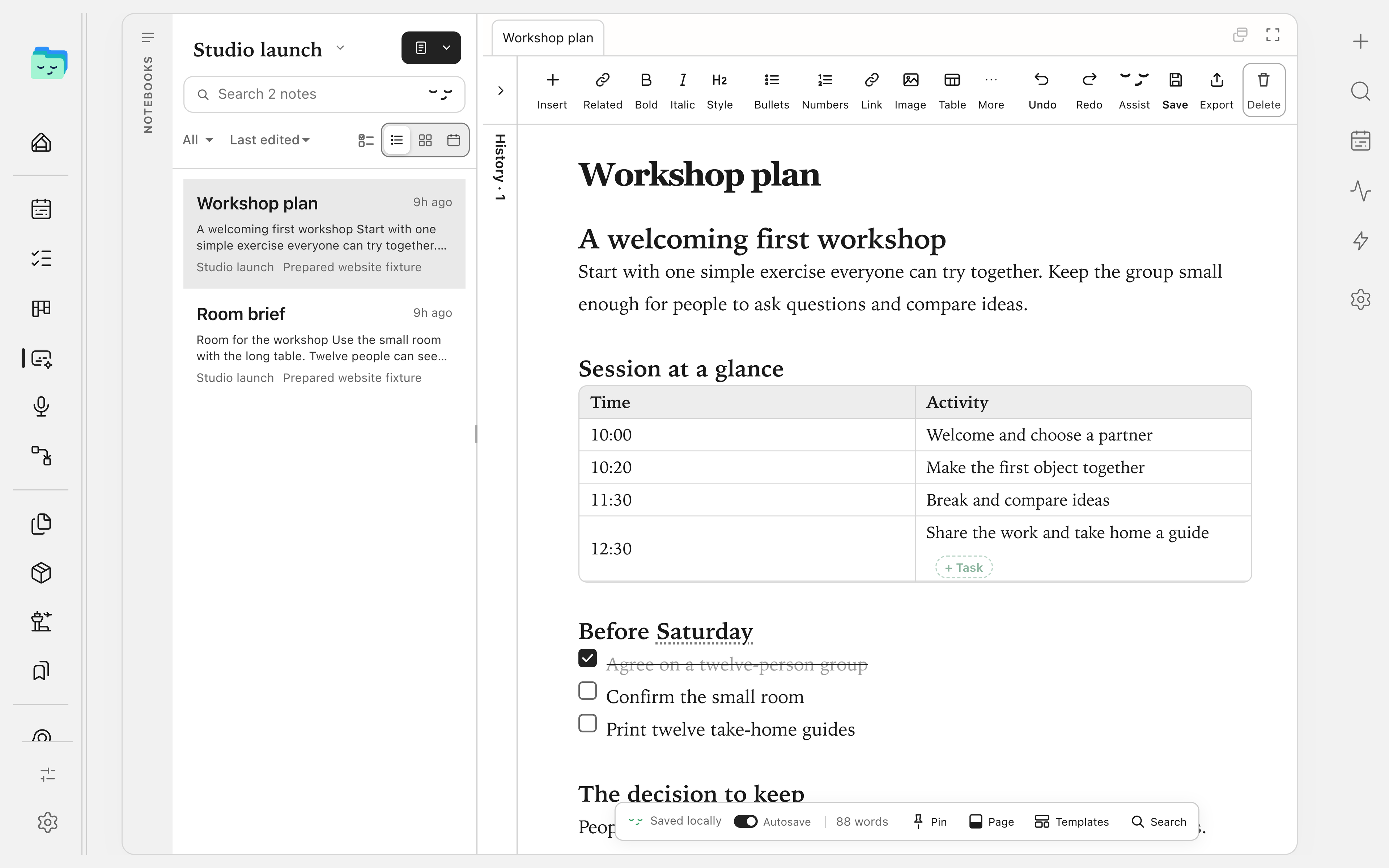
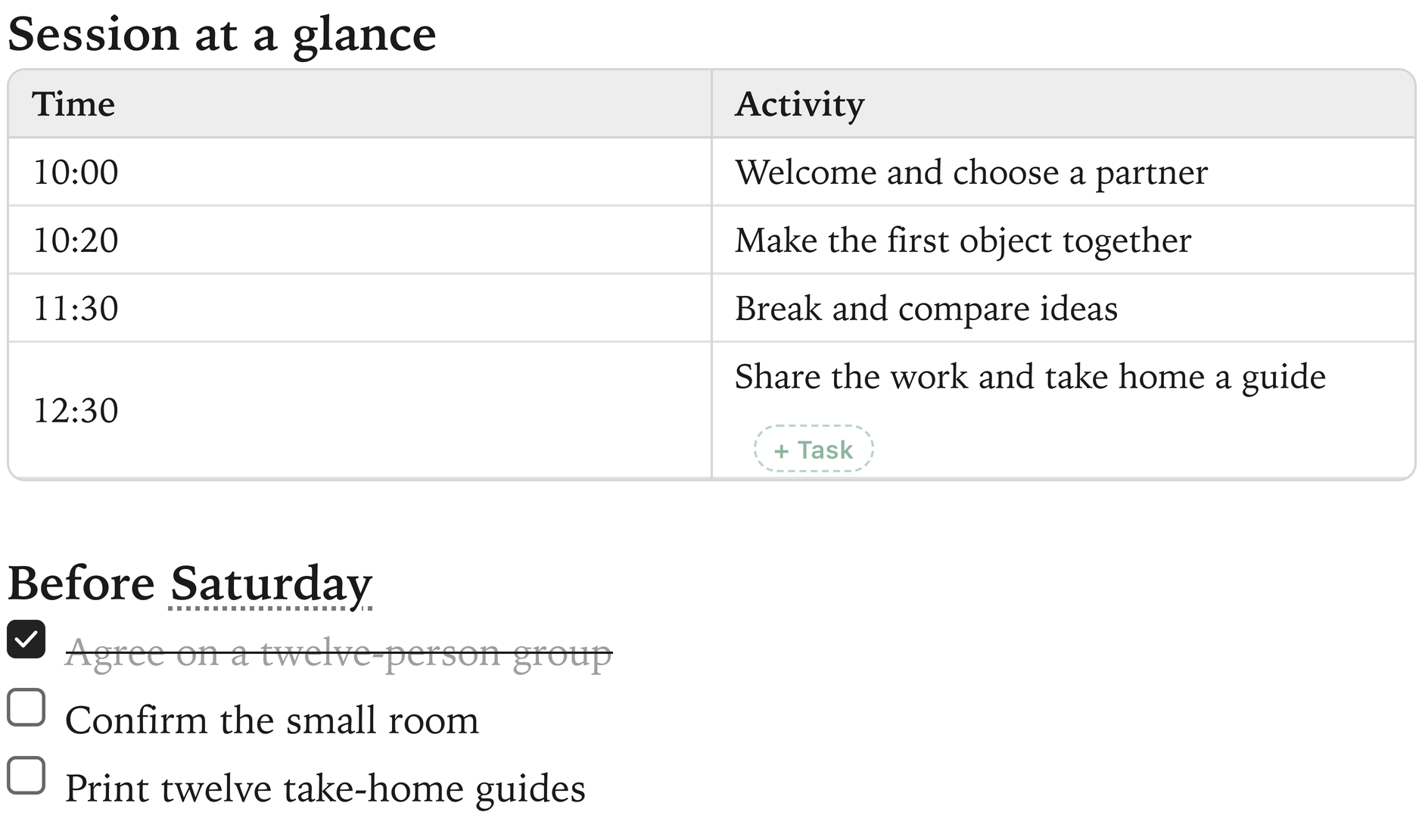
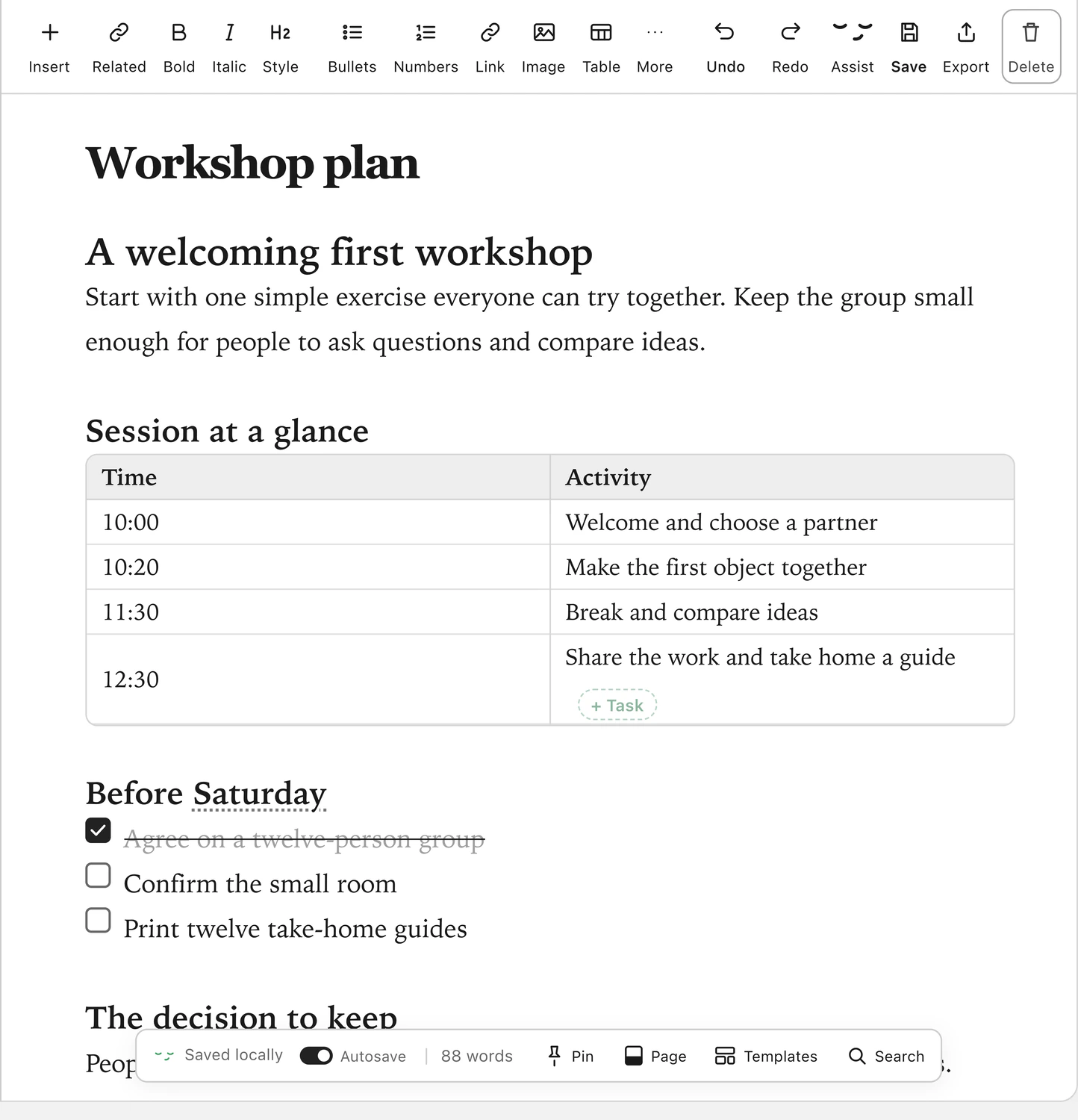
The schedule, task link, and checked preparation step stay in the same note. Use the floating bar to manage the page.
Review writing suggestions and source details before keeping them. Exports depend on the note content and chosen format.
Spillit app screen · Sample content
Swipe or use arrow keys to explore the window.
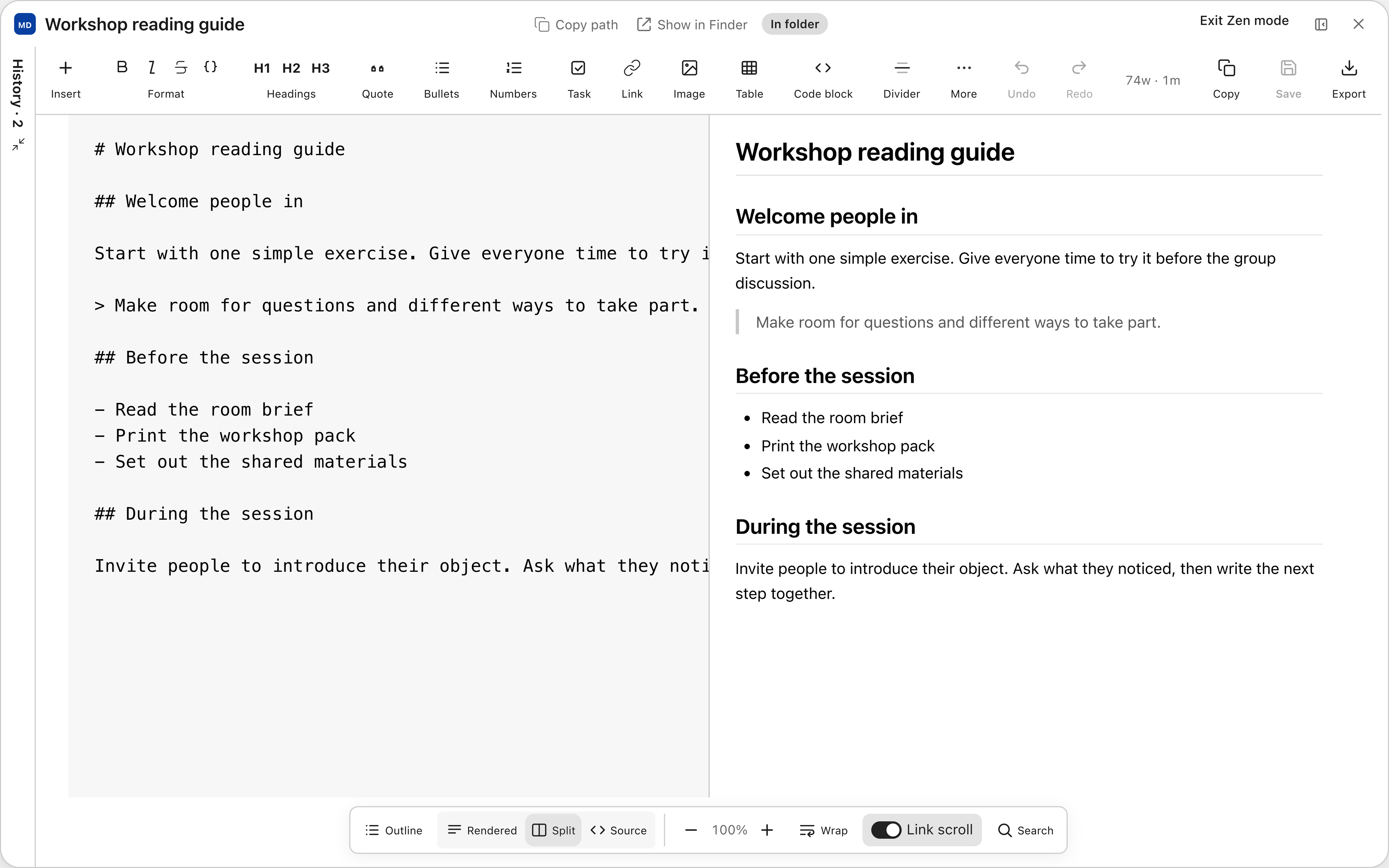
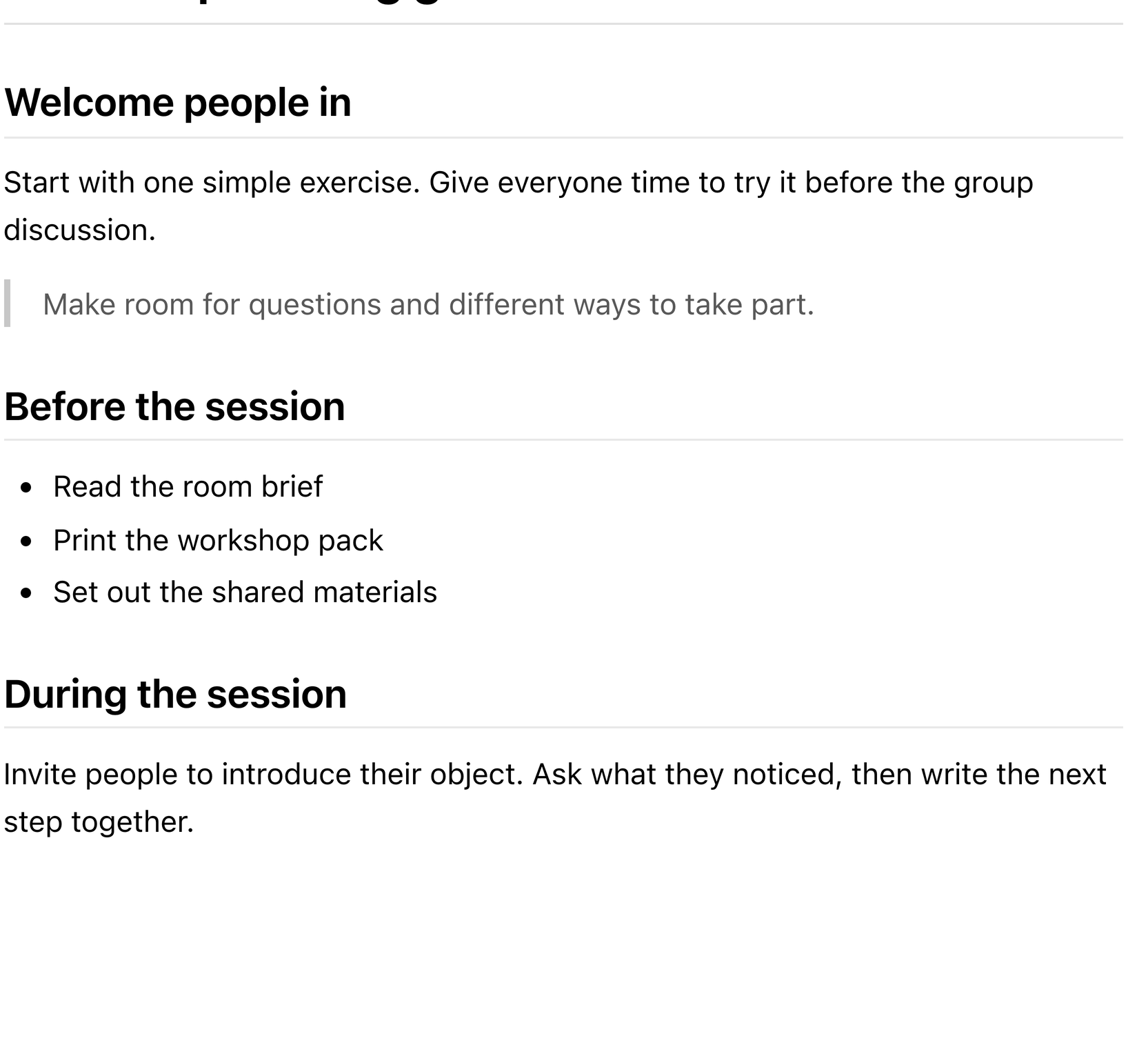
The guide shows headings, a quote, and a checklist beside the Markdown source.
Spillit app screen · Sample content
Swipe or use arrow keys to explore the window.
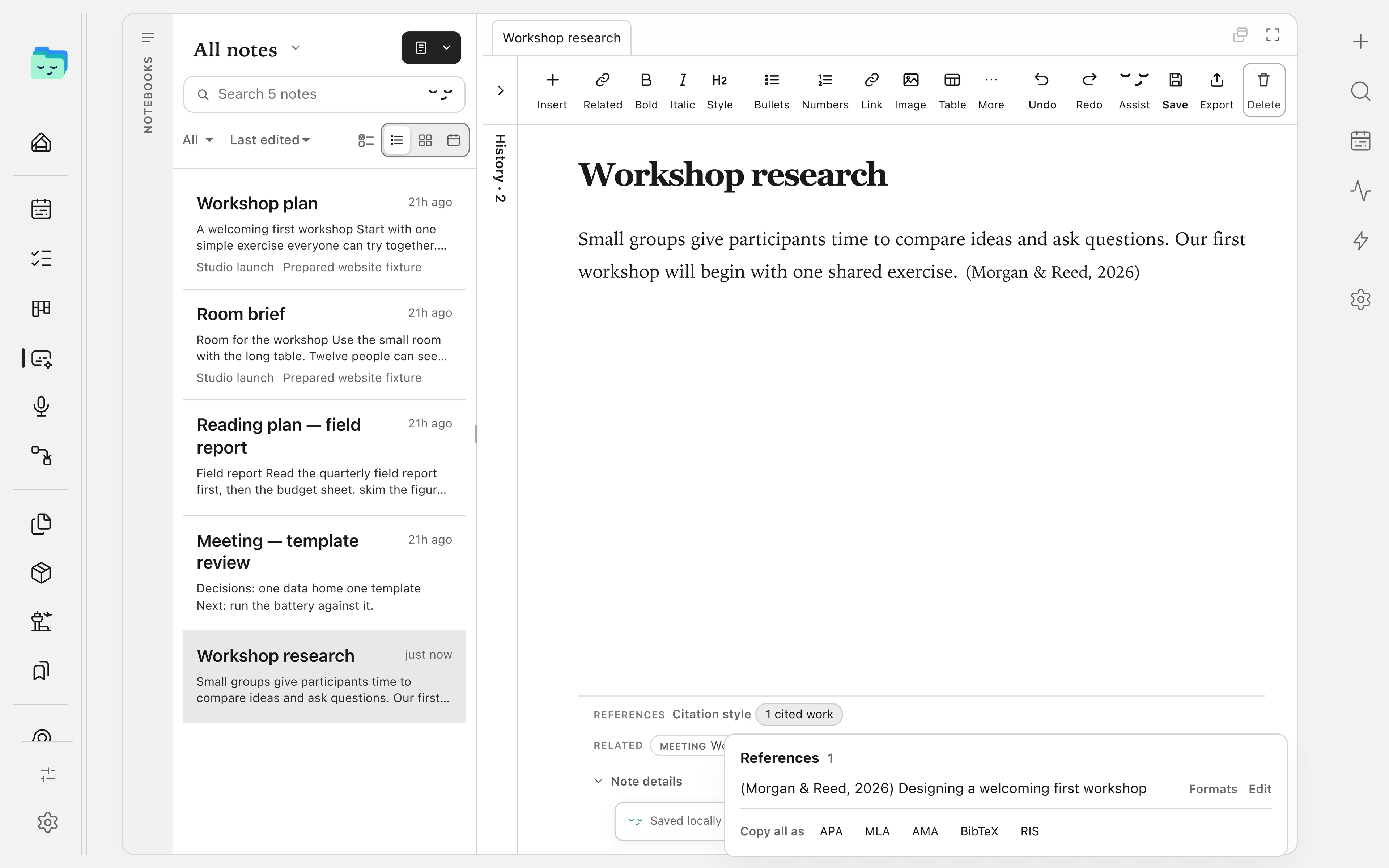
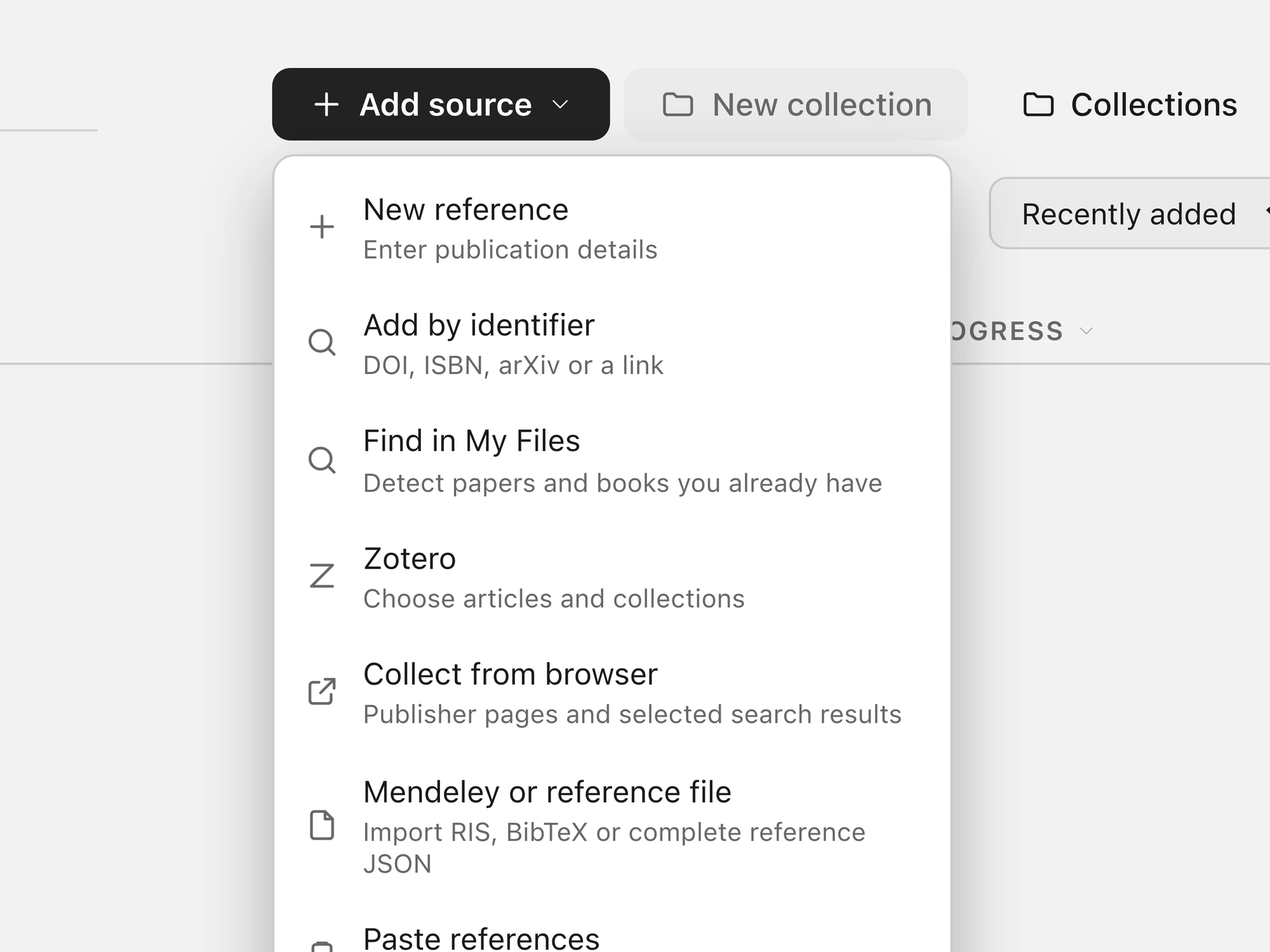
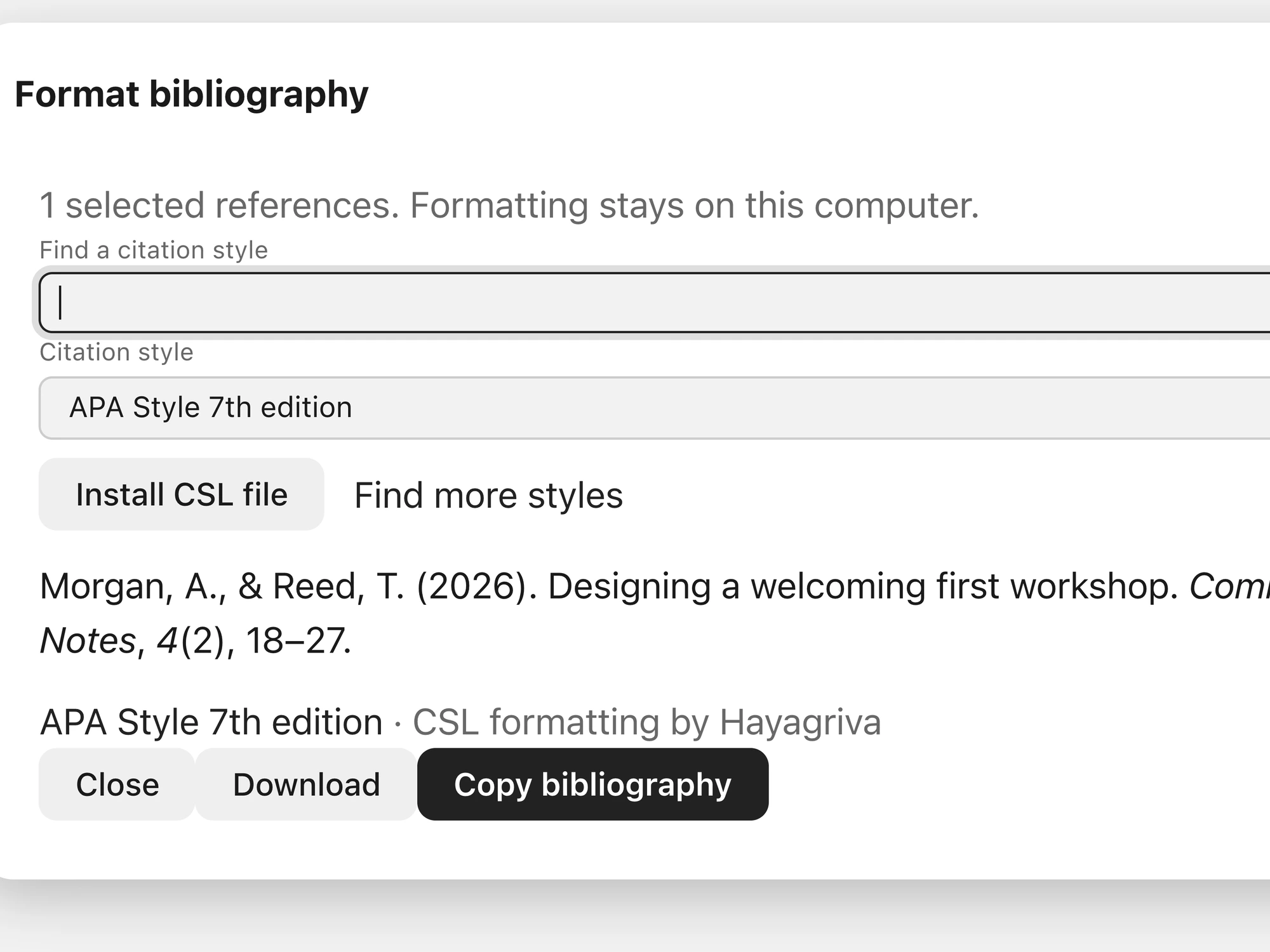
The inserted citation appears in the paragraph. References keeps its library source available for review, style changes, and copying.
Review citation details and supported Word layouts. Online lookups vary. Zotero needs local API access; direct export needs Zotero 10 or later and authorization.
Zotero exchange does not synchronize attachments or collection trees. Use RIS reference files with older Zotero versions.
Spillit app screen · Sample content
Swipe or use arrow keys to explore the window.
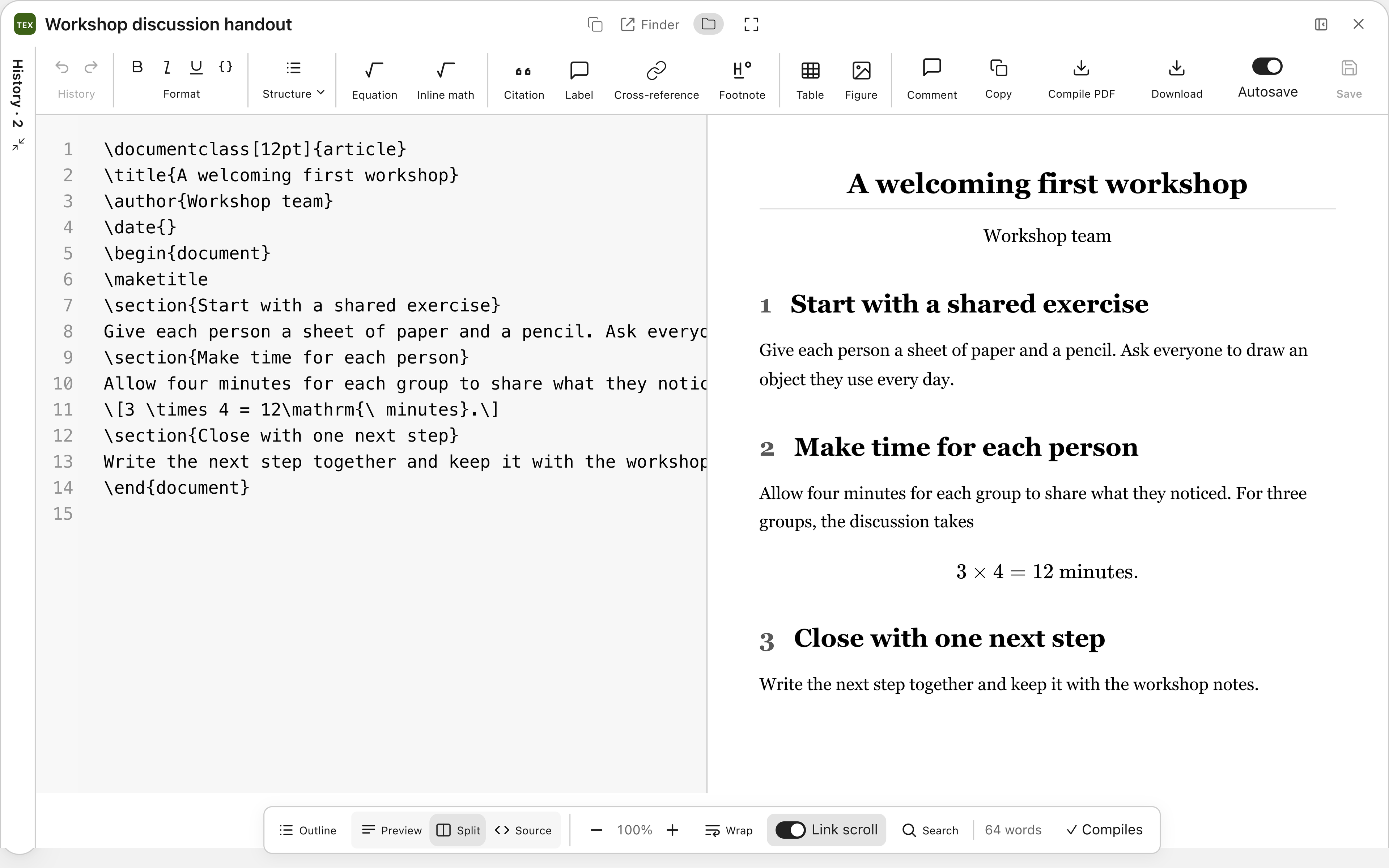
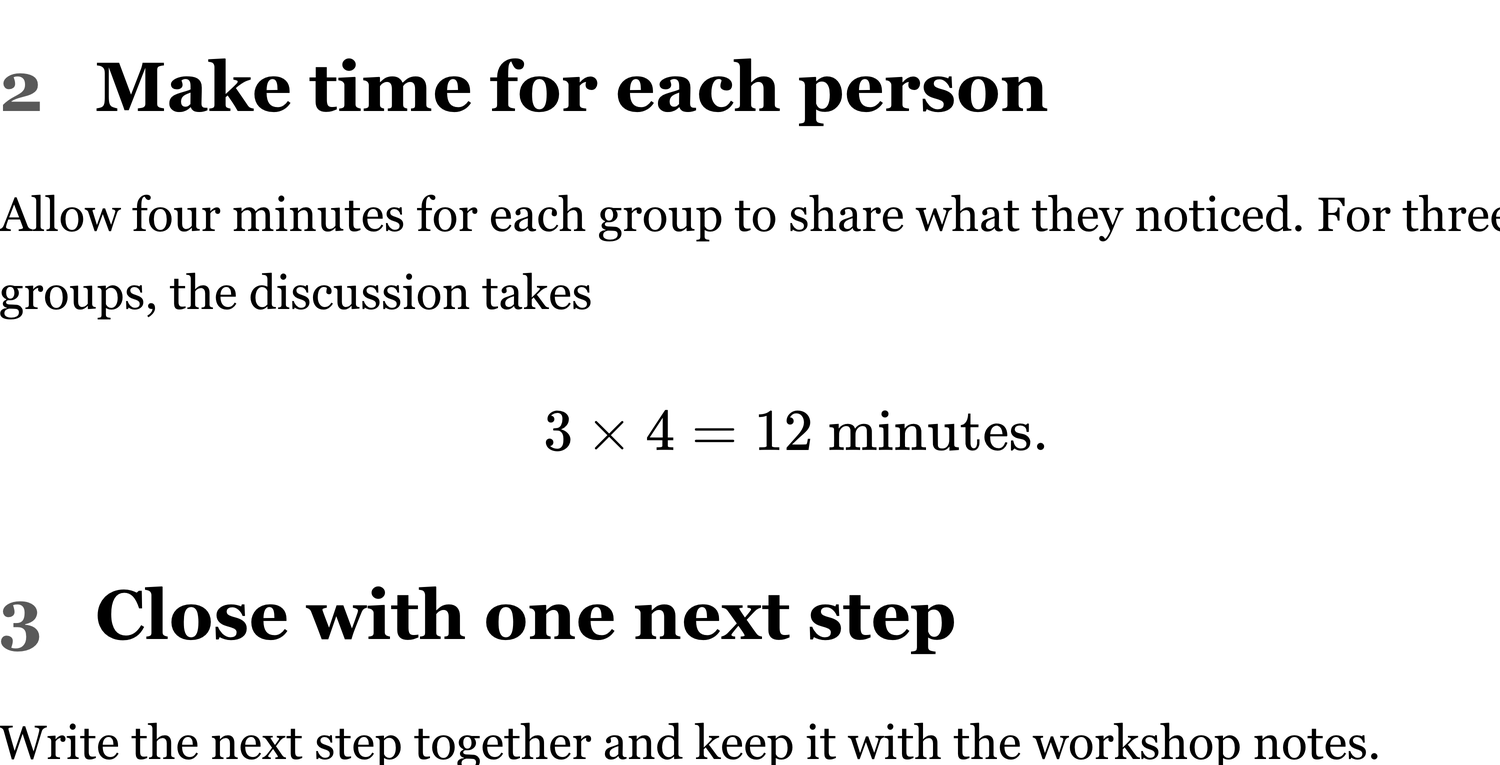
The preview renders the workshop equation beside the source. The editor reports that the document compiles.
LaTeX needs a compiler, the software that builds its PDF, and available packages.
Spillit builds Typst PDFs on your computer. The preview shows the first 12 pages. Export includes every page.
Spillit app screen · Sample content
Swipe or use arrow keys to explore the window.
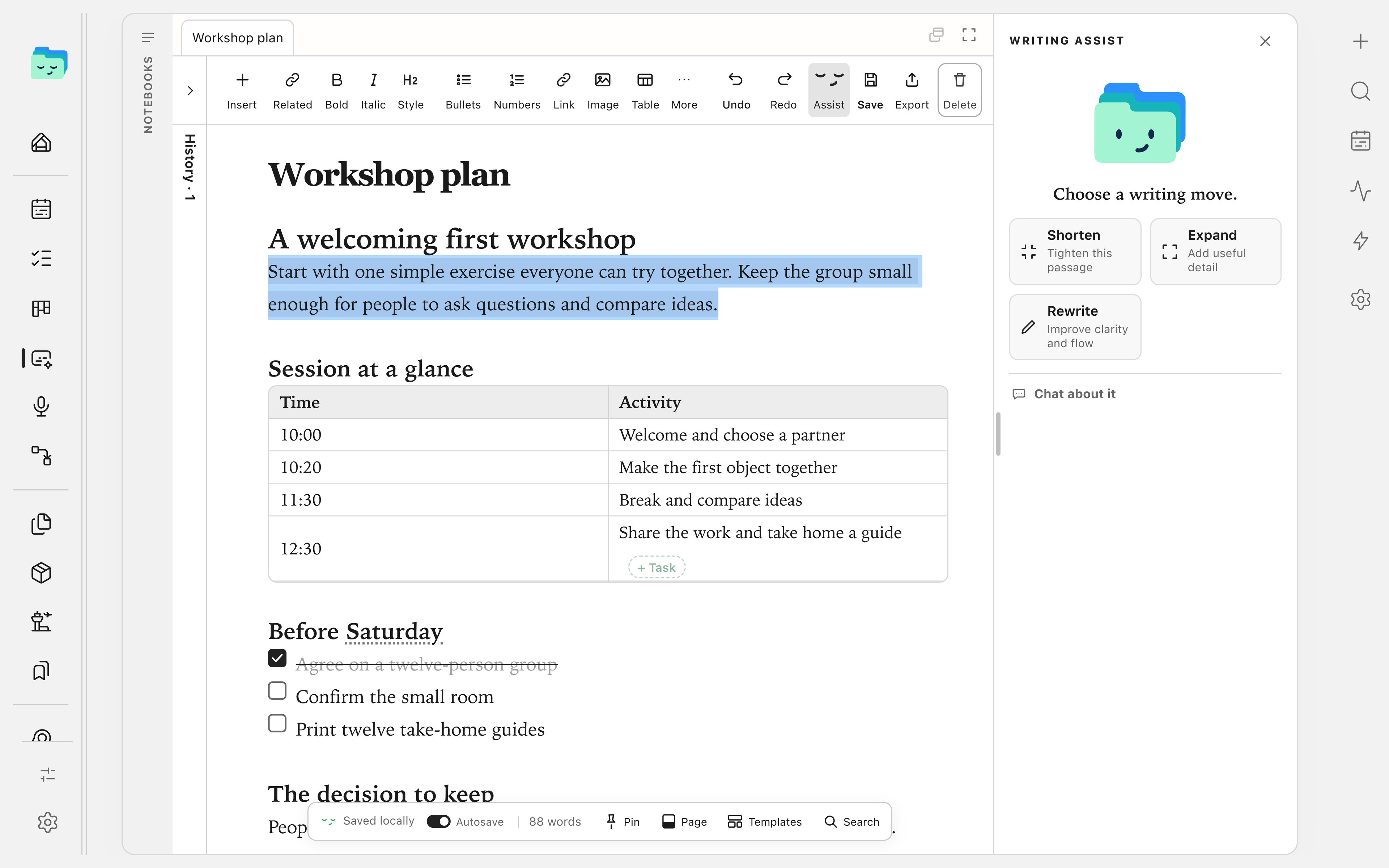
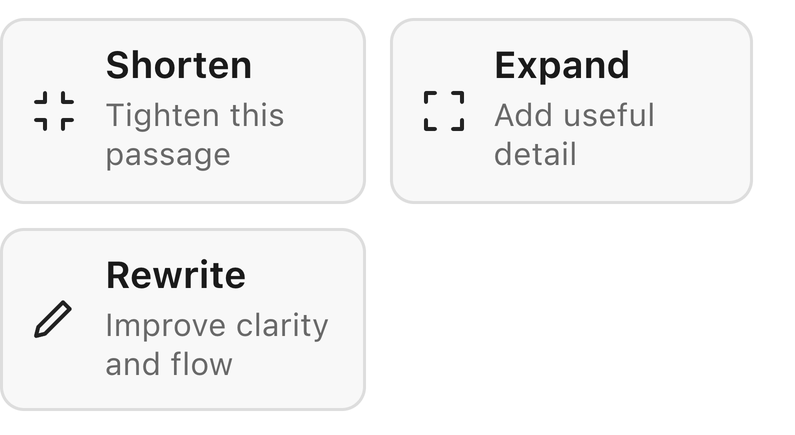
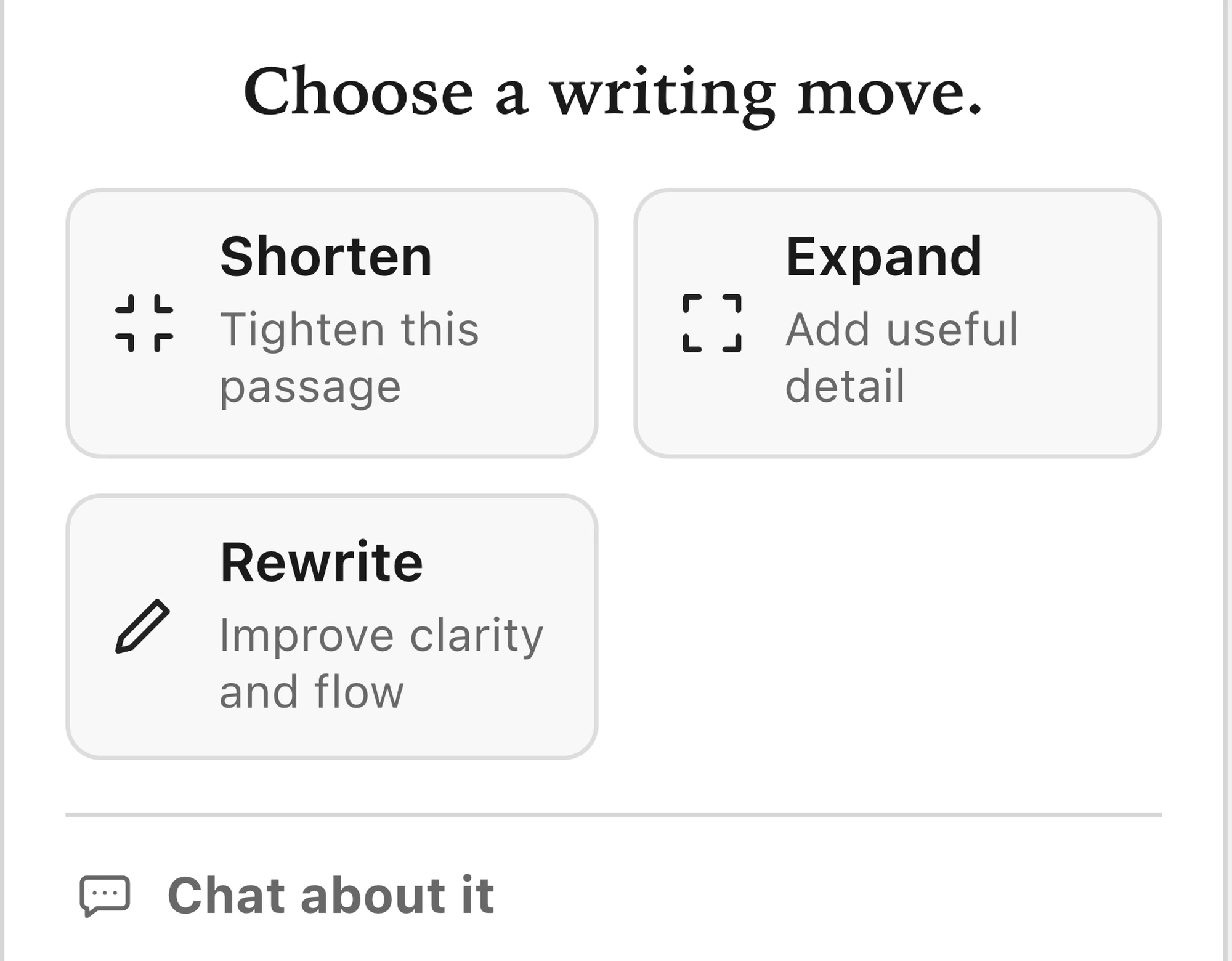
Choose a move for the selected passage. Review the response before using Replace selection; whole-note suggestions use Add it.
Review writing suggestions and source details before keeping them. Exports depend on the note content and chosen format.
Review the recording and notes, then choose which follow-ups to add to Tasks.
Spillit app screen · Sample content
Swipe or use arrow keys to explore the window.
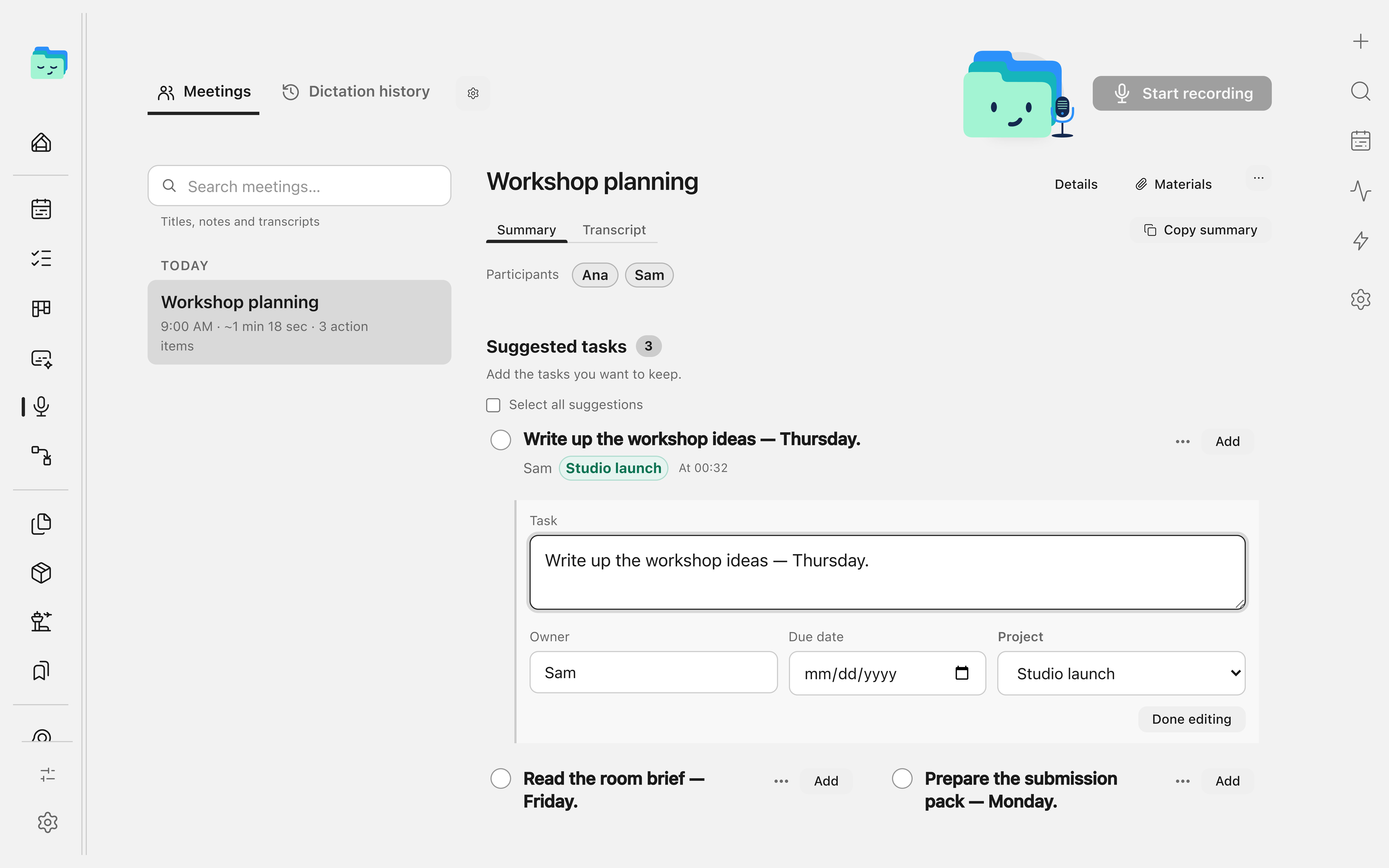
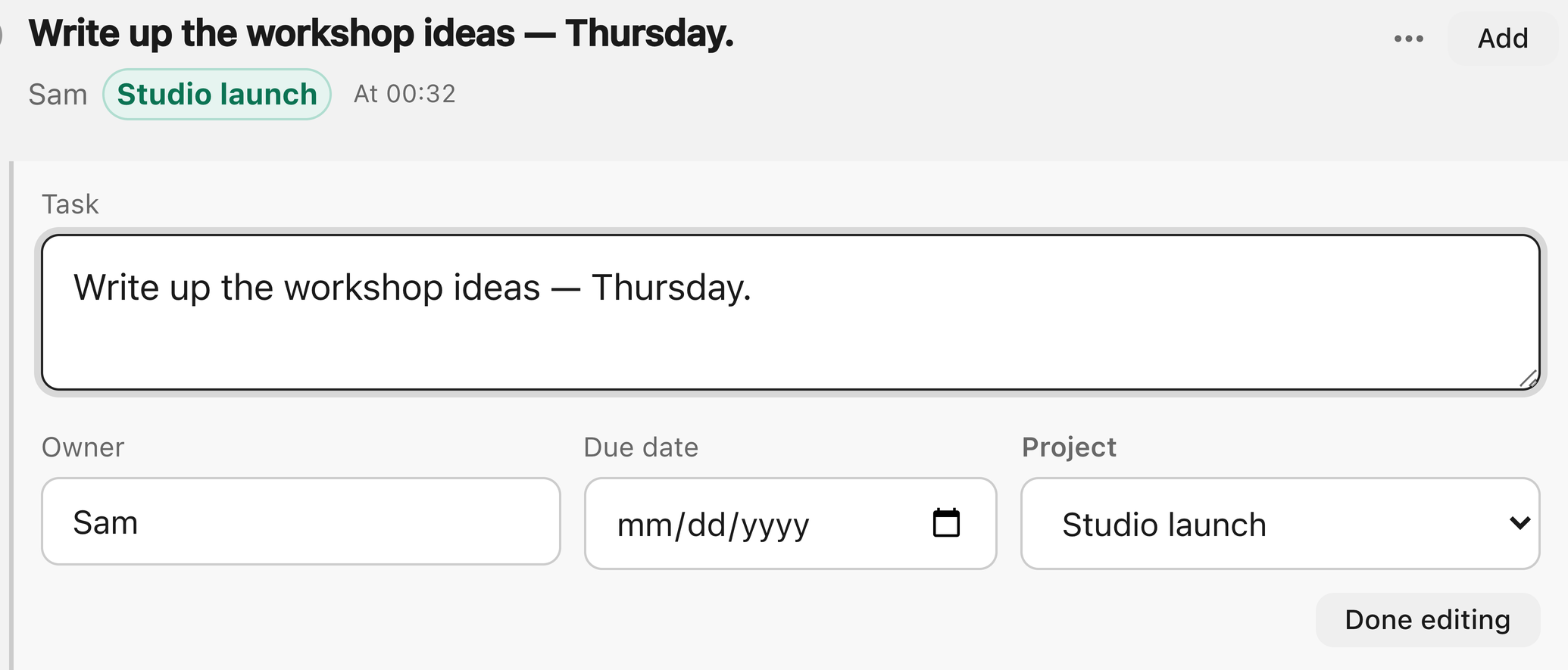
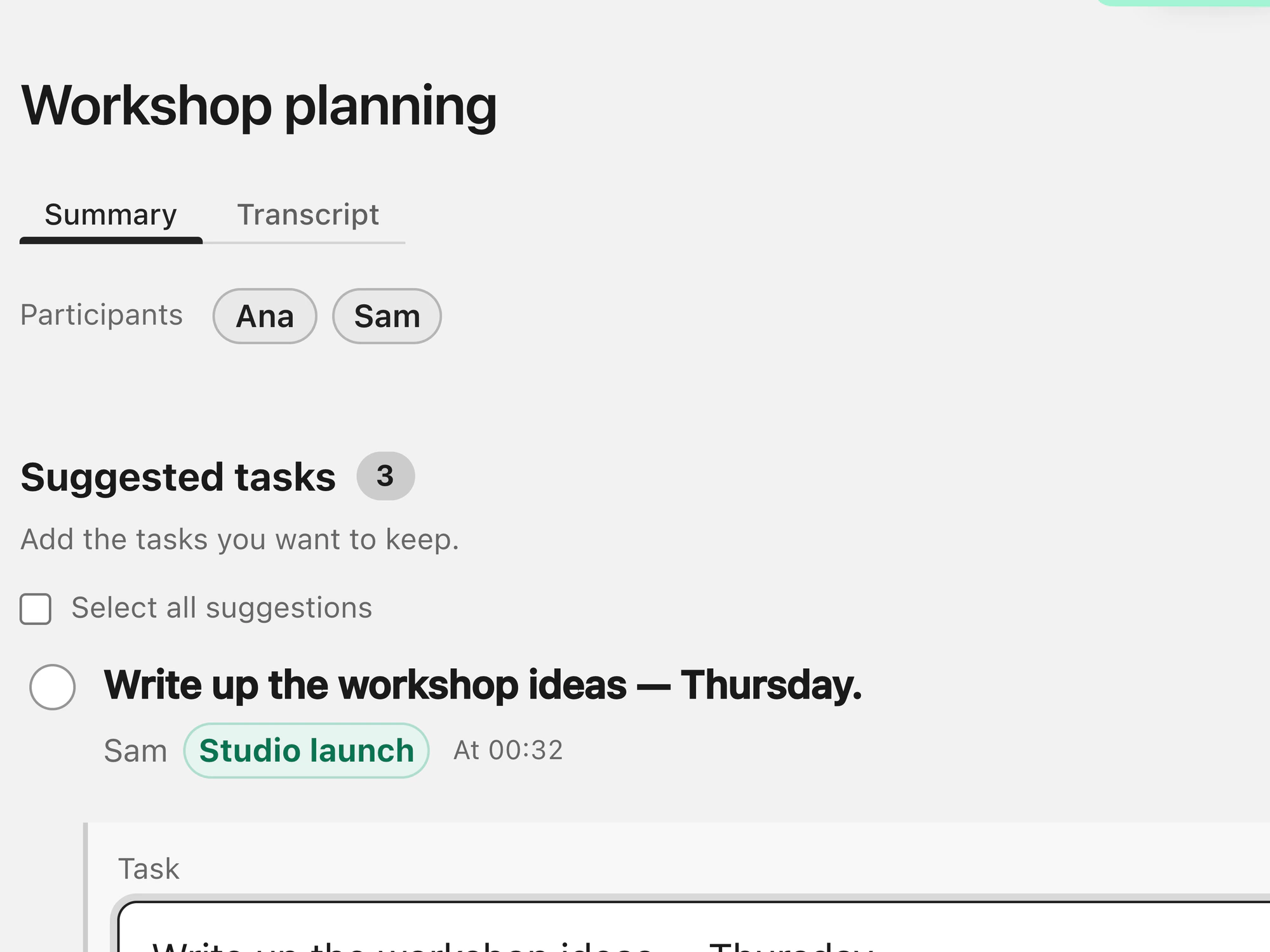
The suggestion stays editable. Check the owner, due date, project, and transcript timestamp before adding it to Tasks.
Call audio and speaker labels require macOS 13 or later. Review overlapping speech, dates, and suggested follow-ups before keeping them.
Use Tasks to track your next steps. Assign related tasks, notes, files, and saves to a project.
Spillit app screen · Sample content
Swipe or use arrow keys to explore the window.
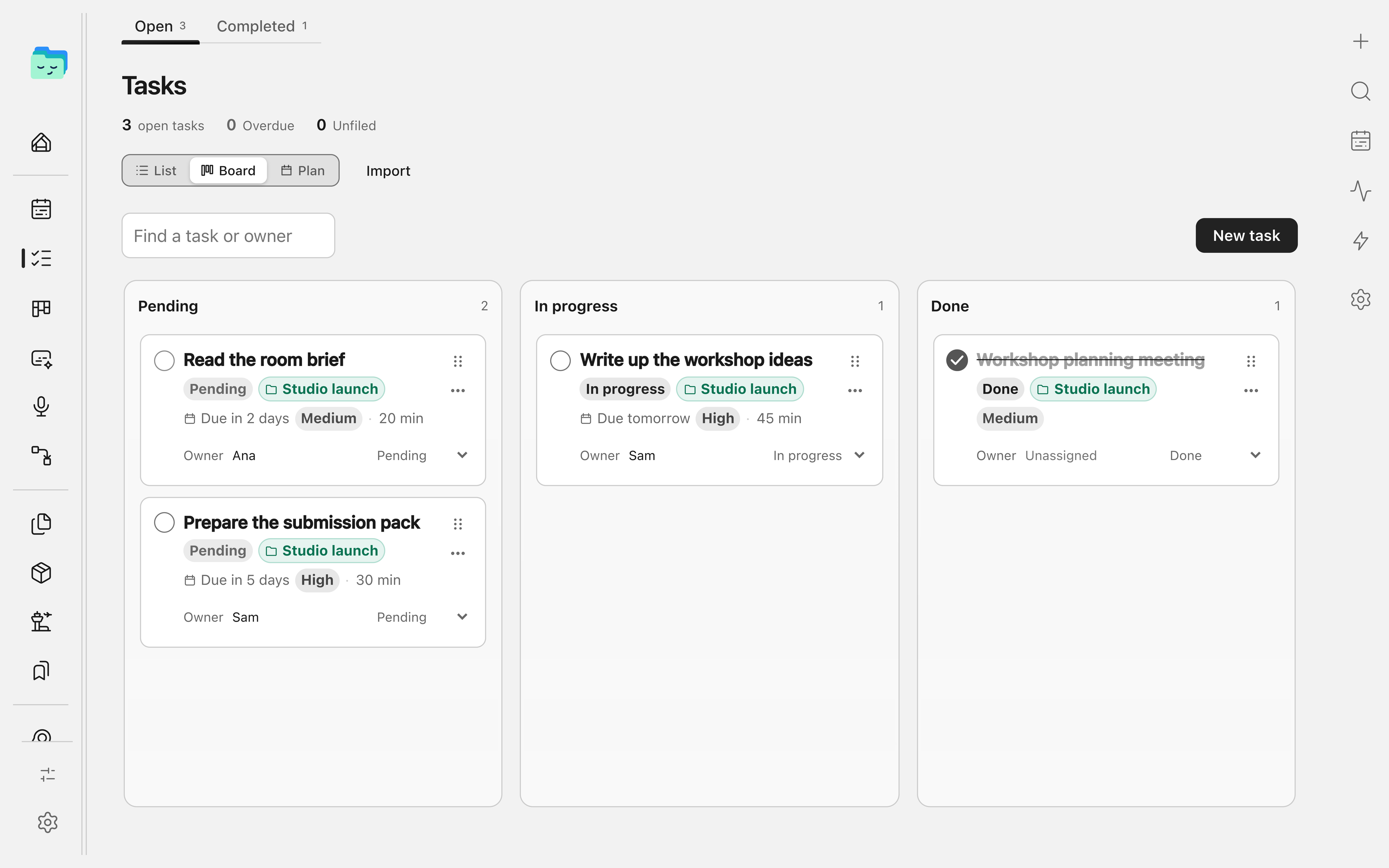
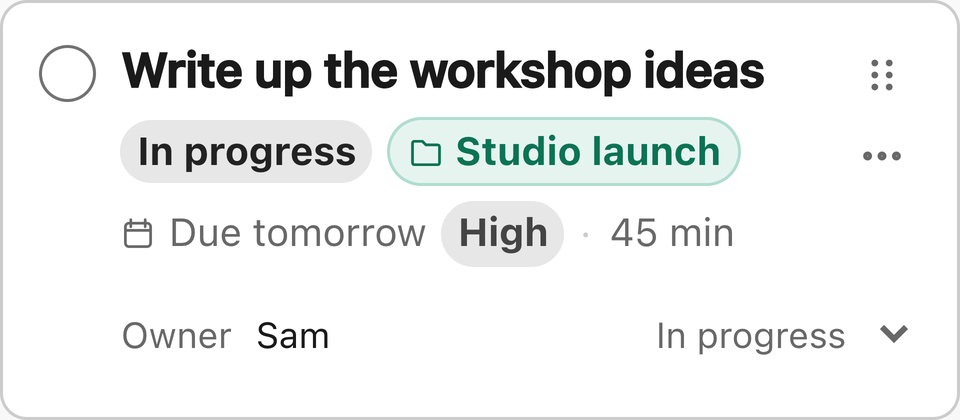
The writing task is In progress. Drag cards or use their status control to move work between Pending, In progress, and Done.
Spillit app screen · Sample content
Swipe or use arrow keys to explore the window.
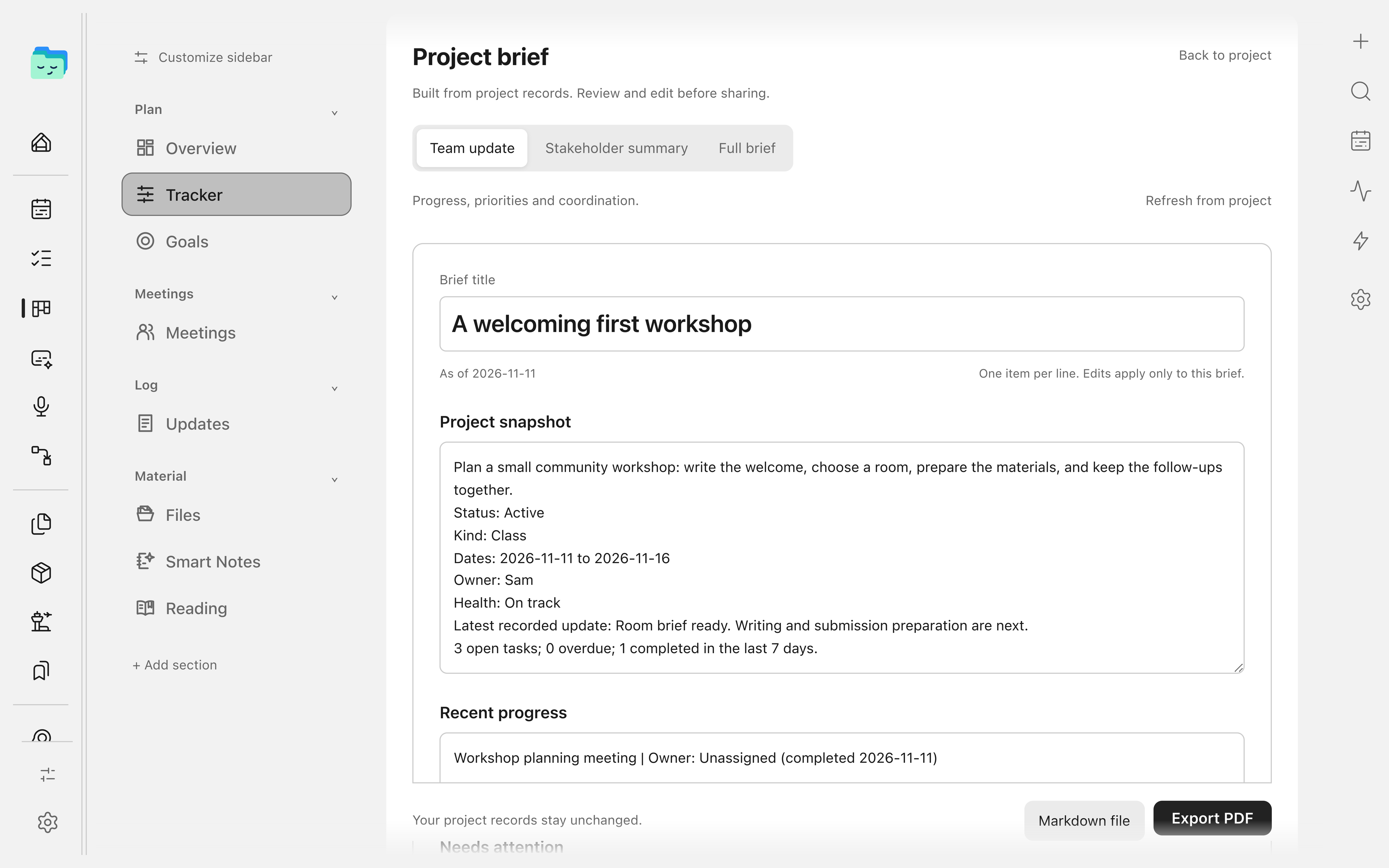
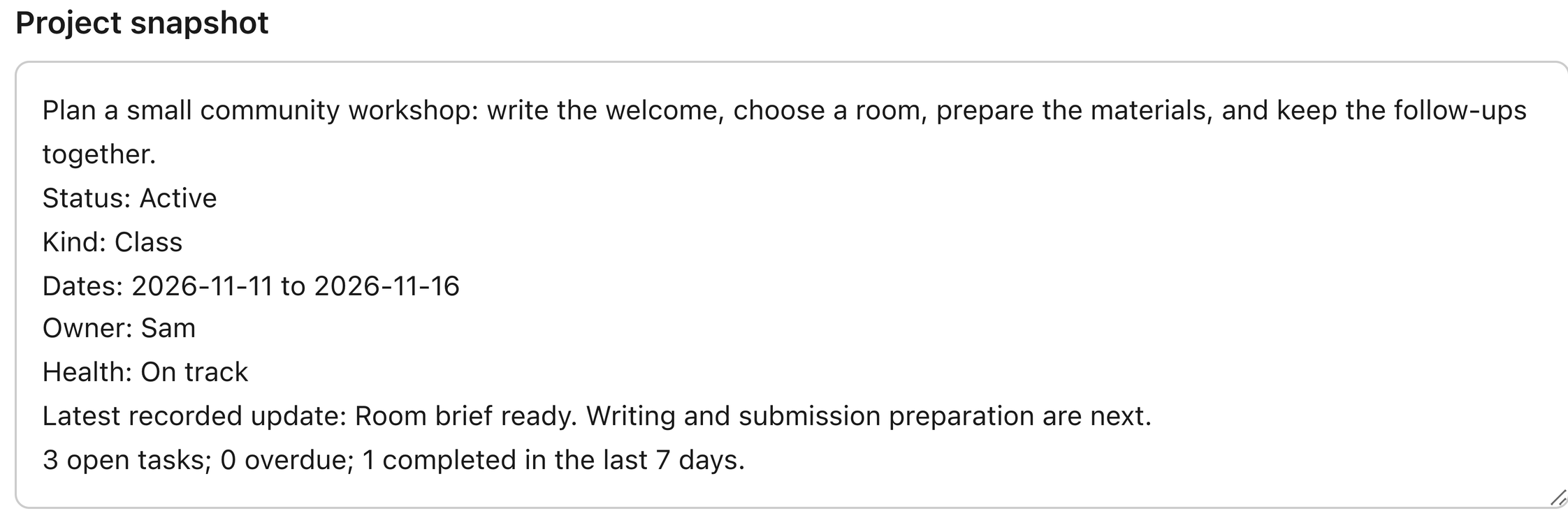
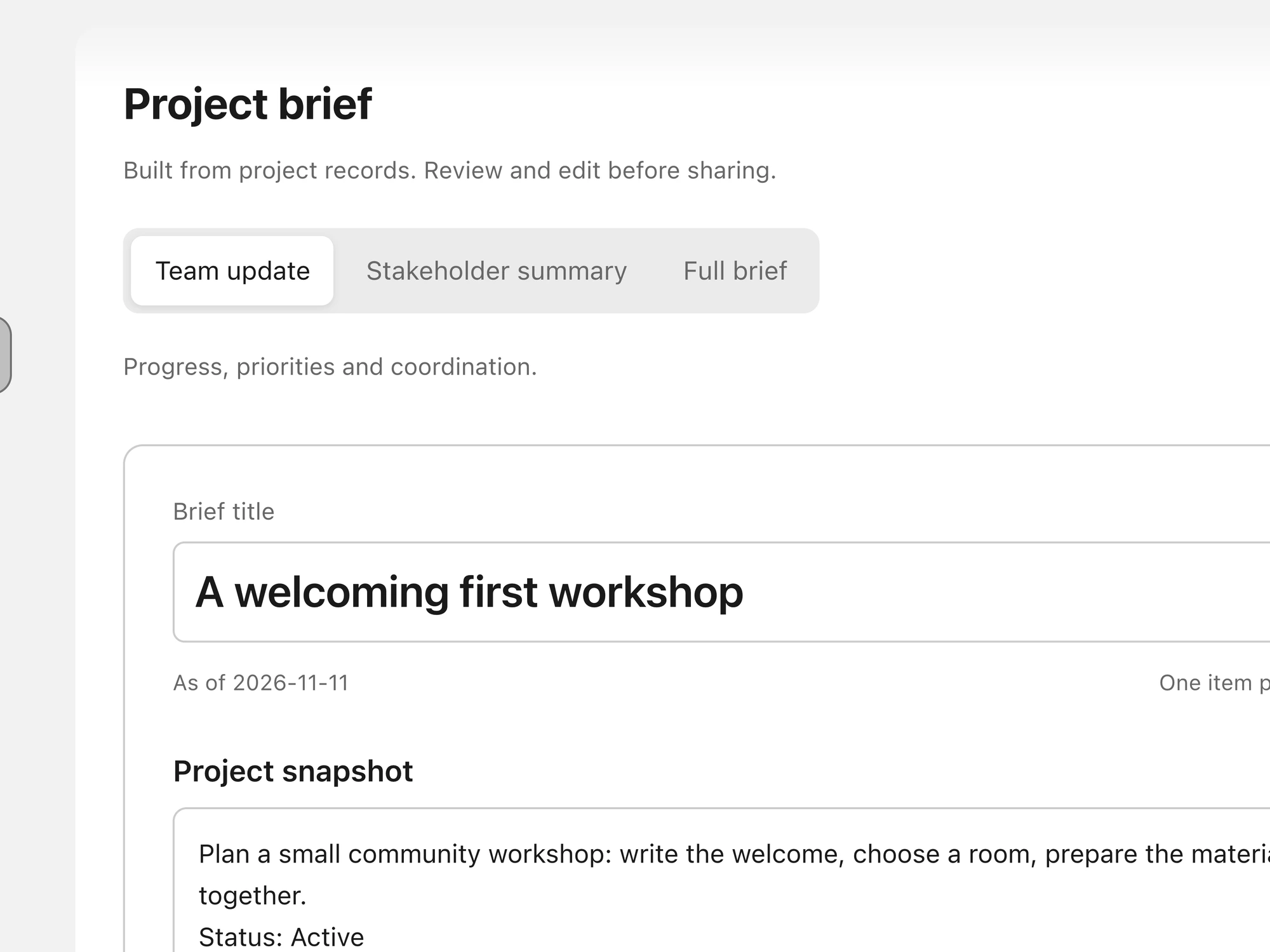
The draft contains the project's purpose, status, owner, dates, and recorded progress. Brief edits leave the project records unchanged.
Project views use the tasks and material you connect. Review the content of an exported brief before sharing it.
Spillit app screen · Sample content
Swipe or use arrow keys to explore the window.
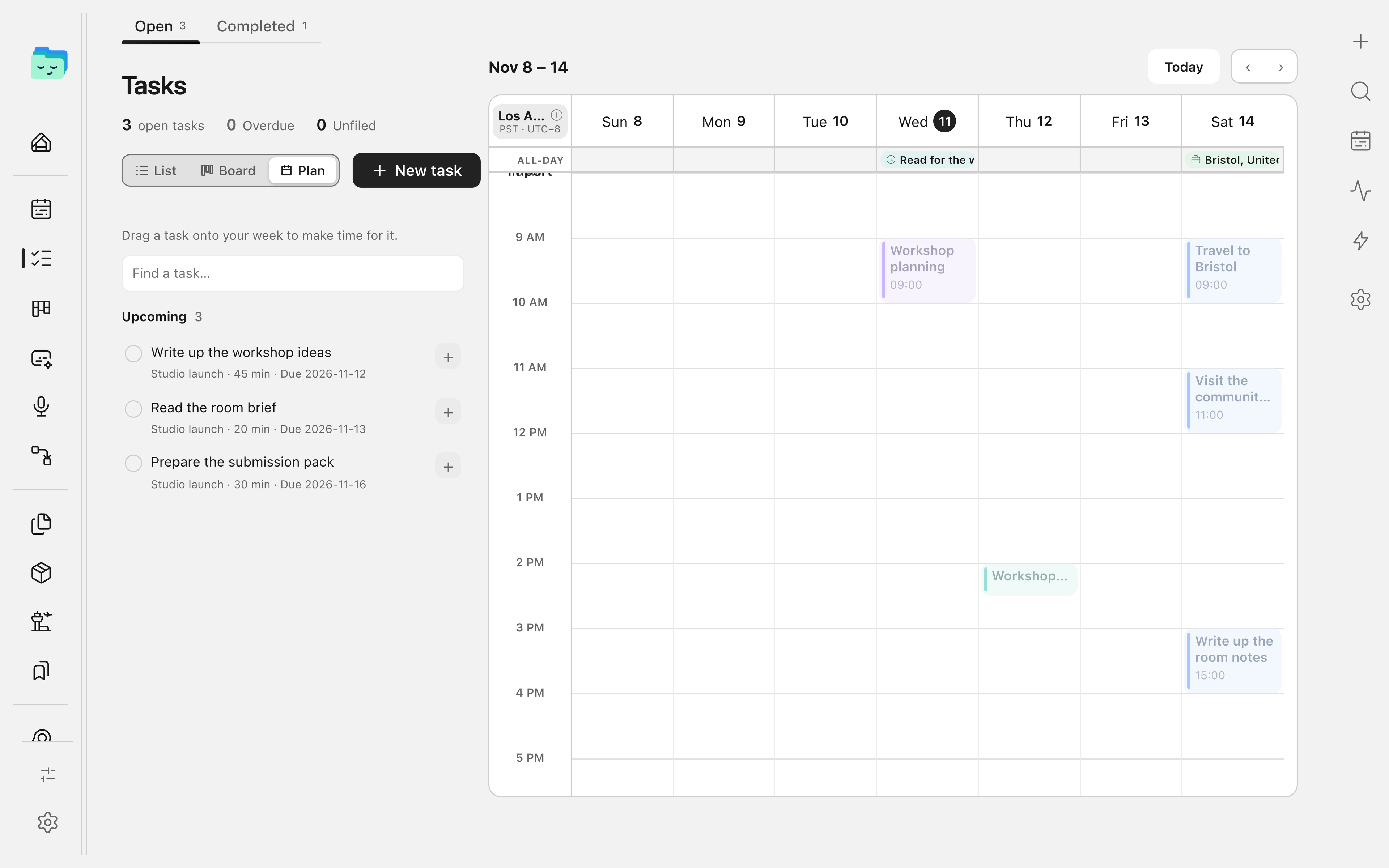
Check the task's estimate and due date beside your week. A task reserves time only after you schedule it yourself.
You choose which suggested events to add and where to schedule your tasks.
Spillit app screen · Sample content
Swipe or use arrow keys to explore the window.
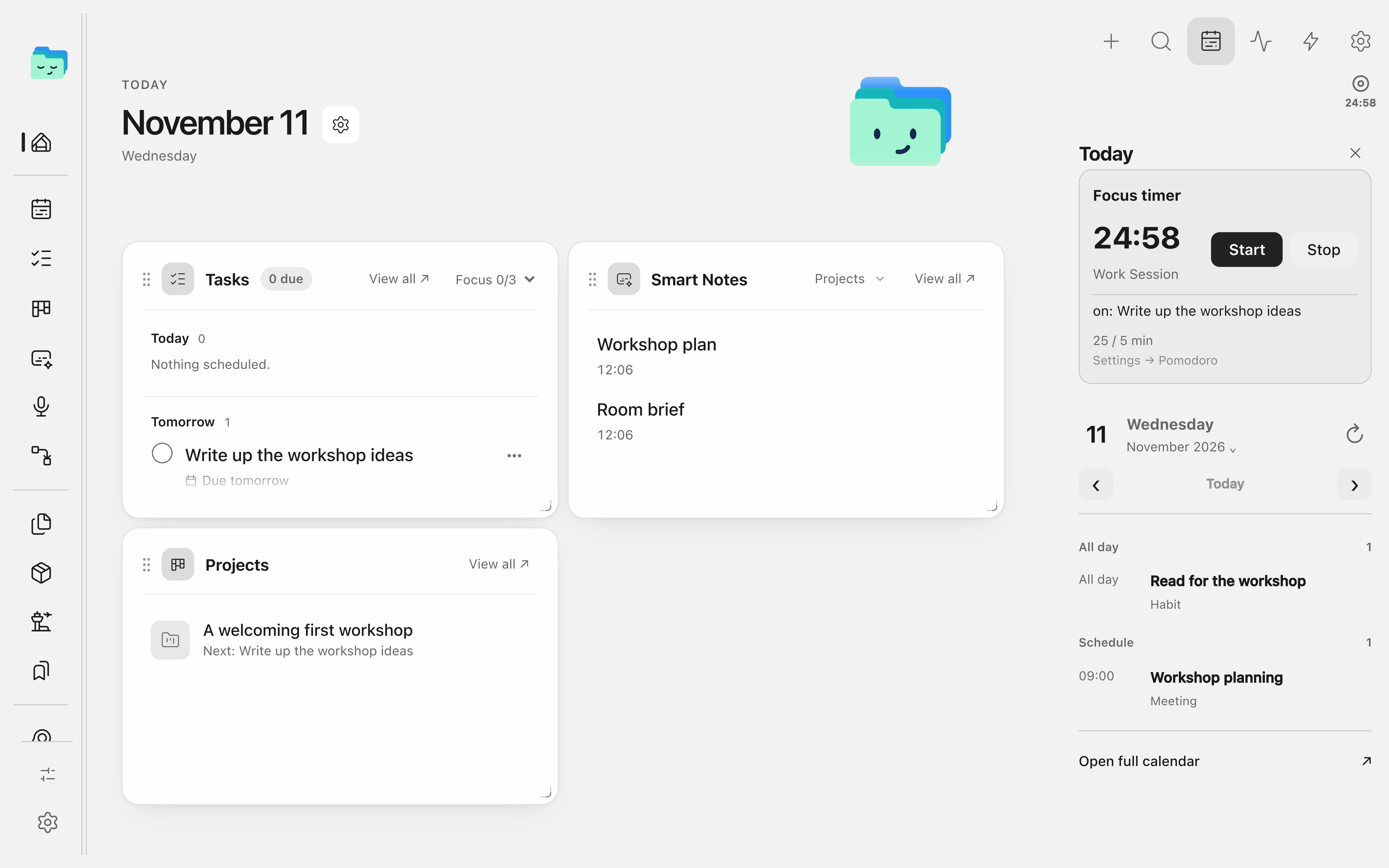
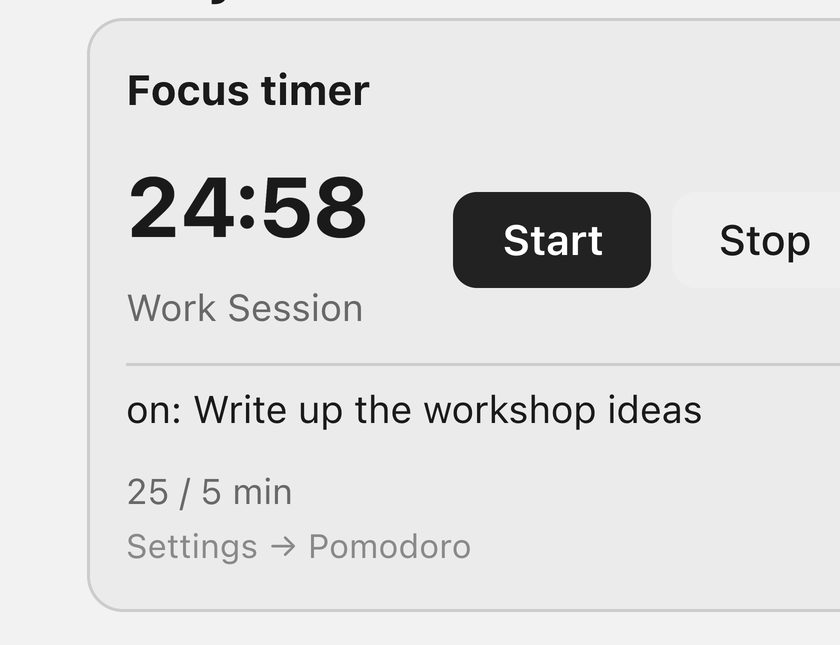
Pause or resume the session without losing its task. Work and break durations stay visible.
Timers and habit views reflect the sessions and checkoffs you record.
Spillit app screen · Sample content
Swipe or use arrow keys to explore the window.
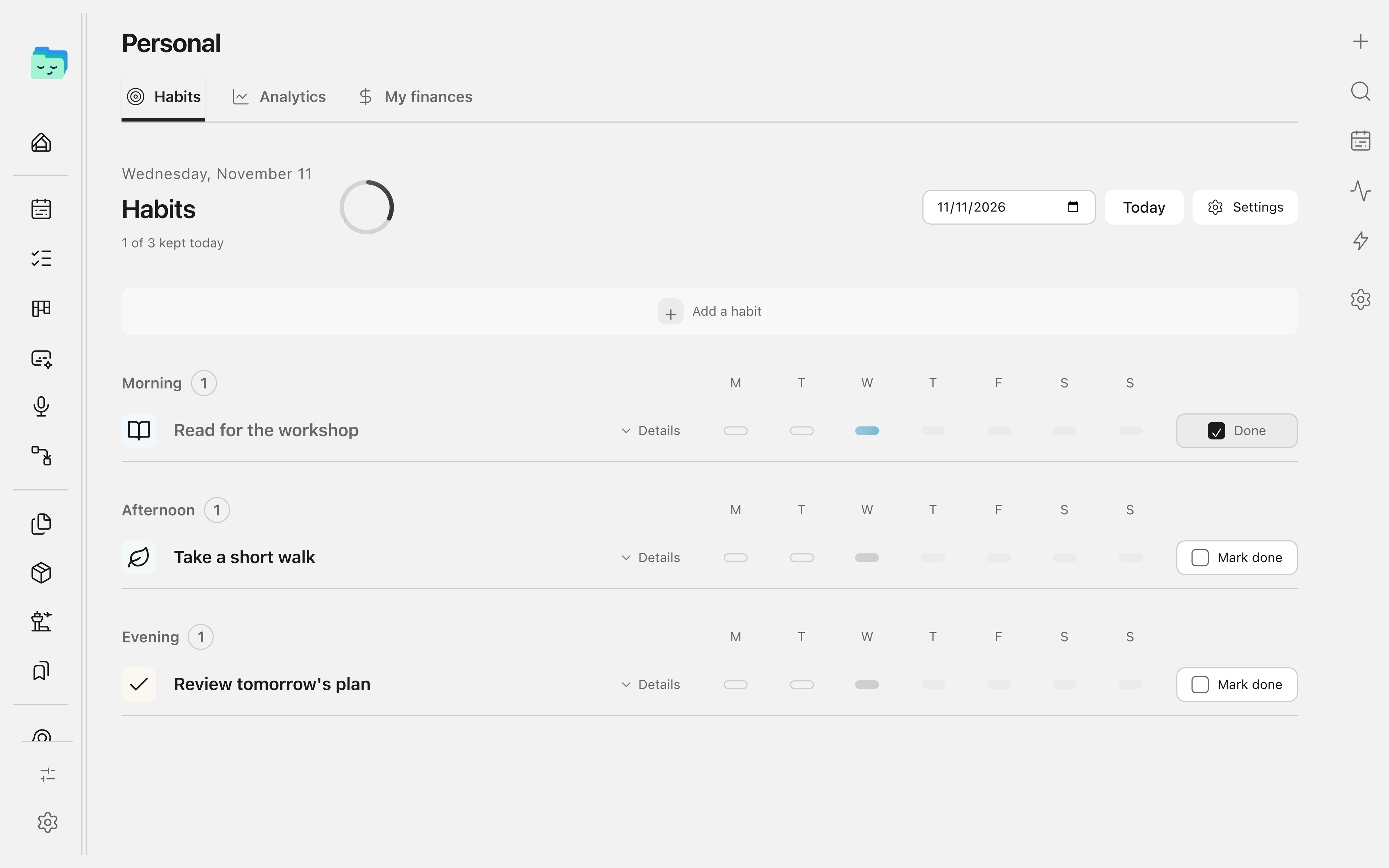
Mark a habit done or undo its check-in for the selected day.
Timers and habit views reflect the sessions and checkoffs you record.
Home shows the work and records available in your workspace.
Save online material and use it in your notes or projects.
Spillit app screen · Sample content
Swipe or use arrow keys to explore the window.
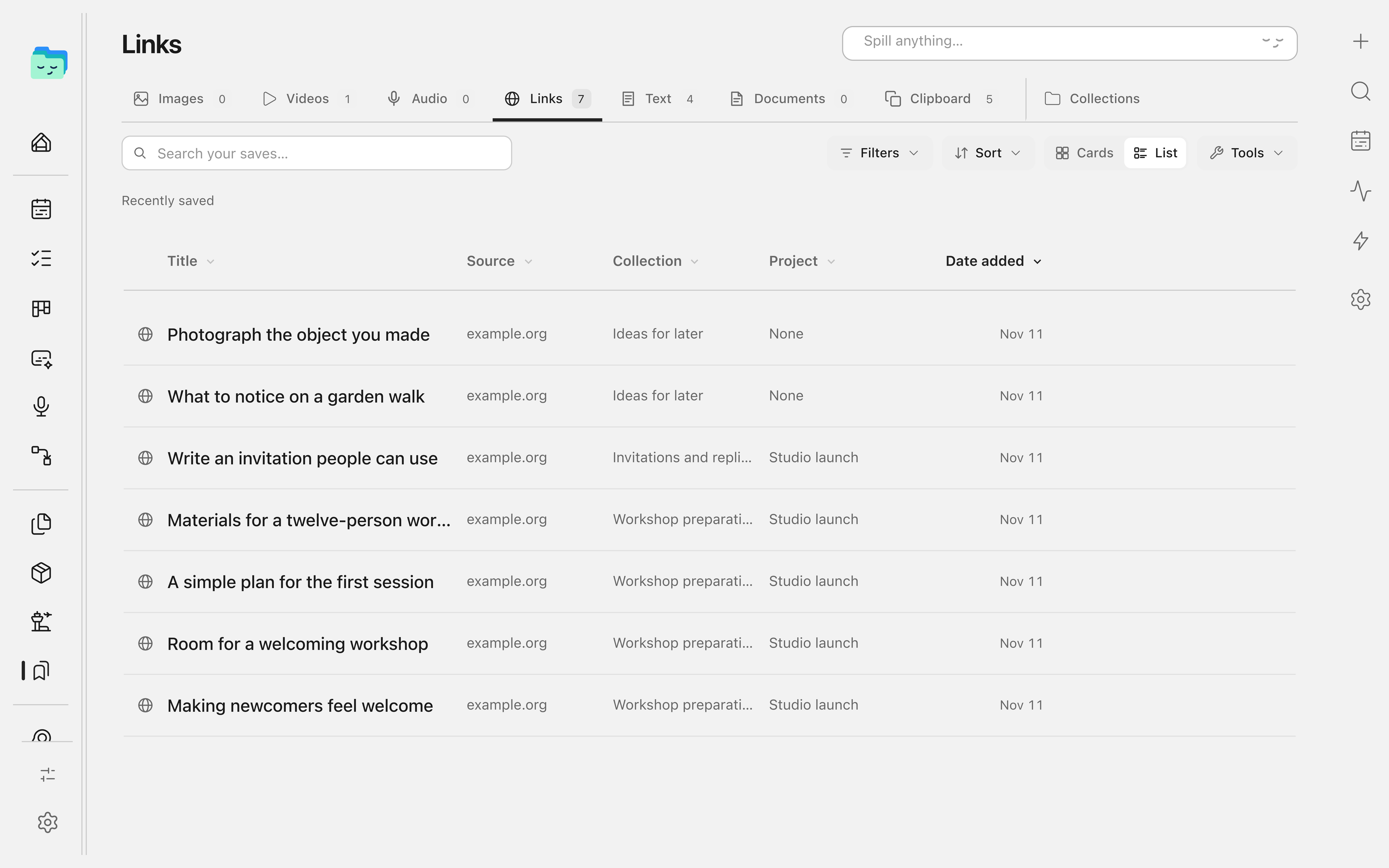
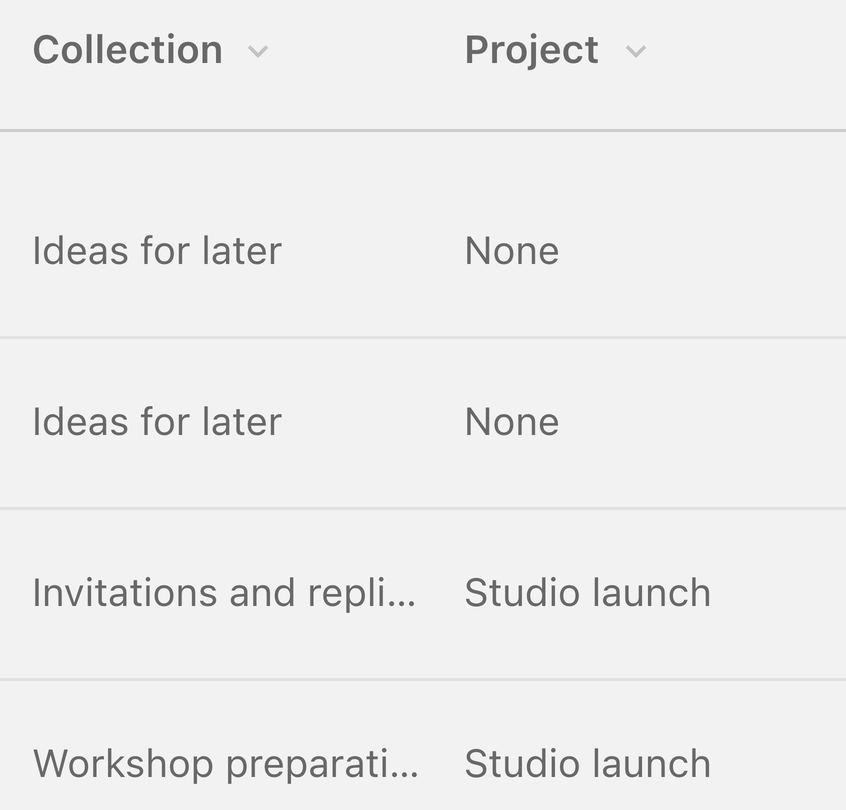
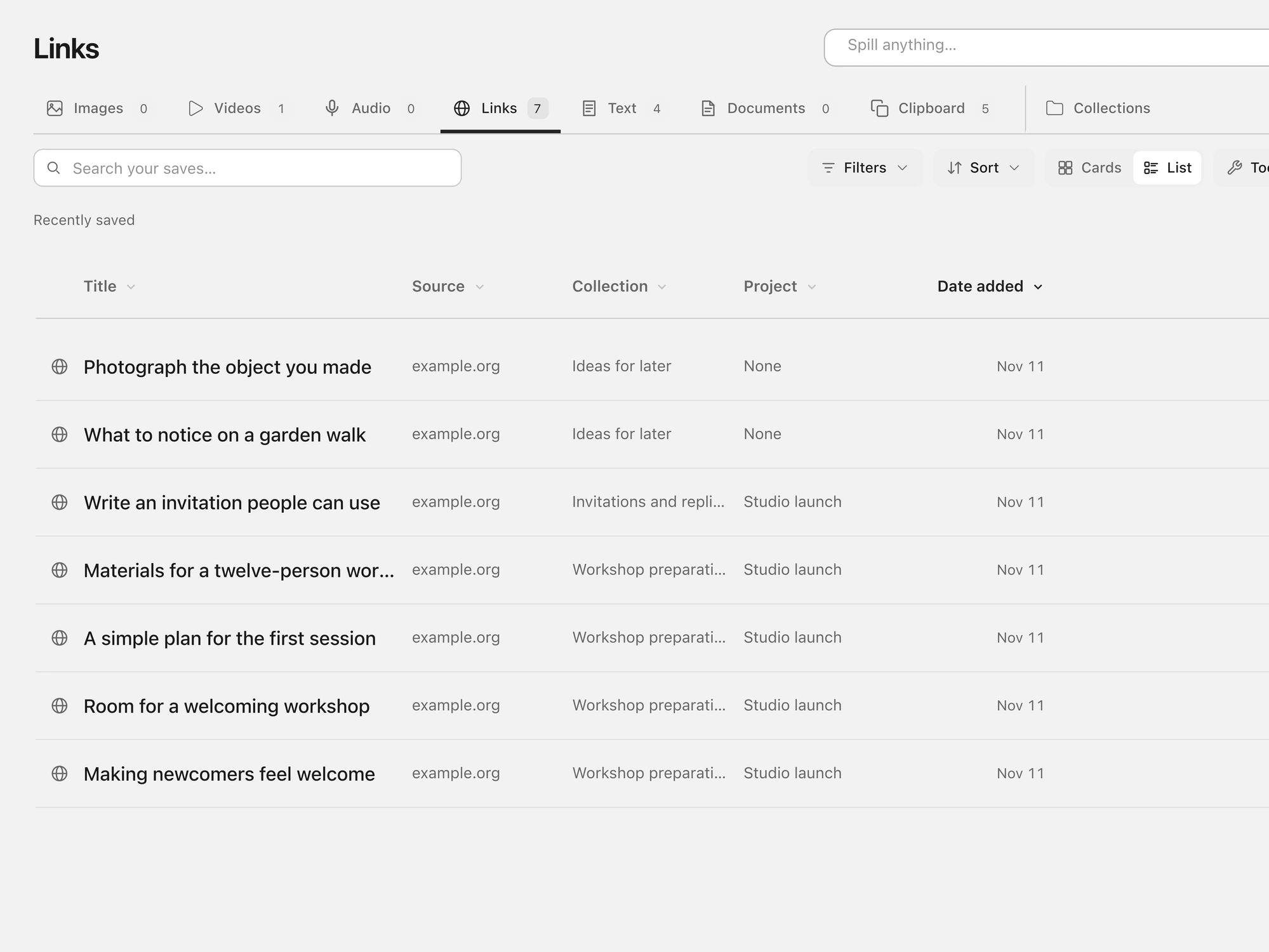
Keep links assigned to a collection and project. Generic saved links offer Copy link for pasting into your work.
Spillit app screen · Sample content
Swipe or use arrow keys to explore the window.
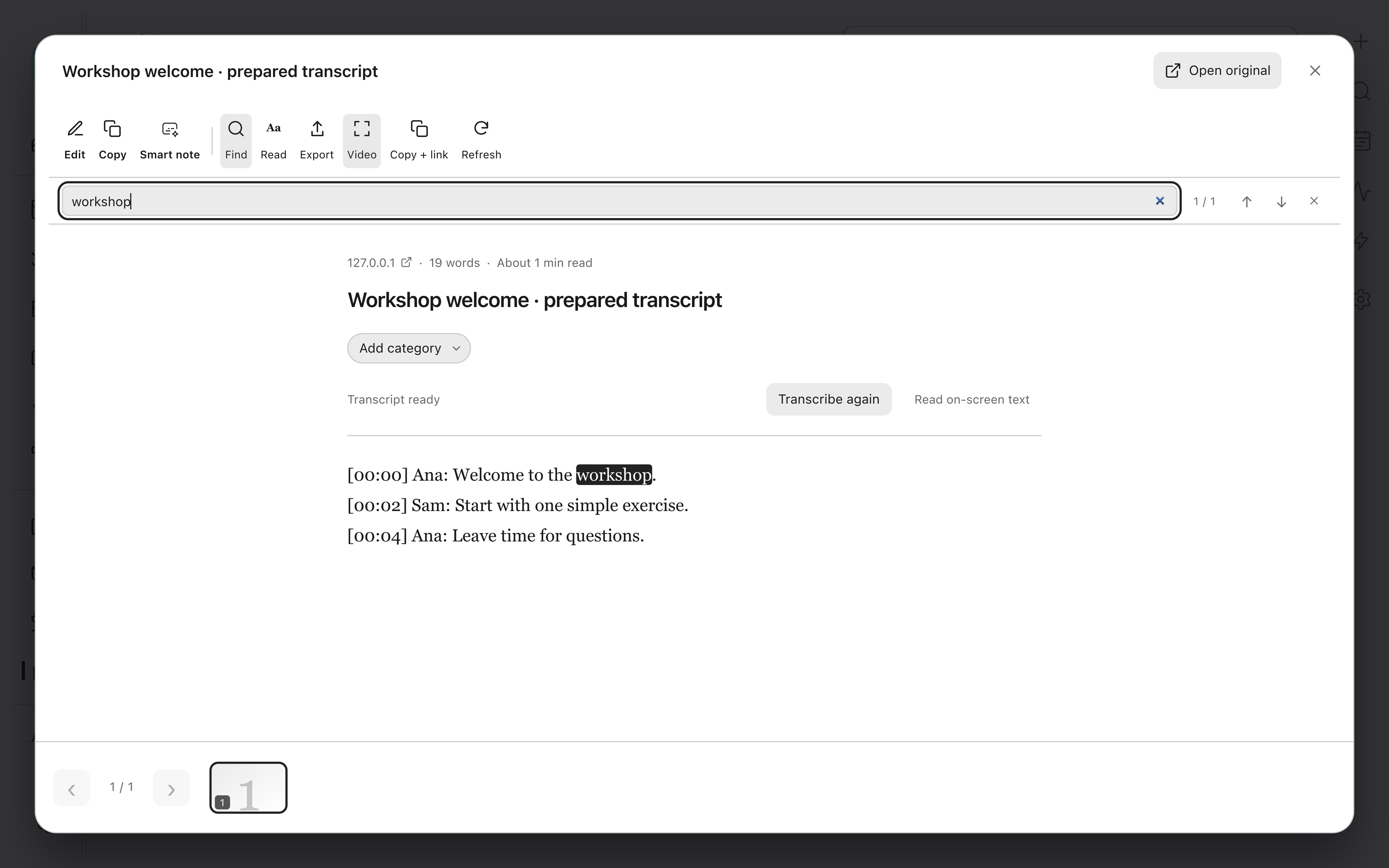
Create a Smart Note from this prepared transcript or export an editable copy. Copy + link includes the original source address.
On-screen video text requires macOS 13 or later. Source availability and transcript accuracy vary. Online video fetching uses the network.
Spillit app screen · Sample content
Swipe or use arrow keys to explore the window.
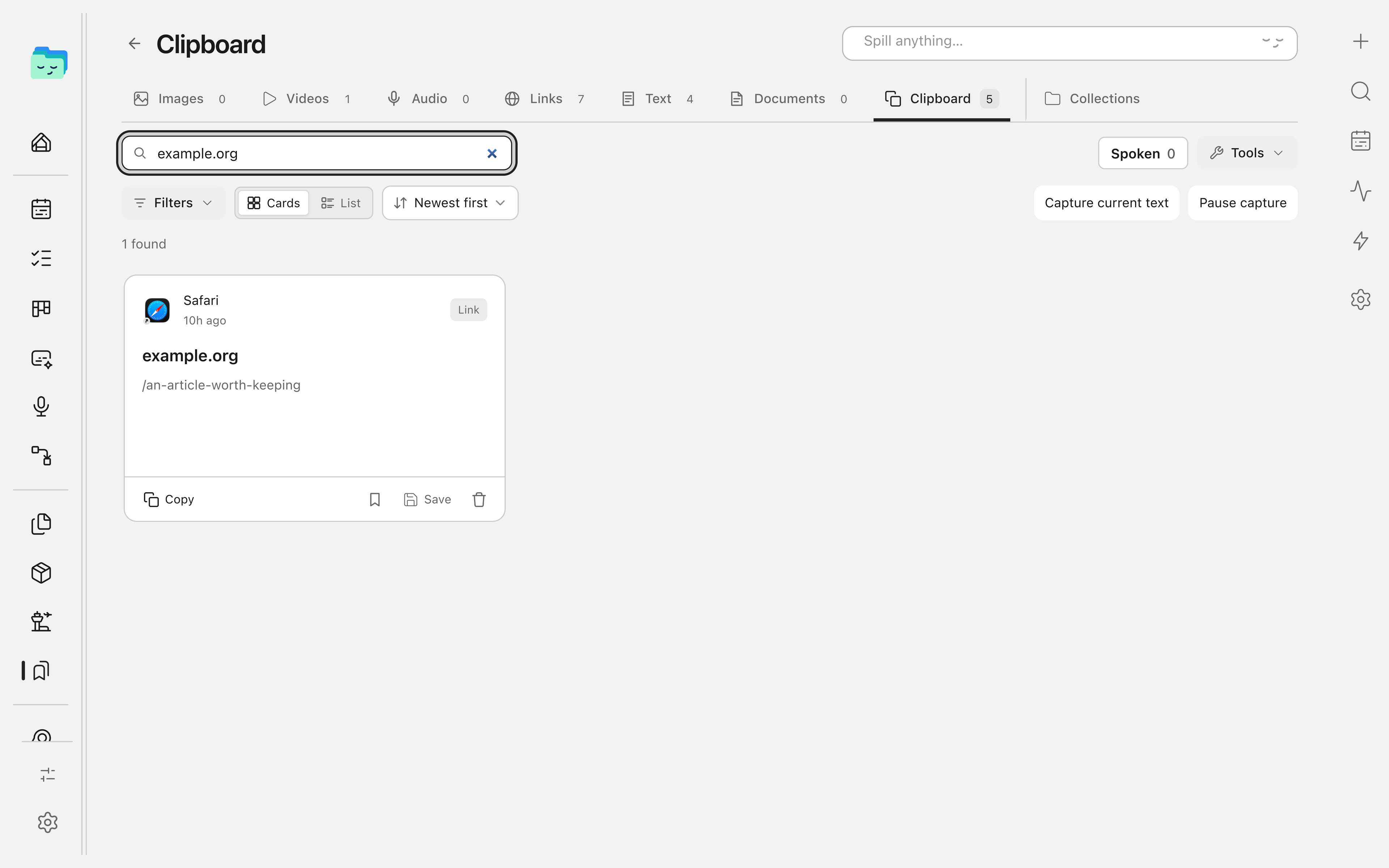
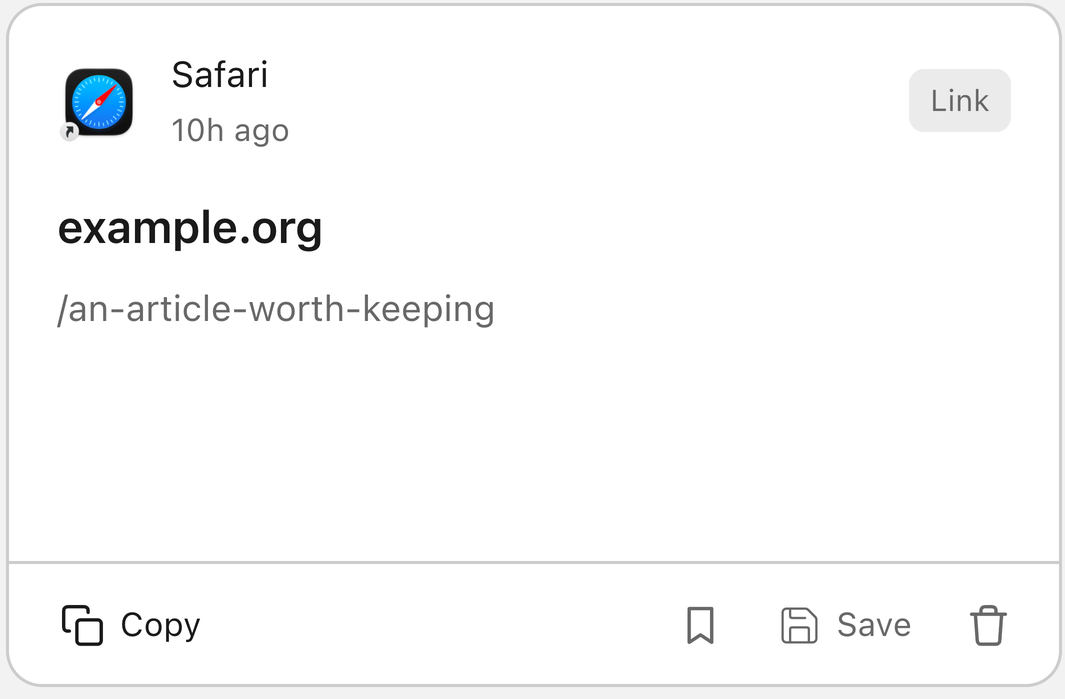
The prepared entry shows its source app and Copy, Pin, and Save controls. Clipboard capture can be paused.
Spillit app screen · Sample content
Swipe or use arrow keys to explore the window.
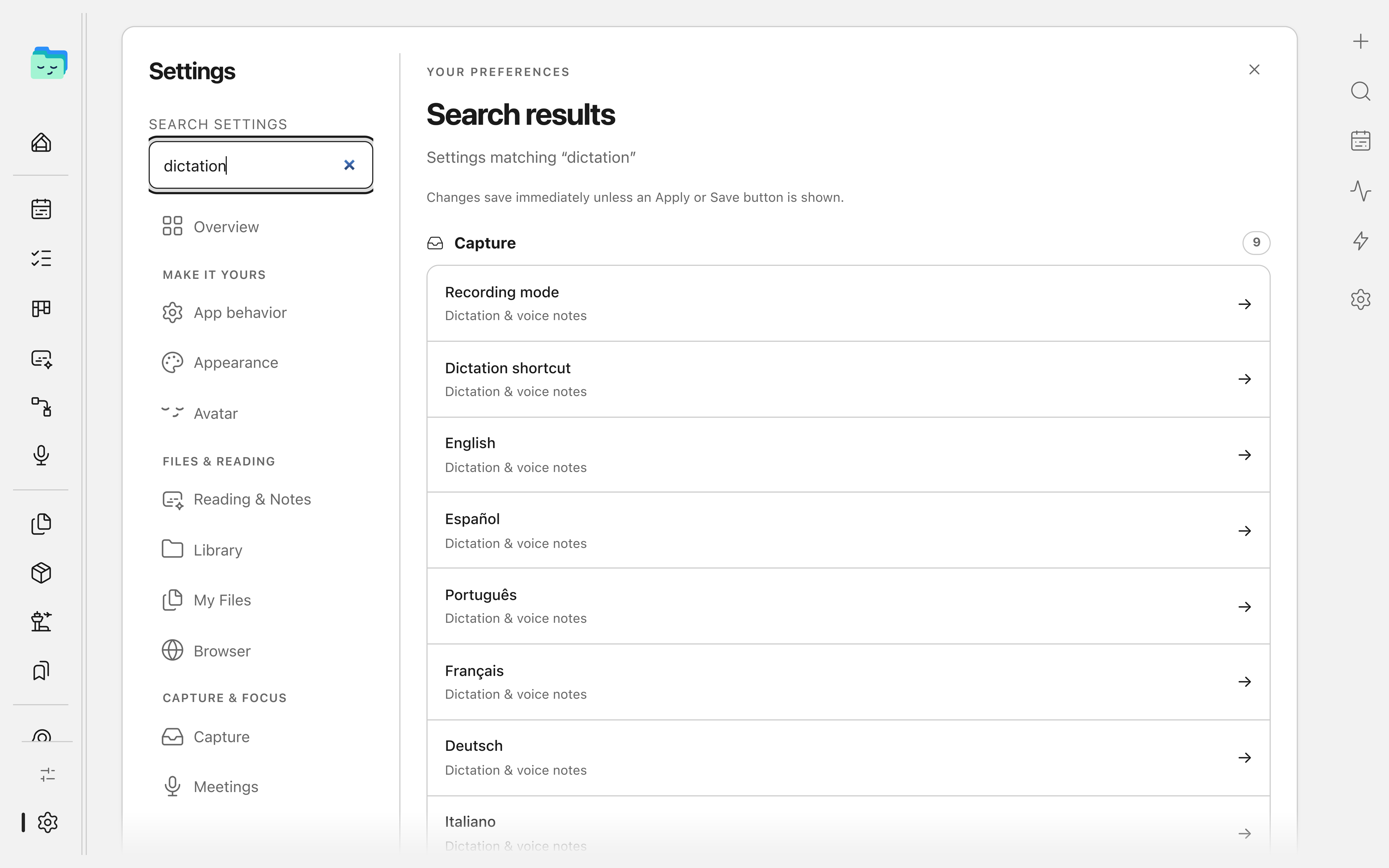
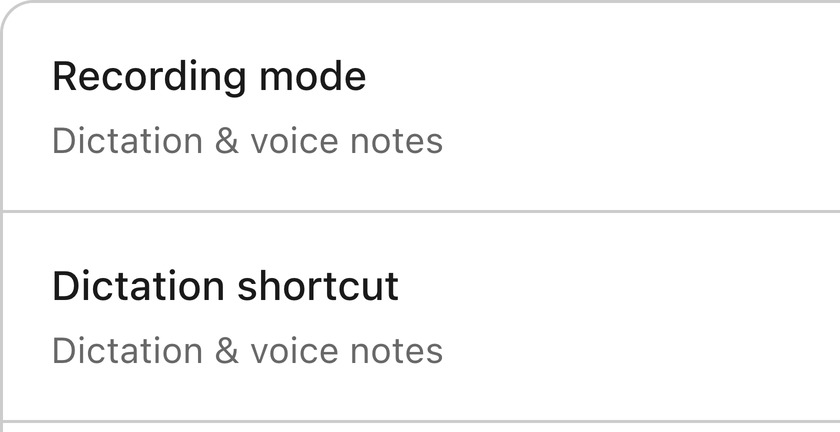
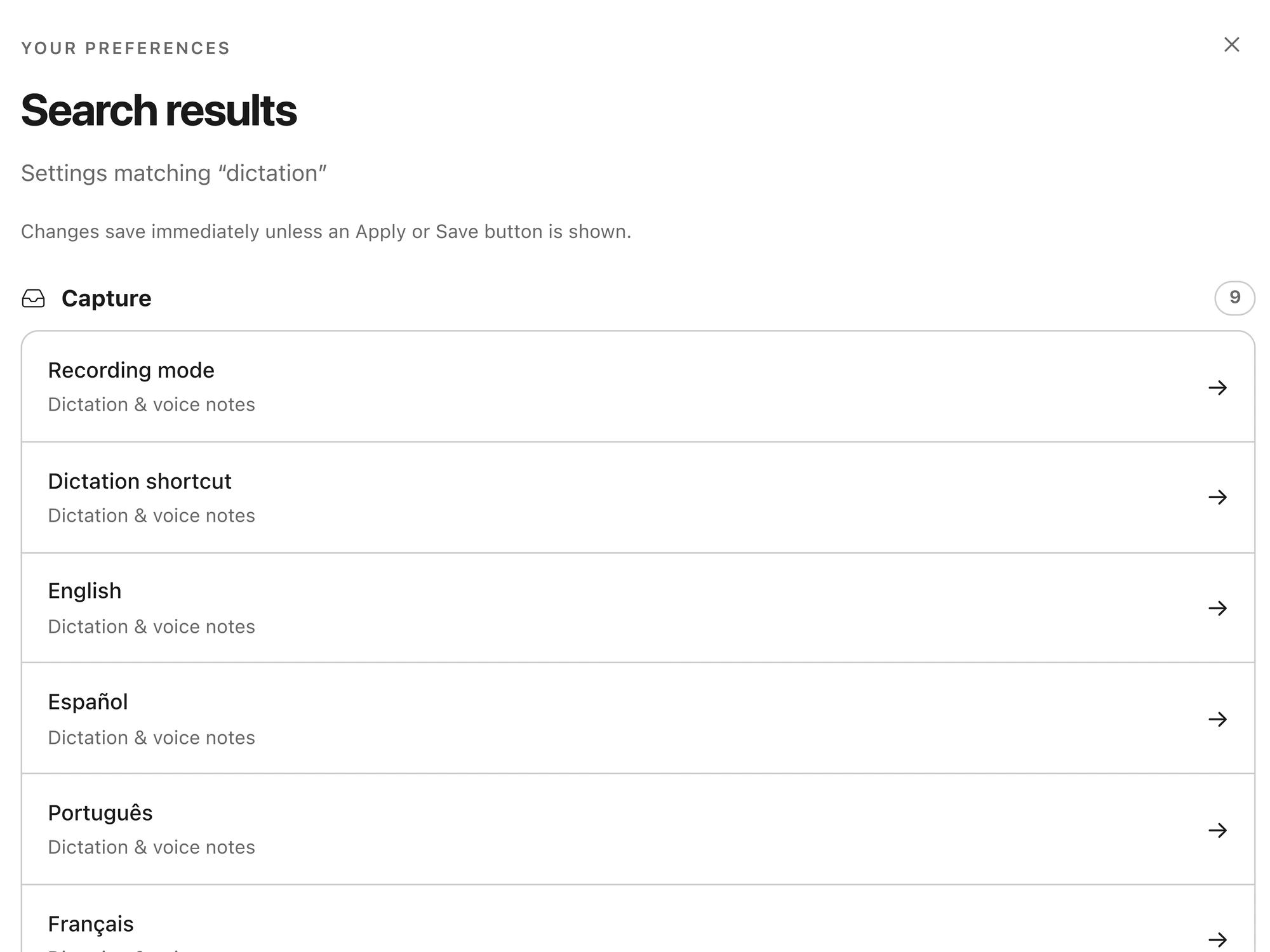
Settings search points to recording mode and the dictation shortcut. Spoken history is available in My Saves.
Desktop microphone and paste permissions apply. Review recognized text before using it.
Spillit app screen · Sample content
Swipe or use arrow keys to explore the window.
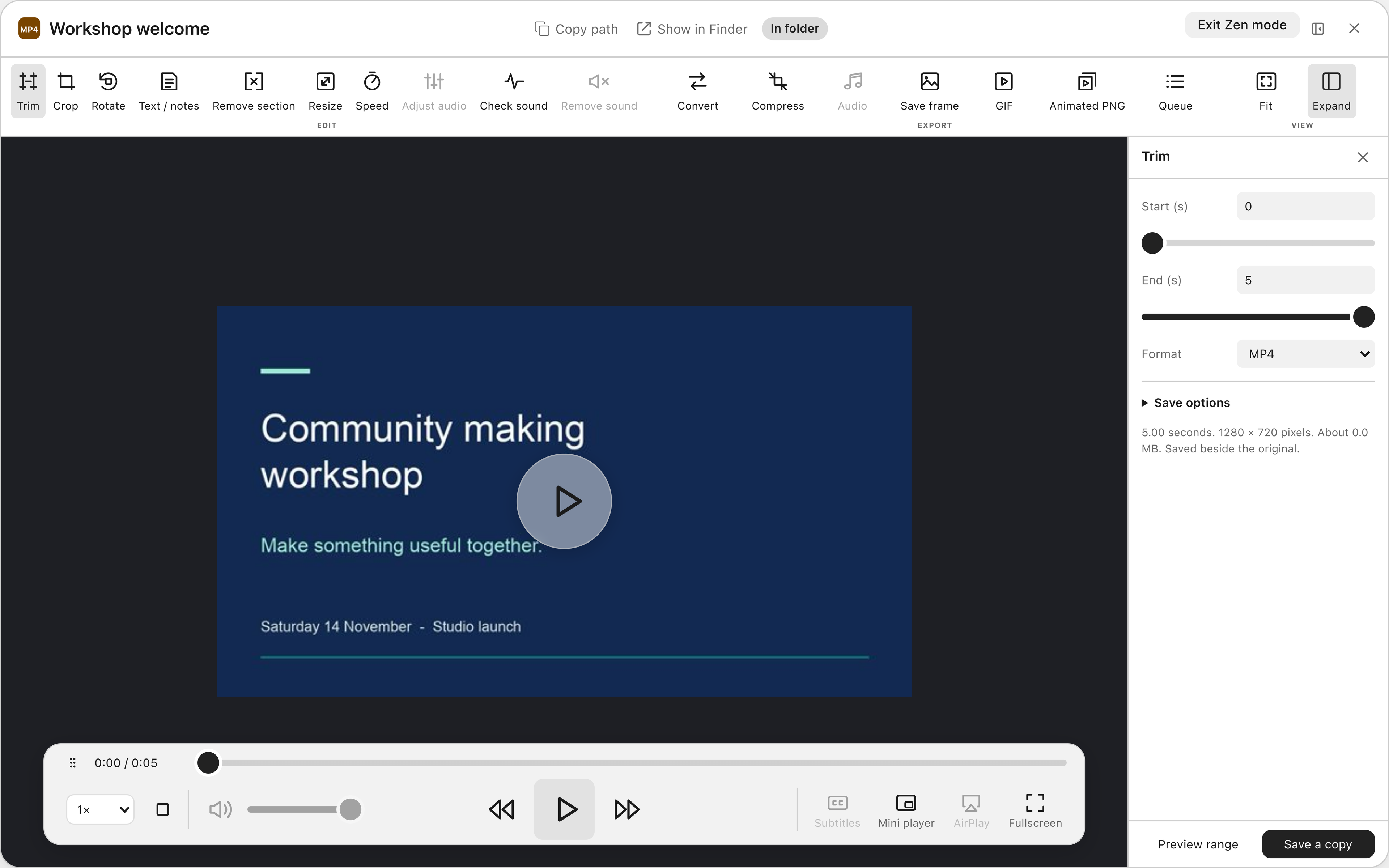
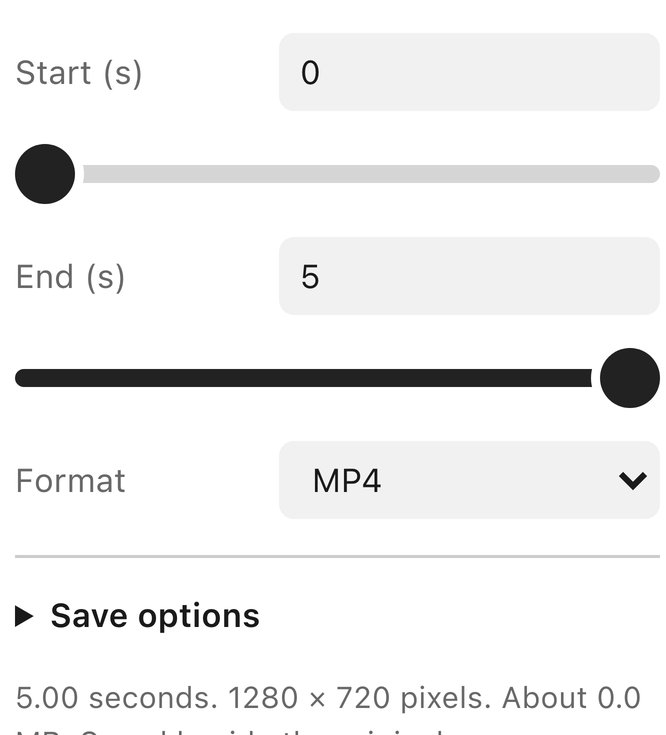
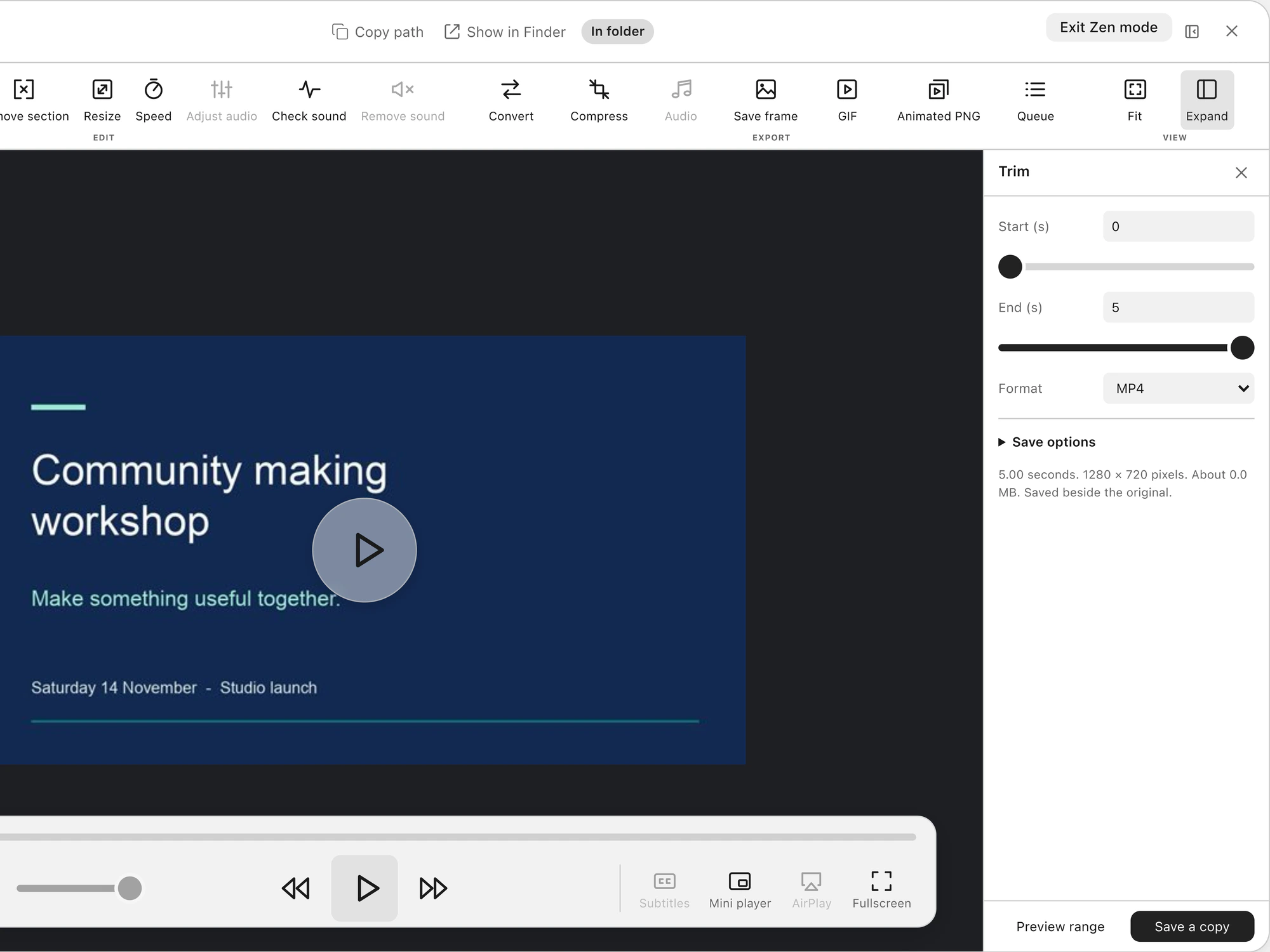
Choose the start, end, and output format. Save a copy to keep the original video.
Review recognized text and exported media. Available editing and export options depend on the source file.
Spillit app screen · Sample content
Swipe or use arrow keys to explore the window.
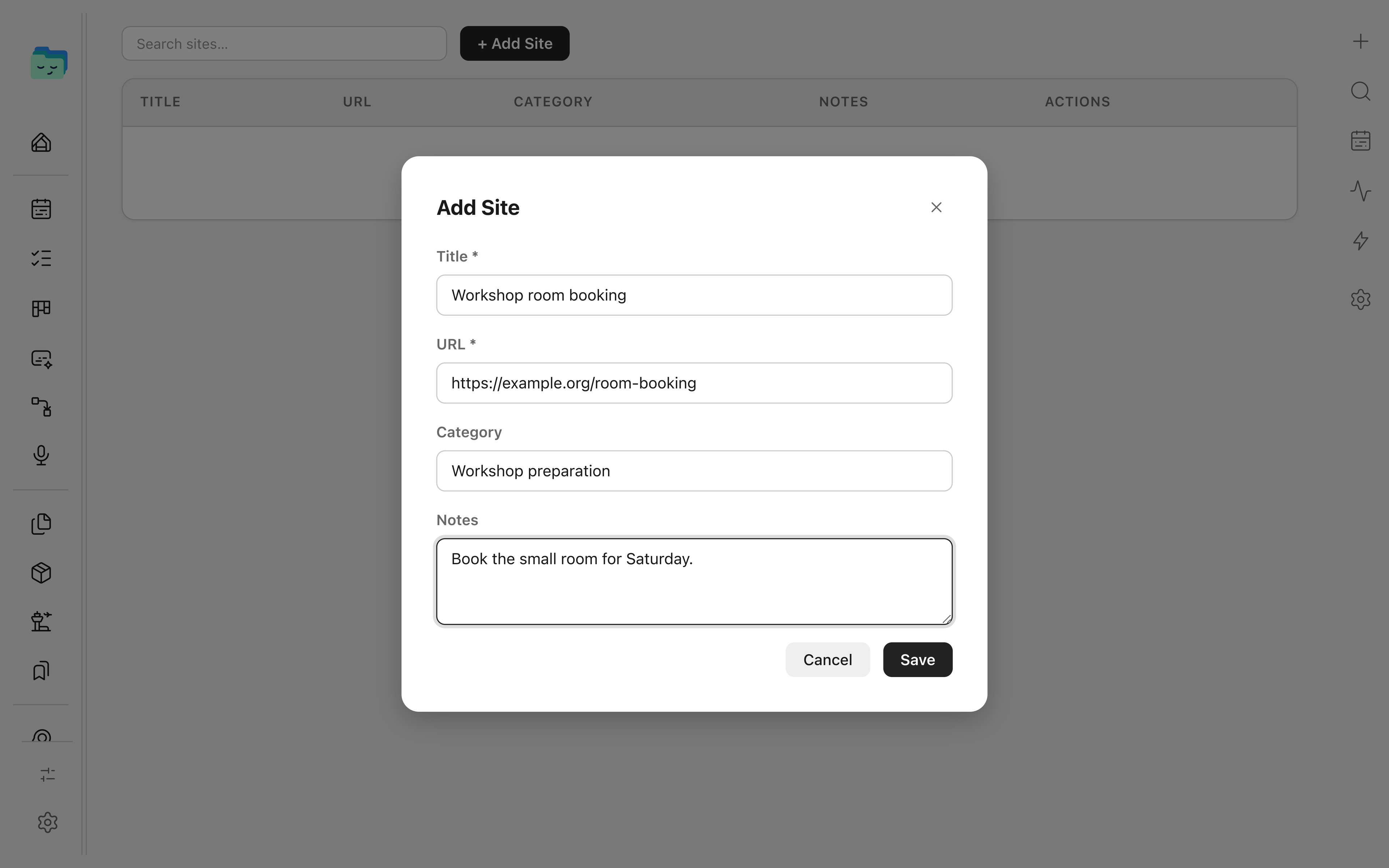
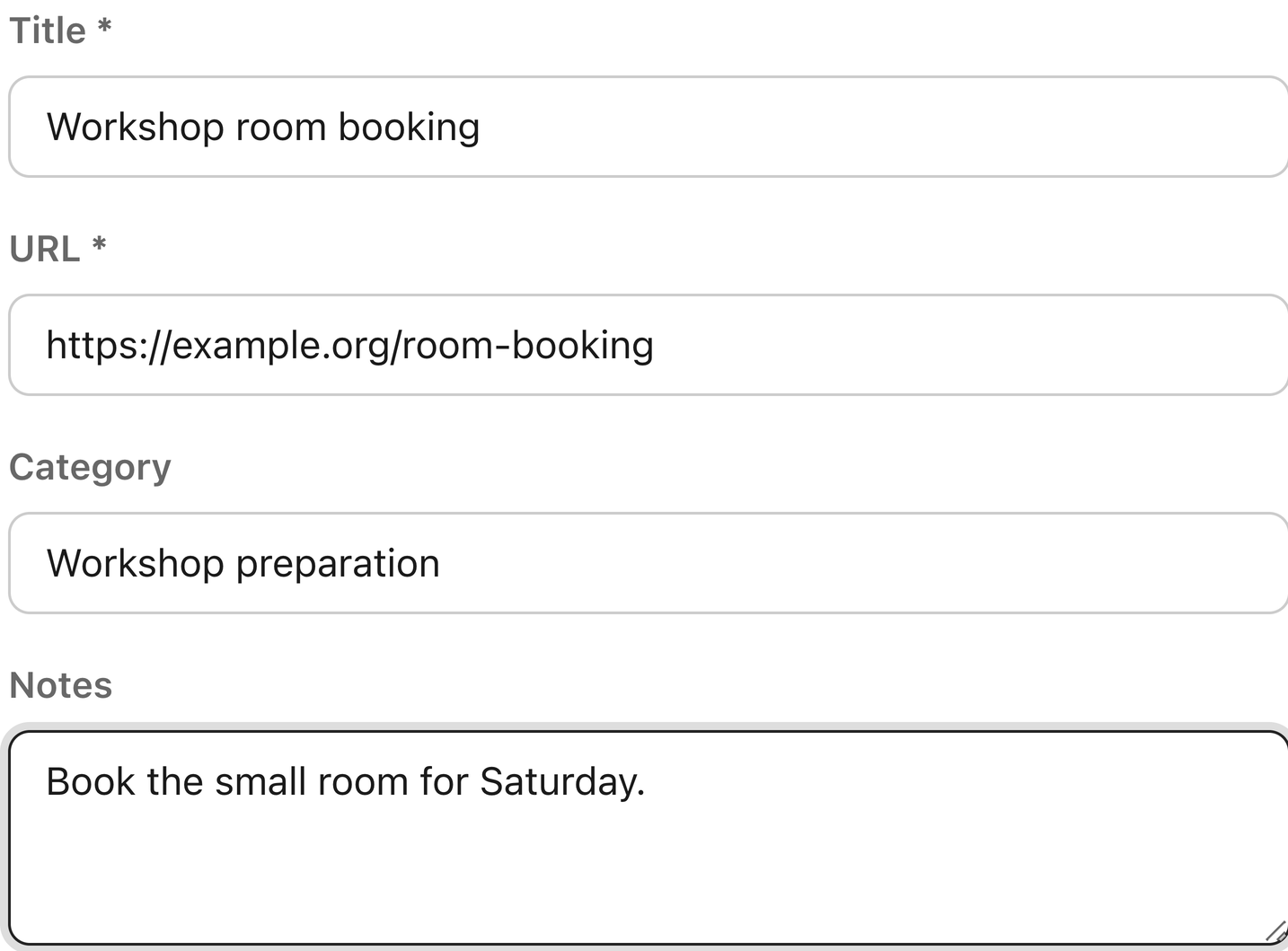
The native form has fields for the title, URL, category, and notes. No site is opened.
Spillit app screen · Sample content
Swipe or use arrow keys to explore the window.
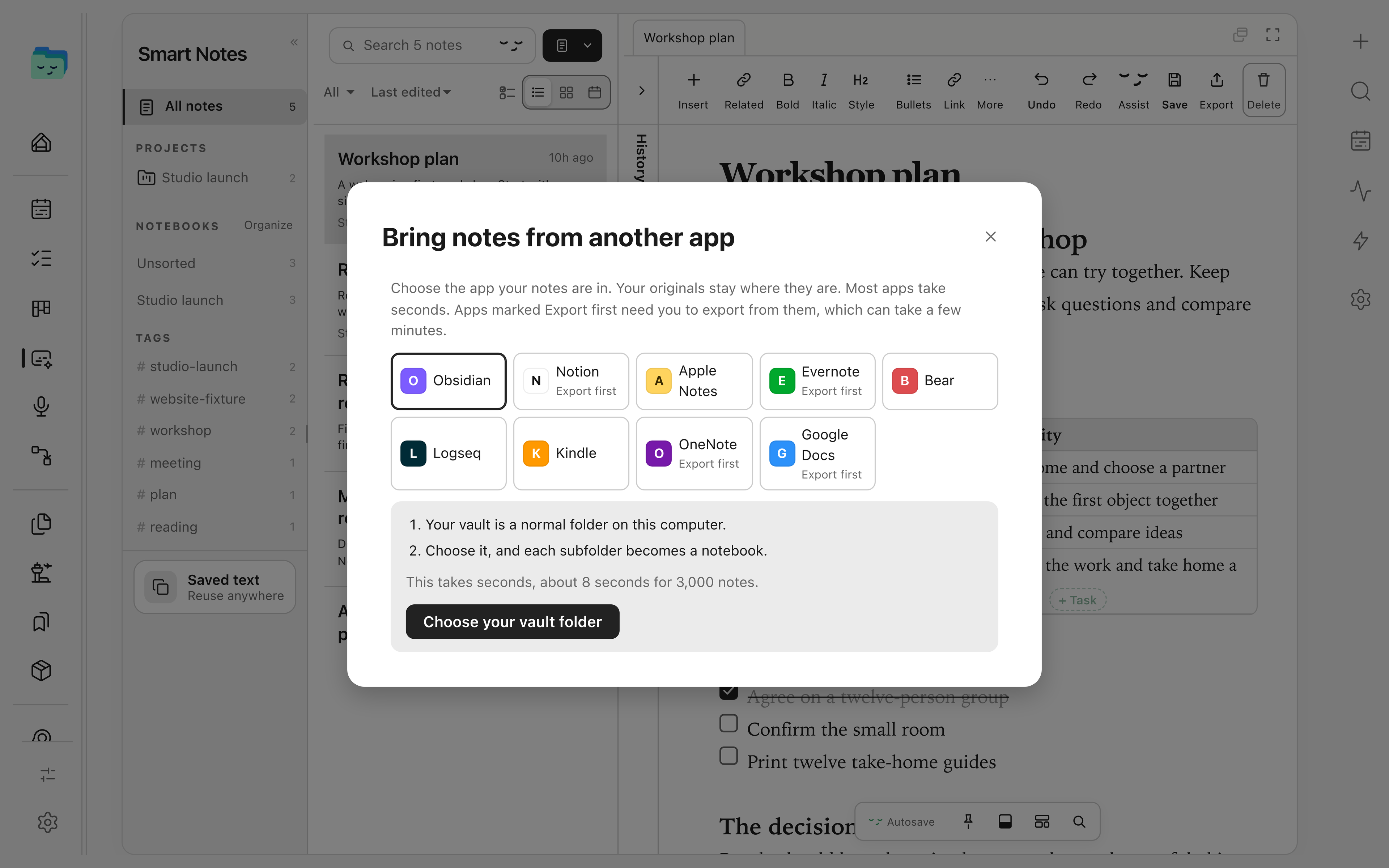
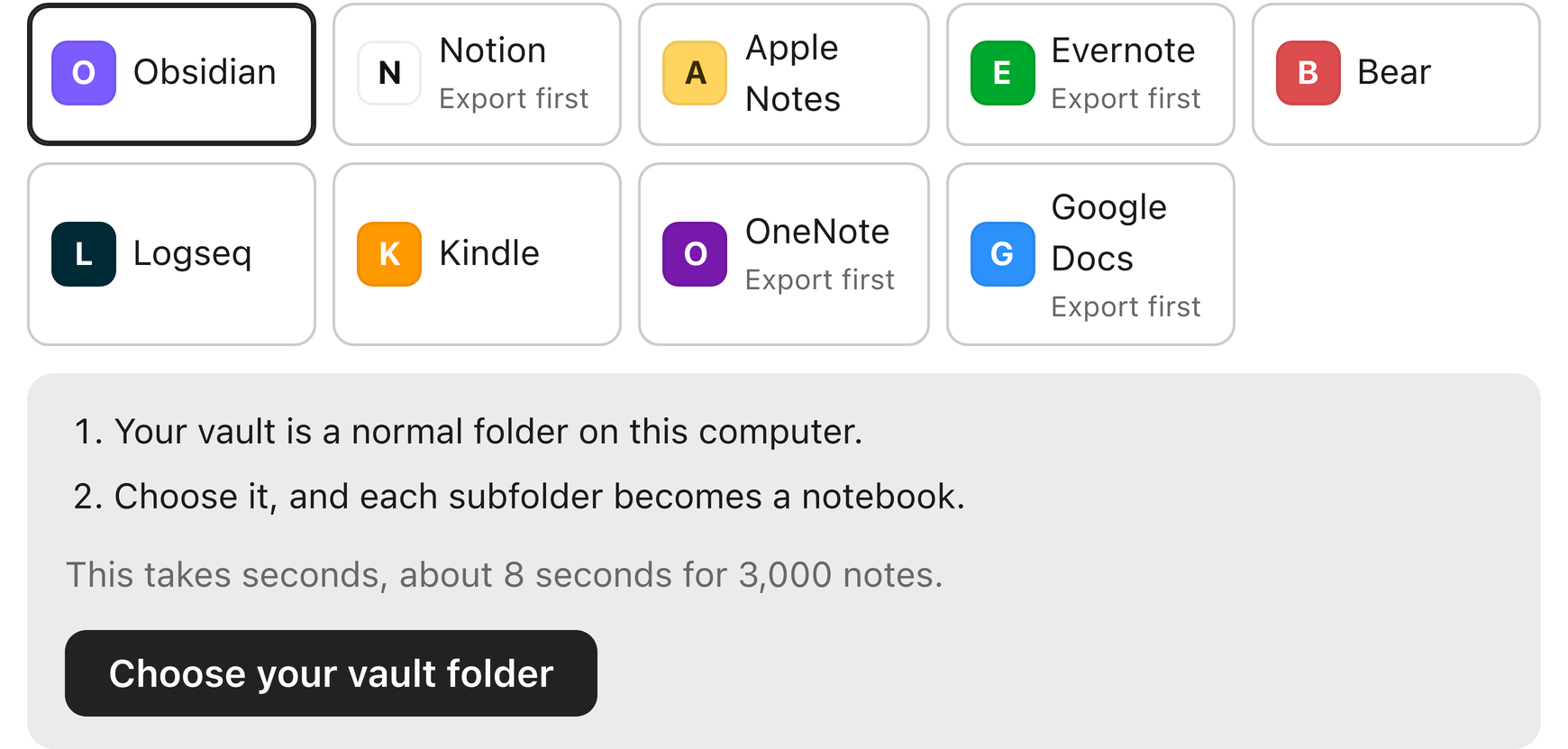
The dialog lists supported apps and shows the vault-folder steps for Obsidian.
Spillit app screen · Sample content
Swipe or use arrow keys to explore the window.
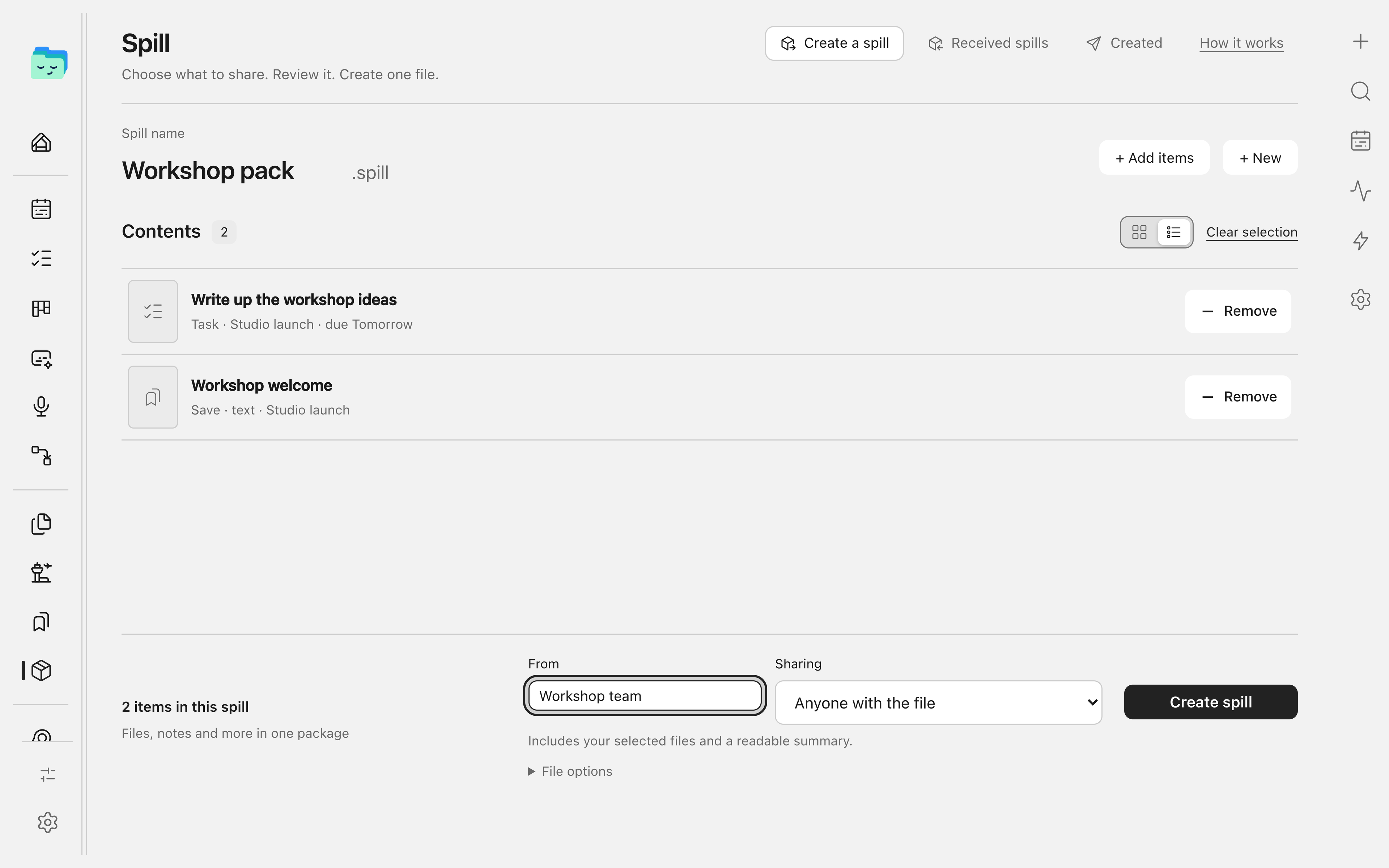
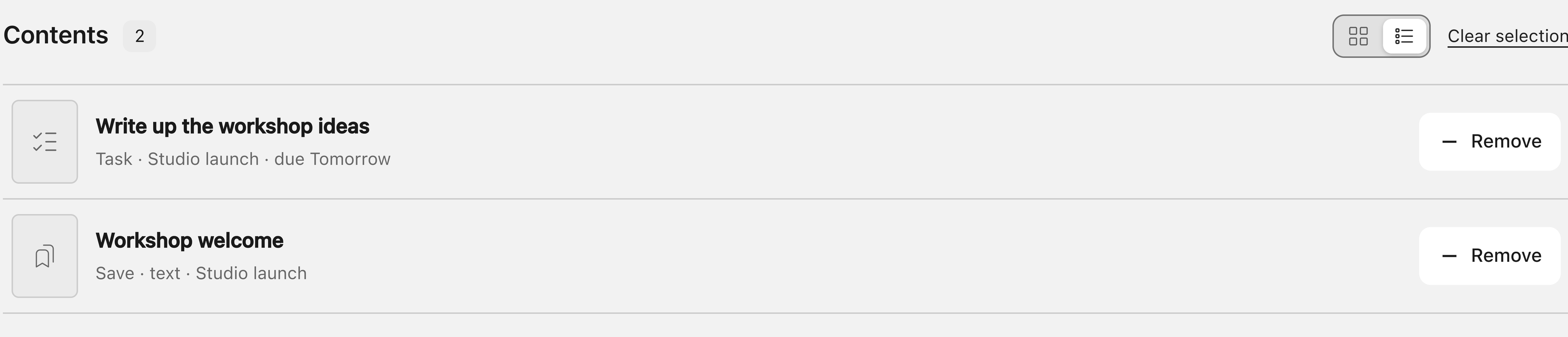
Workshop pack contains the selected task and saved welcome text. The file has not been created or sent.
Open packages contain readable files and context. Protected packages require Spillit. Recipients choose what they import.
Plan trips, record finances, run shortcuts, and choose your Spillit's appearance.
Spillit app screen · Sample content
Swipe or use arrow keys to explore the window.
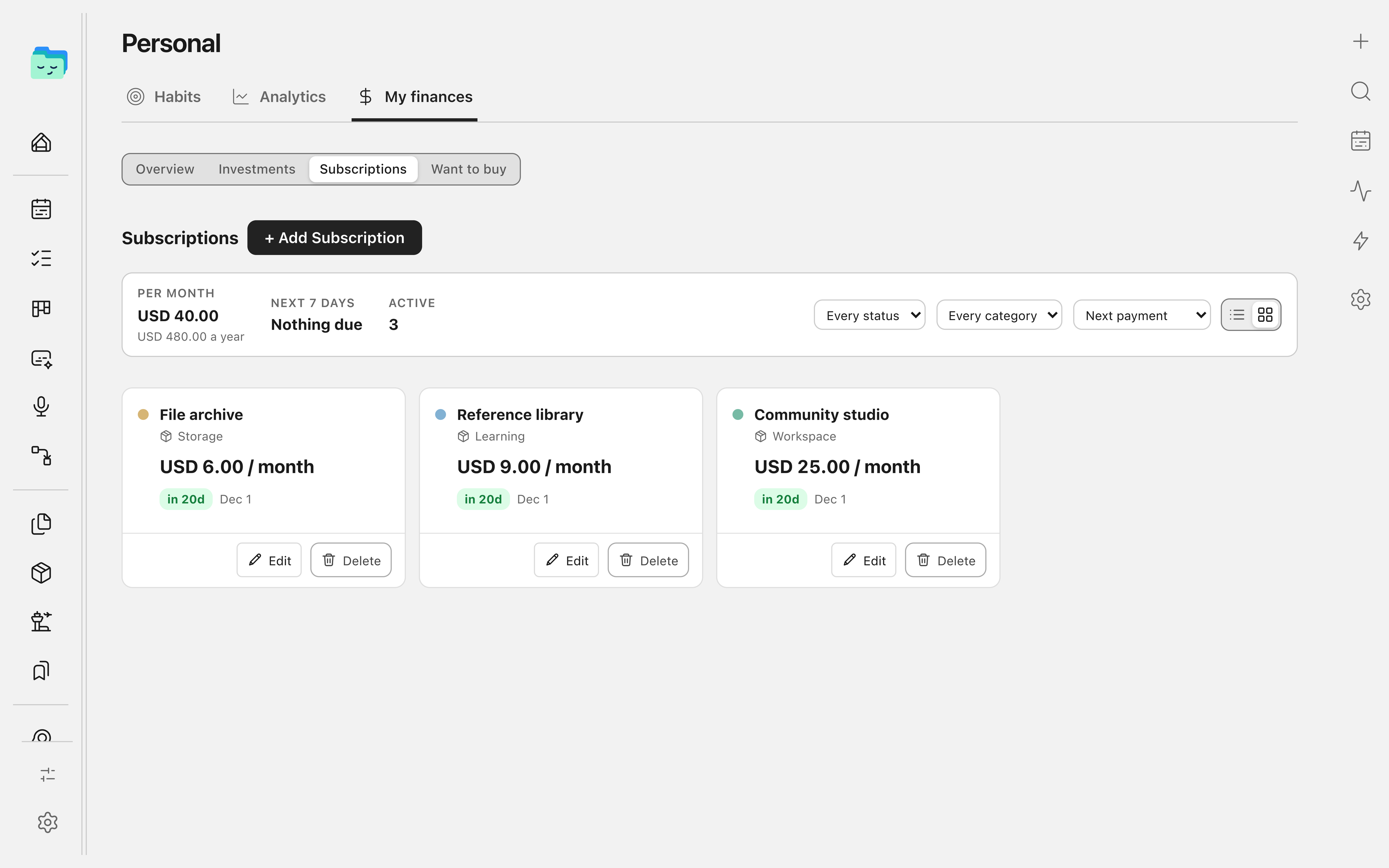
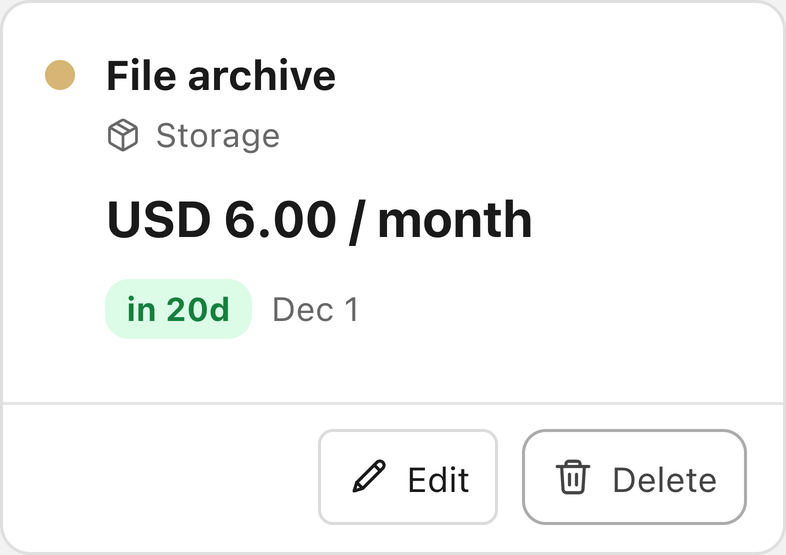
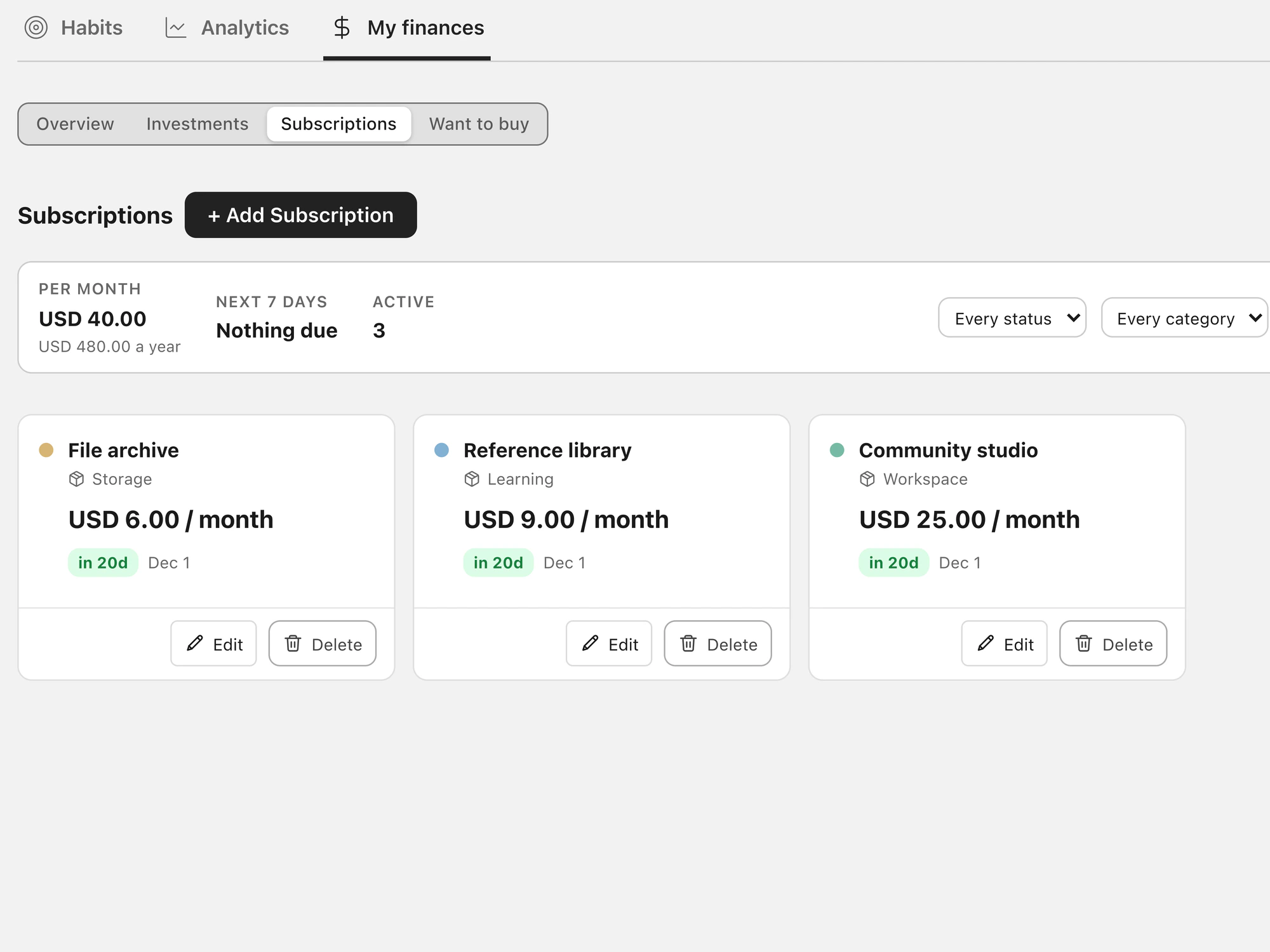
Keep the category, cost, billing interval, and renewal date with the manual record.
Account and portfolio values use the records you enter. Product-page price checks use the network and can fail. Bookings stay with their providers.
Spillit app screen · Sample content
Swipe or use arrow keys to explore the window.
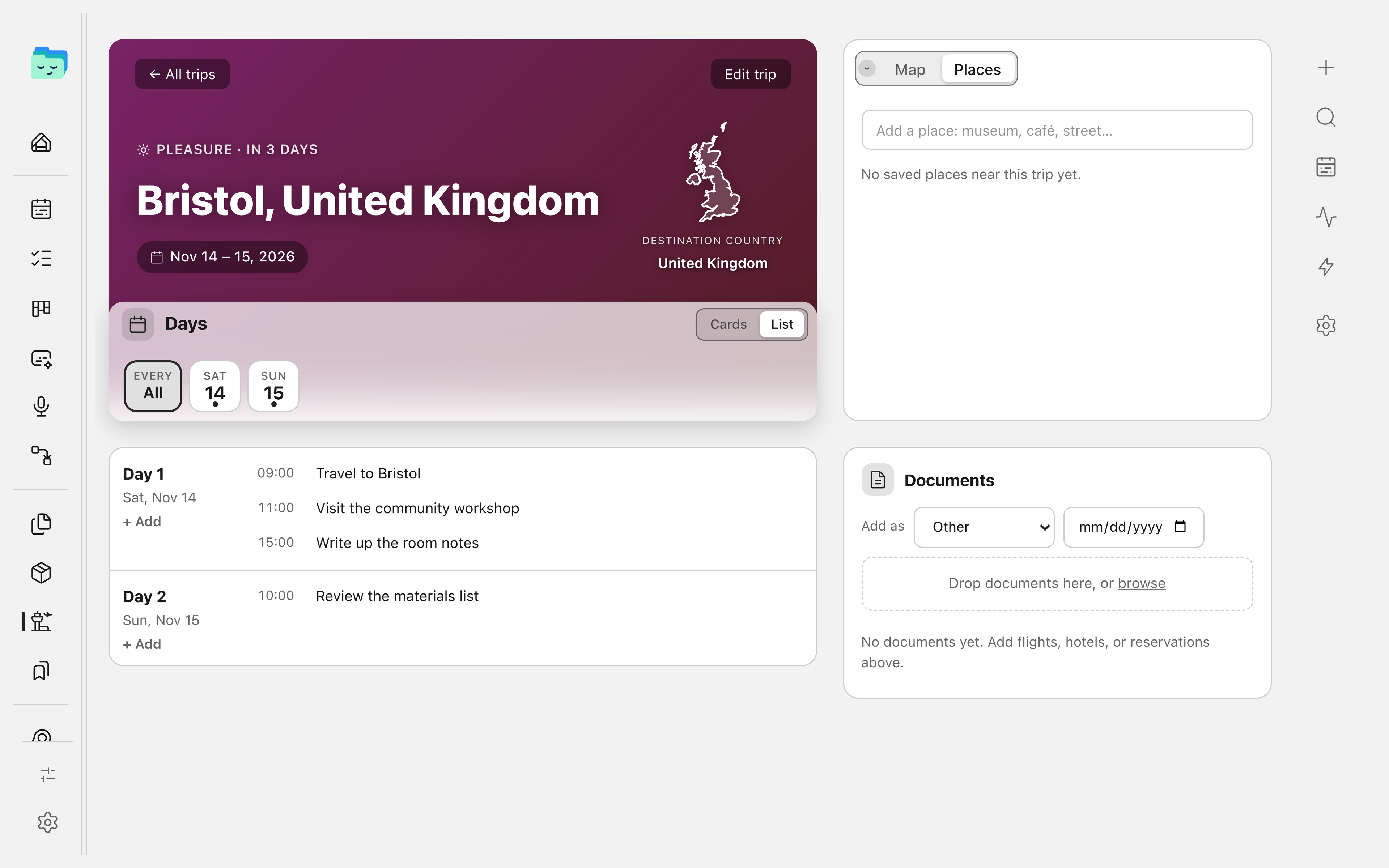
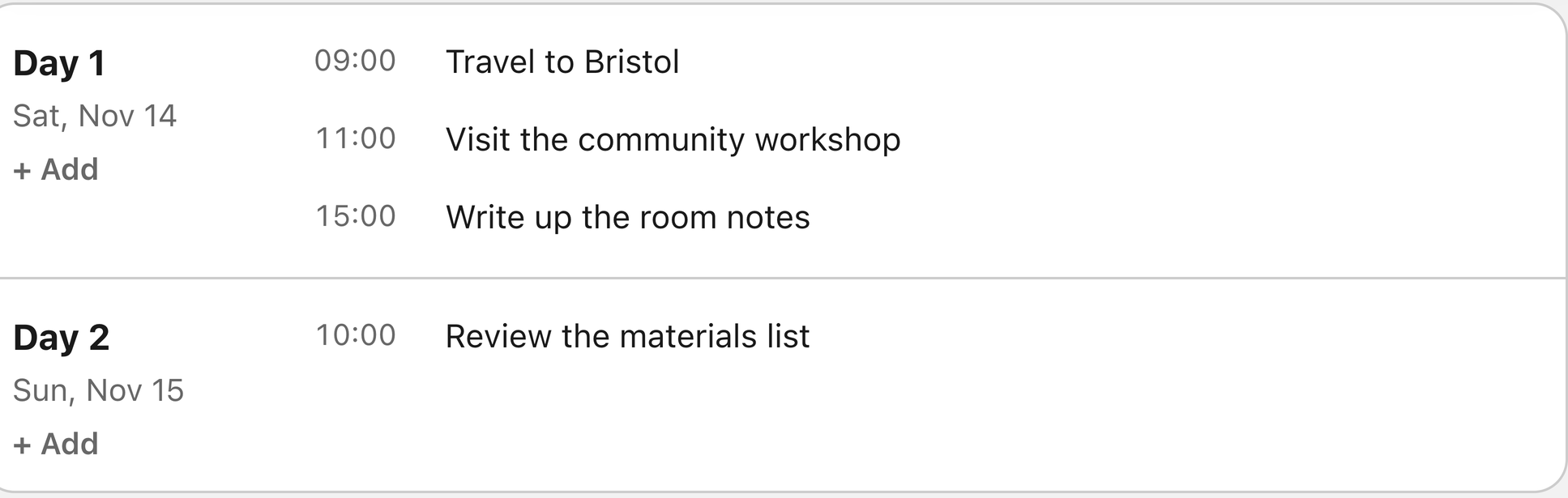
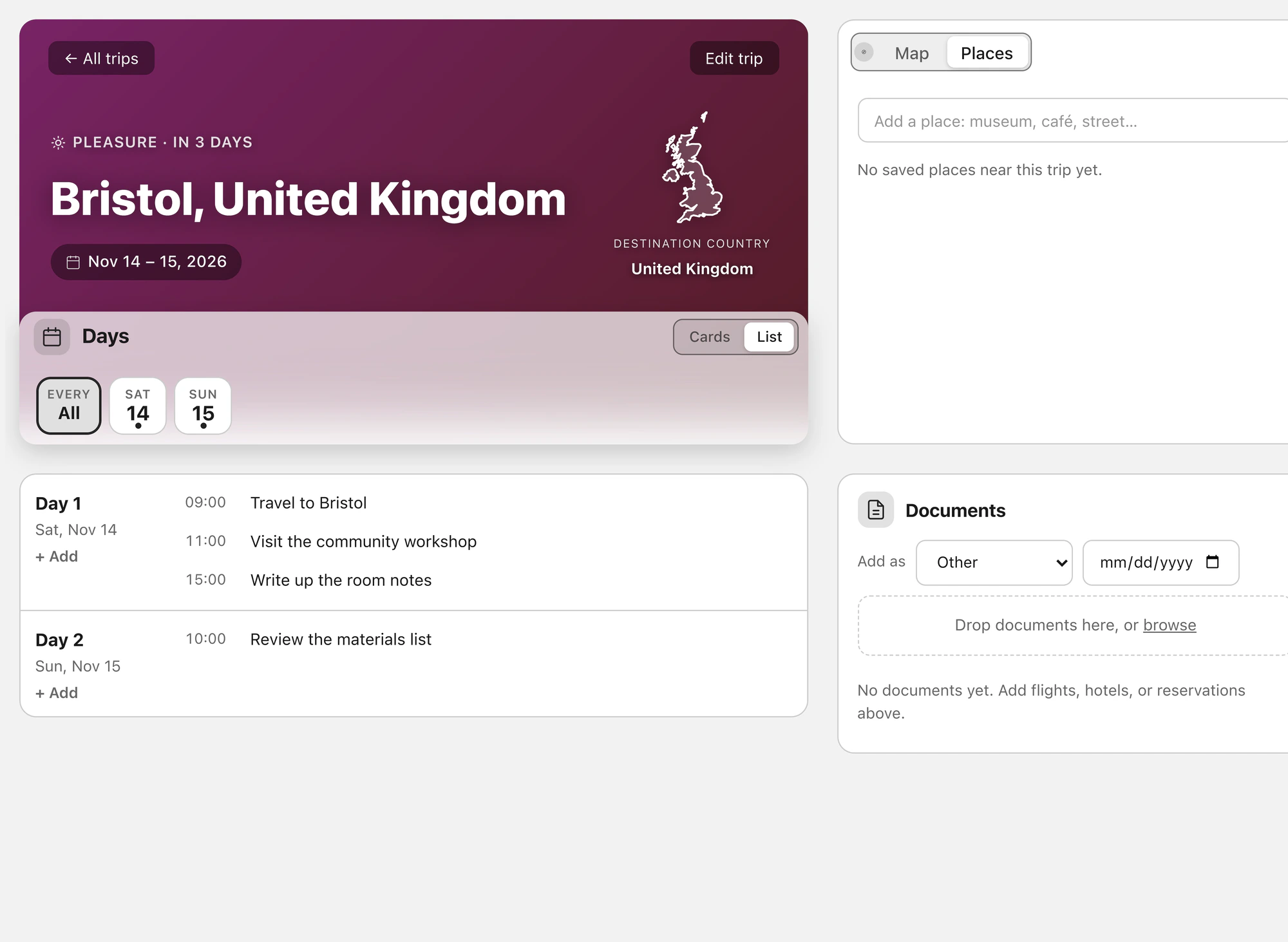
The itinerary keeps the dates and times beside the activities you entered.
Account and portfolio values use the records you enter. Product-page price checks use the network and can fail. Bookings stay with their providers.
Spillit app screen · Sample content
Swipe or use arrow keys to explore the window.
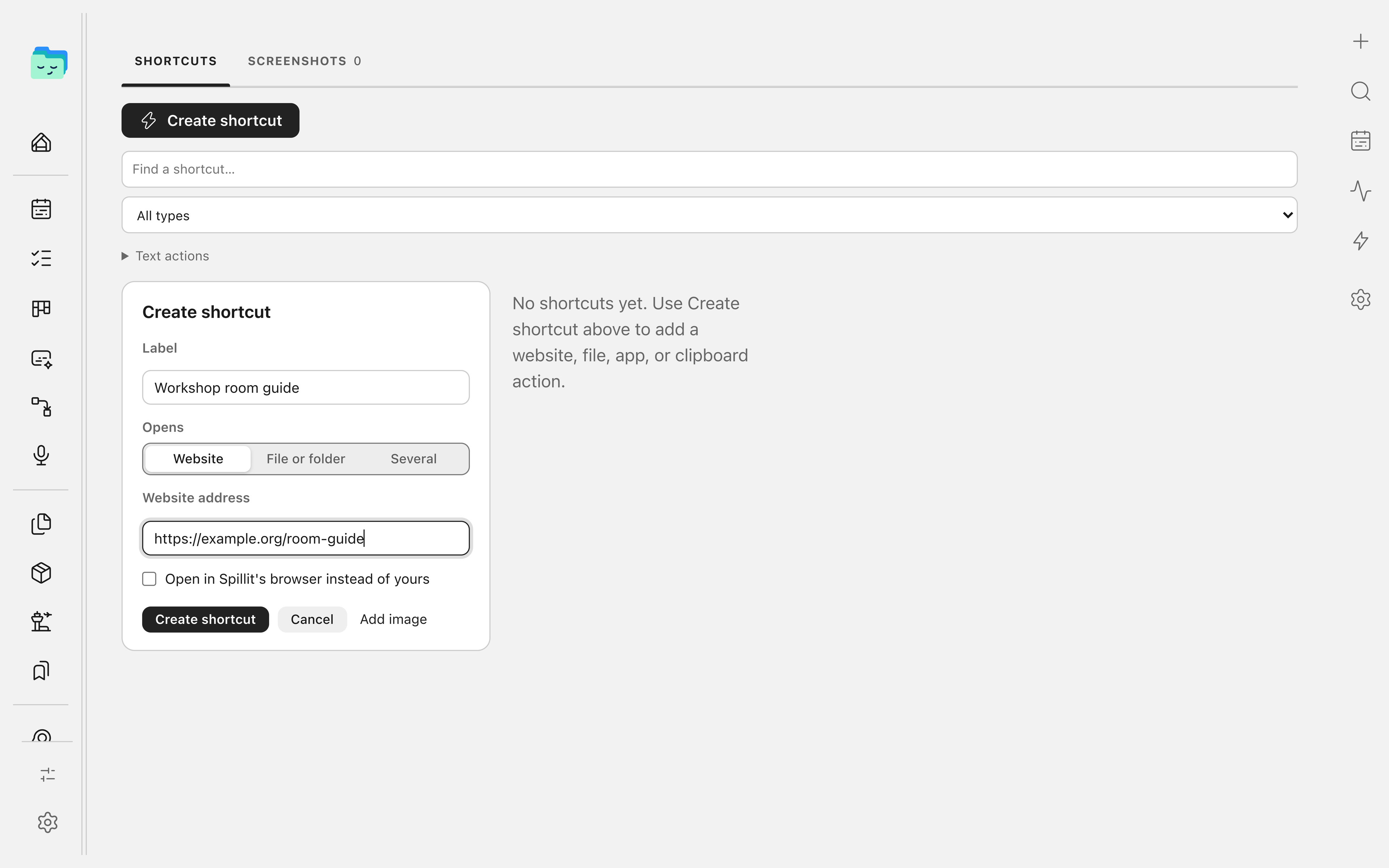
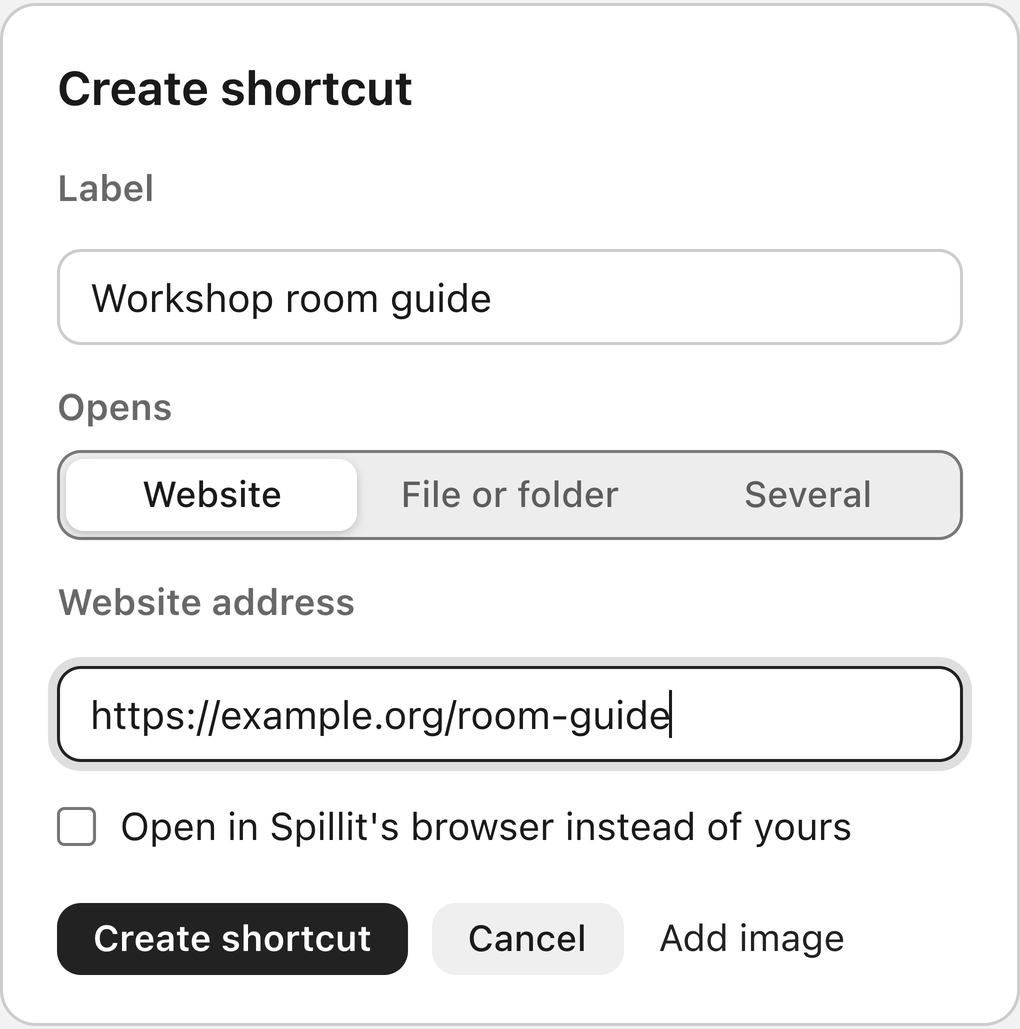
Configure a website, a file or folder, or several targets in the native creation form.
Spillit app screen · Sample content
Swipe or use arrow keys to explore the window.
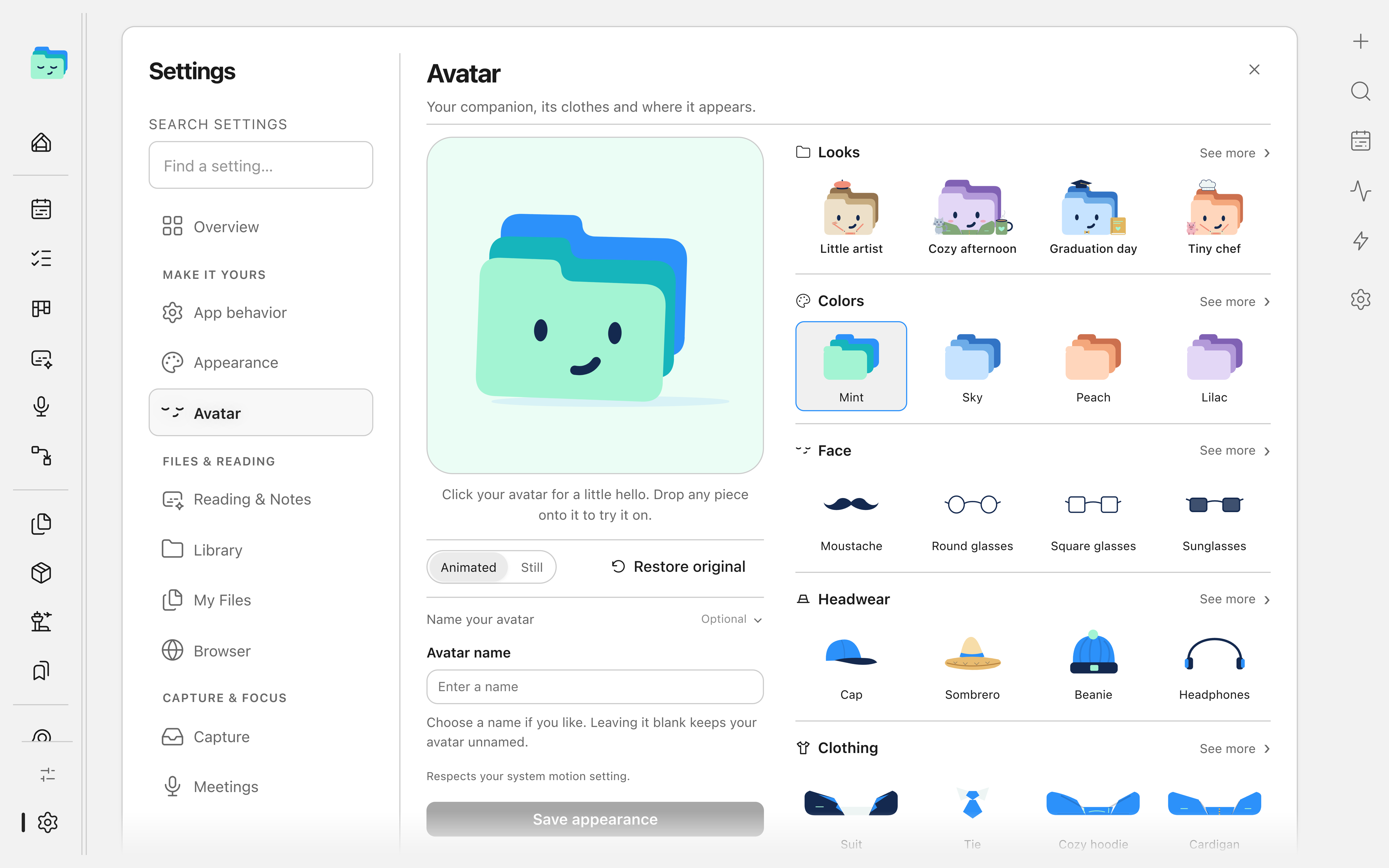
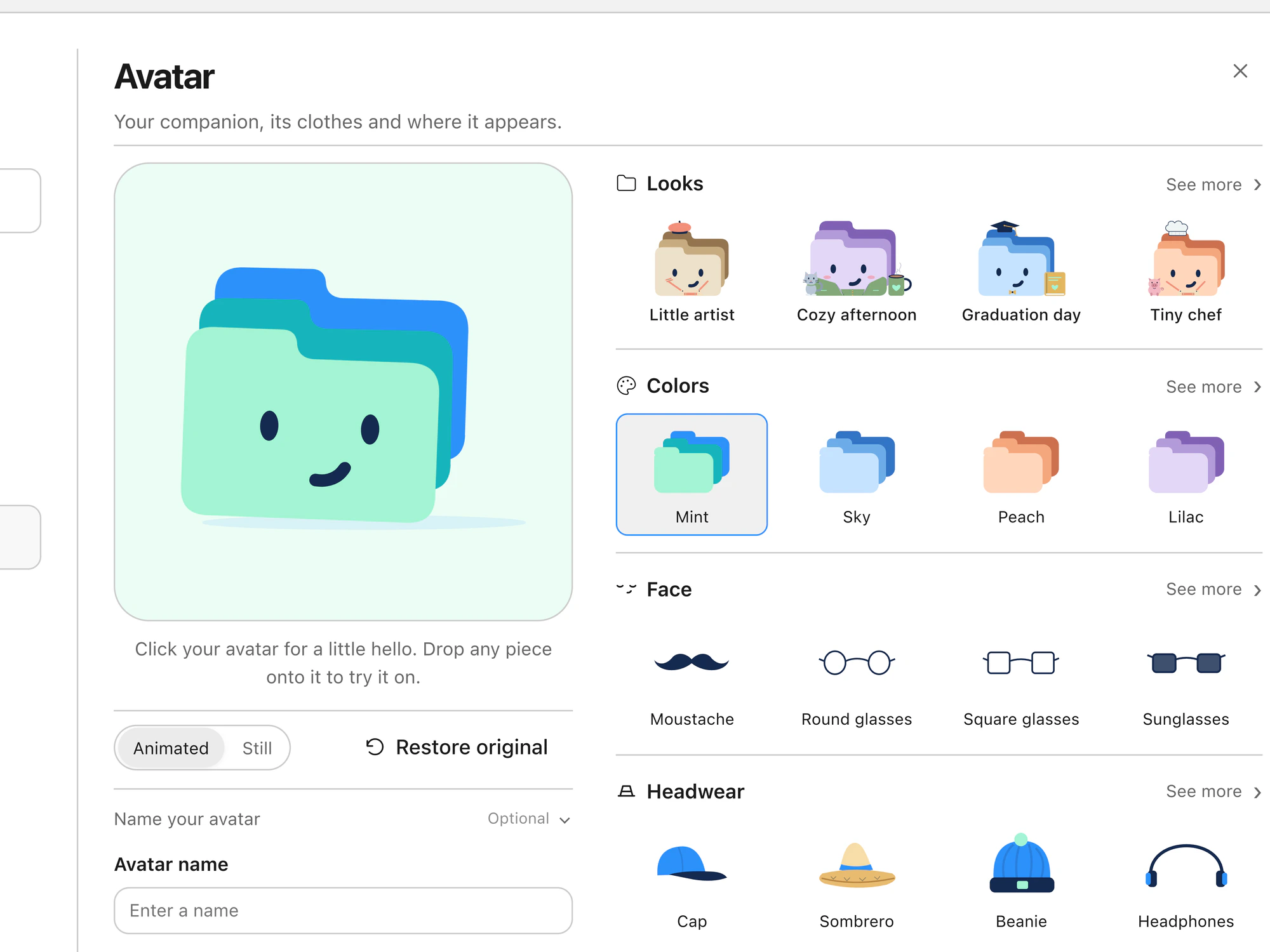
Browse color palettes alongside the current avatar preview.
The website companion preview keeps choices on that page. It does not save them into a desktop app profile.
 Shorten
 Expand
 Rewrite
 Chat