

Tasks and calendar
Choose the next task.
Make time for it.
Move tasks into progress, review owners and deadlines, and choose when to work. Start a focus session on the task you select.
Track the work and its blockers
Swipe or use arrow keys to explore the window.
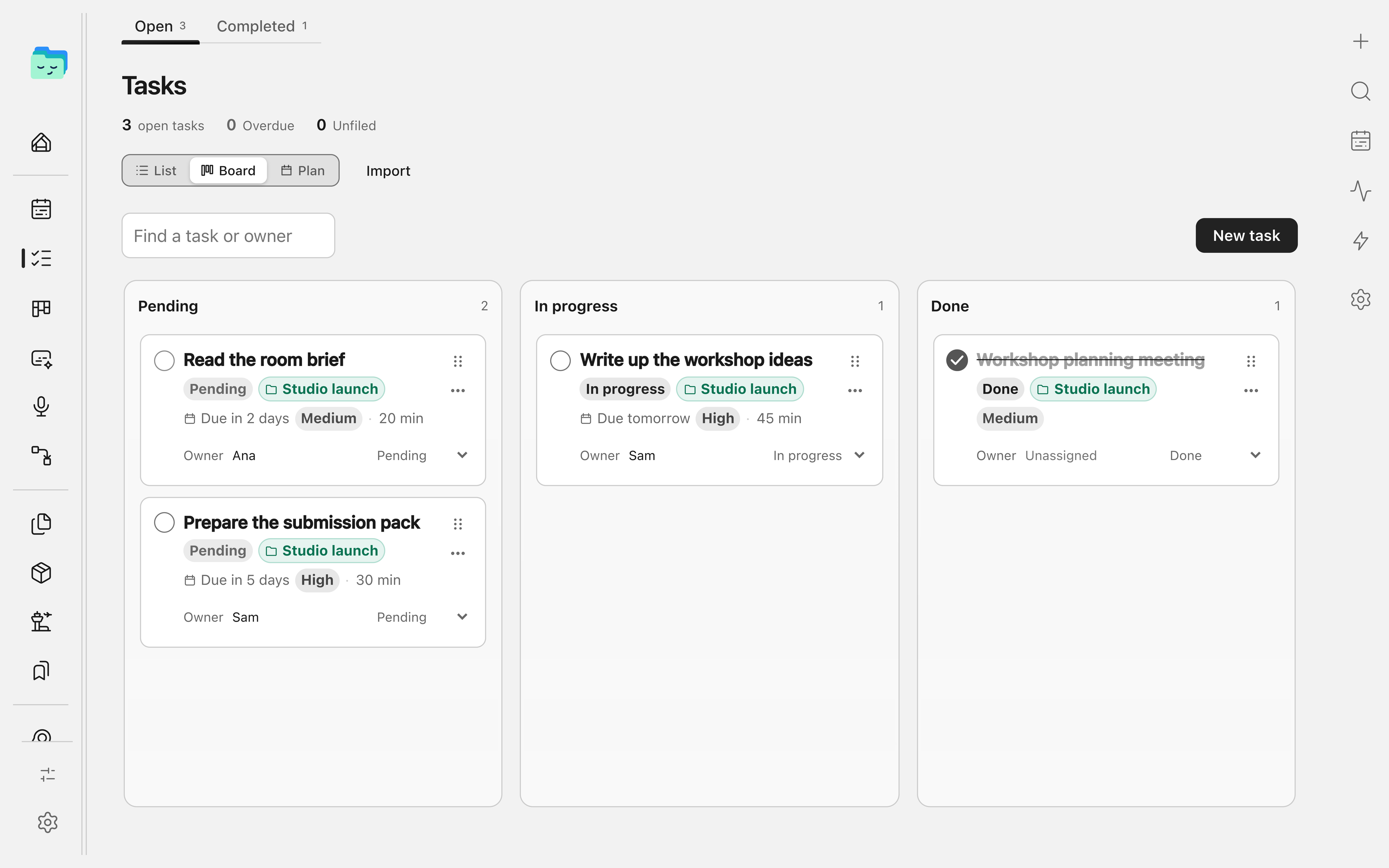
Move work between Pending, In progress, and Done. Set owners, deadlines, and requirements so you can see what is waiting.
- Move tasks between statuses
- Edit owners and deadlines
- Set task dependencies
- Check completed work
Make time, then focus on the task
Swipe or use arrow keys to explore the window.
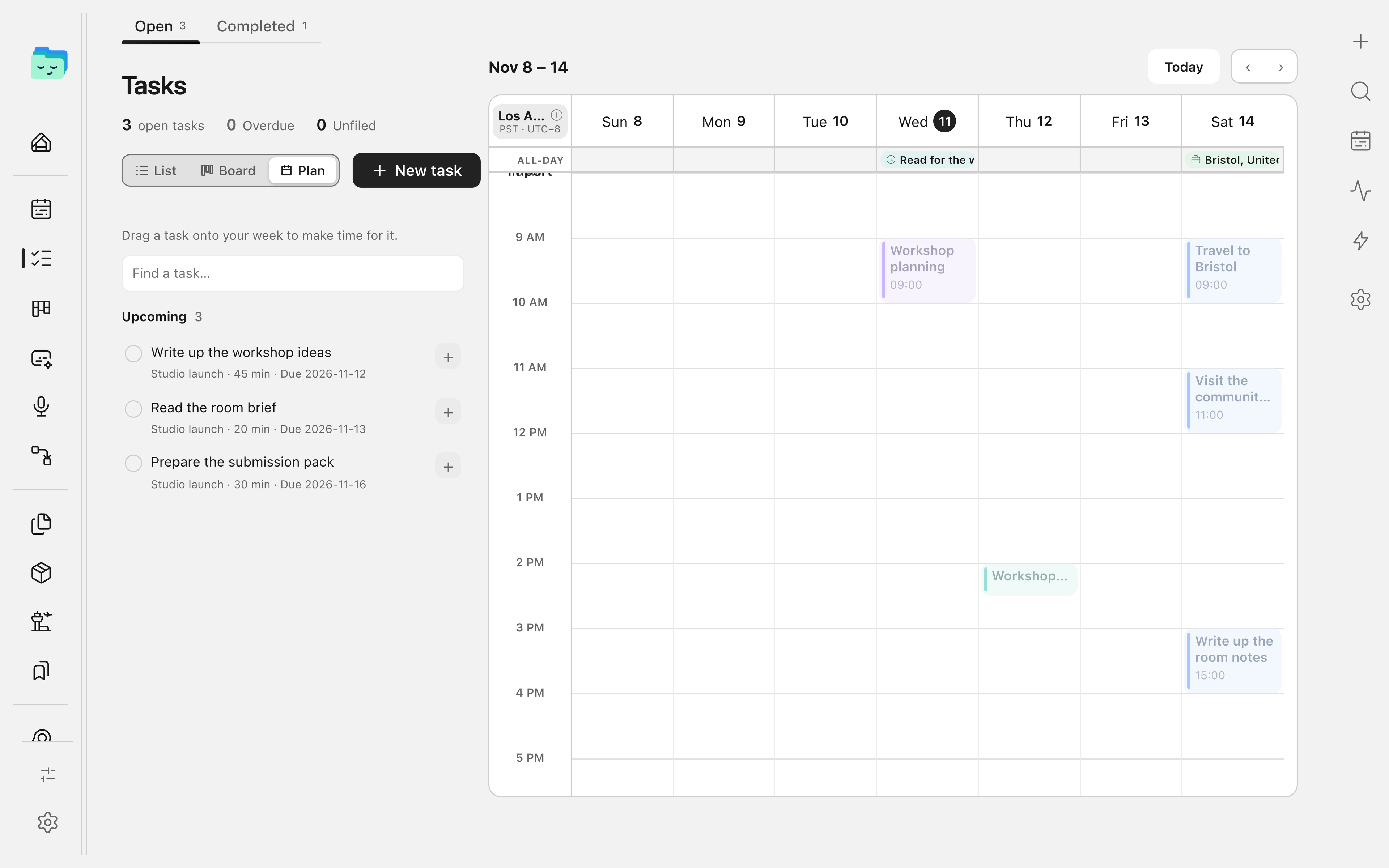
Choose a task's time slot in your Spillit calendar, then start a focus session or log time spent.
- Schedule a task yourself
- Move its calendar block
- Start task-linked focus
- Log time against the task

Plan your own tasks and time blocks alongside events in your local calendar.
Details and compatibility
More app views
Move the work forward. Make time for it.
Swipe or use arrow keys to explore the window.
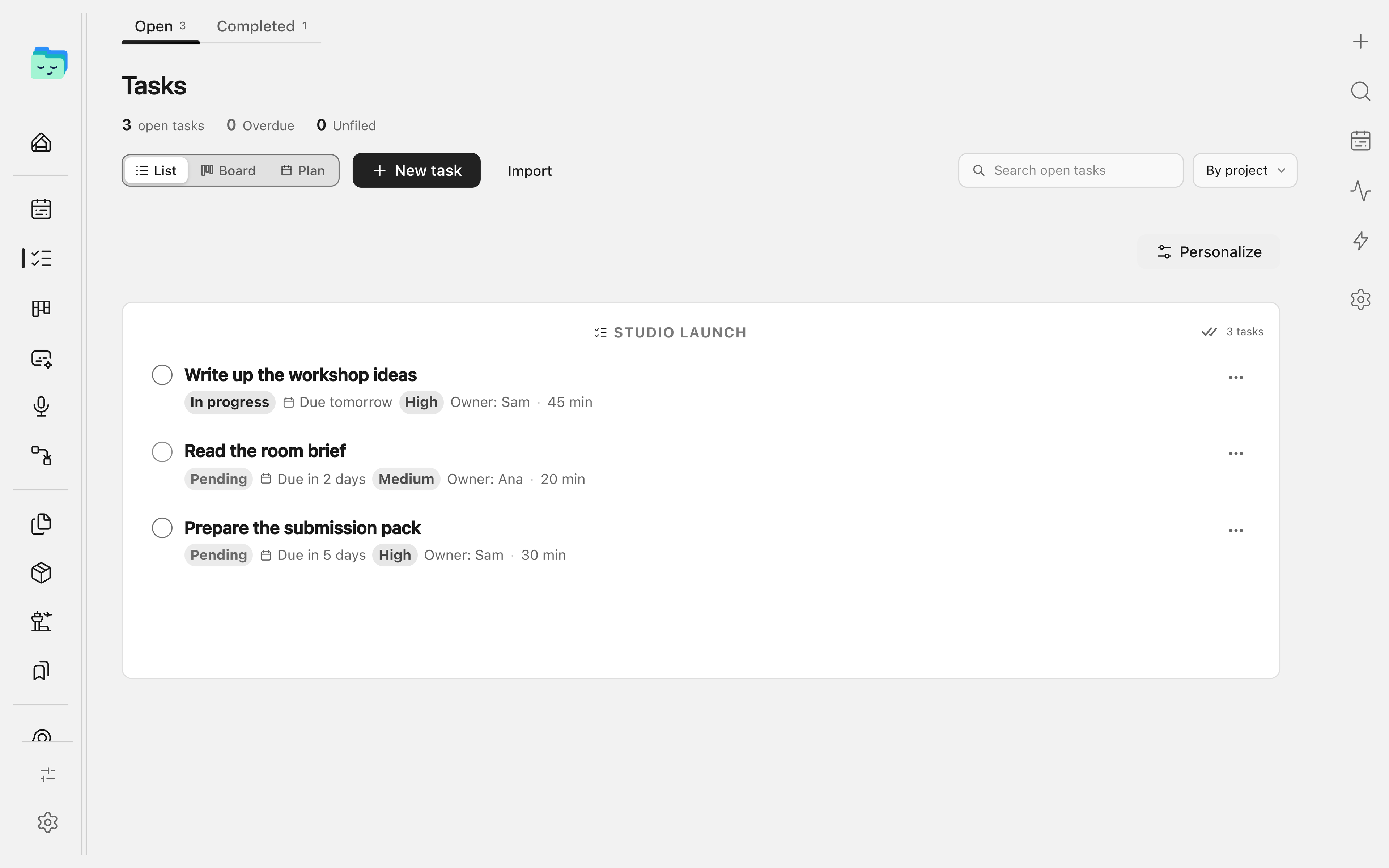
Know who does what next
Each task keeps its project, owner, due date, priority, and estimate visible. Open work stays separate from completed tasks.

Swipe or use arrow keys to explore the window.
See what is already underway
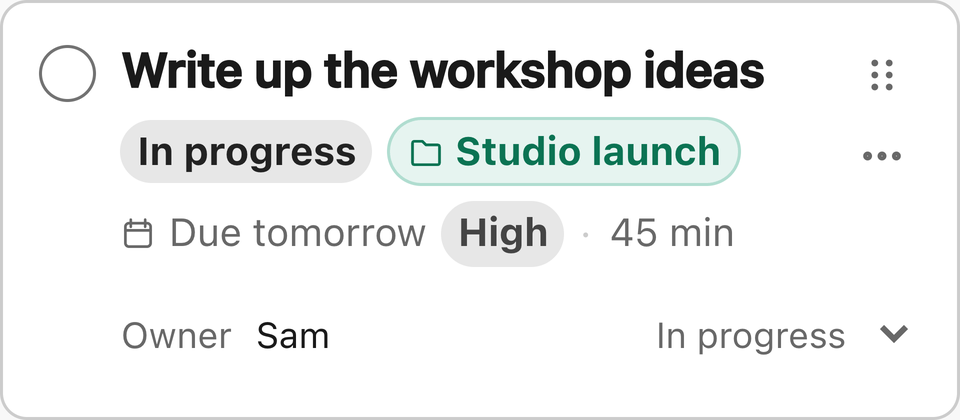
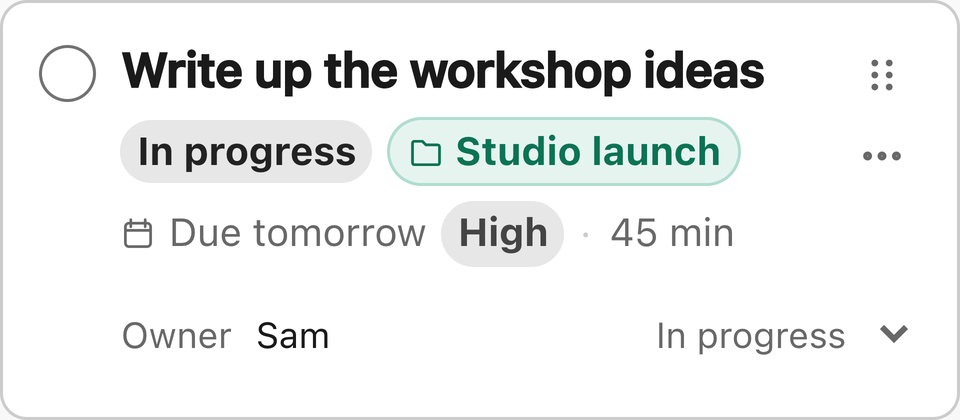
The writing task is In progress. Drag cards or use their status control to move work between Pending, In progress, and Done.
Swipe or use arrow keys to explore the window.
Choose what deserves calendar time
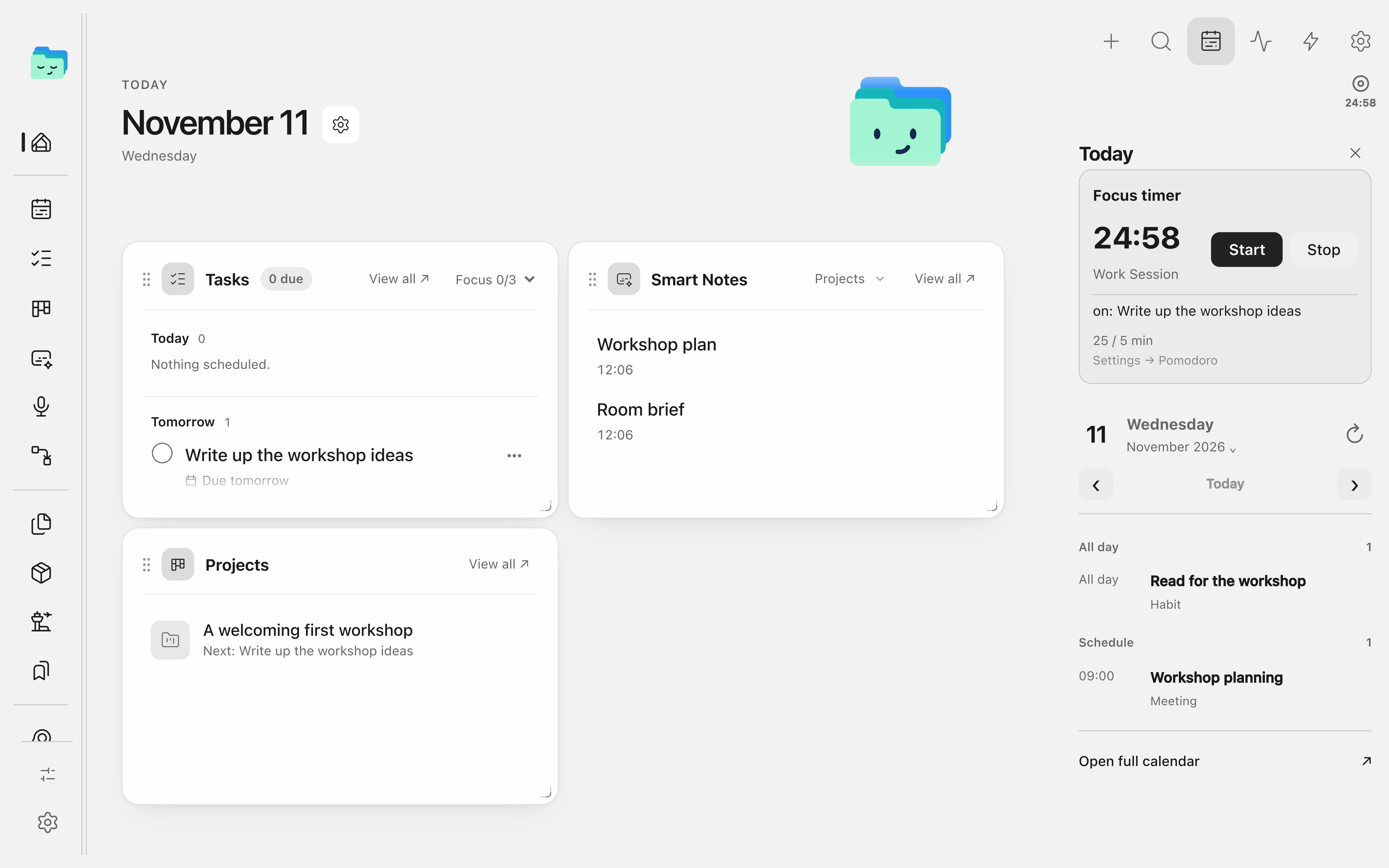
Check the task's estimate and due date beside your week. A task reserves time only after you schedule it yourself.

Swipe or use arrow keys to explore the window.
Keep the task with the timer
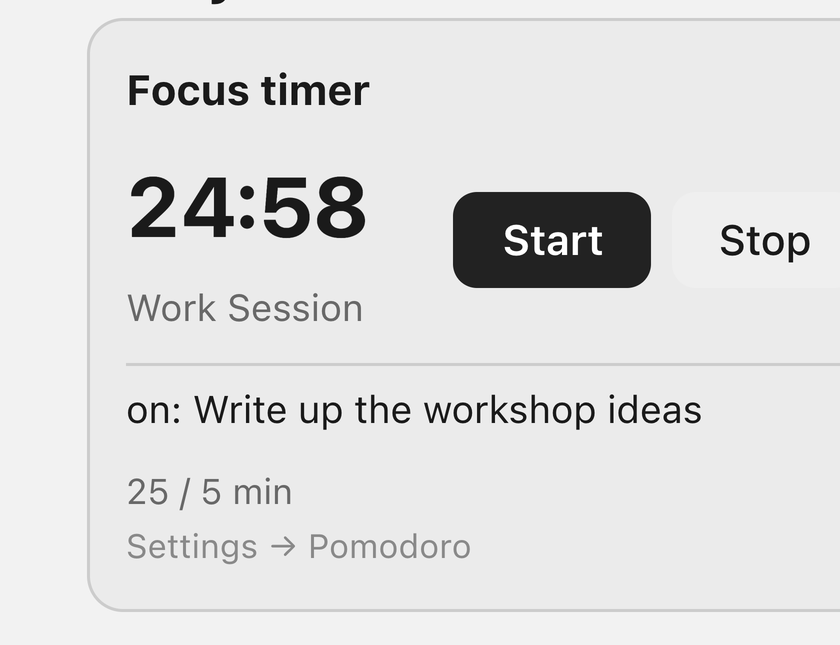
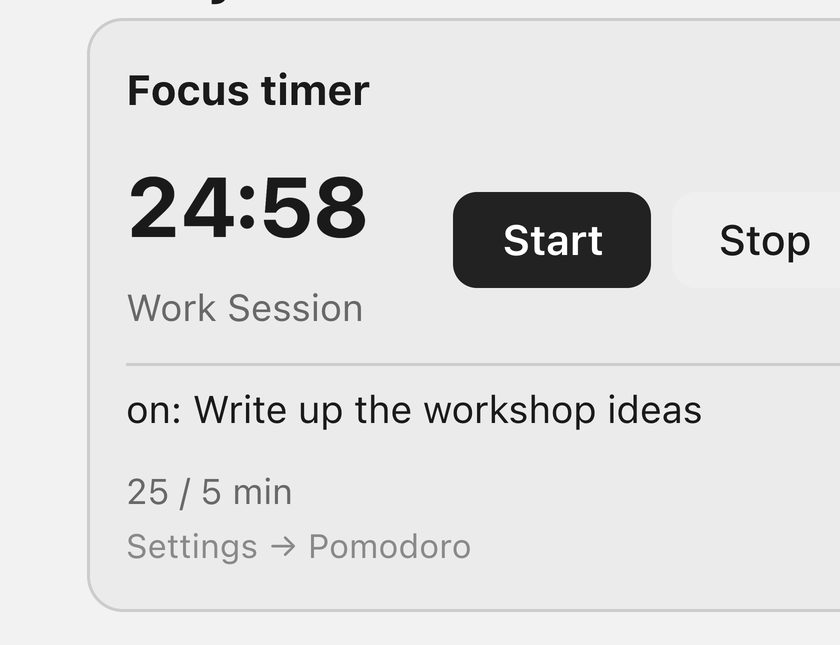
Pause or resume the session without losing its task. Work and break durations stay visible.
How it works
- Add or review a task
Create a task or keep a reviewed meeting follow-up. Set its owner, date, priority, and project.
- Choose List, Board, or Plan
Use List for grouped work, Board for Pending, In progress, and Done, or Plan to arrange task time.
- Schedule the work
Place a task in a time slot beside the events you added to your calendar.
- Focus and log time
Start a focus session on a task and keep a record of the time spent.
What's included
- Dates, priorities, repeats, time estimates, and logged time
- Open and Completed task lists
- List, Board, and Plan layouts in Tasks
- Pending, In progress, and Done status columns
- Tasks waiting on another task or an external requirement
- Draggable status boards
- Project Tracker views: List, Board, Calendar, and Timeline
- Grouping by date, project, priority, or status
- Day, week, month, and agenda calendar views
- Local calendar events and task time blocks
- Focus sessions linked to a task
Good to know
- A task is scheduled when you place it in time. Keeping a meeting follow-up does not reserve calendar time automatically.
Often used for this
Todoist
Todoist supports adding, editing, and completing tasks offline. Changes sync when the connection returns. Signing in is required before working offline.
Next