

PDFs
Work with your PDFs.
Edit PDF text, organize pages, convert files, and fill forms in one app.
Edit the words already on the page.
Change existing PDF text, then keep a new version.
- Open Edit textWork with the words already on the page.
- Update the wordingChange Thursday to Friday.
- Save a new versionKeep the earlier copy in history.
Tools and details
- Edit existing paragraphs
- Change size, color, bold, and italic
- Align text left or center
- Find and replace across pages
- Restore an individual paragraph
- Add text boxes
- Draw shapes and freehand marks
- Insert pictures
- Move or resize pictures and drawings
- Replace pictures
- Delete pictures or drawings
- Save a new version with history
Good to know
- Text editing needs usable PDF text.
- Review complex layouts and font changes.
- Image replacement applies to pictures, not drawings.
- Existing-text editing works on PDFs in My Files. Some slanted text cannot be edited.
Keep the passages that matter.
Read closely and mark the passages you want to keep.
- Find a useful passageRead the PDF without leaving Spillit.
- Select and highlightMark the sentence you want to keep.
- Keep your placeThe highlight stays on its source page.
Tools and details
- Search inside PDFs
- Highlight, underline, and strike through
- Add sticky notes
- Save passages to Smart Notes
- Return to the source page
- Open detected references
- Compare documents
- Export annotated PDFs
Good to know
- Scanned pages need recognized text for selection.
- Detected references depend on the document.
- Linked scrolling needs supported document views.
Put your pages in order.
Arrange your pages, then save when the order feels right.
- Review your pagesSee the three page previews.
- Move a pageMove the first page to the right.
- Check the new orderPreview 2, 1, 3 before saving.
Tools and details
- Merge PDFs
- Split or extract pages
- Reorder, rotate, or delete pages
- Crop or resize pages
- Compress PDFs
- Add watermarks
- Add headers and footers
- Add page numbers
- Apply Bates numbering
Good to know
- Compression can reduce image quality.
- File size savings depend on the PDF.
- Page organization uses a PDF saved in your Spillit library.
Take your PDF into another format.
Take PDF content into the format your next task needs.
- Open ExportChoose an output from the reader.
- See your formatsWord, Markdown, slides, images, and more.
- Choose what you needPick the format that fits your next task.
Read text in scanned pages.
Turn printed pages into text you can search and review.
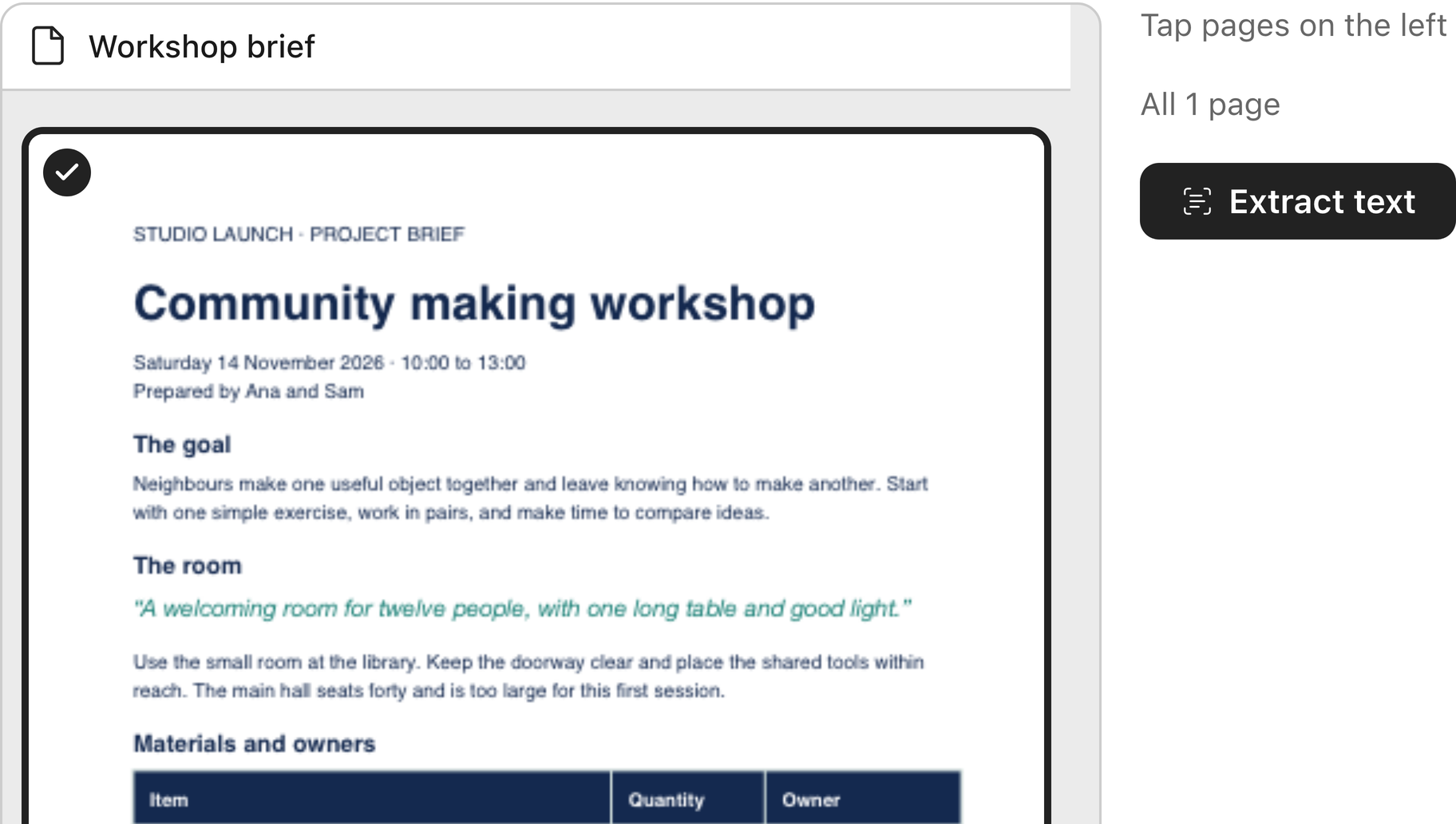
- Choose your pagesPick the pages you want to recognize.
- Extract printed textMake scanned content searchable.
- Review the resultCheck recognized text before using it.
Tools and details
- PDF text to Word
- PDF tables to Excel
- PDF pages to image slides
- Extract Markdown
- Export TXT or HTML
- Export page images
- Recognize text in scans
- Make scans searchable
- Convert supported files to PDF
Good to know
- Word output rebuilds text and headings.
- Excel output puts extracted tables into worksheets.
- PowerPoint uses page images with text in speaker notes.
- Review recognized text, tables, and converted layouts.
One form. A filled copy for each row.
Prepare PDF fields you can reuse and fill from a spreadsheet.
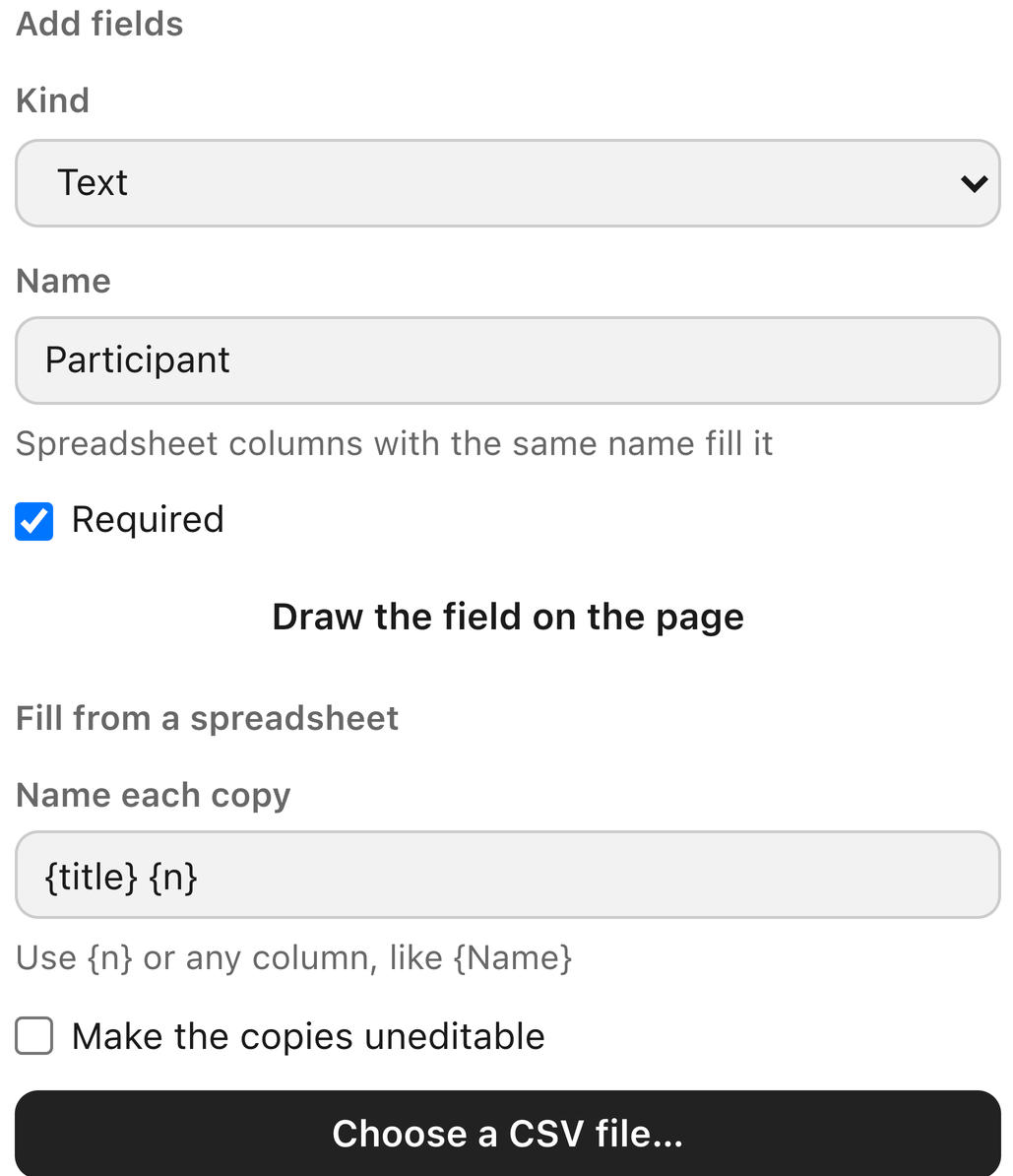
- Open Form fieldsChoose a text field.
- Give it a nameCall the field Participant.
- Make it requiredSet the field rules before placing it.
Tools and details
- Draw fields on the page
- Text, date, checkbox, and choice fields
- Mark required fields
- Fill existing form fields
- Fill copies from CSV or TSV
- Name copies from columns
- Flatten filled copies
Good to know
- Column headers must match field names.
- Batch filling accepts up to 500 rows.
- Flattening makes the filled copies uneditable.
- Form-field setup needs a PDF saved in your Spillit library.
Control what you share.
Control access to a PDF with a password.
- Open password settingsChoose protection for your library PDF.
- Enter and confirmSet a password and confirm it.
- Apply when you’re readyReview the settings before protecting the file.
Tools and details
- Redact selected text or regions
- Redact words or patterns
- Password-protect or unlock
- Draw, type, or load signature marks
- Create or import signing IDs
- Certificate-sign a PDF
- Check certificate signatures
Good to know
- Redaction flattens affected pages.
- Unlocking requires the current password.
- Signature marks are not certificate signatures.
- Self-signed identities need independent signer checks.
- Password protection uses a PDF saved in your Spillit library.
Real Spillit tools with sample PDFs.
More PDF toolsBookmarks, attachments, comments, archive copies, and translation.
Bookmarks, links, and attachments
- Edit bookmarks
- Add web and page links
- Attach, extract, or remove files
Links and attachments are stored inside the PDF.
Exchange comments
- Import XFDF comments
- Export highlights and notes as XFDF
Unsupported or duplicate comments can be skipped.
Document details and cleanup
- Edit document metadata
- Remove metadata and scripts
- Remove attachments and hidden layers
Choose which hidden data to remove.
Archive and accessibility
- Create a PDF/A-2b archive copy
- Add accessibility tags
- Set the document language
PDF/A uses Spillit checks, not an external validator.
Tagging does not certify PDF/UA compliance.
Translate PDF text
- Translate a page
- Translate selected pages
- Review translated paragraphs
Requires Local Intelligence to be running.
Some paragraphs can fail; review the result.
Details and compatibility
More app views
Use the PDF in your work.
Swipe or use arrow keys to explore the window.
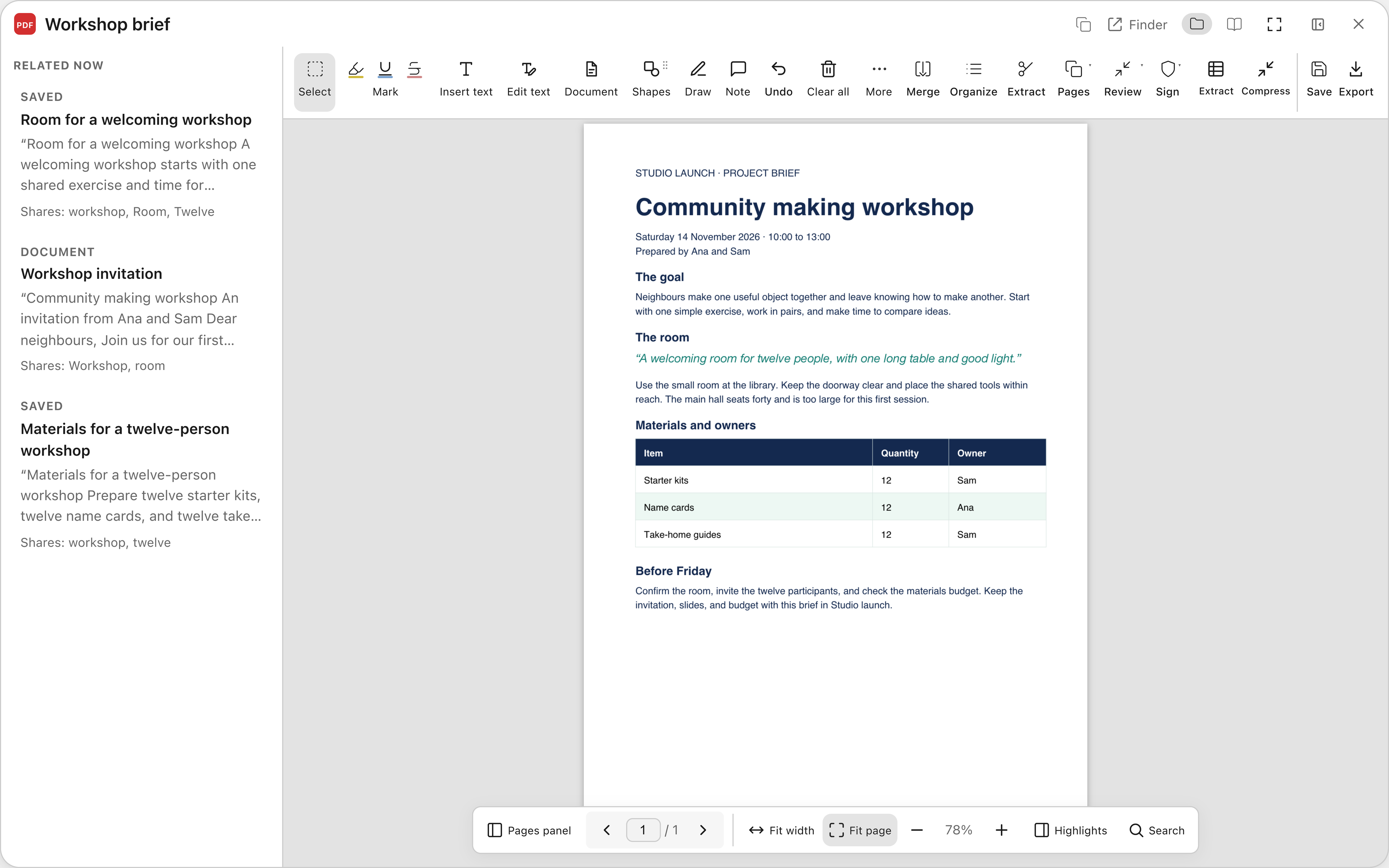
Keep related material beside the page
Open related documents and saved references beside the PDF. Keep the source material available while you read.
Swipe or use arrow keys to explore the window.
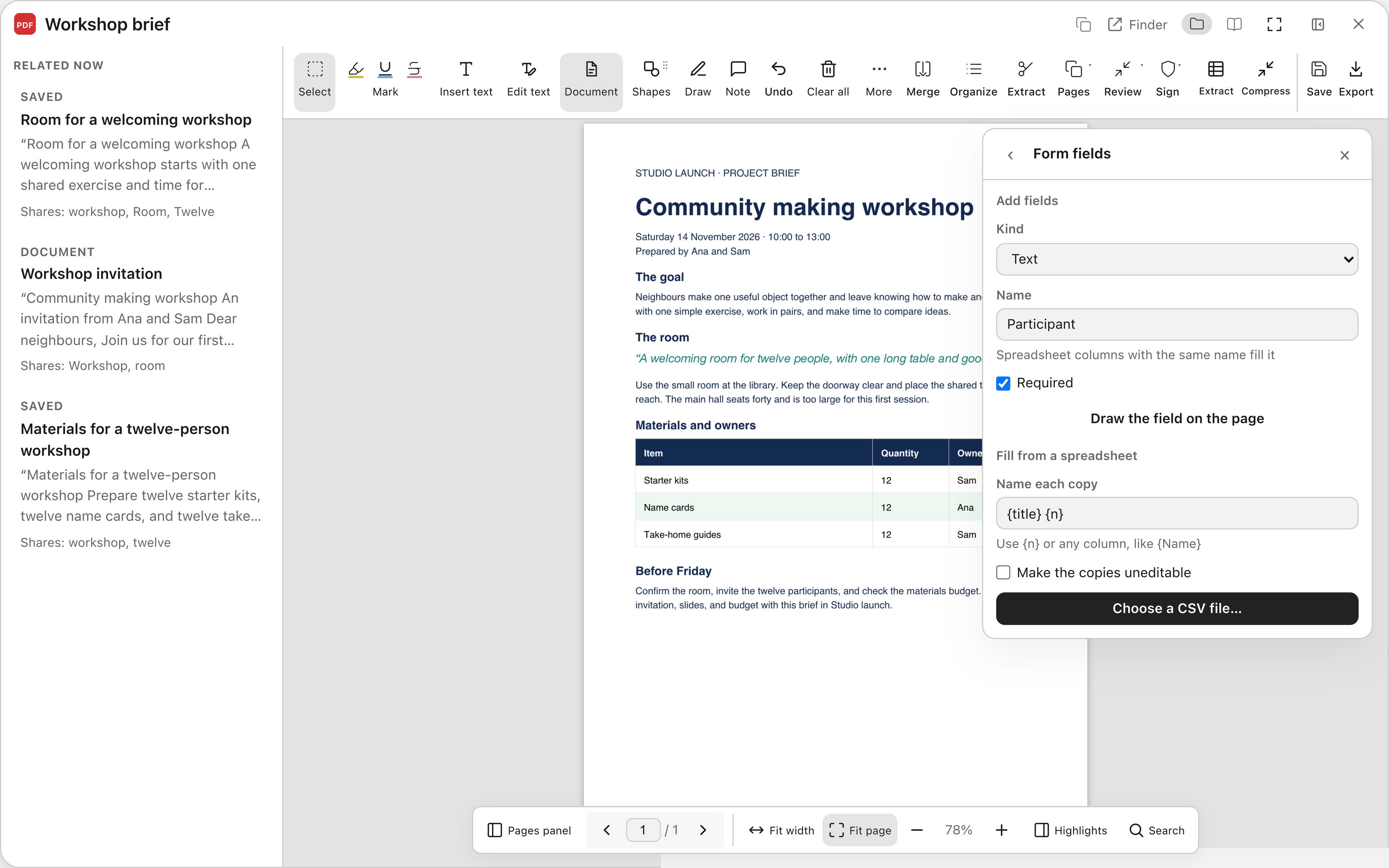
Set up a named form field
Participant is a required text field ready to draw. The same panel can fill copies from spreadsheet rows.
Swipe or use arrow keys to explore the window.
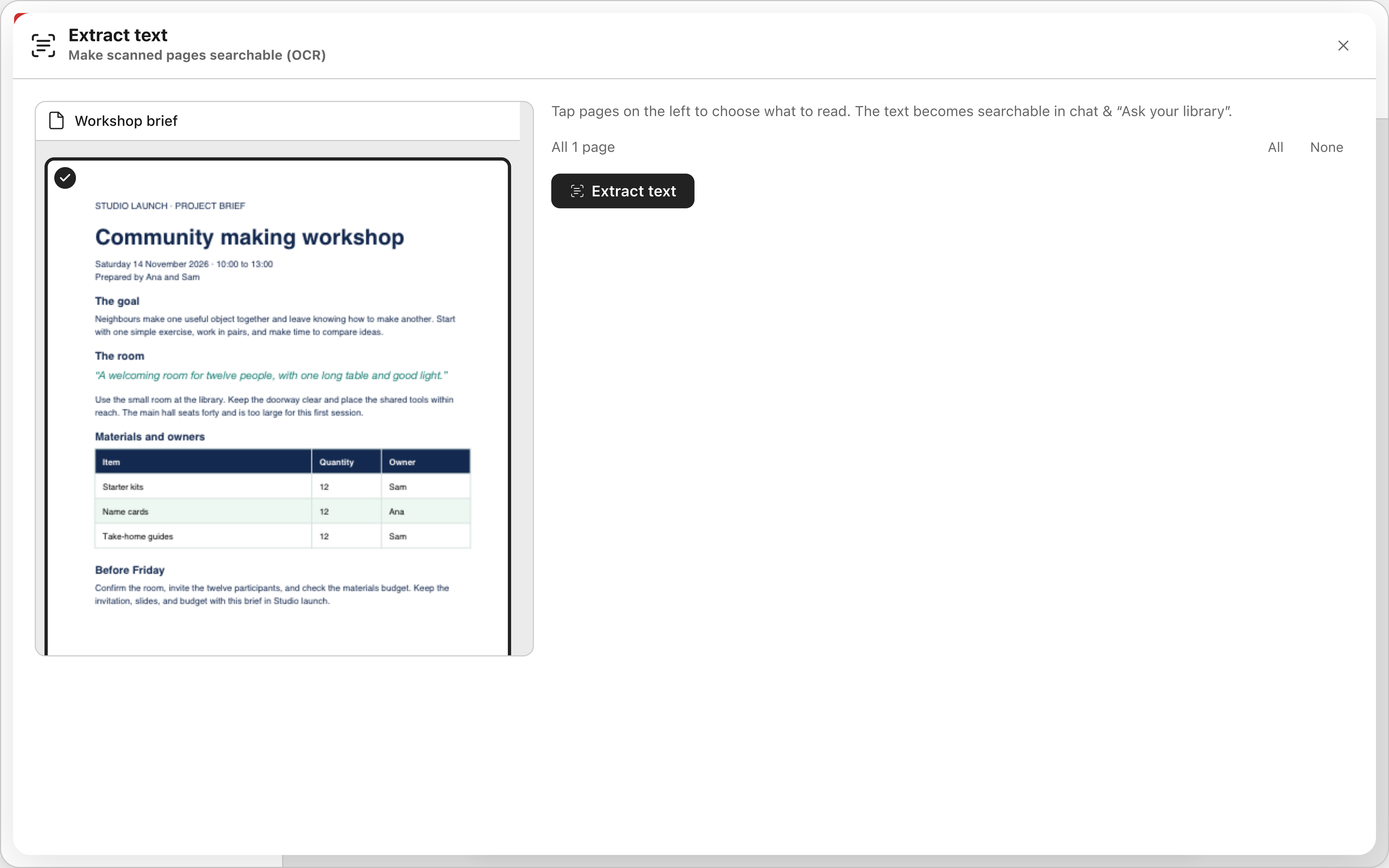
Select the pages to read
The workshop page is selected for Extract text. This capture shows the page choice before recognition runs.
How it works
- Read and navigate
Open a PDF from My Files. Use the Pages panel, Search, and floating View controls to move through it.
- Keep an annotation
Highlight or annotate a passage. Save useful passages to Smart Notes with their file and page.
- Prepare the pages
Use Merge, Organize, Extract, and Pages for page work. Review and Sign provide text recognition, comparison, signature marks, and protection.
- Work with forms and signatures
Open Document for Form fields or Certificate signature. The separate Sign tool makes a signature mark with Draw, Type, or Load.
- Reuse document steps
Use a workflow to combine documents, number pages, compress, and prepare copies for the next step.
What's included
- PDF reading, search, highlights, annotations, and saved source passages
- Page organization, extraction, merging, compression, watermarks, and numbering
- PDF text converted into editable Word documents
- PDF tables exported into spreadsheets
- PDF pages turned into image slides with their text in speaker notes
- Document text exported to Markdown, a plain text note format
- Form fields drawn on a PDF
- A filled PDF copy for each row of a spreadsheet
- Redaction, password protection, and signature marks
- Digital certificate signing and verification
- Printed text recognition and searchable PDF creation
- Metadata removal and reusable file or folder operations
Good to know
- The images show Spillit with fictional PDFs. PDF editing and document processing run in the desktop app.
- PDF-to-slide conversion places a page image on each slide and its text in speaker notes.
- Review converted text, tables, and page layouts before using the output.
- PDF redaction flattens affected pages. Signature marks and digital certificate signatures are separate tools.
Often used for this
Adobe Acrobat
Acrobat edits text and images, organizes pages, and merges or splits PDFs. Its tools also cover signing, sharing, and document review.
With Spillit
Use Spillit to read PDFs, annotate them, and make supported text edits. Fill forms, organize pages, merge or compress files, add watermarks, and redact text. Save repeated document steps as a workflow.
See the full comparisonNext