Your projects
Choose the sections your project needs, from notes and checklists to people, scope, and budget. Reorder or hide sections as your plans change.
See inside a project

Projects
Keep each one’s files, notes, tasks, and reading together.
Swipe or use arrow keys to explore the window.
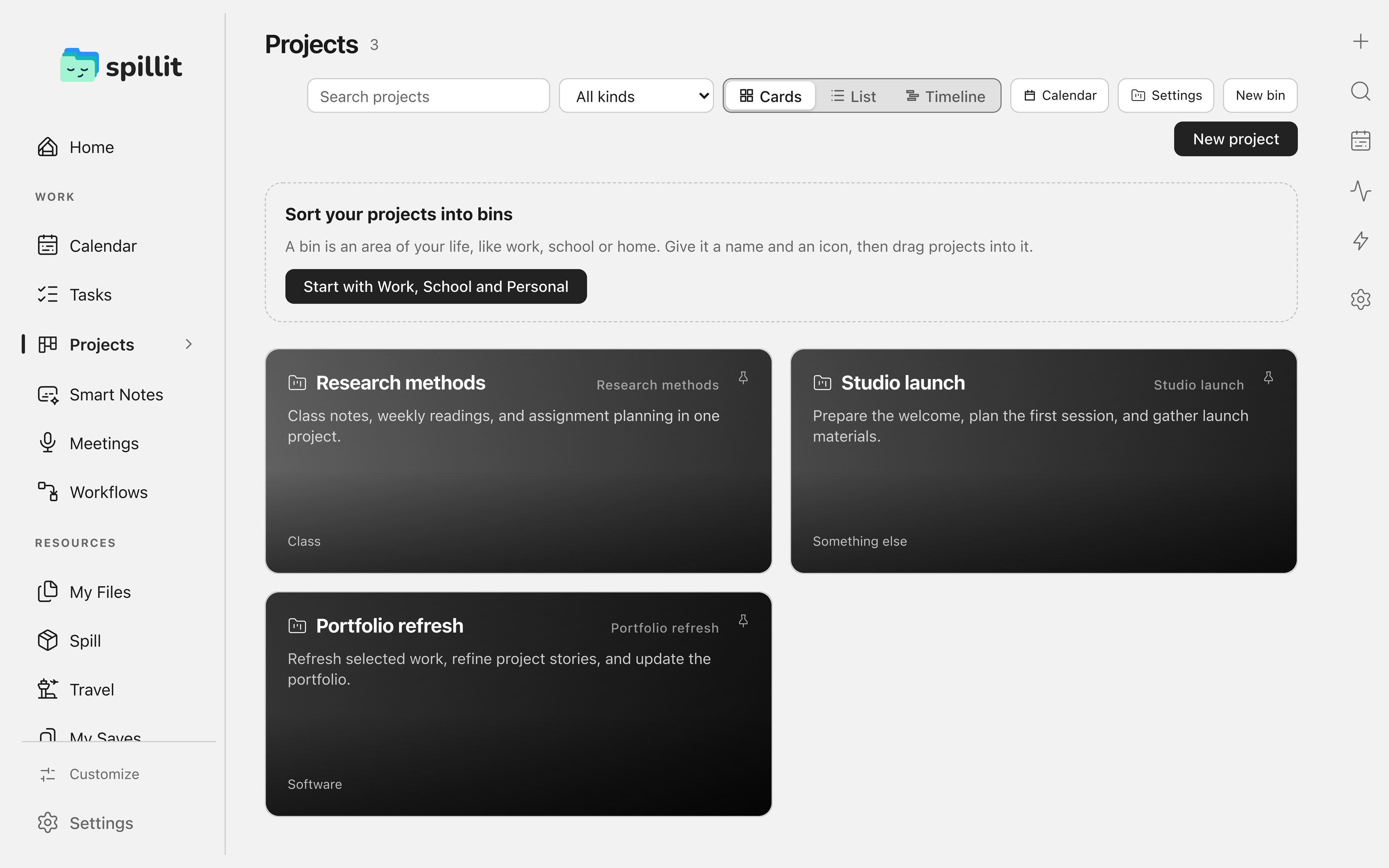
Real Spillit screen · Sample projects for a class, a workshop, and a personal goal.
Choose the sections your project needs, from notes and checklists to people, scope, and budget. Reorder or hide sections as your plans change.
See inside a projectGive each class a project for lecture notes, readings, assignments, and due dates. Keep its material together and plan your next study session.
See a class exampleOn your Mac, press ⌘K in Spillit. Search tasks, readings, saved links, and documents from one box.
In the desktop preview, Search this project limits results to that project’s files, notes, links, tasks, and meetings.
room⌘K
Illustrated results from a sample workshop.
Swipe or use arrow keys to explore the window.
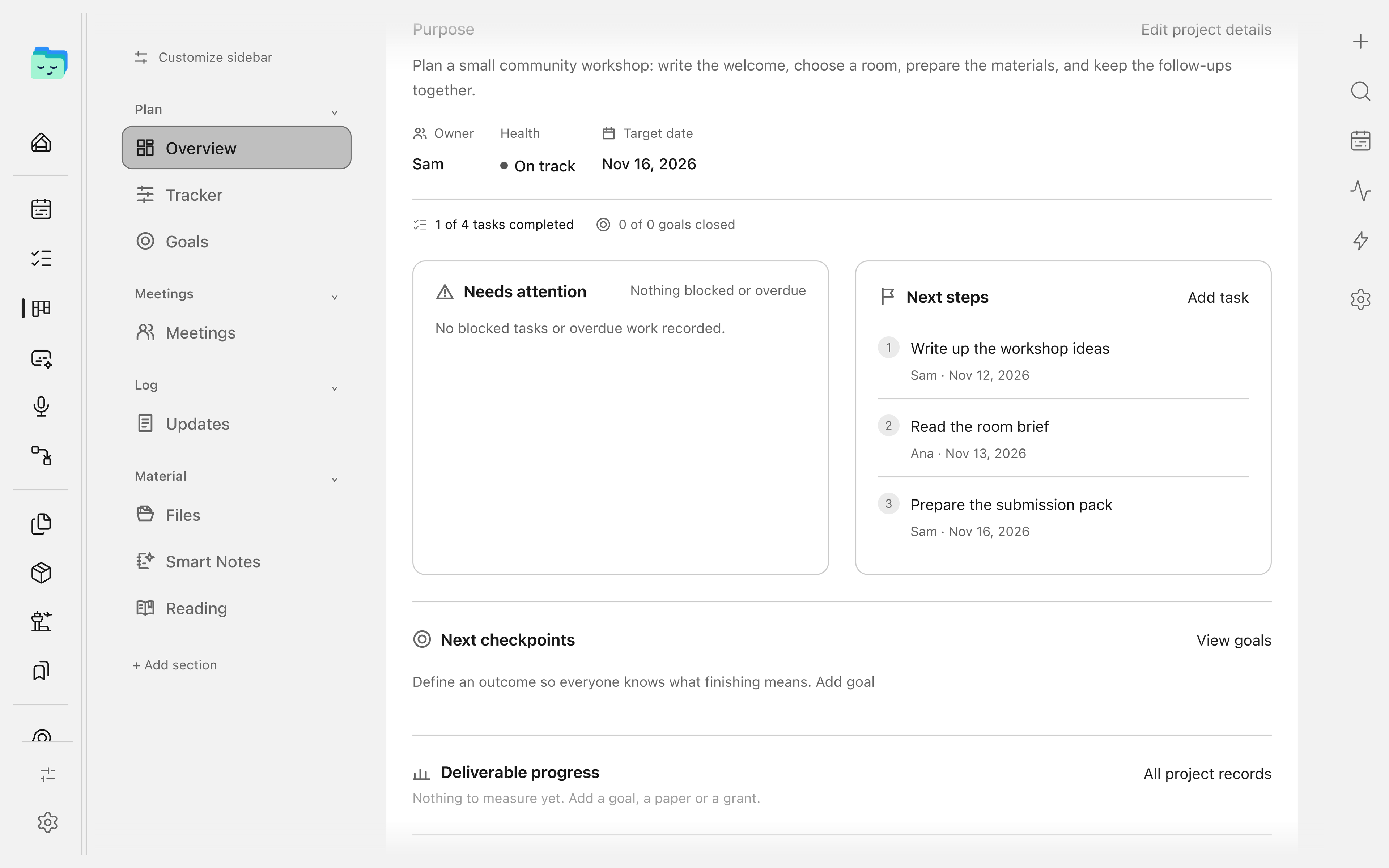
Review the next actions and blocked work. Open the project's files, notes, meetings, and readings from its sections.
Swipe or use arrow keys to explore the window.
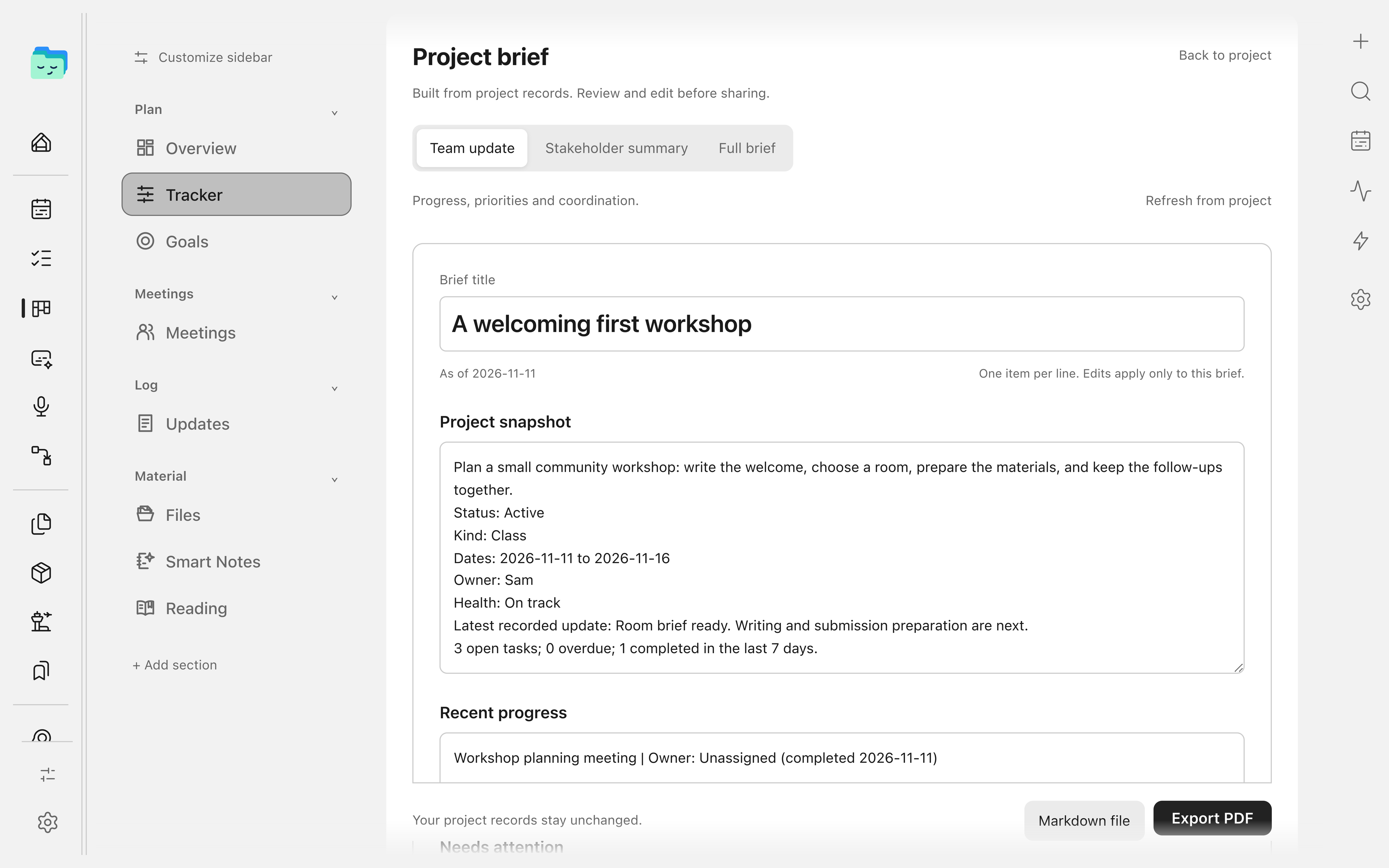
Choose a team update, stakeholder summary, or full brief. Review and edit the draft before exporting PDF or Markdown.
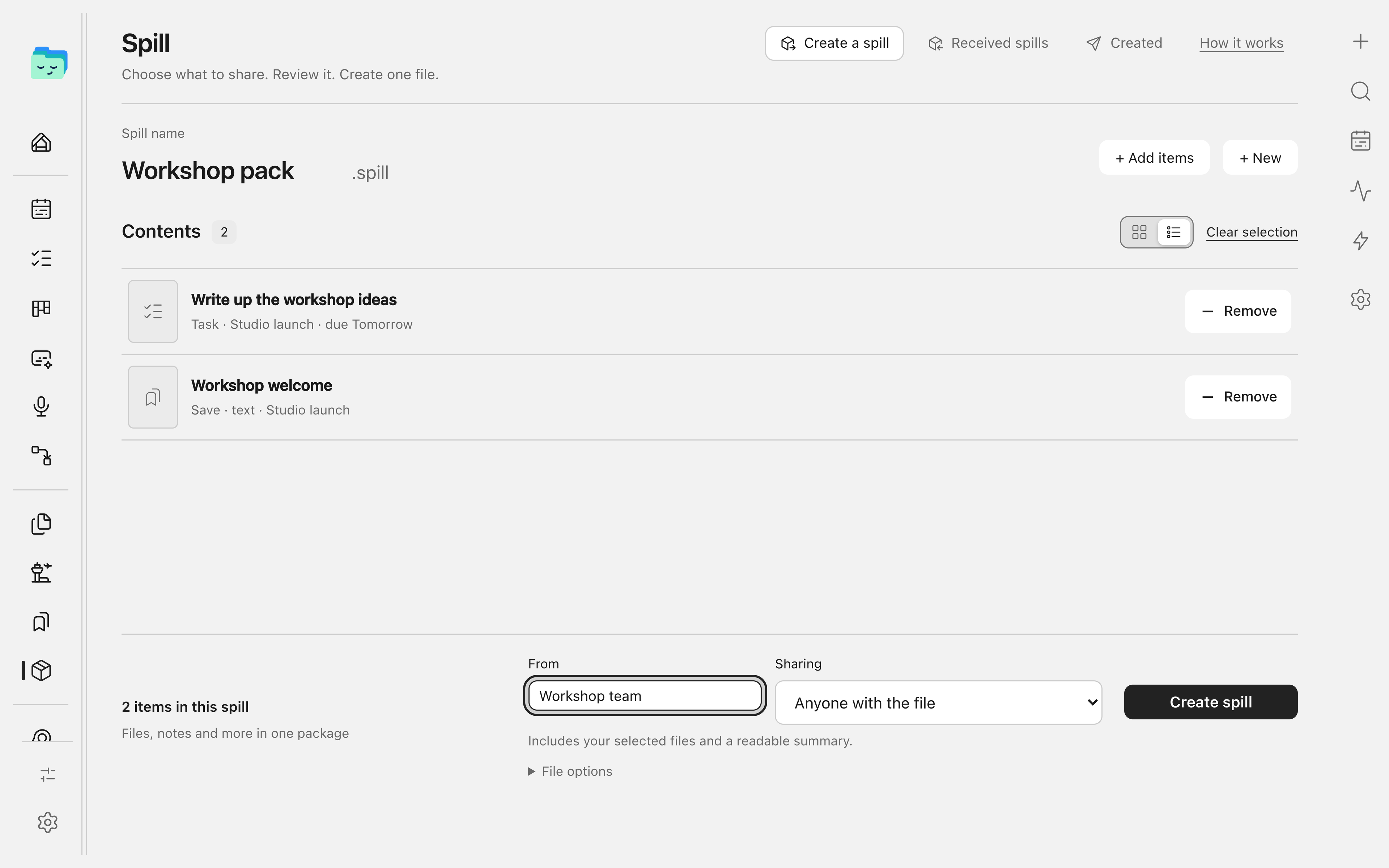
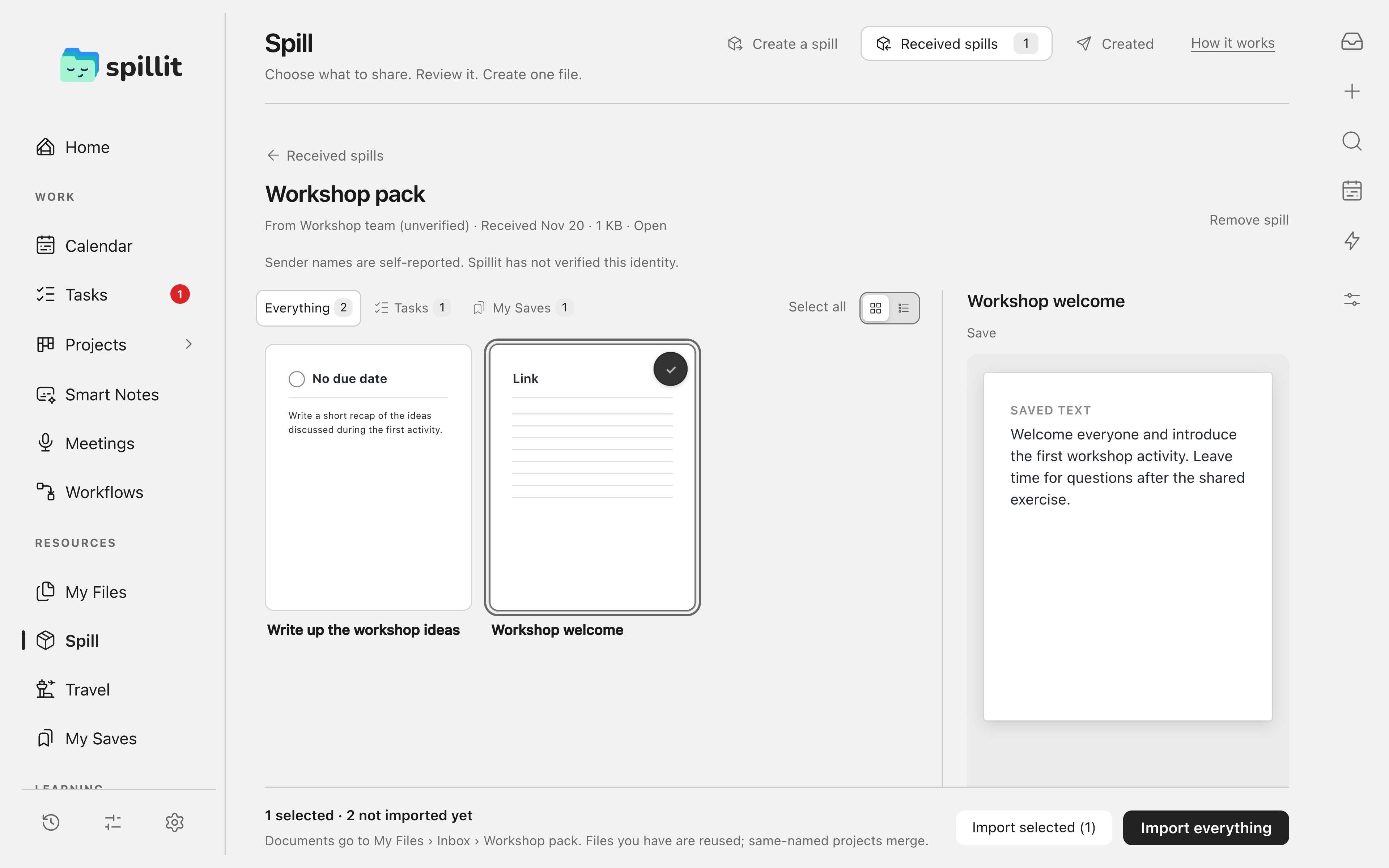
A spill bundles selected work into one file. Send a colleague the notes, tasks, links, and documents they need for the next step.
Swipe or use arrow keys to explore the window.
Swipe or use arrow keys to explore the window.
Swipe or use arrow keys to explore the window.
Spillit desktop screens · Fictional workshop materials.
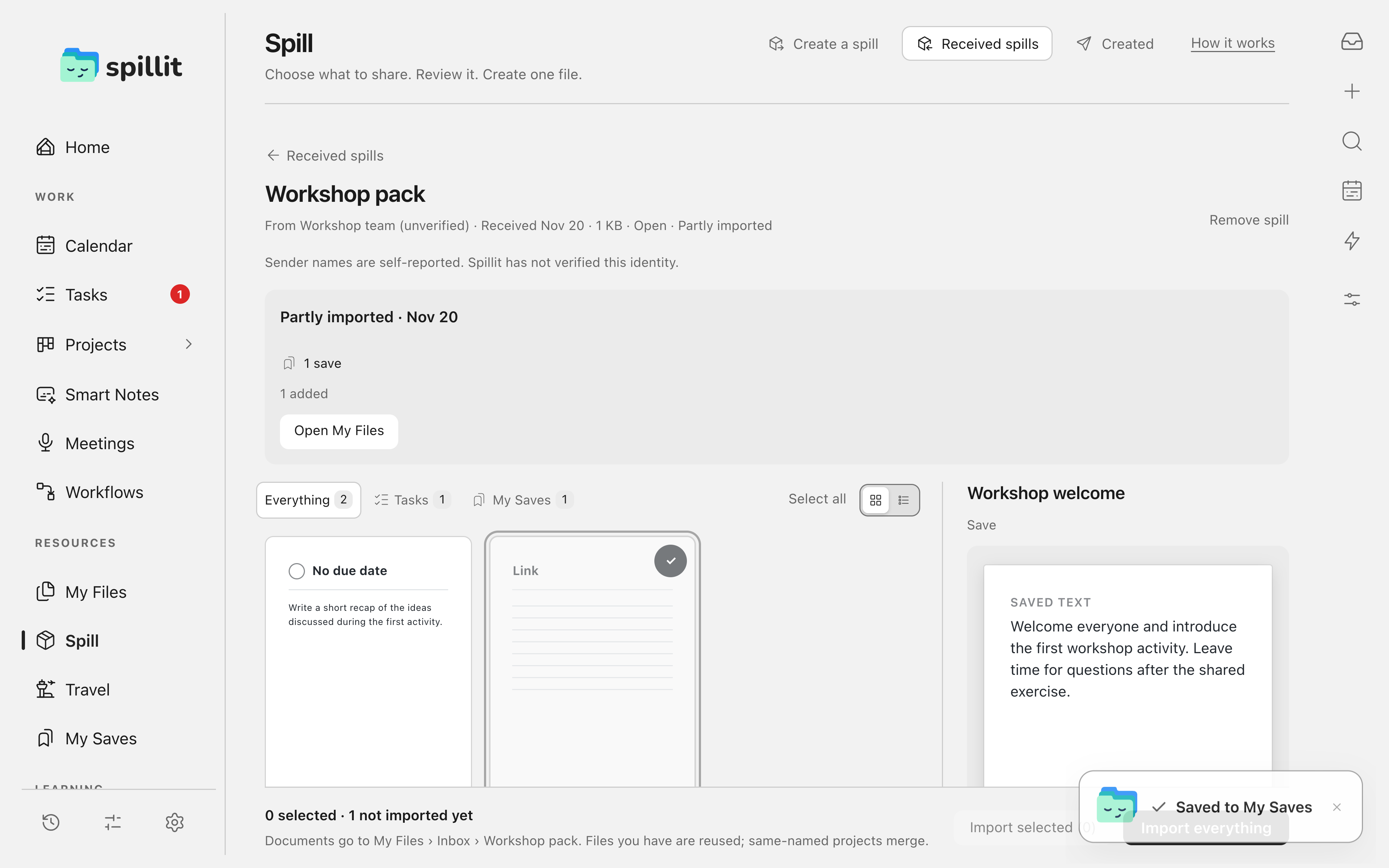
Open Spill and choose Create a spill. Add the items you want, review the selection, then choose Create spill.
Save a copy from Created and send the file. Choose password protection when the handover needs it.
In Received spills, choose Add a spill file and open it. Preview each item and select the pieces you want to keep.
In this example, choose Import selected to add the welcome text to My Saves. The sender’s task stays in the spill.
Creating a spill requires Pro. Recipients can open one with Spillit Free.
Compare Free and ProSwipe or use arrow keys to explore the window.
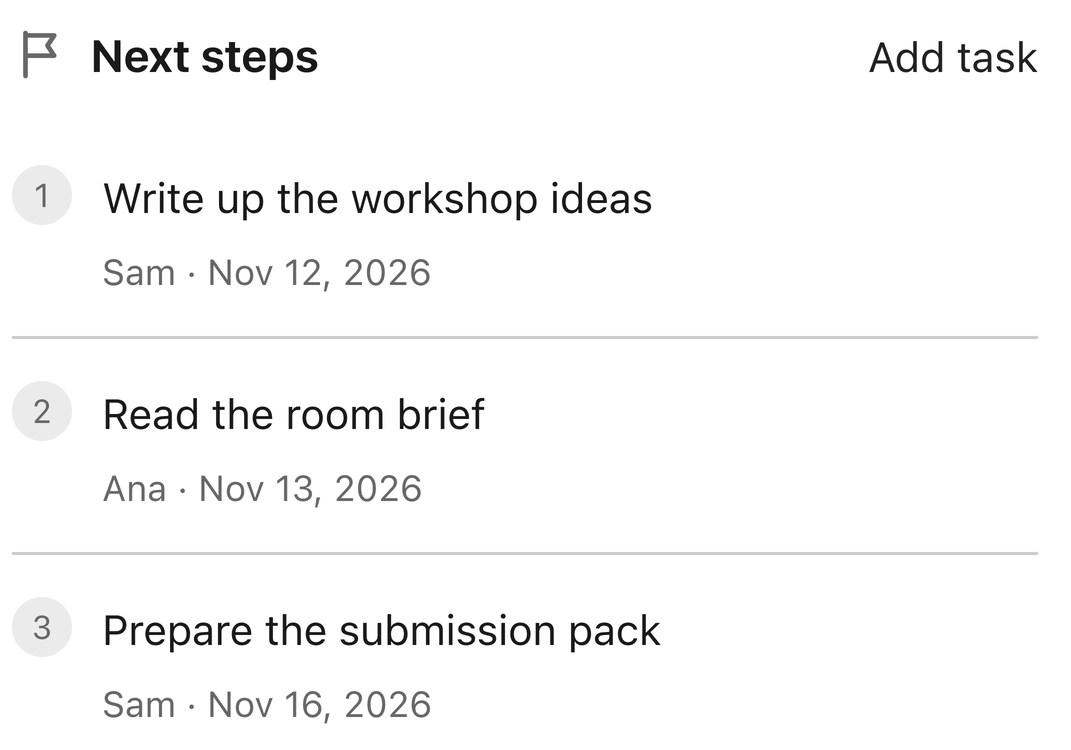
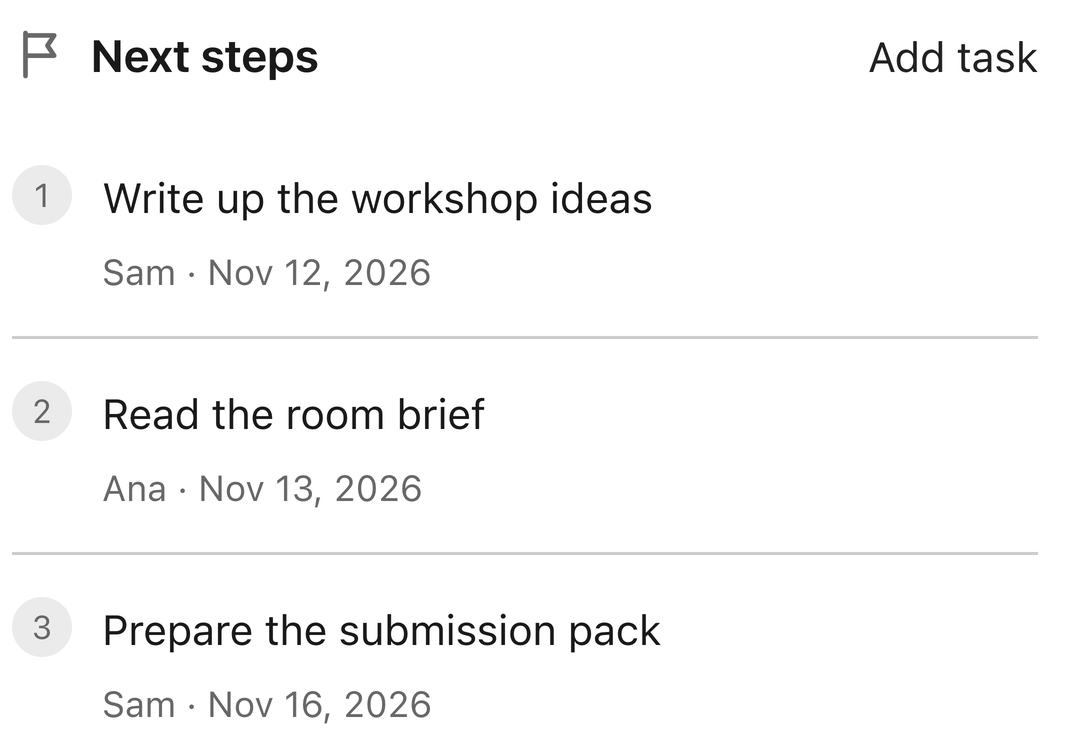
Next steps lists the work already recorded in the project, with an owner and date for each task.
Swipe or use arrow keys to explore the window.
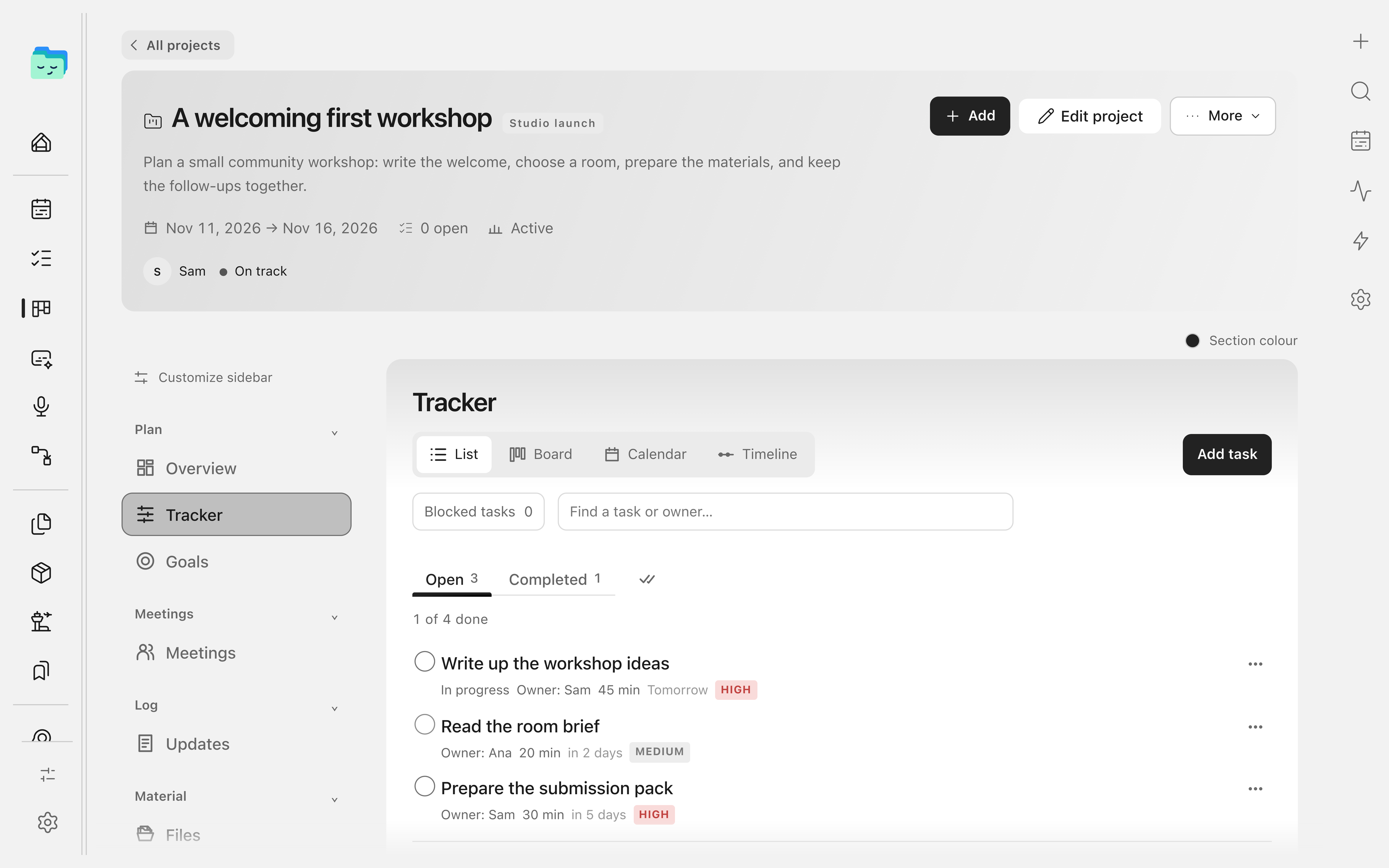
Tracker keeps the task's status, owner, and date visible. Project sections provide access to its related records and material.
Swipe or use arrow keys to explore the window.
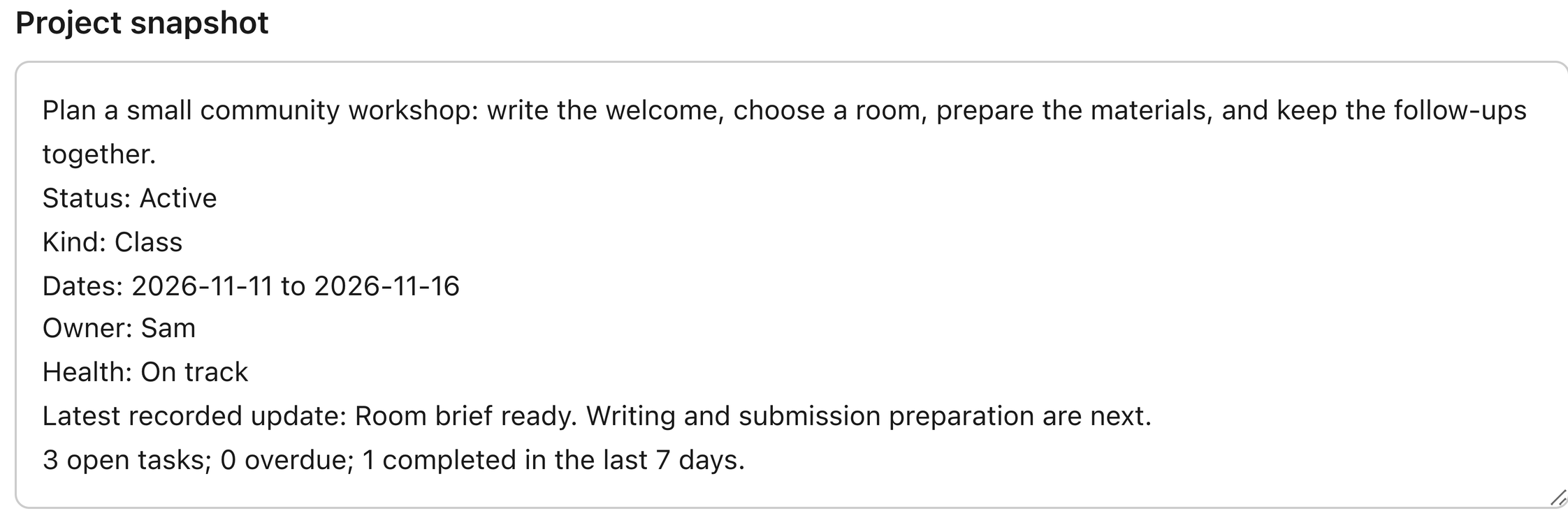
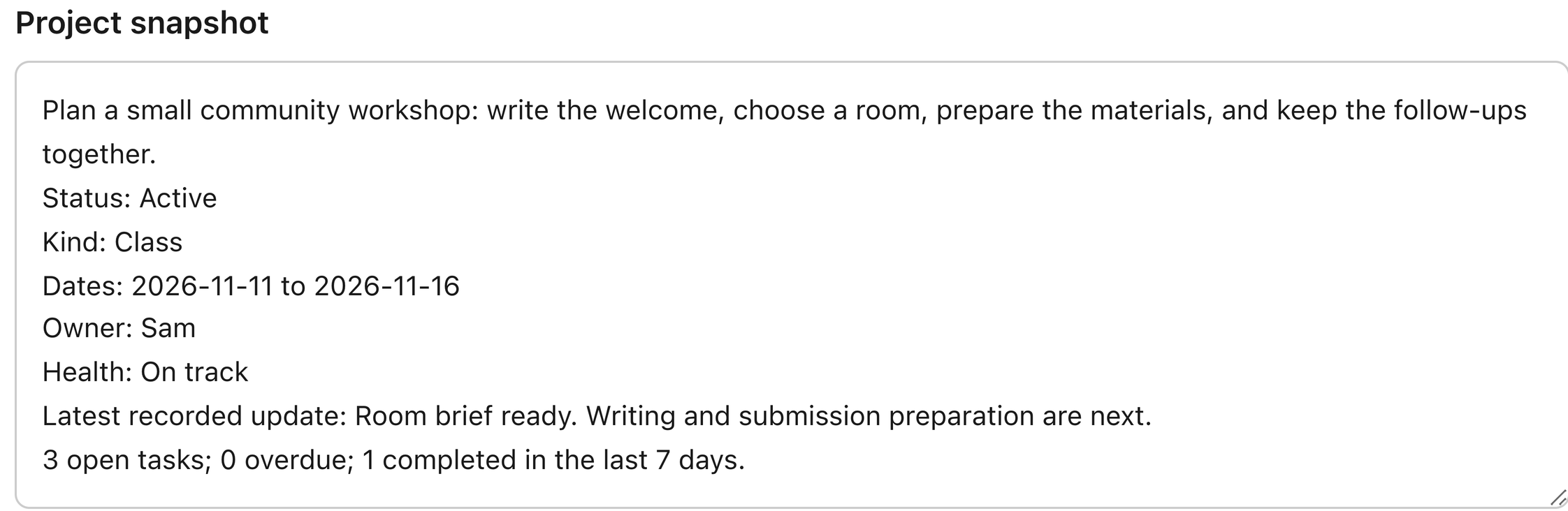
The draft contains the project's purpose, status, owner, dates, and recorded progress. Brief edits leave the project records unchanged.
Create the project with its kind, purpose, and target dates. Plan groups its Overview, Tracker, and Goals.
Use Plan, Meetings, Log, and Material to reach related work. File notes, documents, readings, and reviewed meeting records with the project.
In Tracker, switch between List, Board, Calendar, and Timeline. Review blocked work and ready next actions.
From More, open Export brief. Choose Team update, Stakeholder summary, or Full brief, edit the draft, then export PDF or Markdown.
Often used for this
Notion supports viewing and editing downloaded pages offline. Its AI uses external model providers.
With Spillit
Work on notes and supported documents in Spillit. Use its included Local Intelligence with the material in your workspace.
See the full comparisonNext