


Thinking Partner

Find what connects your work.

See where your files, notes, and saved material relate. Thinking Partner shows the passages behind a connection so you can check it for yourself.

Follow the workshop example See what gets sent

Thinking Partner

See what your files say together.

In Sources, choose a project or attach files with readable text. Describe what you’re working on. Thinking Partner can bring together relevant passages from different files.

Check the original passages before saving a finding or turning it into a task.

See connections from an open file

For you · Useful material Prepared example

✦ FindingCheck the room layout

Select a topic or read a sample passage from either file.

Check the room before confirming the workshop.

Why this helps The plan calls for one long table. The room brief lists two movable tables, so check whether they can go together.

Workshop plan.pdf
Keep the group to twelve people. Use the small room with the long table.
Room brief.pdf
The small room has two movable tables. Ask staff before joining them.
Create task

Start with the file you’re reading.

Open Connections in the desktop reader to find related files and notes. Check why they match and open the original passage when available.

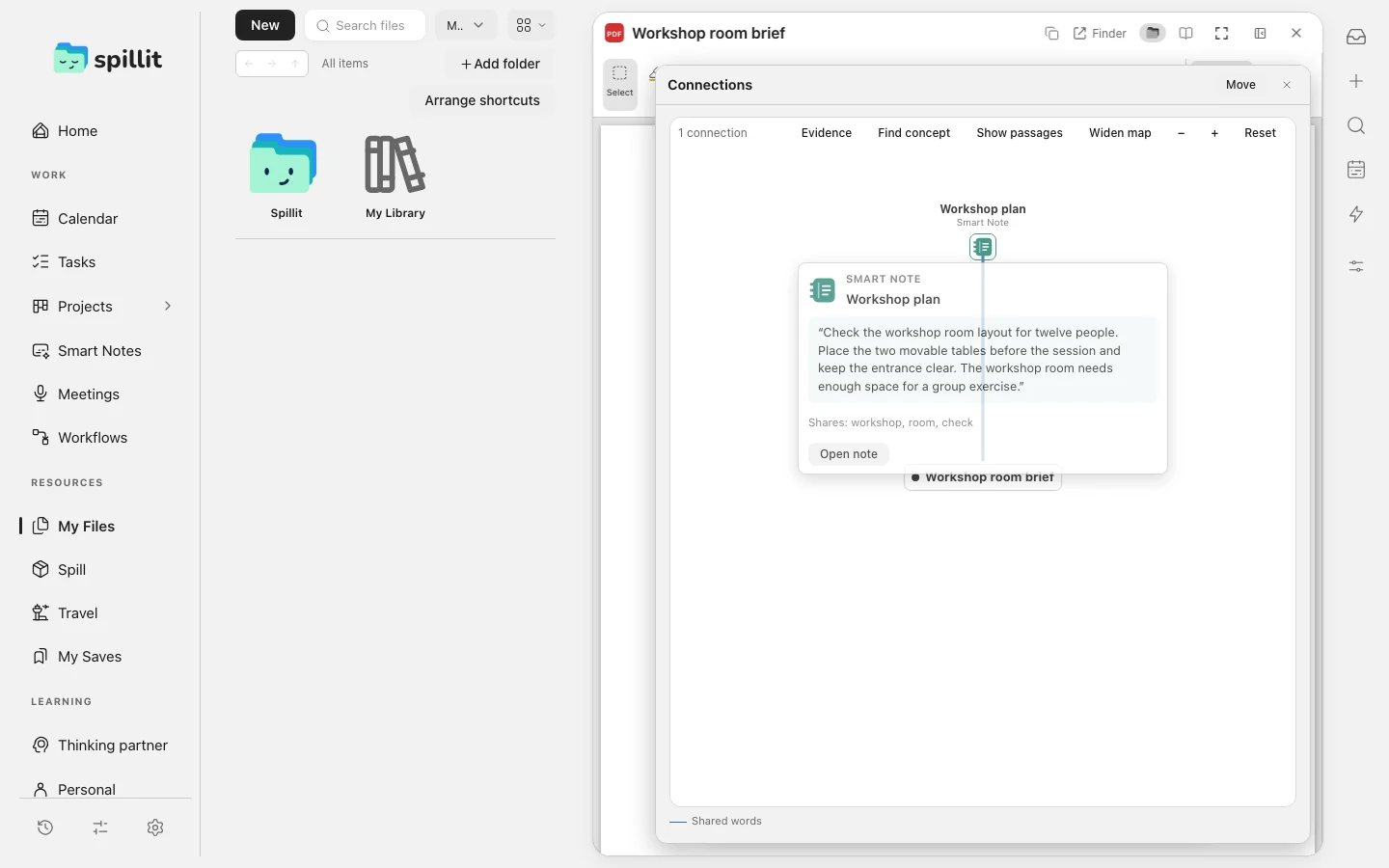
The Connections map in Spillit shows shared words between the Workshop room brief and Workshop plan, with an Open note action.

Spillit’s Connections view with fictional workshop material. Shared words link the room brief to the plan.

  1. Open Connections

    Start in a supported document. Open Connections and choose a related result.

  2. Check the evidence

    See whether the match comes from shared words, a saved link, or meaning. Meaning-based matching is part of Pro.

  3. Read the source

    Open the related file or note. Jump to the matching passage when one is available.

Explore file search

Explore related work and shape your notes.

  • Related now

    See related material beside the note you’re working on.

    Explore Smart Notes
  • Writing Assist for a whole note

    Outline or summarize a full note. Ask what’s missing, what’s still open, or what to do next.

    Explore Smart Notes
  • Choose Thinking Partner’s sources

    Sources start off. Enable a project or attach specific material. Approved passages use the AI provider you select in Settings.

    See what gets sent

Work through notes, meetings, and passages.

Workshop preparationPreview

Workshop preparation

Studio launchEdited just now

Temporary draft41 words
Temporary browser sample

Find gaps in a whole note, try an outline, or bring the next steps into your draft.

Explore Smart Notes

Speak it.
Spillit writes it.

On macOS, hold Fn, speak, then release. Spillit writes your words into the app you're using.

Find past dictation in Spoken, inside My Saves.

Workshop planPreview

Workshop plan

Studio launch

Hold to speak. Release to write.

Temporary browser sample

More ways to use Spillit Intelligence.

  • Ask about selected text

    Highlight a passage and ask what it means. Keep the original text beside the answer while you review it.

    Explore My Files
  • Shape your meeting notes

    Customize a notes template and save reviewed findings to a project or Smart Notes.

    Explore meetings
  • Summarize PDFs in a workflow

    Add a summary to a sequence of steps you can reuse on the next files.

    Explore Workflows

Connected AI apps

Choose what connected AI apps can change.

MCP, short for Model Context Protocol, lets compatible AI apps request actions in Spillit. Spillit Pro includes these connections on supported desktop builds. Find built-in setup for Codex and Claude Code in Connections settings. Choose an access level for each connected app.

Explore connected AI apps
Read only
Prevent edits. As the default, it blocks changes from every connected app.
Ask before changes
Approve each proposed change in a supported AI app.
Full access
Allow supported changes without an approval prompt.

Limit changes by project

Choose the projects that AI apps can change. A project limit makes files, calendar, and saves read-only through the connection.

Review changes in History

See recent changes by connected apps. Pause all agent changes or use Undo where available.

Your AI provider may process content the connected app reads.

Turn scans into one searchable PDF.

See how a connected AI app asks Spillit to recognize text and combine scans on your computer.

See the scan workflow

Review 31 calendar events in one approval.

A connected AI app can propose a batch of events. You can review each one before approving the group.

Local benchmark · 31 fictional calendar events
ApproachTool callsApprovalsMedian time
One at a time313111.15 s
Four at a time31316.38 s
One batch110.51 s

Timings cover local execution. The test answered approval prompts automatically and excluded AI response time.

How we measured

We ran each approach three times on an M5 Max Mac using a fresh library for every run. Each run verified all 31 stored titles, dates, times, and agendas.

Combined tool names, arguments, and results used 3,977 bytes for the batch and 7,285 bytes for either comparison.

Find cited evidence in one request.

Spillit searches Smart Notes and indexed PDFs. It returns quotes with their sources and PDF page numbers.

Local benchmark · Six cited facts
ApproachRequestsMedian time
Separate searches and reads133.42 s
Built-in evidence search10.50 s

Every run preserved six exact quotes and their citations from fictional Smart Notes and PDFs.

How we measured

We alternated the approaches for five runs each on an M5 Max Mac, starting with a fresh library every time. The built-in request asked for up to 12 excerpts.

The table counts requests to Spillit for searches and reads. The separate approach sent requests one at a time. Timings measure local execution and exclude setup, tool discovery, AI response, and human review.

Both approaches retained the wording that marked three claims as unapproved.

Tool names, arguments, and results used 2,700 bytes for built-in search and 8,798 bytes for separate requests.

Smaller inspection replies for Office edits.

A connected AI app can request exact cell and slide element locations in a compact reply.

Local benchmark · Tool reply size in bytes
FileFull replyCompact replySmaller
Excel21,7921,21394%
PowerPoint8,7181,03588%

Each count measures the data fields in one tool reply.

How we measured

We compared full and compact replies for the same fictional Excel workbook and PowerPoint deck. We tested each file three times and alternated the request order.

The compact replies kept the edit locations used in the tests and the same source checksum, a fingerprint of the exact file version.

Connected-agent tests confirmed the requested edits and checked that unrelated content stayed intact.

Send a whole workflow in one request.

Save a meeting summary with its follow-up tasks, or run several PDF steps in sequence.

Local benchmark · Separate steps → Combined workflow
WorkflowTool callsApprovalsMedian seconds
Meeting follow-up15 → 114 → 14.75 → 0.80
PDF processing3 → 13 → 14.64 → 2.47

Times cover local execution. The test answered approval prompts automatically.

How we measured

We ran each approach three times on fresh test libraries. Timings exclude setup, AI response, and human review.

Both meeting approaches saved the same summary and 12 tasks.

The PDF test split two files, recognized their text, and merged the results. Both approaches produced the same four searchable pages and preserved the original files byte for byte.

What stays on your Mac.
What gets sent.

Where processing happens depends on the feature and your settings.

See what needs Pro

Local processing

Workspace storage
Your workspace records and search data stay on your computer by default.
Finding your material
Spillit keeps a local index of saved content so you can search it.
Working with text
When you choose local AI, supported Pro features process text on your computer.
Speech into text
Spillit transcribes dictation and meetings on your Mac. Recording and dictation need Pro after the trial.

Cloud AI and connected services

Spillit records and transcribes meetings on your Mac. Choose On this Mac for meeting notes to keep the transcript there during processing.

If you choose Spillit AI for meeting notes, the transcript text goes through Spillit’s server to an AI provider. The recording audio stays on your Mac during this process.

Other cloud AI features send the text needed for that request. A backup provider can receive it if the first is unavailable.

Connected agents

An agent you connect can receive the library content it requests through Spillit. Its model provider may process that content.

Review AI app controls
Online lookups

Reference searches and video downloads contact external services. Supported product-page price checks also use the network.

Model downloads and updates

Spillit connects to download or update models.

Private sync

On supported builds, your devices encrypt synced records before sending them. This is separate from sending a request to cloud AI.

How private sync works

Models and permissions.

How do I speak into another app?

On macOS, the default shortcut is Fn. Hold it while speaking, then release to transcribe and insert the text into the active app.

Spillit needs Microphone access to record your voice. Input Monitoring lets Spillit detect shortcut key presses. Accessibility access lets Spillit paste the text into another app.

Without Accessibility access, Spillit leaves the text on your clipboard. You can choose another supported modifier key in settings.

Speech processing runs on your computer. Downloading a missing speech model can use the network.

More about dictation
What models does Spillit use?

Spillit includes a Qwen language model from its original developers and connects it to your workspace.

Separate speech models transcribe your dictation on your computer.

For features that support cloud AI, your settings determine which provider receives the request.

What does meeting recording need?

Allow microphone access before recording. On macOS 13 or later, you can choose one meeting app as an additional audio source.

Optional speaker labels use Accessibility access to read visible names and speaking indicators in Zoom, Google Meet, Teams, and Webex.

Explore meeting recording
Does local mean every file is encrypted?

Some workspace records use encrypted storage. Local storage does not mean every library file is encrypted.

Read more about account services, sync, and connected providers on the data and privacy page.

A day with Spillit.

Follow one workshop from the first conversation to the finished submission pack.

Follow a day with Spillit

Processing details updated November 19, 2026.