

My Library
Keep your sources.
Cite them as you write.
Collect papers and books, track your reading, and format citations and bibliographies.
Build the library behind your work
Swipe or use arrow keys to explore the window.
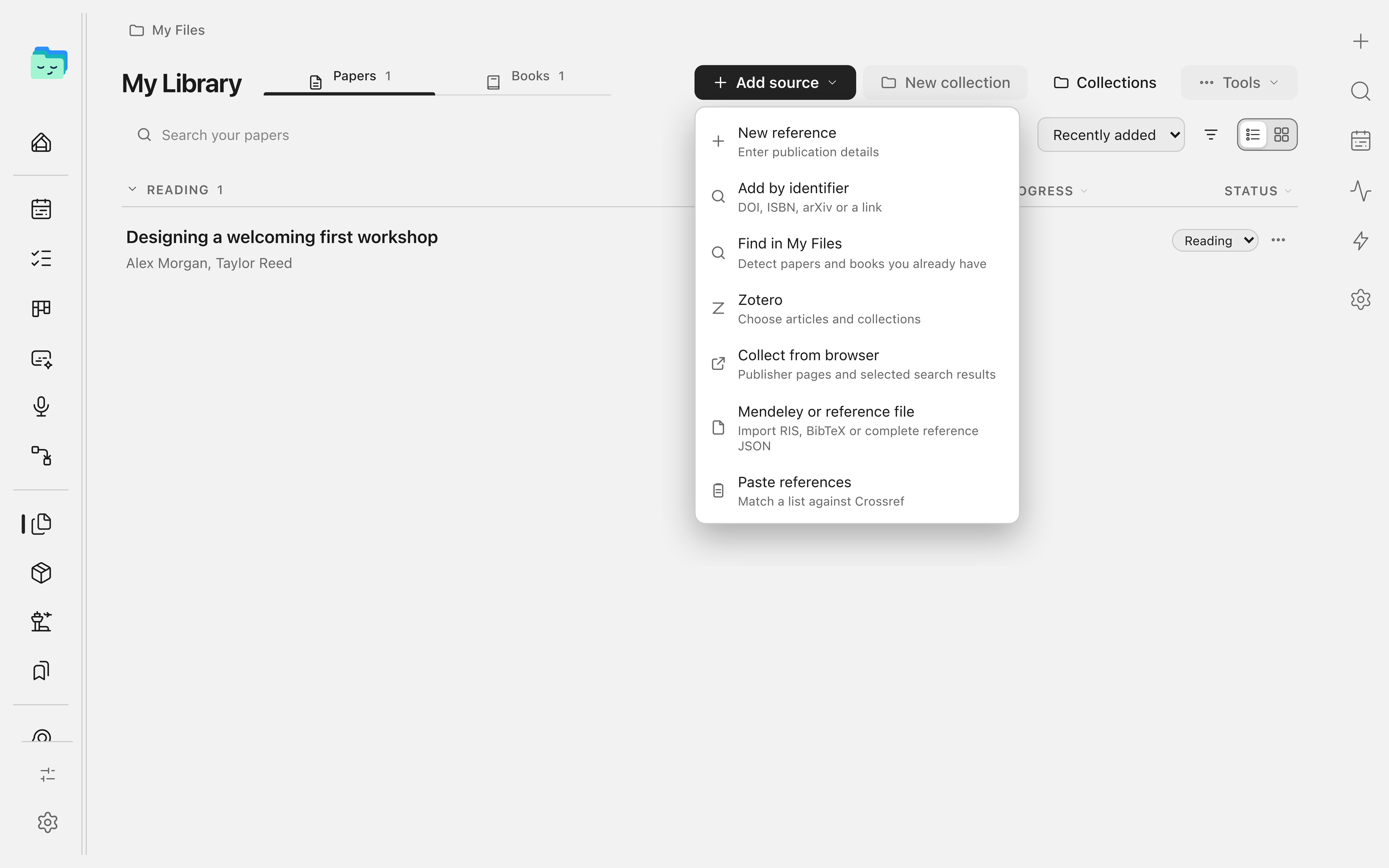
Collect references from identifiers, your files, Zotero, or the web. Track reading and keep related sources with a project.
- DOI, ISBN, arXiv and links
- Zotero and reference files
- Collections and reading progress
- Find available PDFs
Format the references for your draft
Swipe or use arrow keys to explore the window.
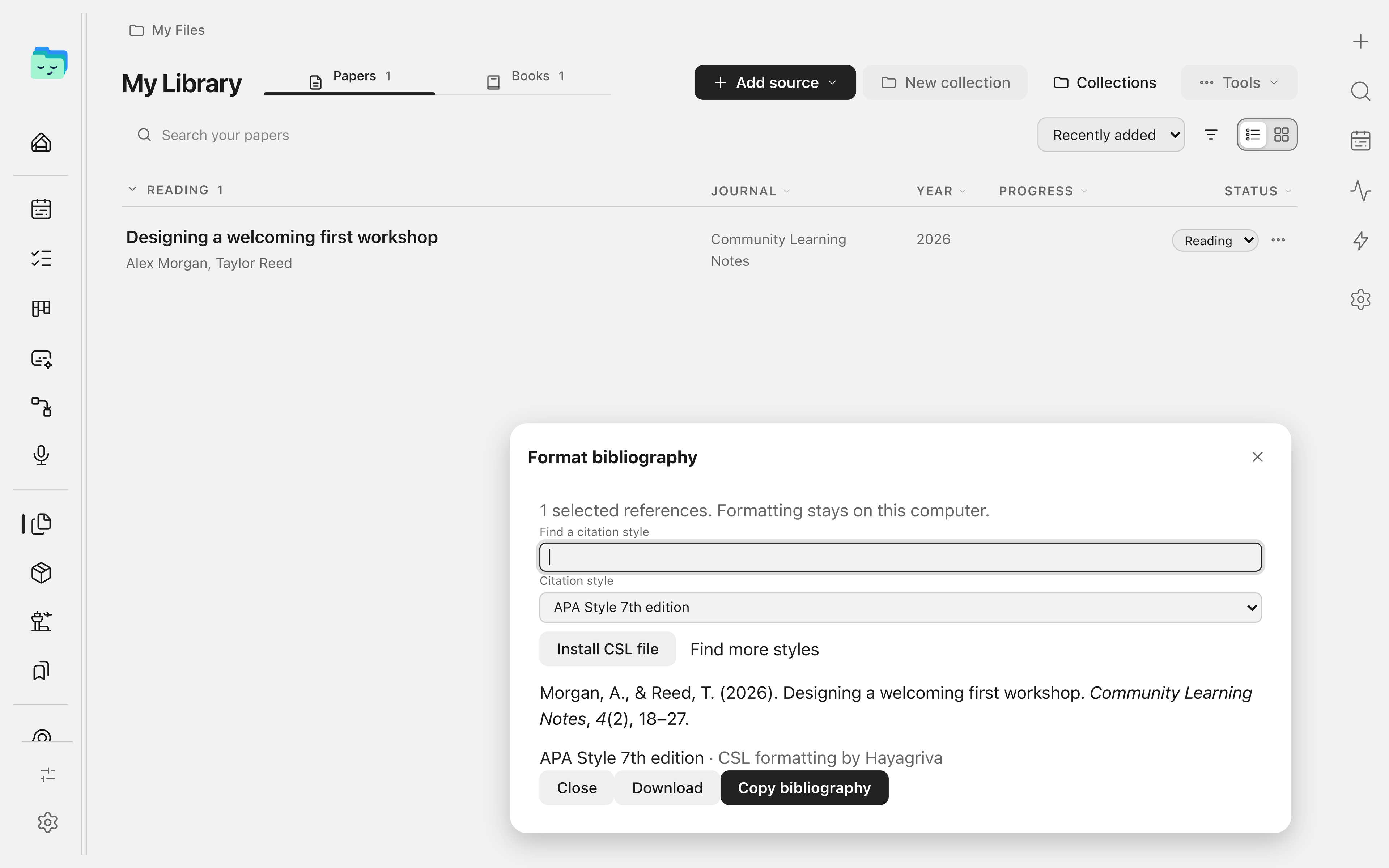
Choose a citation style, review the references, and copy or export the bibliography. Use library sources in Notes and Word.
- Choose a citation style
- Copy formatted citations
- Export reference files
- Cite in Smart Notes or Word
Details and compatibility
More app views
Bring your references into your writing.
Swipe or use arrow keys to explore the window.
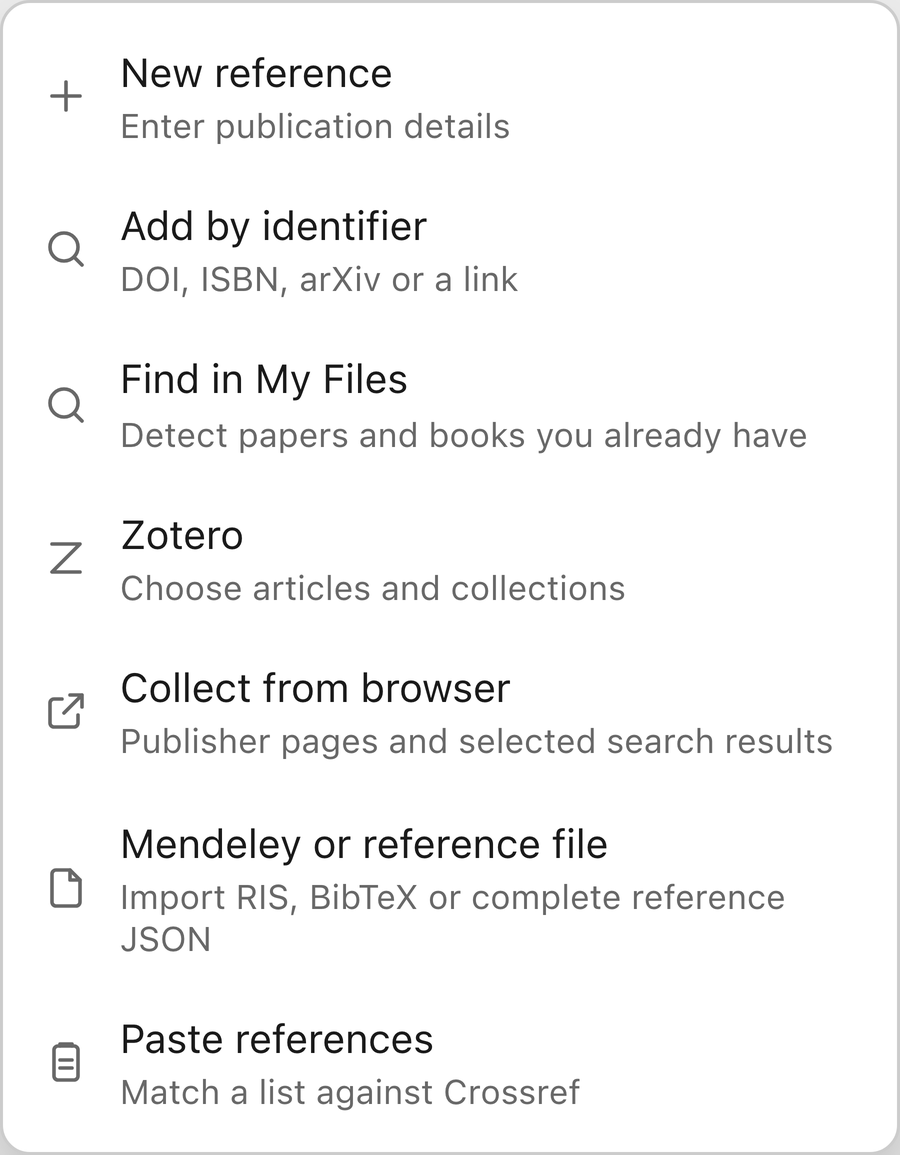
Bring your existing references
Add a DOI, ISBN, arXiv identifier, or link. You can also collect browser references, import reference files, or choose Zotero items.
Swipe or use arrow keys to explore the window.
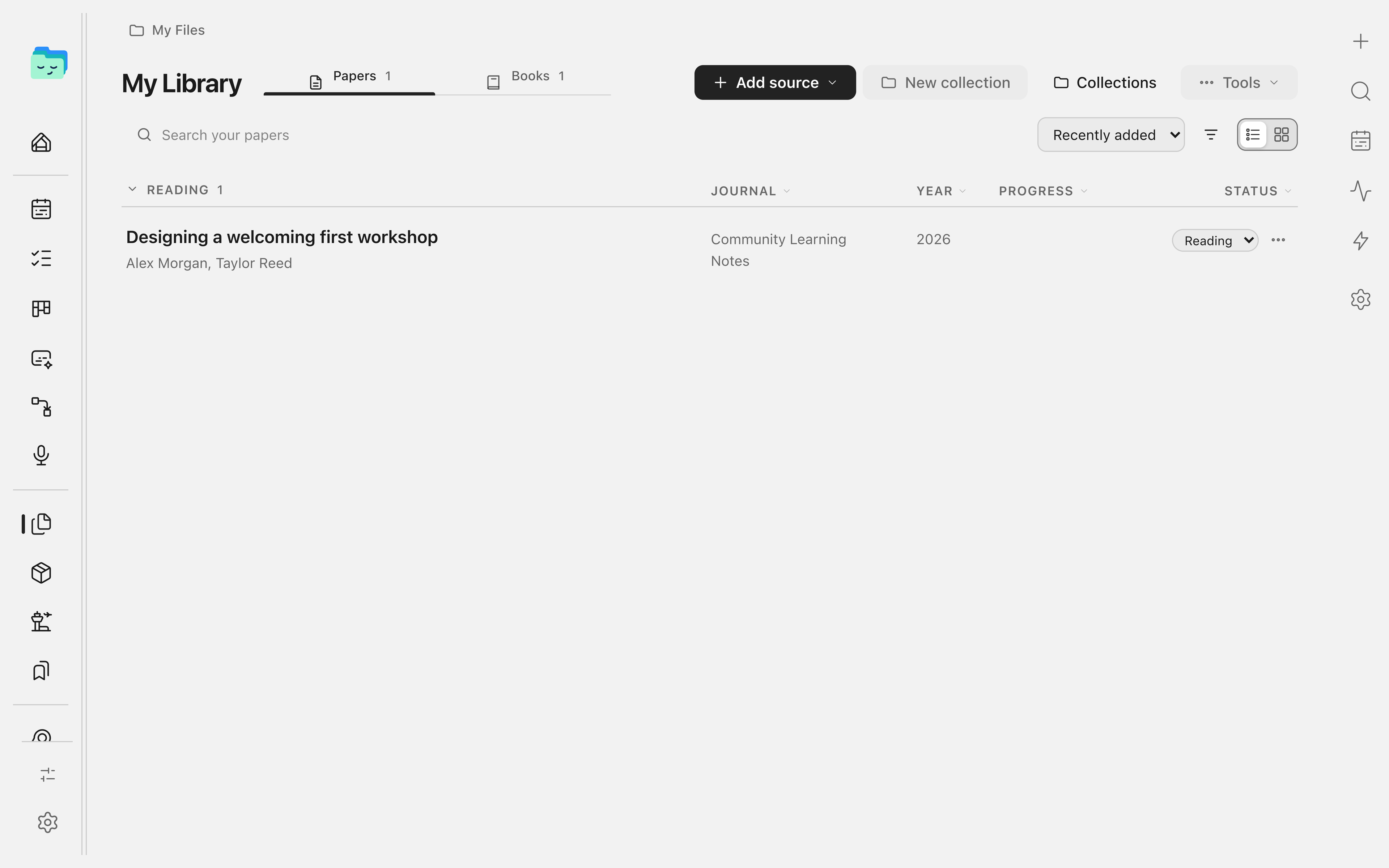
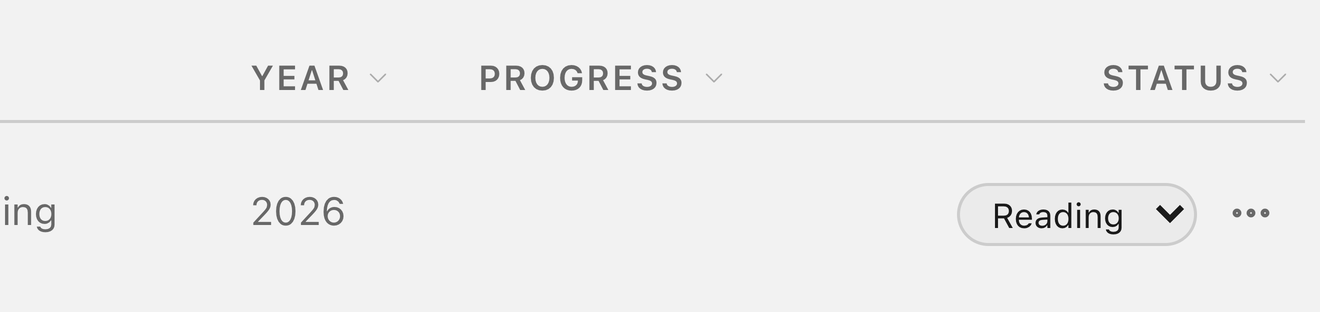
Track what you're reading
Update a paper's reading status as you work. Collections and projects keep related sources together.
Swipe or use arrow keys to explore the window.
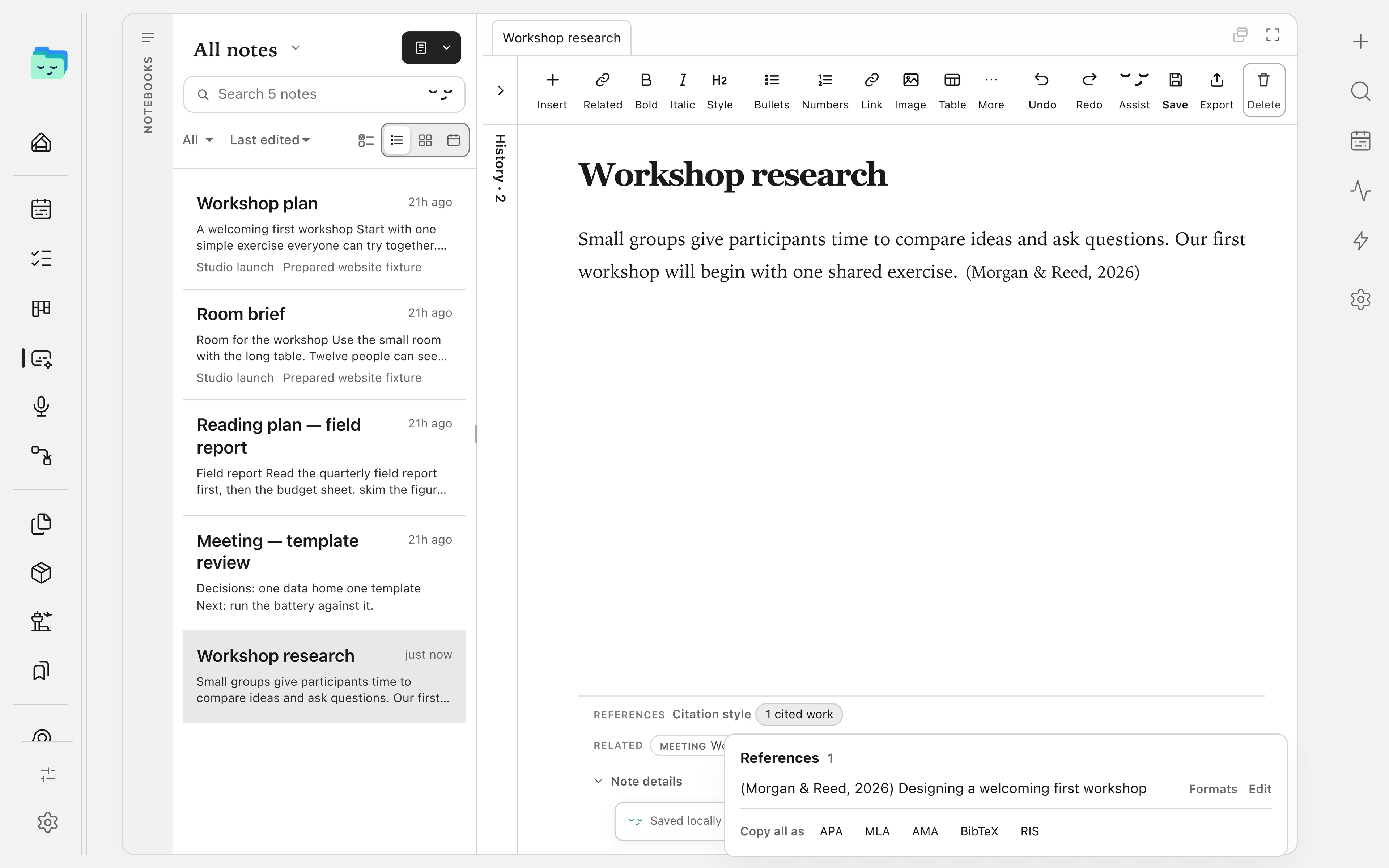
Keep the source inside your draft
The inserted citation appears in the paragraph. References keeps its library source available for review, style changes, and copying.

Swipe or use arrow keys to explore the window.
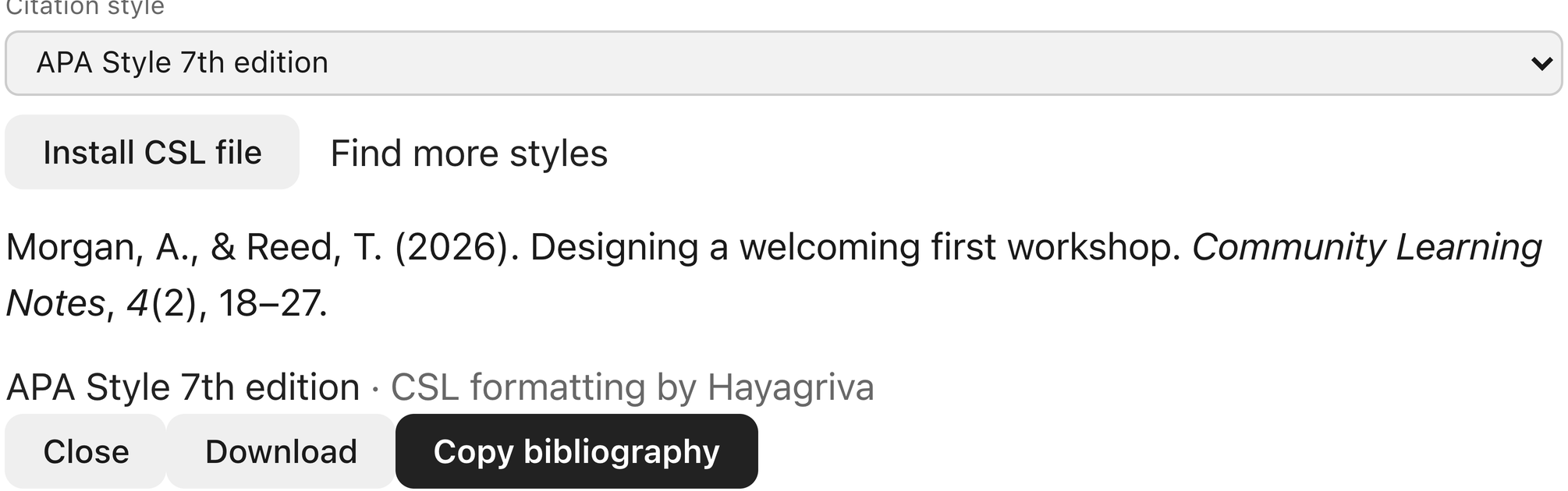
Format the references for your draft
Choose an installed citation style, check the formatted references, then copy or export the bibliography.
How it works
- Bring in references
Add a DOI, ISBN, arXiv link, PDF, or reference file. You can also import selected Zotero items.
- Organize your reading
Group sources in collections, attach them to a project, and track reading progress.
- Cite while you write
Choose a source in Smart Notes or a supported Word document. Add page numbers where the citation tools support them.
- Update the bibliography
Choose an installed citation style, refresh references in Word, or export your library for another tool.
What's included
- References added from identifiers, links, PDFs, pasted lists, and reference files
- Papers and books grouped in collections, tags, and saved searches
- Reading status, page progress, and available PDF lookups
- Project readings with attached PDF notes and highlights
- Citations and bibliographies inside Smart Notes
- Citations with page numbers, footnotes, or endnotes in supported Word files
- Citation style changes and bibliography updates in Word
- Installed citation styles that work offline
- Reference exchange through RIS, BibTeX, and reference JSON files
- Typst source editing beside a PDF preview in My Files
- Import selected Zotero items or export references to a chosen Zotero collection
Good to know
- Review source details, citations, and bibliographies before using them. Complex Word layouts can differ.
- Online reference and PDF lookups need a network connection. Available PDFs vary by source.
- Local Zotero connections need Zotero running and local API access enabled. Direct export needs Zotero 10 or later and authorization.
- Use a RIS reference file with older Zotero versions. Zotero exchange does not synchronize attachments or collection trees.
Next