

My Saves
Keep what you find.
Use it in what you make.
Find material you saved and use it in your writing. Create notes from a video transcript or copy the transcript with its link.
Save from the webFind saved material in context
Swipe or use arrow keys to explore the window.
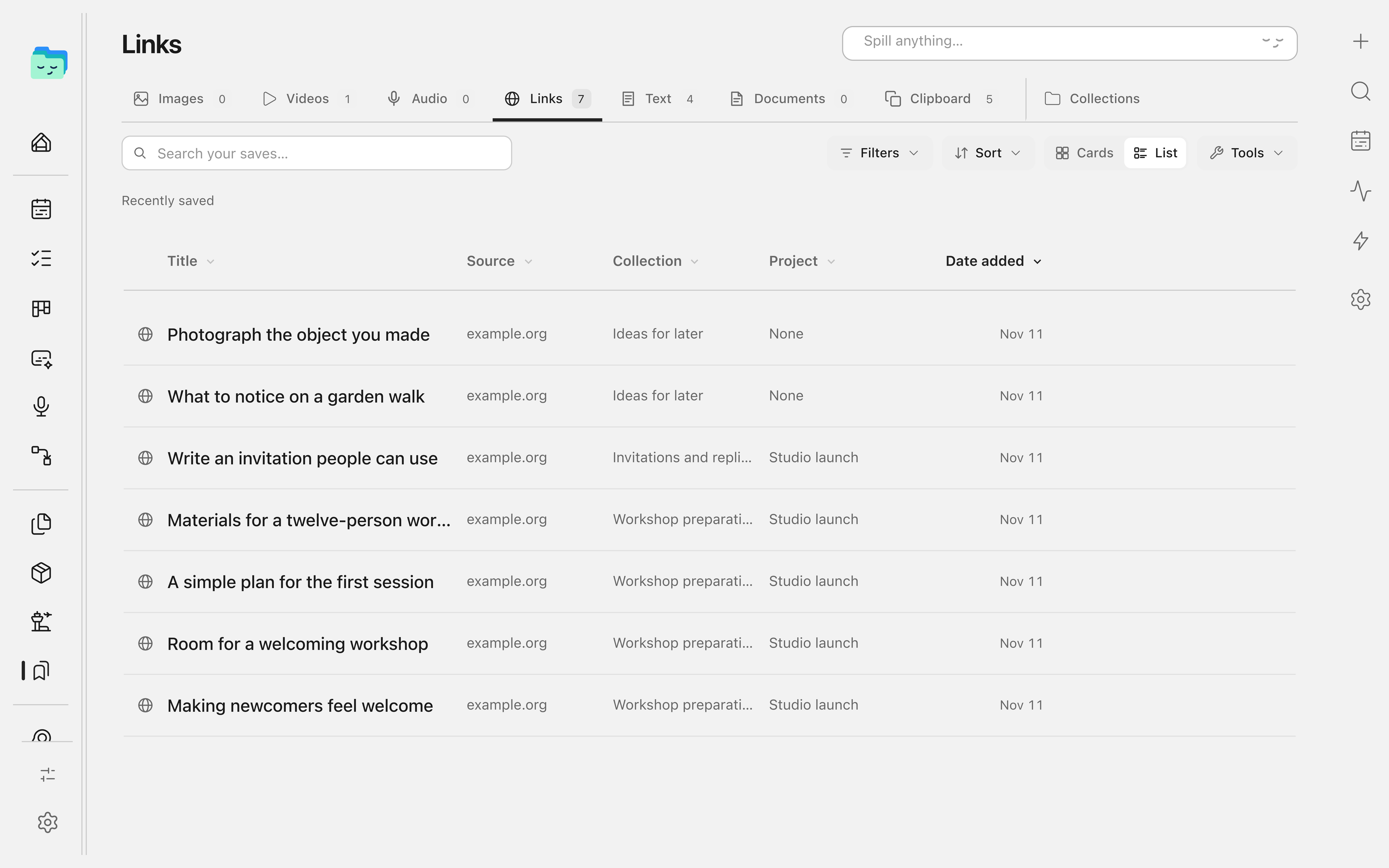
Search saved content, notes, transcripts, and tags. Keep related references in collections and assign them to a project.
- Search inside saved content
- Group saves in collections
- Assign projects in bulk
- Copy links or saved text
Use video text in your writing
Swipe or use arrow keys to explore the window.
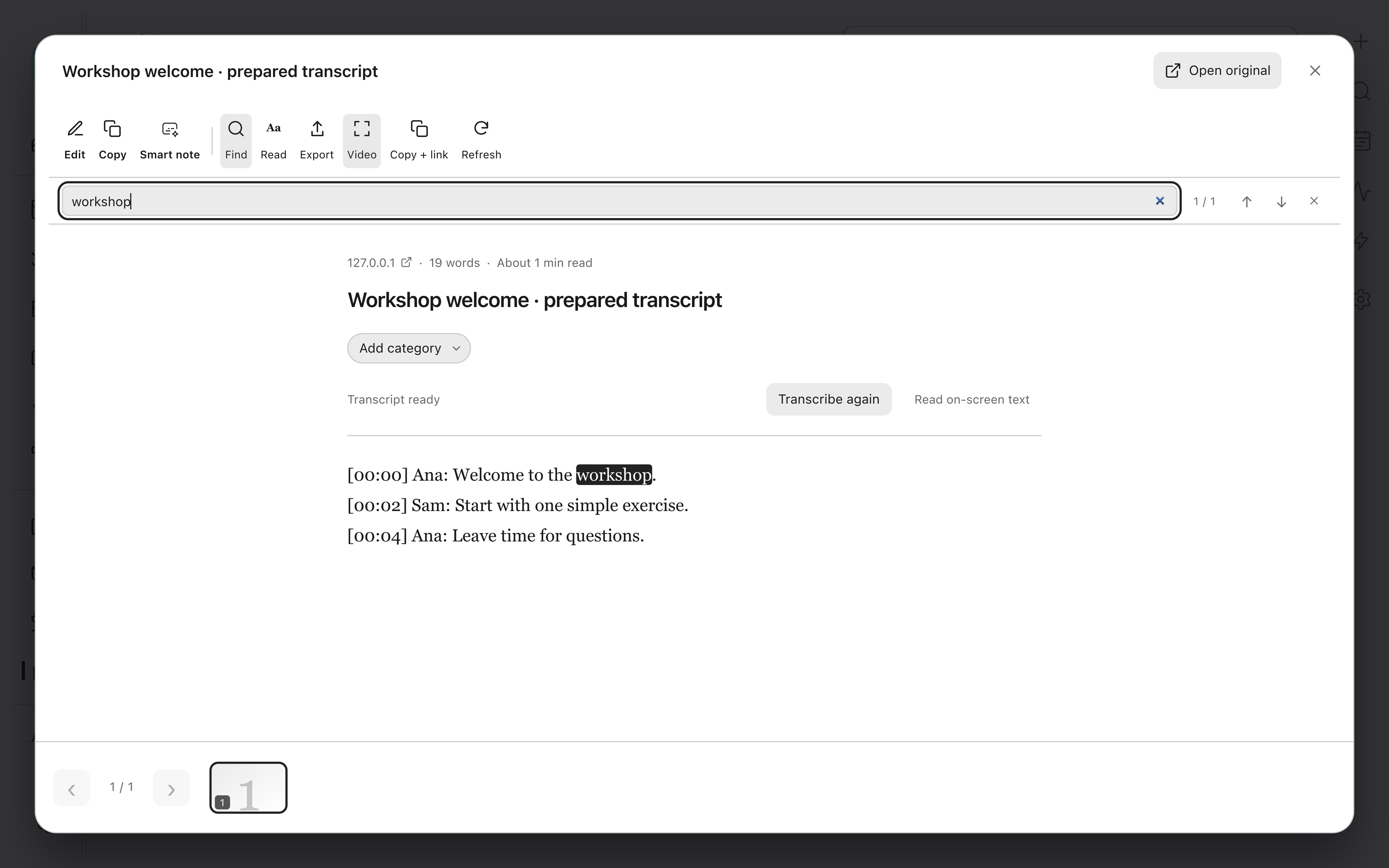
Search a video transcript, create a Smart Note, or copy the whole transcript with its source link.
- Find words in transcripts
- Create a Smart Note
- Export an editable transcript
- Copy the transcript with its link

Media support varies by source. On-screen video text requires macOS 13 or later.
Keep what you find on the web.
In the desktop app, choose Browser → New Browser Tab and open the page you want to keep.
Keep a passage in Smart Notes
Choose Highlight text and drag across the passage. Review the selection and choose Send to Smart Notes.
Save the page as a PDF
Choose Save Page → Library (a real document). With Spillit Pro, supported pages become PDFs you can open in My Files.
To keep a link in My Saves, choose Save Page → Social (a link). Link saving is available on Free.
Details and compatibility
More app views
Use the material you kept.
Swipe or use arrow keys to explore the window.
Recover the right reference
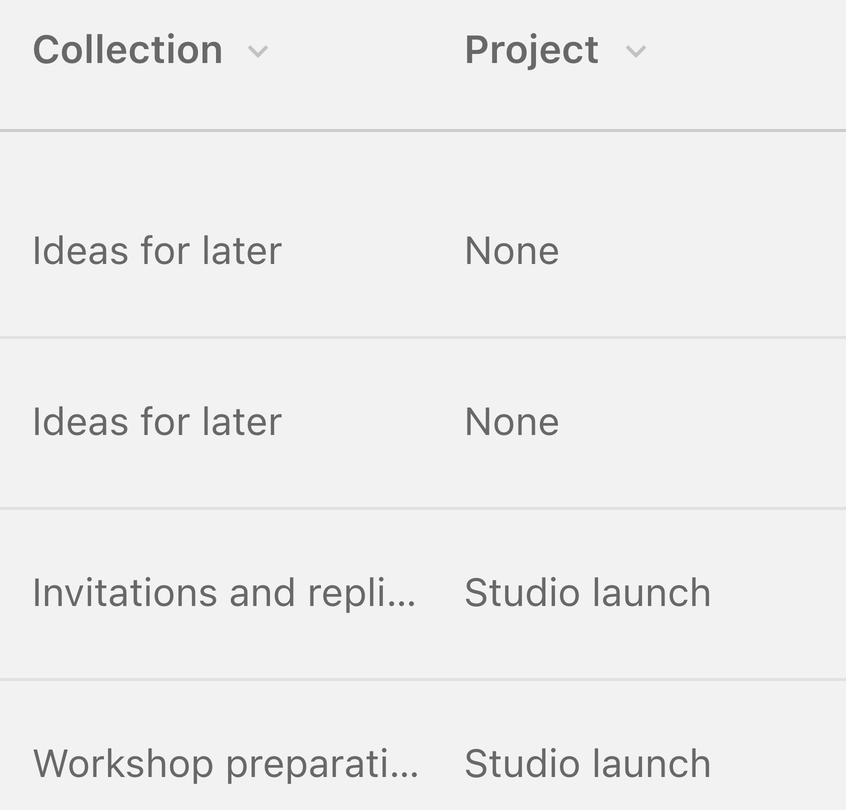
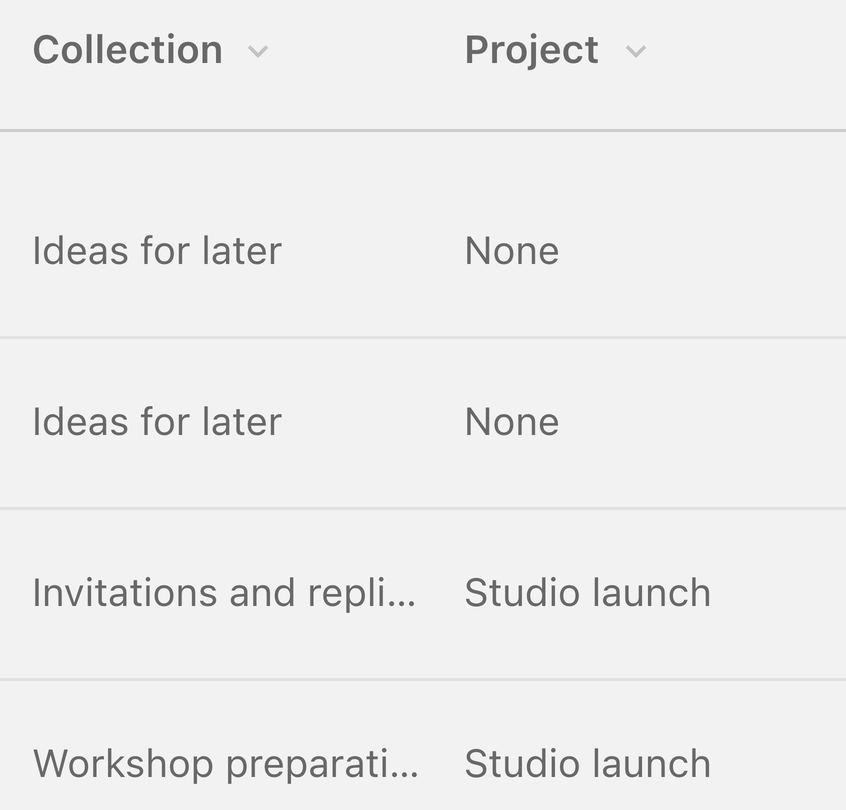
Keep links assigned to a collection and project. Generic saved links offer Copy link for pasting into your work.
Swipe or use arrow keys to explore the window.
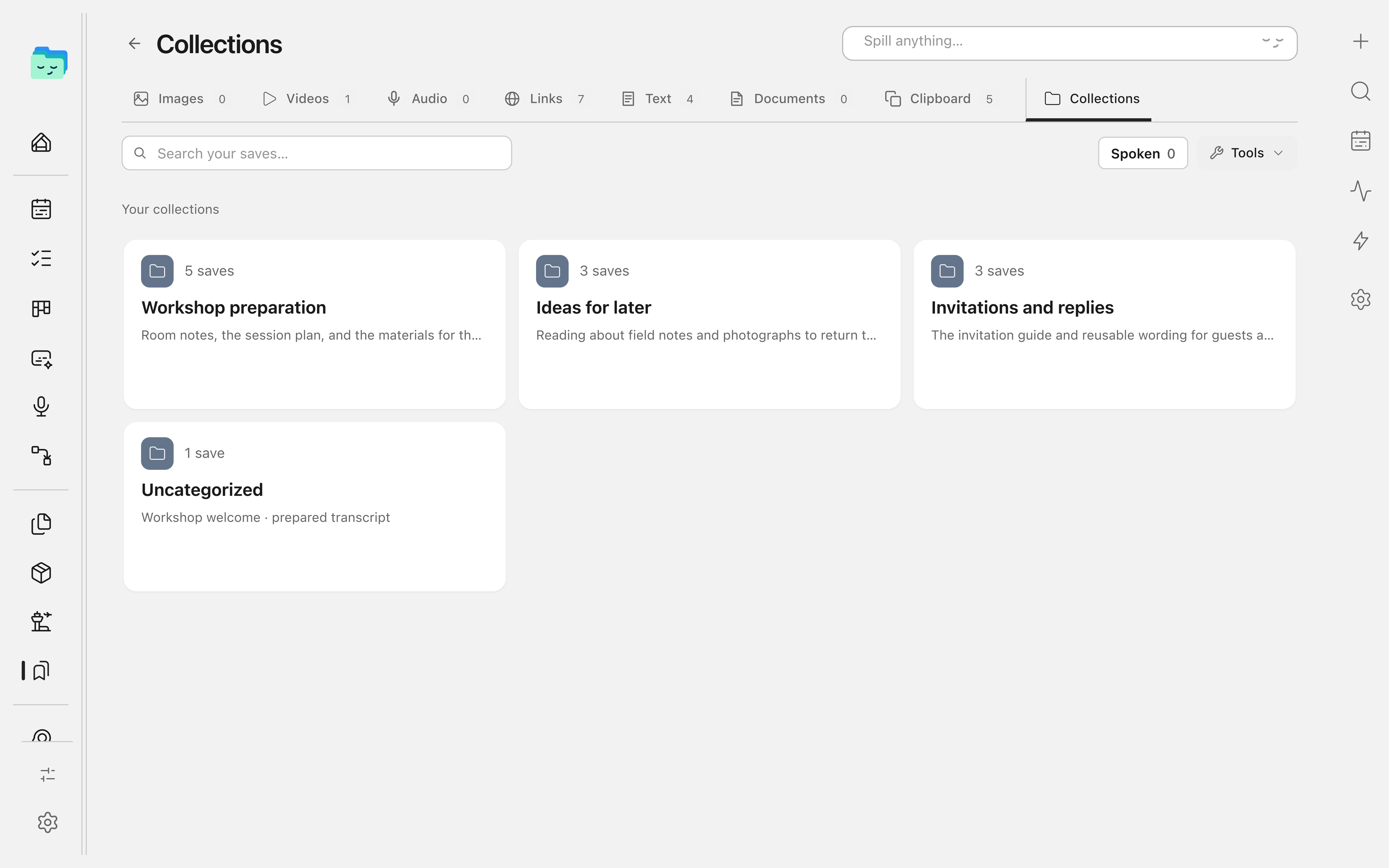
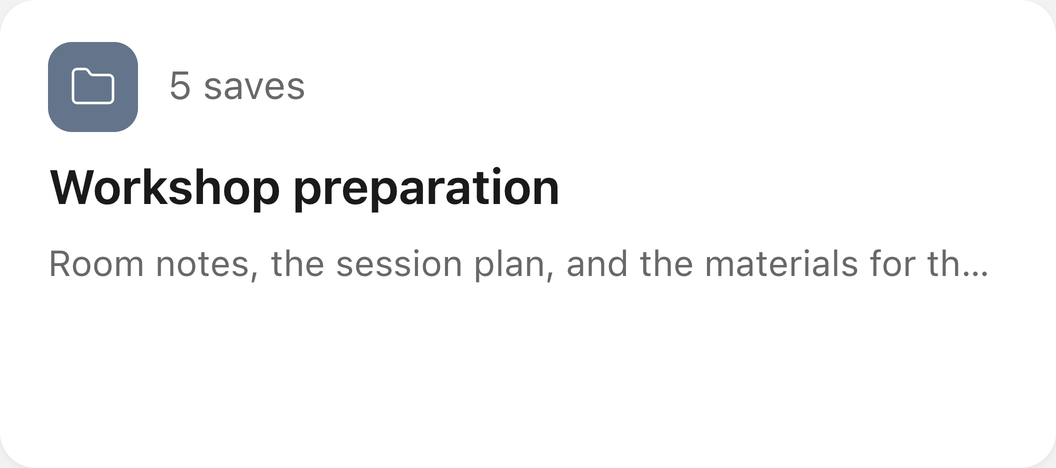
Return to a useful collection
Collections group the material you choose to keep. They can contain related links and saved text.
Swipe or use arrow keys to explore the window.
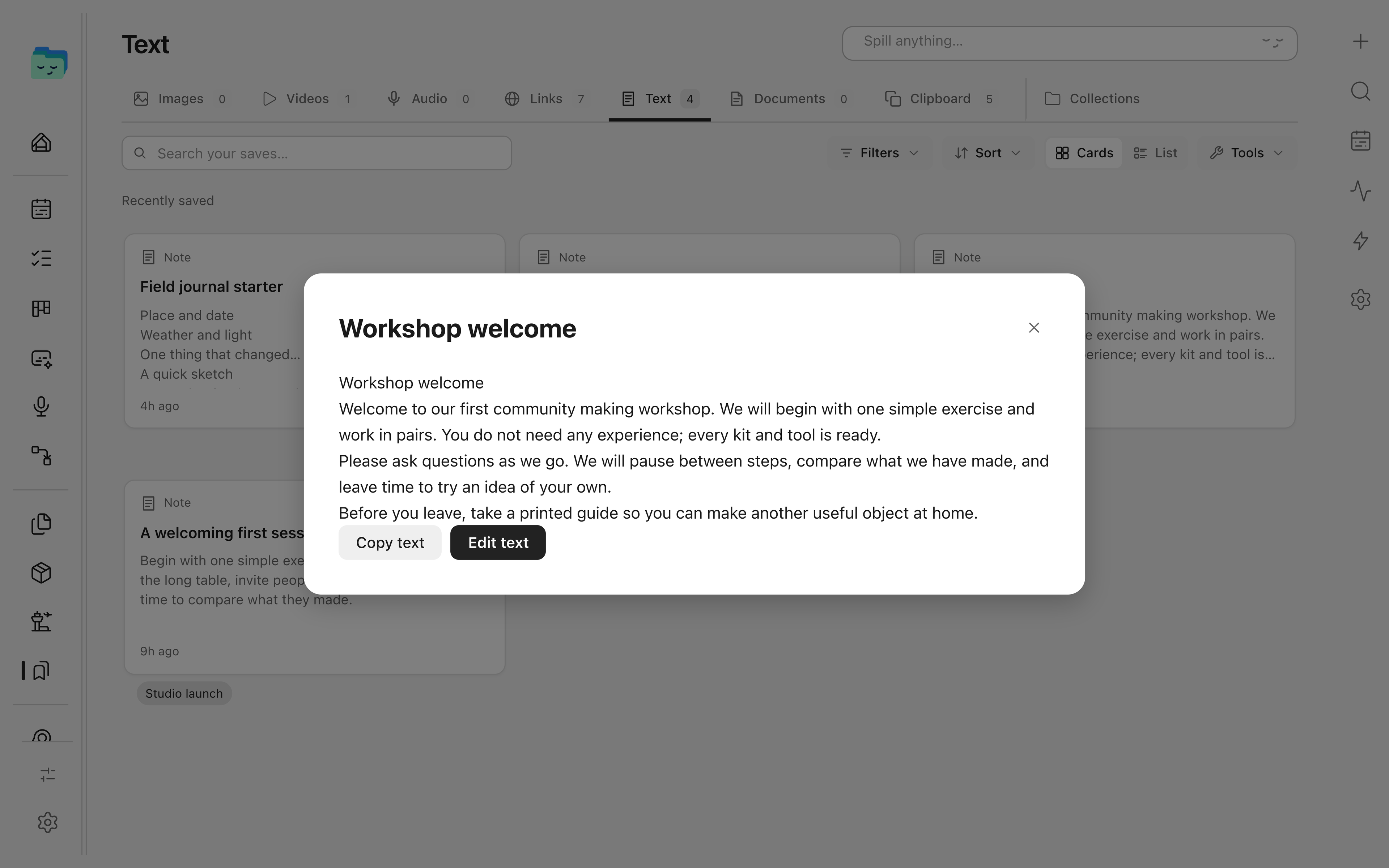
Edit or copy saved text
Copy text keeps the saved wording ready to paste. Edit text changes the saved entry before you use it.

Swipe or use arrow keys to explore the window.
Use the transcript in your writing
Create a Smart Note from this prepared transcript or export an editable copy. Copy + link includes the original source address.

Swipe or use arrow keys to explore the window.
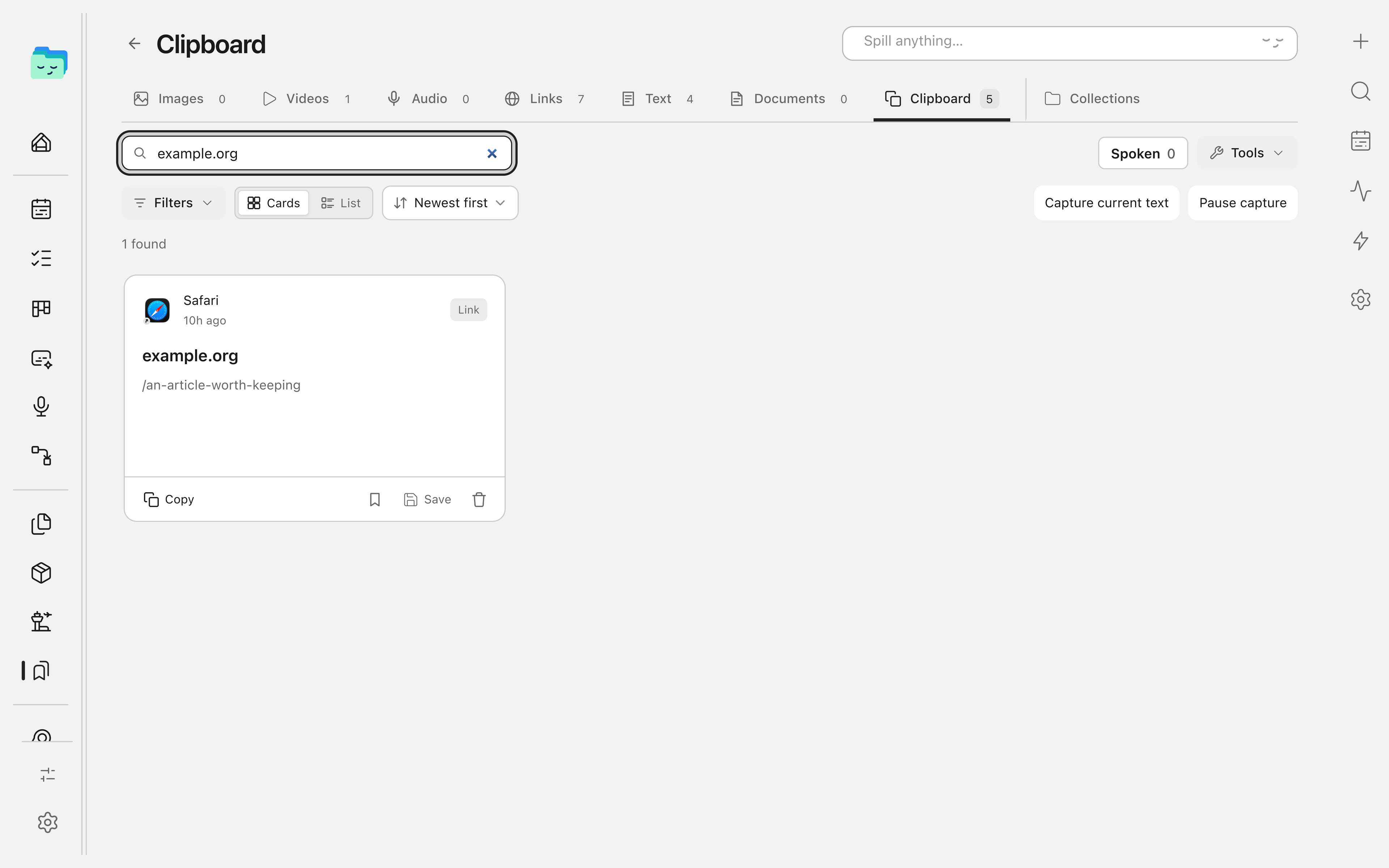
Save what you want to reuse
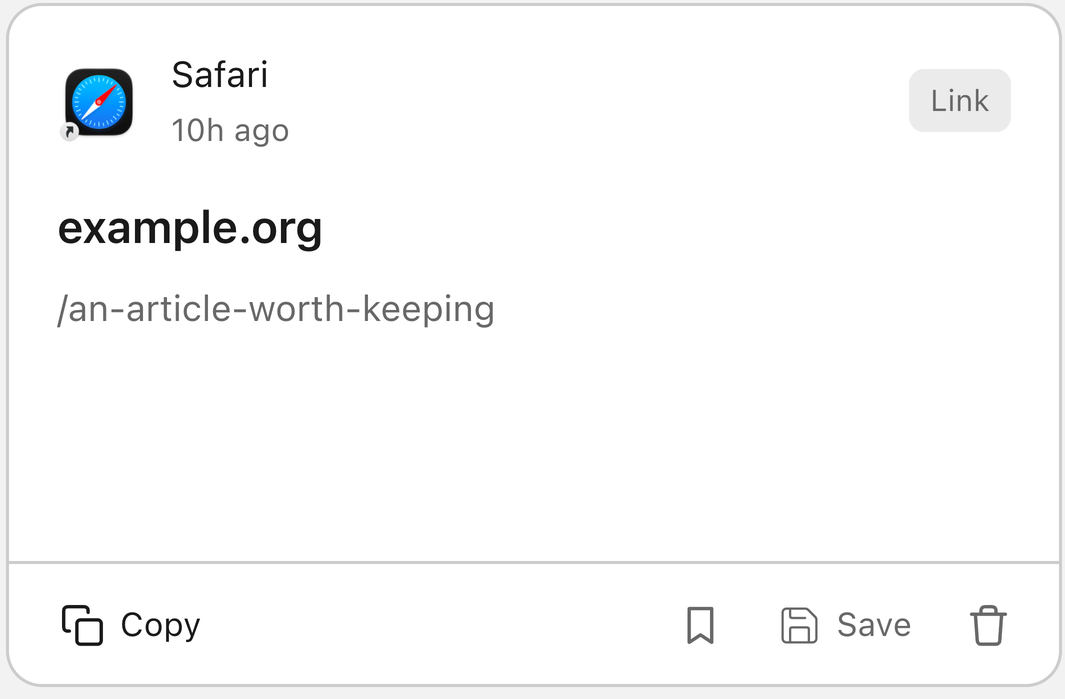
The prepared entry shows its source app and Copy, Pin, and Save controls. Clipboard capture can be paused.
How it works
- Collect useful material
Paste a link or text into Spill anything. Drop a picture to keep it in My Saves.
- Give it context
Group related saves in collections, add categories and tags, or assign them to a project.
- Recover copied or spoken words
Use Clipboard or Spoken to return to captured text. Pin useful clipboard entries or save them permanently in My Saves.
- Find the useful moment
Search saved content or a transcript. Jump from a timestamped video passage to its matching moment.
- Use it in your work
Copy a saved link or text, then paste it into your notes. Send a video transcript to Smart Notes or export it as an editable document.
What's included
- Images, videos, audio, links, text, and documents
- Collections, categories, tags, prompts, and code snippets
- Separate spoken and on-screen video text
- Transcript search with timestamp links back to playback
- Transcript corrections and export to Word, PDF, Markdown, text, or HTML
- Transcript exports to My Files, downloads, or a chosen folder
- Copied text, images, and spoken dictation history
- Screenshot markup and printed text extraction
- Trash and restore
- Read saved pages and keep useful links from captured posts
- Send desktop browser highlights to Smart Notes
- Save supported web pages as PDFs with Spillit Pro
- Search saved content, personal notes, transcripts, tags, and sources
- Single or bulk project assignment, alongside collections and categories
- Copy links or saved text into your notes. Send video transcripts to Smart Notes.
- Review duplicates and merge missing details
- Clipboard capture controls with Pause and Resume
- Clipboard source-app filters and ordering
- Clipboard entries saved permanently into My Saves
- Transcript reading paragraphs, original-text view, and focus on text
Good to know
- Transcripts use available captions or the speech model on your computer. Fetching an online video uses the network.
- On-screen video text extraction requires macOS 13 or later.
- Transcript availability and accuracy depend on the source. Review the passages you keep.
Often used for this
Raindrop.io
Raindrop.io organizes bookmarks into collections with tags, filters, highlights, and previews. It also offers web archives, shared collections, and integrations.
With Spillit
Save links, text, images, and supported media in My Saves. Organize them into collections and projects. Search the saved content and copy links or saved text into your notes.
See the full comparisonNext