Studio launch · Project brief
Community making workshop
Neighbours make one useful object together and leave knowing how to make another.
A welcoming room for twelve people, with one long table and good light.


Swipe through the tools used to plan Saturday’s workshop.
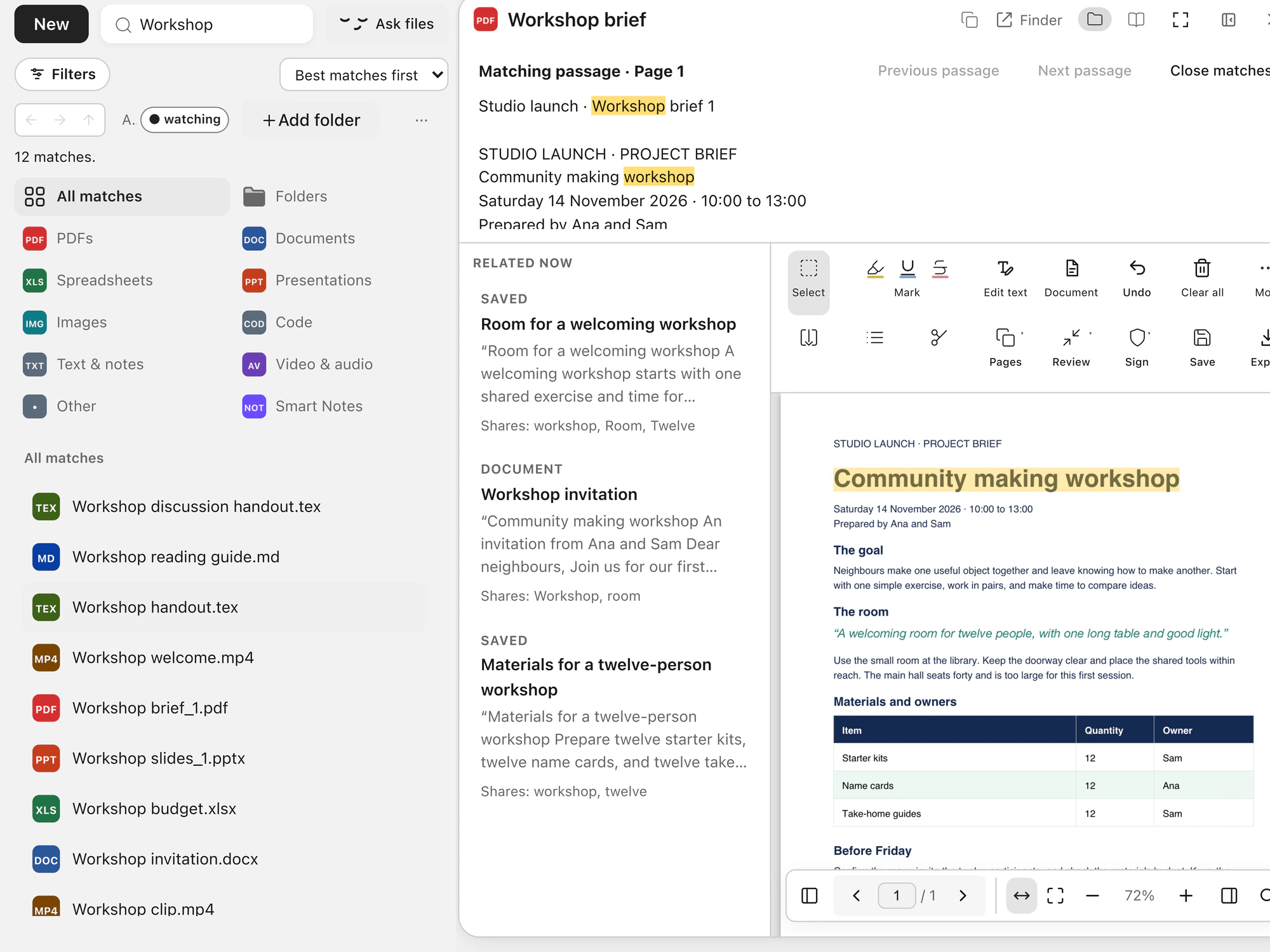 Files and documentsSearch your existing folders and edit supported Word, Excel, PowerPoint, and PDF files where they are.Learn more
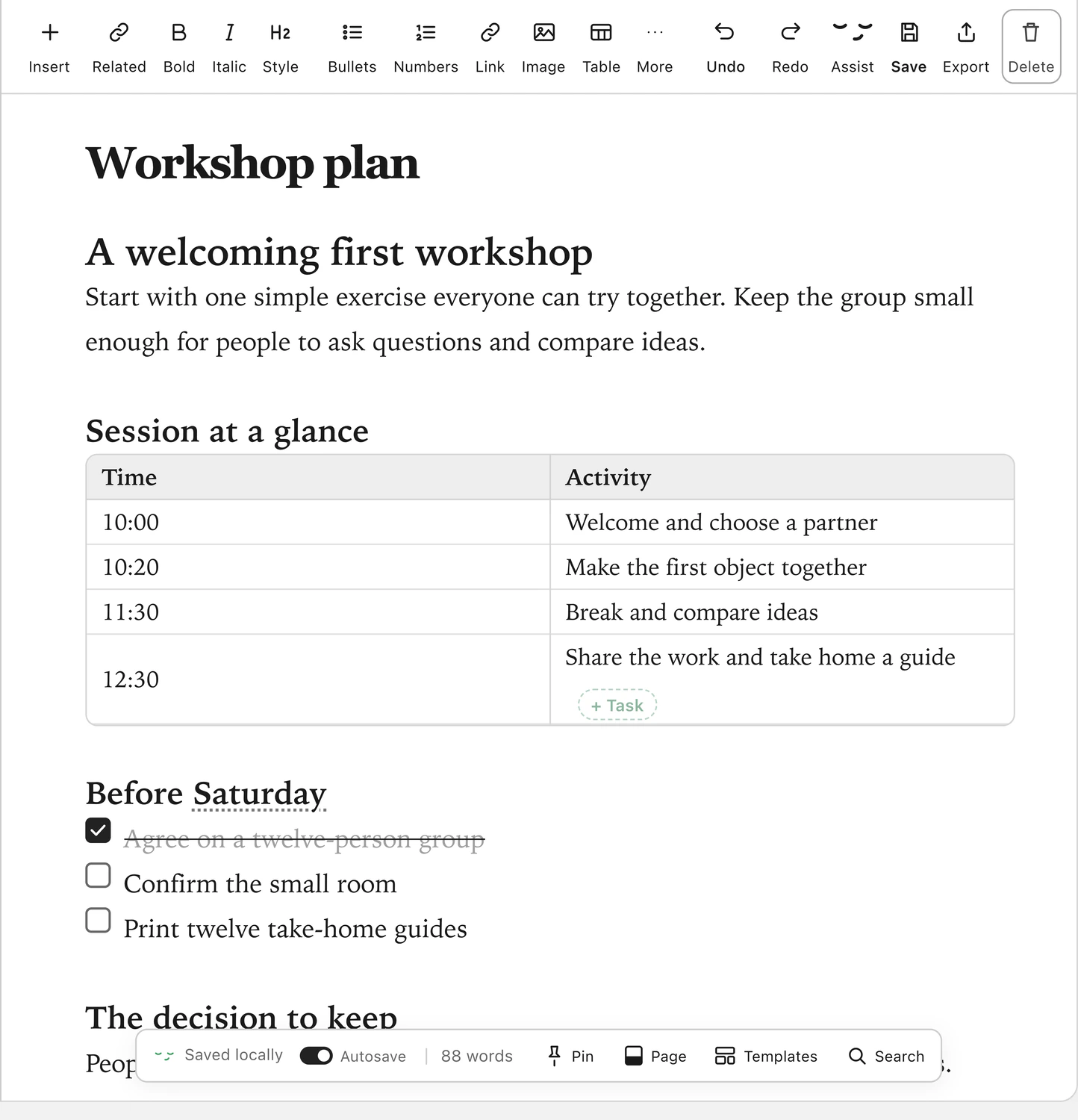 Notes and sourcesWrite the plan with its sources beside you, and cite from your library.Learn more
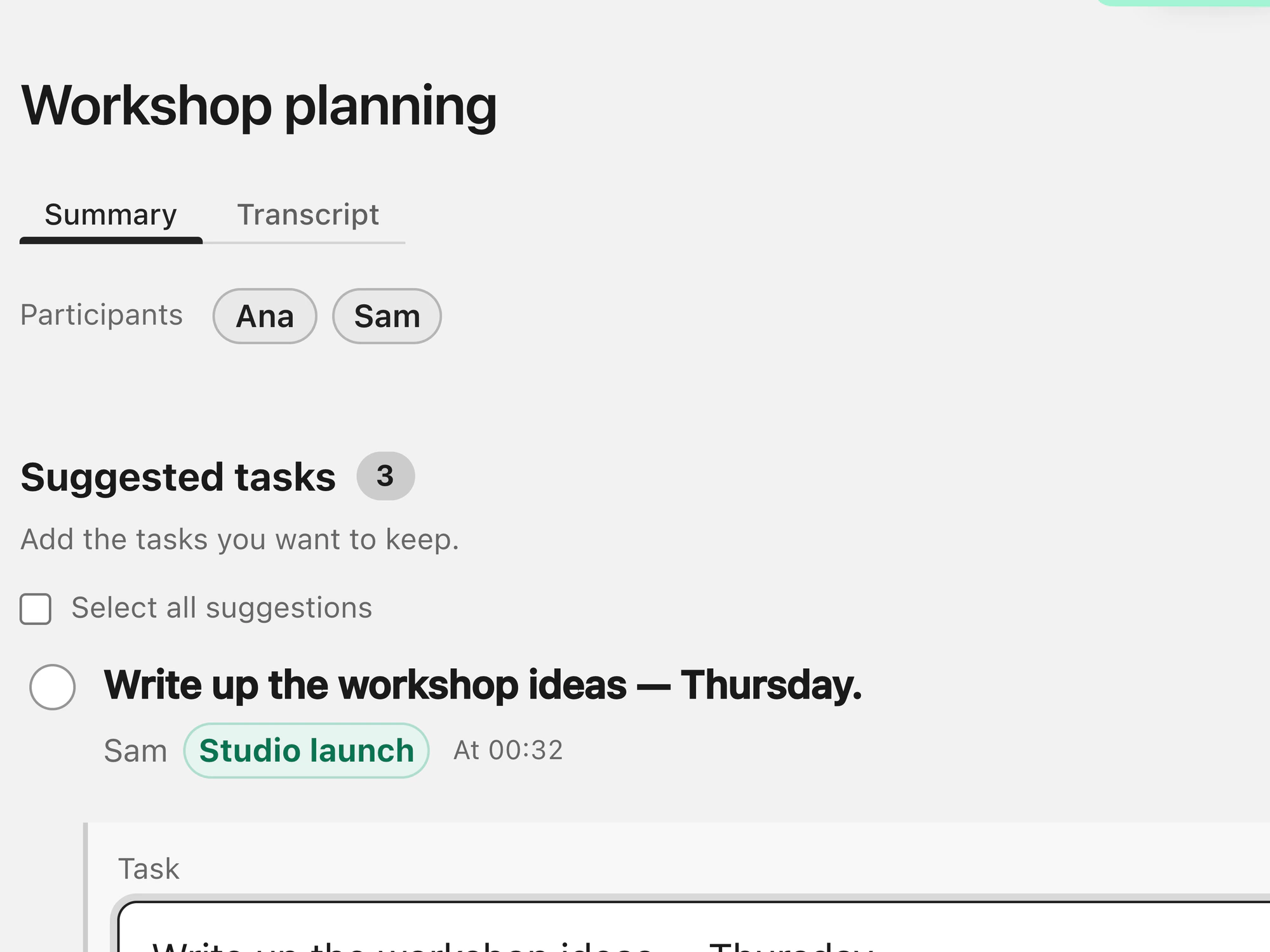 Meetings and planningReview the summary and transcript, then keep the tasks you choose.Learn more
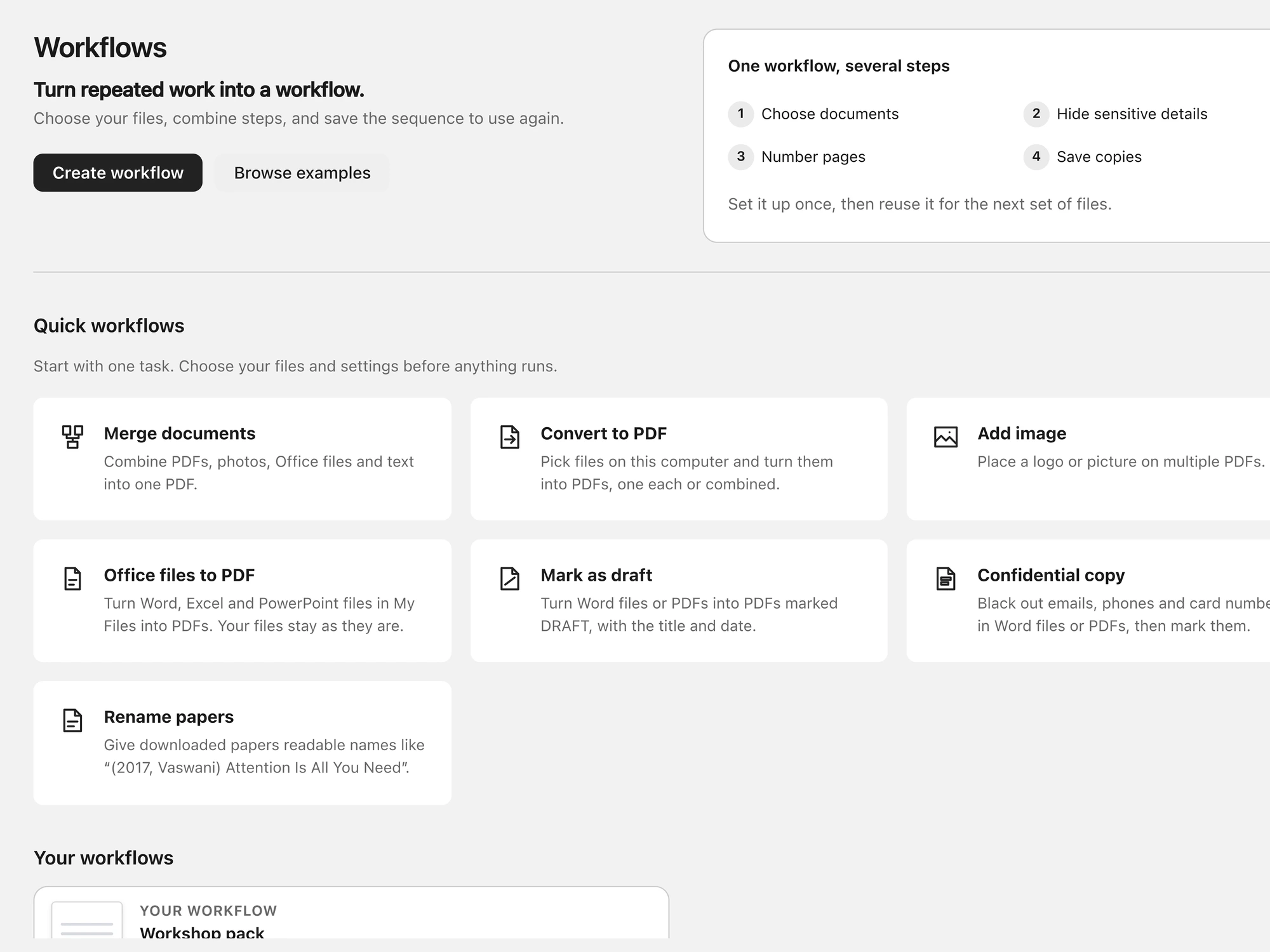 Media and workflowsMark up a photo, trim a clip, and reuse the same document steps.Learn more
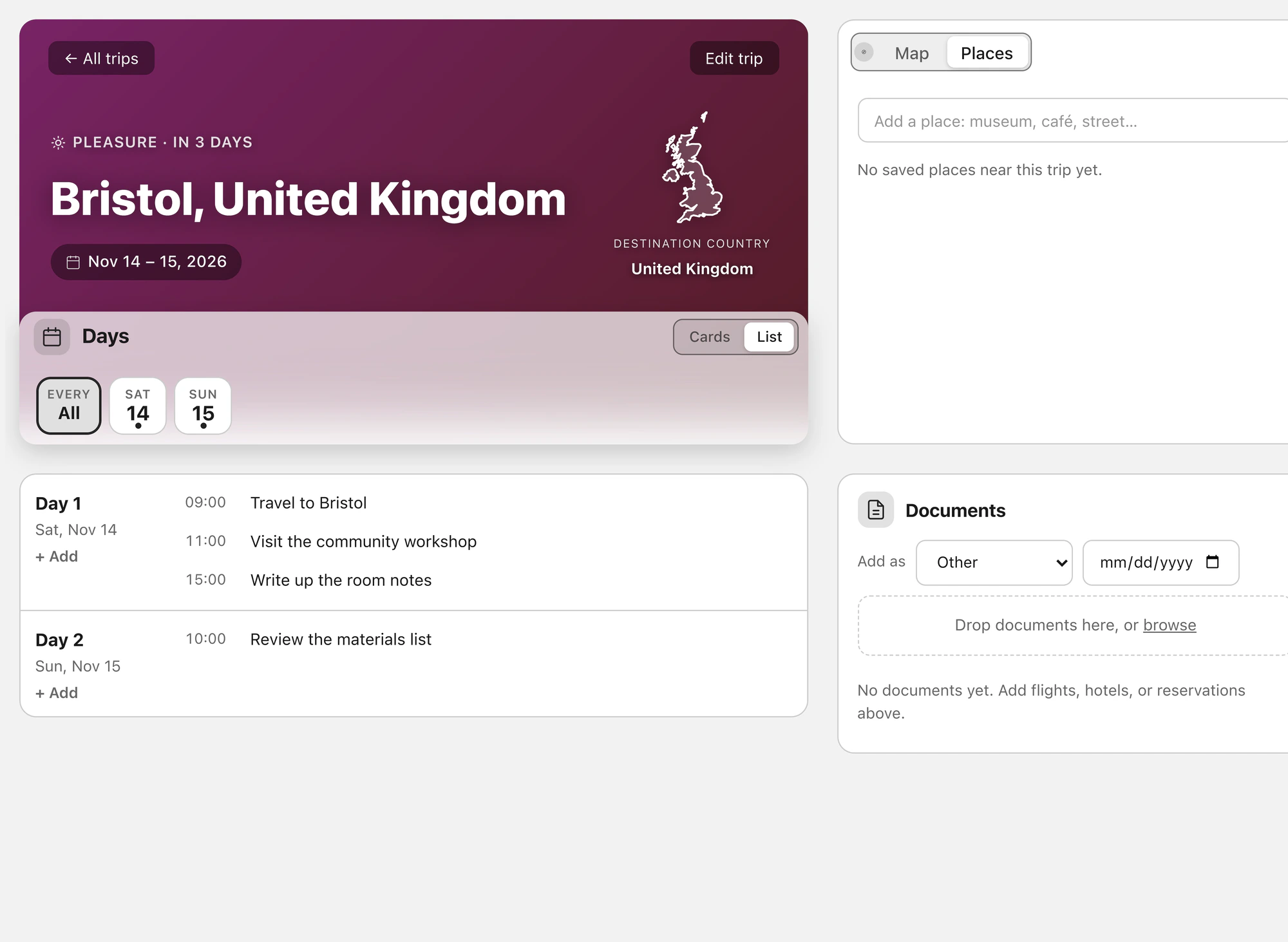 Everyday toolsPlan trips, track subscriptions, and make your Spillit yours.Learn more
Spillit Intelligence
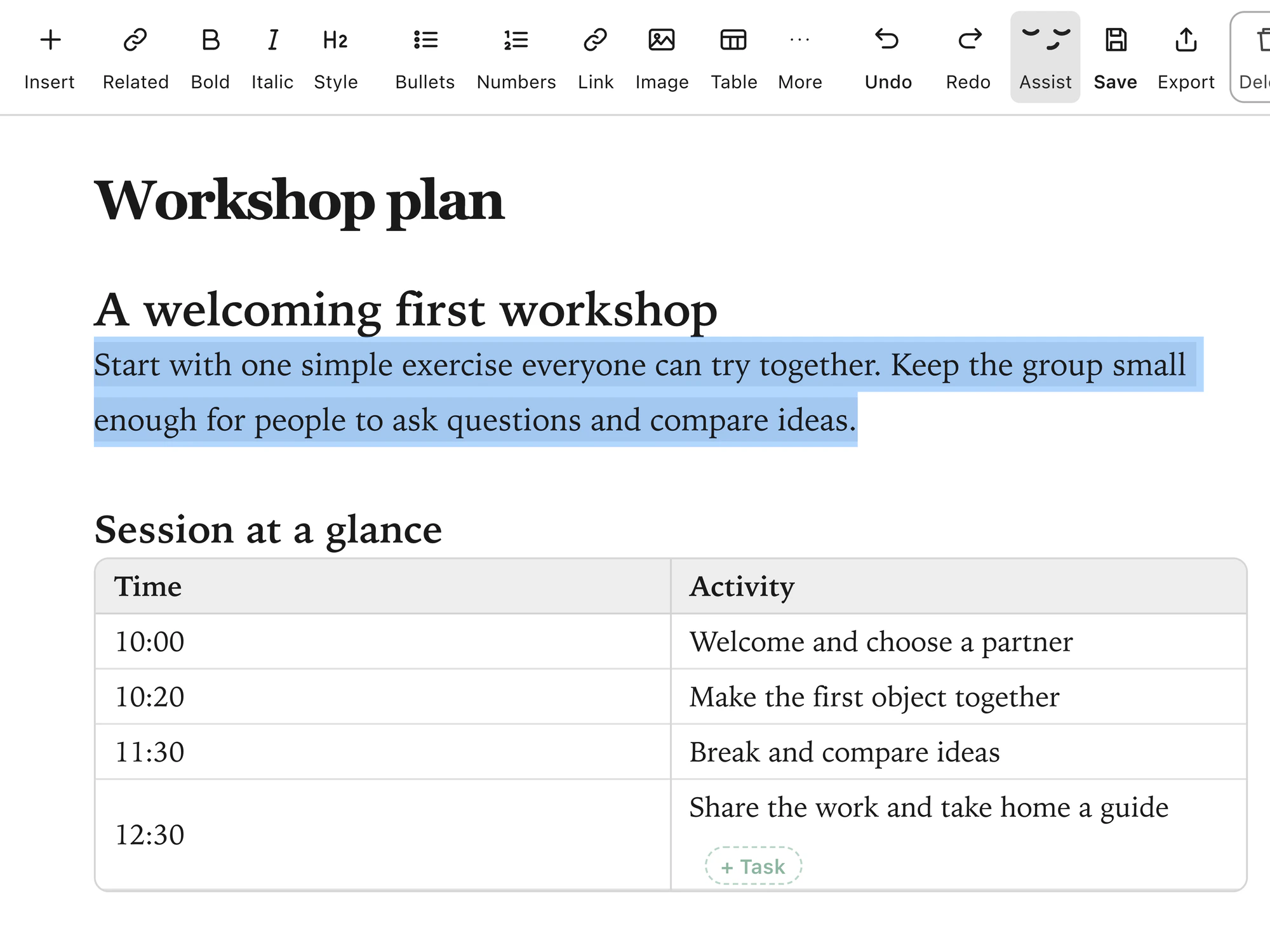
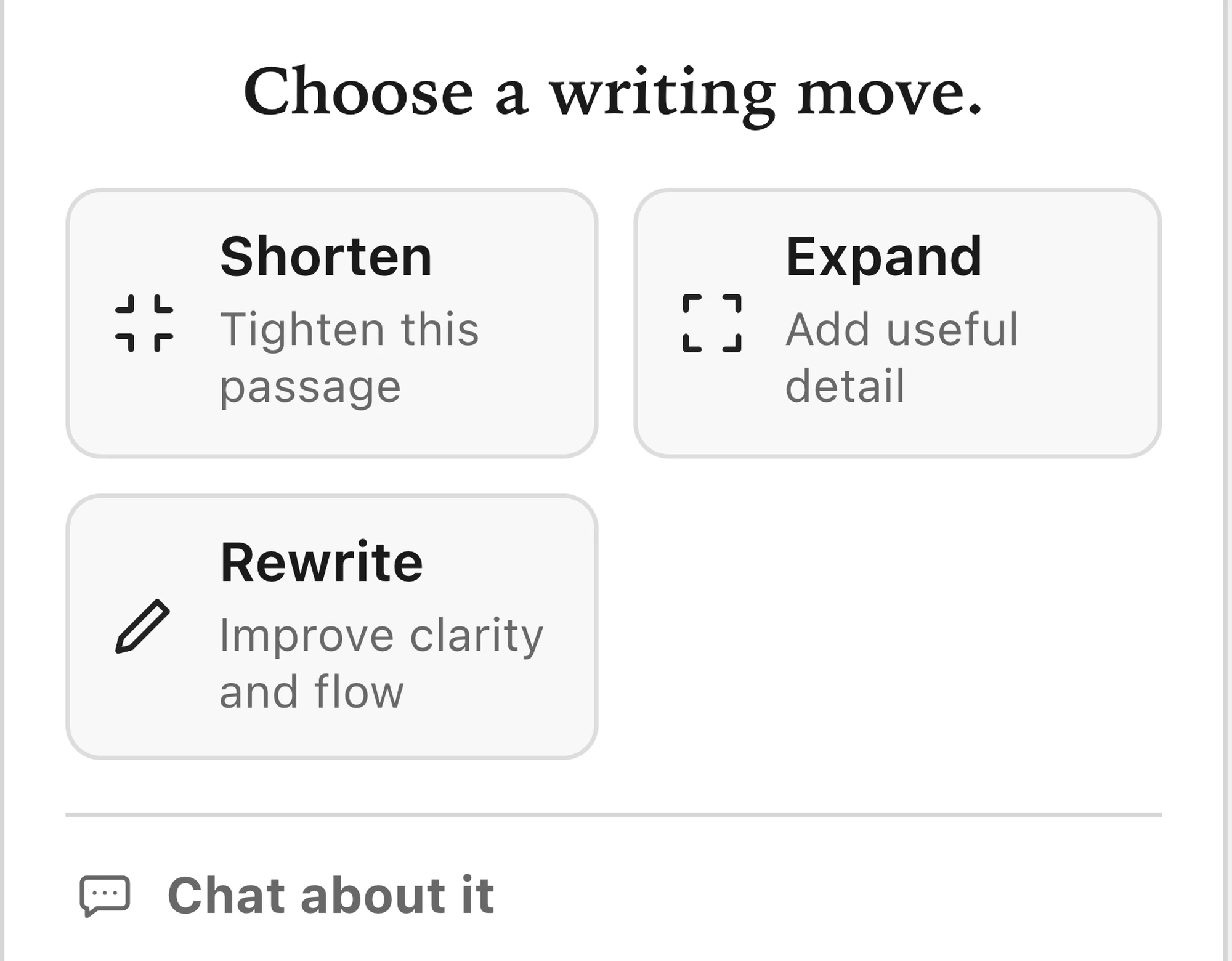
Select a passage and choose Shorten, Expand or Rewrite. You decide what to keep.
Save links from the places you read and watch, then use them in your notes.
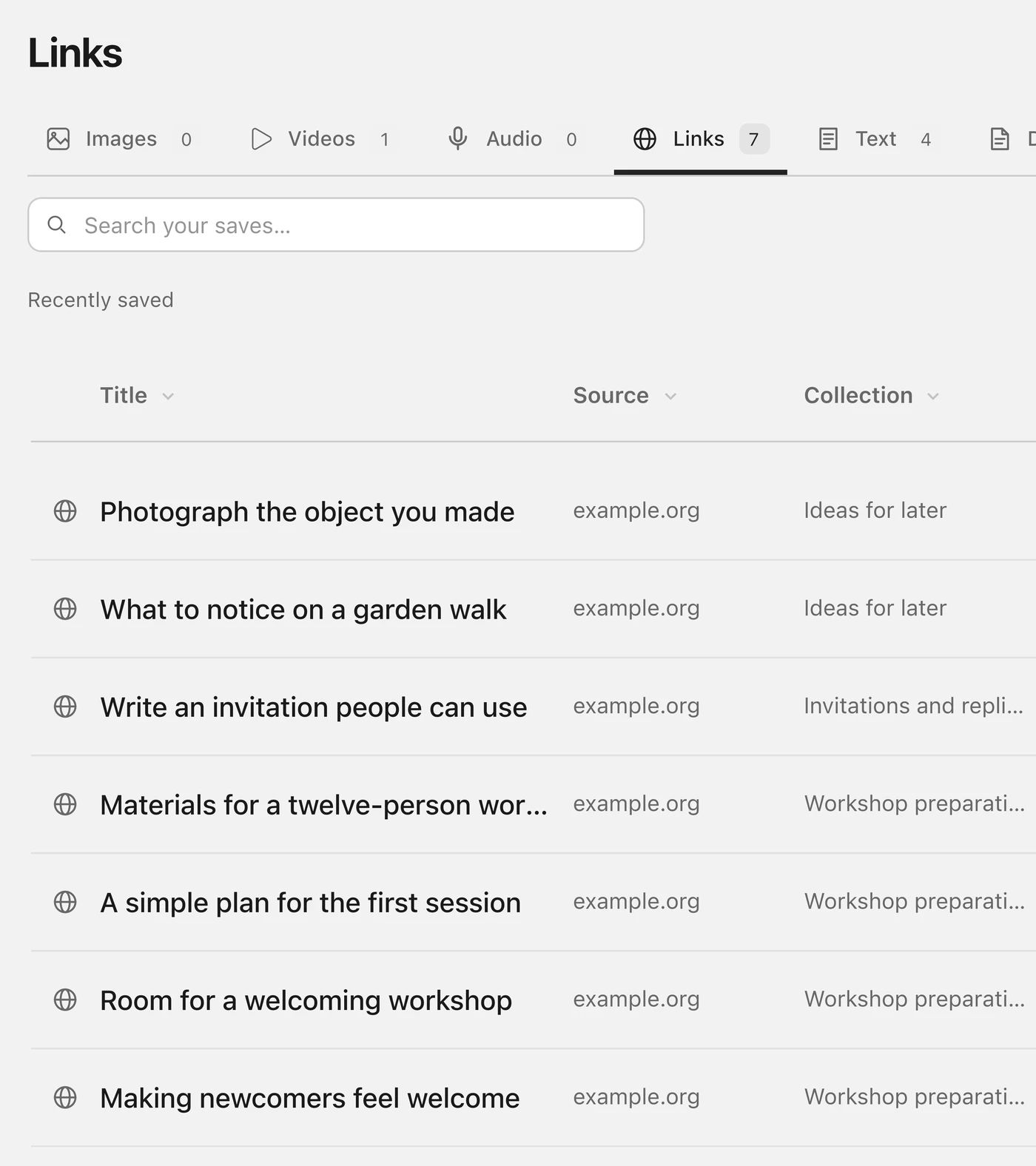 Explore My Saves
Beyond the workshop
for what comes next.Research, plan trips, edit media or reuse steps.
Choose local AI for supported work on your Mac. Cloud AI sends the text needed for the request. See what gets sent.
Word documents, spreadsheets, slides, PDFs, Markdown and more. See the My Files guide.

A little folder to help you through a big day.
A workshop to prepare. A meeting at nine. Ideas to write. A brief to read. Files to finish.
Notes in one app, tasks in another, files somewhere else. Nine apps, and you keep the connections in your head.
Your notes, files, meetings, and tasks share one home. You choose the next step; Spillit keeps the pieces in reach.
Compare specific workflowsKeep your files on your computer and choose where supported AI requests run.
 Write down the workshop ideaNotion
 Prepare the presentation by FridayTodoist
 Take notes in the 09:00 meetingGranola
 Edit the invitationMicrosoft Word
 Update the materials budgetMicrosoft Excel
 Fix the opening slideMicrosoft PowerPoint
 Sign the room bookingAdobe Acrobat
 Cite that paperZotero
 Find the article you savedRaindrop.io
Saturday's workshop needs a plan, an invitation and a budget. Follow the day from your first conversation to a PDF pack ready for review.
09:00Morning
Talk through Saturday's workshop with Ana. Spillit captures the conversation and suggests follow-up tasks for you to review.
Live call→Transcript→Notes→Tasks
Join the call. Spillit transcribes it and suggests follow-ups.
 Workshop planningIllustrated call
Spillit is ready to capture the conversation.
Transcript excerpts
Ana0:12Twelve people at most. One exercise, then compare ideas.
Sam0:26I’ll write up the workshop ideas by Thursday.
Lee0:32Ana will read the room brief and keep the useful parts by Friday.
Mika0:38I’ll check the materials for twelve starter kits.
Jo0:46Sam will prepare the submission pack by Monday.
You0:54Let’s review the summary and choose the follow-ups we want to keep.
Preparing the sample summary…
Keep it small: up to twelve people, one exercise, then compare ideas.
Keep the first workshop small: up to twelve people, one practical exercise, then time to compare ideas.
ParticipantsAnaSam
Add the tasks you want to keep.
A practical first session. Small group, clear instructions, time to compare ideas.
The work ahead. Capture the ideas, read the brief, and prepare the documents for submission.
 All tucked in.
Works withZoom Google Meet
 Microsoft Teams
 Webex
More about meetings →This is a prepared example. Call audio requires macOS 13 or later.
Review the suggested follow-ups, then choose where to begin.
09:30Morning
Check off the meeting in Tasks. Set the writing task to In progress.
Set the writing task to In progress.
4 open tasks
No tasks in this view.
Drop a task here
Drop a task here
Drop a task here
More about tasks and calendar →Try changing the owner or status in this browser example.
10:30Mid-morning
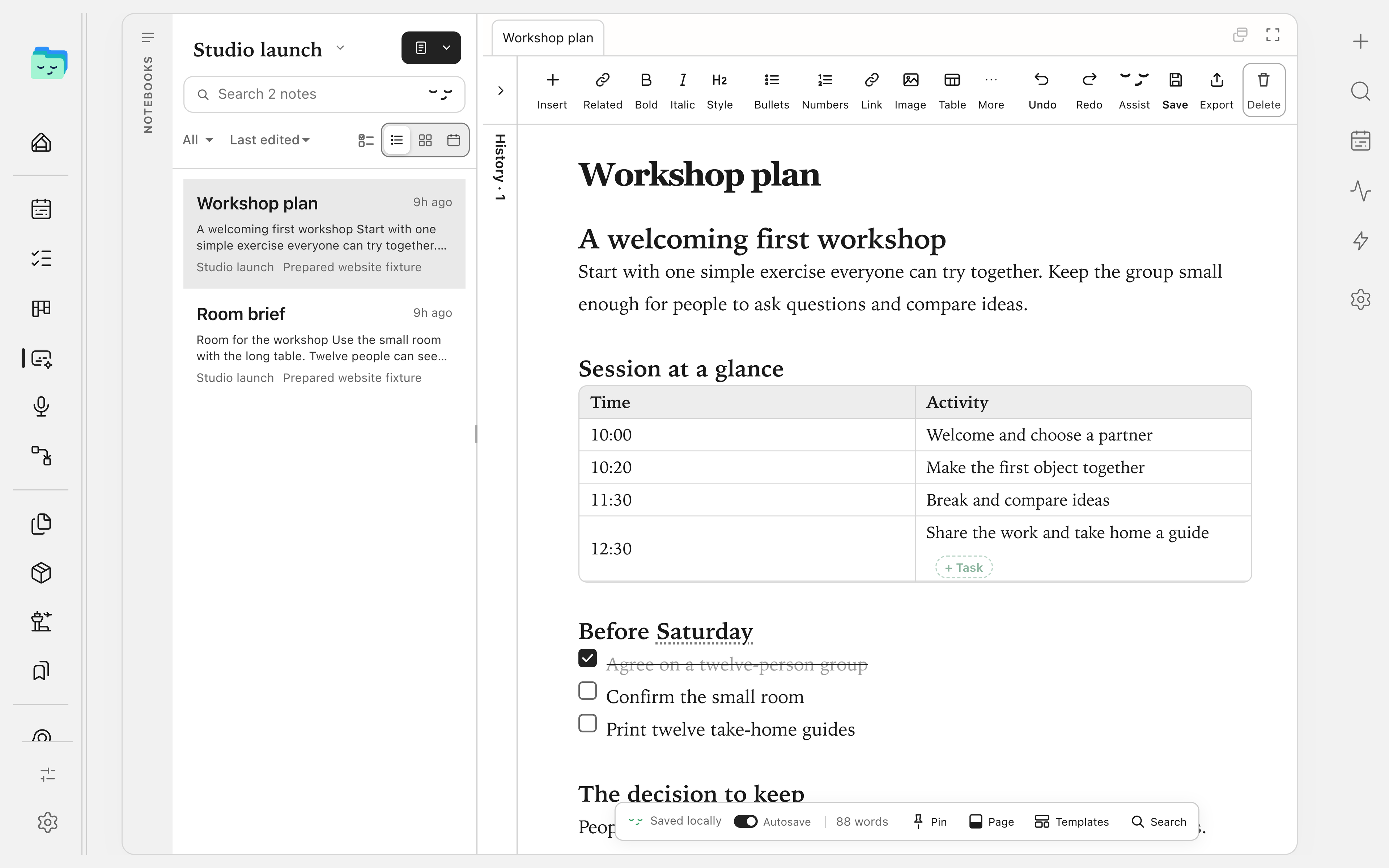
Highlight the line you need in the room brief. It drops into your plan with its page, and both join Studio launch with your tasks.
Workshop follow-ups0 / 3 done
Highlight the line you need. It joins your plan and your project.
Studio launch · Project brief
1. Goal
Neighbours make one useful object together and leave knowing how to make another.
2. The room
A welcoming room for twelve people, with one long table and good light. The main hall seats forty, which is too big for a first session.
3. Materials
Twelve starter kits, name cards and a short take-home guide.
Begin with one simple exercise.
“A welcoming room for twelve people, with one long table and good light.”
Workshop brief.pdf · page 1
Workshop plan“A welcoming room for twelve people…”Workshop brief.pdf · page 1
More about Projects →This is an illustrated example with a fictional brief. The feature guides show actual app screens.
Studio launch now holds the plan, the brief and your tasks. Next, edit the invitation, slides and budget.
14:15Afternoon
Set the reply date in the invitation. Update the opening slide, outline and materials budget, ready for the same workshop.
Workshop follow-ups0 / 3 done
Edit the workshop files in My Files.
My Files · 11 files8 results in names and contents· on this computer
Open any file right here.
1// Workshop sign-up, twelve seats2const seats = 12;34export function canJoin(list) {5return list.length < seats;6}78export function welcome(name) {9return `See you Saturday, ${name}!`;10}
Studio launch · Project brief
Neighbours make one useful object together and leave knowing how to make another.
A welcoming room for twelve people, with one long table and good light.
Studio launch · Workshop draft
| A | B | C | D | |
|---|---|---|---|---|
| 1 | Item | Cost | ||
| 2 | Workshop room deposit | |||
| 3 | Starter kits | |||
| 4 | Printing | |||
| 5 | Total | |||
| 6 | ||||
| 7 | ||||
| 8 | ||||
| 9 | ||||
| 10 | ||||
| 11 | ||||
| 12 | ||||
| 13 | ||||
| 14 | ||||
| 15 | ||||
| 16 | ||||
| 17 |
More about My Files →Supported formats and editing features vary. Check compatibility
15:30Document workflows
Combine the invitation, slides and budget into one numbered PDF. Review the pack, then keep the workflow for the next set of files.
Workshop follow-ups0 / 3 done
Put your edited files into one PDF.
Choose your files, combine steps, and save the sequence to use again.
Examples
Files from Studio launch
Session outline.md stays with the project.
Steps
Nothing changes until you run it.
Studio launch
1
Your workflows
Your saved workflows will appear here.
Workflow history
DoneWorkshop pack · 3 files · This sample
More about document workflows →Prepared example. Real document processing runs in Spillit.
17:00Late afternoon
Paste the link of a talk about small workshops into Spillit. It pulls out the transcript, and one click turns it into a Smart Note for Saturday.
Workshop follow-ups0 / 3 done
Paste a video link. Spillit pulls out the words.
Recently saved
Processing video…Transcript readyTranscribe againRead on-screen text
youtube.com · Sample talk · 1:40
Use for Saturday: name cards at the door, a small group, something to take home.
Link copied
More about My Saves →Prepared example with an animated sample talk made for this page. Works with YouTube, Vimeo, TikTok, Instagram and X links. Fetching a video needs the network; Spillit uses the platform's captions or transcribes the audio on your computer.
20:30Evening
It works in Spillit and in any app where you can type. Hold Fn and speak; release, and your words land in the app in front of you. Here: Slack, Gmail, WhatsApp, Claude Code and Spillit.
Workshop follow-ups0 / 3 done
Hold Fn in any app, speak, release.
# studio-launch
Sam 20:24
Is the small room confirmed?
Message #studio-launch
 Inbox · Gmail
New Message
ToAna
SubjectSaturday workshop
Send
 WhatsApp
LLeeonline
Are you still coming tonight?20:27
~/studio-site $ claude
 Claude Code · studio-site
>
Thank you note.docxSpillit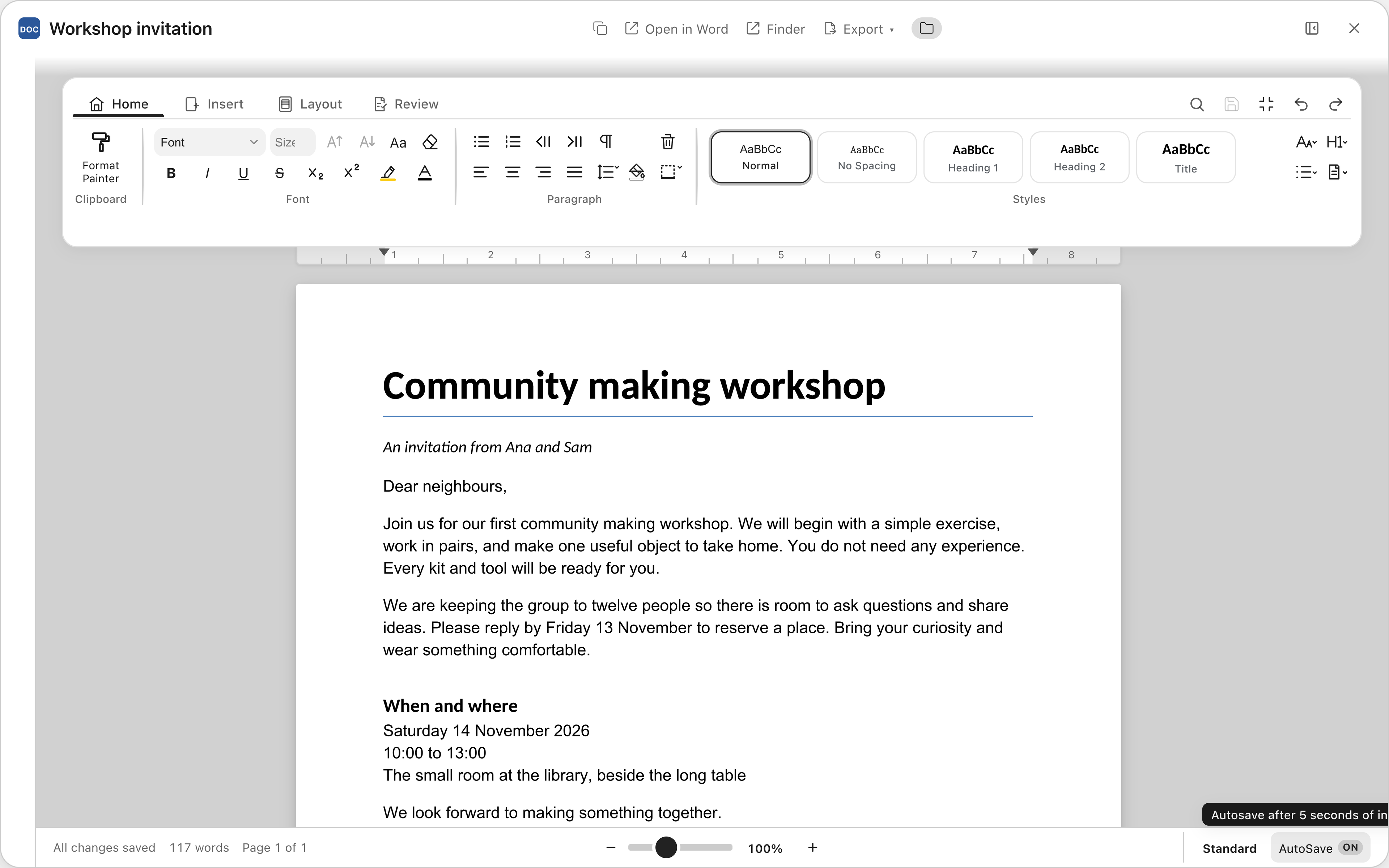 Workshop planSmart Notes
 ListeningFinder
One fn key, any app you can type in
More about dictation →This is a prepared example; app names are trademarks of their owners. On macOS, dictation runs on your computer; Microphone, Input Monitoring and Accessibility access apply. Without Accessibility access, the text stays on your clipboard.




23:10Night
You and Ana wrote the plan and prepared the submission pack. The project records which tasks are complete and which still need work.
0 / 3 done
When you return, open Studio launch to continue with the remaining tasks.
Beyond the workshop
for what comes next.Research, plan trips, edit media or reuse steps.
How it works
Add notes, files, and saved items. Review meeting follow-ups before moving them to Tasks.
Search files, transcribe meetings, and use local AI on your computer.
Link your folders and open Word, Excel, PowerPoint, and PDF files. Export when you’re ready.
See what Spillit sends when you use cloud AI and connected services.
Read the feature guides or see how Spillit fits your work.
It covers the personal workflows shown here. Team administration, integrations, advanced document compatibility and specialist tools vary, so check what you rely on before switching.
Local AI runs on your computer. If you choose cloud meeting notes, transcript text goes to the AI provider. The recording audio stays on your Mac during processing. Connected services and device sync also use the internet.
Yes. Pop documents out, work side by side, then move their tabs into one reader. Each document keeps its own content.
Yes. Link your existing folders and search their contents in Spillit. You do not need to rebuild your organization.
Your microphone, plus the audio of one meeting app such as Zoom, Google Meet, Teams or Webex on macOS 13 or later. Speaker names come from the names that app shows. Summaries and action items stay in Smart Notes.
Spillit supports everyday Word, spreadsheet, slide and PDF editing. Complex formatting, formulas, media and playback can differ from the original application.
No. The homepage uses illustrated workflows with fictional material. Feature guides show screenshots captured from the current desktop app interface in an isolated sample workspace. The website does not process your files, record audio, or run the model. Refreshing clears sample edits.