

Make a scanned PDF searchable
You have two workshop scans in My Files. Combine them into one searchable PDF so you can look up the room without opening each scan.
A searchable copy you can check
The saved workshop packet returns one match for Cedar in the PDF reader.
See the resultBefore and after
Before
- A scan can store a picture of a page without searchable words.
- You need a separate searchable PDF and a way to check the recognized text.
After A searchable copy you can check
- The saved workshop packet returns one match for Cedar in the PDF reader.
- The matching word is highlighted on the page so you can check it against the scan.
Step by step
How Spillit solves it
Keep scrolling. The screen and the guide follow you.Swipe or tap the screen, or keep scrolling.



Step 1 of 4
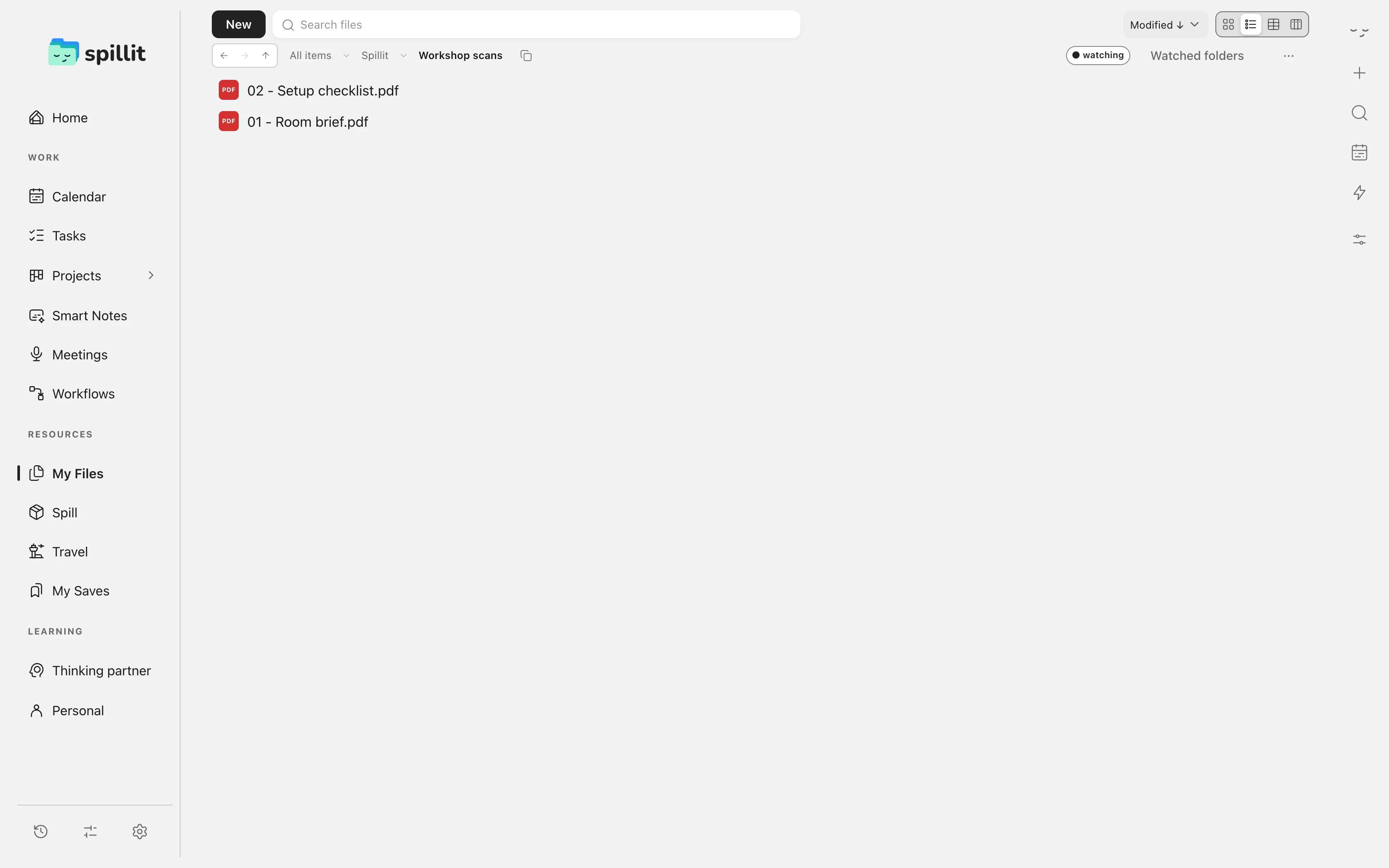
Find the two scans in My Files
Open Workshop scans in My Files. The folder contains a room brief and a setup checklist. Both originals are image-only PDFs.
Step 2 of 4
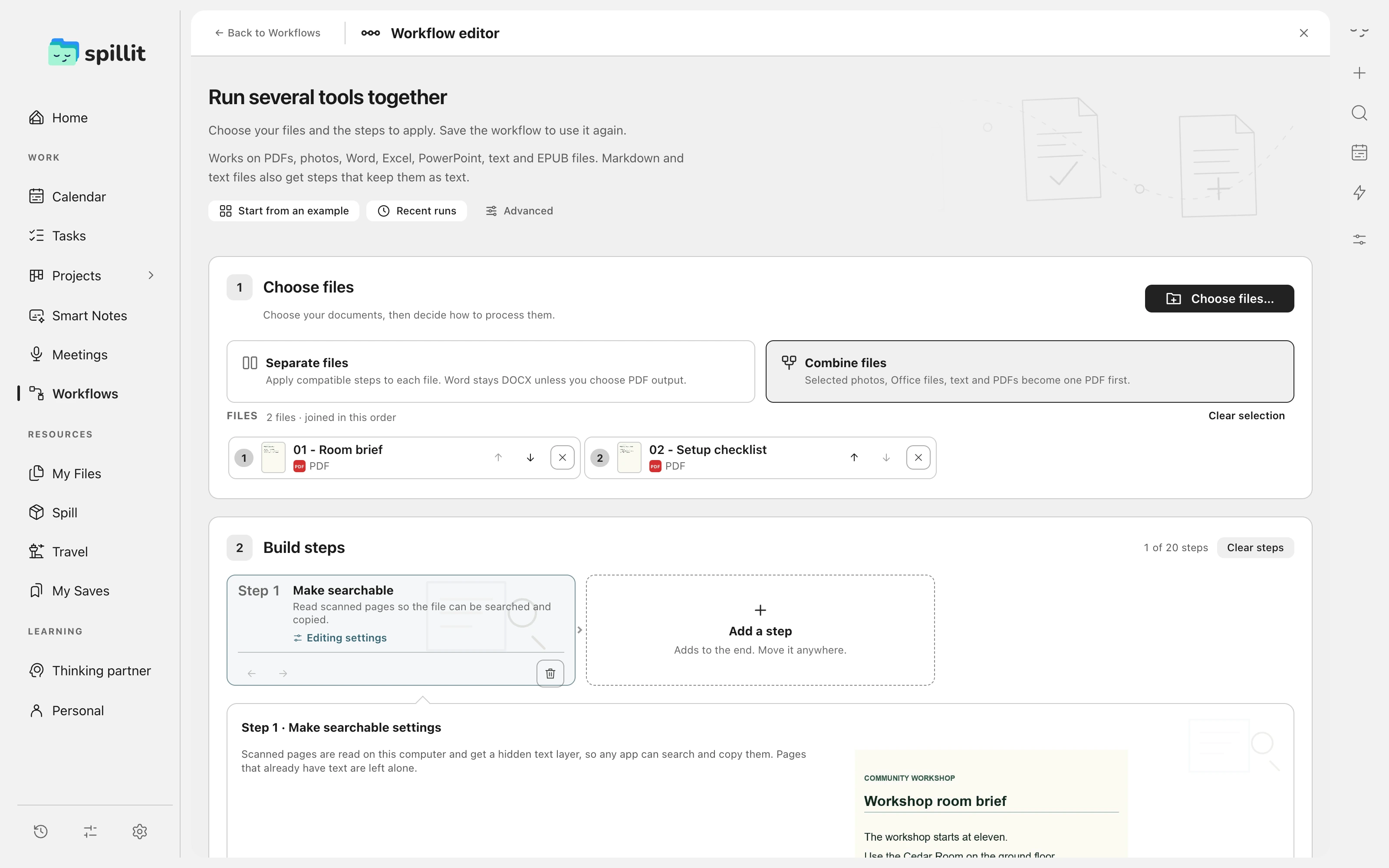
Select the scans and make them searchable
In Workflows, select the room brief first and the checklist second. Choose Combine files, then add Make searchable to let Spillit read the scanned words.
Step 3 of 4
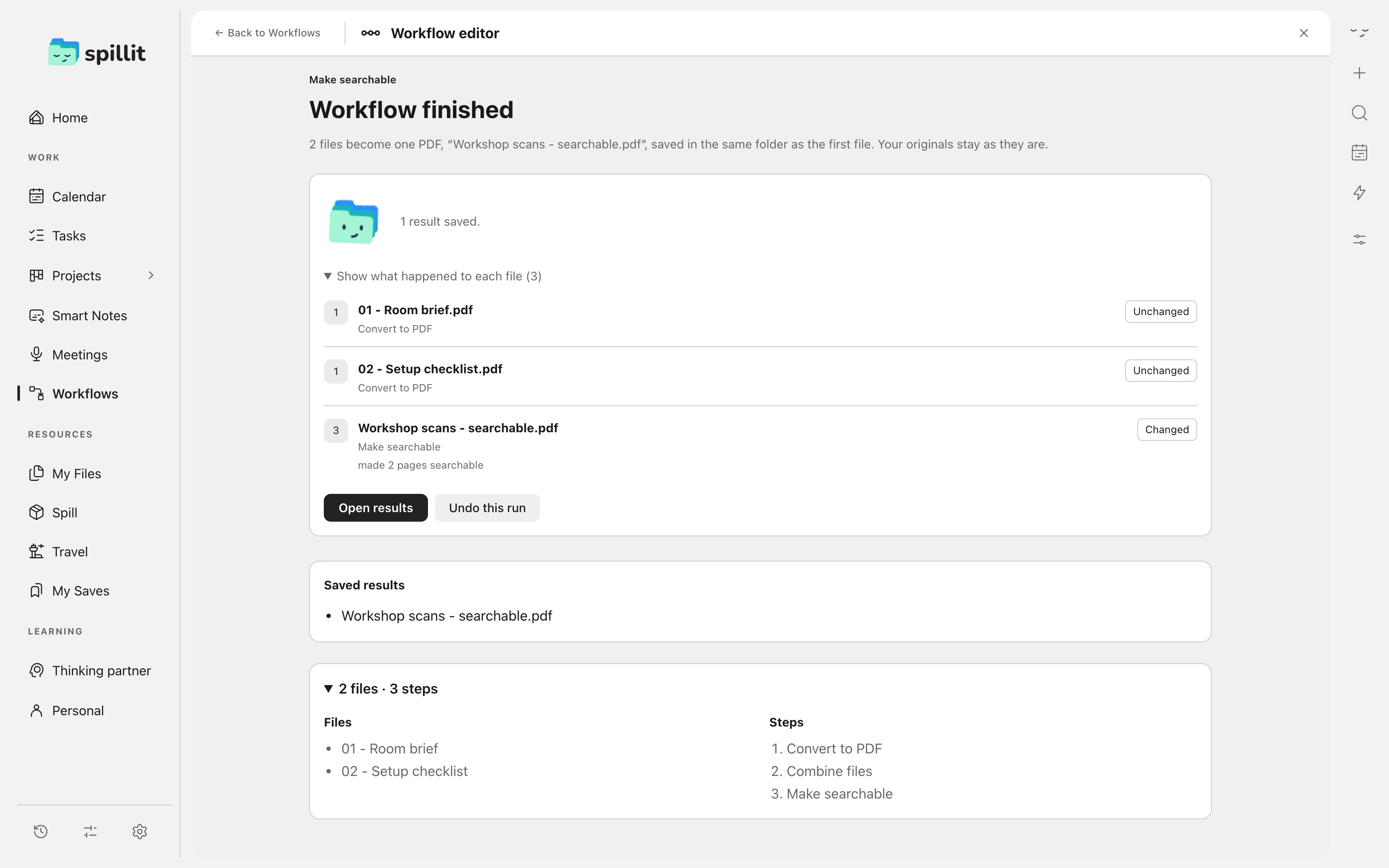
Save the searchable copy to My Files
Under Save results, enter Workshop scans - searchable and run the flow. When it finishes, choose Open results to find the new PDF.
Step 4 of 4
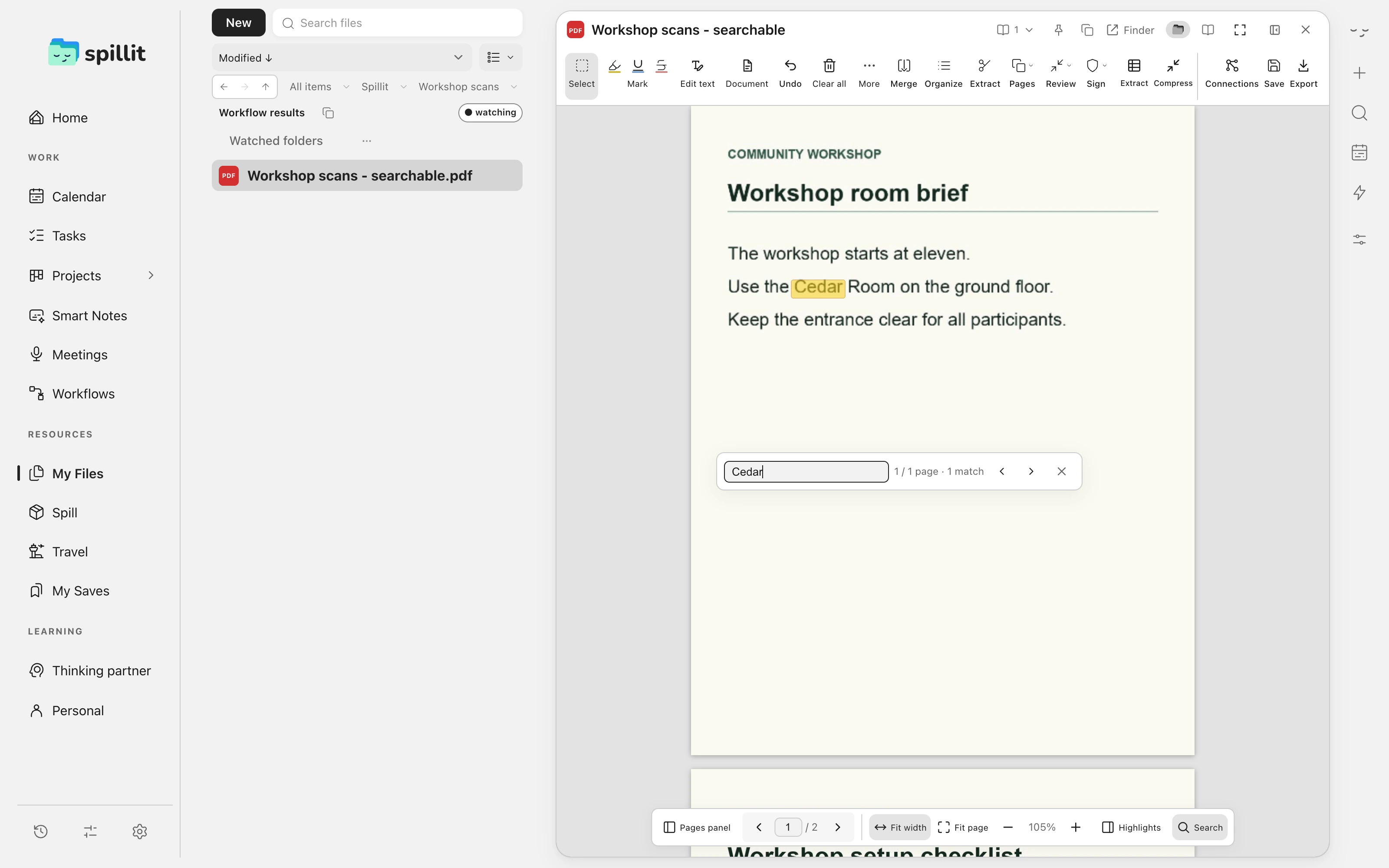
Search a word from the printed page
Open the new PDF and search for Cedar. The reader shows one match on the room brief. The setup checklist is still on page 2.
Try the example
Find the Cedar room in a two-page scan without losing the original pages.
- Check that both pages are legible. Choose them as inputs to a workflow with Make searchable.
- Run the workflow to a new destination. Open the saved PDF and check the page count.
- Search for Cedar. Compare the highlighted match against the printed room name on the page.
Check your result
The sample output keeps both pages. The search for Cedar finds the room name on the brief.