
A scan can contain a picture of the words even when it looks like an ordinary PDF. Optical character recognition, or OCR, reads those words into text.
Choose what you need
| Goal | Choose |
|---|---|
| Copy, revise, or send the words to a note | Extract text |
| Keep a PDF you can search and copy from | Make searchable |
Extract text from selected pages
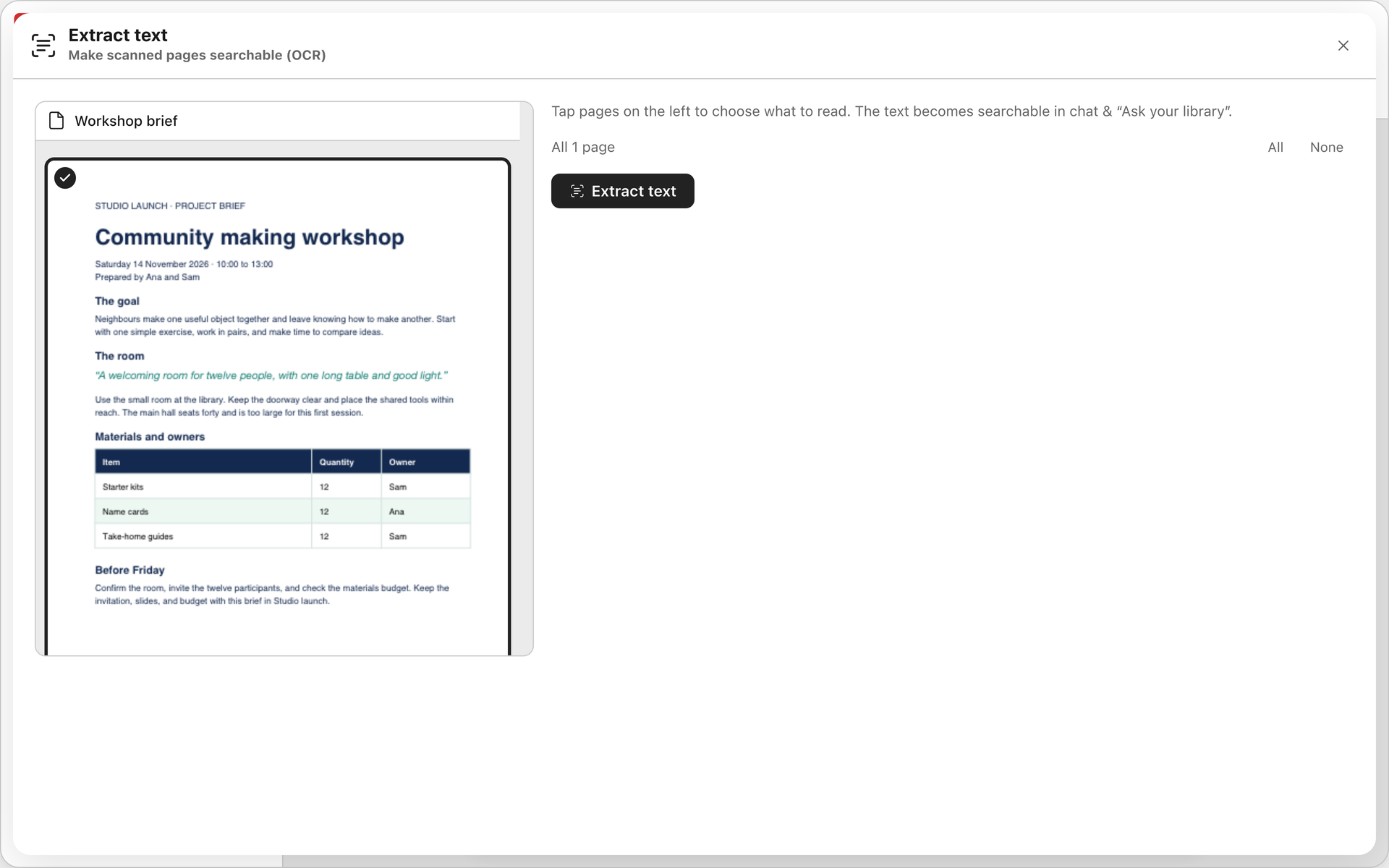
- Open the PDF and choose Extract… to open text recognition.
- Select the page thumbnails you want to read. Use All for the whole document or None to clear the selection.
- Confirm the page count and choose Extract text.
- Compare the result with the source. Check names, dates, numbers, and any text in a table.
Choose Export for plain text, Markdown, or Word. Choose Send to Smart Notes to keep the text in a note.
For a receipt, try extracting the page with the total first. Check that the amount and date match the scan before reusing either value.
Save a searchable PDF
- Open Workflows and select the scanned PDF.
- Add Make searchable and choose where to save the result. Keep a separate copy if you need the original scan.
- Run the workflow and open the output PDF.
- Search for an easy-to-recognize word you can see on a scanned page. Try selecting and copying it too.
If recognition misses a line, check the scan for skew, shadows, or faint print. Try a clearer scan and compare the result again.
See Use Spillit on iPhone and iPad if you need to photograph paper first.
Was this article helpful?
Thanks. Glad it helped.
Thanks for telling us.Try the search, or the related topic in the sidebar.