

Trim a video to the useful part
You have a workshop welcome video and want a shorter copy for the opening of a presentation.
A three-second copy beside the original
The saved MP4 contains seconds 1 through 4 of the eight-second clip.
See the resultBefore and after
Before
- The full clip includes material you do not need.
- You want to preserve the original.
After A three-second copy beside the original
- The saved MP4 contains seconds 1 through 4 of the eight-second clip.
- My Files shows both videos in the same folder.
Step by step
How Spillit solves it
Keep scrolling. The screen and the guide follow you.Swipe or tap the screen, or keep scrolling.



Step 1 of 5
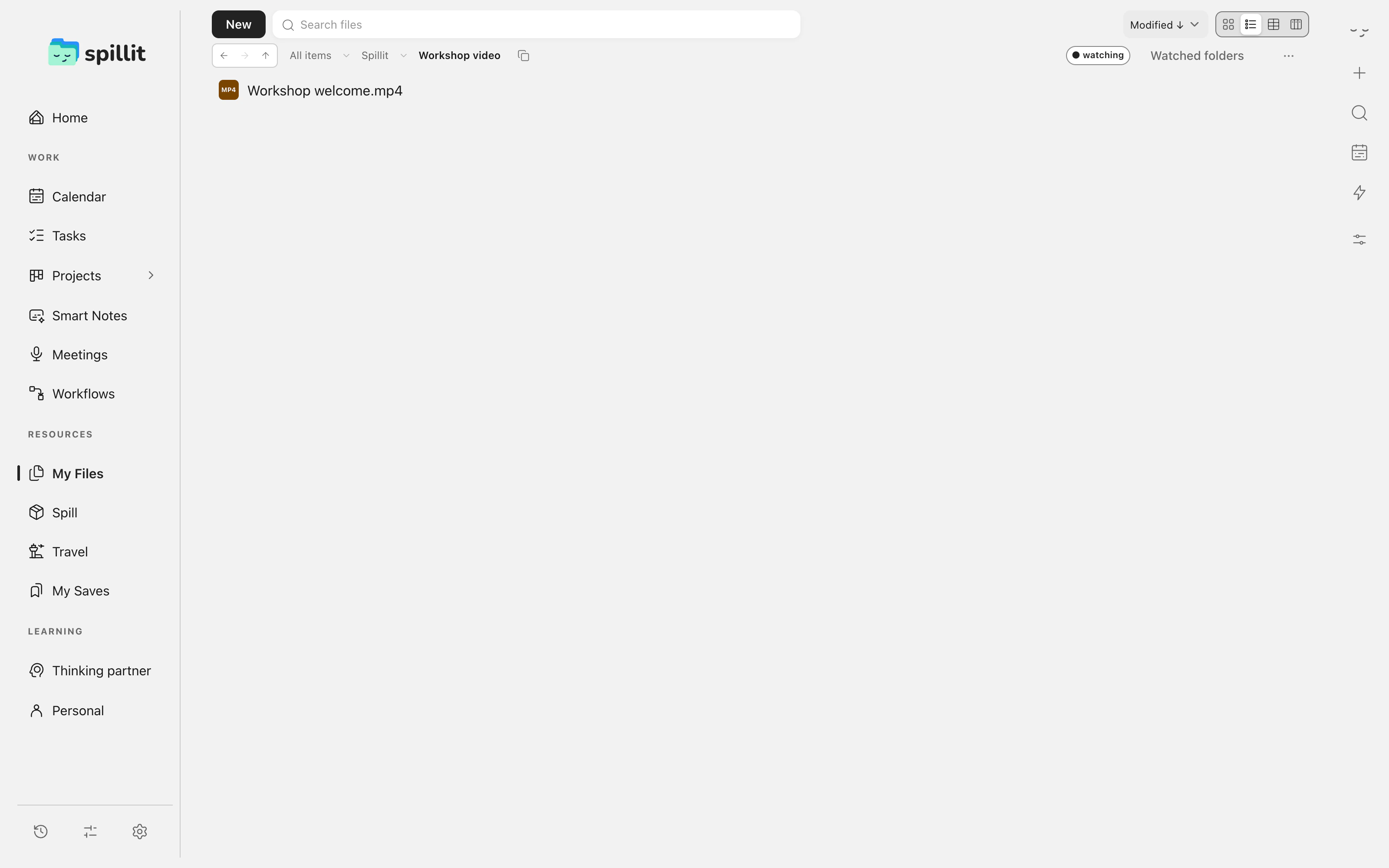
Open the original in My Files
In My Files, open the Workshop video folder and select Workshop welcome.mp4. The original clip opens beside its folder.
Step 2 of 5
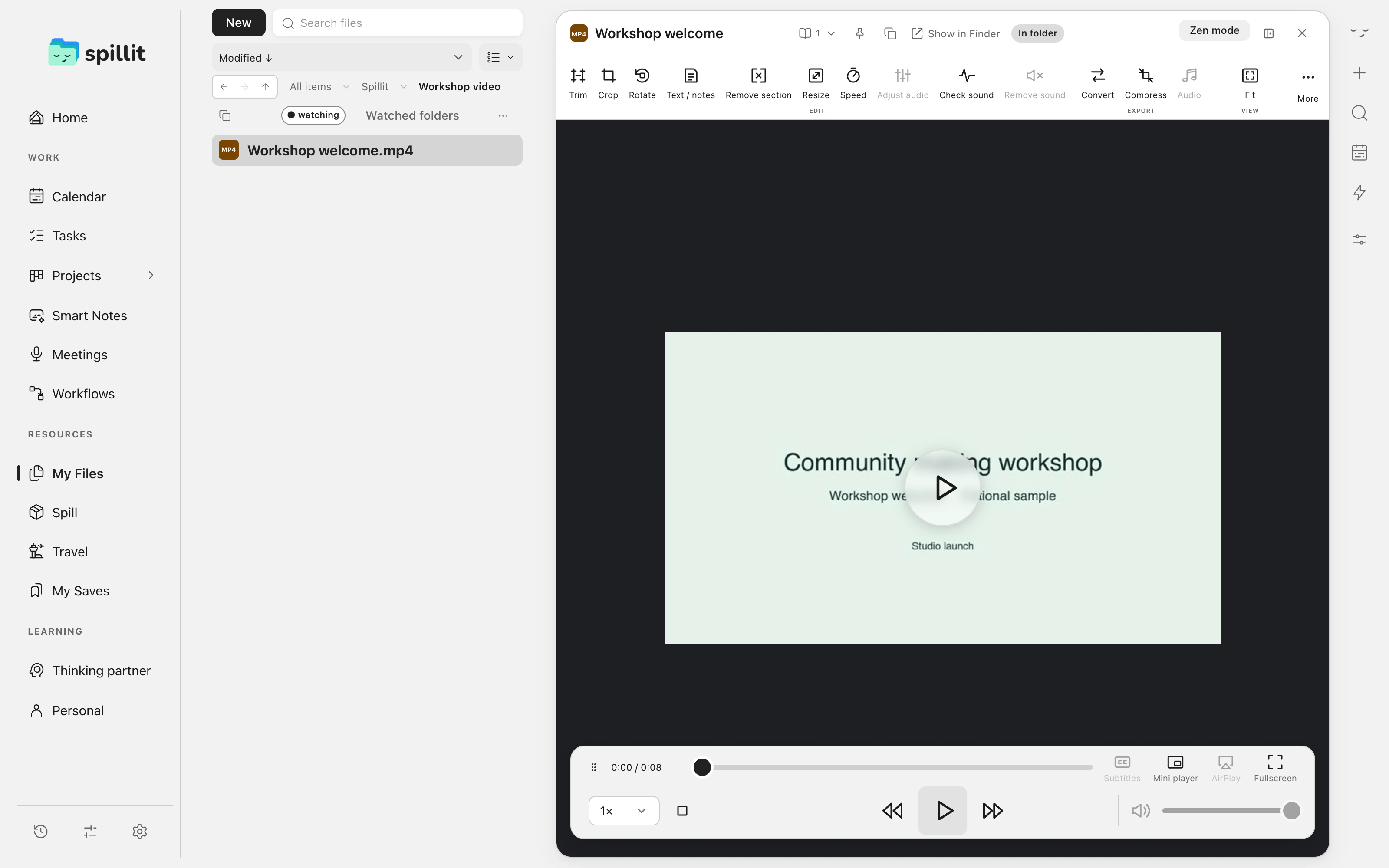
Start editing with Trim
Choose Trim in the video toolbar. The editing panel opens beside the eight-second clip.
Step 3 of 5
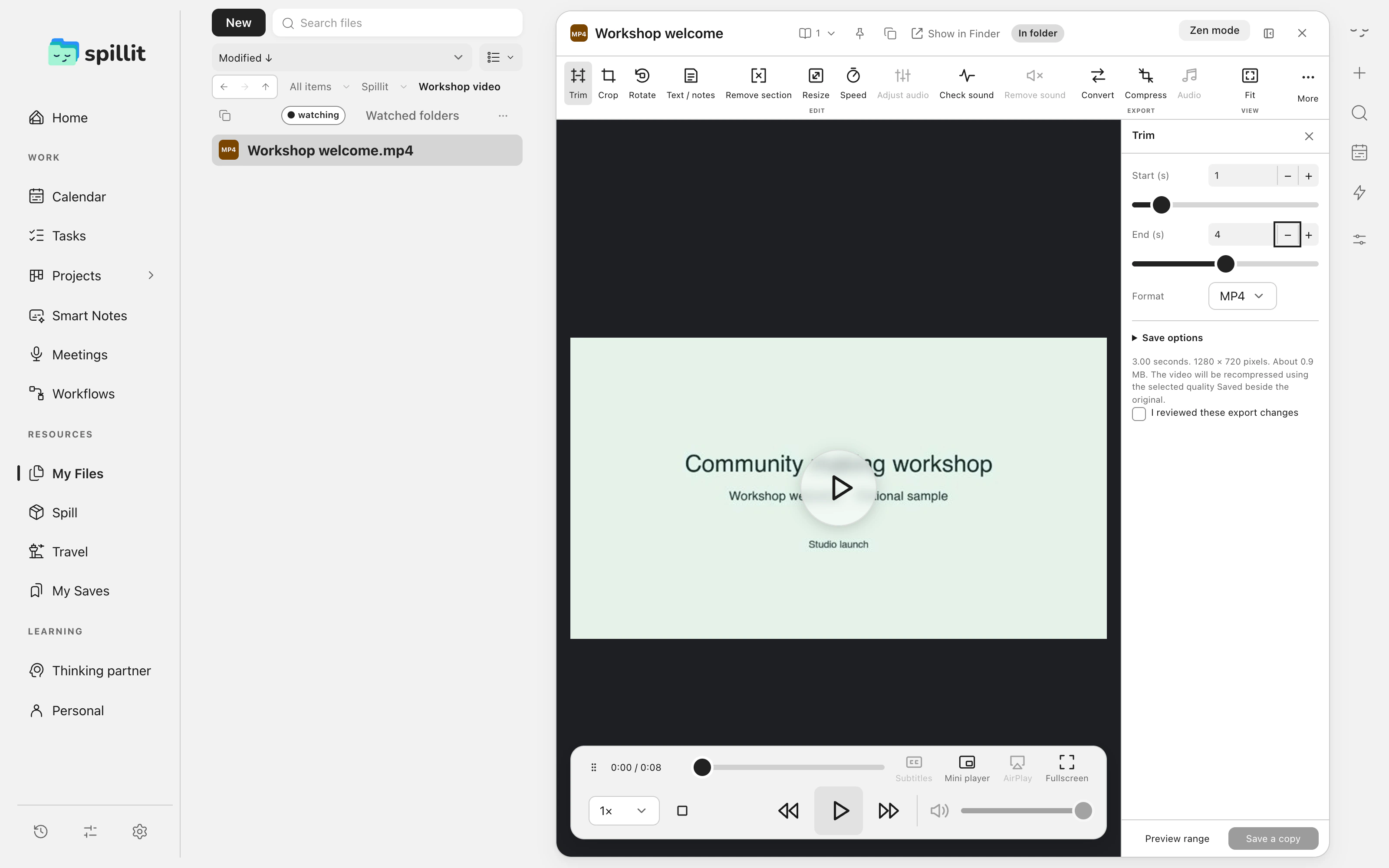
Set the range
Set Start to 1 second and End to 4 seconds. Choose Preview range to play just those three seconds.
Step 4 of 5
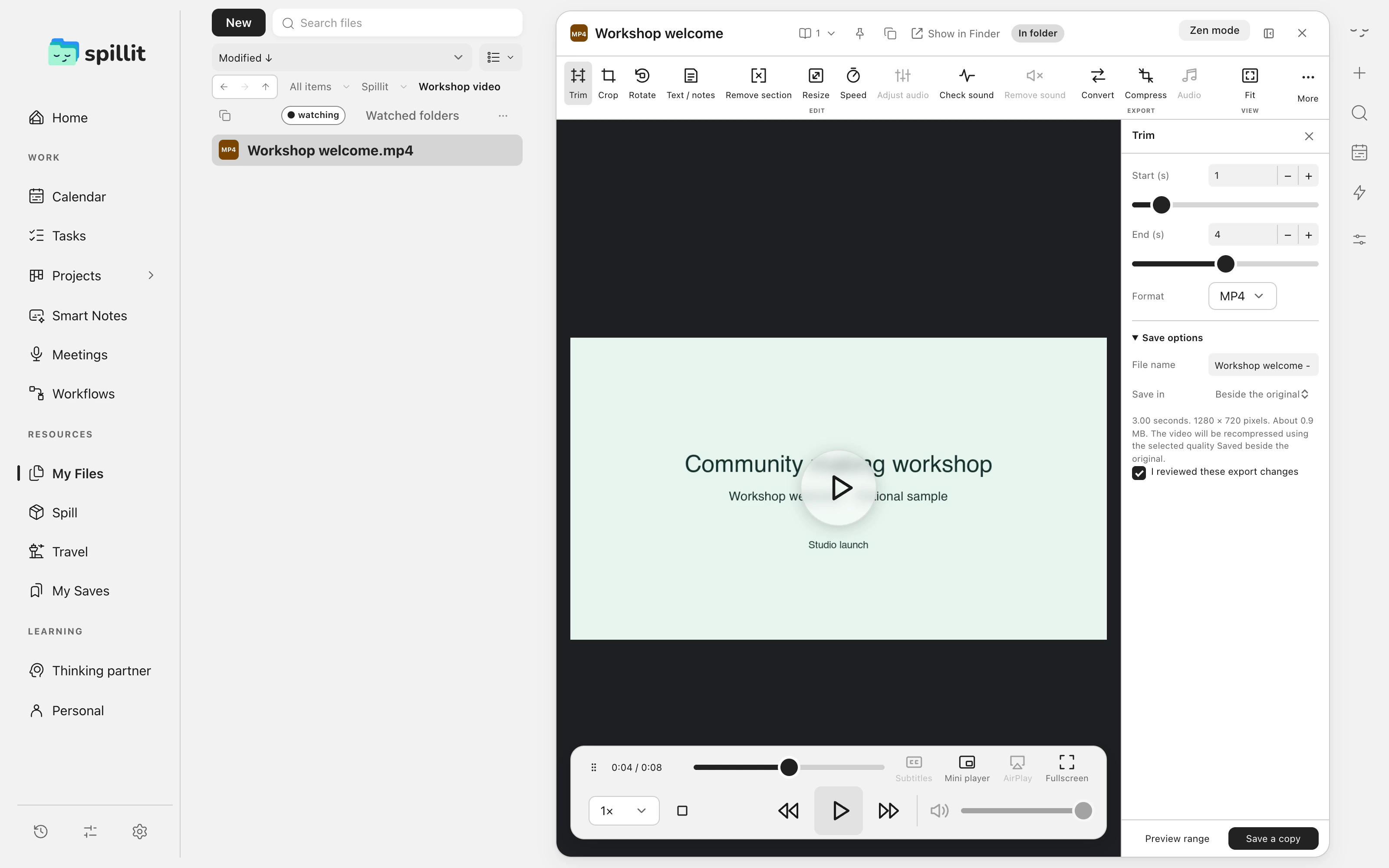
Save a separate copy
Under Save options, name the copy and keep it beside the original. Confirm you reviewed the changes, then choose Save a copy.
Step 5 of 5
Open the three-second copy
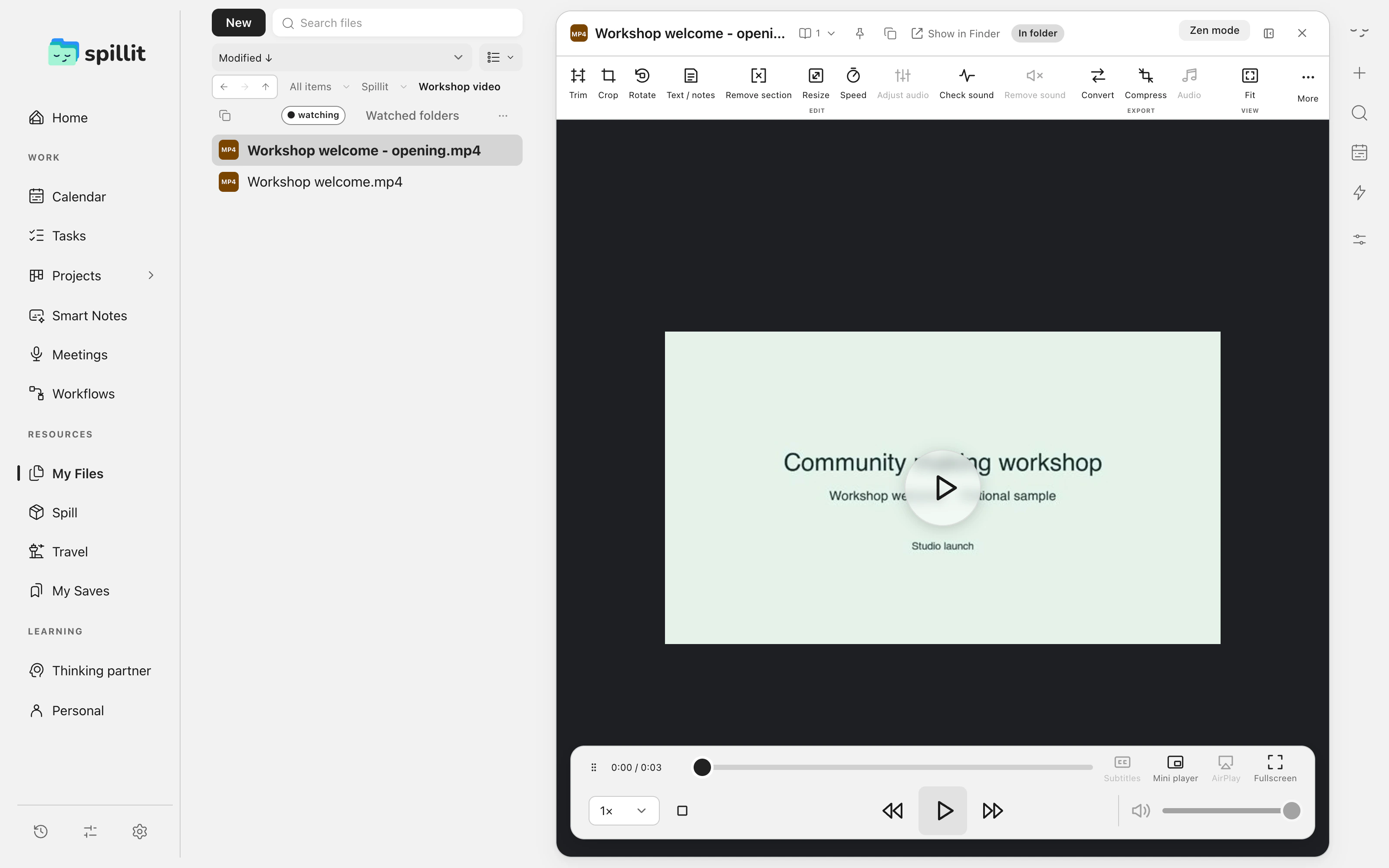
Open Workshop welcome - opening.mp4 and check the duration in the player. Both the three-second copy and the eight-second original are in the folder.
Try the example
Save a three-second excerpt from the eight-second workshop clip.
- Open the original video from My Files. Choose Trim and set Start to 1 second and End to 4 seconds.
- Use Preview range to check both boundaries. Confirm the opening and closing frames are the ones you want.
- Under Save options, keep the copy beside the original. Confirm you reviewed the changes, choose Save a copy, and open the result.
Check your result
The player shows a three-second copy. The eight-second original is still in the same folder.