
Trim the start and end
Video editing requires Spillit Pro on a supported build.
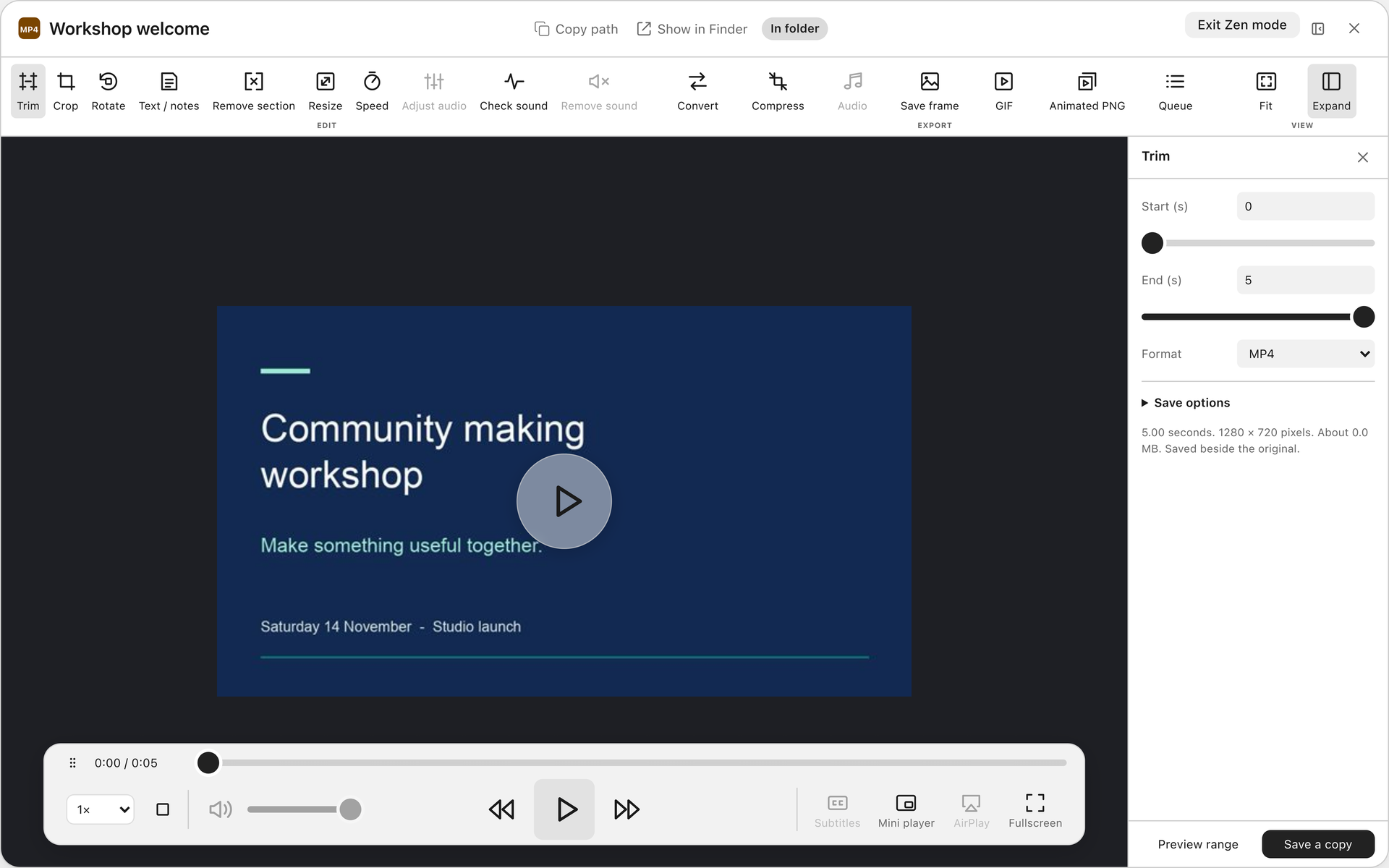
- Open a supported video from My Files and choose Trim in the video’s editing tools.
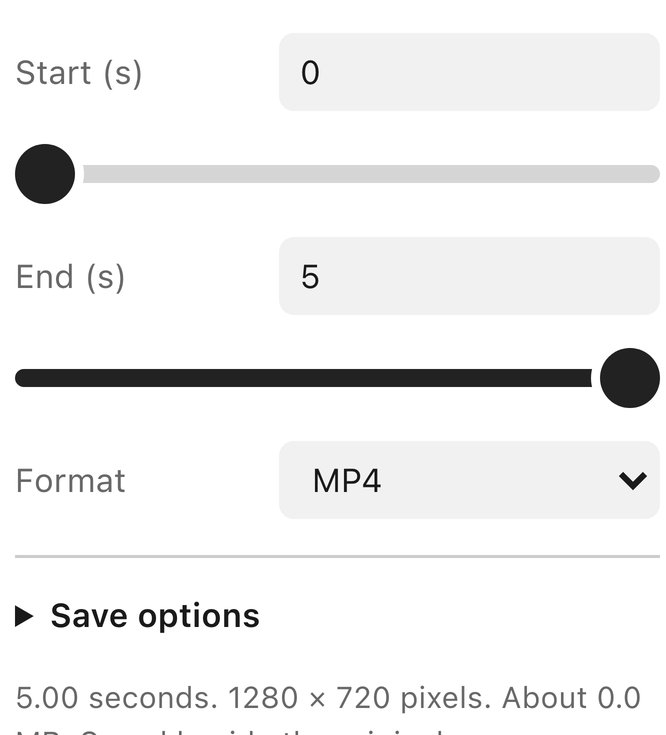
- Set Start (s) and End (s) in seconds. The handles offer another way to set those points.
- Choose Preview range to check that the clip begins and ends in the right places.
- Choose a format if the tool offers one, and check any export notes shown.
- Open Save options to name the result or choose a destination. Select Save a copy when you are ready.
For a ten-second excerpt starting one minute into a video, try a start of 60 and an end of 70.
Choose the right tool for another edit
| If you need to | Choose |
|---|---|
| Remove an interruption in the middle | Remove section |
| Keep only the sound | Extract audio |
| Save one picture from the video | Save frame |
| Cut around something someone said | Find the passage in the editor’s transcript, then choose its range. |
Other tools depend on the file, such as Crop, Rotate / flip, or GIF. Spillit may require conversion to MP4 for some passage clips.
Check the exported copy
Open the new file and listen through the beginning and end. If you are using captions, check that the words still line up with the audio.
For a saved online video where you only need the text, search or export its transcript.
Was this article helpful?
Thanks. Glad it helped.
Thanks for telling us.Try the search, or the related topic in the sidebar.