

Plan the weekend
Groceries, a bike ride, a call to Ana and a shelf to fix. Every weekend the list is longer than the time.
Before and after
Before
- A list does not say when each job happens.
- The same chores come back every week.
- Sunday evening arrives and half the list is untouched.
After A weekend with a plan
- Each job has a day and a time block.
- Weekly chores come back on their own.
- You see what is done and what is left.
Step by step
How Spillit solves it
Keep scrolling. The screen and the guide follow you.Swipe or tap the screen, or keep scrolling.



Step 1 of 6
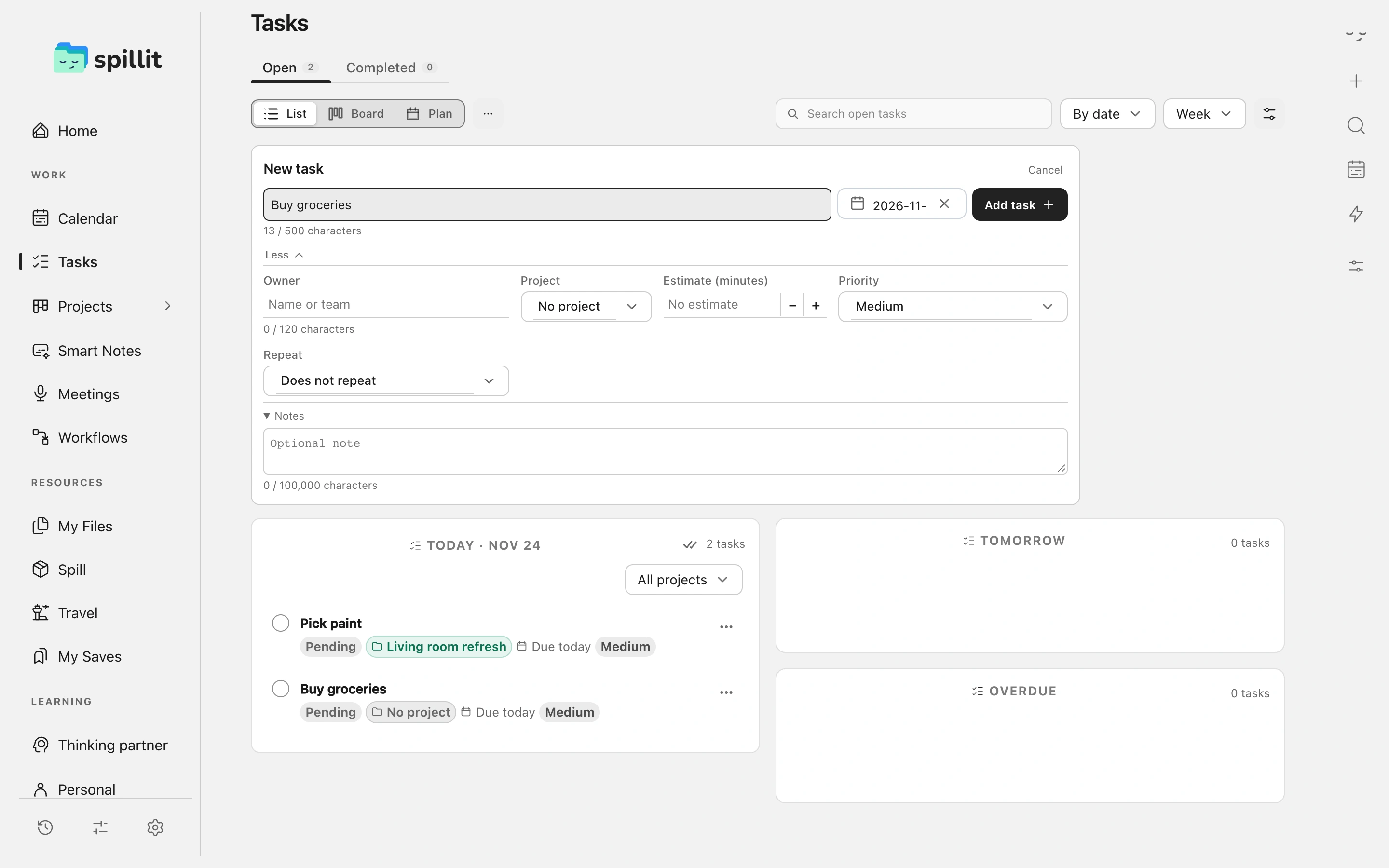
Write each job as a task
Open Tasks and choose New task. Type the next action in What needs doing?, for example “Buy groceries”, and pick a date.
Step 2 of 6
Add the details that help
Open More to set an Estimate in minutes or a Priority. An estimate tells you how much of the day a job takes.
Step 3 of 6
Give each job a time
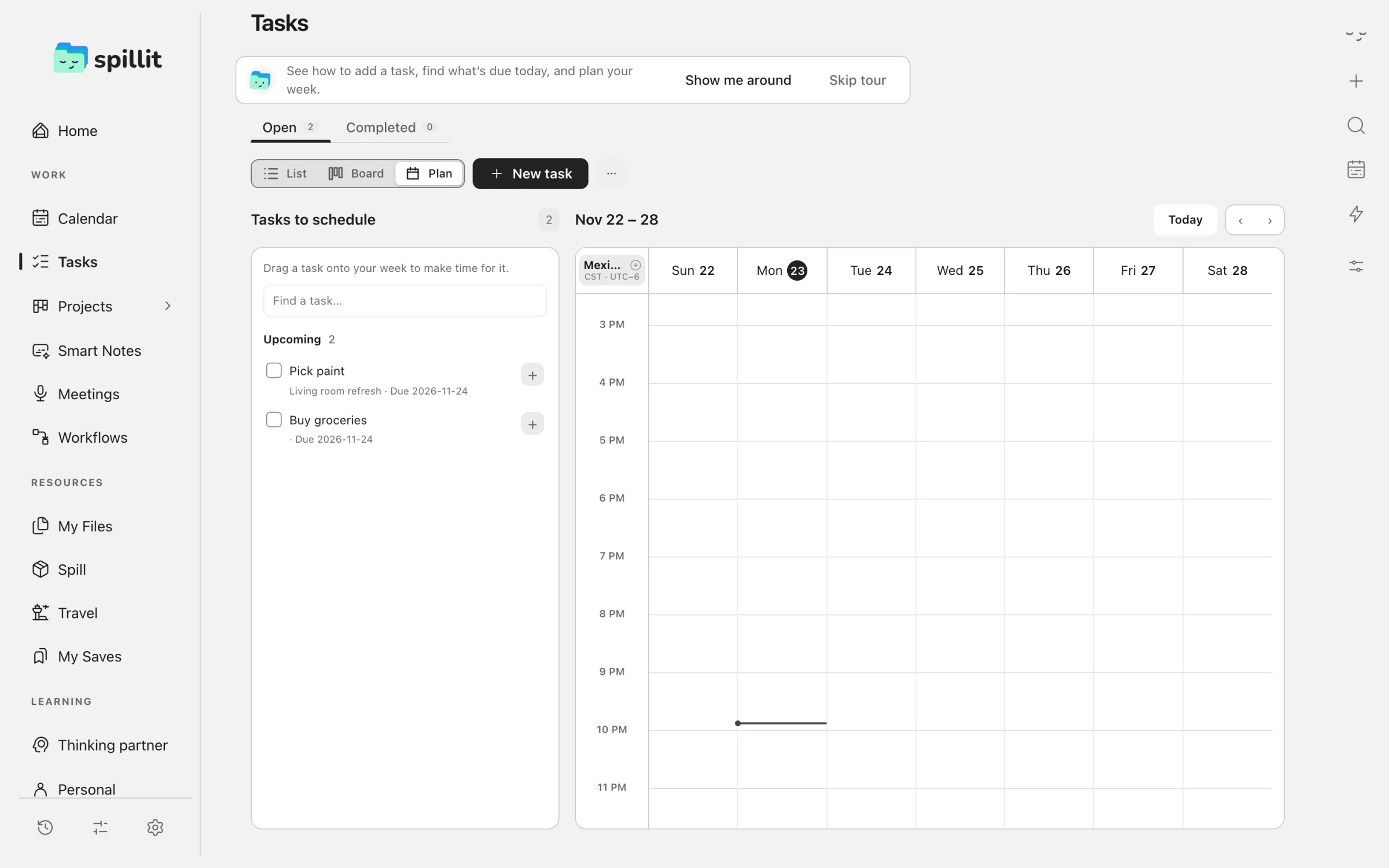
In Tasks, open Plan and find Buy groceries under Tasks to schedule. Use its plus button to pick a time, or drag the task onto a free slot.
Step 4 of 6
Repeat the weekly chores
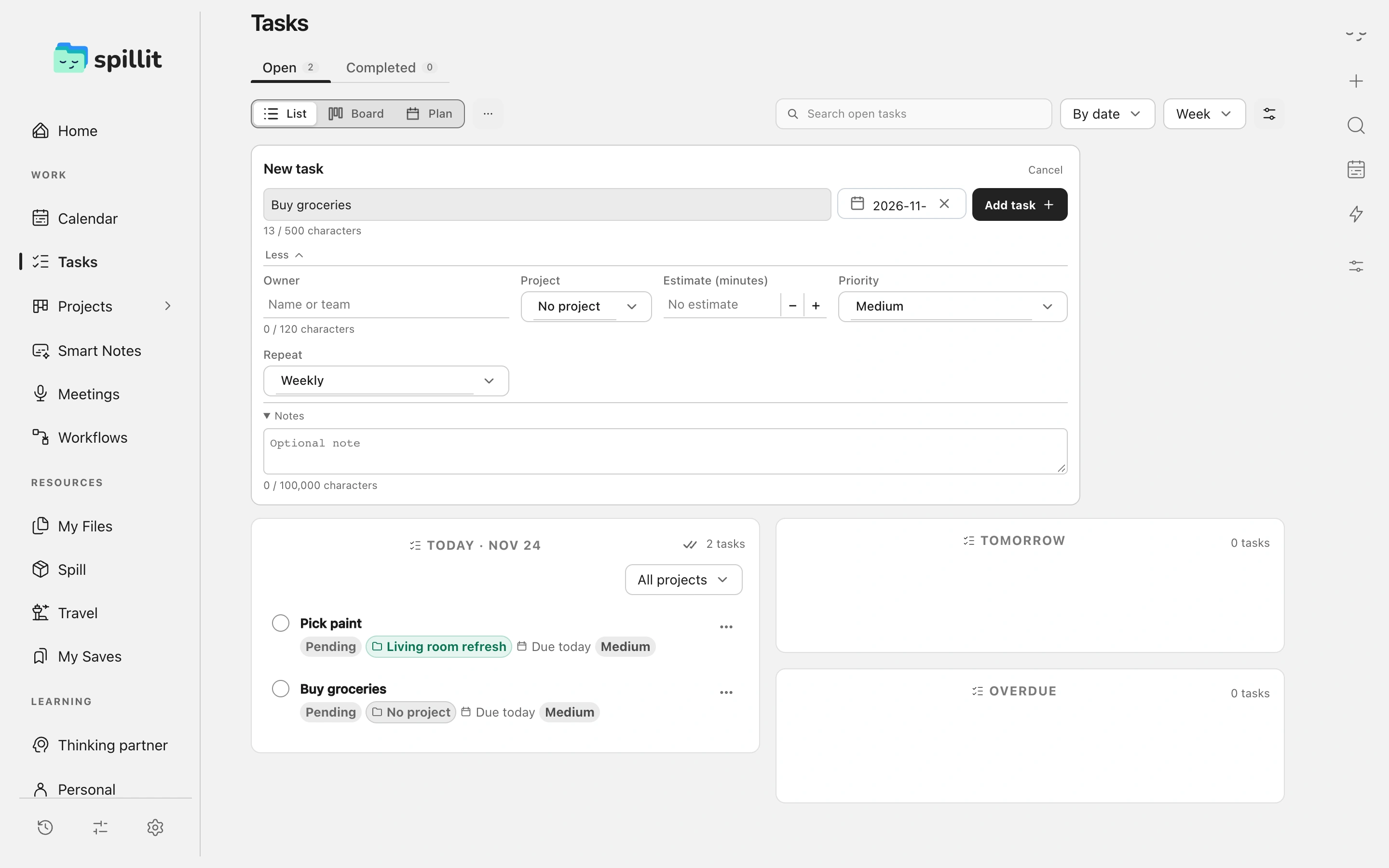
Set Repeat to Weekly for groceries. When you mark it Done, Spillit creates next week’s task.
Step 5 of 6
Check what is left
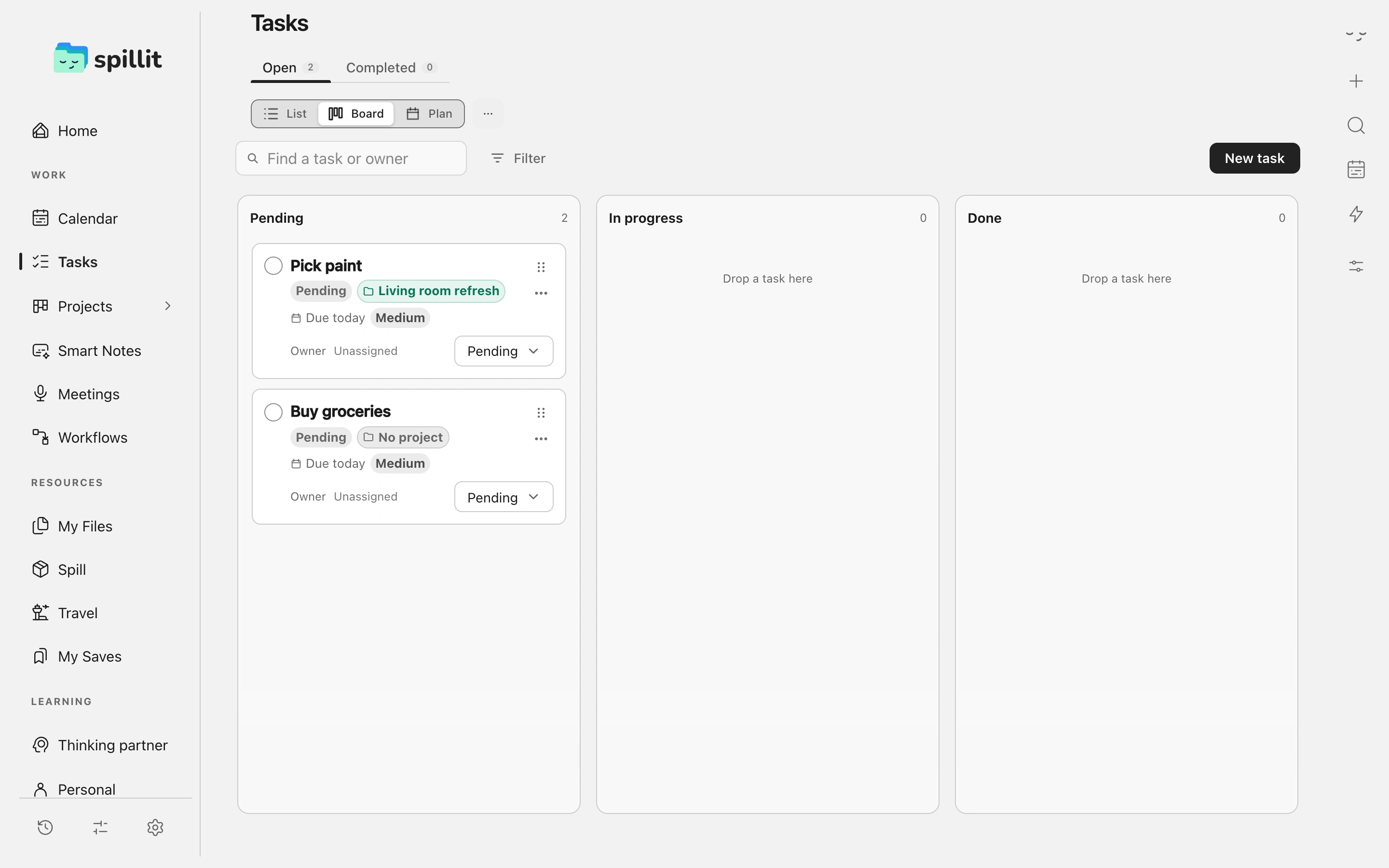
Switch to Board to see Pending, In progress and Done. Move a card as you work through the day.
Step 6 of 6
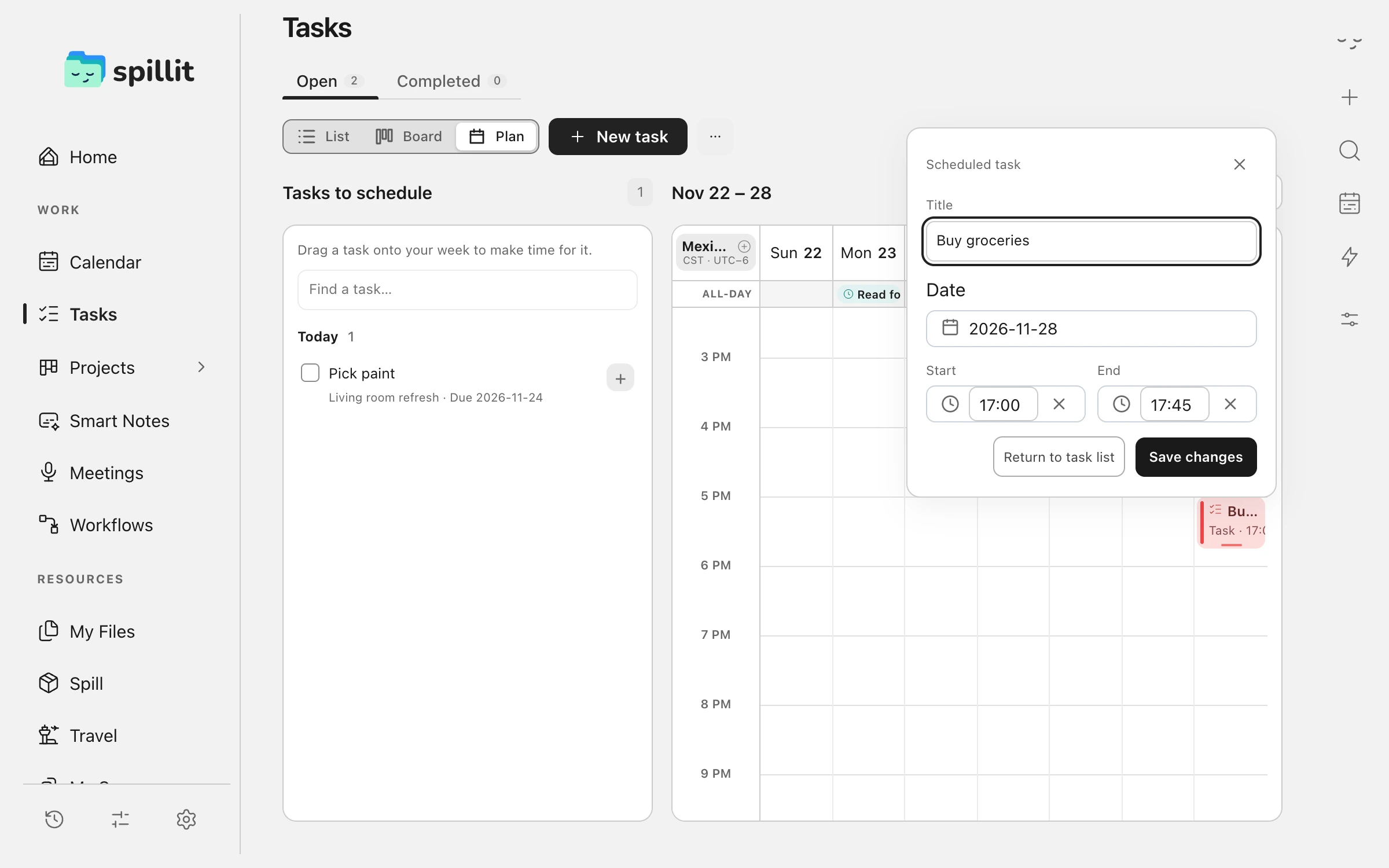
Check the Saturday time block
Open the scheduled groceries task in Plan. Its details confirm the day, start, and end time.