
Use Calendar for events and Tasks → Plan to set aside time for work. A due date tells you when a task is due. A time block reserves part of your day to do it.
Open Home → Coming up to see what is ahead. Use the Calendar link there to open the calendar.
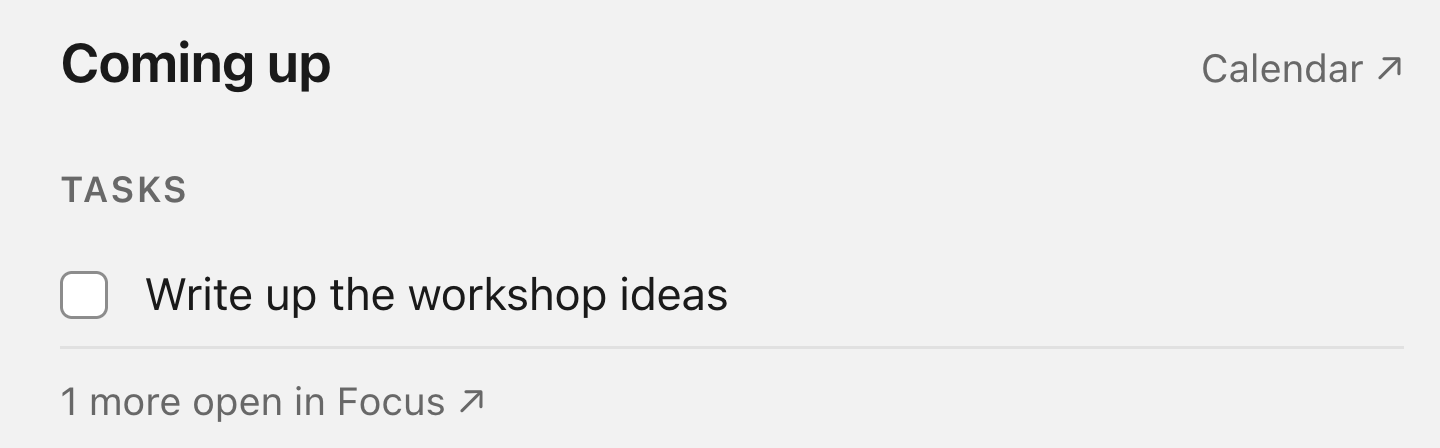
Put work on the calendar
Add an event
- Open Calendar and select a day. Open Day plan if the selected-day panel is hidden.
- Choose + Add → Event. On an empty day, you can also choose Add an event.
- Enter a Title and Time, then select Add event.
- Open the saved event to change its date or set an end time. Choose Save changes.
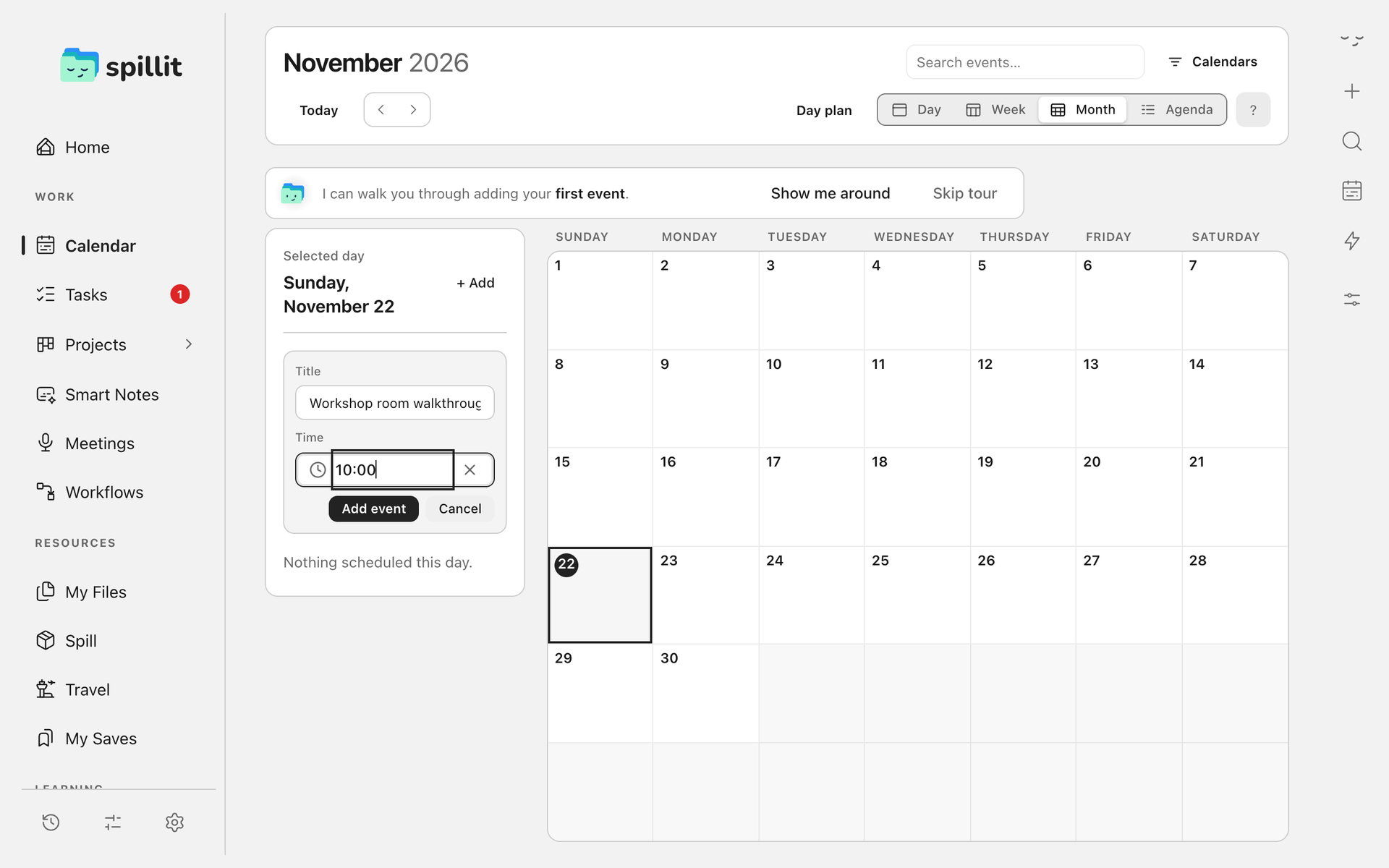
For example, add “Workshop room walkthrough” at 10:00. Keep the invitation nearby by adding it to that day with + Add → From a file….
Reserve time for a task
- Open Tasks → Plan and find your task in Your tasks.
- Drag it onto a free slot in your week. You can also use its Schedule control, enter Date, Start, and Minutes, and select Schedule task.
- Check that a time block appears in the week. To free that time without deleting the task, open the block and choose Return to task list.

Check an event from a meeting
- Open the meeting and find Suggested events.
- Select Review event. Check the suggested title, date, start time, end time, and Time zone against what you agreed.
- Choose Add to Calendar after confirming the details. Use Open Calendar to see the saved event.
A suggestion can have blank times. Leave them blank if the meeting gave no time, or enter a confirmed time before adding the event.
If an event is missing
- Open Calendars and check which categories are hidden. Choose Show all calendars to reset those filters.
- Clear Search events…, check the date, and use Refresh in the Calendars menu.
- Spillit desktop 0.39 no longer imports connected calendars. If you need an event from Google Calendar or Outlook, add it in Spillit as a local event.
Review a transcript and choose follow-ups for the rest of the meeting workflow.
Was this article helpful?
Thanks. Glad it helped.
Thanks for telling us.Try the search, or the related topic in the sidebar.