

Find an earlier version of a file
You saved a revision with a 30-day notice period. Before sending it for review, you need to check what the original agreement said.
Two saved drafts you can compare
The original shows the wording before the notice period was set.
See the resultBefore and after
Before
- Both drafts have the same filename.
- You need the earlier clause and its context before deciding which wording to keep.
After Two saved drafts you can compare
- The original shows the wording before the notice period was set.
- Current shows what was saved in the revision.
Step by step
How Spillit solves it
Keep scrolling. The screen and the guide follow you.Swipe or tap the screen, or keep scrolling.



Step 1 of 4
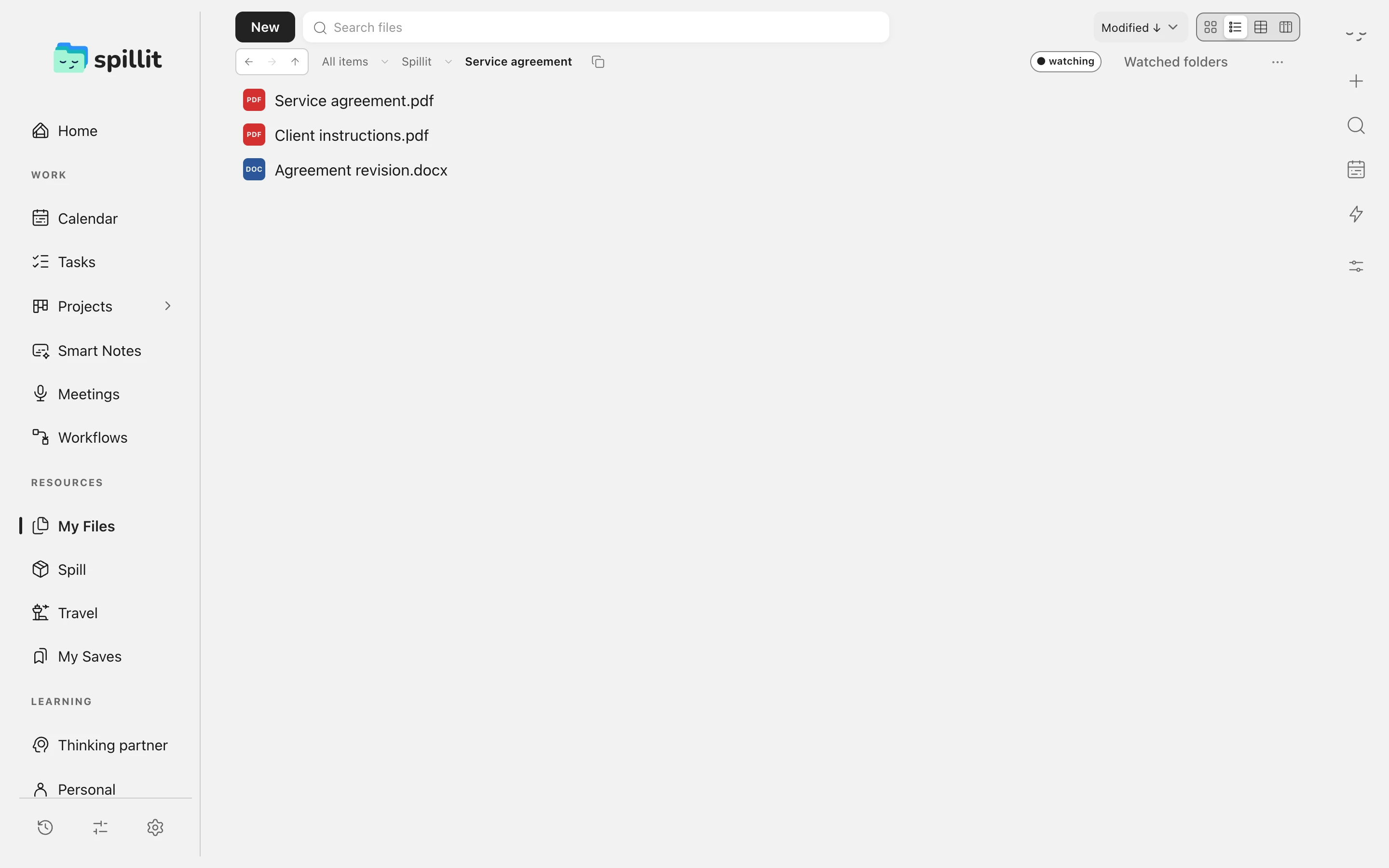
Find the Word agreement in My Files
Open the Service agreement folder and select Agreement revision.docx. This is the file whose earlier wording you’ll check.
Step 2 of 4
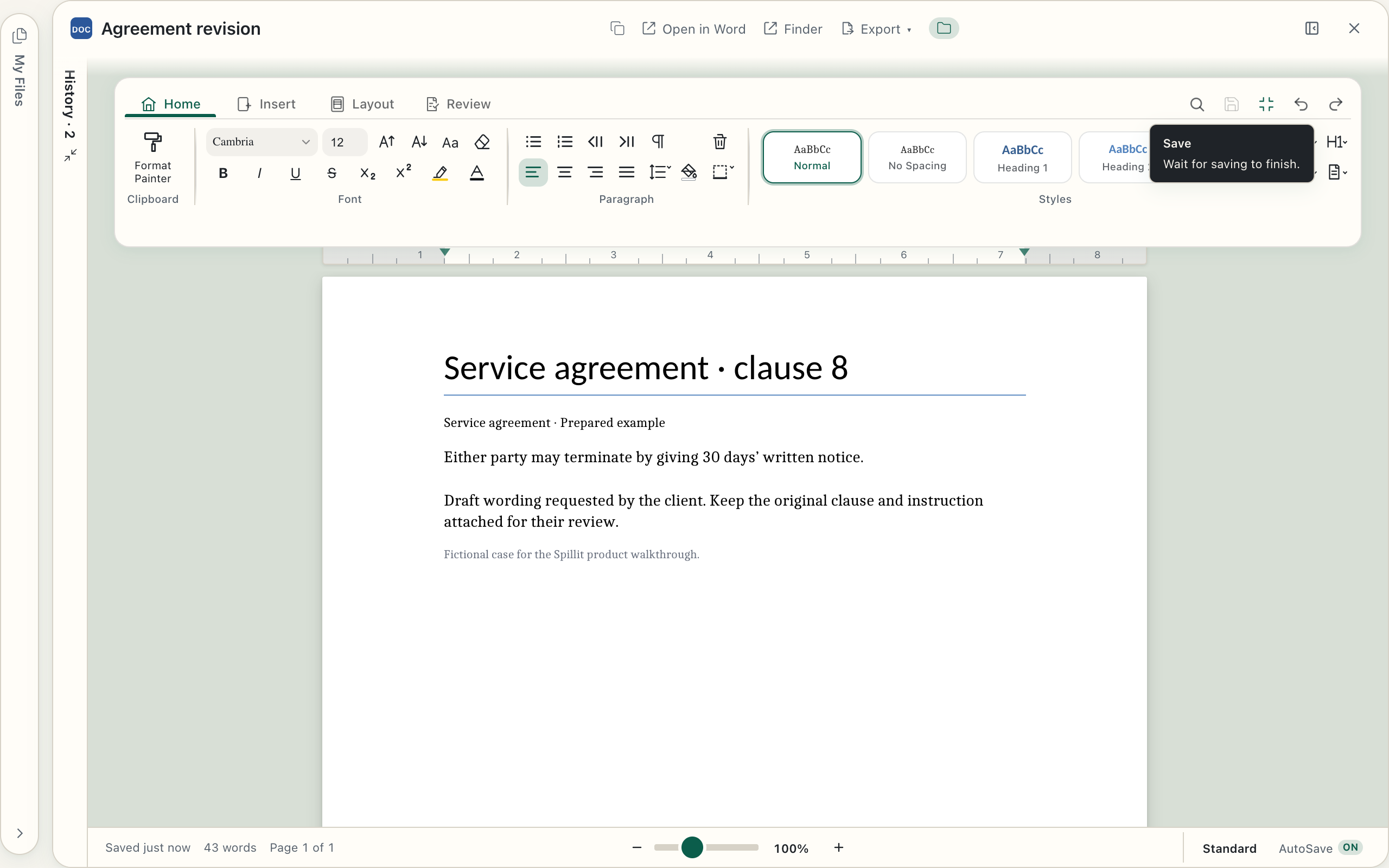
Open the file’s version history
The Word reader opens on the current draft. Expand History · 2 on the left to see both saved versions.
Step 3 of 4
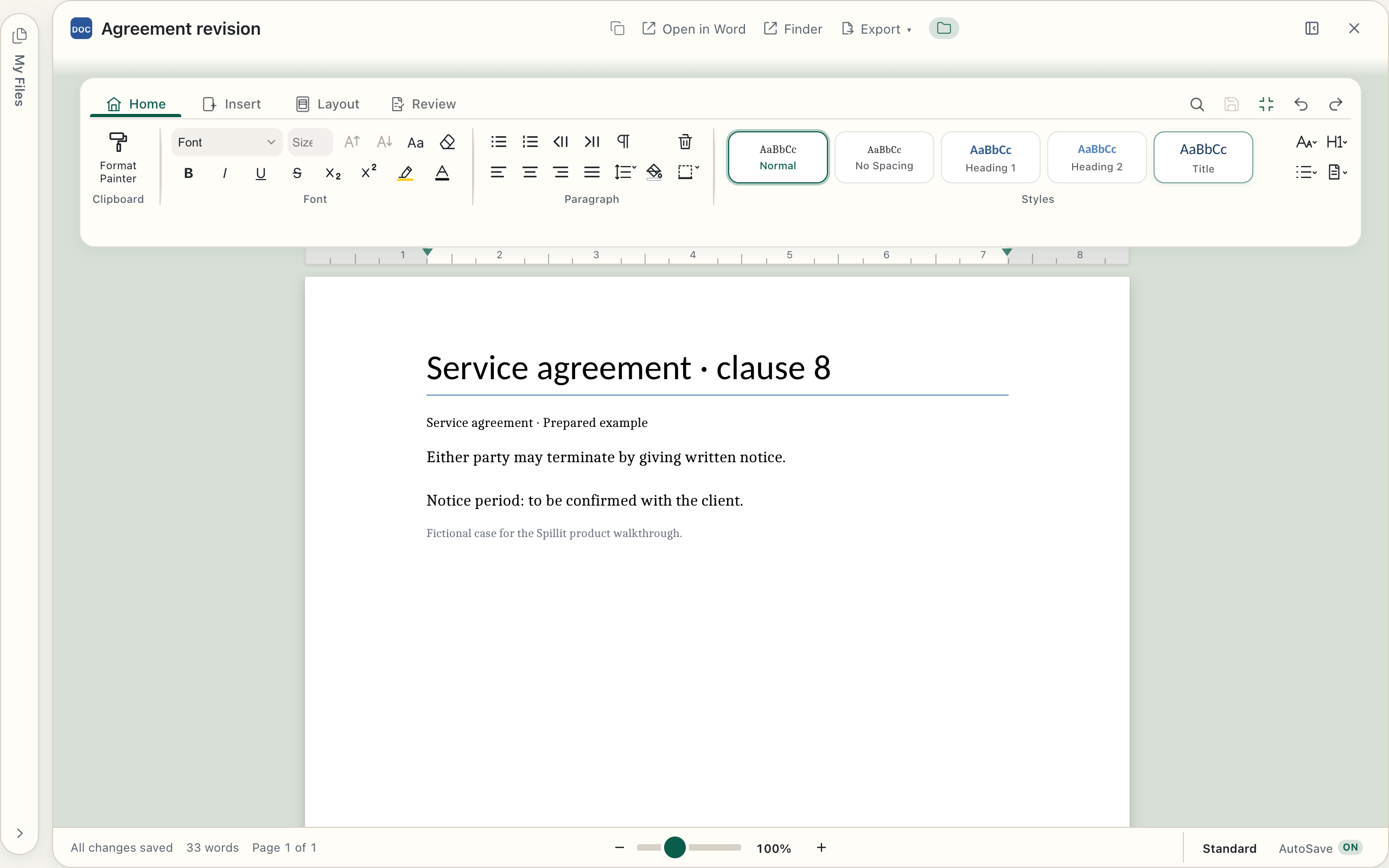
Check what the original said
Select Original in History and preview clause 8. Compare its wording with the updated clause in Current.
Step 4 of 4
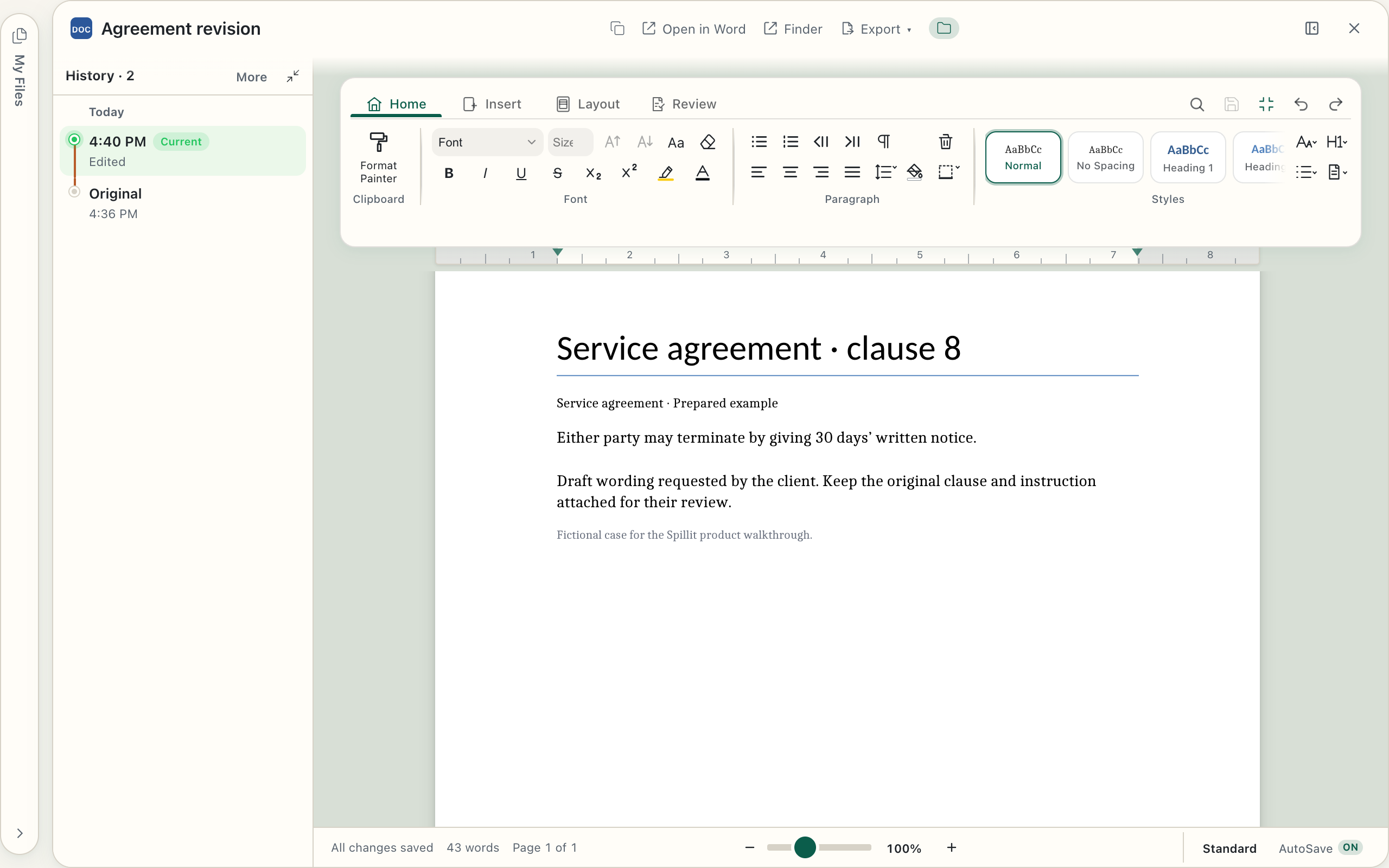
Choose which draft to work from
Select Current to return to the revised agreement. To work on the original separately, select that version and choose Save as new document. Use Restore this version when you want the older wording to become the latest version.
Try the example
Recover the wording in clause 8 without disrupting the current draft.
- Open Version history and select Original. Read clause 8 and compare it with Current.
- Choose Save as new document if the original needs more editing. Give the separate copy a recognizable name.
- Return to Current and check that its revised clause is still present.
Check your result
You can identify both versions before choosing which to use. Saving a separate copy keeps the current draft available.