
Find and open the file
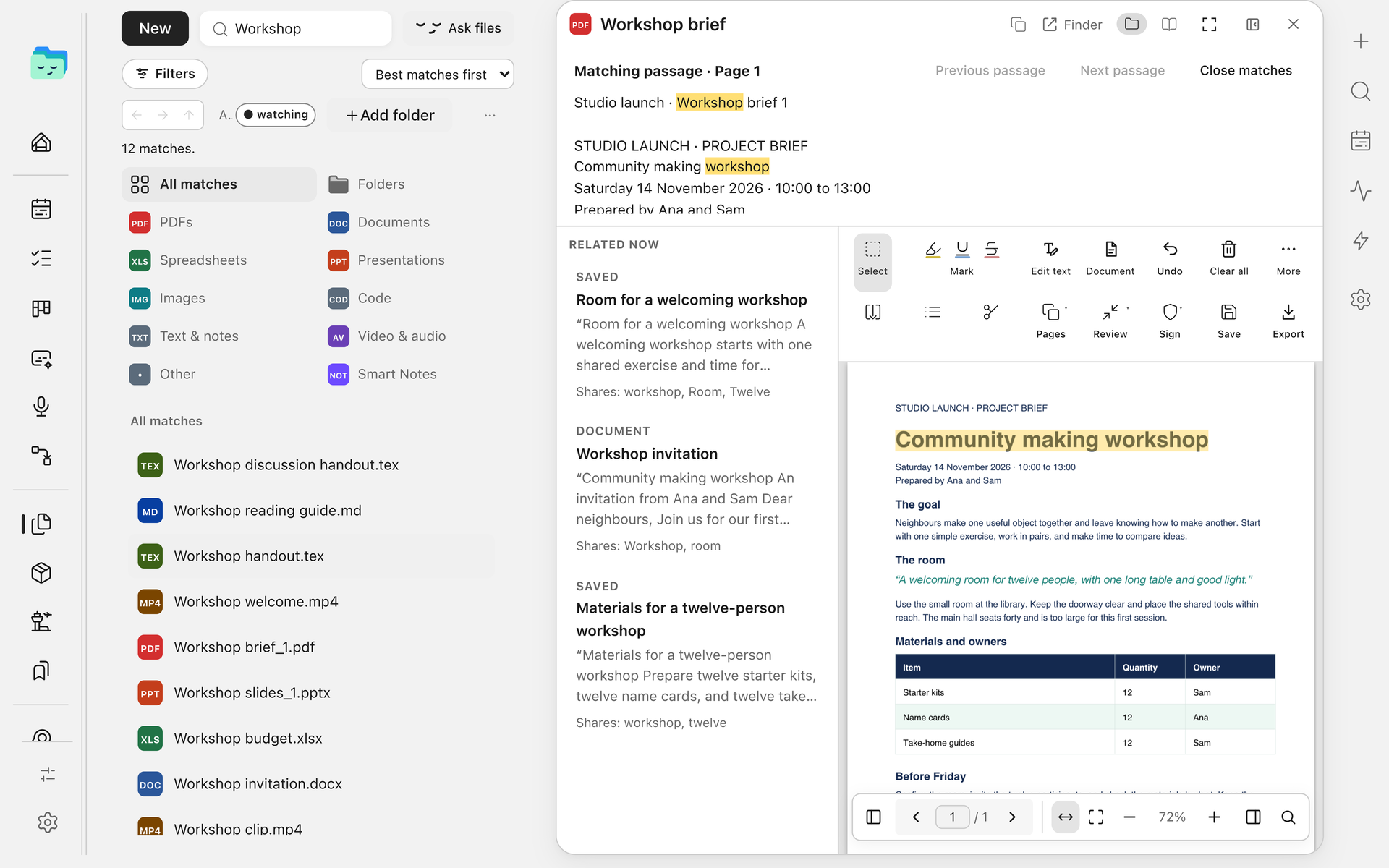
- Open My Files and browse your folders or enter part of the filename in Search files.
- Open the matching file. For a supported document text match, review the highlighted passage next to the results.
- Check the file title before making changes, especially if the search lists several versions or similarly named files.
If the folder is outside Spillit, link the folder first.
Check what you can edit
| If you have | Start here |
|---|---|
| Word document in DOCX format | Edit text and formatting in a Word document. |
| Excel workbook in XLSX or XLSM format | Change cells and check the results in a spreadsheet. |
| PowerPoint presentation in PPTX format | Edit a presentation. |
| Markdown or plain-text file | Read the source and choose an editing view. |
| Highlight or annotate the page. |
Office editing requires Spillit Pro on a supported build. Older Office files in DOC, XLS, or PPT format can open as previews.
Spillit’s Office editors are in active development. Some files may look or behave differently than in Microsoft Office. If exact formatting matters, check the saved file in the corresponding Microsoft Office app.
Save and check the result
Use Save when it is available. Open the file again and confirm the change appears where you intended.
Make a separate copy before editing if you need to keep the original untouched. If you already saved a change, see Restore an earlier version.
Was this article helpful?
Thanks. Glad it helped.
Thanks for telling us.Try the search, or the related topic in the sidebar.