
Use version history to return to a saved state after a revision or restore older material as a separate document.
Find the saved state you need
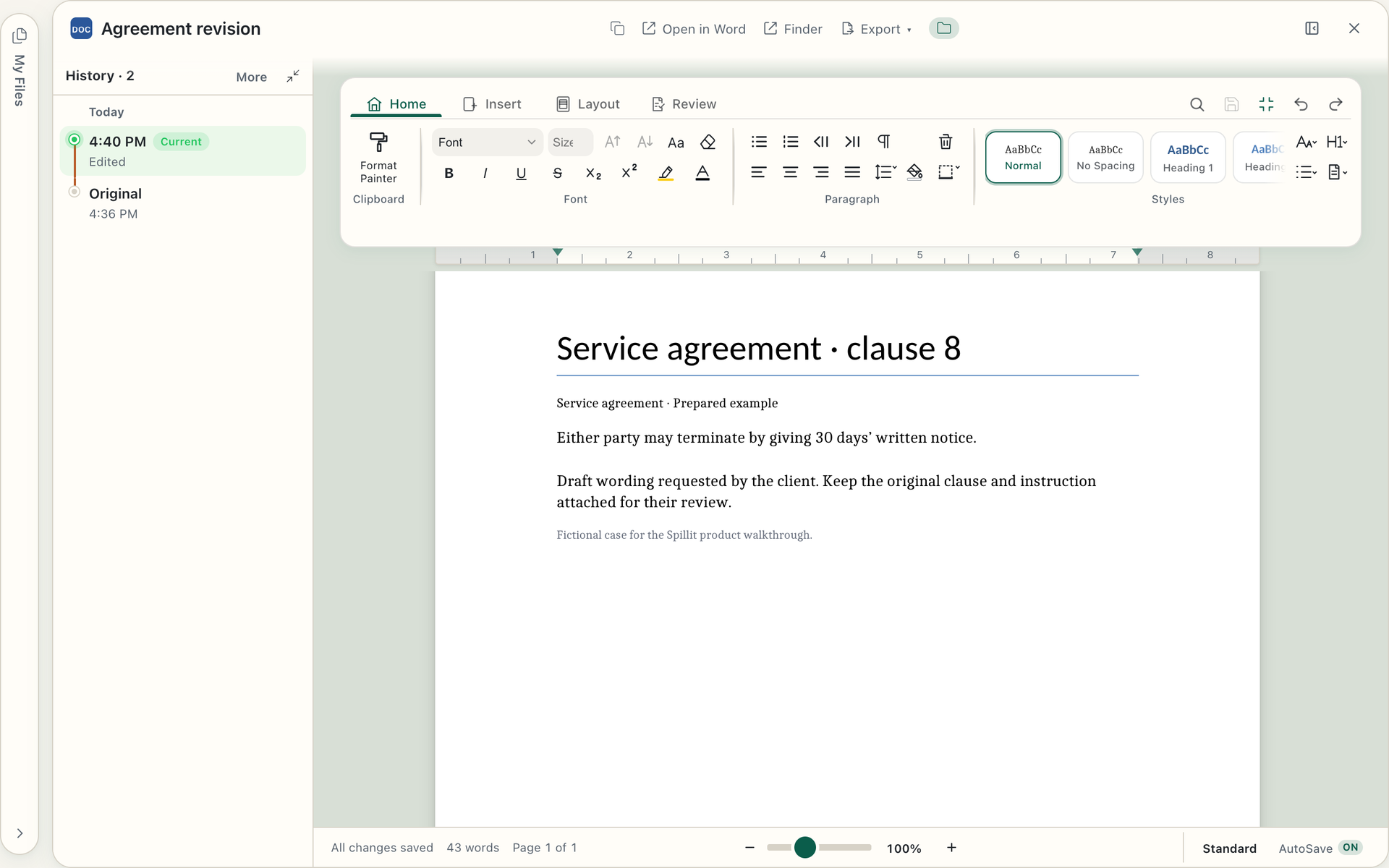
- In My Files, open the file’s menu and choose Version history….
- Select a version by its date or name. Preview it to check that it contains the wording, pages, or data you need.
- Use Name this version or Add a note if you want to make the draft easier to recognize later.
For example, look for the saved quote before the price revision. Check the totals and date in the preview before choosing a restore option.
Restore it or keep a separate draft
- Restore this versionMake the older draft the newest version of the same document.
- Save as new documentKeep the current document and save the older draft as a separate file.
Confirm the result
Reopen the document from My Files and check the content you restored. If you kept a separate copy, verify its name and location so you can find both drafts.
If the file itself is missing, follow Recover a missing or deleted file.
Was this article helpful?
Thanks. Glad it helped.
Thanks for telling us.Try the search, or the related topic in the sidebar.