

Life with Spillit
One place for the small jobs of a normal week, and for the work you do.
Browse work examplesFind your kind of work
Everyday life
Small jobs from a normal week, done in one place.
Combine monthly receipts
Make a wish list
iPhone
Save a link as you find it
Send work in one file
Find a saved link
Write beside your sources
Refresh a room
iPad
Review your plan
Plan the weekend
Find what the team agreed
Plan a trip
Check a renewal
Read every day
iPhone
Turn print into a note
- per ticket
- $19
- at 20 sales
- +$8
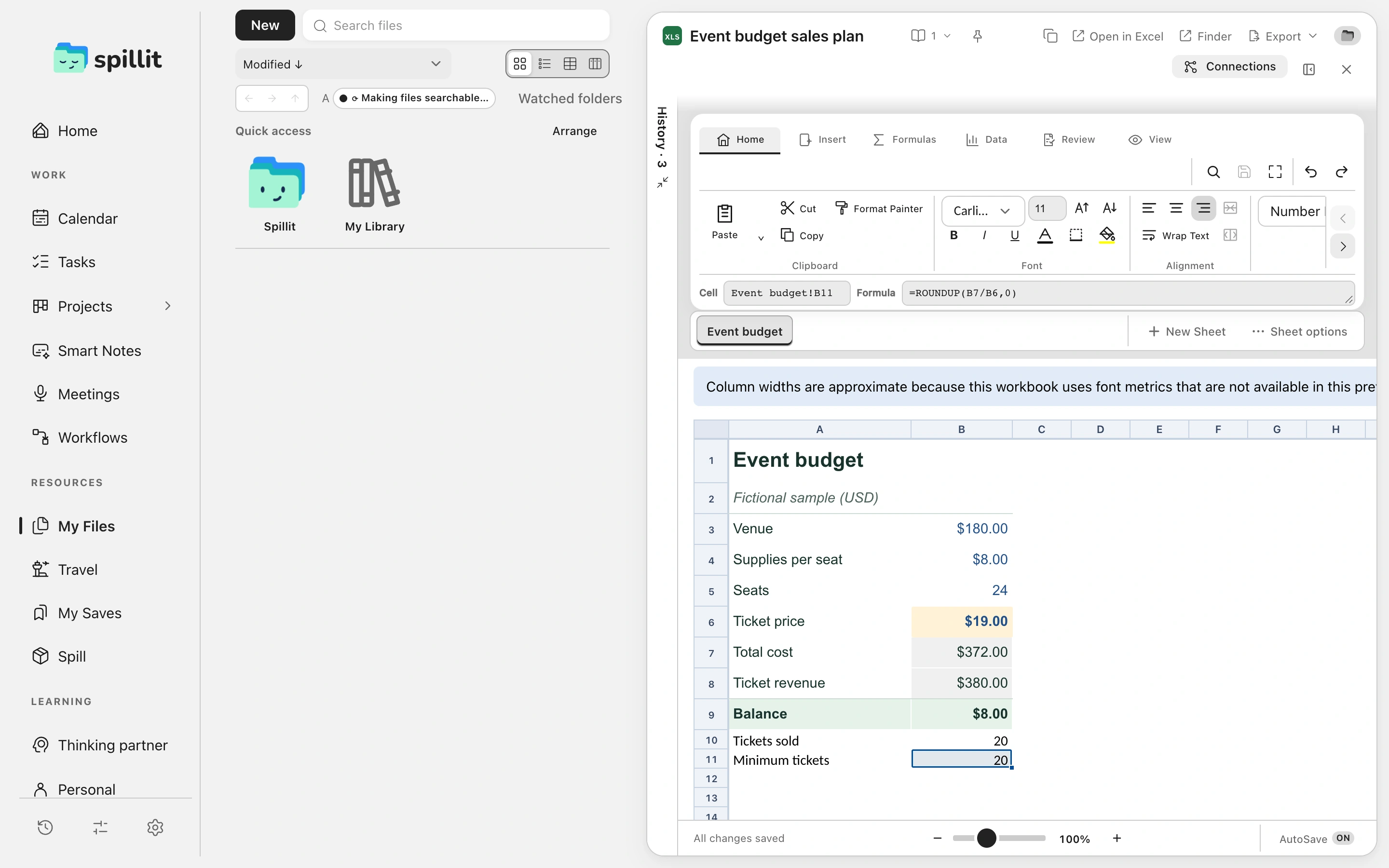
Price an event
Work examples
Write LaTeX directly in Spillit
Build a bibliography from your sources
Revise and check a Word invitation
Prepare the opening slide for a workshop
Choose writing help for a workshop note
Choose a follow-up from a meeting
Mark the detail in a photo
Trim a video to the useful part
Find a line in a video transcript
Highlight a passage in a PDF
Prepare a numbered PDF bundle
Find an earlier version of a file
Make time for the next task
Put a saved place on your trip
Find a link you copied earlier
Make a scanned PDF searchable
Household costs · Renewal review
See the extra 24 before renewing.
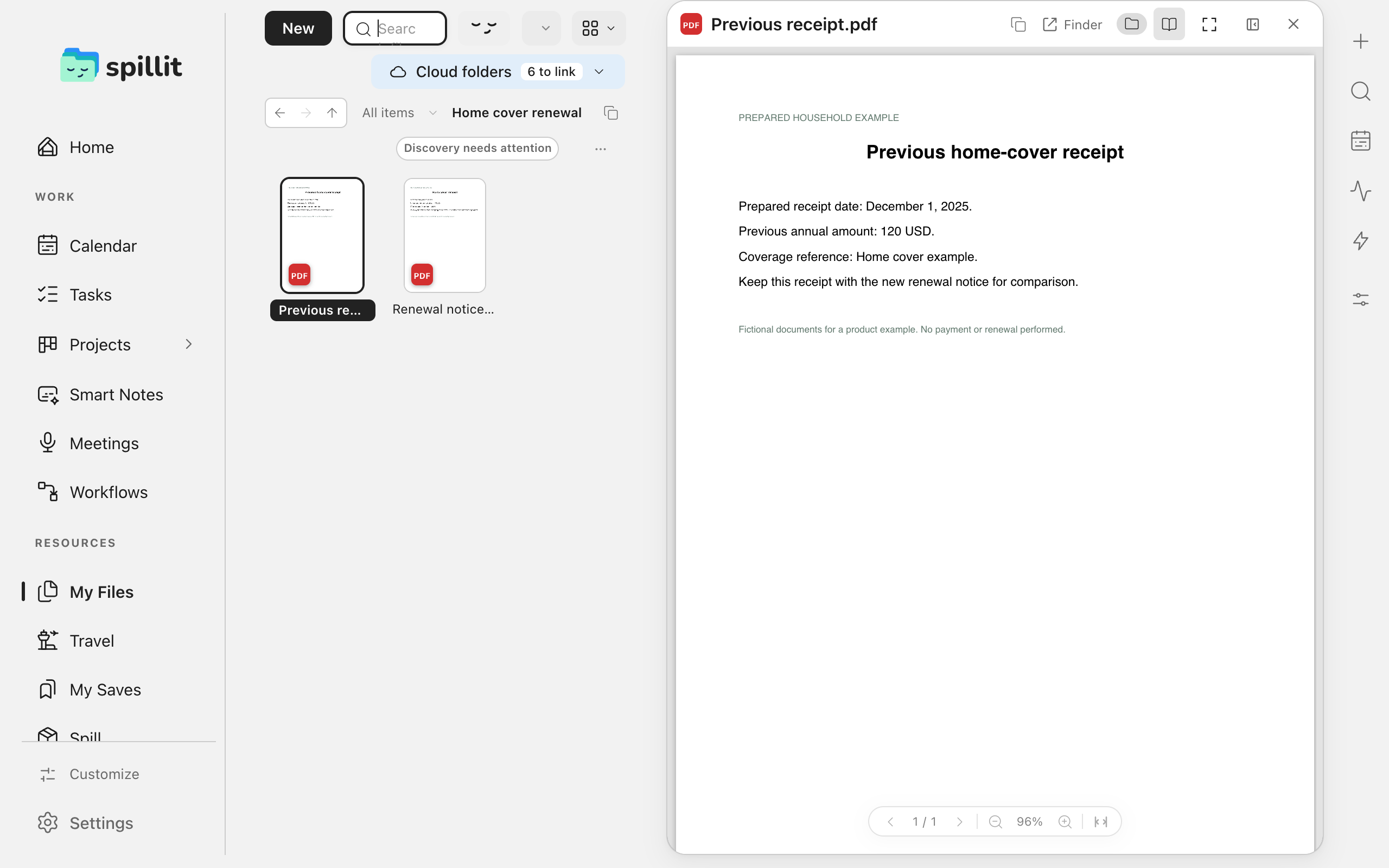
Last year’s receipt says 120. The renewal notice says 144 from December 1. Check both before deciding what to do.
The notice, manual cost record and next review stay together.
Watch walkthroughRead the new price against the last receipt.
Keep the renewal PDF and previous receipt in the same household folder. Read the stated price and effective date before updating your record.
Renewal price 144 and previous receipt 120 checkedStill to show
I’ll keep both documents together so I can compare the new price with the last receipt.
 SpillitMy Files
Actual desktop screens
Real app screens with edited transitions.
Record the new annual amount yourself.
Update the annual record to 144 yourself, with the notice and receipt attached.
Manual annual cost record updated from 120 to 144Still to show
This is my own record of the expected cost.
SpillitMy Finances · Subscriptions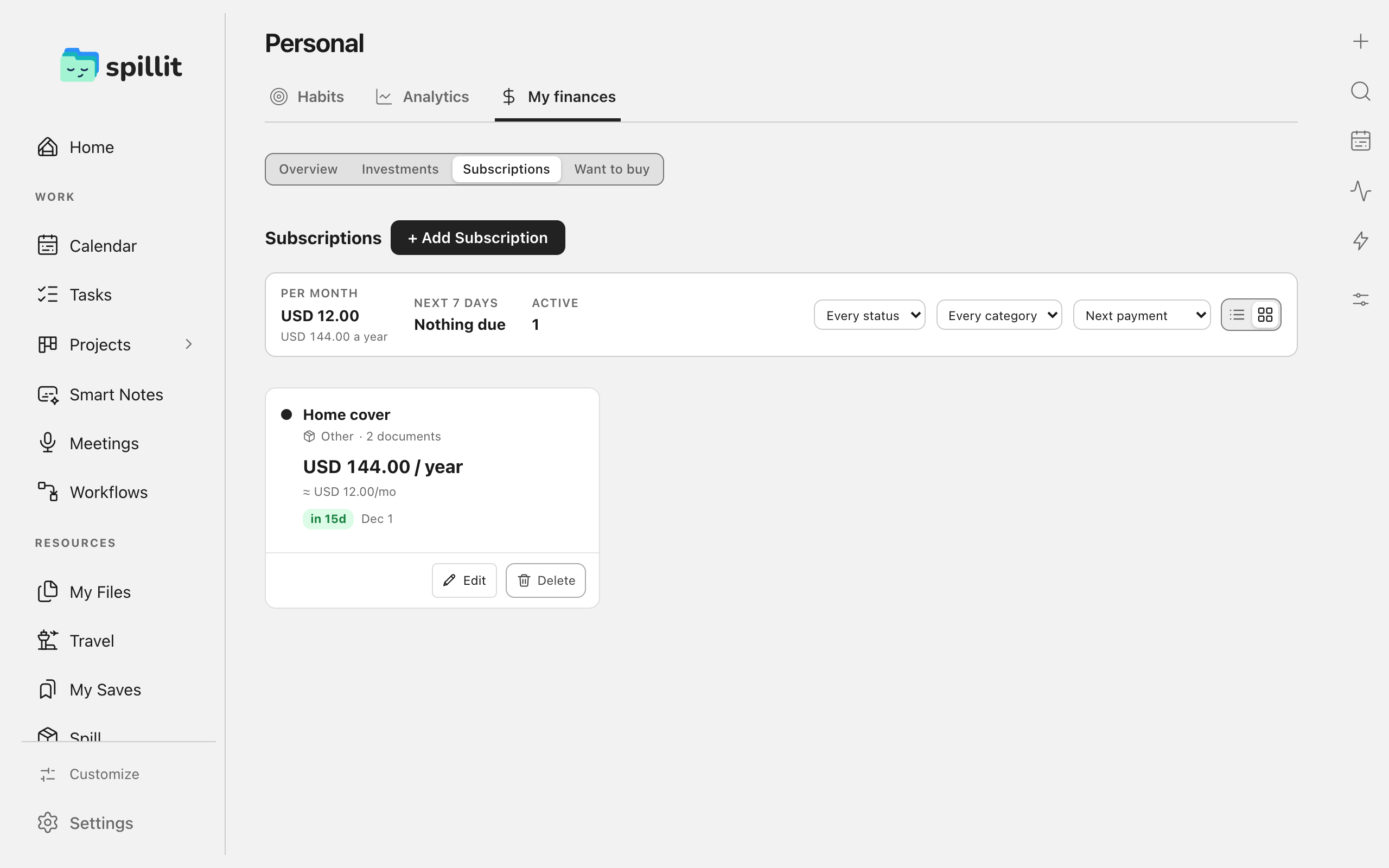
Actual desktop screens
Real app screens with edited transitions.
Decide before December 1.
Save a reminder to compare your options before the effective date. Keep the documents and recorded cost available for that decision.
Review reminder saved before the renewal dateStill to show
I’ll set aside a clear next step before the effective date.
SpillitTasks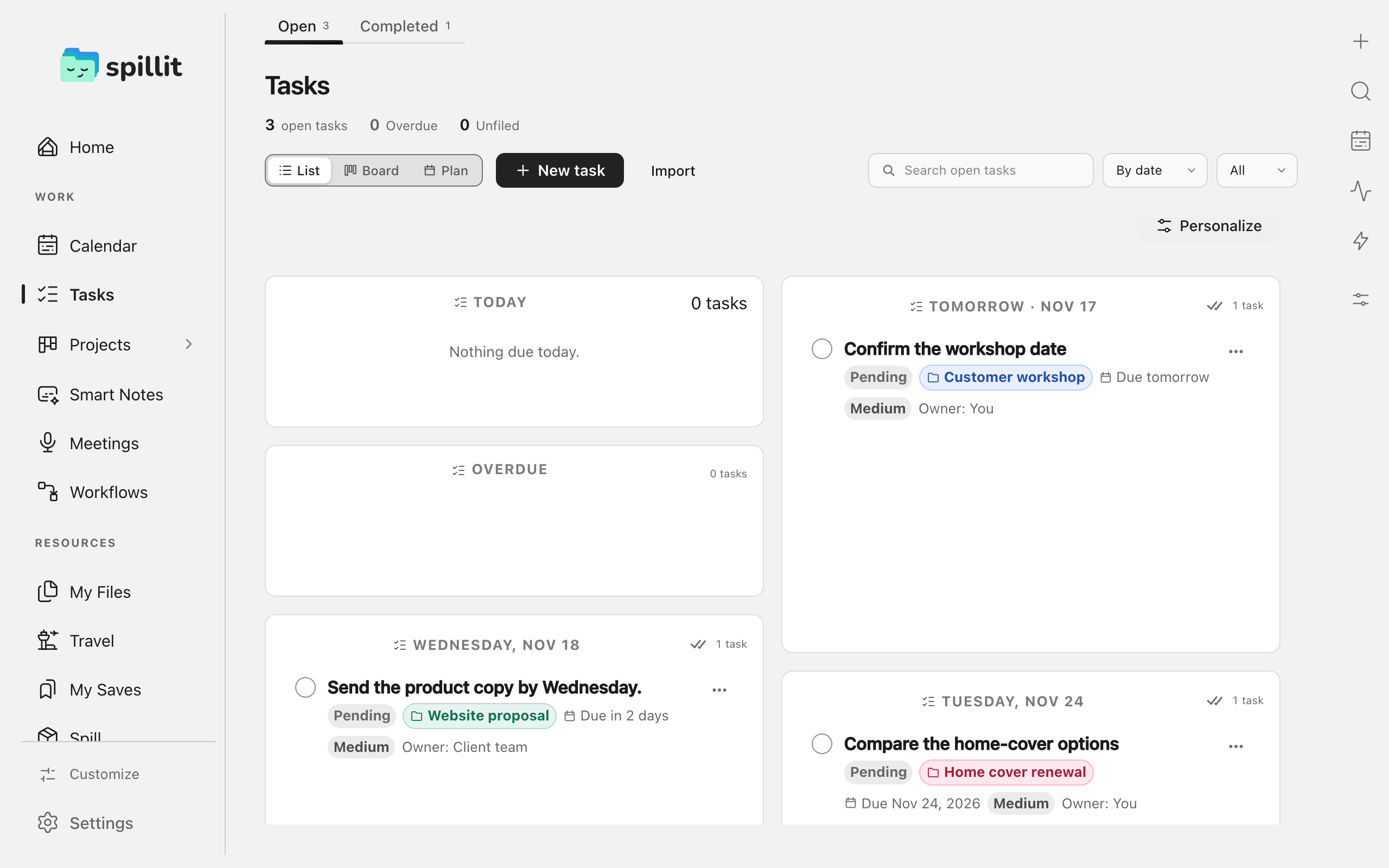
Actual desktop screens
Real app screens with edited transitions.
Task examples and comparisons
Home and life projects
Plan the kitchen repaint, give the next task a date, and keep its receipts with the project.
- Keep each home project's notes, files, saved material, and tasks in Projects.
- Set task dates and repeats for bills and chores.
- Drag tasks onto your week beside calendar events.
- Search your existing folders for receipts and documents in My Files.
Your project contains the next task and its receipts.
Compare in detail: Todoist, Notion
TodayIn Spillit
 Todoistfor to-do list
Tasks
 Notionfor notes and pagesAI by outside providers
Smart Notes and ProjectsLocal Intelligence on your computer
A folderfor files
My Files, inside the project
3 separate apps for these steps1 app for the supported steps
Todoist
How it works
Todoist supports adding, editing, and completing tasks offline.
Changes sync when the connection returns. Signing in is required before working offline.
With Spillit
Keep tasks in the project with their related notes and files.
Offline task editing is available in Todoist. Compare the task views and integrations you use before switching.
Notion
How it works
Notion supports viewing and editing downloaded pages offline.
Its AI uses external model providers.
With Spillit
Work on notes and supported documents in Spillit. Use its included Local Intelligence with the material in your workspace.
Notion offers offline editing for downloaded pages. Check the team and database features you need before switching.
Tools for these activities
Your work stays on your computer by default.
On your computer
- Notes, tasks, projects and files
- Search across your folders
- Meeting transcripts and summaries
- Local AI for selected text
Online, only when you use it
- Saving a link or fetching a video
- Online lookups or cloud AI
- Sync, only if you set it up
Trips
Plan a long weekend with its flights, bookings, and places to visit.
- Plan trips with itineraries and day plans.
- Save places on a map.
- Attach booking documents to the trip.
- Record the cities and countries you have visited.
Compare with separate tools
TodayIn Spillit
A notes app, a list of map pins and an email folder.
Travel
Subscriptions and costs
Review your monthly payments and decide whether to make a purchase.
- Track subscriptions with their payment documents and upcoming dates.
- Set wishlist target prices and a date to reconsider each purchase.
- Check prices on supported product pages while Spillit is running.
- Enter income and portfolio values yourself.
Good to know: You enter income and account values yourself. Product price checks use the network and depend on the store page.
Ready-made workflows in Spillit
Receipts and forms in one PDF, Social Security numbers hidden, locked.
- One PDF from a folder
- Hide Social Security numbers
- Page numbers
- Password
Build a workflow for documents, images, spreadsheets, or text. Choose the pages, slides, sheets, or cells each step changes.
Compare with separate tools
TodayIn Spillit
A spreadsheet you update when you remember.
My Finances
Things worth keeping
Save recipes, links, screenshots, and videos you want to find again.
- Keep the links, images, audio, and text you choose in My Saves.
- Get the transcript of a saved video.
- Find copied text and images in clipboard history.
- Search the words in your saved material.
Compare in detail: Raindrop.io, Raycast clipboard and shortcuts
TodayIn Spillit
 Raindrop.iofor saved links
My Saves
 Raycast clipboard and shortcutsfor clipboard
Clipboard and Shortcuts
A folderfor files
My Files, inside the project
3 separate apps for these steps1 app for the supported steps
Raindrop.io
How it works
Raindrop.io organizes bookmarks into collections with tags, filters, highlights, and previews.
It also offers web archives, shared collections, and integrations.
With Spillit
Save links, text, images, and supported media in My Saves. Organize them into collections and projects. Search the saved content and copy links or saved text into your notes.
Check archive coverage, shared collections, and integrations before switching. Captured pages and media depend on their source.
Raycast clipboard and shortcuts
How it works
Raycast clipboard history supports text, images, colors, and links, stored locally with encryption.
Raycast is an extendable launcher with quicklinks, hotkeys, and an extension ecosystem.
With Spillit
Enable text and image clipboard history, then search it and copy an item again. Create shortcuts that open websites, files, folders, and apps.
This covers clipboard and opening workflows. Raycast extensions, system commands, and window management are separate capabilities to check.
Your case · A trip to Mexico City
Plan Mexico City.
Then go explore.
Put the bookings beside the days you’re planning. Then open a ticket, change a time and keep meeting details with the activity.
Your flight tickets and hotel confirmation
We’ve booked the flights. Let’s build the days around them.
Today’s goalA Mexico week you can review on a computer and use during the trip.
Actual desktop Travel screens · fictional Mexico trip and documents
On your computer
Put the week’s plans together.
Flights are booked, but the days still need a plan. Create the Mexico City trip so dates, places and documents stay together.
Mexico City trip ready for its documents and daily planStill to show
Start with the dates. The tickets and daily stops will belong to this trip.
SpillitTravel · Mexico City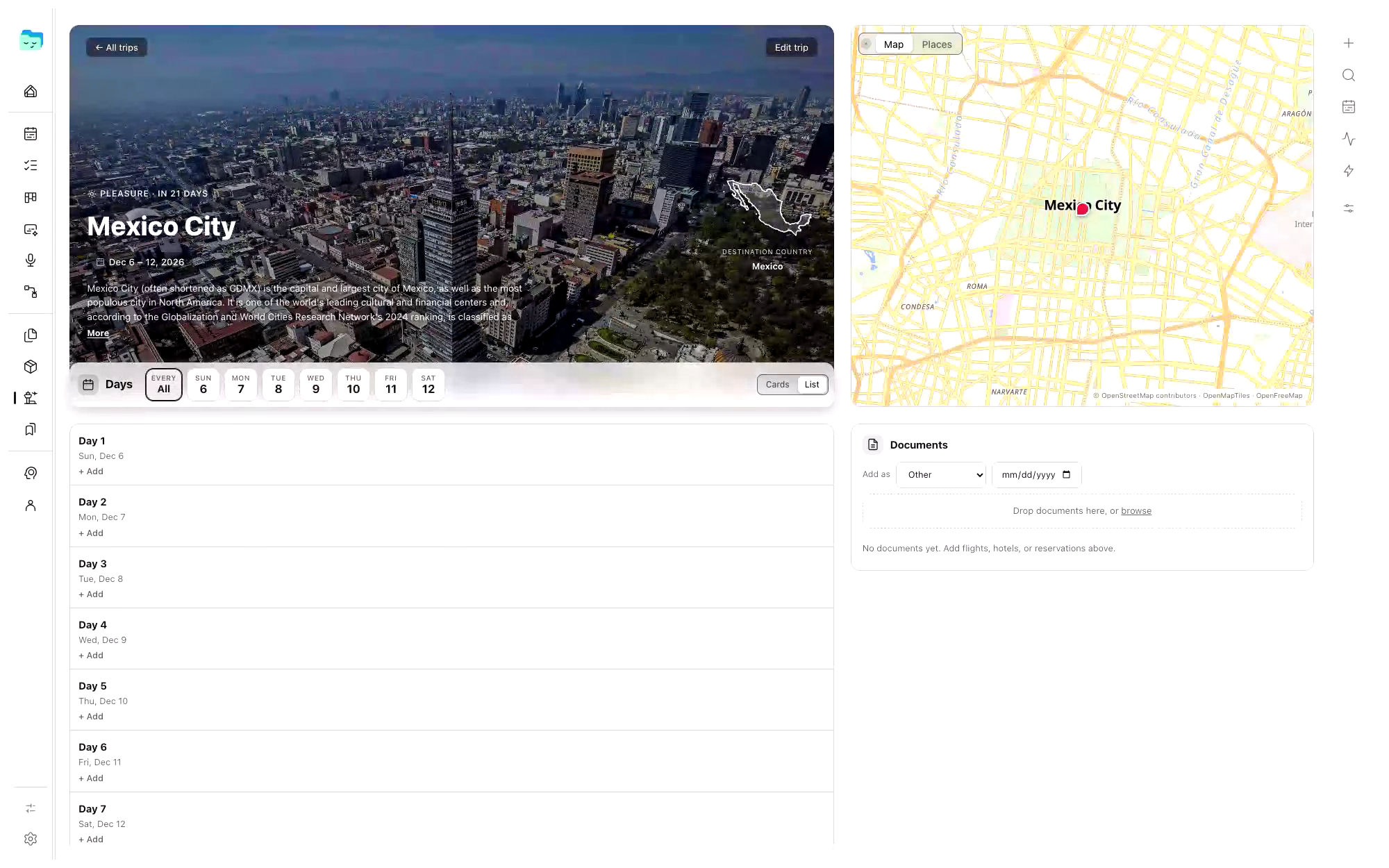
Real Travel walkthrough
Actual Spillit recording · prepared trip and documents · playback controls only.
City photo and description credits
Photo: Gobierno CDMX, Mexico City aerial view, CC0 1.0. Description: Wikipedia contributors, shortened by the destination service, CC BY-SA 4.0.
On your computer
Keep the booking details with the trip.
The itinerary says when to arrive. The PDFs hold the details. Add both flights and the hotel confirmation to this trip.
Flight tickets and hotel confirmation kept with the tripStill to show
Match each PDF to its type and date, then drag it into Documents.
Trip files Drag into Documents
Outbound flight.pdfFlight · Dec 6Return flight.pdfFlight · Dec 12Mexico City hotel.pdfHotel · Dec 6
SpillitTravel · Mexico City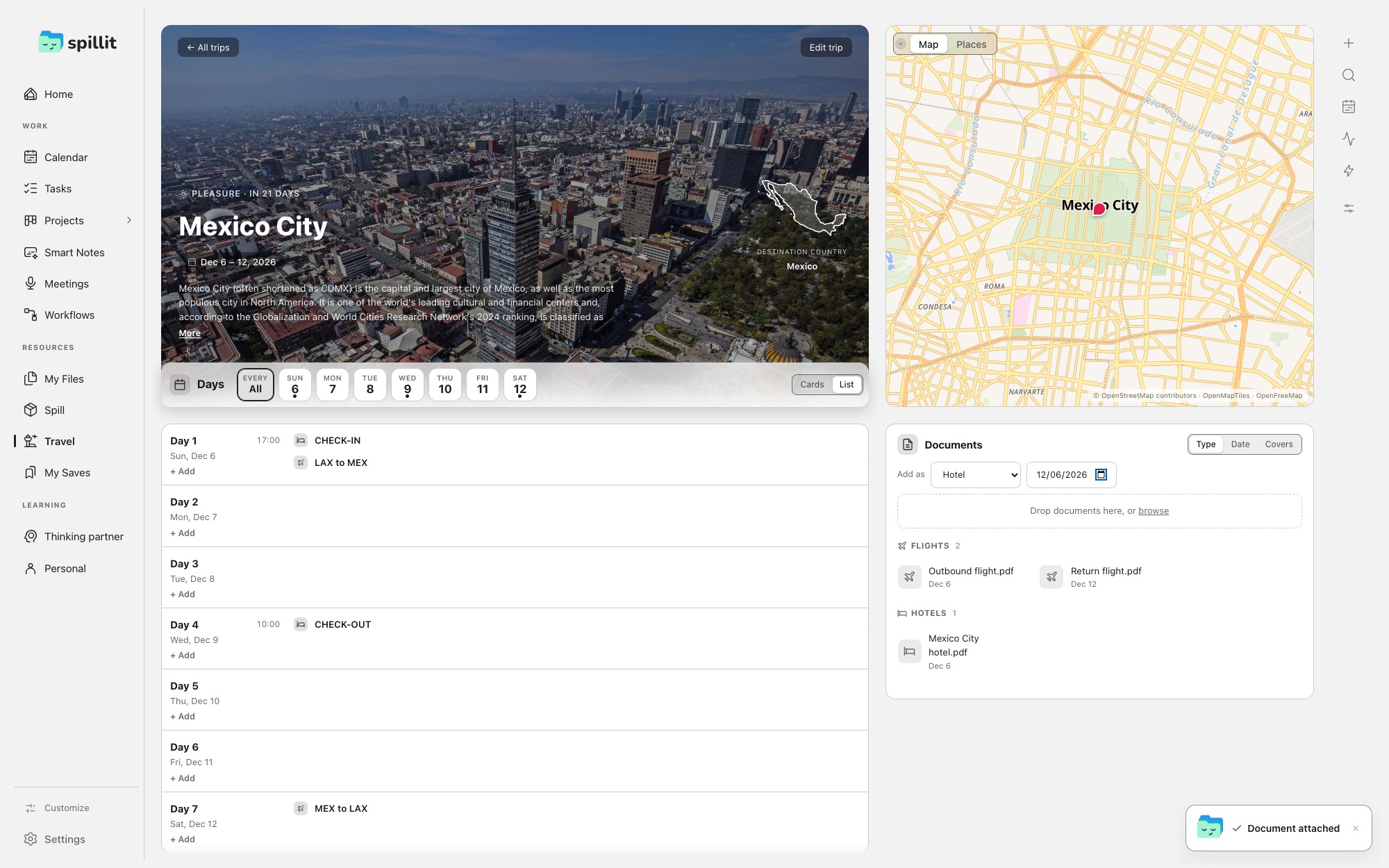
Real Travel walkthrough
Actual app screens + illustrated dragging · prepared trip and documents · playback controls only.
On your computer
Make the arrival day work.
Arrival is at 14:10 and check-in at 17:00. Review coffee between them, then tomorrow’s walk, with the booking PDFs beside the plan.
Arrival, coffee and check-in checked beside the bookingsStill to show
Review the prepared days against the bookings before adding more stops.
SpillitTravel · Mexico City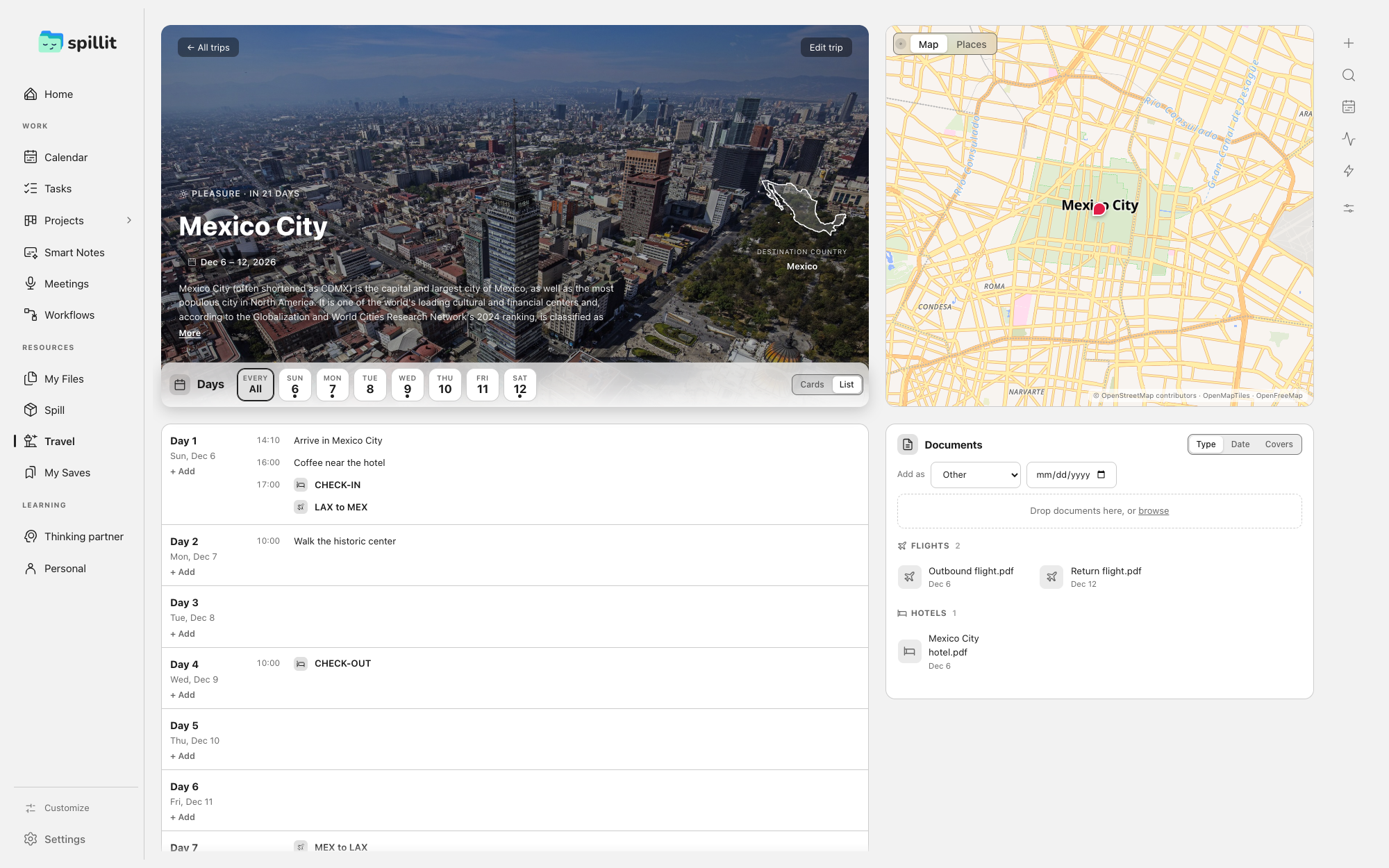
Real Travel walkthrough
Actual app screens · prepared plan · prepared trip and documents · playback controls only.
On your computer
Check where the next day takes you.
Add the Oaxaca stop and market walk to their dates. Use the day’s map to see where those plans sit.
Oaxaca stops placed in the week and checked on the mapStill to show
Find a place, add it to the day, then review that day’s map.
SpillitTravel · Mexico City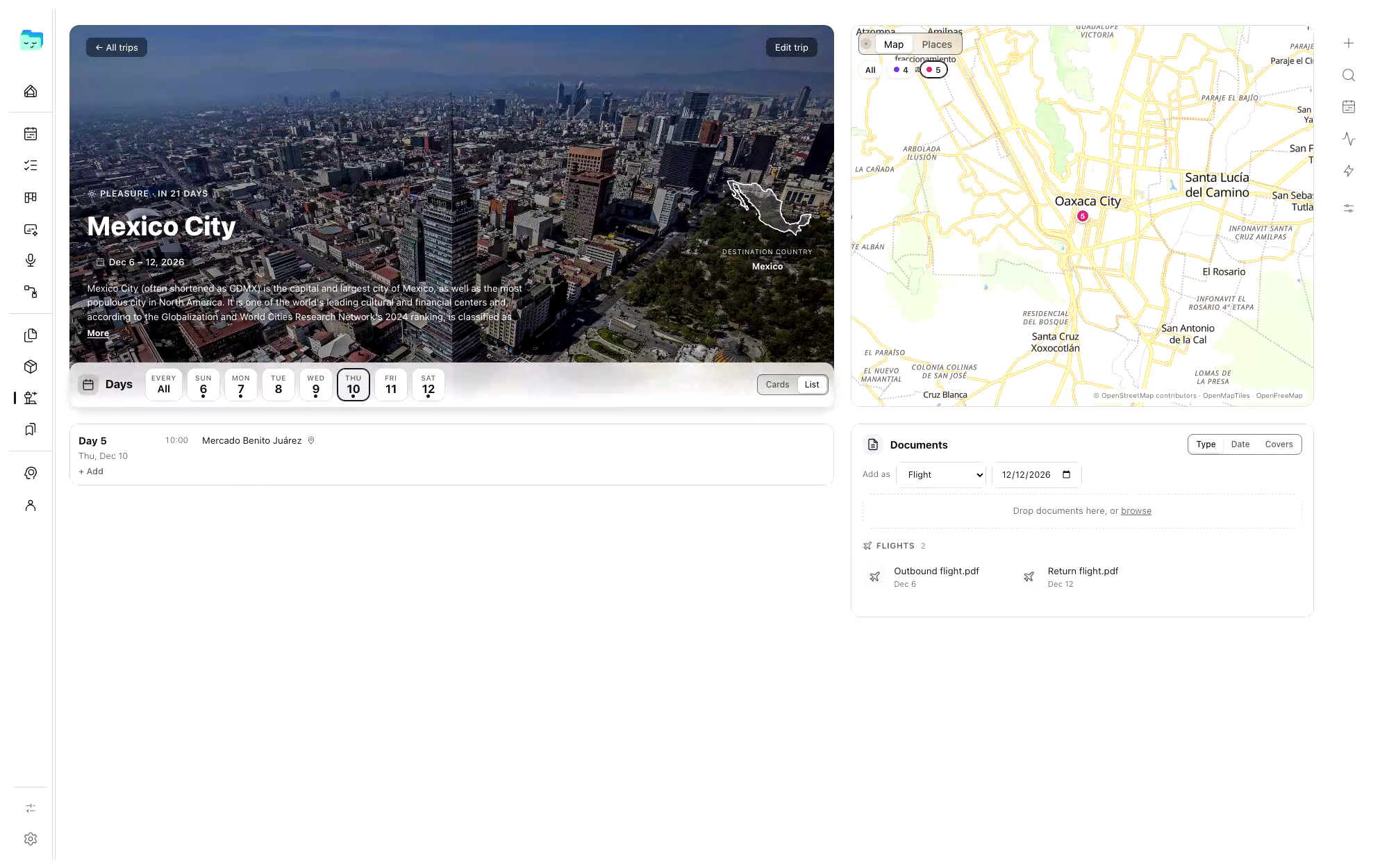
Real Travel walkthrough
Actual Spillit recording · prepared trip and documents · playback controls only.
The week has a plan. Next, use its documents and details while you travel.
With Spillit
See the week you’ve put together.
Spillit follows the planned route from Mexico City to Oaxaca. Next, use the phone to check documents and adjust a day while you’re there.
Route planned from Mexico City to OaxacaStill to show
A look at the route before using the trip on your phone.
Planned on your computerMexico City → Oaxaca
Trip readyMexicoAnimated travel example
Illustrated Spillit journey · schematic travel route.
On your phone
Use the plan when the day changes.
At arrival, open the ticket and hotel confirmation from the day. Tomorrow’s walk moves to 11:00, so save the meeting detail with that activity.
- Check the booking itselfOpen the flight ticket and hotel confirmation
- Adjust the plan on the dayMove tomorrow’s walk from 10:00 to 11:00
- Keep the meeting detail with itSave the note inside the activity
Ticket checked, walk moved to 11:00 and meeting detail savedStill to show
Open the booking PDF, change the walk’s time and keep its meeting detail.
Ready while you travelFlight tickets and hotel booking
TravelMexico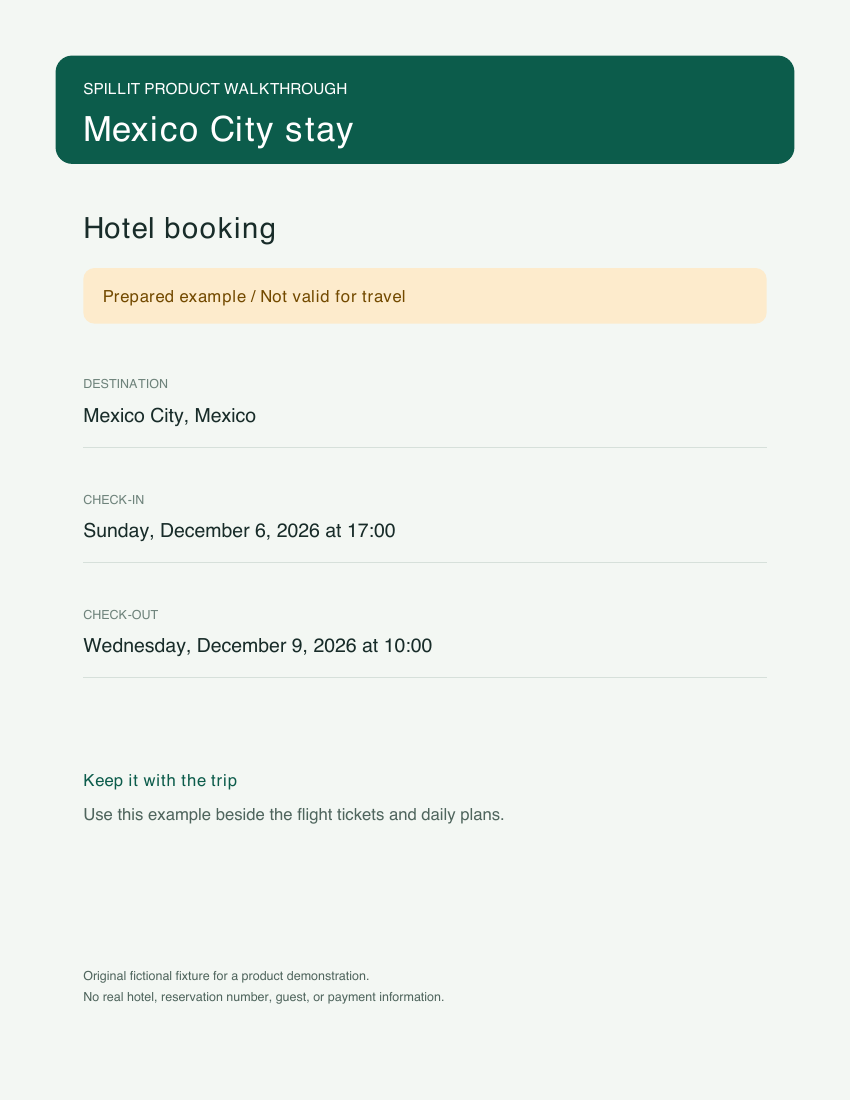
Animated travel example
Illustrated iOS Travel layout · prepared Mexico trip and documents · playback controls only.
Put a saved place on your trip.
Open Places on your trip map to see saved places near the destination. Use Add to… to pick a day or leave the place under Anytime.
Follow the Mexico City trip- Nearby in Mexico CityCourtyard café
- Saturday itineraryCourtyard café
Task examples and comparisons
Planning a trip
Plan each stop, keep your bookings with the trip, and see what still needs arranging.
- Plan trips with itineraries and day plans.
- Plan daily activities for each stop.
- Attach booking documents to the trip.
- Add tasks for bookings you still need to make.
Your trip contains its stops, booking documents, and remaining tasks.
Compare with separate tools
TodayIn Spillit
An email folder, a notes app and a spreadsheet.
Travel
Tools for these activities
Your work stays on your computer by default.
On your computer
- Notes, tasks, projects and files
- Search across your folders
- Meeting transcripts and summaries
- Local AI for selected text
Online, only when you use it
- Saving a link or fetching a video
- Online lookups or cloud AI
- Sync, only if you set it up
Places to go
Find the restaurant a friend sent and the museum you saved.
- Find saved places near the trip’s destination and add one to a day.
- Save links, screenshots and videos in My Saves.
- Get the transcript of a saved travel video.
- Find copied addresses in clipboard history.
Compare in detail: Raindrop.io
TodayIn Spillit
Raindrop.iofor saved linksMy Saves
A folderfor files
My Files, inside the project
2 separate apps for these steps1 app for the supported steps
Raindrop.io
How it works
Raindrop.io organizes bookmarks into collections with tags, filters, highlights, and previews.
It also offers web archives, shared collections, and integrations.
With Spillit
Save links, text, images, and supported media in My Saves. Organize them into collections and projects. Search the saved content and copy links or saved text into your notes.
Check archive coverage, shared collections, and integrations before switching. Captured pages and media depend on their source.
Tickets and documents
Keep tickets, bookings, and a scanned passport page with your trip.
- Attach documents to the trip.
- Make a scanned page searchable.
- Merge tickets into one PDF.
- Protect a PDF with a password.
Compare in detail: Adobe Acrobat
TodayIn Spillit
 Adobe Acrobatfor PDFs
PDF tools
A folderfor files
My Files, inside the project
2 separate apps for these steps1 app for the supported steps
Adobe Acrobat
How it works
Acrobat edits text and images, organizes pages, and merges or splits PDFs.
Its tools also cover signing, sharing, and document review.
With Spillit
Use Spillit to read PDFs, annotate them, and make supported text edits. Fill forms, organize pages, merge or compress files, add watermarks, and redact text. Save repeated document steps as a workflow.
Redaction flattens affected pages. Check complex forms and signing requirements. A drawn signature mark differs from a certificate signature.
Where you have been
Record the cities and countries you visited, with notes on what you would do again.
- Mark the cities and countries you visited.
- Crop and mark up your photos.
- Write trip notes in Smart Notes.
- Search the words in your saved material.
Compare with separate tools
TodayIn Spillit
Photos in one app and the rest in your head.
Travel
Students and researchers
Your case · Class
From the syllabus
to your lecture notes.
Your Urban Ecology syllabus, slides and assignment arrive as separate files. Keep them with your class notes and due dates.
The syllabus and first lecture files
How will you follow the lecture and keep the useful parts for later?
Today’s goalA class to find your material, follow the lecture and revise the assignment.
Six short clips · choose any step · fictional course
On your computer
Give this class one home.
Projects keeps the syllabus, dates and notes under one class. Create its card before adding the course.
Class project ready for course files and datesStill to show
I’m creating a class project so its files and dates have one home.
- Name the classA project for this course
- Set its detailsDates and a recognizable color
- Create the cardReady for the syllabus
SpillitProjects
Animated walkthrough
Illustrated app screens · prepared class files · dates entered by hand · playback controls only.
Give this class a cover you can spot among your other projects.
On your computer
Recognize the right class.
Choose a cover and color to recognize this class in Projects. Its card keeps that appearance as you add material.
A cover, icon and color to recognize your classStill to show
I’ll choose a cover that makes this class easy to find.
08:30 · Created in ProjectsUrban Ecology
Same classUrban Ecology- Open AppearanceGive this class a clear identity
- Choose the coverUse the student illustration
- Find the class cardCover, icon and color stay together
SpillitProjects · AppearanceAnimated walkthrough
Illustrated app screens · prepared class files · dates entered by hand · playback controls only.
Now add the syllabus and files to the class you can recognize.
On your computer
See what is due with its files.
Keep the syllabus, lecture slides and Word assignment in the class. Enter the syllabus dates as tasks beside them.
Syllabus, files, dates and lecture note in one classStill to show
I’ll add the syllabus before entering its dates as tasks.
08:35 · Your class, styledUrban Ecology
Same classUrban Ecology- Drop the syllabusKeep the course plan in Reading
- Enter the due datesThree tasks beside the course files
- Prepare for the lectureSlides, assignment and a note
SpillitProjects · ReadingAnimated walkthrough
Illustrated app screens · prepared class files · dates entered by hand · playback controls only.
Open the lecture note with its slides when class begins.
On your computer
Follow the slides while you write.
Smart Notes lets you write beside the lecture PDF. Keep the source visible while you explain each idea in your own words.
Your explanation written beside the lecture slidesStill to show
I’ll open the slides beside our note so we can follow the lecture while writing.
08:40 · Added to the classLecture 3 · Urban heat.pdf
Same classUrban Ecology- Open your class noteWrite within this course
- Show the slides beside itRead the PDF while taking notes
- Write your understandingYour explanation beside the lecture
SpillitReading · Smart NotesAnimated walkthrough
Illustrated app screens · prepared class files · dates entered by hand · playback controls only.
Keep a useful passage with the notes you will use for the assignment.
On your computer
Keep the passage behind your idea.
Highlight a useful line in the PDF and add it to your class note. Its source and page stay with your question.
A source passage and your question ready for the draftStill to show
I’ll save this passage with its page so we can trace it when we write.
10:00 · Written during the lectureLecture 3 · Street comparisons
Same classUrban Ecology- Mark the useful lineChoose evidence for your draft
- Add it to your class noteKeep its source and page
- Ask your own questionYour thinking beside the passage
SpillitPDF · Smart NotesAnimated walkthrough
Illustrated app screens · prepared class files · dates entered by hand · playback controls only.
Use the passage and your notes to revise the Word assignment.
On your computer
Use your notes to revise the draft.
Open the existing Word assignment from the class. Edit its comparison using your lecture notes, then save the revised file.
Word draft revised using your class notesStill to show
I’ll open the Word assignment from the class where we prepared its notes.
16:00 · Prepared from your lecture notesLecture 3 · Street comparisons
Same classUrban Ecology- Open the assignmentWord file in the class Reading list
- Revise the comparisonUse your lecture notes
- Save for the assignmentThe revised file stays with the class
SpillitReading · WordAnimated walkthrough
Illustrated app screens · prepared class files · dates entered by hand · playback controls only.
Research · A supervisor’s question
Before calling it tree cooling, check the clock.
The shaded street and open square were measured at different times. Check the published method before attributing the difference to trees.
Revise the claim, then repeat the readings at matched times.
Watch walkthroughStart with the actual paper.
Open Alonzo and colleagues’ published paper in the research project. Keep its DOI and year beside your own field material.
The published paper and its identity are in reach.Still to show
I’ll open the actual paper rather than treating our field notes as published evidence.
SpillitProjects · Reading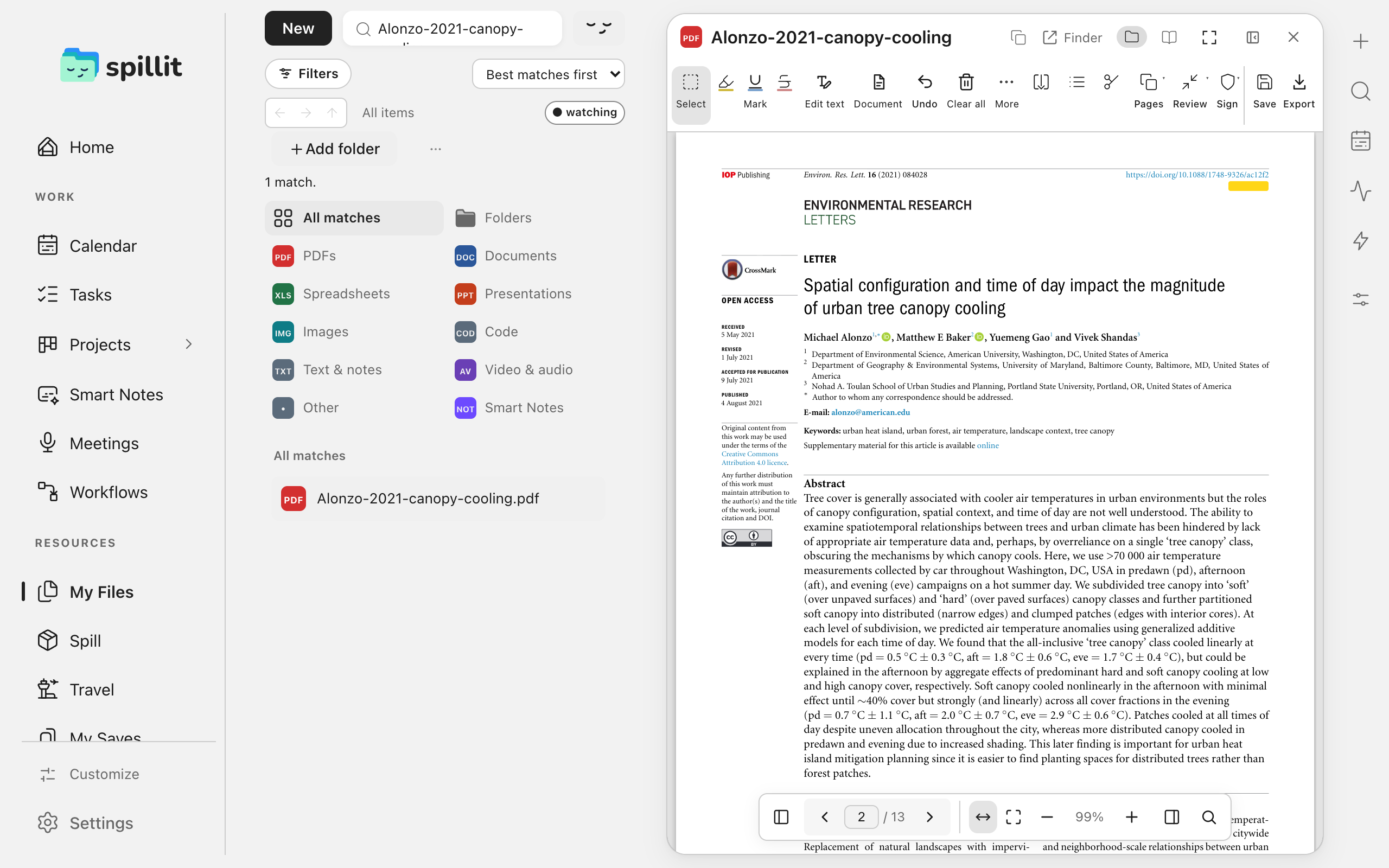
Actual desktop screens
Real app screens with edited transitions.
Keep the line that changes your method.
The paper models each time of day separately. Save that passage with its page, then compare what your local measurements actually recorded.
A page-labelled method excerpt stays with the comparison.Still to show
This passage says the researchers modelled each time of day separately.
SpillitPDF · Highlights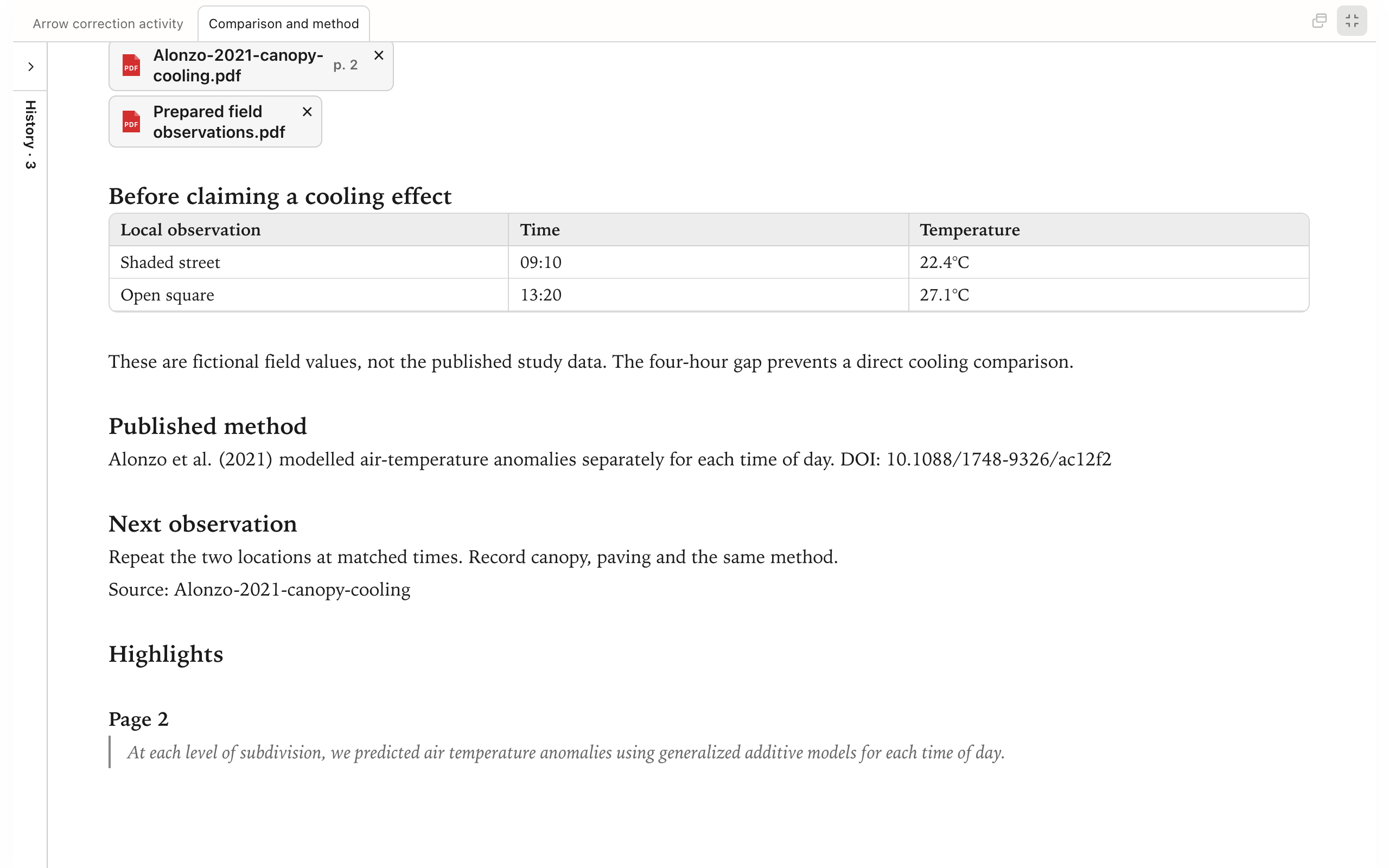
Actual desktop screens
Real app screens with edited transitions.
See why the readings are not comparable.
Put 09:10 beside 13:20, then compare the recorded temperatures. The timing gap prevents a direct claim about tree cooling.
The table exposes the timing gap instead of a claimed cooling effect.Still to show
The table shows our shaded street and open square were measured at different times.
SpillitSmart Notes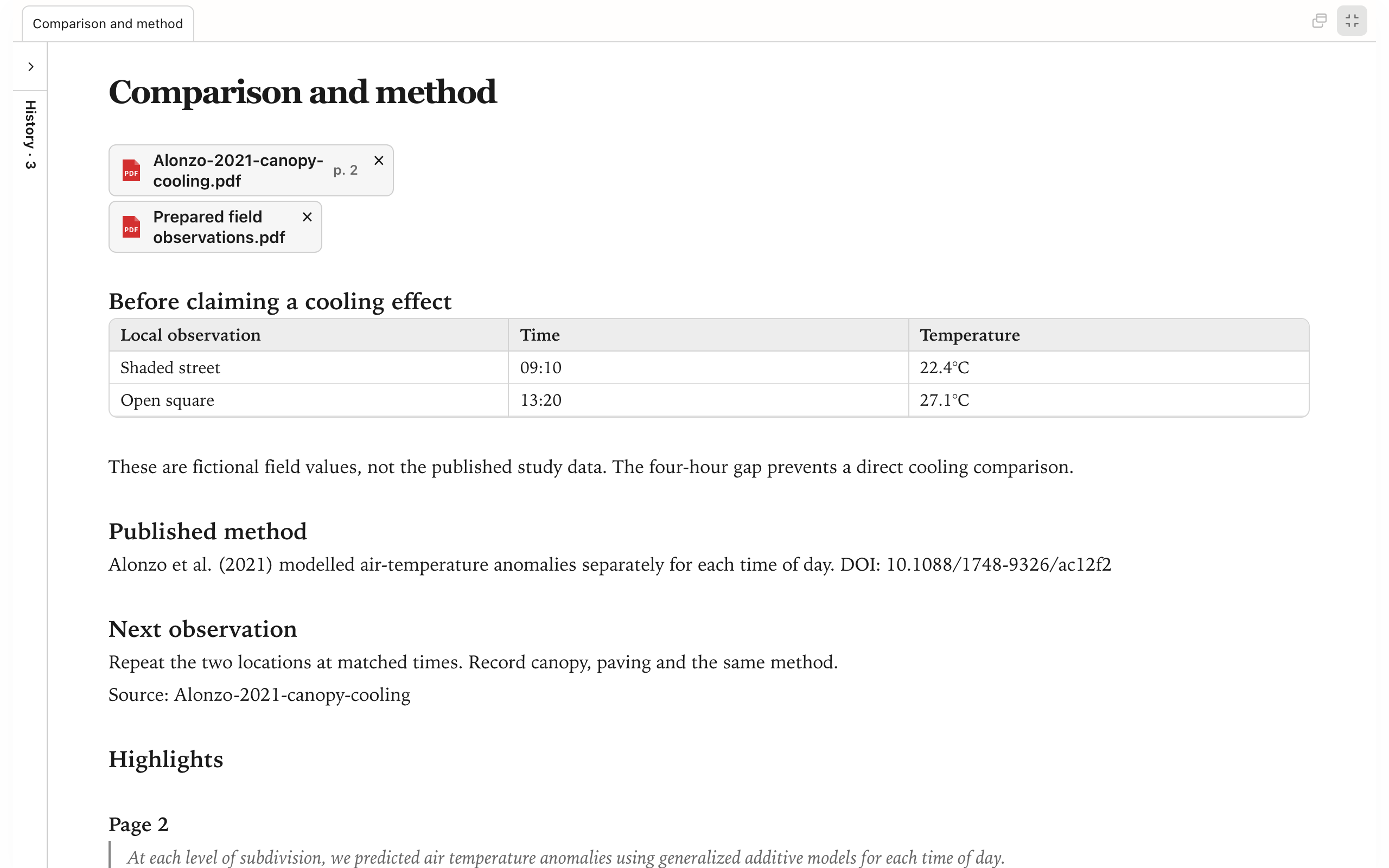
Actual desktop screens
Real app screens with edited transitions.
Revise the claim, keep the citation.
Review a saved paragraph that cites the paper and states the limitation. The local temperature difference is descriptive, not a causal result.
A cited paragraph explains the timing limitation.Still to show
The original wrongly treats two unmatched observations as proof of a cooling effect.
SpillitMy Files · Word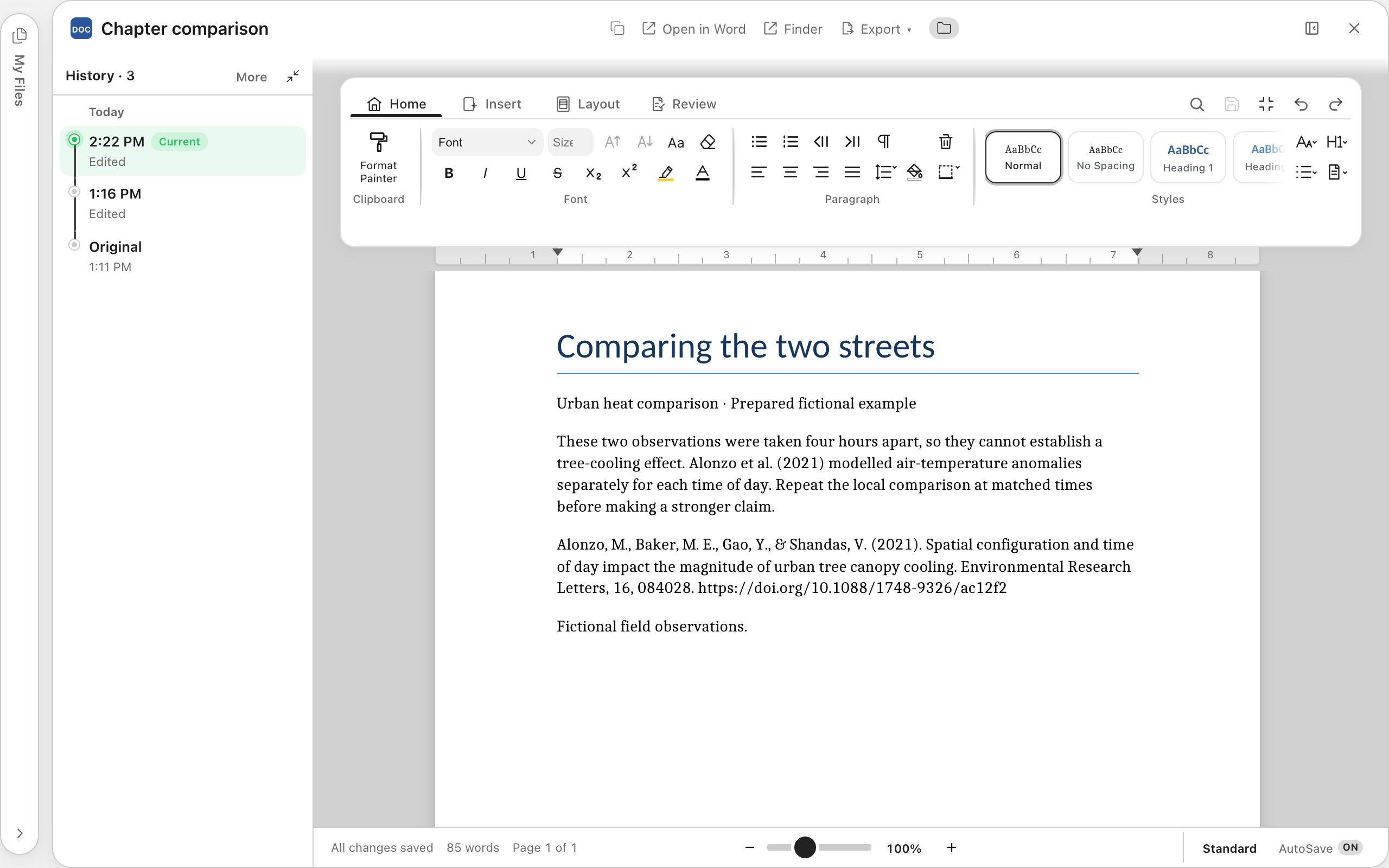
Actual desktop screens
Real app screens with edited transitions.
Sources and example credits
Task examples and comparisons
Tools for these activities
Your work stays on your computer by default.
On your computer
- Notes, tasks, projects and files
- Search across your folders
- Meeting transcripts and summaries
- Local AI for selected text
Online, only when you use it
- Saving a link or fetching a video
- Online lookups or cloud AI
- Sync, only if you set it up
Writing
Write a chapter, paper, or thesis with the sources open beside your draft.
- Write Smart Notes with headings, tables, code, and callouts.
- Edit and compile LaTeX with a PDF preview.
- Edit Word files in place with footnotes, equations, and tracked changes.
- Insert a citation from your library while you write.
Compare in detail: Overleaf, Word, Excel and PowerPoint, Obsidian
TodayIn Spillit
OOverleaffor LaTeX draft
The LaTeX editor
 Word, Excel and PowerPointfor documents
Document, sheet and slide editing
 Obsidianfor notes
Smart Notes
A folderfor files
My Files, inside the project
4 separate apps for these steps1 app for the supported steps
Overleaf
How it works
Overleaf is an online platform for writing, compiling and collaborating on LaTeX documents.
Co-authors can work on the same project from their browsers.
With Spillit
Edit and compile LaTeX on your computer with a PDF preview, error messages, and source navigation. Keep references and notes in the same project.
Compiling needs a LaTeX compiler and its packages on your computer. Keep Overleaf when you co-write in real time.
Word, Excel and PowerPoint
How it works
Word, Excel, and PowerPoint provide dedicated document, spreadsheet, and presentation editing.
Their collaboration tools let people work together on shared files.
With Spillit
Edit supported DOCX, XLSX, and PPTX files in Spillit. Change text and formatting, use spreadsheet formulas and charts, and edit slides. Keep these files with notes and tasks, then export to PDF.
Check advanced layouts, formulas, media, animation playback, and collaboration requirements before switching.
Obsidian
How it works
Obsidian stores local notes using Markdown, a plain text note format.
Its optional Sync can encrypt notes before they leave your device.
How Obsidian stores data Obsidian Sync security Obsidian plugins
With Spillit
Edit supported Office files and PDFs in the same app as Smart Notes. Manage tasks, transcribe meetings, and use the included local language model.
Obsidian stores files locally and works offline. Optional plugins can add functions. Sync protects remote copies separately from local files.
Organising
Plan a semester, lab project, or thesis when deadlines change.
- Create a project for each paper, grant, or class.
- Set task dates, priorities, and repeats.
- Drag tasks onto your week beside calendar events.
- Link focus sessions to the task you are working on.
Compare in detail: Todoist, Notion
TodayIn Spillit
Todoistfor to-do listTasks
Notionfor notes and pagesAI by outside providersSmart Notes and ProjectsLocal Intelligence on your computer
A folderfor files
My Files, inside the project
3 separate apps for these steps1 app for the supported steps
Todoist
How it works
Todoist supports adding, editing, and completing tasks offline.
Changes sync when the connection returns. Signing in is required before working offline.
With Spillit
Keep tasks in the project with their related notes and files.
Offline task editing is available in Todoist. Compare the task views and integrations you use before switching.
Notion
How it works
Notion supports viewing and editing downloaded pages offline.
Its AI uses external model providers.
With Spillit
Work on notes and supported documents in Spillit. Use its included Local Intelligence with the material in your workspace.
Notion offers offline editing for downloaded pages. Check the team and database features you need before switching.
Reading and citing
You have forty papers to read and a bibliography due on Friday.
- Add a paper from its identifier, a link, a list or a BibTeX file.
- Track what you have read and fetch available PDFs.
- Save a PDF highlight with its page number.
- Copy citations and export bibliographies. Exchange items with Zotero.
Compare in detail: Zotero, Mendeley, Adobe Acrobat
TodayIn Spillit
 Zoterofor references
References and citations
MMendeleyfor reference library
References and citations
Adobe Acrobatfor PDFsPDF tools
A folderfor files
My Files, inside the project
4 separate apps for these steps1 app for the supported steps
Zotero
How it works
Zotero collects and organizes research and creates formatted references.
Its Word, LibreOffice, and Google Docs integrations maintain citations and bibliographies inside documents.
With Spillit
Keep references in the same workspace as notes and projects. Insert citations in supported Word documents and update their styles and bibliographies.
Compare the collection tools, citation styles, and library connections you rely on. Selective local exchange requires Zotero desktop to be running.
Mendeley
How it works
Mendeley organizes references and PDFs, with highlighting and notes in its reader.
Mendeley Cite inserts references and bibliographies into Microsoft Word, and Groups give co-authors a shared library.
With Spillit
Keep papers and books in a library. Save PDF highlights with their page numbers, copy formatted citations, and export bibliographies. Keep the library material with your notes and projects.
Keep Mendeley when you need its Word citation add-in or shared group libraries.
Adobe Acrobat
How it works
Acrobat edits text and images, organizes pages, and merges or splits PDFs.
Its tools also cover signing, sharing, and document review.
With Spillit
Use Spillit to read PDFs, annotate them, and make supported text edits. Fill forms, organize pages, merge or compress files, add watermarks, and redact text. Save repeated document steps as a workflow.
Redaction flattens affected pages. Check complex forms and signing requirements. A drawn signature mark differs from a certificate signature.
Meetings and lectures
Record a supervisor meeting, seminar, or lab call, then review what everyone agreed.
- Record your microphone. On macOS 13 or later, you can also record call audio.
- Create transcripts, summaries, and action items on your computer.
- Save each action item in its project with an owner and date.
- Save the transcript, summary, and action items in Smart Notes.
Compare in detail: Otter.ai, Granola
TodayIn Spillit
OOtter.aifor transcriptsStored in the cloud
MeetingsTranscribed on your computer
 Granolafor call notesTranscribed in the cloud
MeetingsTranscribed on your computer
A folderfor files
My Files, inside the project
3 separate apps for these steps1 app for the supported steps
Otter.ai
How it works
Otter transcribes in-person and online classes and meetings, and can join scheduled Zoom, Google Meet and Teams calls.
Recordings and transcripts are stored in the cloud on Amazon Web Services.
With Spillit
Spillit transcribes and summarizes on your computer. Save each action item in its project with the notes and reading material.
Spillit records your microphone, and call audio from one meeting app on macOS 13 or later. Otter also offers live captions and shared notes; check whether you need them.
Granola
How it works
Granola captures microphone audio and meeting audio from the computer.
Transcription and AI summaries use cloud processing.
With Spillit
Spillit transcribes and summarizes on your computer. It saves action items with their owner, date, and project. Open them with the project notes, files, and tasks.
Call audio and speaker names from Zoom, Google Meet, Teams, or Webex need macOS 13 or later. Otherwise, Spillit records your microphone. Speaker labels can be wrong when people speak at the same time.
Collecting sources
Save articles, talks, and snippets so you can find them again in March.
- Save links, images, audio and text in My Saves.
- Get the transcript of a saved video.
- Search scans and PDFs by the words inside them.
- Keep each source in the project it belongs to.
Compare in detail: Raindrop.io, Raycast clipboard and shortcuts
TodayIn Spillit
Raindrop.iofor saved linksMy Saves
Raycast clipboard and shortcutsfor clipboardClipboard and Shortcuts
A folderfor files
My Files, inside the project
3 separate apps for these steps1 app for the supported steps
Raindrop.io
How it works
Raindrop.io organizes bookmarks into collections with tags, filters, highlights, and previews.
It also offers web archives, shared collections, and integrations.
With Spillit
Save links, text, images, and supported media in My Saves. Organize them into collections and projects. Search the saved content and copy links or saved text into your notes.
Check archive coverage, shared collections, and integrations before switching. Captured pages and media depend on their source.
Raycast clipboard and shortcuts
How it works
Raycast clipboard history supports text, images, colors, and links, stored locally with encryption.
Raycast is an extendable launcher with quicklinks, hotkeys, and an extension ecosystem.
With Spillit
Enable text and image clipboard history, then search it and copy an item again. Create shortcuts that open websites, files, folders, and apps.
This covers clipboard and opening workflows. Raycast extensions, system commands, and window management are separate capabilities to check.
Teaching · Tomorrow’s lesson
A wrong arrow tells me what to teach next.
A pupil sends energy from the fox back to the rabbit. Build tomorrow’s correction activity around that exact mistake.
The worksheet asks pupils to explain where the energy goes.
Watch walkthroughStart with the misconception.
Open the anonymous sample in the class project. The reversed arrow explains what tomorrow’s lesson needs to address.
The incorrect arrow is identified in a prepared pupil sample.Still to show
I’ll start with the mistake our next lesson needs to address.
SpillitProjects · Reading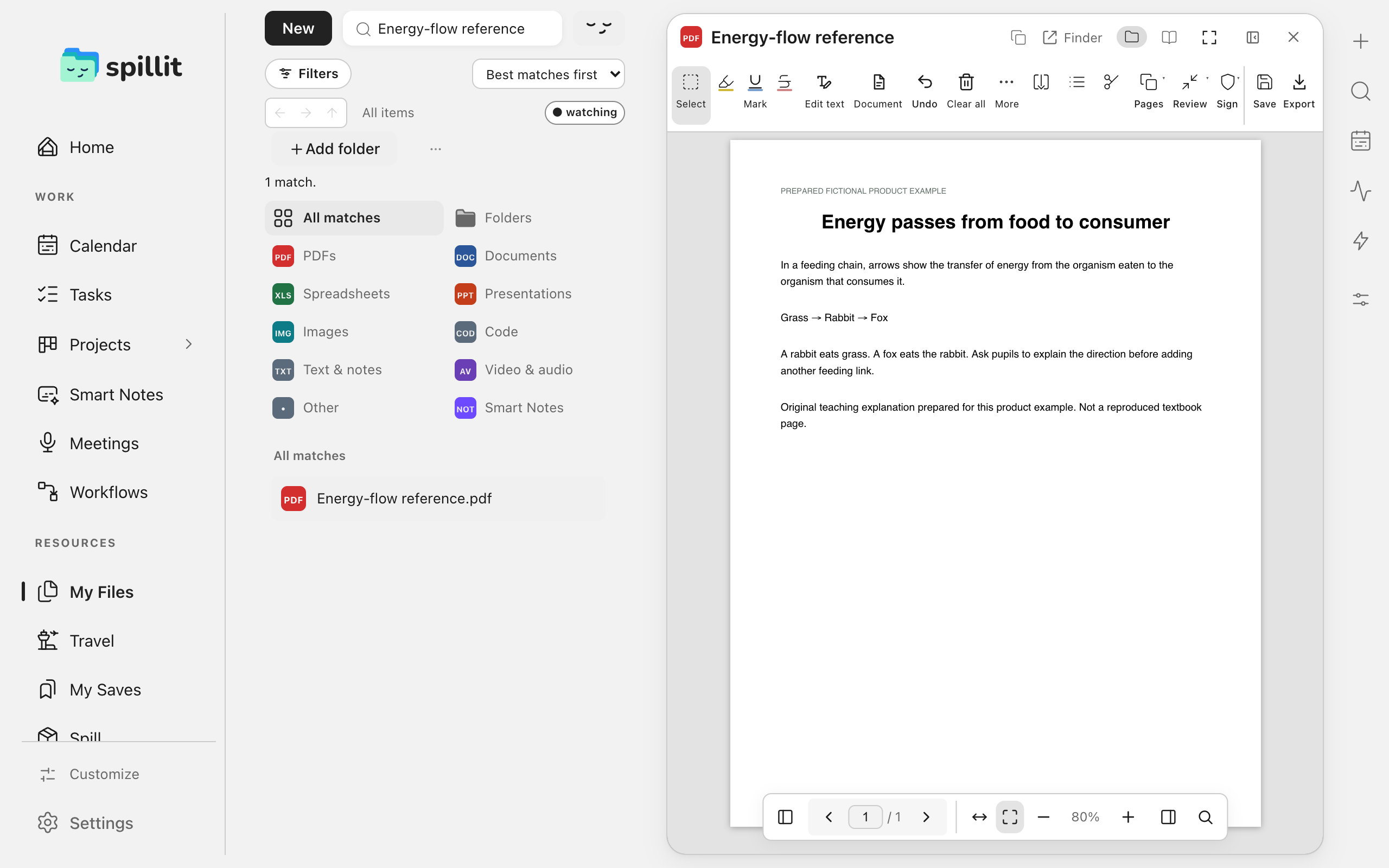
Actual desktop screens
Real app screens with edited transitions.
Make the correction visible.
Keep the wrong arrow visible and mark the correction beside it. The saved example becomes the starting point for the pair discussion.
A marked example contrasts the wrong arrow with the correct direction.Still to show
The original answer gives us a concrete misconception to discuss.
SpillitPDF · Mark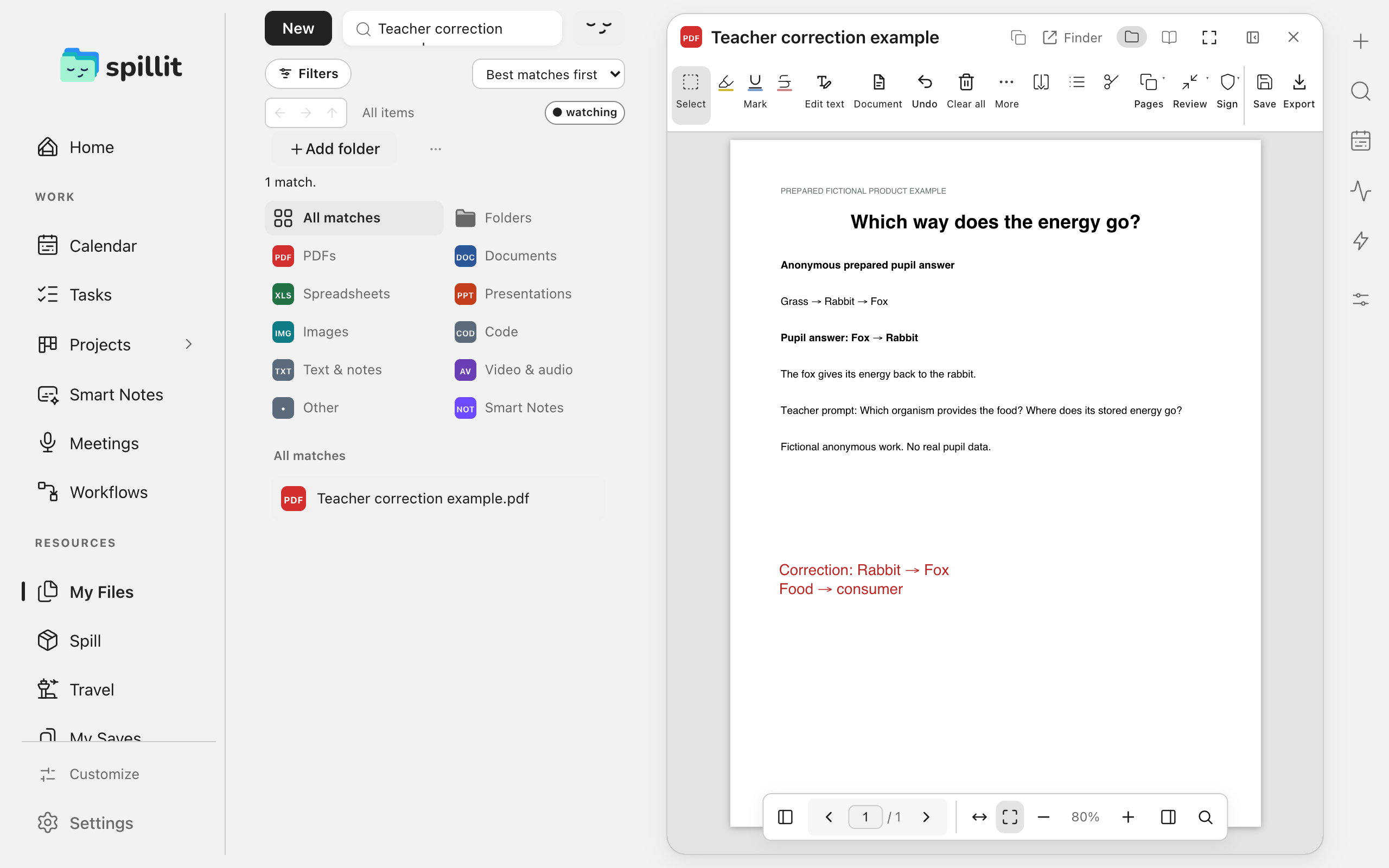
Actual desktop screens
Real app screens with edited transitions.
Plan a correction pupils can explain.
A short plan connects the marked example, a pair activity and an exit question. The source reading stays beside the explanation.
A timed activity targets the specific arrow misconception.Still to show
The starter asks pupils to explain what the wrong arrow would mean.
SpillitSmart Notes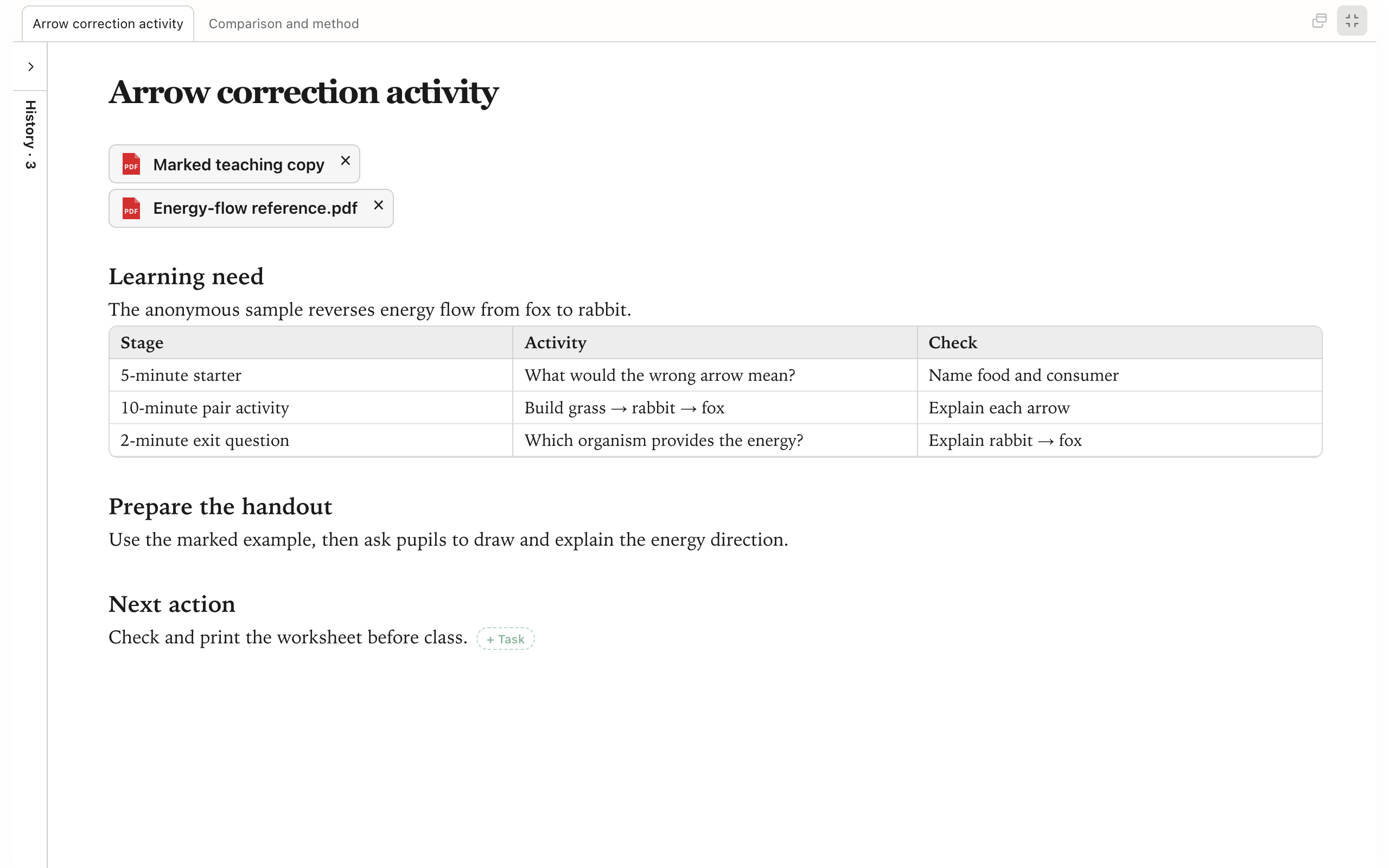
Actual desktop screens
Real app screens with edited transitions.
Prepare the handout for that lesson.
Review the revised Word worksheet, then its native PDF output. The instructions ask pupils to draw and explain the energy direction.
A revised worksheet and real printable PDF are ready for checking.Still to show
The original only asks pupils to draw a chain, leaving the direction unexplained.
SpillitMy Files · Word and PDF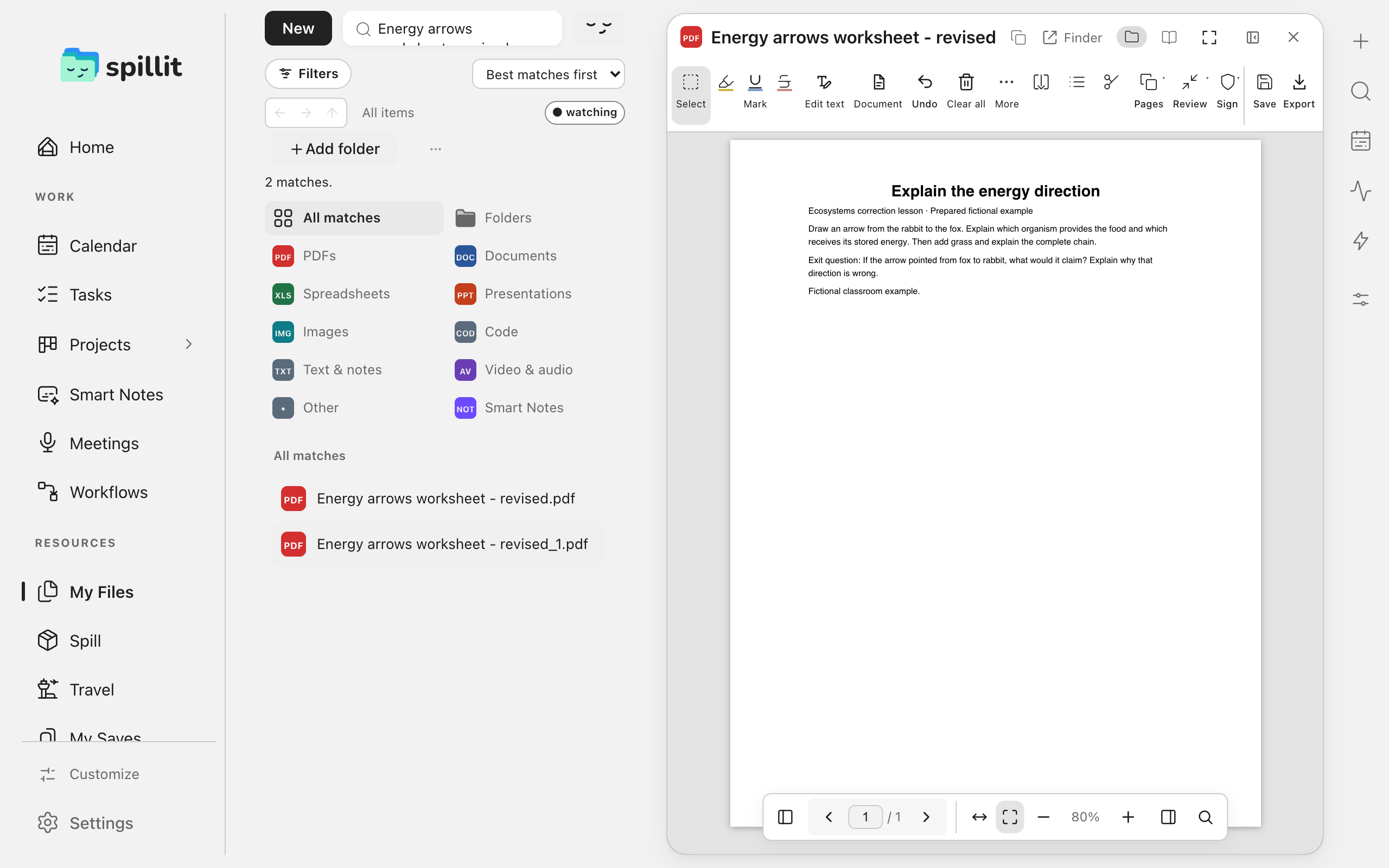
Actual desktop screens
Real app screens with edited transitions.
Task examples and comparisons
Lesson plans
Prepare next week's lesson. Open its reading beside the plan and prepare the class materials.
- Write Smart Notes with headings, checklists, and tables.
- Reuse lesson templates each term.
- Create a project for each class.
- Insert the reading or file into the lesson plan.
Your class project contains the lesson plan and its reading materials.
Compare in detail: Notion, Obsidian
TodayIn Spillit
Notionfor notes and pagesAI by outside providersSmart Notes and ProjectsLocal Intelligence on your computer
Obsidianfor notesSmart Notes
A folderfor files
My Files, inside the project
3 separate apps for these steps1 app for the supported steps
Notion
How it works
Notion supports viewing and editing downloaded pages offline.
Its AI uses external model providers.
With Spillit
Work on notes and supported documents in Spillit. Use its included Local Intelligence with the material in your workspace.
Notion offers offline editing for downloaded pages. Check the team and database features you need before switching.
Obsidian
How it works
Obsidian stores local notes using Markdown, a plain text note format.
Its optional Sync can encrypt notes before they leave your device.
How Obsidian stores data Obsidian Sync security Obsidian plugins
With Spillit
Edit supported Office files and PDFs in the same app as Smart Notes. Manage tasks, transcribe meetings, and use the included local language model.
Obsidian stores files locally and works offline. Optional plugins can add functions. Sync protects remote copies separately from local files.
Tools for these activities
Your work stays on your computer by default.
On your computer
- Notes, tasks, projects and files
- Search across your folders
- Meeting transcripts and summaries
- Local AI for selected text
Online, only when you use it
- Saving a link or fetching a video
- Online lookups or cloud AI
- Sync, only if you set it up
Slides and handouts
Prepare the slides for Monday and a handout to print.
- Edit slides and present with notes.
- Edit Word handouts and export to PDF.
- Merge handouts into one PDF and number the pages.
- Make a scanned worksheet searchable.
Ready-made workflows in Spillit
DRAFT across every page, with the title and date as a header.
- DRAFT across the page
- Title and date header
Scanned pages become text you can search and copy, then the file is shrunk.
- Make searchable
- Compress
Build a workflow for documents, images, spreadsheets, or text. Choose the pages, slides, sheets, or cells each step changes.
Compare in detail: Word, Excel and PowerPoint
TodayIn Spillit
Word, Excel and PowerPointfor documentsDocument, sheet and slide editing
A folderfor files
My Files, inside the project
2 separate apps for these steps1 app for the supported steps
Word, Excel and PowerPoint
How it works
Word, Excel, and PowerPoint provide dedicated document, spreadsheet, and presentation editing.
Their collaboration tools let people work together on shared files.
With Spillit
Edit supported DOCX, XLSX, and PPTX files in Spillit. Change text and formatting, use spreadsheet formulas and charts, and edit slides. Keep these files with notes and tasks, then export to PDF.
Check advanced layouts, formulas, media, animation playback, and collaboration requirements before switching.
Marking
Read and comment on the PDFs you need to mark.
- Annotate and highlight PDFs.
- Fill in PDF forms.
- Compare a resubmission with the first version.
- Keep feedback notes in the class project.
Compare in detail: Adobe Acrobat
TodayIn Spillit
Adobe Acrobatfor PDFsPDF tools
A folderfor files
My Files, inside the project
2 separate apps for these steps1 app for the supported steps
Adobe Acrobat
How it works
Acrobat edits text and images, organizes pages, and merges or splits PDFs.
Its tools also cover signing, sharing, and document review.
With Spillit
Use Spillit to read PDFs, annotate them, and make supported text edits. Fill forms, organize pages, merge or compress files, add watermarks, and redact text. Save repeated document steps as a workflow.
Redaction flattens affected pages. Check complex forms and signing requirements. A drawn signature mark differs from a certificate signature.
Meetings
Review parent and staff meetings and plan their follow-ups.
- Record with your microphone and transcribe on your computer.
- Review a summary and action items with due dates.
- Drag follow-up tasks onto your week.
- Use focus sessions for marking.
Compare in detail: Otter.ai
TodayIn Spillit
OOtter.aifor transcriptsStored in the cloud
MeetingsTranscribed on your computer
A folderfor files
My Files, inside the project
2 separate apps for these steps1 app for the supported steps
Otter.ai
How it works
Otter transcribes in-person and online classes and meetings, and can join scheduled Zoom, Google Meet and Teams calls.
Recordings and transcripts are stored in the cloud on Amazon Web Services.
With Spillit
Spillit transcribes and summarizes on your computer. Save each action item in its project with the notes and reading material.
Spillit records your microphone, and call audio from one meeting app on macOS 13 or later. Otter also offers live captions and shared notes; check whether you need them.
For lawyers · Local document workflows
Prepare documents locally.
Reuse the workflow.
A client sends a revised contract. I keep the document work on my computer, check the wording and prepare a branded copy.
No online document upload needed for these steps.
All on your computer.
Paid PDF options for these tasks

 One Spillit workspaceWrite · Prepare PDFs · Reuse workflows
Word document editing, too.Edit text and formatting in .docx files, save the draft, and prepare its PDF copy in Spillit.See the editing tools
For the document tasks shown below. Free editions are also available.
Keep document work localNo online PDF service is required.
Keep the originalsPrepare a separate copy for review.
Reuse your setupChoose new files. Update the matching values.
Optional sync, cloud AI and online lookups use the network when enabled. How local processing works
Before I prepare the copy
I check the changes against the source.
I compare the PDF wording and keep review annotations with the document. I can edit the Word draft, add comments and review tracked changes.
Explore document reviewLocal Intelligence · An example question“What notice period does this selected clause state?”
How on-computer AI works
Document tools, at a glance.
Compare the wording. Check the source.
- Find
- Compare
- Sources
Revise the draft. Keep review comments.
- Edit
- Comments
- Revisions
Give the review copy your firm’s look.
- Logo
- Headers
- Page numbers
Remove private text. Reuse the steps.
- Black out
- Sign
- Reuse
Full tool list
Read and check
- Search text and scanned pages
- Compare PDF text versions
- Highlights and review notes
- File questions with source links
Write and revise
- Edit Word documents (.docx)
- Text and paragraph formatting
- Comments and tracked changes
- Available earlier file versions
Brand and assemble
- Convert and combine copies
- Split, extract, rotate and reorder pages
- Firm headers, footers and logos
- Page and Bates numbering
- Watermarks and dated stamps
Prepare and repeat
- Remove selected private text
- Place saved signature marks
- Fill existing PDF form fields
- Passwords, compression and file names
- Saved steps, batches and run history
Bates numbers are sequential identifiers on document pages. Annotations and AI suggestions support your review; you decide what to keep.
Start one local workflow
Combine files on your computer.
I bring the Word draft and appendix into one copy. The workflow keeps the originals in place.
Can cover this separate taskPDF conversion and merging
SpillitWorkflows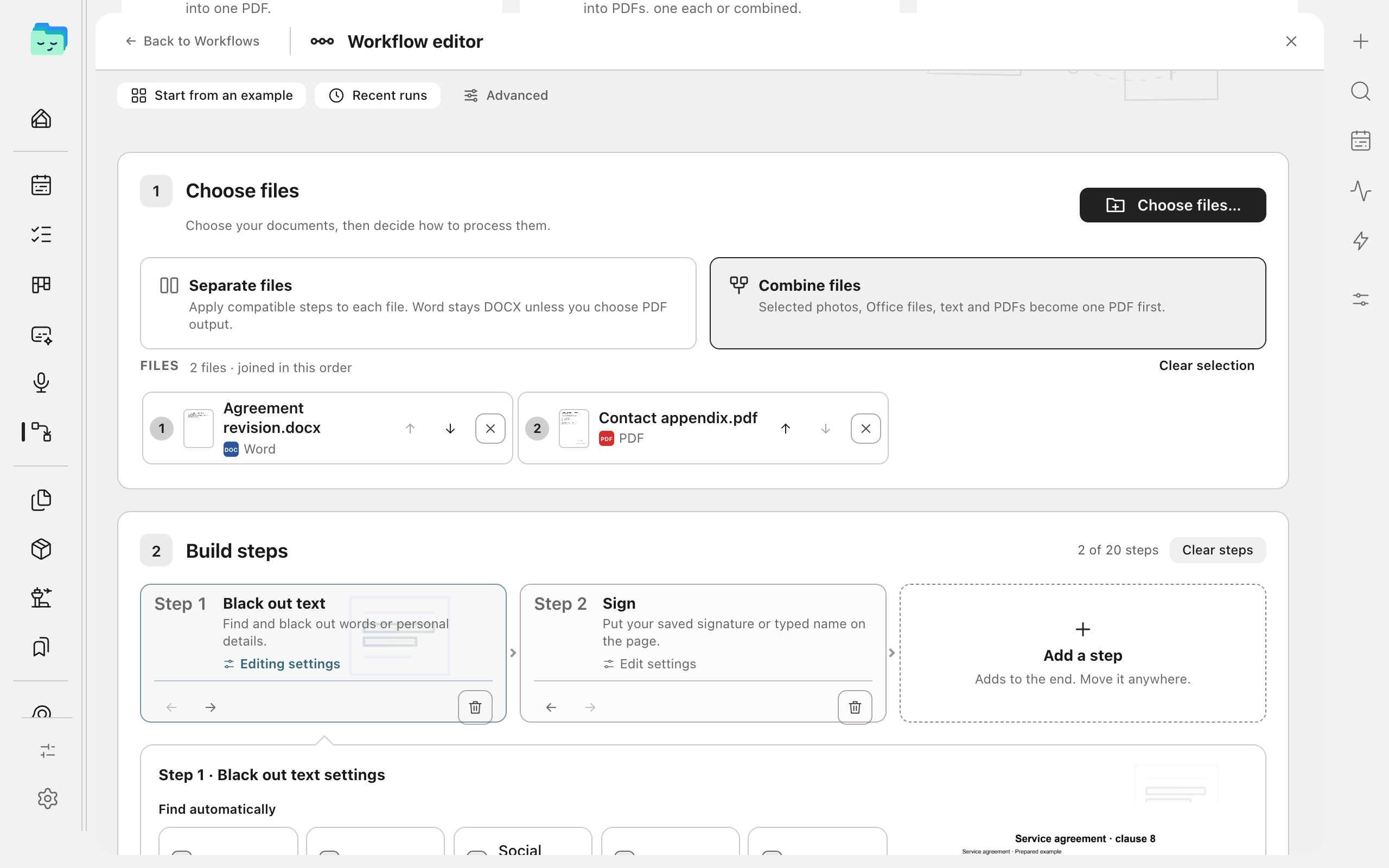
Choose both with Combine files. The workflow handles PDF conversion and keeps the original files.
Choose what stays private
Remove chosen private text locally.
I choose the names and contact values this sharing copy should hide, then check the result.
Can cover this separate taskSelected-text removal in a PDF editor
SpillitWorkflows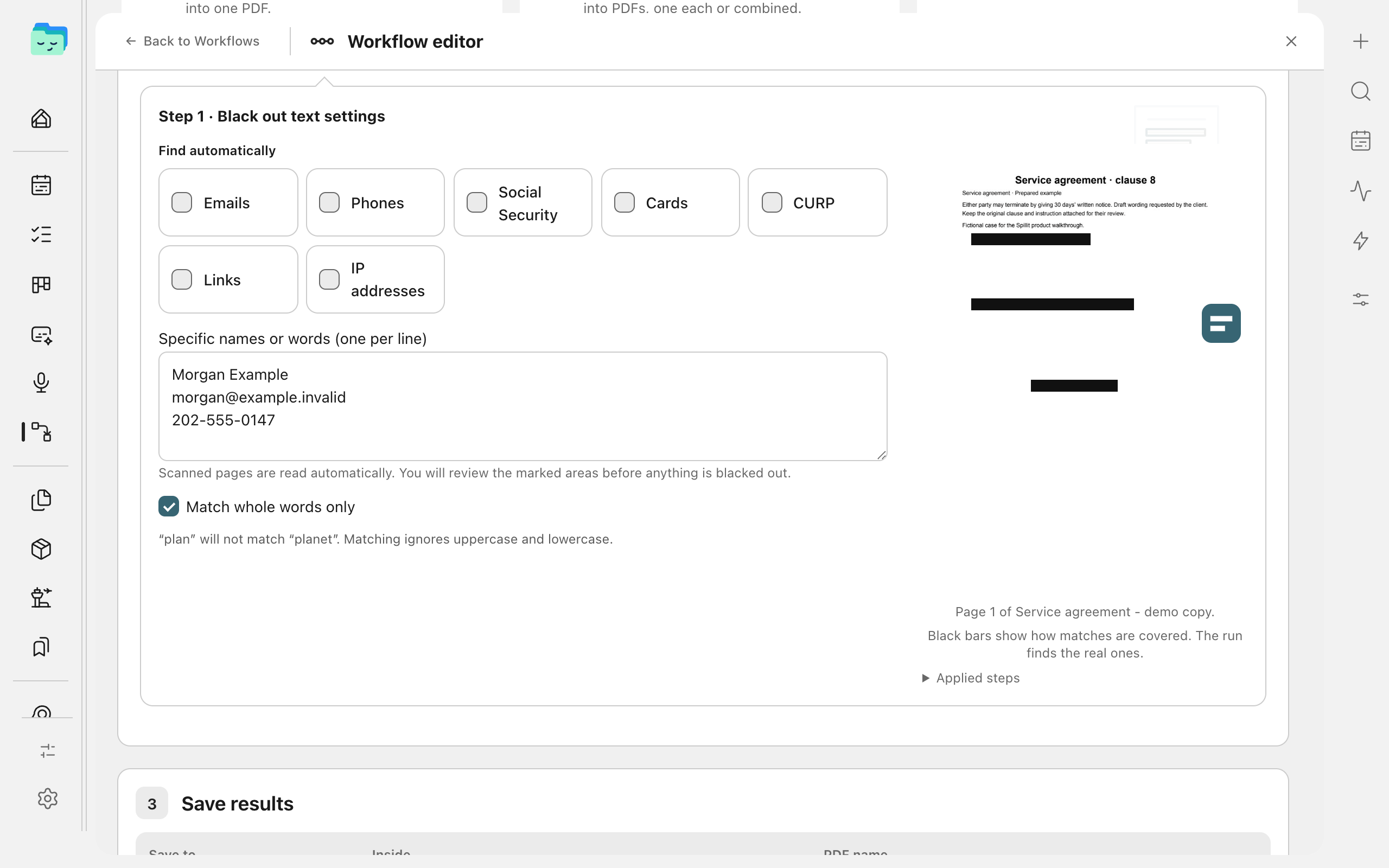
Enter names one per line. Choose contact values to match, then check the resulting copy.
Give the copy the firm’s identity
Add the firm header and logo.
I add the firm’s header, page count and logo in the same workflow, ready for the review copy.
Inside the same reusable workflowHeaders, page numbering and logo placement
SpillitWorkflows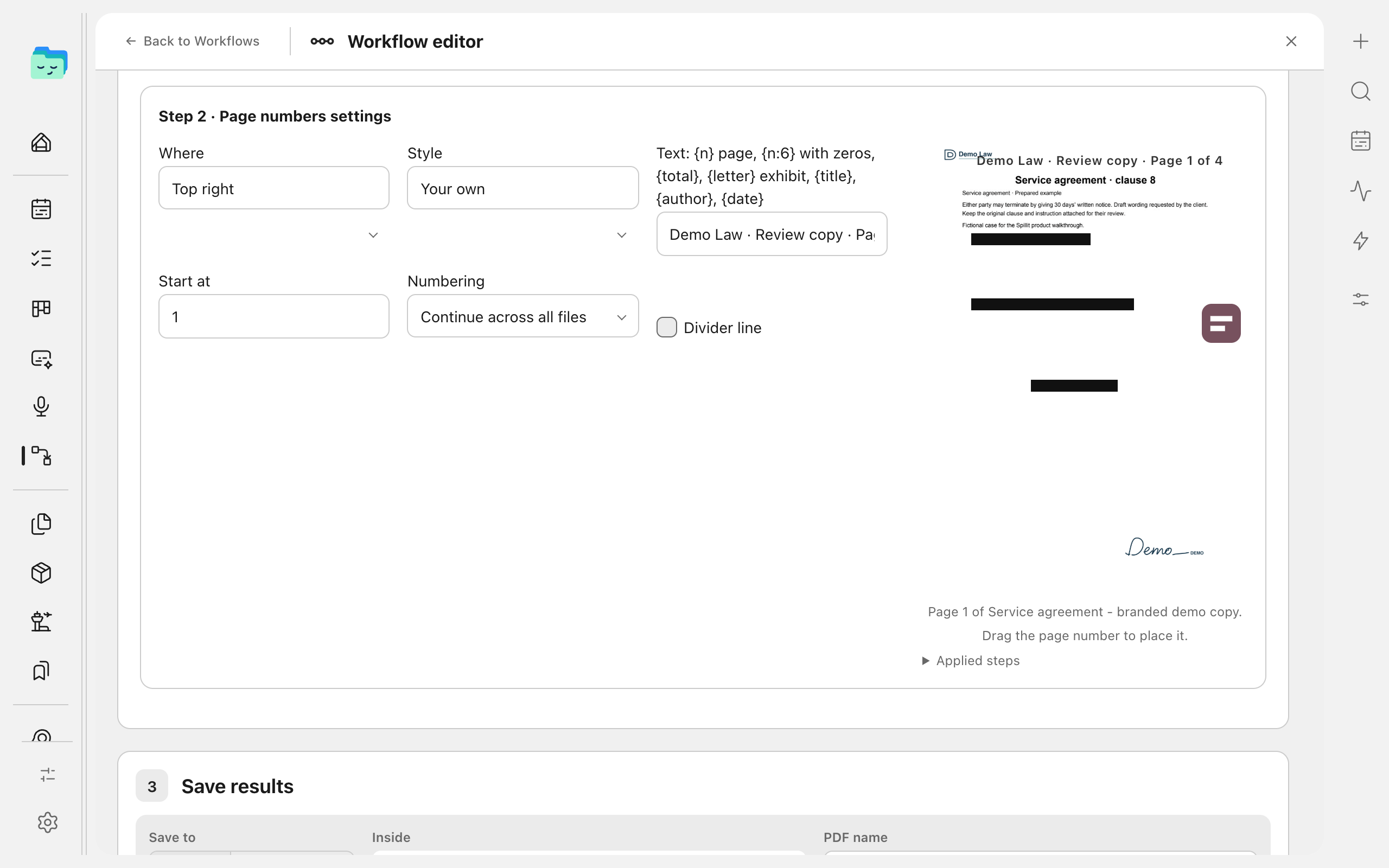
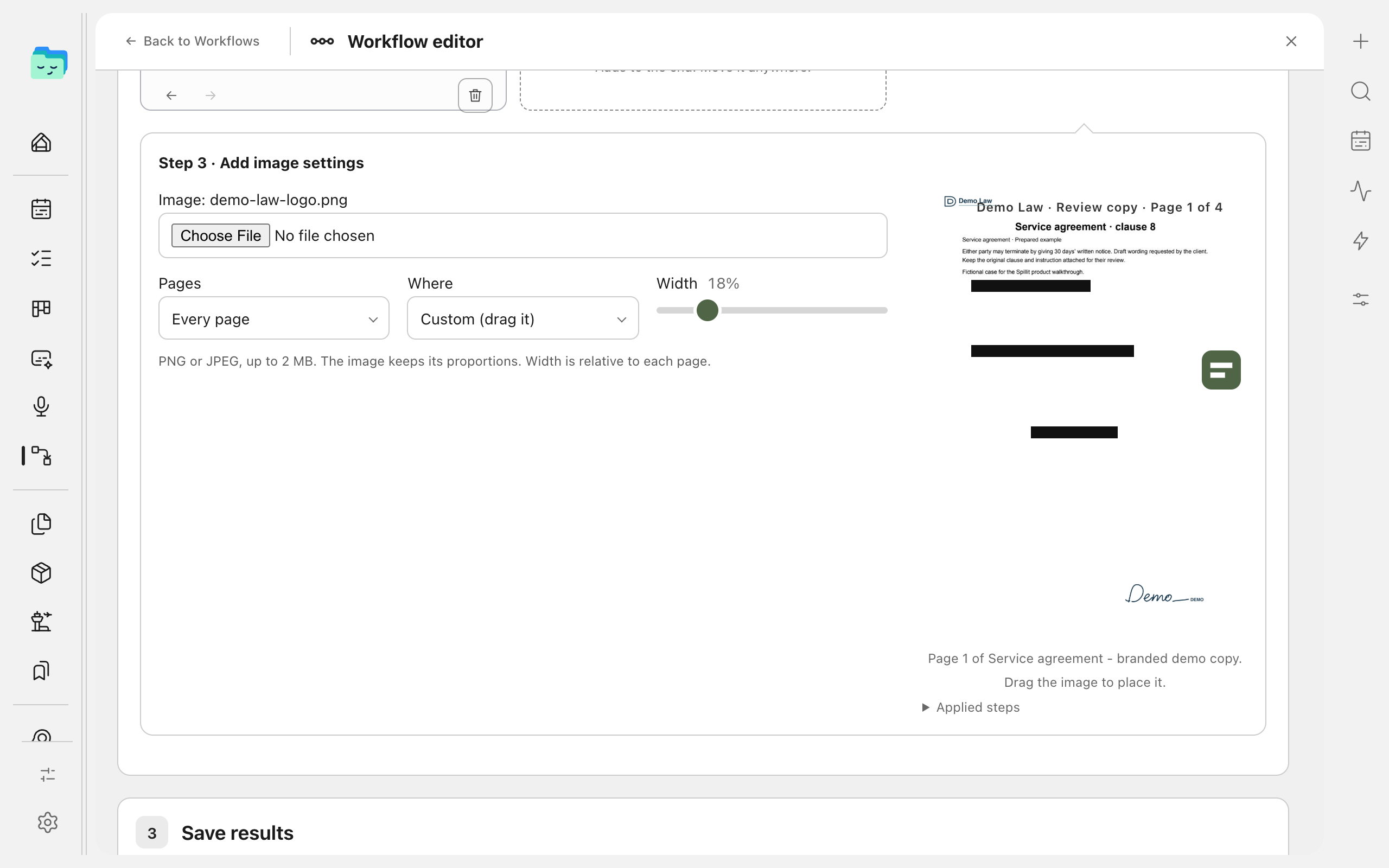
Use Page numbers for header text and counters. Use Add image to place the firm’s logo.
Keep the signature step here
Add a signature without another upload.
I place my saved signature on the page I choose, after preparing the copy’s content and firm styling.
Can cover this separate taskPlacing your own signature on a PDF
SpillitWorkflows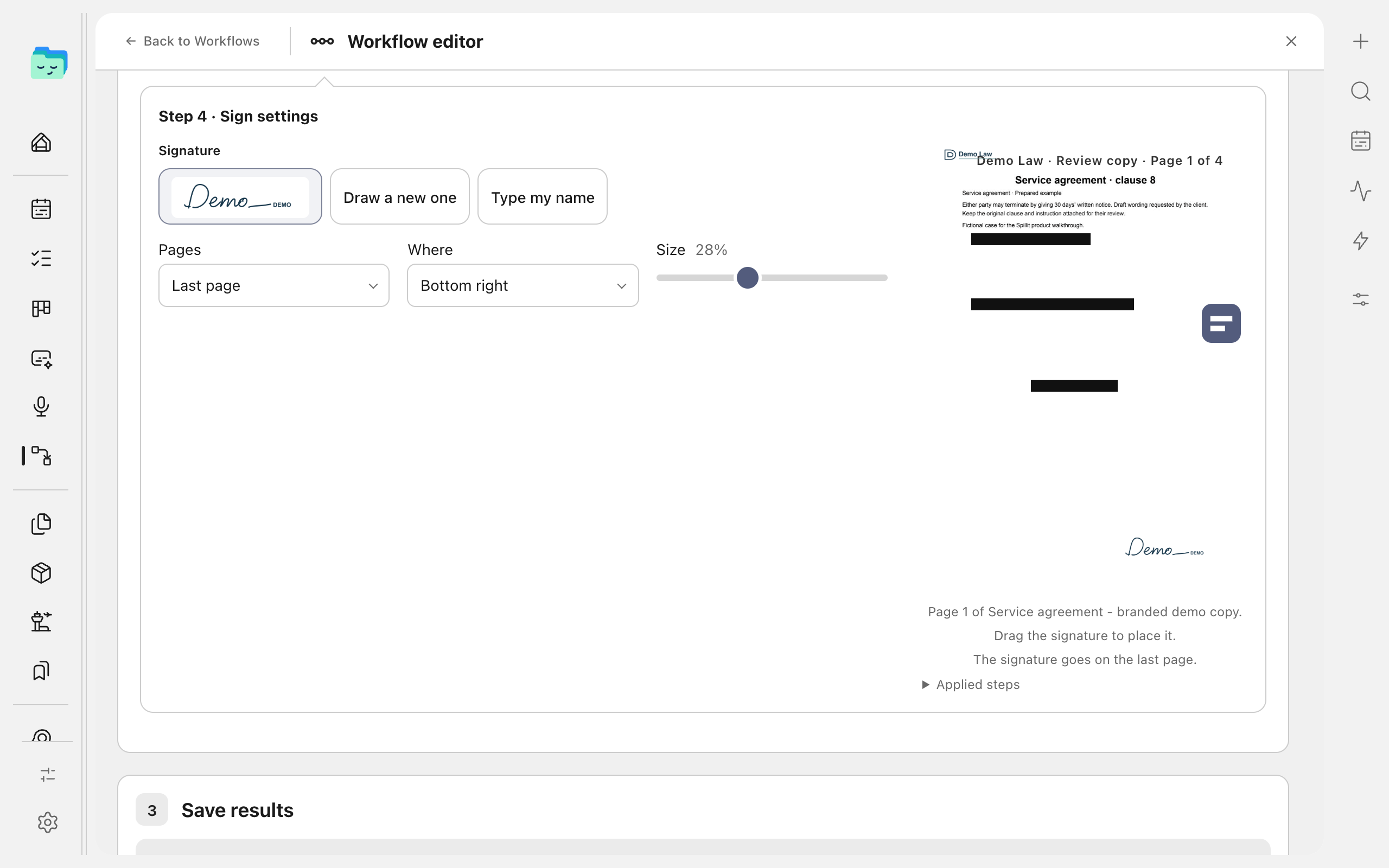
Pick the saved signature, page and position. This example uses a DEMO image on the last page.
Use the same workflow again
The next copy starts with your workflow.
I open the saved workflow for the next matter, choose its files and update the private-text matches.
What you stop repeatingRepeating the same document setup
SpillitWorkflows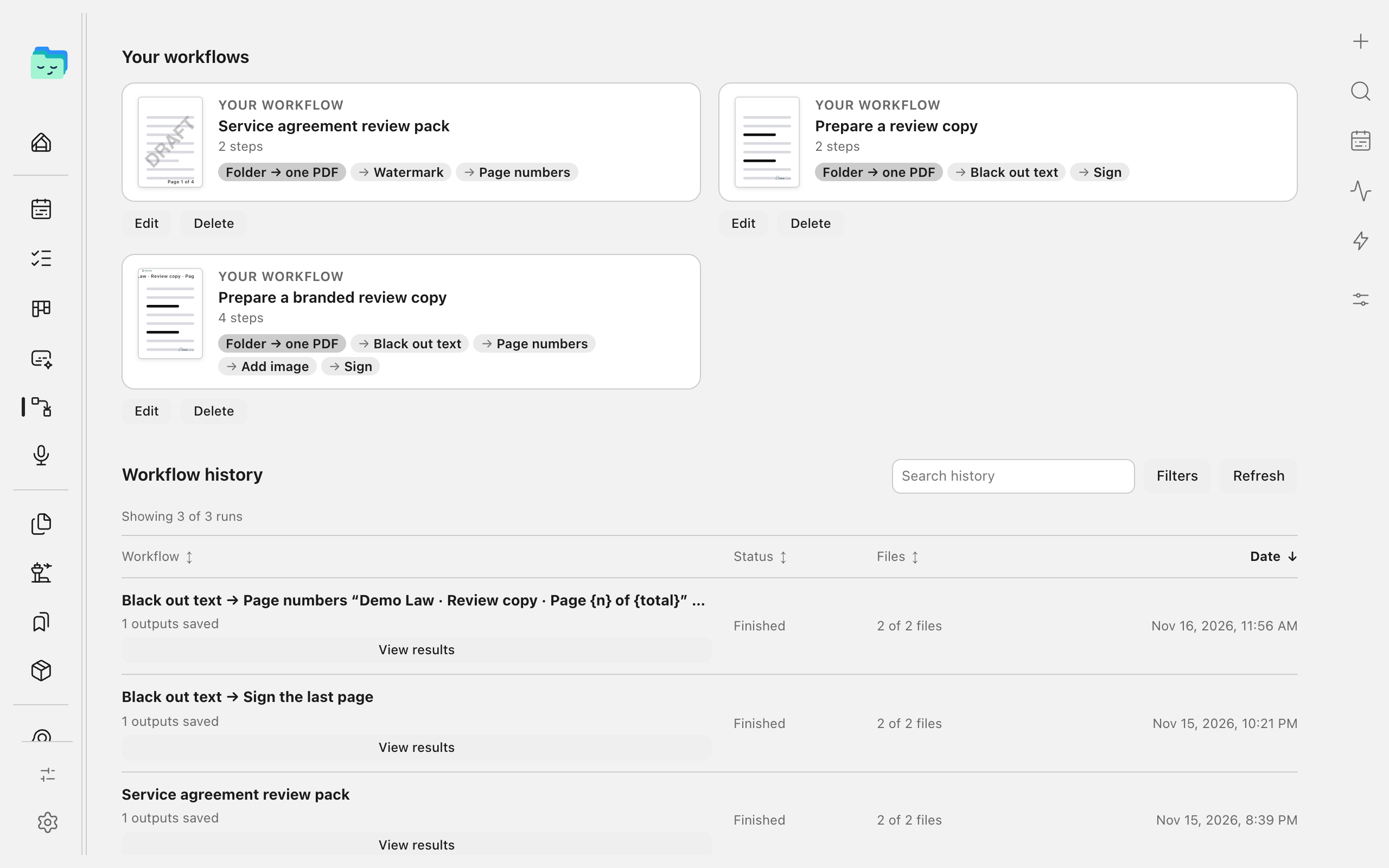
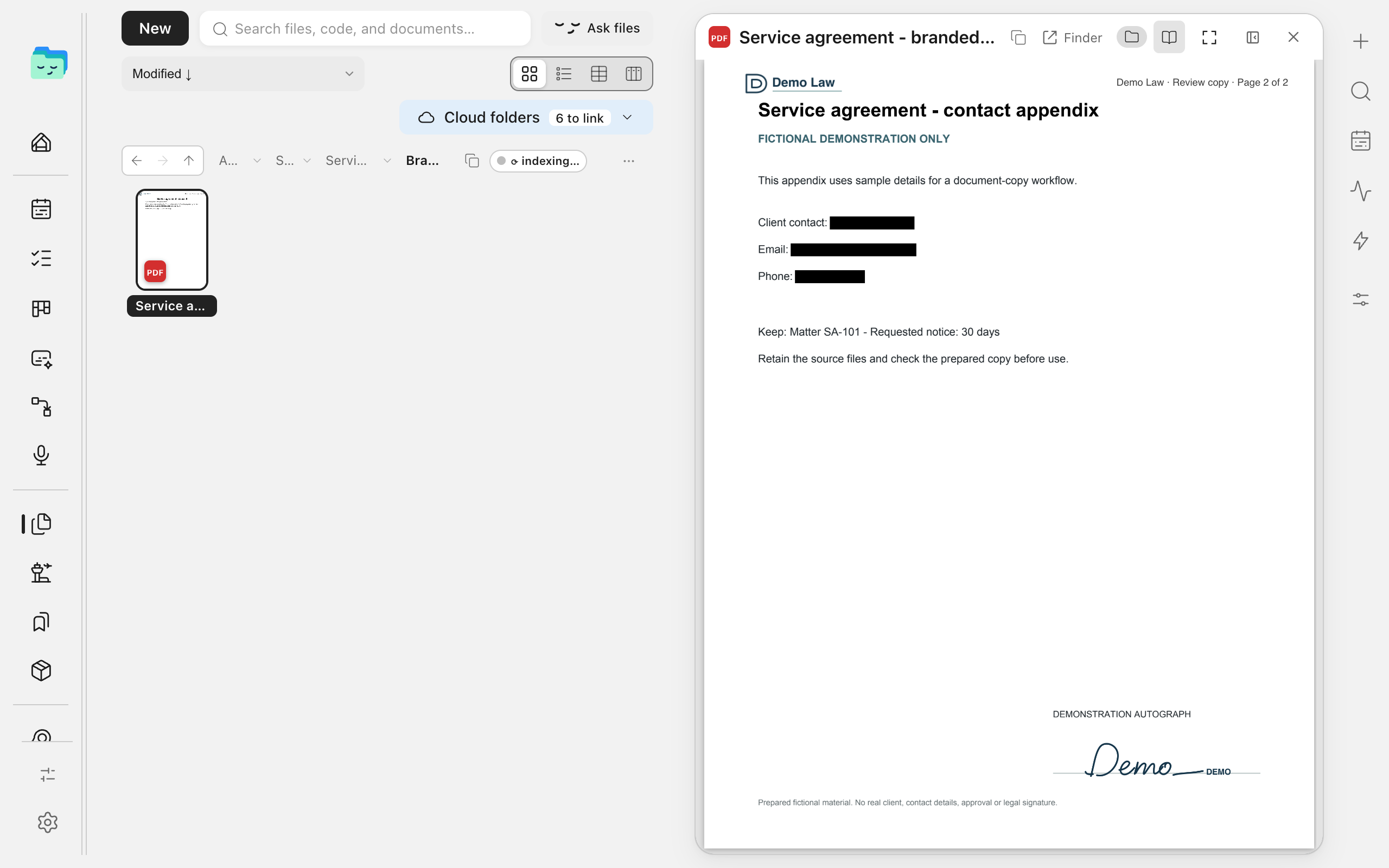
Open “Prepare a branded review copy” in Your workflows. Choose new files and update the values for this matter.
The rest of the matter stays close
Fewer separate tools around the copy.
Keep the files, instructions and follow-ups in the same workspace as your document preparation.
About these task comparisons
These comparisons cover the document jobs shown here. Some products also offer desktop or offline editions.
Official examples checked November 16, 2026: PDF.to conversion, iLovePDF merging, Acrobat redaction, Smallpdf signature placement.
Local desktop examples: iLovePDF Desktop, Smallpdf for Windows, Acrobat desktop.
Task examples and comparisons
Contracts and documents
Review today's contract and keep comments in the matter. Prepare the version you want to send.
- Edit Word files with comments and tracked changes.
- Compare two PDFs and annotate them.
- Redact text. Spillit flattens the affected pages.
- Merge documents, number pages, add watermarks, and set a password.
You have reviewed the contract and prepared the copy you want to send.
Compare in detail: Word, Excel and PowerPoint, Adobe Acrobat
TodayIn Spillit
Word, Excel and PowerPointfor documentsDocument, sheet and slide editing
Adobe Acrobatfor PDFsPDF tools
A folderfor files
My Files, inside the project
3 separate apps for these steps1 app for the supported steps
Word, Excel and PowerPoint
How it works
Word, Excel, and PowerPoint provide dedicated document, spreadsheet, and presentation editing.
Their collaboration tools let people work together on shared files.
With Spillit
Edit supported DOCX, XLSX, and PPTX files in Spillit. Change text and formatting, use spreadsheet formulas and charts, and edit slides. Keep these files with notes and tasks, then export to PDF.
Check advanced layouts, formulas, media, animation playback, and collaboration requirements before switching.
Adobe Acrobat
How it works
Acrobat edits text and images, organizes pages, and merges or splits PDFs.
Its tools also cover signing, sharing, and document review.
With Spillit
Use Spillit to read PDFs, annotate them, and make supported text edits. Fill forms, organize pages, merge or compress files, add watermarks, and redact text. Save repeated document steps as a workflow.
Redaction flattens affected pages. Check complex forms and signing requirements. A drawn signature mark differs from a certificate signature.
Tools for these activities
The document steps shown here run on your computer.
Combine files, remove selected text and place a saved signature without an online PDF upload service. Keep originals and prepared copies in your own folders.
On your computer
- The reusable document workflow shown above
- Selected-text removal and saved signature placement
- Original files, prepared copies and folder search
- Linked matter notes and the tasks you create
Online, only when you use it
- Online lookups you choose
- Cloud AI providers you choose and configure
- Sync, only if you set it up
Good to know: Spillit makes no claims about legal confidentiality, privilege or compliance. Check your firm's and your clients' rules before you record or store their material.
How Local Intelligence worksClient calls
Review a client call and the commitments made in it.
- Create a transcript and summary on your computer.
- Assign an owner and due date to each action item.
- Save each action item in its matter.
- Search past calls later, by what was said.
Compare in detail: Granola, Otter.ai
TodayIn Spillit
Granolafor call notesTranscribed in the cloudMeetingsTranscribed on your computer
OOtter.aifor transcriptsStored in the cloud
MeetingsTranscribed on your computer
A folderfor files
My Files, inside the project
3 separate apps for these steps1 app for the supported steps
Granola
How it works
Granola captures microphone audio and meeting audio from the computer.
Transcription and AI summaries use cloud processing.
With Spillit
Spillit transcribes and summarizes on your computer. It saves action items with their owner, date, and project. Open them with the project notes, files, and tasks.
Call audio and speaker names from Zoom, Google Meet, Teams, or Webex need macOS 13 or later. Otherwise, Spillit records your microphone. Speaker labels can be wrong when people speak at the same time.
Otter.ai
How it works
Otter transcribes in-person and online classes and meetings, and can join scheduled Zoom, Google Meet and Teams calls.
Recordings and transcripts are stored in the cloud on Amazon Web Services.
With Spillit
Spillit transcribes and summarizes on your computer. Save each action item in its project with the notes and reading material.
Spillit records your microphone, and call audio from one meeting app on macOS 13 or later. Otter also offers live captions and shared notes; check whether you need them.
Matters and deadlines
Track each matter's deadlines, documents, and next task.
- Create a project for each matter with a deadlines panel.
- Set task dates, priorities, and repeats.
- Drag tasks onto your week beside calendar events.
- Export a matter brief as Markdown or PDF.
Compare in detail: Notion, Todoist
TodayIn Spillit
Notionfor notes and pagesAI by outside providersSmart Notes and ProjectsLocal Intelligence on your computer
Todoistfor to-do listTasks
A folderfor files
My Files, inside the project
3 separate apps for these steps1 app for the supported steps
Notion
How it works
Notion supports viewing and editing downloaded pages offline.
Its AI uses external model providers.
With Spillit
Work on notes and supported documents in Spillit. Use its included Local Intelligence with the material in your workspace.
Notion offers offline editing for downloaded pages. Check the team and database features you need before switching.
Todoist
How it works
Todoist supports adding, editing, and completing tasks offline.
Changes sync when the connection returns. Signing in is required before working offline.
With Spillit
Keep tasks in the project with their related notes and files.
Offline task editing is available in Todoist. Compare the task views and integrations you use before switching.
Bundles, productions and exhibits
Prepare a hearing bundle by Thursday and number every page of a production.
- Add Bates numbers to every page, such as PROD000001.
- Black out emails, phone numbers, Social Security numbers, and card numbers.
- Watch a folder and run the workflow on new files.
- Review run history. Pause, cancel, or undo supported steps.
Ready-made workflows in Spillit
Scans, photos and letters become one bundle with an index and lettered exhibits.
- One bundle from a folder
- Index of exhibits
- Exhibit A · Page 1 of 4
- Compress
Black out personal data, mark it confidential, Bates-number every page.
- Black out emails, phones, SSNs and cards
- CONFIDENTIAL across the page
- PROD000001 on every page
Photos land upright on full pages, captioned and numbered.
- Photos upright on full pages
- Photo 3 of 12 · date
Build a workflow for documents, images, spreadsheets, or text. Choose the pages, slides, sheets, or cells each step changes.
Compare with separate tools
TodayIn Spillit
Repeating the same steps by hand in a PDF editor, file by file.
Workflows
Property viewing · A buyer’s question
Garden-facing. Is access included?
The room faces the garden. That does not establish shared access. Keep the buyer’s question separate from the supplied property details.
Seller confirmation has an owner and a November 17 follow-up.
Watch walkthroughKeep the question with the property.
Open the buyer’s question after the viewing. The picture helps locate the topic; seller confirmation is the next action.
Garden-access question kept with the property contextStill to show
I’ll keep the buyer’s question with the property files.

Illustrated phone introduction
Illustrated phone example.
ProPrivate sync is available on supported builds. How it works
Mark the window without implying access.
Mark the garden-facing area in the illustrative picture. Keep the question on the saved image without presenting it as a confirmed property fact.
Garden-access question marked on a saved property referenceStill to show
I’ll use the picture to make the buyer’s question easier to explain.
SpillitMy Files · Pictures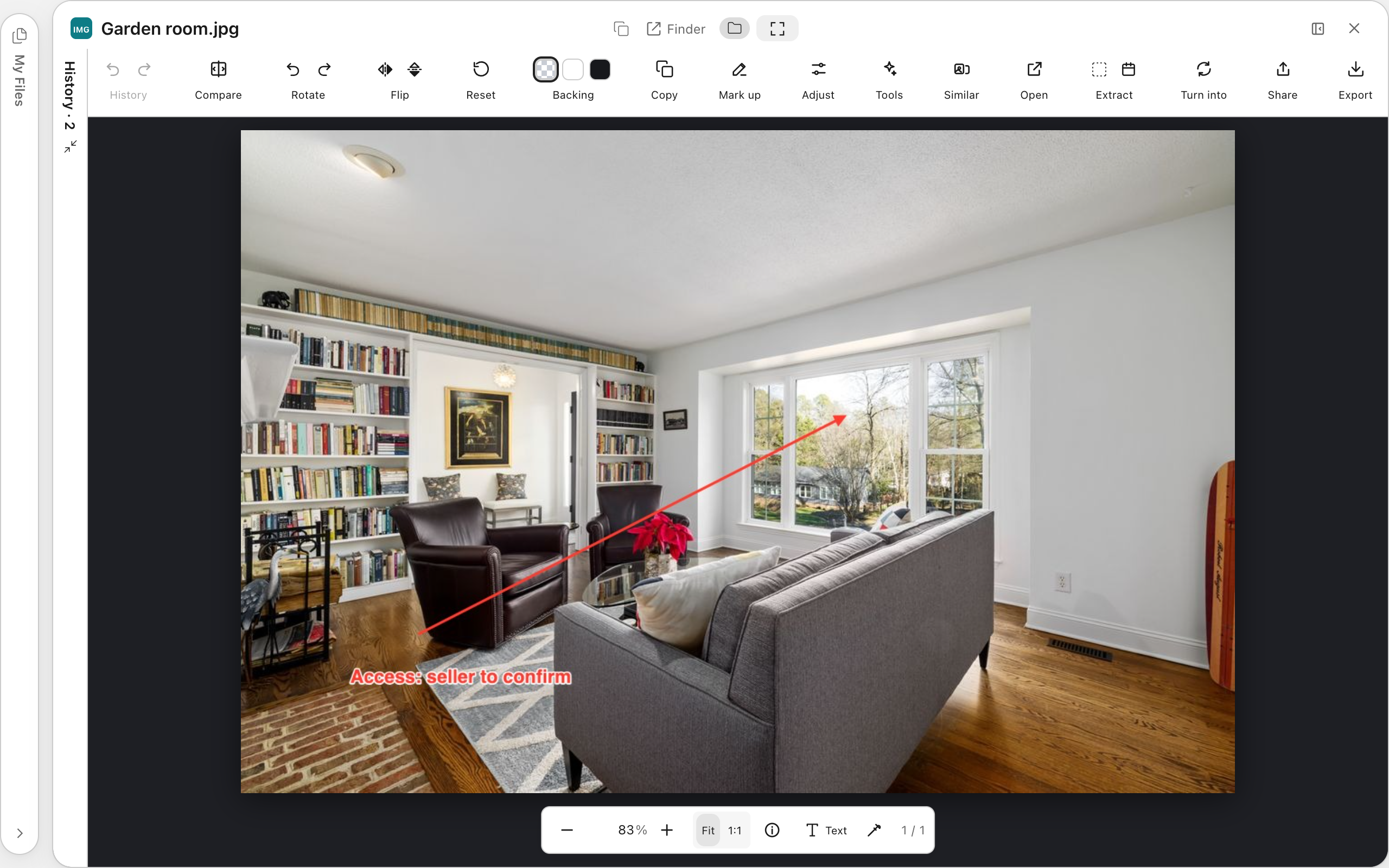
Actual desktop screens
Real app screens with edited transitions.
A floor plan is context, not confirmation.
Read the supplied plan and the viewing brief. Shared access stays explicitly unconfirmed until the seller answers.
Viewing brief saved with access explicitly unconfirmedStill to show
The plan shows the garden-facing window, with shared access still unconfirmed.
SpillitMy Files · PDF and Word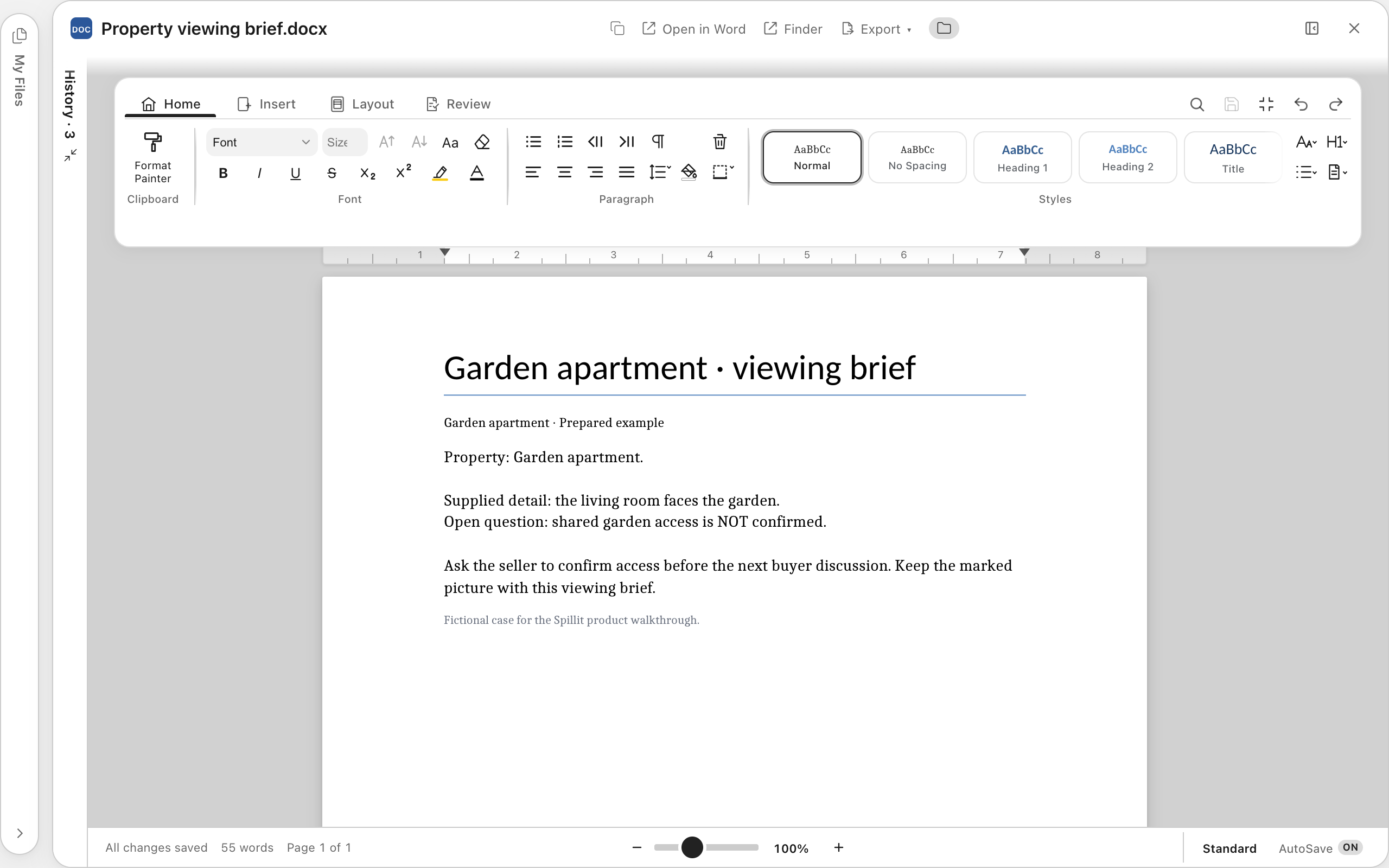
Actual desktop screens
Real app screens with edited transitions.
Give the seller question an owner and date.
Keep the property files together, then open the seller task. The next buyer discussion can wait for that answer.
Seller-confirmation task assigned and datedStill to show
The marked context stays beside the saved property brief.
SpillitProjects · Files and Tasks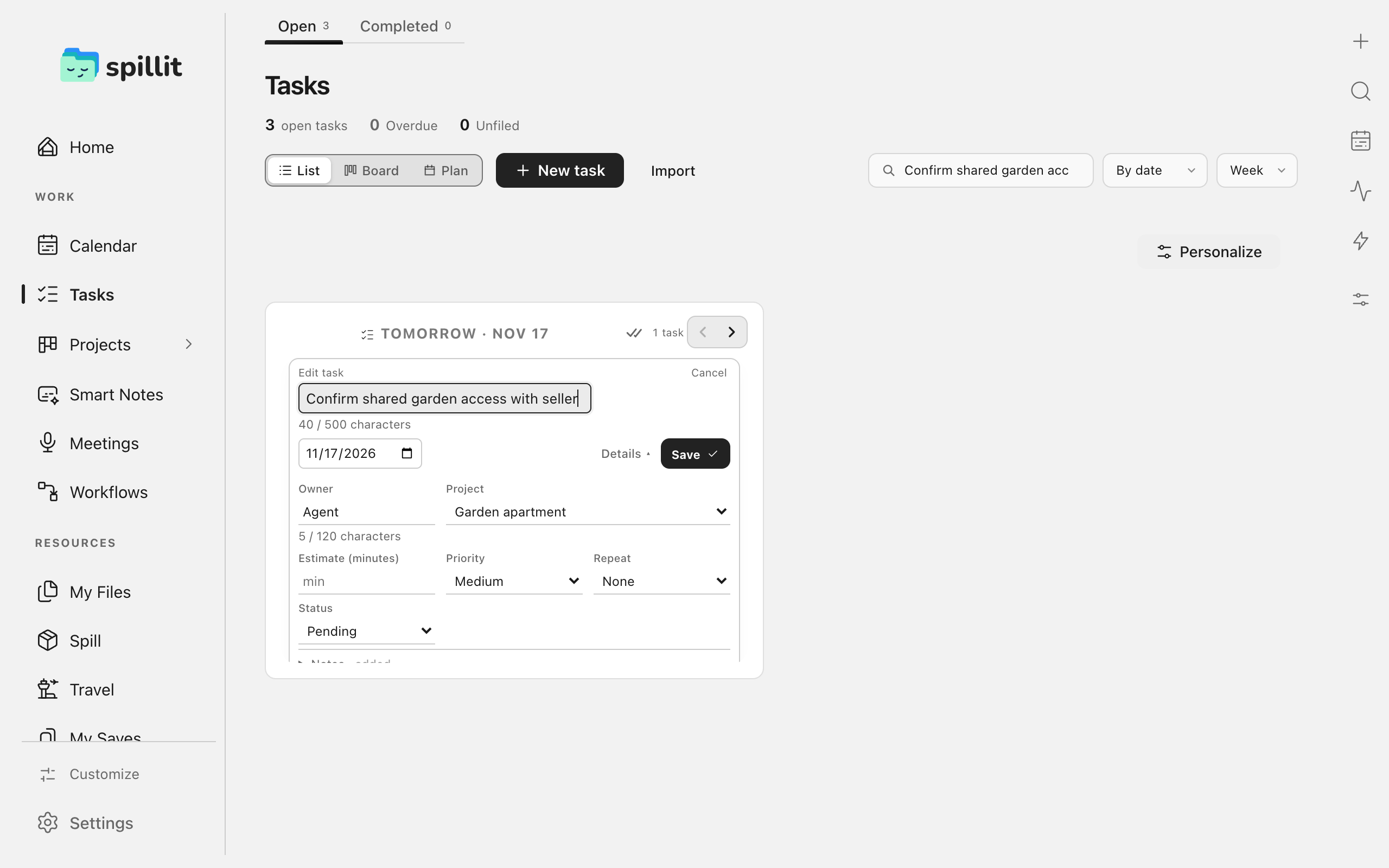
Actual desktop screens
Real app screens with edited transitions.
Task examples and comparisons
Property photos
Prepare the listing photos and mark the details. Save them with the property documents.
- Crop and frame photos.
- Add arrows, labels and numbered steps.
- Blur or redact private details such as house numbers.
- Keep the photos in the property project.
Your property project contains the marked listing photos and documents.
Compare with separate tools
TodayIn Spillit
A photo editor on your phone, then a chat app.
Photo editing
Tools for these activities
Your work stays on your computer by default.
On your computer
- Notes, tasks, projects and files
- Search across your folders
- Meeting transcripts and summaries
- Local AI for selected text
Online, only when you use it
- Saving a link or fetching a video
- Online lookups or cloud AI
- Sync, only if you set it up
Offers, forms and signatures
Fill in an offer, sign it, and prepare the copy to send tonight.
- Fill PDF forms and add a signature mark.
- Sign with a digital certificate when you have one.
- Merge the bundle, number its pages, and protect the PDF.
- Edit Word contracts with tracked changes.
Ready-made workflows in Spillit
Number the pages, then protect the file with a password.
- Page numbers
- Password
Black out emails, phones and card numbers, mark it, number the pages.
- Black out personal data
- CONFIDENTIAL across the page
- Page 3 of 12
Build a workflow for documents, images, spreadsheets, or text. Choose the pages, slides, sheets, or cells each step changes.
Compare in detail: Adobe Acrobat, Word, Excel and PowerPoint
TodayIn Spillit
Adobe Acrobatfor PDFsPDF tools
Word, Excel and PowerPointfor documentsDocument, sheet and slide editing
A folderfor files
My Files, inside the project
3 separate apps for these steps1 app for the supported steps
Adobe Acrobat
How it works
Acrobat edits text and images, organizes pages, and merges or splits PDFs.
Its tools also cover signing, sharing, and document review.
With Spillit
Use Spillit to read PDFs, annotate them, and make supported text edits. Fill forms, organize pages, merge or compress files, add watermarks, and redact text. Save repeated document steps as a workflow.
Redaction flattens affected pages. Check complex forms and signing requirements. A drawn signature mark differs from a certificate signature.
Word, Excel and PowerPoint
How it works
Word, Excel, and PowerPoint provide dedicated document, spreadsheet, and presentation editing.
Their collaboration tools let people work together on shared files.
With Spillit
Edit supported DOCX, XLSX, and PPTX files in Spillit. Change text and formatting, use spreadsheet formulas and charts, and edit slides. Keep these files with notes and tasks, then export to PDF.
Check advanced layouts, formulas, media, animation playback, and collaboration requirements before switching.
Clients and viewings
Plan six viewings this week and record what each buyer said.
- Create call transcripts and summaries on your computer.
- Add follow-up tasks with dates.
- Drag viewings onto your week beside calendar events.
- Create a project for each property.
Compare in detail: Granola, Todoist
TodayIn Spillit
Granolafor call notesTranscribed in the cloudMeetingsTranscribed on your computer
Todoistfor to-do listTasks
A folderfor files
My Files, inside the project
3 separate apps for these steps1 app for the supported steps
Granola
How it works
Granola captures microphone audio and meeting audio from the computer.
Transcription and AI summaries use cloud processing.
With Spillit
Spillit transcribes and summarizes on your computer. It saves action items with their owner, date, and project. Open them with the project notes, files, and tasks.
Call audio and speaker names from Zoom, Google Meet, Teams, or Webex need macOS 13 or later. Otherwise, Spillit records your microphone. Speaker labels can be wrong when people speak at the same time.
Todoist
How it works
Todoist supports adding, editing, and completing tasks offline.
Changes sync when the connection returns. Signing in is required before working offline.
With Spillit
Keep tasks in the project with their related notes and files.
Offline task editing is available in Todoist. Compare the task views and integrations you use before switching.
Renovation · A change to the quoted work
Show the 80 behind the revised quote.
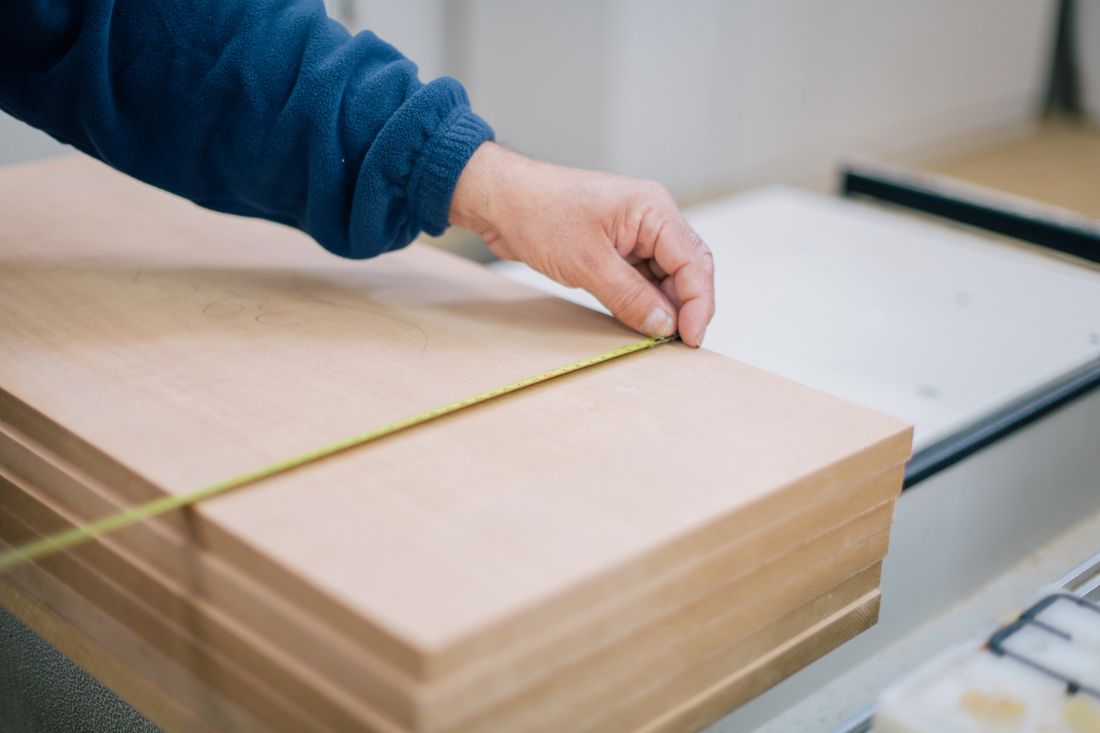
The client adds an edge repair. Mark its location, state the provisional measurement, and price that extra work on its own line.
The client can see what changed before agreeing to the price.
Watch walkthroughKeep the scope change with the job.
Open the repair instruction beside its measurement reference. The quote needs an identifiable allowance, with actual dimensions still to confirm.
Requested edge repair reviewed in the job contextStill to show
The client’s instruction stays with the job it changes.
Illustrated phone introduction
Illustrated phone example.
ProPrivate sync is available on supported builds. How it works
Mark the edge and keep the measurement provisional.
Add an arrow and repair note to the illustrative measurement picture. Save the marked reference with the plan before reviewing the allowance.
Repair reference marked and saved with the jobStill to show
I’ll use this reference to identify the edge we need to check.
SpillitMy Files · Pictures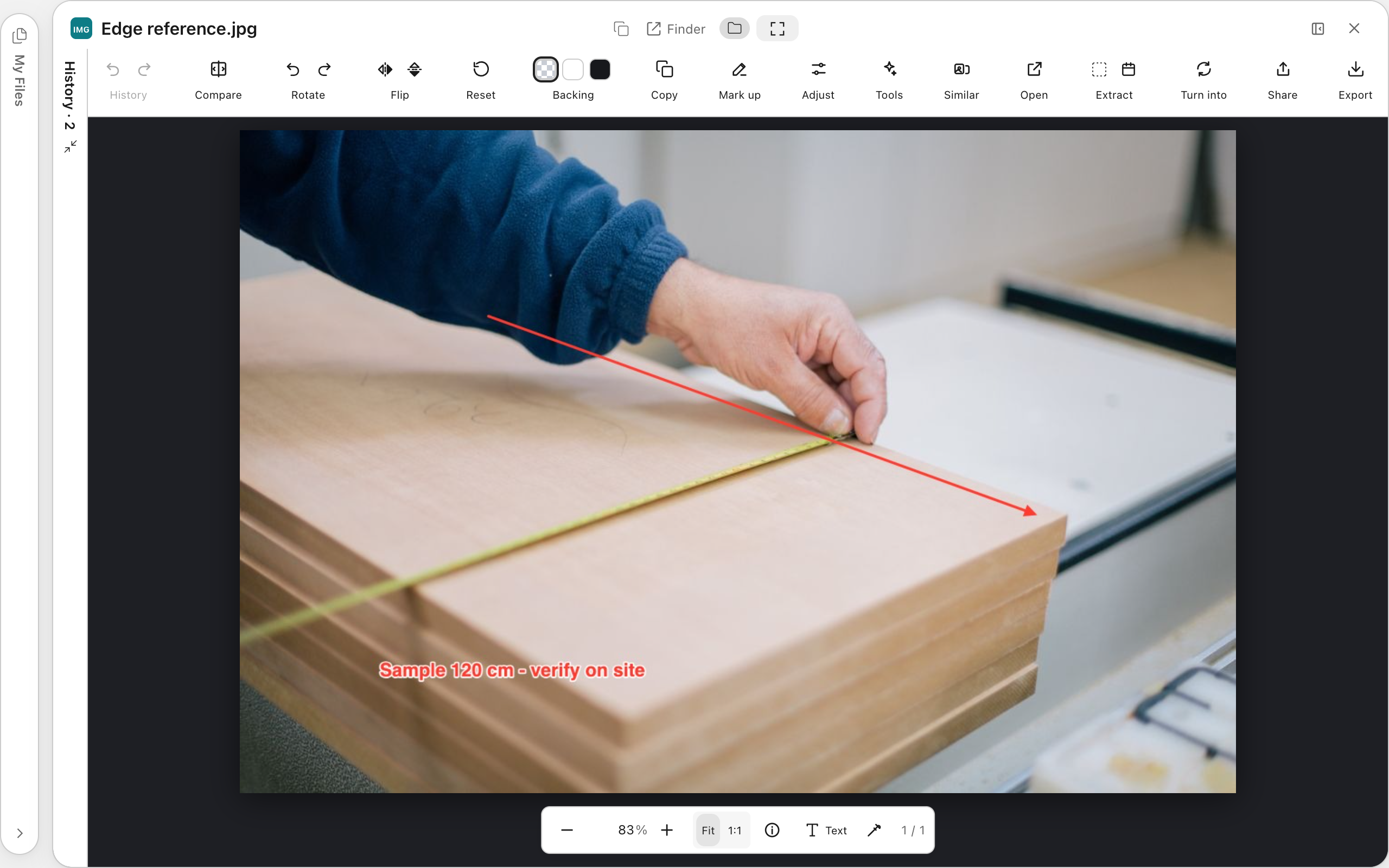
Actual desktop screens
Real app screens with edited transitions.
840 + 600 + 80 = 1,520.
Materials and labour stay unchanged. The quote makes the extra repair allowance visible as its own line.
Separate repair allowance saved; quote total 1520Still to show
I’ll keep the repair allowance visible in the working quote.
SpillitMy Files · Spreadsheet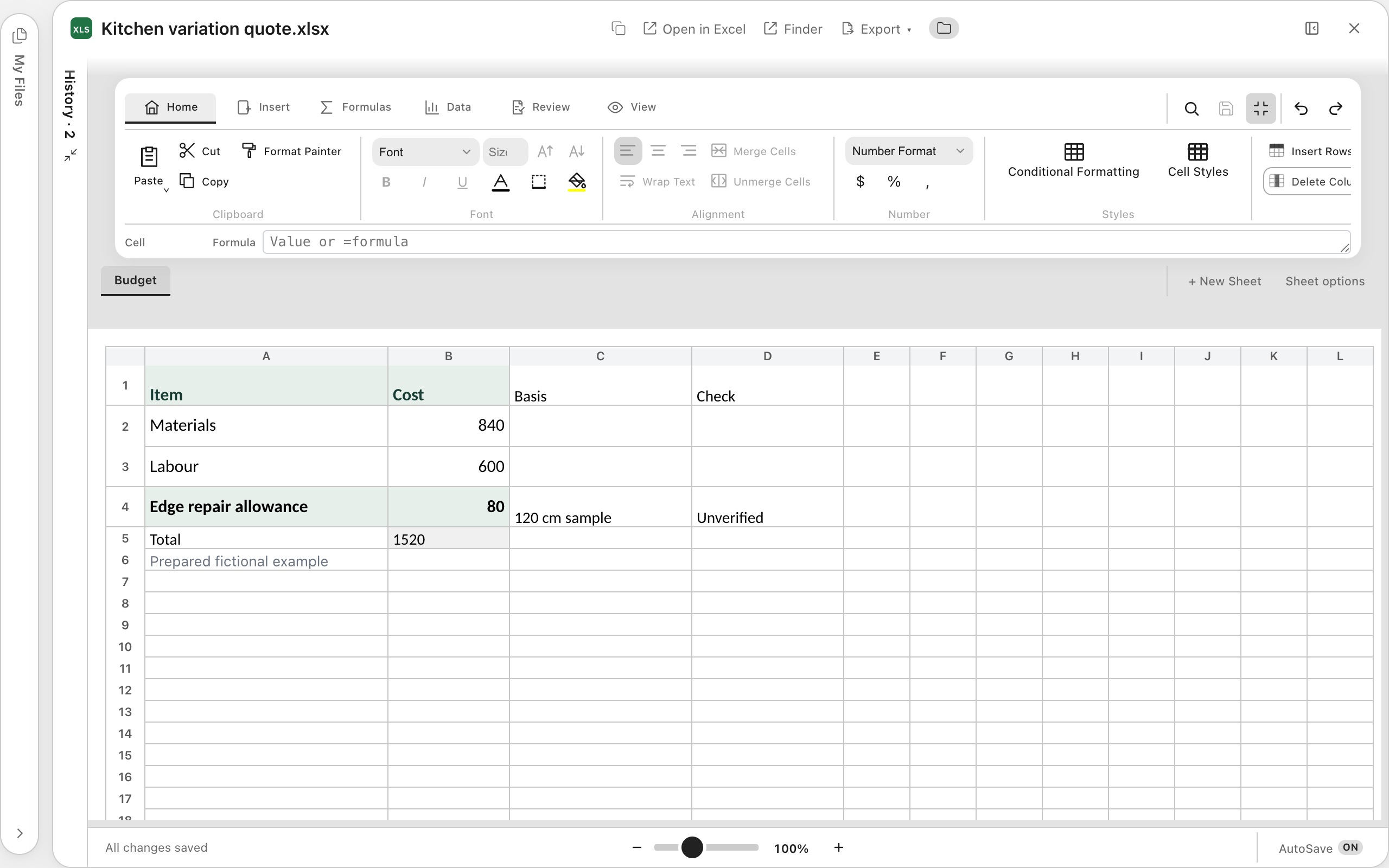
Actual desktop screens
Real app screens with edited transitions.
Confirm dimensions before agreeing the price.
Keep the marked reference and quote in the job. Open the review task to check its owner, date and measurement requirement.
Quote-review task assigned with dimension checks still pendingStill to show
The quote stays beside the scope detail behind the extra allowance.
SpillitProjects · Files and Tasks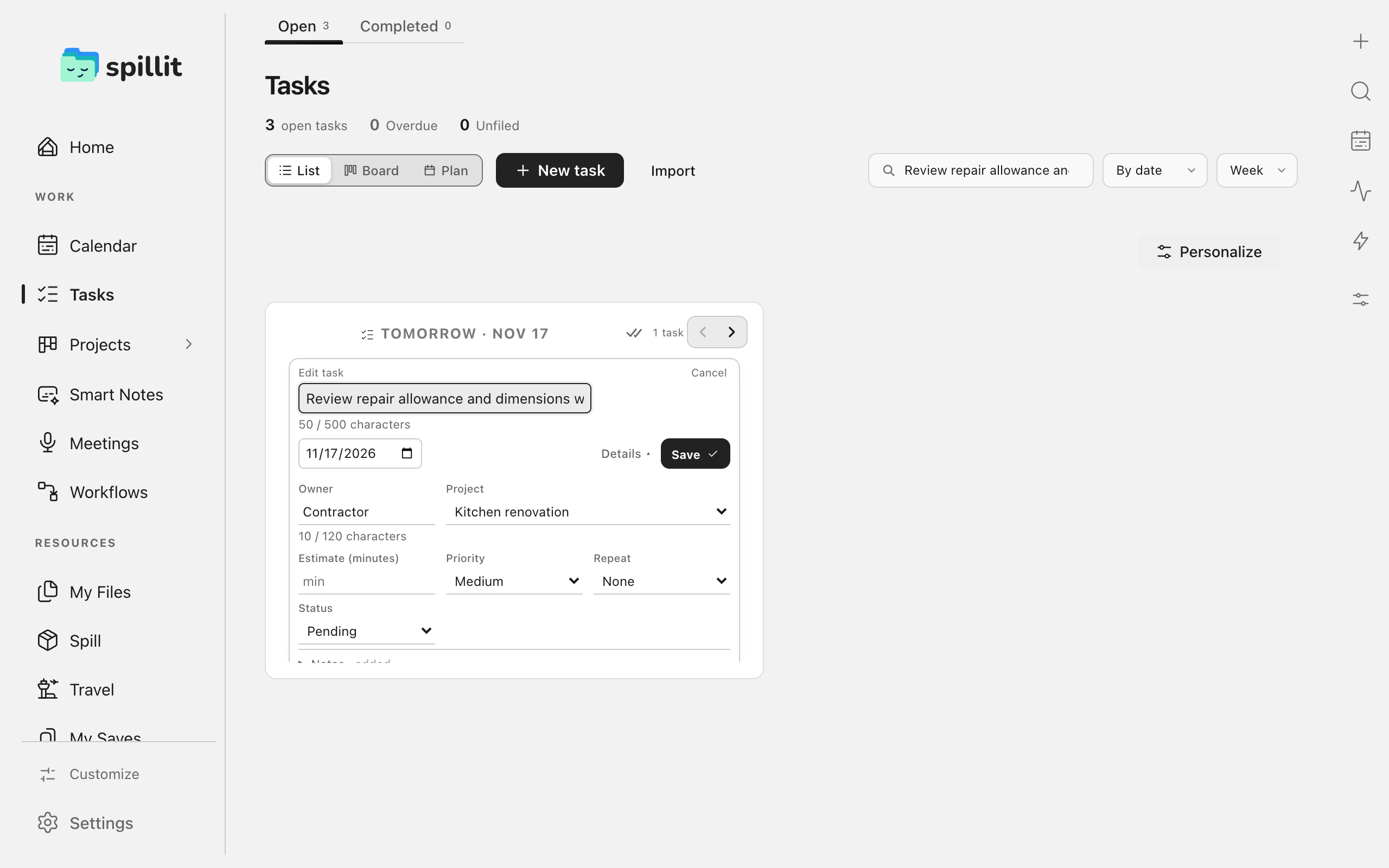
Actual desktop screens
Real app screens with edited transitions.
Task examples and comparisons
Site photos
Mark up today's site photos. Keep the plans and quote in the job project before updating the client.
- Crop and frame a photo.
- Add arrows, shapes, labels and numbered steps.
- Blur or redact private details.
- Keep the photos in the job project.
You have marked the site photos for the client update and saved the plans and quote in the job project.
Compare with separate tools
TodayIn Spillit
A separate photo editor, then a chat app to send it.
Photo editing
Tools for these activities
Your work stays on your computer by default.
On your computer
- Notes, tasks, projects and files
- Search across your folders
- Meeting transcripts and summaries
- Local AI for selected text
Online, only when you use it
- Saving a link or fetching a video
- Online lookups or cloud AI
- Sync, only if you set it up
Plans, permits and forms
Review drawings, permits, and forms, including scanned PDFs.
- Annotate PDFs and organise their pages.
- Fill forms and add a signature mark.
- Make scans searchable by the words inside them.
- Compare two versions of a PDF.
Ready-made workflows in Spillit
Photos land upright on full pages, captioned and numbered.
- Photos upright on full pages
- Photo 3 of 12 · date
Scanned pages become text you can search and copy, then the file is shrunk.
- Make searchable
- Compress
Build a workflow for documents, images, spreadsheets, or text. Choose the pages, slides, sheets, or cells each step changes.
Compare in detail: Adobe Acrobat
TodayIn Spillit
Adobe Acrobatfor PDFsPDF tools
A folderfor files
My Files, inside the project
2 separate apps for these steps1 app for the supported steps
Adobe Acrobat
How it works
Acrobat edits text and images, organizes pages, and merges or splits PDFs.
Its tools also cover signing, sharing, and document review.
With Spillit
Use Spillit to read PDFs, annotate them, and make supported text edits. Fill forms, organize pages, merge or compress files, add watermarks, and redact text. Save repeated document steps as a workflow.
Redaction flattens affected pages. Check complex forms and signing requirements. A drawn signature mark differs from a certificate signature.
Jobs and schedules
Plan five jobs this week, each with its own task list and dates.
- Create a project for each job with its tasks, files, and decisions.
- Drag tasks onto your week beside calendar events.
- Repeat tasks for regular checks.
- Log the time each task took.
Compare in detail: Todoist, Notion
TodayIn Spillit
Todoistfor to-do listTasks
Notionfor notes and pagesAI by outside providersSmart Notes and ProjectsLocal Intelligence on your computer
A folderfor files
My Files, inside the project
3 separate apps for these steps1 app for the supported steps
Todoist
How it works
Todoist supports adding, editing, and completing tasks offline.
Changes sync when the connection returns. Signing in is required before working offline.
With Spillit
Keep tasks in the project with their related notes and files.
Offline task editing is available in Todoist. Compare the task views and integrations you use before switching.
Notion
How it works
Notion supports viewing and editing downloaded pages offline.
Its AI uses external model providers.
With Spillit
Work on notes and supported documents in Spillit. Use its included Local Intelligence with the material in your workspace.
Notion offers offline editing for downloaded pages. Check the team and database features you need before switching.
Quotes and costs
Update the quote and send it as a PDF tonight.
- Edit spreadsheets with formulas, charts and filters.
- Edit Word files and export to PDF.
- Find the last quote by searching its contents.
- Keep the quote with its job and client call.
Compare in detail: Word, Excel and PowerPoint
TodayIn Spillit
Word, Excel and PowerPointfor documentsDocument, sheet and slide editing
A folderfor files
My Files, inside the project
2 separate apps for these steps1 app for the supported steps
Word, Excel and PowerPoint
How it works
Word, Excel, and PowerPoint provide dedicated document, spreadsheet, and presentation editing.
Their collaboration tools let people work together on shared files.
With Spillit
Edit supported DOCX, XLSX, and PPTX files in Spillit. Change text and formatting, use spreadsheet formulas and charts, and edit slides. Keep these files with notes and tasks, then export to PDF.
Check advanced layouts, formulas, media, animation playback, and collaboration requirements before switching.
Workshop business · Estimate and quote
Twelve kits. A quote you can explain.
The enquiry needs twelve kits, while the original estimate covers ten. Price the extra materials before preparing the customer’s copy.
A branded quote is ready; the workshop date still needs confirmation.
Watch walkthroughTwelve kits, not ten.
Change the quantity from ten kits to twelve. The sheet keeps the unit cost and preparation allowance visible beside the total.
Twelve kits at 12 each; preparation 180; total 324Still to show
The sheet shows the quantity and unit cost behind the materials allowance.
SpillitMy Files · Spreadsheet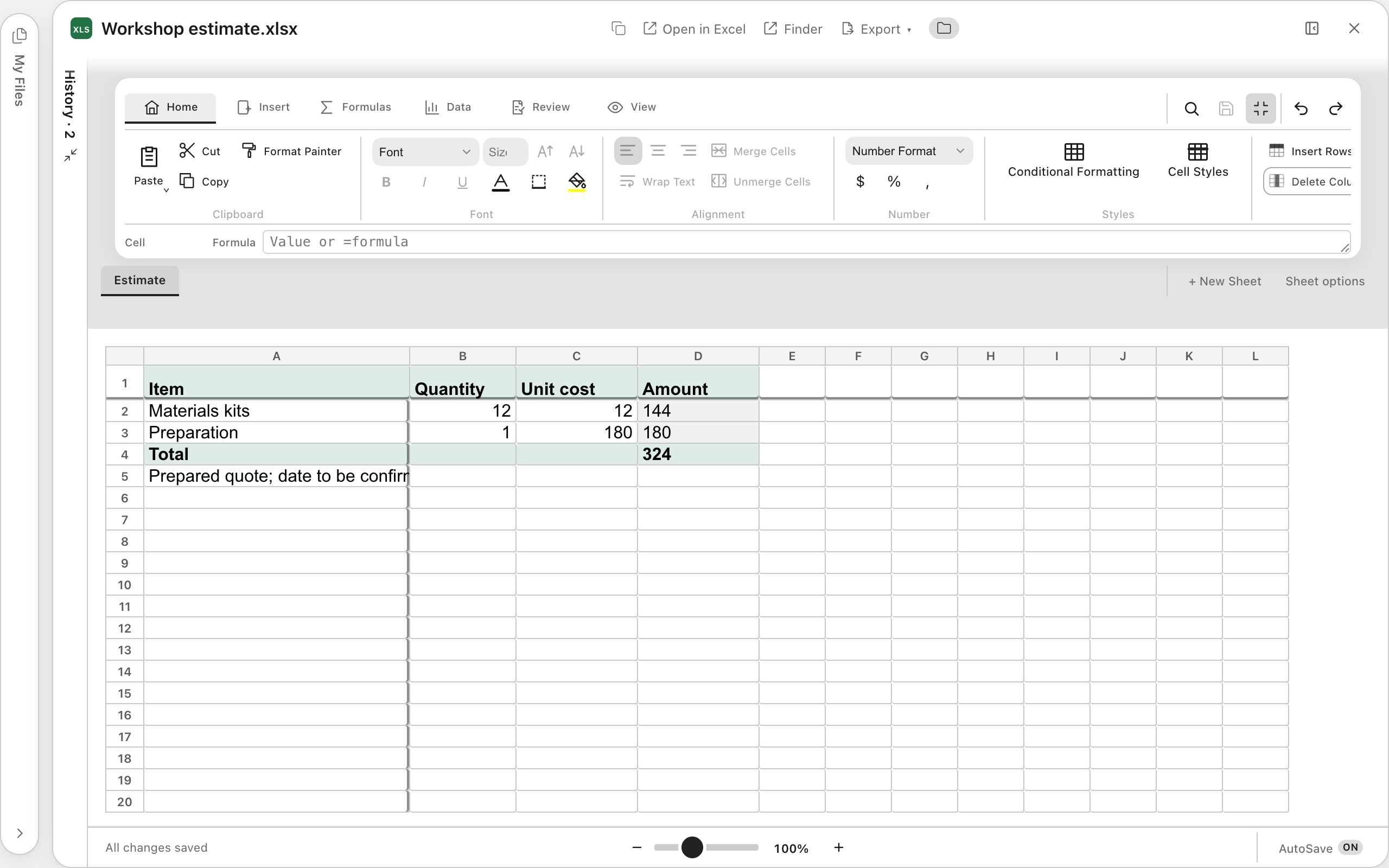
Actual desktop screens
Real app screens with edited transitions.
Keep availability separate from the quote.
Create a dated follow-up before treating the workshop as booked. The estimate can be ready while the availability question stays open.
Date-confirmation follow-up saved as pendingStill to show
I’ll keep the date question as its own follow-up.
SpillitTasks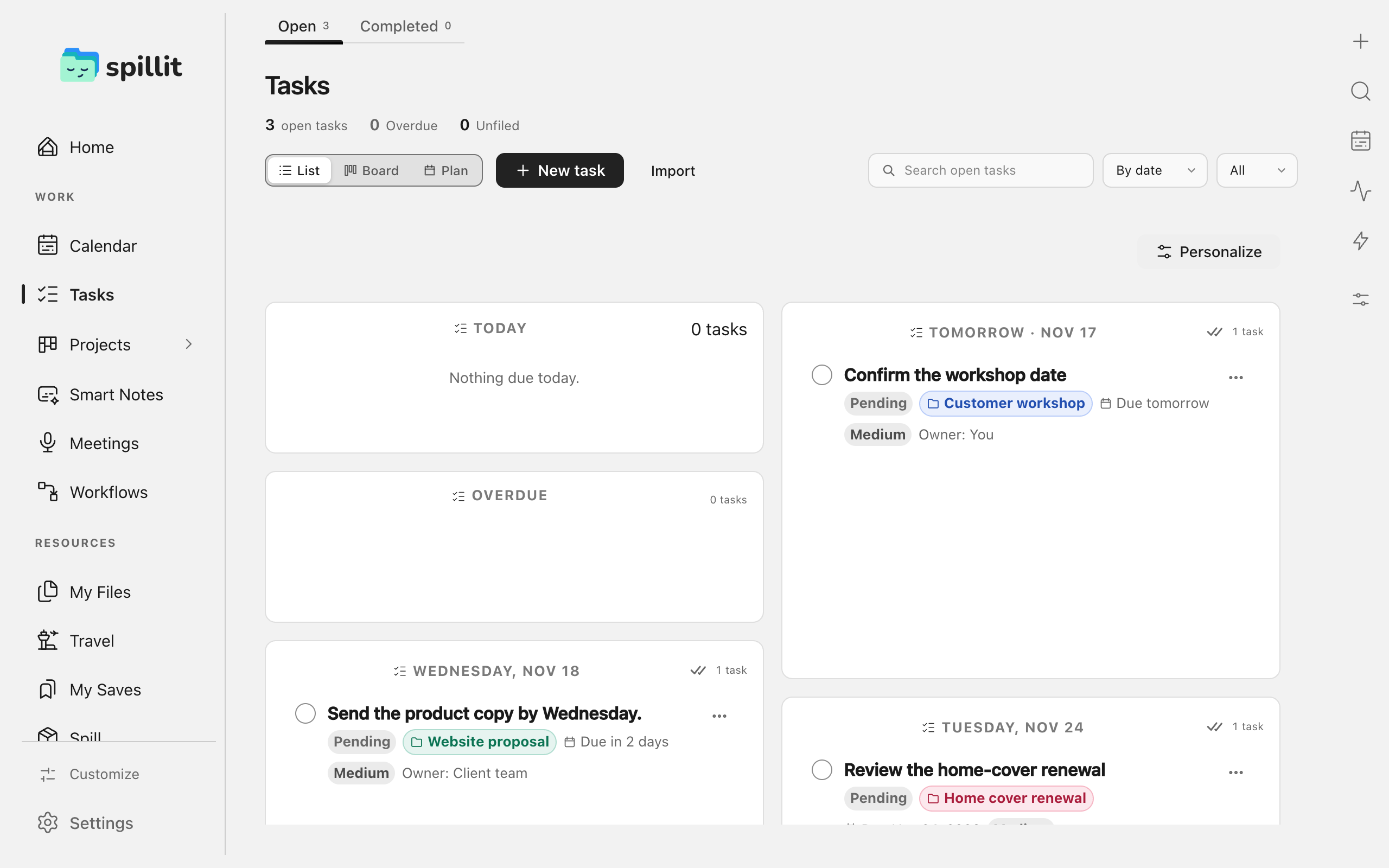
Actual desktop screens
Real app screens with edited transitions.
Give the customer a branded copy.
Turn the prepared quote into a PDF with your workshop header and logo. Keep the originals and save the preparation for the next enquiry.
Branded PDF quote ready for the customer discussionStill to show
I’ll use the quote that explains the twelve-kit estimate.
SpillitWorkflows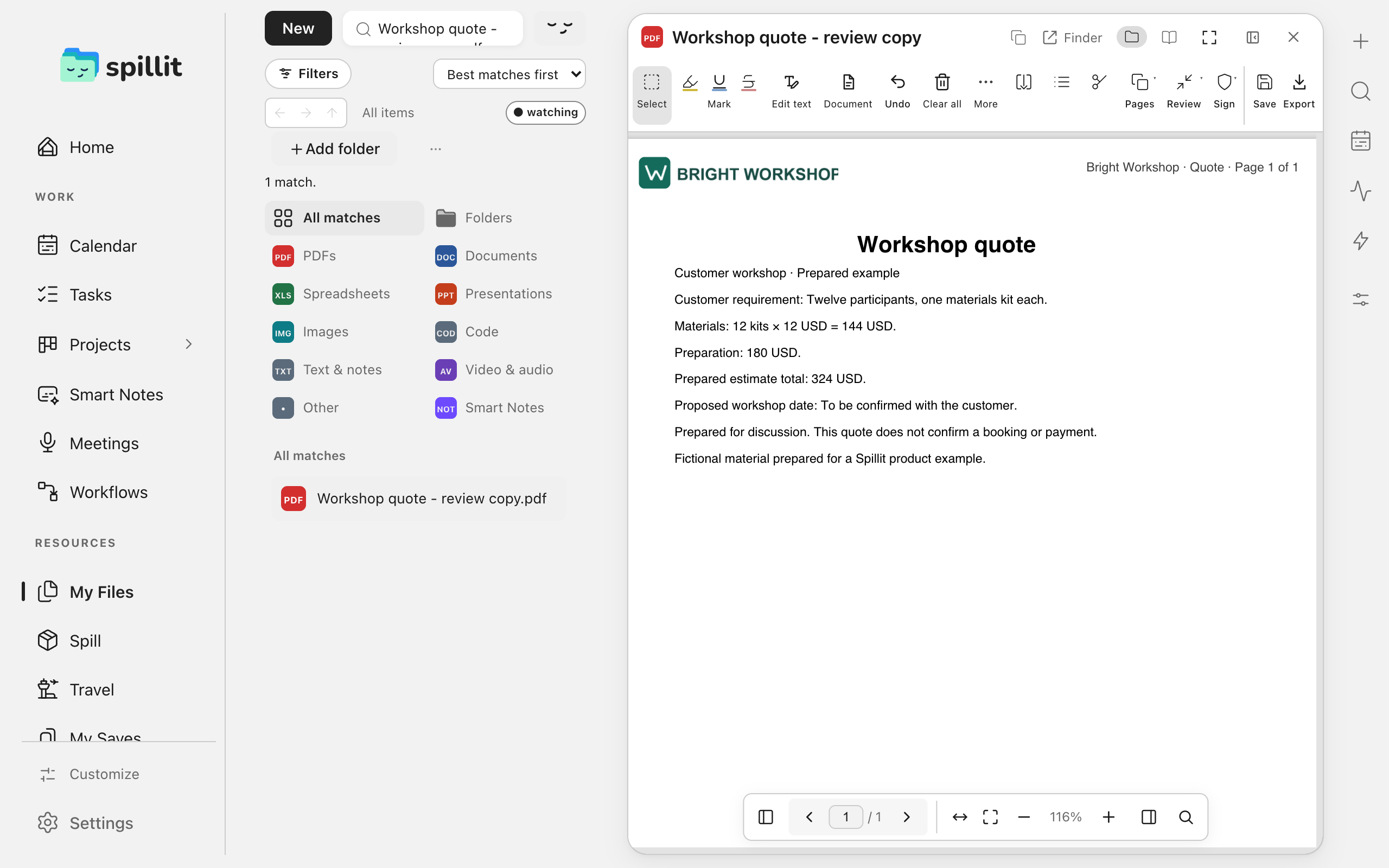
Actual desktop screens
Real app screens with edited transitions.
Task examples and comparisons
Quotes and contracts
Update the quote and review the contract. Prepare the copy you want to send before the weekend.
- Write quotes in spreadsheets with formulas.
- Edit Word contracts with tracked changes.
- Export to PDF and add a password.
- Find the last quote by searching its contents.
You have updated the quote and reviewed the contract you want to send.
Compare in detail: Word, Excel and PowerPoint
TodayIn Spillit
Word, Excel and PowerPointfor documentsDocument, sheet and slide editing
A folderfor files
My Files, inside the project
2 separate apps for these steps1 app for the supported steps
Word, Excel and PowerPoint
How it works
Word, Excel, and PowerPoint provide dedicated document, spreadsheet, and presentation editing.
Their collaboration tools let people work together on shared files.
With Spillit
Edit supported DOCX, XLSX, and PPTX files in Spillit. Change text and formatting, use spreadsheet formulas and charts, and edit slides. Keep these files with notes and tasks, then export to PDF.
Check advanced layouts, formulas, media, animation playback, and collaboration requirements before switching.
Tools for these activities
Your work stays on your computer by default.
On your computer
- Notes, tasks, projects and files
- Search across your folders
- Meeting transcripts and summaries
- Local AI for selected text
Online, only when you use it
- Saving a link or fetching a video
- Online lookups or cloud AI
- Sync, only if you set it up
Paperwork on repeat
Merge and stamp the documents you send every week.
- Save a sequence of document steps as a workflow.
- Watch a folder and run it on new files.
- Review the run history for each batch.
- Undo supported steps.
Ready-made workflows in Spillit
Black out emails, phones and card numbers, mark it, number the pages.
- Black out personal data
- CONFIDENTIAL across the page
- Page 3 of 12
Word files, spreadsheets, slides and text become PDFs. Your files stay as they are.
- Word, sheets, slides and text to PDF
Shrink the file as far as it goes.
- Compress
Build a workflow for documents, images, spreadsheets, or text. Choose the pages, slides, sheets, or cells each step changes.
Compare in detail: Adobe Acrobat
TodayIn Spillit
Adobe Acrobatfor PDFsPDF tools
A folderfor files
My Files, inside the project
2 separate apps for these steps1 app for the supported steps
Adobe Acrobat
How it works
Acrobat edits text and images, organizes pages, and merges or splits PDFs.
Its tools also cover signing, sharing, and document review.
With Spillit
Use Spillit to read PDFs, annotate them, and make supported text edits. Fill forms, organize pages, merge or compress files, add watermarks, and redact text. Save repeated document steps as a workflow.
Redaction flattens affected pages. Check complex forms and signing requirements. A drawn signature mark differs from a certificate signature.
Customers and calls
Review customer and supplier calls and track what you promised.
- Create call transcripts and action items on your computer.
- Create a project for each customer or order.
- Set task dates and repeats.
- View your Google, Outlook, or iCloud calendar without changing its events.
Compare in detail: Granola, Notion
TodayIn Spillit
Granolafor call notesTranscribed in the cloudMeetingsTranscribed on your computer
Notionfor notes and pagesAI by outside providersSmart Notes and ProjectsLocal Intelligence on your computer
A folderfor files
My Files, inside the project
3 separate apps for these steps1 app for the supported steps
Granola
How it works
Granola captures microphone audio and meeting audio from the computer.
Transcription and AI summaries use cloud processing.
With Spillit
Spillit transcribes and summarizes on your computer. It saves action items with their owner, date, and project. Open them with the project notes, files, and tasks.
Call audio and speaker names from Zoom, Google Meet, Teams, or Webex need macOS 13 or later. Otherwise, Spillit records your microphone. Speaker labels can be wrong when people speak at the same time.
Notion
How it works
Notion supports viewing and editing downloaded pages offline.
Its AI uses external model providers.
With Spillit
Work on notes and supported documents in Spillit. Use its included Local Intelligence with the material in your workspace.
Notion offers offline editing for downloaded pages. Check the team and database features you need before switching.
Subscriptions and costs
Track the tools and services your business pays for.
- Link subscriptions to payment documents and upcoming dates.
- Check prices on supported product pages.
- Set a wishlist target price and a date to reconsider the purchase.
- Keep notes on each supplier in its project.
Good to know: You enter account records yourself. Price checks use the network and depend on the store page.
Compare with separate tools
TodayIn Spillit
A spreadsheet of what the business pays for.
My Finances
Freelance delivery · Client input needed
Five pages. Client copy due Wednesday.
Thursday’s website proposal depends on product copy from the client. Give that dependency an owner before committing the deliverables.
Who supplies the content, the five pages, and the review date are explicit.
Watch walkthroughFind the promise behind Thursday’s proposal.
Check the five-page request and the missing product copy in the kickoff record.
Five-page scope and missing product copy located in the kickoffStill to show
I’ll check the kickoff before writing the proposal.
SpillitMeetings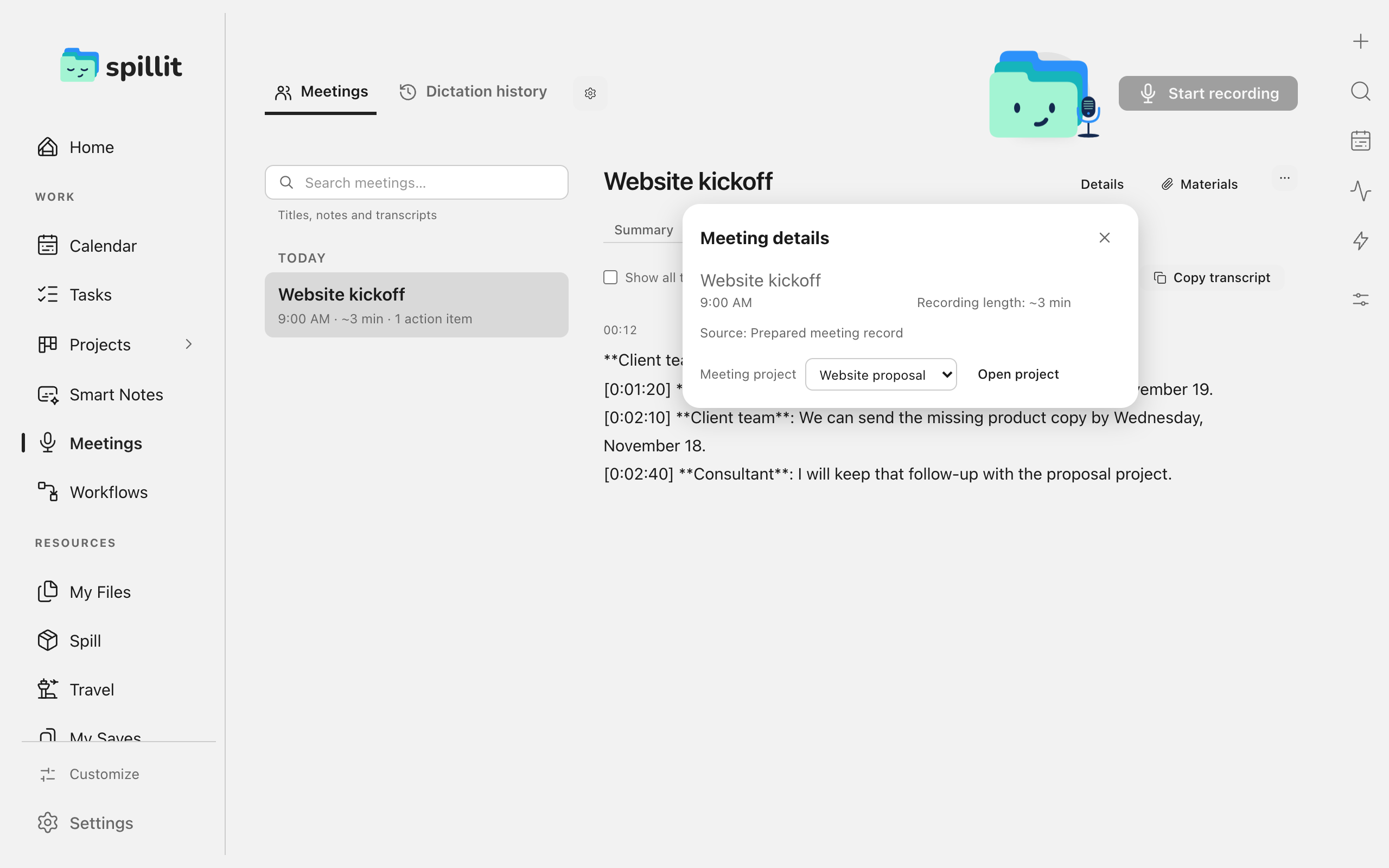
Actual desktop screens
Real app screens with edited transitions.
Make the missing copy someone’s responsibility.
Choose the follow-up, assign Client team, and keep Wednesday’s due date ahead of the proposal review.
Product-copy follow-up saved with an owner and dateStill to show
I’ll keep this follow-up from the kickoff, rather than leave it buried in the transcript.
SpillitTasks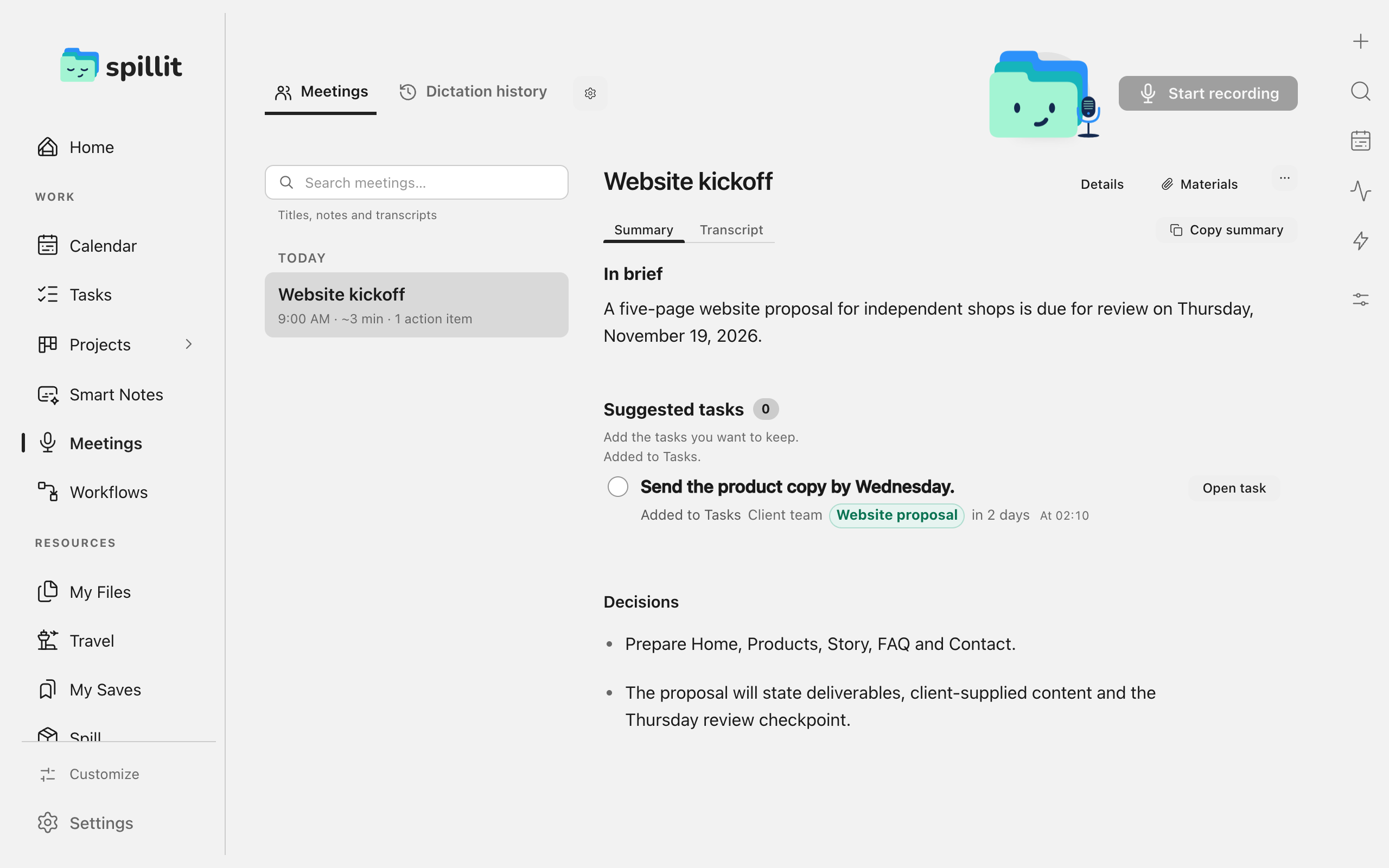
Actual desktop screens
Real app screens with edited transitions.
Write the dependency into the deliverables.
Name the five pages, who supplies their content, and Thursday’s review. The draft now gives the client something specific to check.
Proposal draft names the deliverables and the dependencyStill to show
I’ll open the draft where the scope becomes something the client can review.
SpillitMy Files · Word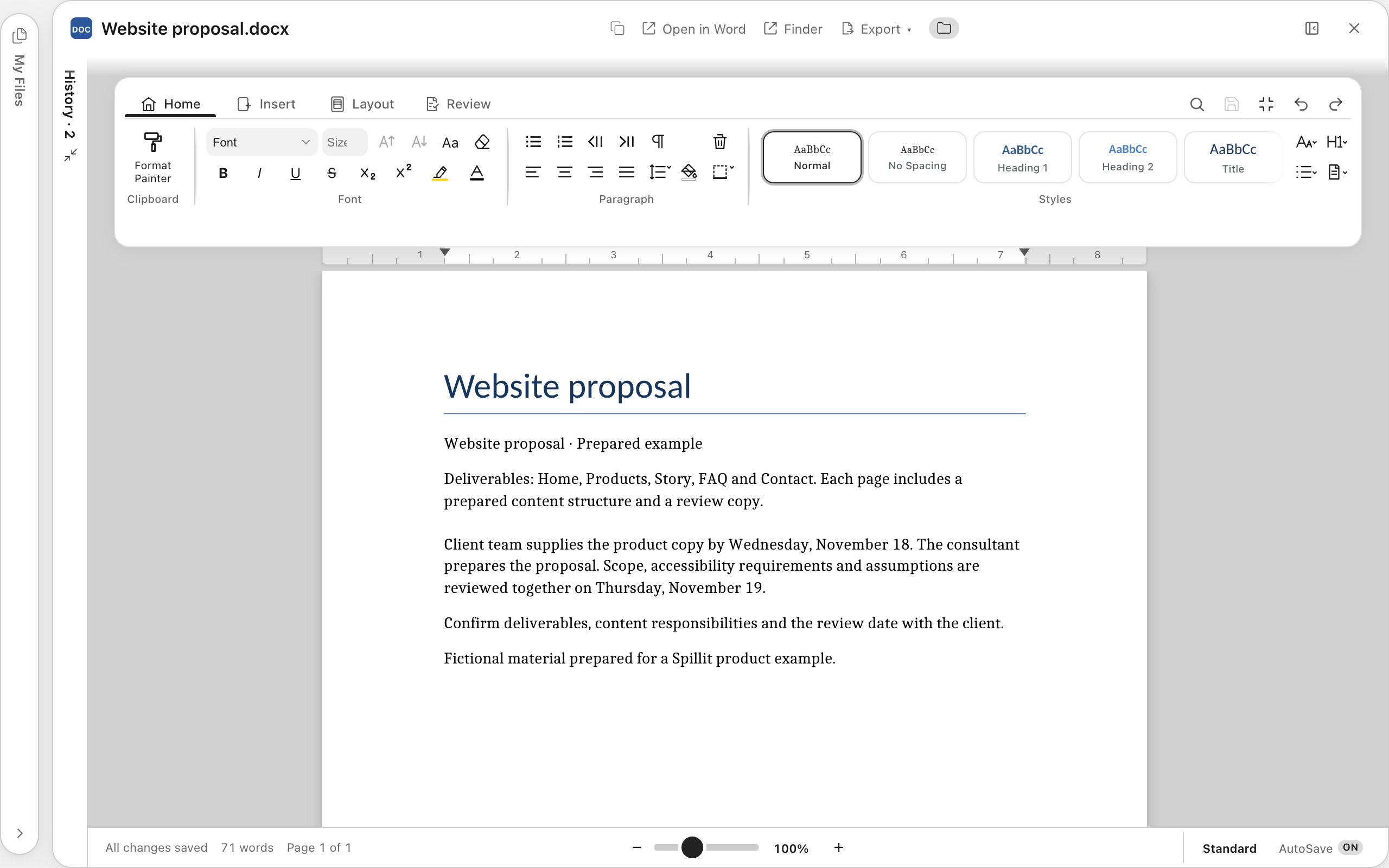
Actual desktop screens
Real app screens with edited transitions.
Task examples and comparisons
Client meetings
Review the client call and choose its follow-ups. Save the next task in the client project.
- Create a transcript, summary, and action items on your computer.
- Read speaker names from Zoom, Meet, Teams, or Webex on macOS 13 or later.
- Save each action item in the client project.
- Create tasks from action items in one click.
You have the client transcript and the follow-ups you chose for the project.
Compare in detail: Granola, Otter.ai
TodayIn Spillit
Granolafor call notesTranscribed in the cloudMeetingsTranscribed on your computer
OOtter.aifor transcriptsStored in the cloud
MeetingsTranscribed on your computer
A folderfor files
My Files, inside the project
3 separate apps for these steps1 app for the supported steps
Granola
How it works
Granola captures microphone audio and meeting audio from the computer.
Transcription and AI summaries use cloud processing.
With Spillit
Spillit transcribes and summarizes on your computer. It saves action items with their owner, date, and project. Open them with the project notes, files, and tasks.
Call audio and speaker names from Zoom, Google Meet, Teams, or Webex need macOS 13 or later. Otherwise, Spillit records your microphone. Speaker labels can be wrong when people speak at the same time.
Otter.ai
How it works
Otter transcribes in-person and online classes and meetings, and can join scheduled Zoom, Google Meet and Teams calls.
Recordings and transcripts are stored in the cloud on Amazon Web Services.
With Spillit
Spillit transcribes and summarizes on your computer. Save each action item in its project with the notes and reading material.
Spillit records your microphone, and call audio from one meeting app on macOS 13 or later. Otter also offers live captions and shared notes; check whether you need them.
Tools for these activities
Your work stays on your computer by default.
On your computer
- Notes, tasks, projects and files
- Search across your folders
- Meeting transcripts and summaries
- Local AI for selected text
Online, only when you use it
- Saving a link or fetching a video
- Online lookups or cloud AI
- Sync, only if you set it up
Decks and models
Prepare the presentation for Thursday and update its spreadsheet model.
- Edit slides, charts and tables, then present with notes.
- Edit spreadsheets with formulas and pivot tables.
- Open the deck and spreadsheet beside the client call notes.
- Export to PDF.
Compare in detail: Word, Excel and PowerPoint
TodayIn Spillit
Word, Excel and PowerPointfor documentsDocument, sheet and slide editing
A folderfor files
My Files, inside the project
2 separate apps for these steps1 app for the supported steps
Word, Excel and PowerPoint
How it works
Word, Excel, and PowerPoint provide dedicated document, spreadsheet, and presentation editing.
Their collaboration tools let people work together on shared files.
With Spillit
Edit supported DOCX, XLSX, and PPTX files in Spillit. Change text and formatting, use spreadsheet formulas and charts, and edit slides. Keep these files with notes and tasks, then export to PDF.
Check advanced layouts, formulas, media, animation playback, and collaboration requirements before switching.
Clients and projects
Keep each client's notes, files, decisions, and next task in its project.
- Create a project page for each client.
- Record decisions and risks in their project panels.
- Export a project brief as Markdown or PDF.
- Find files by searching their contents.
Compare in detail: Notion, Todoist
TodayIn Spillit
Notionfor notes and pagesAI by outside providersSmart Notes and ProjectsLocal Intelligence on your computer
Todoistfor to-do listTasks
A folderfor files
My Files, inside the project
3 separate apps for these steps1 app for the supported steps
Notion
How it works
Notion supports viewing and editing downloaded pages offline.
Its AI uses external model providers.
With Spillit
Work on notes and supported documents in Spillit. Use its included Local Intelligence with the material in your workspace.
Notion offers offline editing for downloaded pages. Check the team and database features you need before switching.
Todoist
How it works
Todoist supports adding, editing, and completing tasks offline.
Changes sync when the connection returns. Signing in is required before working offline.
With Spillit
Keep tasks in the project with their related notes and files.
Offline task editing is available in Todoist. Compare the task views and integrations you use before switching.
Research
Collect reports, articles, and talks for the next proposal.
- Save links, images, audio and text.
- Get the transcript of a saved video.
- Select a passage and ask for help understanding it.
- Keep each source in the relevant client project.
Compare in detail: Raindrop.io
TodayIn Spillit
Raindrop.iofor saved linksMy Saves
A folderfor files
My Files, inside the project
2 separate apps for these steps1 app for the supported steps
Raindrop.io
How it works
Raindrop.io organizes bookmarks into collections with tags, filters, highlights, and previews.
It also offers web archives, shared collections, and integrations.
With Spillit
Save links, text, images, and supported media in My Saves. Organize them into collections and projects. Search the saved content and copy links or saved text into your notes.
Check archive coverage, shared collections, and integrations before switching. Captured pages and media depend on their source.
Reporting · Check the funding claim
Was the £20,000 grant paid?
The organiser’s words give you an opening. The council record establishes approval, while payment still needs confirmation.
The opening says approved and preserves the unanswered payment question.
Watch walkthroughApproval is documented. Payment isn’t confirmed.
Find the quoted words in context. Check the council’s allocation record before writing that the money was paid.
The source supports approval, with payment still unconfirmed.Still to show
The transcript gives the context behind the quote and the funding question.
SpillitMeetings · My Files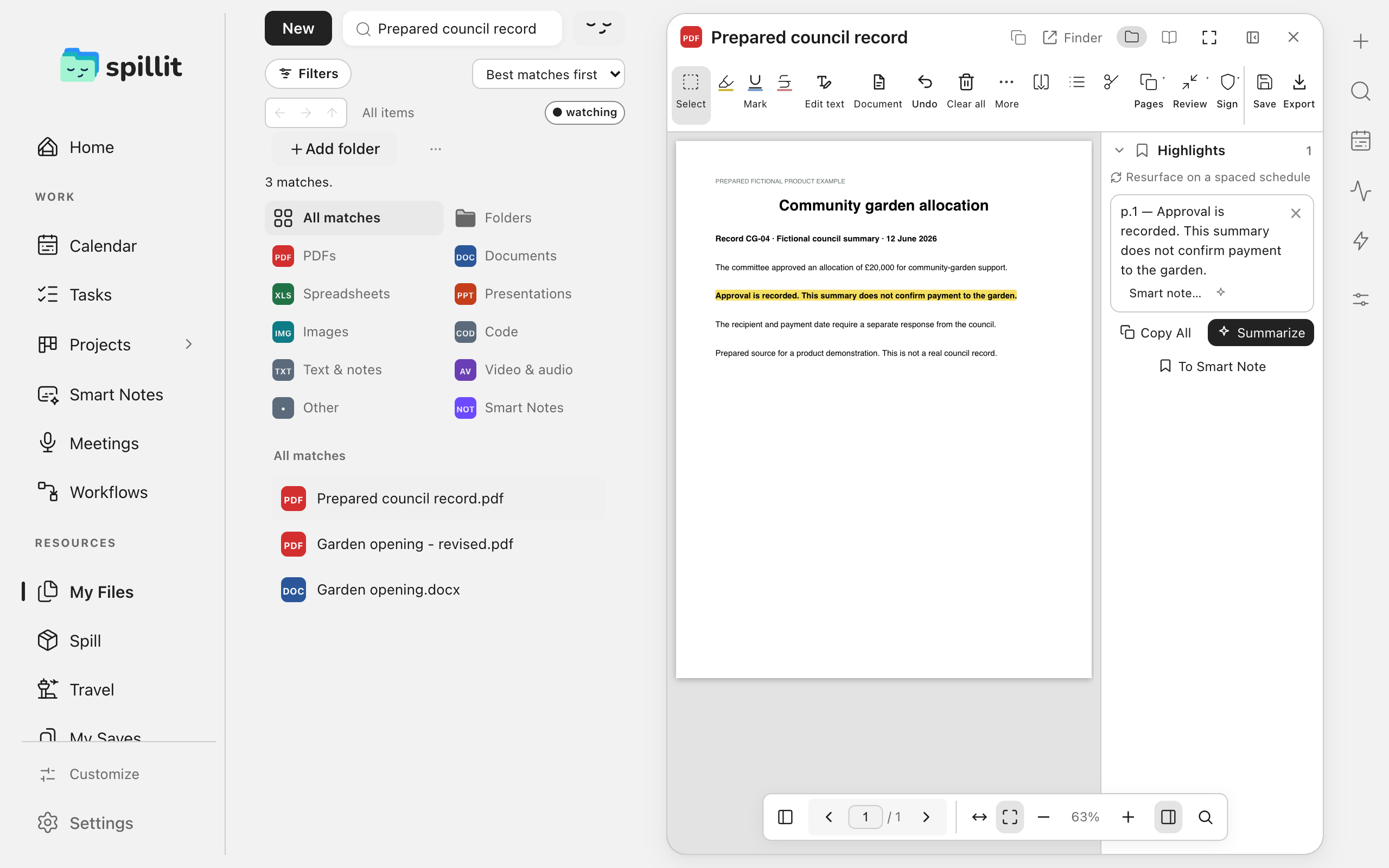
Actual desktop screens
Real app screens with edited transitions.
Keep each claim beside what supports it.
Separate the exact quote, documented approval and unconfirmed payment in the outline.
An outline shows what is supported and what remains open.Still to show
The opening starts with the organiser’s exact words.
SpillitSmart Notes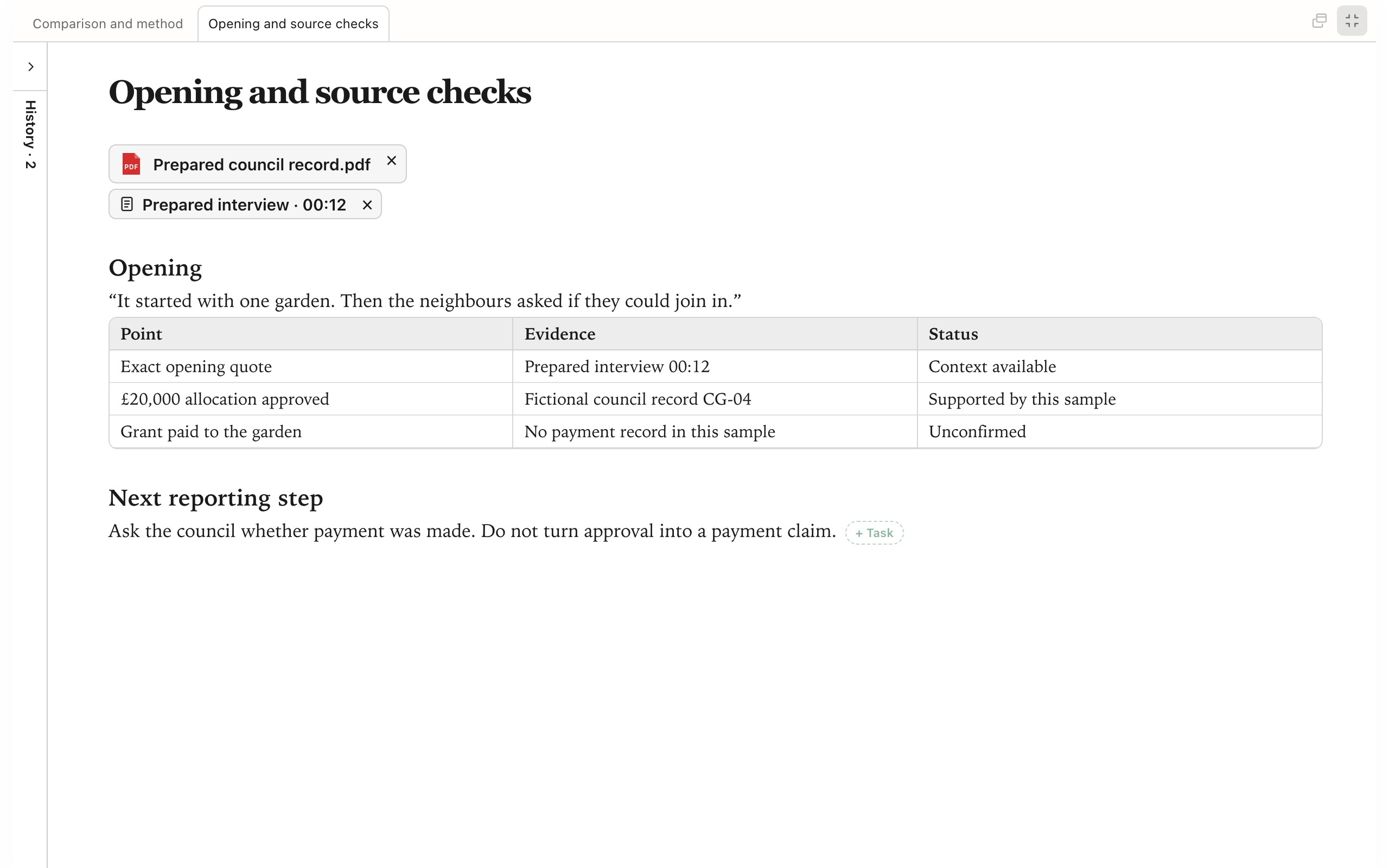
Actual desktop screens
Real app screens with edited transitions.
Let the evidence set the wording.
Review the opening that says approved and keeps the payment question open. The quotation and source remain with the draft.
The draft keeps the quotation and states the unresolved payment check.Still to show
The original says the council paid the grant, which this record does not establish.
SpillitMy Files · Word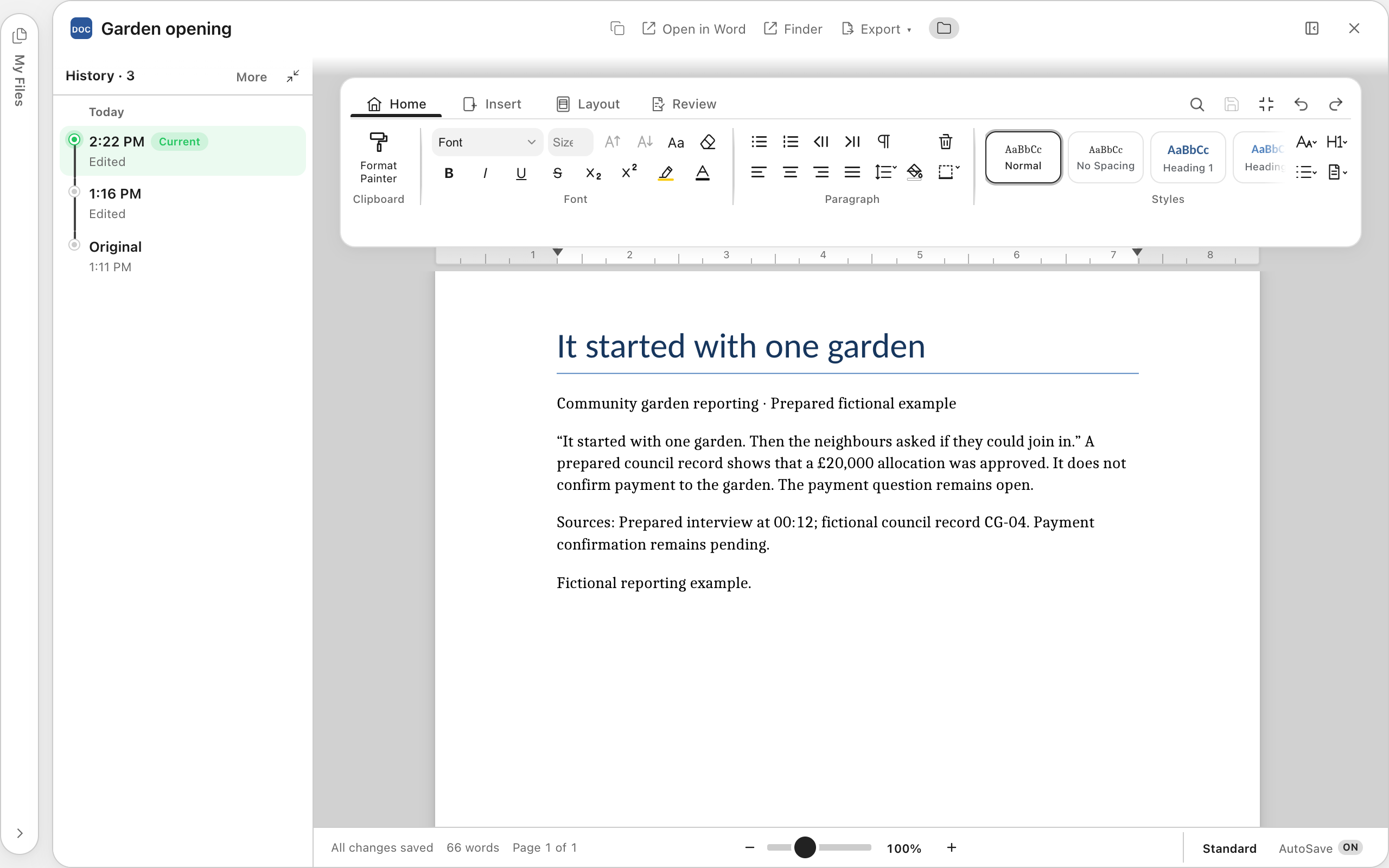
Actual desktop screens
Real app screens with edited transitions.
Task examples and comparisons
Interviews
Search the interview transcript for a quote and open it beside your draft.
- Record with your microphone and transcribe on your computer.
- Search the transcript for the exact words.
- Save the transcript in Smart Notes beside your draft.
- Read transcripts of talks you saved.
You can check the quote against the interview transcript while you write.
Compare in detail: Otter.ai, Granola
TodayIn Spillit
OOtter.aifor transcriptsStored in the cloud
MeetingsTranscribed on your computer
Granolafor call notesTranscribed in the cloudMeetingsTranscribed on your computer
A folderfor files
My Files, inside the project
3 separate apps for these steps1 app for the supported steps
Otter.ai
How it works
Otter transcribes in-person and online classes and meetings, and can join scheduled Zoom, Google Meet and Teams calls.
Recordings and transcripts are stored in the cloud on Amazon Web Services.
With Spillit
Spillit transcribes and summarizes on your computer. Save each action item in its project with the notes and reading material.
Spillit records your microphone, and call audio from one meeting app on macOS 13 or later. Otter also offers live captions and shared notes; check whether you need them.
Granola
How it works
Granola captures microphone audio and meeting audio from the computer.
Transcription and AI summaries use cloud processing.
With Spillit
Spillit transcribes and summarizes on your computer. It saves action items with their owner, date, and project. Open them with the project notes, files, and tasks.
Call audio and speaker names from Zoom, Google Meet, Teams, or Webex need macOS 13 or later. Otherwise, Spillit records your microphone. Speaker labels can be wrong when people speak at the same time.
Tools for these activities
Your work stays on your computer by default.
On your computer
- Notes, tasks, projects and files
- Search across your folders
- Meeting transcripts and summaries
- Local AI for selected text
Online, only when you use it
- Saving a link or fetching a video
- Online lookups or cloud AI
- Sync, only if you set it up
Drafting
Write the draft with your outline and notes open.
- Write Smart Notes with headings, tables, and callouts.
- Outline, summarize, or revise a passage with assistance on your computer.
- Edit Word files with tracked changes.
- Export to Word, PDF, web page or text.
Compare in detail: Obsidian, Word, Excel and PowerPoint
TodayIn Spillit
Obsidianfor notesSmart Notes
Word, Excel and PowerPointfor documentsDocument, sheet and slide editing
A folderfor files
My Files, inside the project
3 separate apps for these steps1 app for the supported steps
Obsidian
How it works
Obsidian stores local notes using Markdown, a plain text note format.
Its optional Sync can encrypt notes before they leave your device.
How Obsidian stores data Obsidian Sync security Obsidian plugins
With Spillit
Edit supported Office files and PDFs in the same app as Smart Notes. Manage tasks, transcribe meetings, and use the included local language model.
Obsidian stores files locally and works offline. Optional plugins can add functions. Sync protects remote copies separately from local files.
Word, Excel and PowerPoint
How it works
Word, Excel, and PowerPoint provide dedicated document, spreadsheet, and presentation editing.
Their collaboration tools let people work together on shared files.
With Spillit
Edit supported DOCX, XLSX, and PPTX files in Spillit. Change text and formatting, use spreadsheet formulas and charts, and edit slides. Keep these files with notes and tasks, then export to PDF.
Check advanced layouts, formulas, media, animation playback, and collaboration requirements before switching.
Sources
Collect the links, documents, and books you need to cite.
- Save links, images, audio and text.
- Copy formatted citations from your library.
- Save a PDF highlight with its page number.
- Search scans by the words inside them.
Compare in detail: Raindrop.io, Zotero
TodayIn Spillit
Raindrop.iofor saved linksMy Saves
Zoterofor referencesReferences and citations
A folderfor files
My Files, inside the project
3 separate apps for these steps1 app for the supported steps
Raindrop.io
How it works
Raindrop.io organizes bookmarks into collections with tags, filters, highlights, and previews.
It also offers web archives, shared collections, and integrations.
With Spillit
Save links, text, images, and supported media in My Saves. Organize them into collections and projects. Search the saved content and copy links or saved text into your notes.
Check archive coverage, shared collections, and integrations before switching. Captured pages and media depend on their source.
Zotero
How it works
Zotero collects and organizes research and creates formatted references.
Its Word, LibreOffice, and Google Docs integrations maintain citations and bibliographies inside documents.
With Spillit
Keep references in the same workspace as notes and projects. Insert citations in supported Word documents and update their styles and bibliographies.
Compare the collection tools, citation styles, and library connections you rely on. Selective local exchange requires Zotero desktop to be running.
Studio production · Plan the shoot
Hands. Texture. Finished piece.
Choose an opening you can film, a detail worth cutting to, and a final reveal. Turn those choices into a marked reference and shot list.
A marked visual reference becomes a concrete shooting plan.
Watch walkthroughMark the hands that open the story.
Choose the hands as the opening. Mark that framing on the reference before writing a shot you can actually film.
Marked studio reference saved in My FilesStill to show
I’ll review the original before marking the opening detail.
SpillitMy Files · Pictures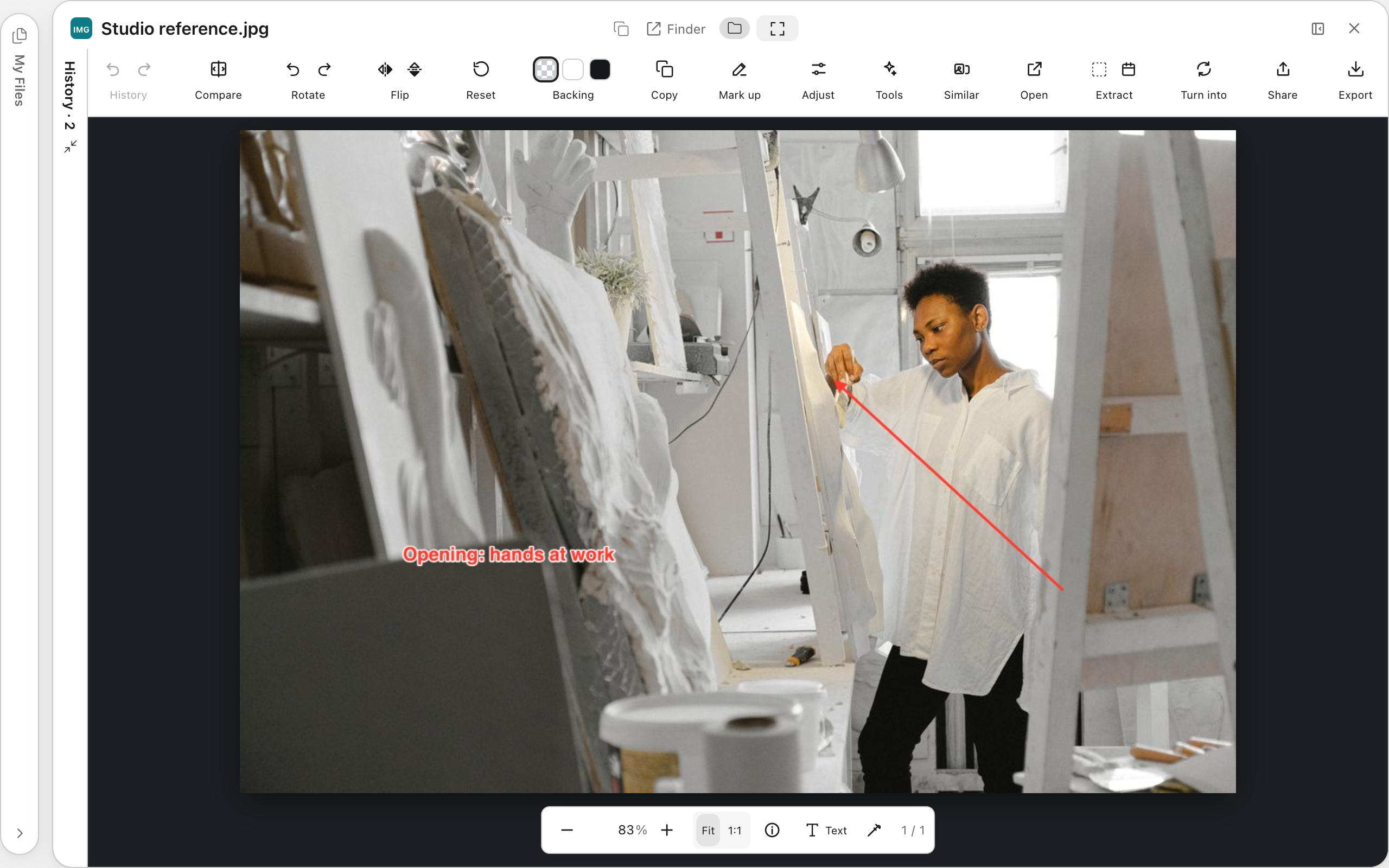
Actual desktop screens
Real app screens with edited transitions.
Give the three shots different jobs.
Hands establish the action, texture adds detail, and the finished piece closes the sequence. Review that order before picking up the camera.
Three-shot plan saved as a Word documentStill to show
I’ll keep the filming plan with its reference.
SpillitMy Files · Word document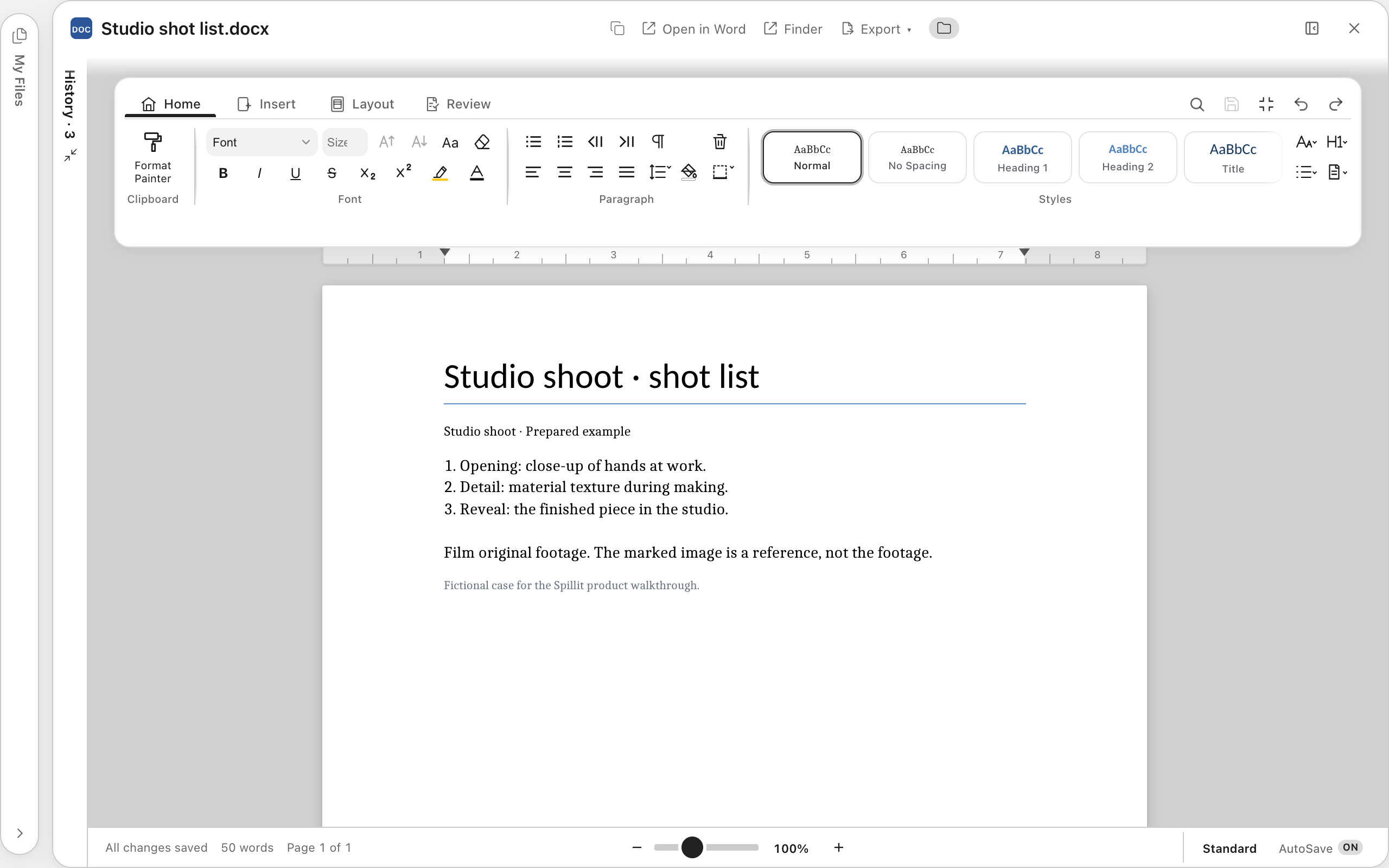
Actual desktop screens
Real app screens with edited transitions.
Ready for the shoot
Keep the marked reference and shot list in Studio shoot. The opening-shot task is assigned to Creator for November 17.
Task examples and comparisons
Photos and clips
Edit the photo or clip. Keep its references in the project.
- Crop, mark up, blur and remove backgrounds.
- Trim, crop, speed up and join clips.
- Edit caption text and compress to a target size. Export video or GIF.
- Compare the edit with the original.
You have edited the photo or clip and kept the references in its project.
Compare with separate tools
TodayIn Spillit
A separate photo editor and video editor.
Photo and video editing
Tools for these activities
Your work stays on your computer by default.
On your computer
- Notes, tasks, projects and files
- Search across your folders
- Meeting transcripts and summaries
- Local AI for selected text
Online, only when you use it
- Saving a link or fetching a video
- Online lookups or cloud AI
- Sync, only if you set it up
Ideas and references
Save posts, talks, and links for your next project.
- Save links, images, audio and text in My Saves.
- Get the transcript of a saved video.
- Search the transcript and jump to the matching moment.
- Keep each idea in its project.
Compare in detail: Raindrop.io, Raycast clipboard and shortcuts
TodayIn Spillit
Raindrop.iofor saved linksMy Saves
Raycast clipboard and shortcutsfor clipboardClipboard and Shortcuts
A folderfor files
My Files, inside the project
3 separate apps for these steps1 app for the supported steps
Raindrop.io
How it works
Raindrop.io organizes bookmarks into collections with tags, filters, highlights, and previews.
It also offers web archives, shared collections, and integrations.
With Spillit
Save links, text, images, and supported media in My Saves. Organize them into collections and projects. Search the saved content and copy links or saved text into your notes.
Check archive coverage, shared collections, and integrations before switching. Captured pages and media depend on their source.
Raycast clipboard and shortcuts
How it works
Raycast clipboard history supports text, images, colors, and links, stored locally with encryption.
Raycast is an extendable launcher with quicklinks, hotkeys, and an extension ecosystem.
With Spillit
Enable text and image clipboard history, then search it and copy an item again. Create shortcuts that open websites, files, folders, and apps.
This covers clipboard and opening workflows. Raycast extensions, system commands, and window management are separate capabilities to check.
The content plan
Plan what you want to publish this week and track which pieces are still drafts.
- Create a project for each series or client.
- Set task dates and drag tasks onto your week.
- Write scripts and outlines in Smart Notes.
- Use focus sessions for the piece you are working on.
Compare in detail: Notion, Todoist
TodayIn Spillit
Notionfor notes and pagesAI by outside providersSmart Notes and ProjectsLocal Intelligence on your computer
Todoistfor to-do listTasks
A folderfor files
My Files, inside the project
3 separate apps for these steps1 app for the supported steps
Notion
How it works
Notion supports viewing and editing downloaded pages offline.
Its AI uses external model providers.
With Spillit
Work on notes and supported documents in Spillit. Use its included Local Intelligence with the material in your workspace.
Notion offers offline editing for downloaded pages. Check the team and database features you need before switching.
Todoist
How it works
Todoist supports adding, editing, and completing tasks offline.
Changes sync when the connection returns. Signing in is required before working offline.
With Spillit
Keep tasks in the project with their related notes and files.
Offline task editing is available in Todoist. Compare the task views and integrations you use before switching.
Your case · Influencer campaign
Turn saved inspiration into a script you can film.
Keep the videos, article and image beside your script. Check the brand brief, the campaign’s requirements, while planning what to film.
The brand brief
Make the routine feel natural. We need a twenty-second clip, a cover and the script for Friday’s review.
Today’s goalUse mixed sources to write the campaign, then film and edit in CapCut.
Animation only · fictional campaign · Pro sync enabled
On your iPhone
Keep the idea without rewatching.
Save the TikTok opening and the Reel’s closing idea. In Spillit, extract the TikTok’s spoken words and send them to Smart Notes.
- 1 · Watch TikTok
- 2 · Watch Instagram Reels
- 3 · Open Spillit
Video words and the original link ready for writingStill to show
I’m watching for an opening we can adapt to our own routine video.
- Keep two useful ideasTikTok opening and Reel ending
- Get the spoken wordsTranscript turns speech into text
- Start the script noteSmart Notes keeps text with its source

 Tasks
 Notes
 Me
Animated walkthrough
Sample social posts and illustrated link saving. Instagram uses credited stock footage; TikTok speech is a prepared example.
Next, see an illustrated Pro sync handoff to the computer.
On your computer
Turn the references into your own plan.
This example shows continuing with saved work on your computer. Add the blog’s practical idea and a cover image while their sources stay within reach.
An outline with its video, article and image referencesStill to show
Our phone note is here in this illustrated handoff, so we can develop it with an article and an image.
08:15 · Saved on iPhoneOpen the saved work and continue this campaign.
ProFiles stay in sync- Check the article’s ideaSave the link behind your takeaway
- Keep a cover referenceImage and credit beside the idea
- Write your own outlinePlan three scenes to film
Safarijamesclear.comAnimated walkthrough
Illustrated Pro sync handoff. Availability depends on the device and app build. The article excerpt and reference photo are prepared.
Use this outline and its sources to prepare the script and filming tasks.
On your computer
Keep the script ready to film.
Write the opening beside its sources in Smart Notes. Link the brand’s requirements and dated tasks so you can check what remains before filming.
Script, sources, brand requirements and dated next stepsStill to show
The outline is ready, with its sources close while we turn it into a script.
10:00 · Planned on this computerOpen the saved work and continue this campaign.
Same campaignSources and plan kept together- Write with your sourcesReturn to a video, article or image
- Plan what to say and filmOpening, scenes and post text
- Check the requirementsBrand brief and dated next actions
SpillitSmart NotesScript, shots, caption and deadlines ready.Next: film and edit in CapCut.
Animated walkthrough
Illustrated note with prepared writing suggestions and existing sample tasks. Film and edit in your preferred editor, such as CapCut.
Task examples and comparisons
Use saved references in your script
Keep articles, images, and clips in My Saves. Search for a detail you want to use in your next script.
Save the reference
Choose online posts, pictures, links, and supported media to keep in My Saves.
Find the detail
Search the words in a saved video and jump to the moment you need.
Write your script
Paste a copied source link into Smart Notes and write your script beside it.
You have written the script with the reference link in your note.
Good to know: Supported content depends on the site and media source.
Compare in detail: Raindrop.io, Raycast clipboard and shortcuts
- Save articles, social posts, pictures, text, and supported video or audio in My Saves.
- Search saved content, notes, tags, or transcripts for a detail you remember.
- Assign saved material to a project with your script, files, and tasks. Select one item or several.
- Read a saved page or search a video transcript and jump to the matching moment.
- Copy a saved link or text into your notes. Send a video transcript to Smart Notes when you need its text.
TodayIn Spillit
Raindrop.iofor saved linksMy Saves
Raycast clipboard and shortcutsfor clipboardClipboard and Shortcuts
A folderfor files
My Files, inside the project
3 separate apps for these steps1 app for the supported steps
Raindrop.io
How it works
Raindrop.io organizes bookmarks into collections with tags, filters, highlights, and previews.
It also offers web archives, shared collections, and integrations.
With Spillit
Save links, text, images, and supported media in My Saves. Organize them into collections and projects. Search the saved content and copy links or saved text into your notes.
Check archive coverage, shared collections, and integrations before switching. Captured pages and media depend on their source.
Raycast clipboard and shortcuts
How it works
Raycast clipboard history supports text, images, colors, and links, stored locally with encryption.
Raycast is an extendable launcher with quicklinks, hotkeys, and an extension ecosystem.
With Spillit
Enable text and image clipboard history, then search it and copy an item again. Create shortcuts that open websites, files, folders, and apps.
This covers clipboard and opening workflows. Raycast extensions, system commands, and window management are separate capabilities to check.
Tools for these activities
Your work stays on your computer by default.
On your computer
- Notes, tasks, projects and files
- Search across your folders
- Meeting transcripts and summaries
- Local AI for selected text
Online, only when you use it
- Saving a link or fetching a video
- Online lookups or cloud AI
- Sync, only if you set it up
Keep the campaign connected
A brand sends a brief with a Friday deadline. Keep the requirements, script and next actions together while you edit in CapCut.
- Connect the brand brief, saved references, script, shot list and tasks in one campaign project.
- Keep the original sources linked to the ideas you develop in Smart Notes.
- Find campaign files and inspect earlier versions in My Files.
- Keep review dates and revision notes beside the work they refer to.
Compare in detail: Notion, Word, Excel and PowerPoint, Adobe Acrobat
TodayIn Spillit
Notionfor notes and pagesAI by outside providersSmart Notes and ProjectsLocal Intelligence on your computer
Word, Excel and PowerPointfor documentsDocument, sheet and slide editing
Adobe Acrobatfor PDFsPDF tools
A folderfor files
My Files, inside the project
4 separate apps for these steps1 app for the supported steps
Notion
How it works
Notion supports viewing and editing downloaded pages offline.
Its AI uses external model providers.
With Spillit
Work on notes and supported documents in Spillit. Use its included Local Intelligence with the material in your workspace.
Notion offers offline editing for downloaded pages. Check the team and database features you need before switching.
Word, Excel and PowerPoint
How it works
Word, Excel, and PowerPoint provide dedicated document, spreadsheet, and presentation editing.
Their collaboration tools let people work together on shared files.
With Spillit
Edit supported DOCX, XLSX, and PPTX files in Spillit. Change text and formatting, use spreadsheet formulas and charts, and edit slides. Keep these files with notes and tasks, then export to PDF.
Check advanced layouts, formulas, media, animation playback, and collaboration requirements before switching.
Adobe Acrobat
How it works
Acrobat edits text and images, organizes pages, and merges or splits PDFs.
Its tools also cover signing, sharing, and document review.
With Spillit
Use Spillit to read PDFs, annotate them, and make supported text edits. Fill forms, organize pages, merge or compress files, add watermarks, and redact text. Save repeated document steps as a workflow.
Redaction flattens affected pages. Check complex forms and signing requirements. A drawn signature mark differs from a certificate signature.
Content plans and approvals
Plan the next piece and date its approval tasks. Save requested changes in the campaign project.
- Track drafting, filming, editing, and approval tasks in the campaign project.
- Set dates, priorities, and repeats. Record dependencies between tasks.
- Schedule preparation time beside events in your Spillit calendar.
- Keep feedback and revision notes with the files you review.
Good to know: You manage both calendar plans and approval status in your Spillit workspace.
Compare in detail: Todoist, Notion
TodayIn Spillit
Todoistfor to-do listTasks
Notionfor notes and pagesAI by outside providersSmart Notes and ProjectsLocal Intelligence on your computer
A folderfor files
My Files, inside the project
3 separate apps for these steps1 app for the supported steps
Todoist
How it works
Todoist supports adding, editing, and completing tasks offline.
Changes sync when the connection returns. Signing in is required before working offline.
With Spillit
Keep tasks in the project with their related notes and files.
Offline task editing is available in Todoist. Compare the task views and integrations you use before switching.
Notion
How it works
Notion supports viewing and editing downloaded pages offline.
Its AI uses external model providers.
With Spillit
Work on notes and supported documents in Spillit. Use its included Local Intelligence with the material in your workspace.
Notion offers offline editing for downloaded pages. Check the team and database features you need before switching.
Campaign costs and handover
Review the deliverables and update the costs yourself. Package the campaign files you choose for handover.
- Track campaign costs in a spreadsheet you update yourself.
- Use formulas to total the figures you entered.
- Reuse document steps to combine files, number pages, and compress a review copy.
- Package the selected scripts, notes, and files for the recipient to inspect.
Compare in detail: Word, Excel and PowerPoint, Adobe Acrobat
TodayIn Spillit
Word, Excel and PowerPointfor documentsDocument, sheet and slide editing
Adobe Acrobatfor PDFsPDF tools
A folderfor files
My Files, inside the project
3 separate apps for these steps1 app for the supported steps
Word, Excel and PowerPoint
How it works
Word, Excel, and PowerPoint provide dedicated document, spreadsheet, and presentation editing.
Their collaboration tools let people work together on shared files.
With Spillit
Edit supported DOCX, XLSX, and PPTX files in Spillit. Change text and formatting, use spreadsheet formulas and charts, and edit slides. Keep these files with notes and tasks, then export to PDF.
Check advanced layouts, formulas, media, animation playback, and collaboration requirements before switching.
Adobe Acrobat
How it works
Acrobat edits text and images, organizes pages, and merges or splits PDFs.
Its tools also cover signing, sharing, and document review.
With Spillit
Use Spillit to read PDFs, annotate them, and make supported text edits. Fill forms, organize pages, merge or compress files, add watermarks, and redact text. Save repeated document steps as a workflow.
Redaction flattens affected pages. Check complex forms and signing requirements. A drawn signature mark differs from a certificate signature.
About these examples
Spillit makes no legal, privacy or safety compliance claims. Check your firm's, school's or client's rules before you record or store their material.
Complex Office files can behave differently. LaTeX needs a compiler on your computer.
Comparison checked November 6 and 7, 2026, using each product's official pages. Features and speed were not benchmarked. Products change.