
Use highlights to find a passage later and sticky notes to keep your own comments beside the page.
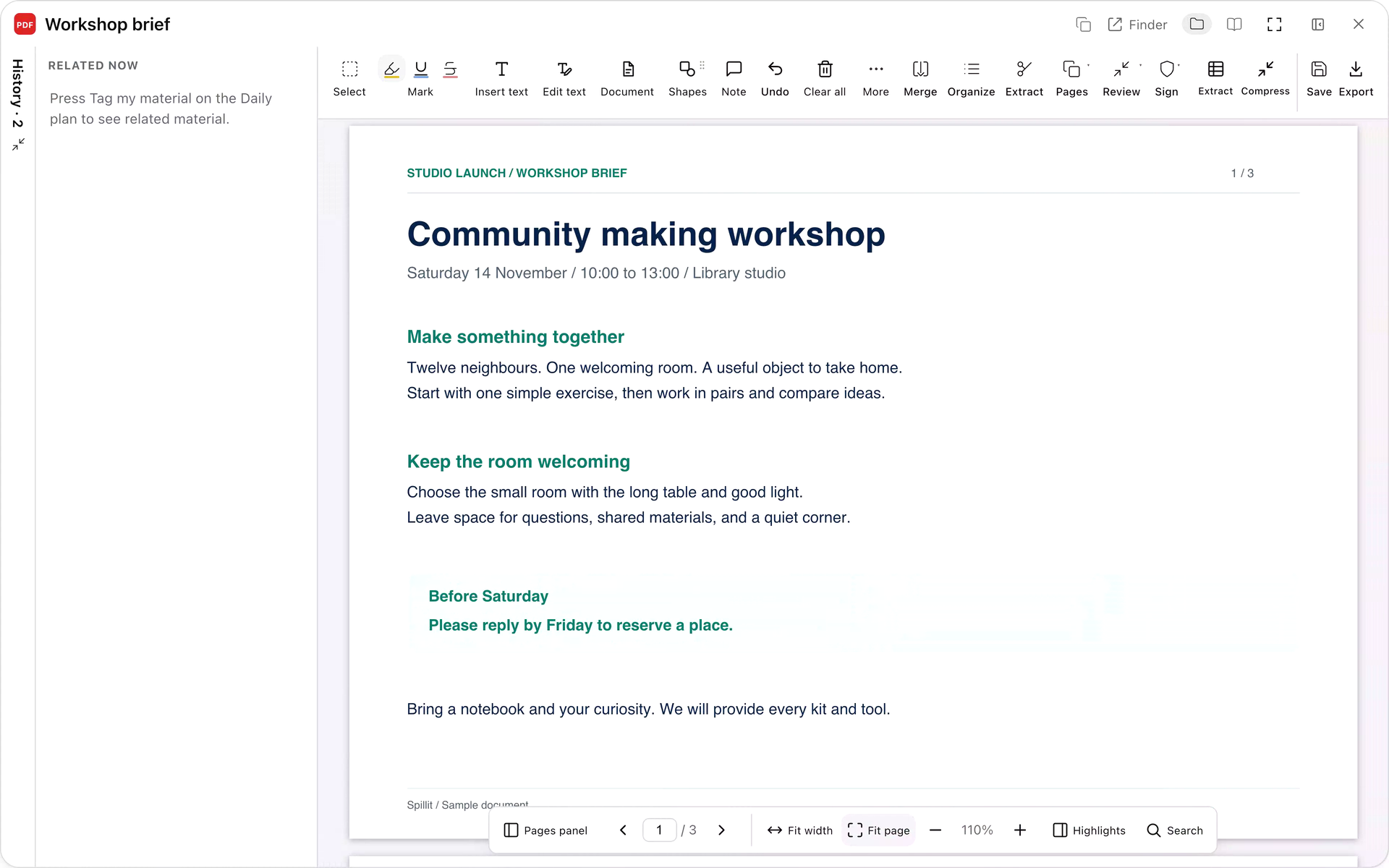
Highlight, underline, or strike through text
- Open the PDF in My Files and scroll to the passage you want to mark.
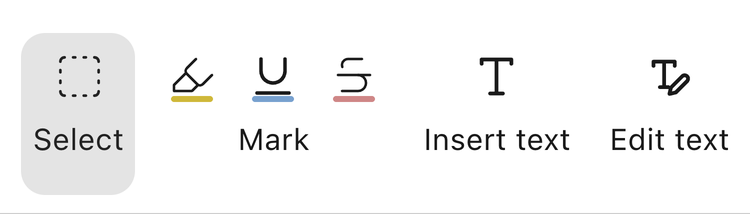
- Under Mark, choose Highlight, Underline, or Strikethrough.
- Drag across the words to apply the mark.
- Check where the mark starts and ends. Use Sticky note to add a written comment on the page.
You might highlight a deadline and add a sticky note beside it with the person responsible for following up.
Keep evidence beside your notes
Open the Highlights panel to revisit marked passages. If you want to use a passage in your own writing, save it to Smart Notes with its source and page.
Keep the source and page reference with the quote. Open the original page before quoting a passage in a report or sharing a conclusion.
Share the marked copy
Choose Save changes when the reader offers it to keep highlights and notes in the file’s history. Use the annotated PDF export when available to share a copy with its marks.
Open the exported file to confirm the marks appear.
If you cannot select words, try text recognition first. A scanned page can contain a picture of the words.
For page reordering or combining files, see Merge PDFs, reorder pages, or convert a file.
Was this article helpful?
Thanks. Glad it helped.
Thanks for telling us.Try the search, or the related topic in the sidebar.