
Choose a folder
Start with a folder you already use, such as a single project folder. Pick the folder itself rather than an individual file.
Find the folder control
Open My Files. On the first-use screen, choose Choose a folder to work with.
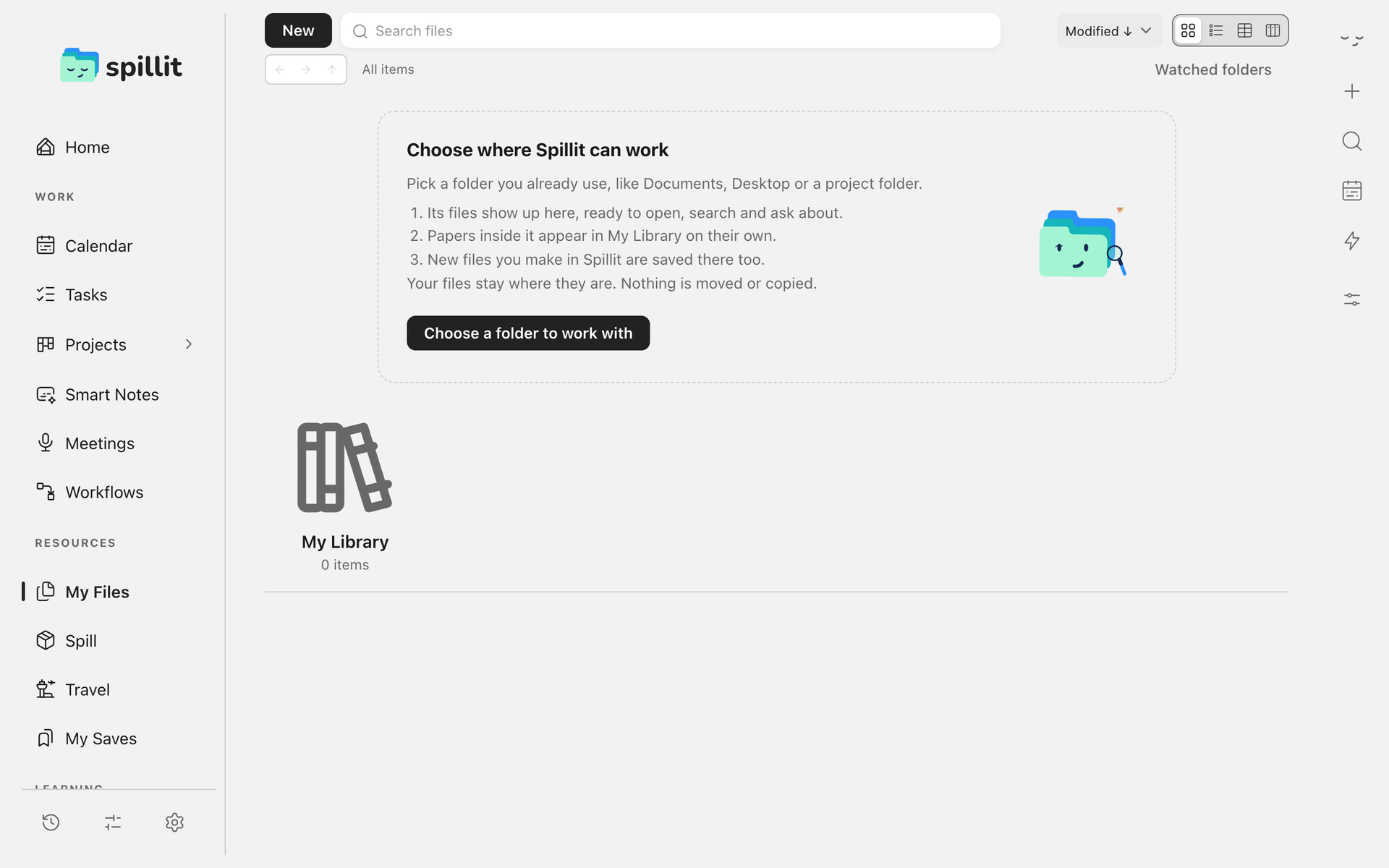
If you already use My Files, go to All items. Choose Add folder, the plus button beside Watched folders.

Pick a folder and check the result
- Select the folder in your computer’s folder picker.
- If Spillit shows a warning for a large folder, review it and choose Add folder to continue.
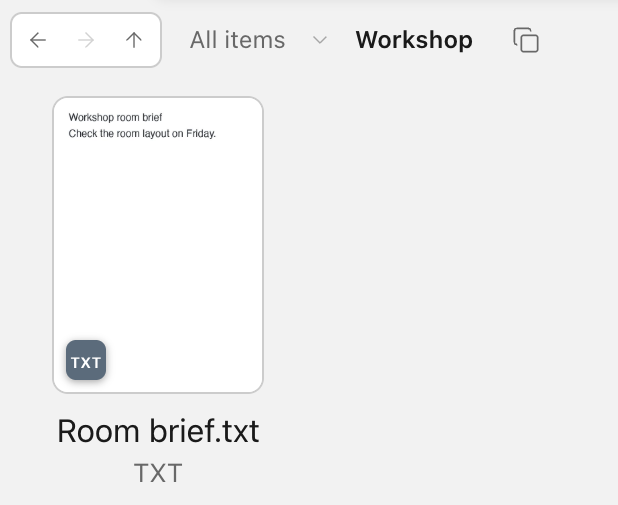
- Check that the folder opens in My Files. Open a file from it to confirm Spillit can read it.
If the folder contains code and Spillit asks what to include, choose Include code or Add without code.
Linking gives Spillit access to files in their current folder. A supported edit you save can change the original file in that location.
Find a linked file
Open the folder in My Files or type part of the filename into Search files. Try a word from a document if you remember its contents better than its name.
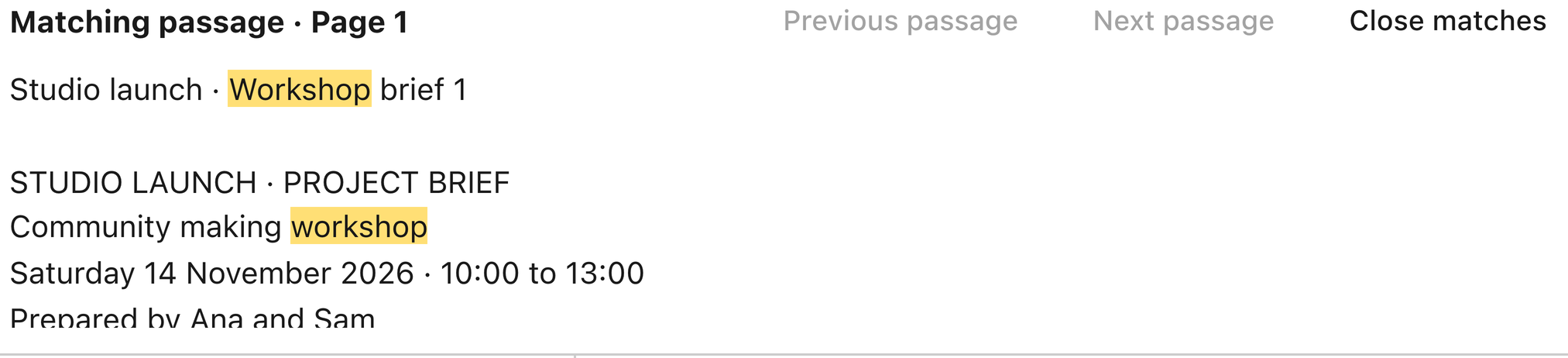
Spillit indexes supported files, which means it prepares information about them for search. If a search is incomplete, choose Refresh results when it appears.
If the folder is unavailable
Check whether the folder was moved or the drive is disconnected. A file stored in the cloud may need to download when you open it.
See Fix a missing folder or search result for the next steps.
Was this article helpful?
Thanks. Glad it helped.
Thanks for telling us.Try the search, or the related topic in the sidebar.