
Use a shortcut for anything you open often. Combine several destinations when preparing for a recurring activity, such as opening a workshop agenda, its files, and the venue website.
Keep a set of things you open together
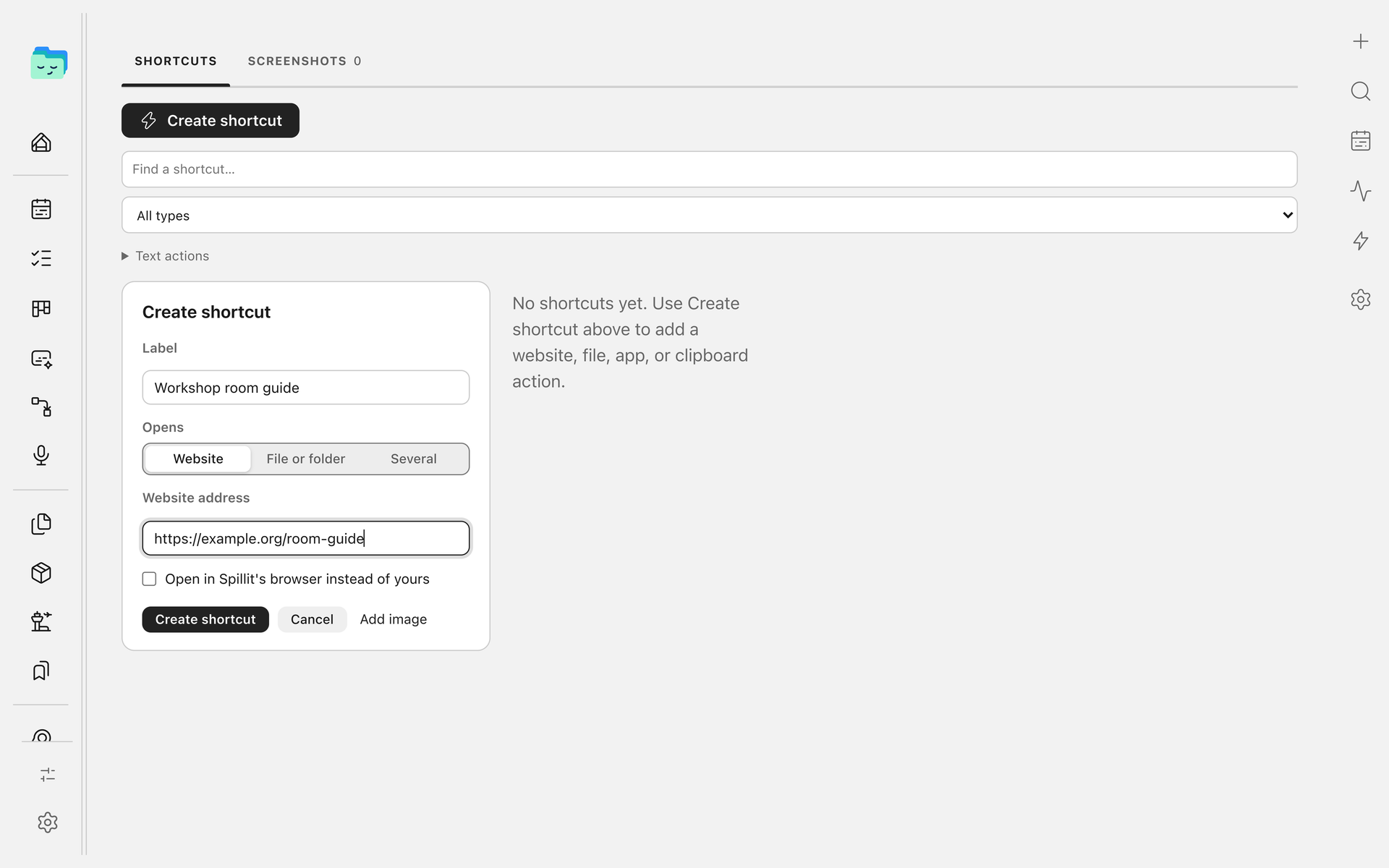
- Open Shortcuts and choose Create shortcut.
- Enter a Label, such as “Open workshop materials.”
- Under Opens, choose Several. Enter each website address or use File and Folder to pick local items.
- Choose + Add another if you need more destinations. Select Create shortcut to save it.
- Select the saved shortcut to open the items.
Choose Website or File or folder if the shortcut has only one destination. For a website, Open in Spillit’s browser instead of yours changes where the link opens.
If a destination stops opening after you move a file, edit the shortcut and choose its new location. Use Save changes, then try it again.
Clean copied text
- Copy the text you want to work with.
- In Shortcuts, open a text action such as Clean line breaks, Extract links, or Make a checklist.
- Check Source and review the Result. If Spillit cannot read the clipboard, paste your text directly into Source.
- Choose Copy result when it is ready, then paste it where you need it.
For example, paste a list of supplies into Make a checklist to turn separate lines into checkboxes. Your clipboard changes only when you copy the result.
Was this article helpful?
Thanks. Glad it helped.
Thanks for telling us.Try the search, or the related topic in the sidebar.