
Speak into the active app
Place the cursor in the app where you want the text. On macOS, hold Fn to dictate.
Allow microphone access when requested. Dictation into another app can also require Accessibility and Input Monitoring permissions on macOS.
Review and reuse the text
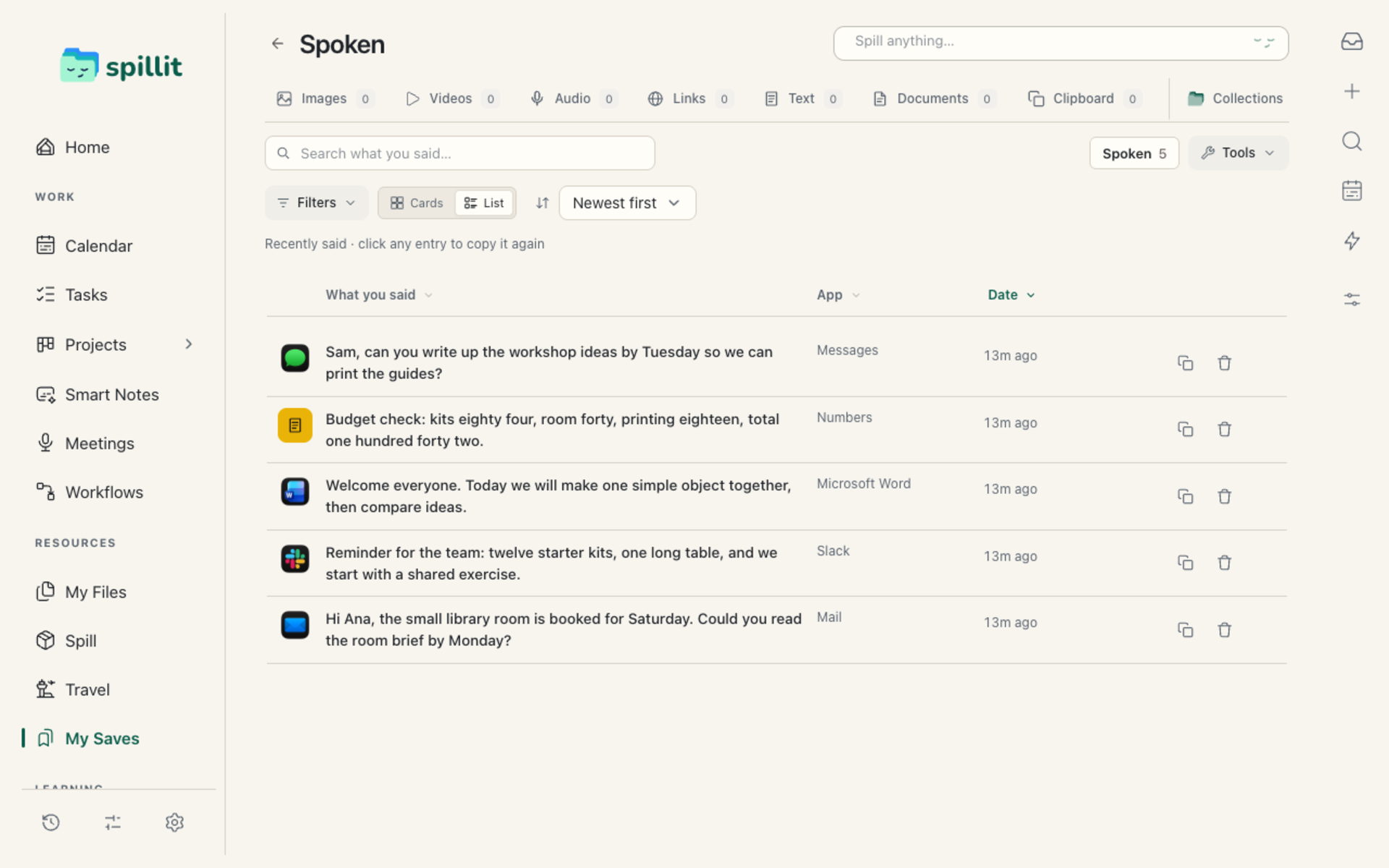
Read the recognized text before sending or saving it. Open Spoken in My Saves to revisit captured dictation when history is enabled.
See Spillit Intelligence for the distinction between dictation, meeting transcription, and writing assistance.
Find the shortcut on your Mac
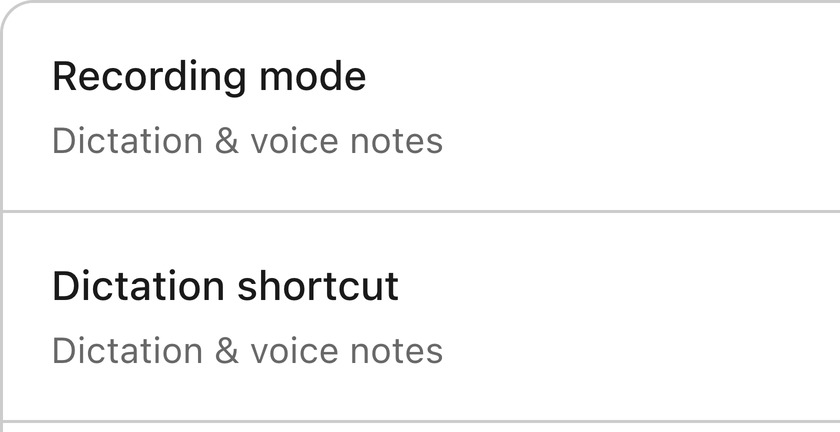
Search Settings for dictation. Check Dictation shortcut, Recording mode, and the language setting before relying on the shortcut.
Try one sentence
- Place the cursor in an editable text field, such as a new draft.
- Hold the configured shortcut and say a sentence.
- Return to the text field and check that the sentence appeared in the right place.
- Correct names, numbers, and punctuation before using the text.
If the sentence doesn’t appear, confirm the text field is focused and check the macOS permissions requested by Spillit.
Was this article helpful?
Thanks. Glad it helped.
Thanks for telling us.Try the search, or the related topic in the sidebar.