
Change the workspace appearance
Open Settings and look for appearance controls. Choose a theme or available font setting that keeps the workspace comfortable to read.
Customize your companion
Choose colors, facial details, clothing, headwear, or accessories. Save a named look when you want to return to it.
The Spillit website preview lets you try looks in the browser. Set the appearance in the desktop app to use it in your workspace.
Make a look you can reuse
Open Avatar settings and start with a color palette. Check the preview as you add face details, headwear, or accessories.
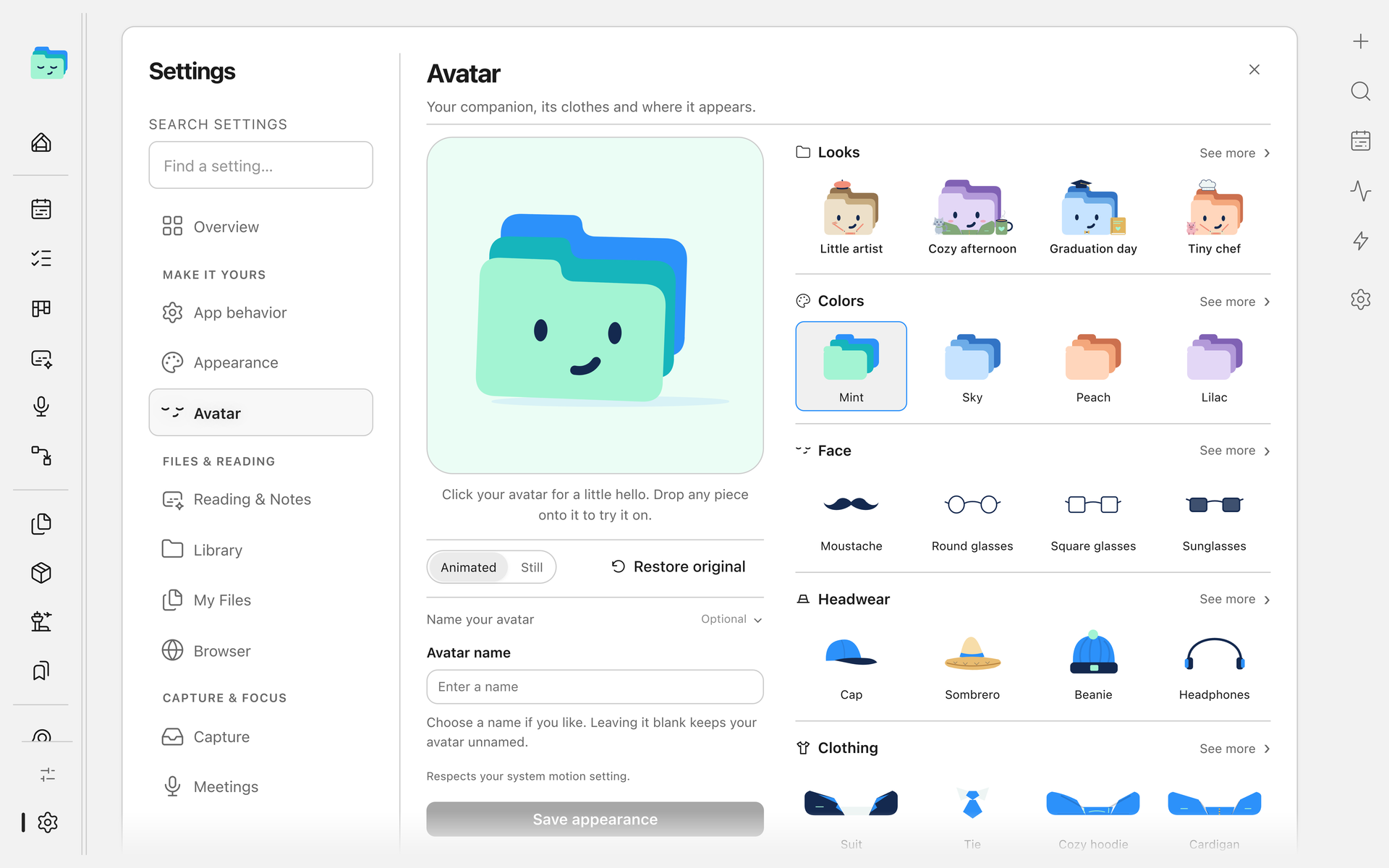
Save the combination as a named look if you want to find it again. Switch back to that look when you want the same appearance later.
Was this article helpful?
Thanks. Glad it helped.
Thanks for telling us.Try the search, or the related topic in the sidebar.