
Open a Word file from My Files when you want to revise the document, leave comments, or prepare a PDF copy in Spillit.
Make an edit and save
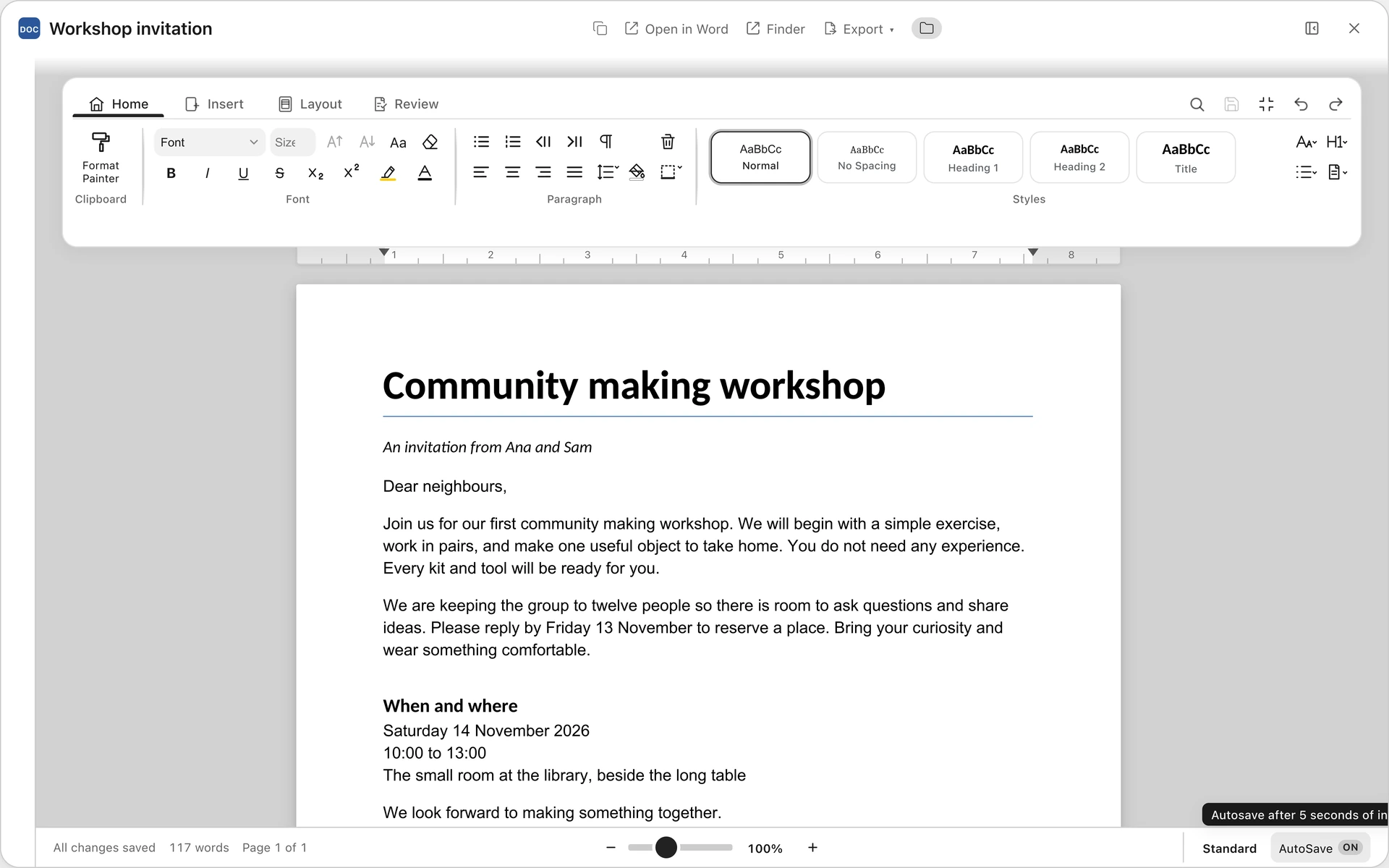
- Open the
.docxand click in the paragraph you want to change. - Select the words you want to format. Use Home for changes such as bold, italic, paragraph alignment, and lists.
- Use Insert for a picture or table. Check how the new content affects the surrounding text.
- Choose Save in the reader. Reopen the document and check the updated paragraph and its page break.
For an invitation, change the date in the body first. Then look for the same date in the heading or event details before you send it.
Comment or track revisions
| Use | When it helps |
|---|---|
| Review → New comment | Flag a question or explain a requested change beside selected text. |
| Review → Track changes | Show your wording changes as insertions and deletions for someone else to review. |
Select the passage before adding a comment. Turn on Track changes before editing if you want the change itself recorded.
Insert a reference
- Save any pending edits and place the cursor where the citation belongs.
- Open References → Citations and find the source in your library.
- Select the source, review the citation options, and choose Insert citation.
A bibliography lists the works cited in the document. Check it after revising the text so entries and cited page numbers still match.
Prepare a reading copy
Save the Word file, then choose Export to PDF. Open the PDF and check any tables, pictures, citations, and page breaks before sharing.
If you need an earlier saved draft, see Restore an earlier file version.
Was this article helpful?
Thanks. Glad it helped.
Thanks for telling us.Try the search, or the related topic in the sidebar.