
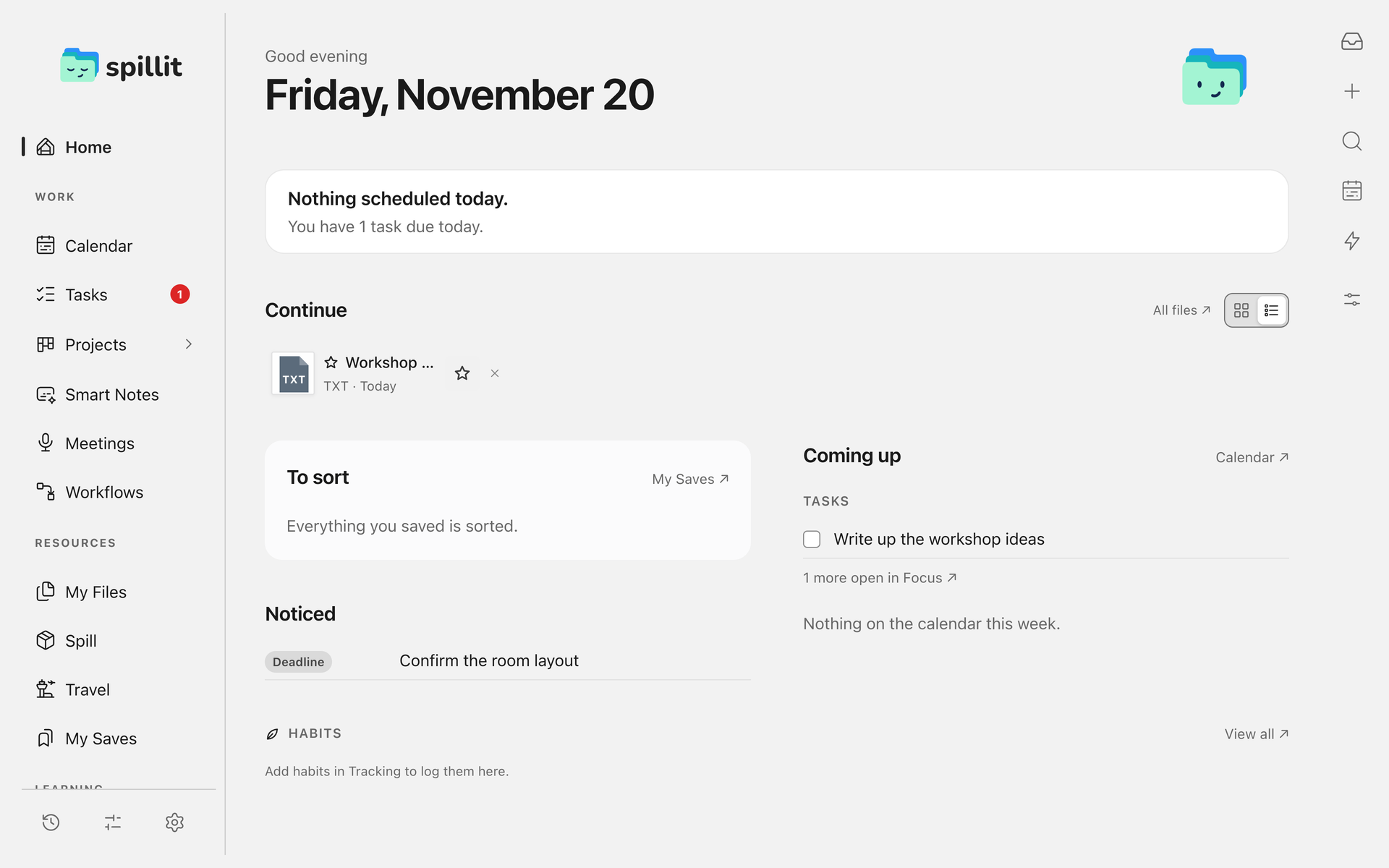
Use Home at the start of a work session to reopen your material and see what is due. Each section takes you back to the part of Spillit that holds the original item.
Pick up where you left off
- Open Home from the sidebar.
- In Continue, select the title of a recently opened file.
- Use the star on a file to Pin in Continue when you expect to come back to it.
- Switch between Cards view and List view using the controls beside All files.
For example, pin your workshop brief while you are revising it. Later, choose Unpin from Continue to make room for another file.
Decide what to work on
- Coming up shows tasks and upcoming events. Choose an entry to open it, or choose Calendar to see more of your schedule.
- To sort shows unsorted saves. Open an item to identify it, or choose My Saves to assign it to a project or collection.
- Habits lets you check off a habit for today. To correct an earlier day, use Tracking → Habits.
For a workshop, you might reopen the room brief, check when the room confirmation is due, then file the saved venue link with the project.
If something is missing
- A file is missing from Continue. Choose All files and search for it. Open the file to bring it back into your recent work.
- You hid a file by mistake. Use Undo in the notice below Continue. Hiding a recent item leaves the original file in My Files.
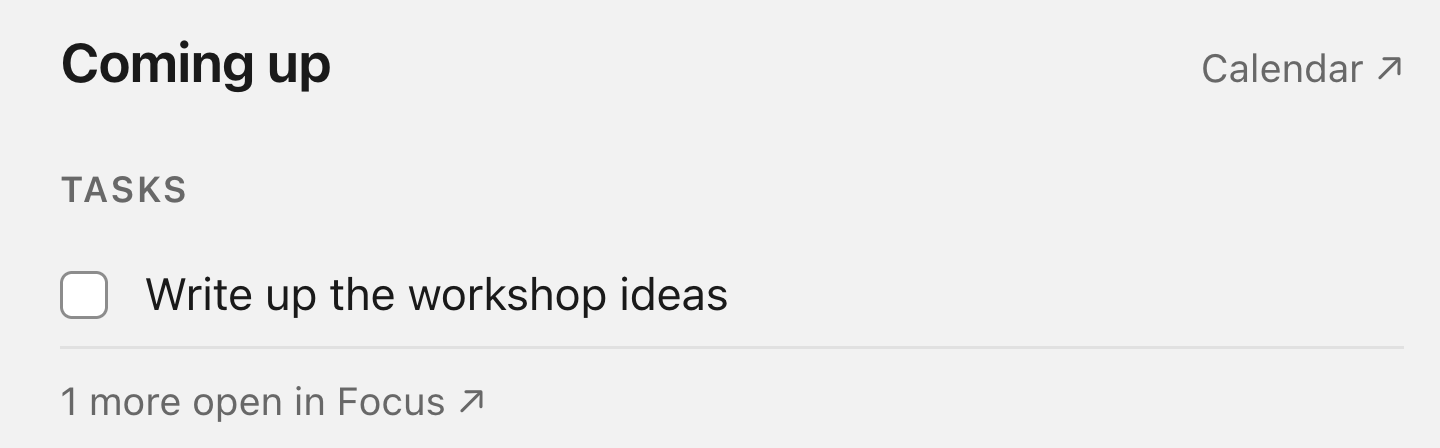
- A task or event is outside the preview. Open Tasks or Calendar. Home shows a selection of the work in those views.
- To sort is empty. If it says Everything you saved is sorted, check My Saves for material that has already been filed.
Was this article helpful?
Thanks. Glad it helped.
Thanks for telling us.Try the search, or the related topic in the sidebar.