
Save a link, text, or picture
- In My Saves, paste a link or text into Spill anything.
- Press Enter to save. For a supported picture, drop it into the saves area.
- Open the saved item and check its title and source.
For a document you want to work on in place, use My Files.
Give it a place to live
Use a collection to group related material. For example, collect room details and invitations under Workshop planning.
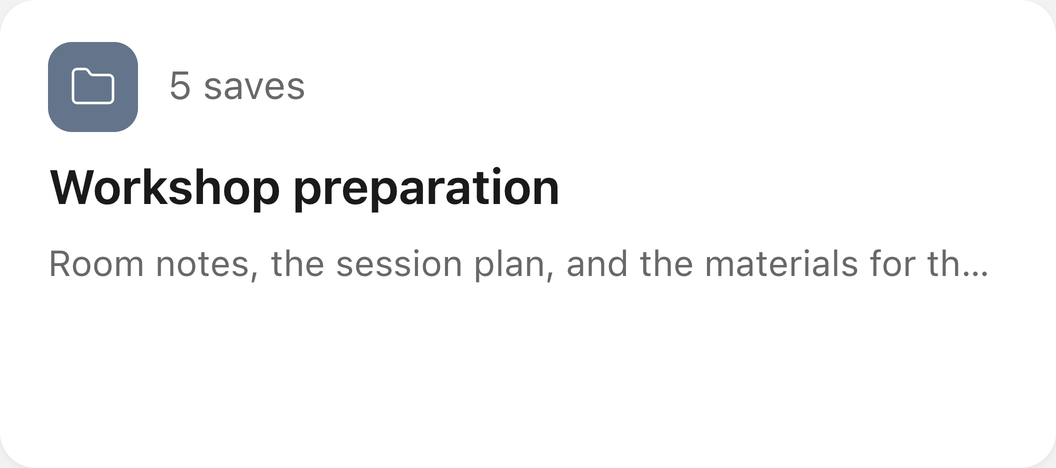
Assign the item to a project when it belongs with that project’s work. Add a tag when you want to find it under a reusable label, such as venue.
Find the right item again
Search by a distinctive word from the content or use a known tag, note, or source. Use the collection if you remember where you saved the item.
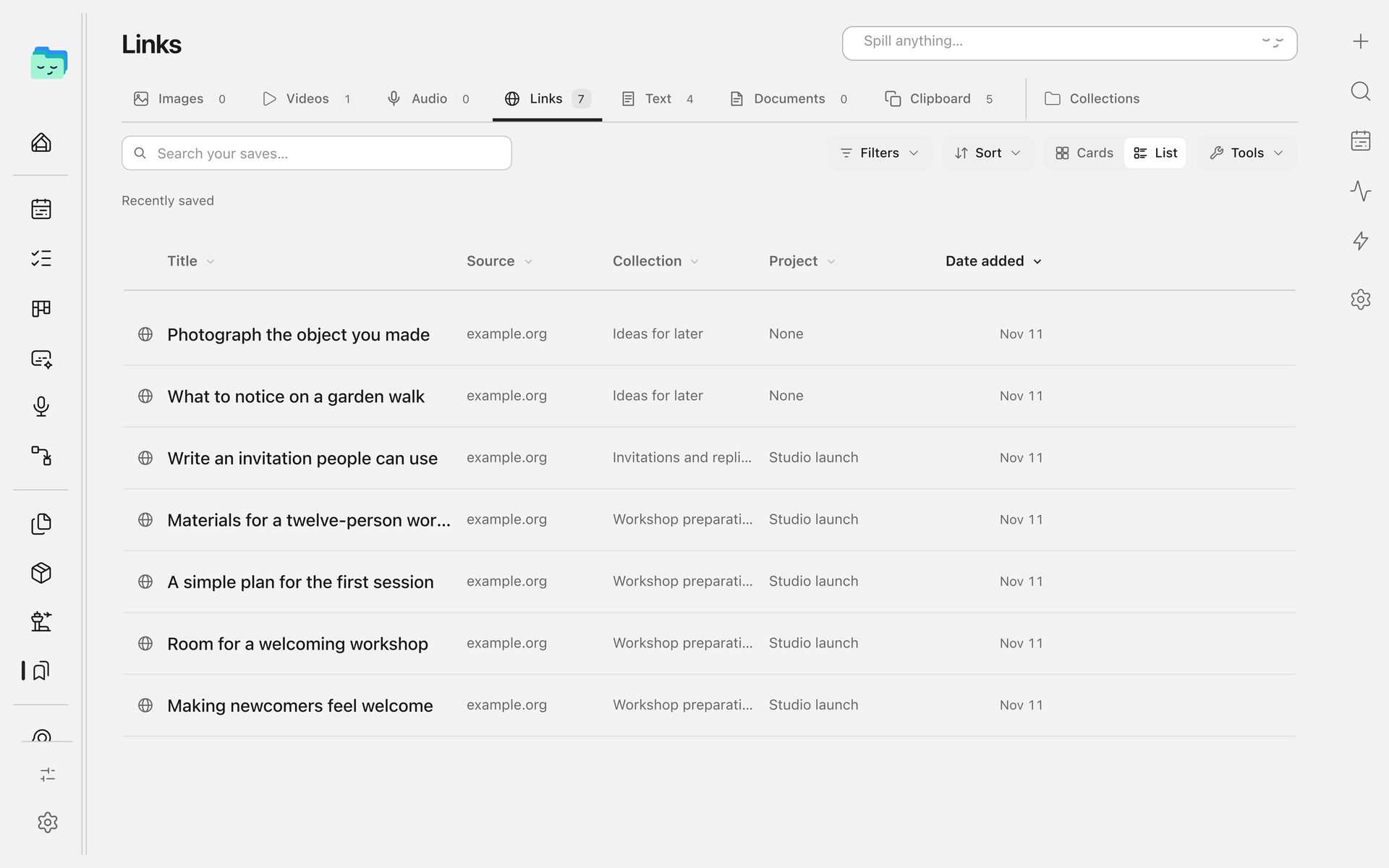
If you find duplicate copies, review them and choose the one you want to keep before merging.
Reuse what you saved
Choose Copy link for the original address or Copy text for a saved text item. Paste it into your note or document.

For a video, search or export the transcript to check a passage against its place in the recording.
Was this article helpful?
Thanks. Glad it helped.
Thanks for telling us.Try the search, or the related topic in the sidebar.