
Start an import
In Smart Notes, choose Bring notes from another app and select your source. The import makes a copy of your notes.
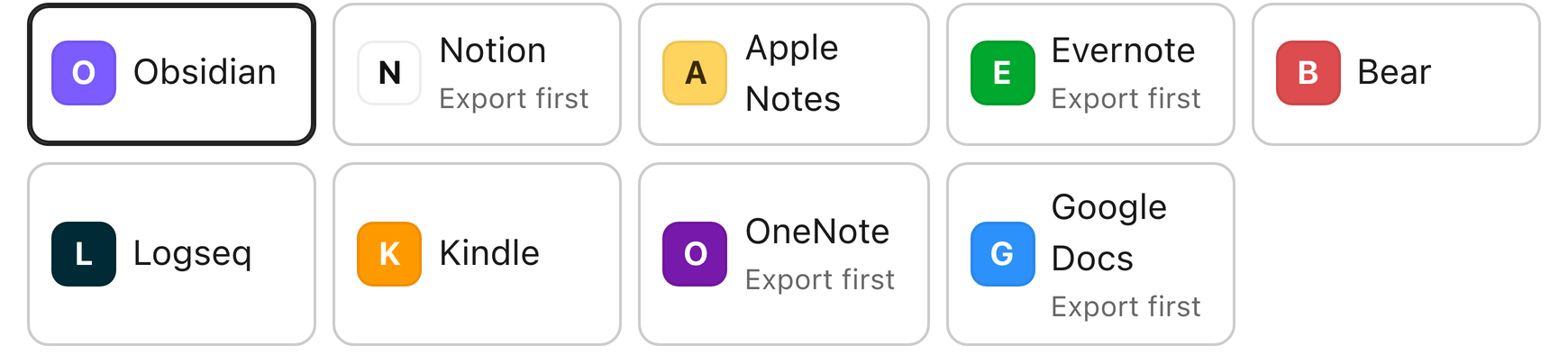
Prepare your source
- Obsidian: Choose your vault folder, the folder that holds your notes. Each subfolder becomes a notebook.
- Notion: Export your workspace as Markdown & CSV. Select the downloaded ZIP file in Spillit.
- Apple Notes: On your Mac, grant access when prompted and choose the folders to copy.
- Evernote: Export a notebook as an
.enexfile and choose it in Spillit. - Bear: Export selected notes to a Markdown folder. Choose that folder in Spillit.
- Logseq: Choose the graph folder containing your Markdown pages.
- Kindle: Choose
My Clippings.txtfrom the connected Kindle. Each book becomes a note of highlights. - OneNote: Export a page as a Word document and choose its
.docx. - Google Docs: Export Drive through Google Takeout with DOCX selected for documents. Choose the downloaded ZIP archive.
Open a few imported notes to check that the headings and content you need came through.
See the illustrated import guide.
Check a small import first
Pick a folder or export containing a few notes you know well. Check a heading, a list, and any important links after import.
Check where the notes went
Open Smart Notes and find the imported notes where the importer placed them. If you’re bringing in loose files, see Bring in a folder of Markdown or text notes.
Keep the source export until you’ve checked the content you need.
Was this article helpful?
Thanks. Glad it helped.
Thanks for telling us.Try the search, or the related topic in the sidebar.