
Use another approved device if you have one
Request approval from the new device. On an approved device, compare the six digits and approve the request in Private sync.
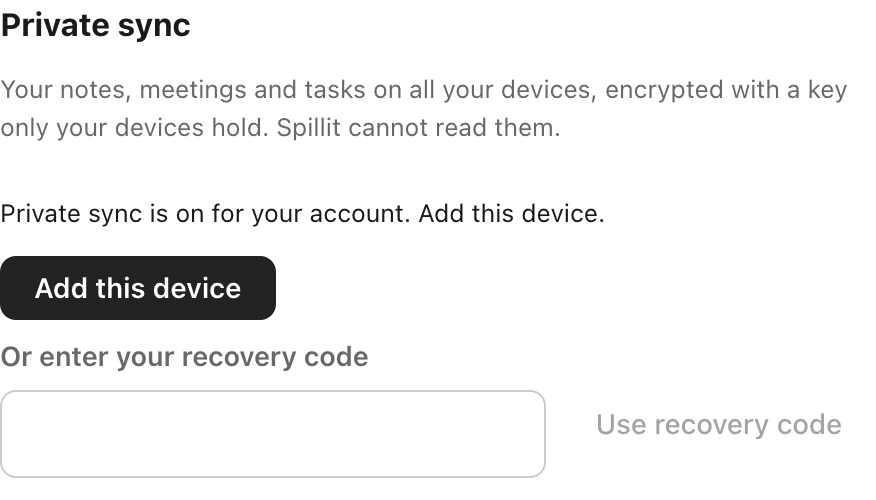
Use the recovery code
- Sign in on the replacement device and open Private sync.
- Enter your saved code in Or enter your recovery code.
- Choose Use recovery code.
If you lose every approved device and the recovery code, Spillit cannot recover the synced copy. Check any local copies and backups you still have.
Find the code while a device still syncs
On a desktop build that already syncs, open the Private sync card in Settings and choose Show recovery code. Record it somewhere you can reach if you replace the device.
Check what recovery restored
After approval or recovery, verify a supported record you recognize. Compare a note or task with a copy on an approved device if one is available.
Keep any separate library and file backups. The recovery code grants access to the synced copy.
Was this article helpful?
Thanks. Glad it helped.
Thanks for telling us.Try the search, or the related topic in the sidebar.