
Choose the tool based on what the recipient should be able to see, open, or verify.
| Goal | Use |
|---|---|
| Remove private text from a copy | Redaction |
| Require a password to open the PDF | Password protection |
| Put a handwritten or typed mark on a page | Sign |
| Let readers check whether a signed file changed | Certificate signature |
Remove private text
- In My Files, use Duplicate from the file menu if you need a separate copy to share. Open the copy before redacting it.
- Open the redaction tool. Enter words or phrases one per line, or choose a supported pattern.
- Choose Find matches. Review the match count and check for lookalikes before continuing.
- Choose Black out & save. Open the result and confirm the old text can no longer be found on the affected pages.
Redaction turns affected pages into images and removes their original text layer. To review attachments, scripts, or hidden layers separately, open Document → Remove hidden data.
Add or remove a password
- Open a PDF in My Files and choose its protection tool.
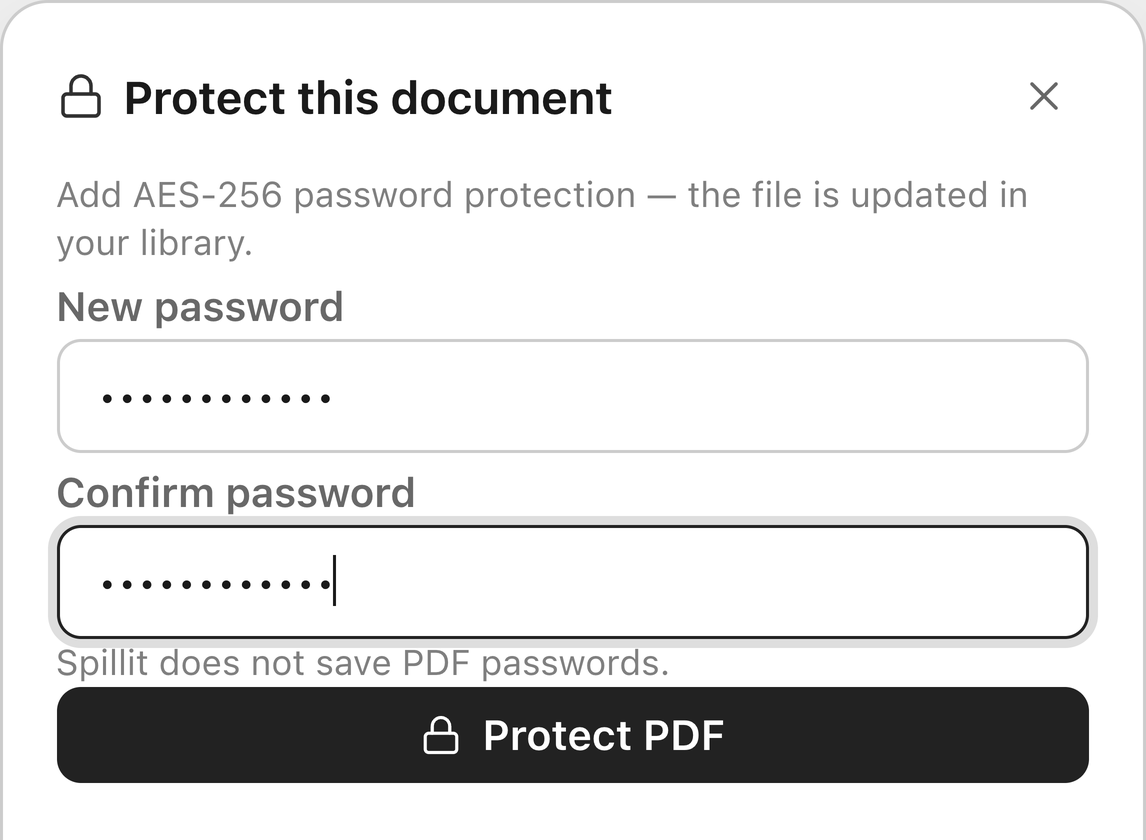
- Enter a New password, repeat it in Confirm password, and choose Protect PDF.
- Reopen the protected file to check that the password works. Keep the password somewhere you can retrieve it.
This updates the library file. Use Duplicate first if you also need an unprotected file. To remove protection, enter the existing password and choose Unlock PDF.
Place a signature mark
Open Sign and choose Draw, Type, or Load. Place the mark on the intended page, adjust its size, and choose Save signed copy.
Sign with a certificate
A certificate signature lets a reader check the signed version for changes.
- Open Document → Certificate signature. If you need an identity, open New signing ID to make or import one.
- Choose an identity under Sign as, enter its password, and choose Sign. Draw the box on the page if you selected the visible option.
- Open the signed result and choose Check the signatures in this file.
Check a self-signed identity with the signer separately. Confirm which kind of signature your recipient expects.
Was this article helpful?
Thanks. Glad it helped.
Thanks for telling us.Try the search, or the related topic in the sidebar.