
Find something you copied
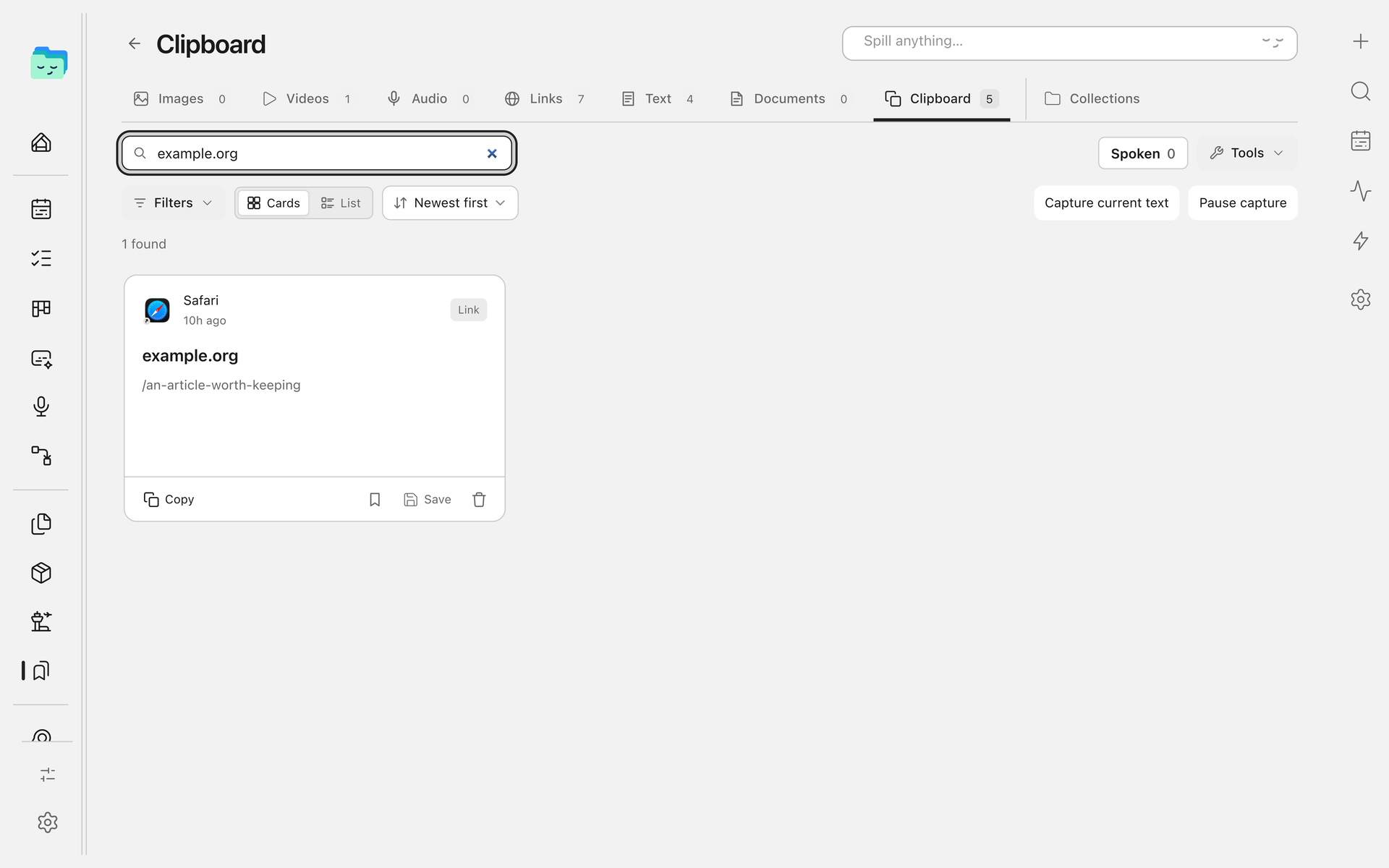
- Open My Saves → Clipboard.
- If capture is off, choose Turn capture on. If it is paused, choose Resume capture.
- Search for a word you remember or narrow the history by source app.
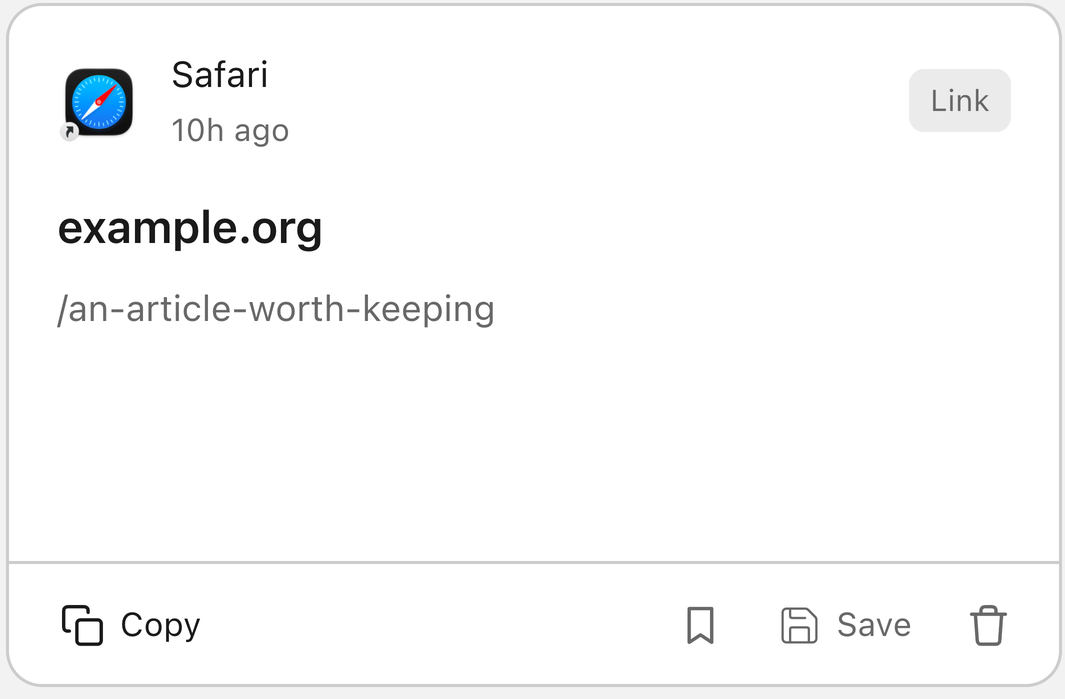
- Choose Copy on a text entry to put it back on the clipboard.
If you want to keep text already on the clipboard, choose Capture current text while capture is on.
Choose how long to keep it
| Action | When to use it |
|---|---|
| Pin | Keep a useful entry easy to find in Clipboard. |
| Save permanently | Add the entry to My Saves for later use. |
| Pause capture | Stop keeping new clipboard entries until you resume. |
Pause capture before copying anything you prefer to keep out of your history. Review or remove existing entries separately.
Mark up a screenshot
Open Screenshots in Shortcuts. On a supported build, choose Manage my screenshots if you want new screenshots to appear there.
Open a captured image and use the available markup tools. Add an arrow or crop to the area you want to show. Save a separate copy when you need to keep the source.
If a capture contains text you need, try text recognition and check the result before using it. See Crop, annotate, and export pictures.
Was this article helpful?
Thanks. Glad it helped.
Thanks for telling us.Try the search, or the related topic in the sidebar.