
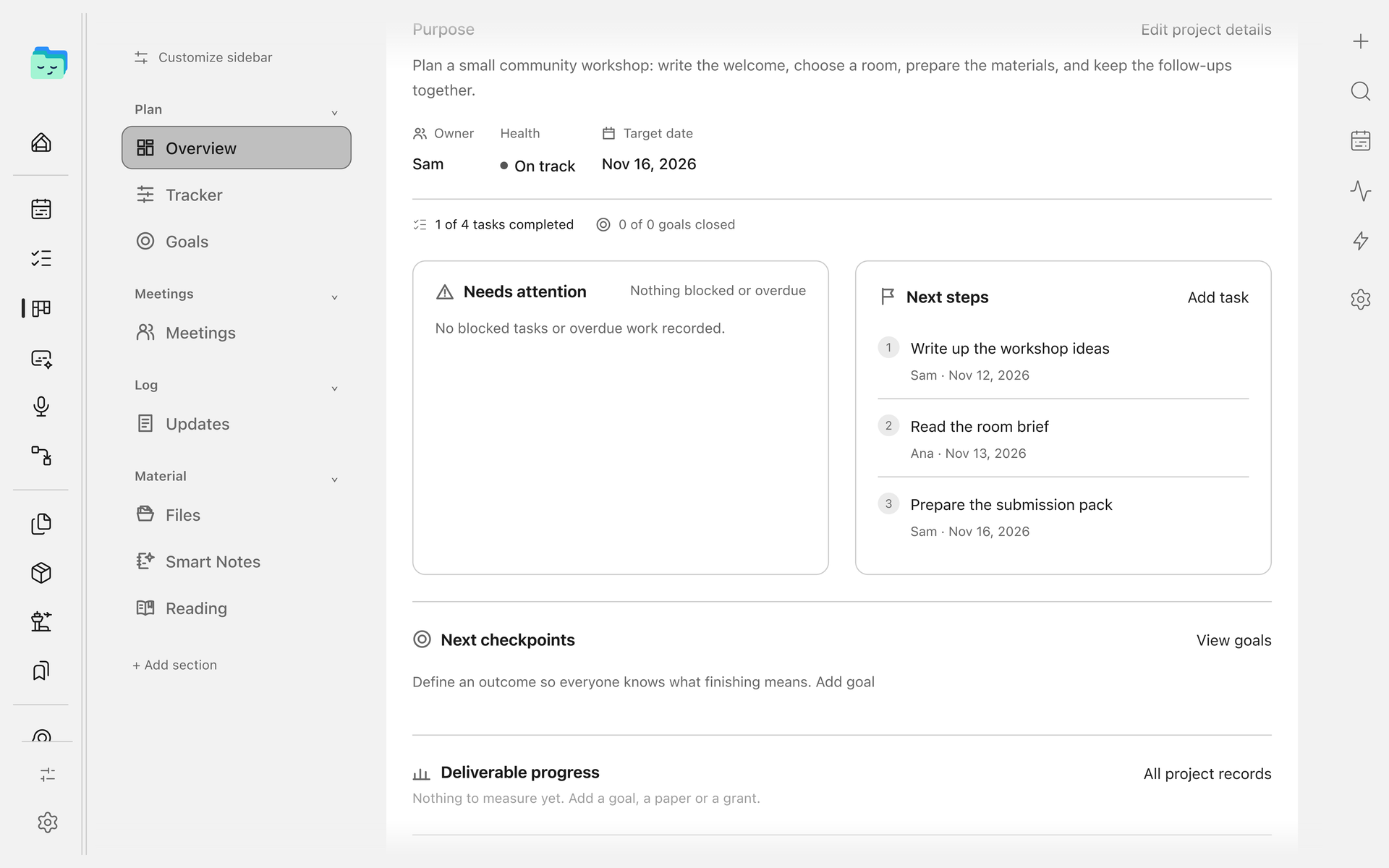
Open a project from Projects. Use Overview for the latest priorities, Tracker for the work, and Export brief when someone needs an update.
Set up the project
- Open Overview and review the purpose, owner, and target date. Use Edit project if any of those need updating.
- Look at Needs attention for blocked or overdue work. Check Next steps for an action to take next.
- Open Tracker. Search by title or owner in Find a task or owner…, or select Blocked tasks to narrow the list.
- Select an open task to review its status or update who owns it.
If a project still needs its first task or file, follow Create your first project.
Choose a Tracker view
| View | Use it to |
|---|---|
| List | Search tasks and read each task’s owner, date, and status. |
| Board | See which tasks are Pending, In progress, or Done. |
| Calendar | Find project dates on a month grid. |
| Timeline | Read project dates in sequence across a longer period. |
For a workshop, use Blocked tasks to find “Print invitations” while it waits for approval. Switch to Calendar to check how close the deadline is.

Share an update
- Open More → Export brief.
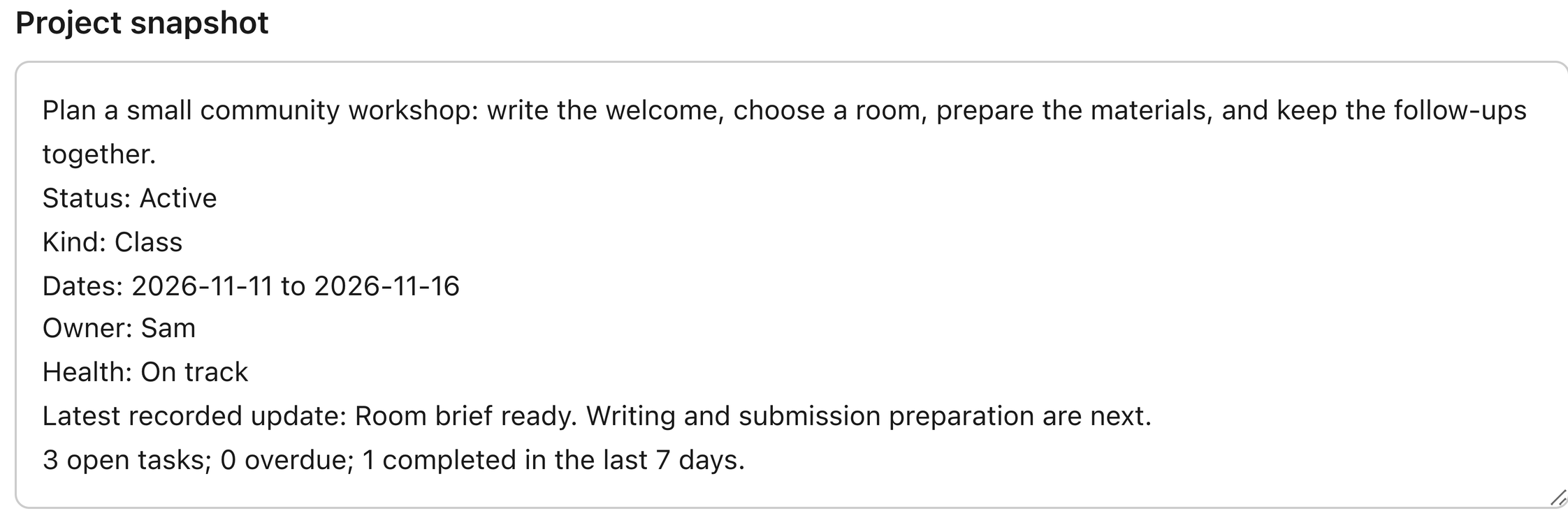
- Choose Team update for progress and coordination, Stakeholder summary for a shorter decision overview, or Full brief for the supporting records.
- Edit the title and draft sections. Keep one item per line. Changes in this preview apply only to the exported brief.
- Choose Export PDF for a finished copy or Markdown file for an editable plain-text copy.
If a detail is missing from the brief
Check the original project record first. Add unclear dates or owners in the project, then use Refresh from project in the preview. Refresh can replace edits you already made to that draft.
Was this article helpful?
Thanks. Glad it helped.
Thanks for telling us.Try the search, or the related topic in the sidebar.