
A workflow saves a sequence of document steps so you can repeat it with new files. Start with a small batch so you can check the order and output.
Build a reusable numbered packet
- Open Workflows and choose Create workflow. Use Browse examples to see a finished starting point.
- Under Choose files, select the agenda and any handouts. Review their order before combining them.
- Under Build steps, add Convert to PDF first if the sources include supported Word files or pictures.
- Use Combine files to assemble the packet. Add Page numbers after combining so the numbering follows the complete packet.
- Under Save results, choose the destination and give the packet a name. Check the run summary, then choose Run flow.
- Open the result. Check the order, page count, and numbers at the beginning and end of the packet.
For a one-time merge without extra steps, choose Merge documents from the quick workflows list.
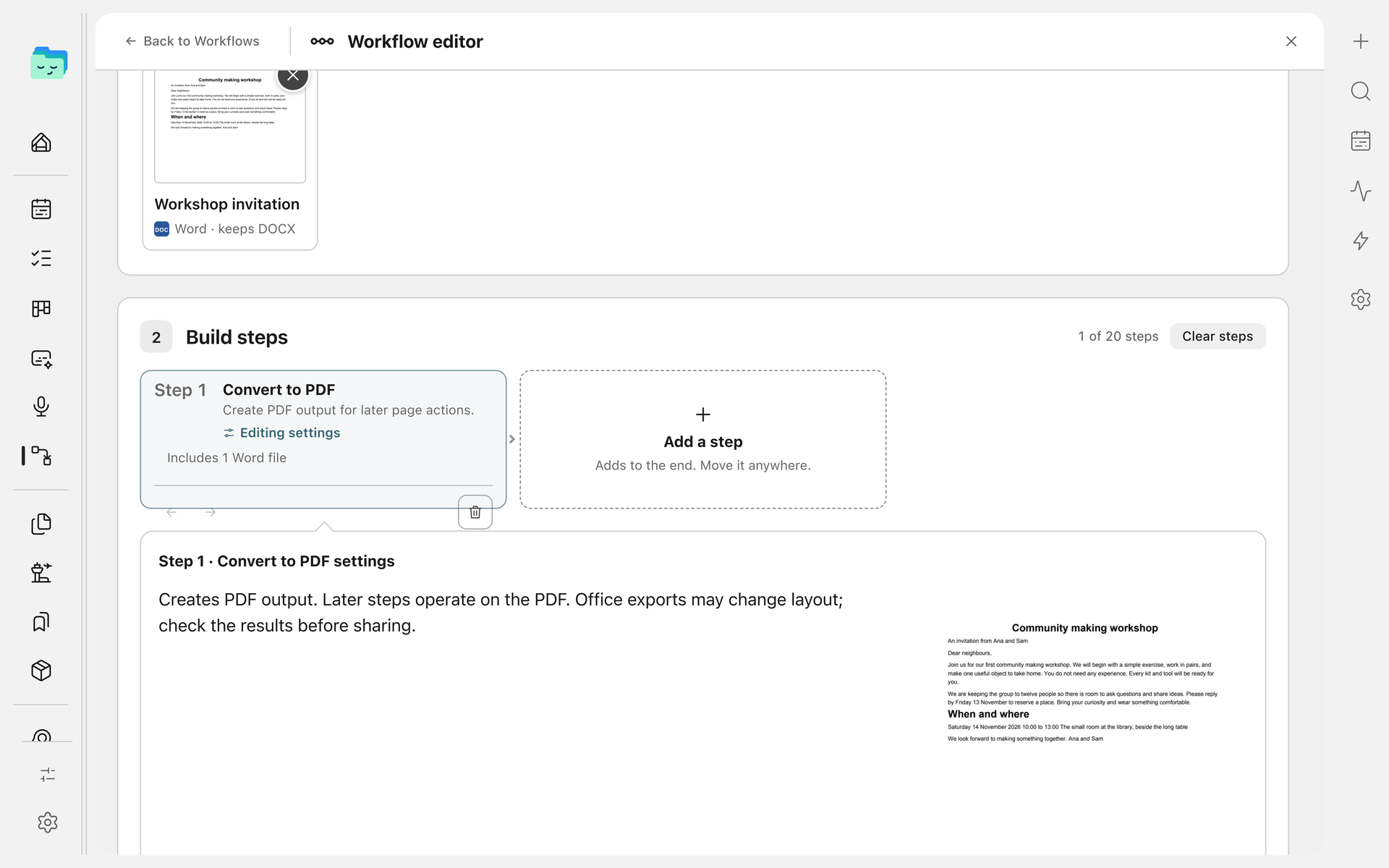
Choose where the result goes
| Option | Choose it when |
|---|---|
| Separate copies | You want to process each source on its own and keep the originals. |
| One combined PDF | You want one packet assembled from the chosen files. |
| Update the originals | You intend to record a new version in place and have checked the files carefully. |
The options depend on the steps and inputs you choose. Under Save to, select My Files or This computer, then confirm the destination.
Save the sequence for next time
Choose Save as… and name the workflow. Open it again from Your workflows to use a new set of files.
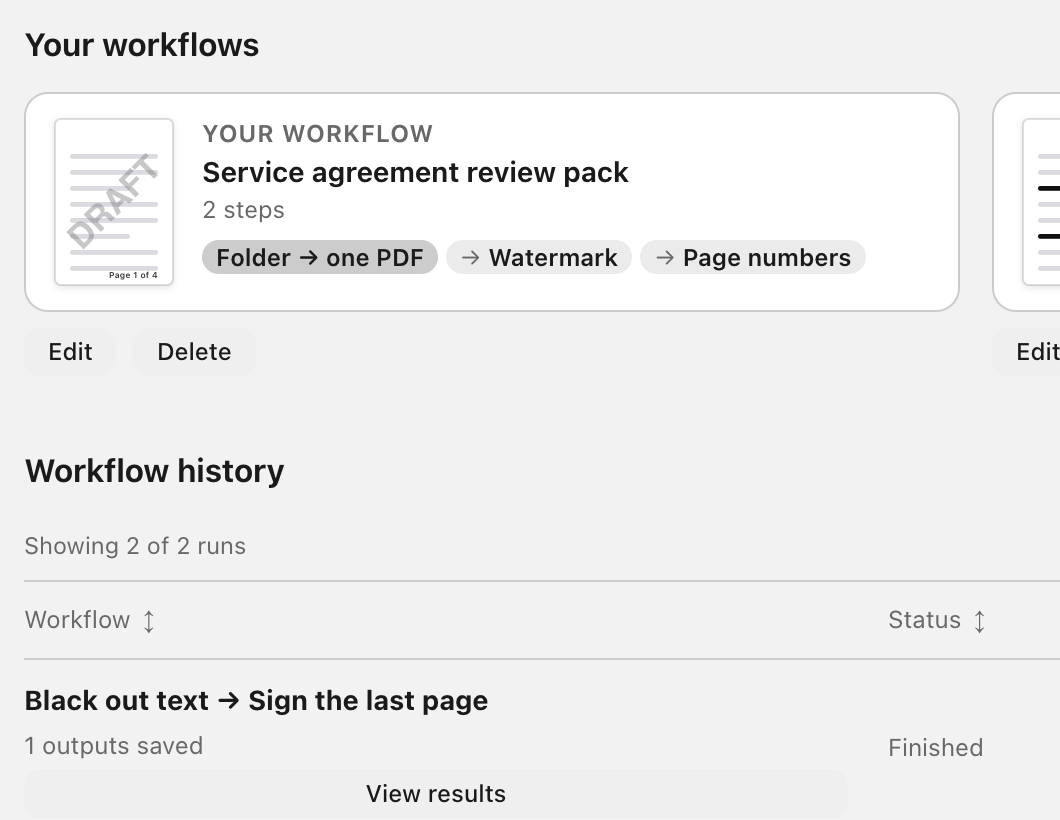
When editing a saved workflow, choose Save as a new workflow… to keep an alternate sequence. For a failed or interrupted run, open Workflow history and inspect its result and error before running it again.
Was this article helpful?
Thanks. Glad it helped.
Thanks for telling us.Try the search, or the related topic in the sidebar.