
Prepare the files
Gather a copy of the Markdown or plain-text notes you want to import. Keep their folder structure if it helps you review them later.
- Smart NotesUse Bring in notes from a folder when you want to edit the imported writing.
- My SavesUse Settings → Data & Safety → Import Markdown & text to keep a copy of source text.
Create editable Smart Notes
In Smart Notes, use Bring in notes from a folder and choose the source folder. Review the imported notes and grouping.
Bring files into My Saves
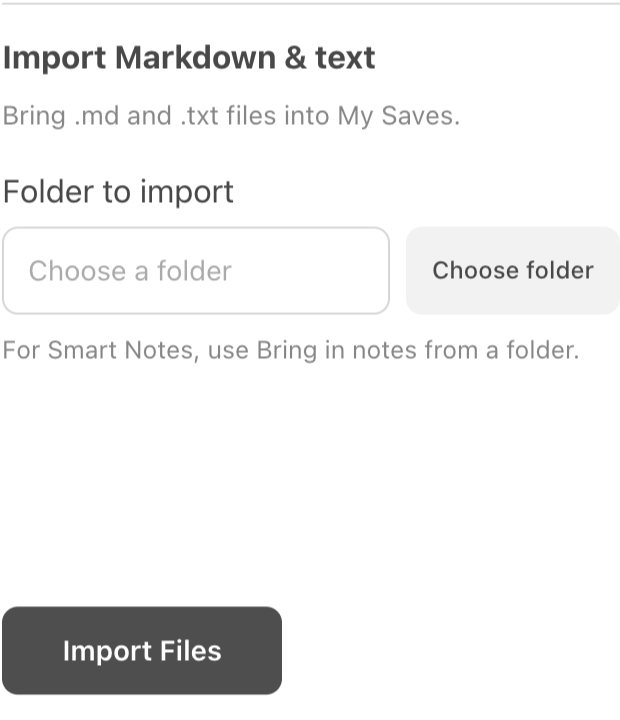
Open Settings → Data & Safety. Find Import Markdown & text, choose the folder, then select Import Files. Check My Saves for the resulting entries.
For app-specific exports, see Import notes from another app.
Check the result before cleaning up
Use a small folder if you’re unsure which import fits. Import workshop-plan.md into Smart Notes when you want to edit it as a note.
Import through Data & Safety when you want to keep a folder of source text in My Saves. Check each destination before reimporting a folder.
Was this article helpful?
Thanks. Glad it helped.
Thanks for telling us.Try the search, or the related topic in the sidebar.