
Bring a source into My Library
Open My Library → Add source and choose the option that matches what you have.
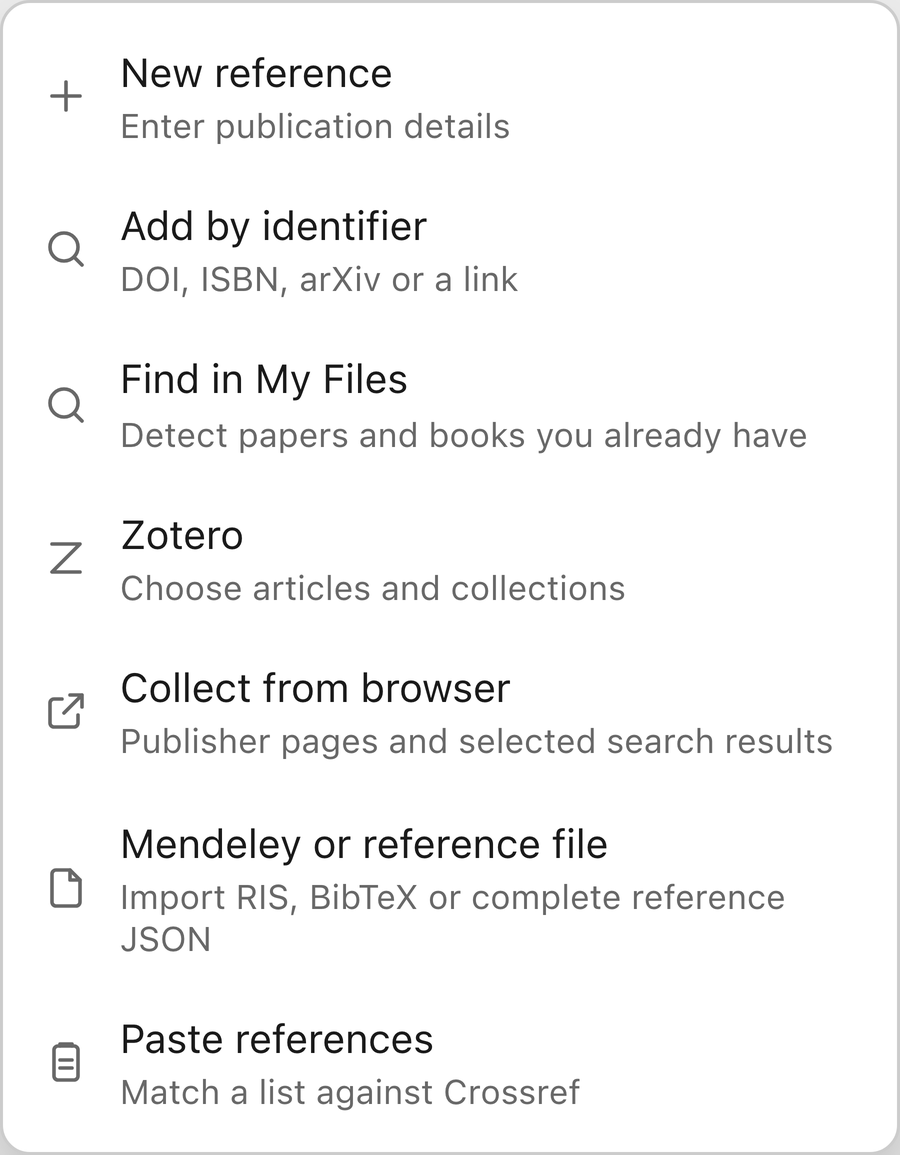
| What you have | Choose |
|---|---|
| A DOI for an article, an ISBN for a book, an arXiv identifier, or a source link | Add by identifier |
| A paper or book already stored in a linked folder | Find in My Files |
| A reference file in RIS or BibTeX format | Mendeley or reference file |
| Publication details you want to enter yourself | New reference |
| Items in a Zotero collection | Zotero |
RIS and BibTeX are formats for moving citation details between apps. For Zotero setup and compatibility, see Move references between Zotero and Spillit.
Open the new reference and check the title, authors, and date. Online lookups need a connection, and finding a reference does not guarantee an available PDF.
Set up a reading list
Group related sources in a collection or assign them to a project. For example, keep background reading in one collection and use each item’s reading status to track your progress.
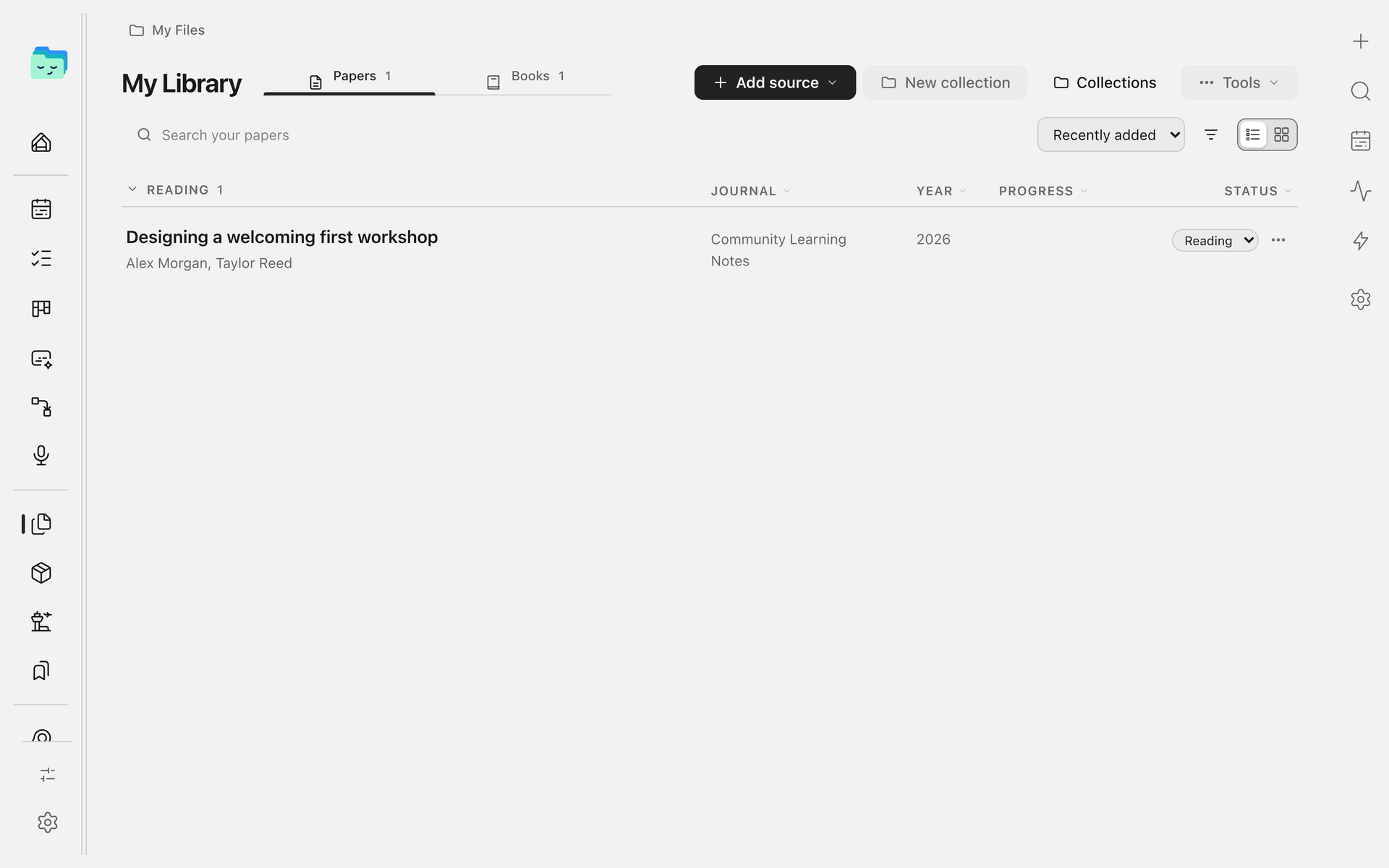
If the paper has an attached PDF, choose Open PDF. Use page links from available notes or highlights to return to the relevant passage.
Cite a source while you write
- Open a Smart Note or a supported Word document.
- Use the editor’s citation control and choose a reference from your library.
- Add a page number if the editor supports it and the citation needs one.
- Check the inserted citation against the source.
In My Library, use Choose citation style… on a reference to review formatted citations. When preparing a bibliography, choose an installed style and review the entire list before copying or exporting it.

Was this article helpful?
Thanks. Glad it helped.
Thanks for telling us.Try the search, or the related topic in the sidebar.