
Read the meeting record
Open the completed meeting in Meetings. Read the transcript and check names, dates, and decisions against the spoken context.
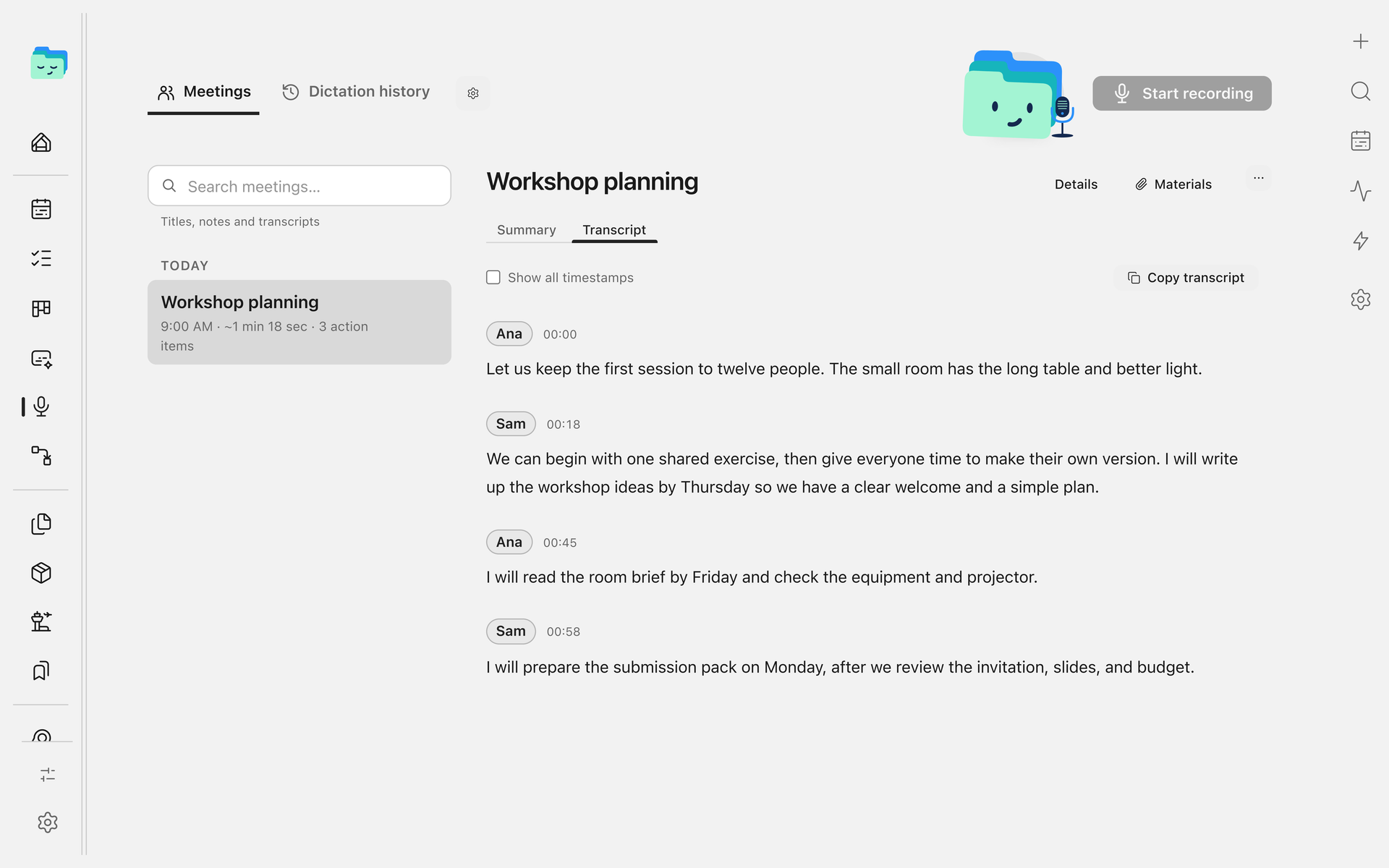
Review the suggestions
Compare the summary with the transcript before relying on it. Review suggested tasks and choose the ones you want to add.
Choose On this Mac when you want supported meeting-note processing to run locally. Choosing Spillit AI for cloud processing sends the transcript.
See how local and cloud processing work.
Correct one follow-up before adding it
- Open the meeting and choose Summary.
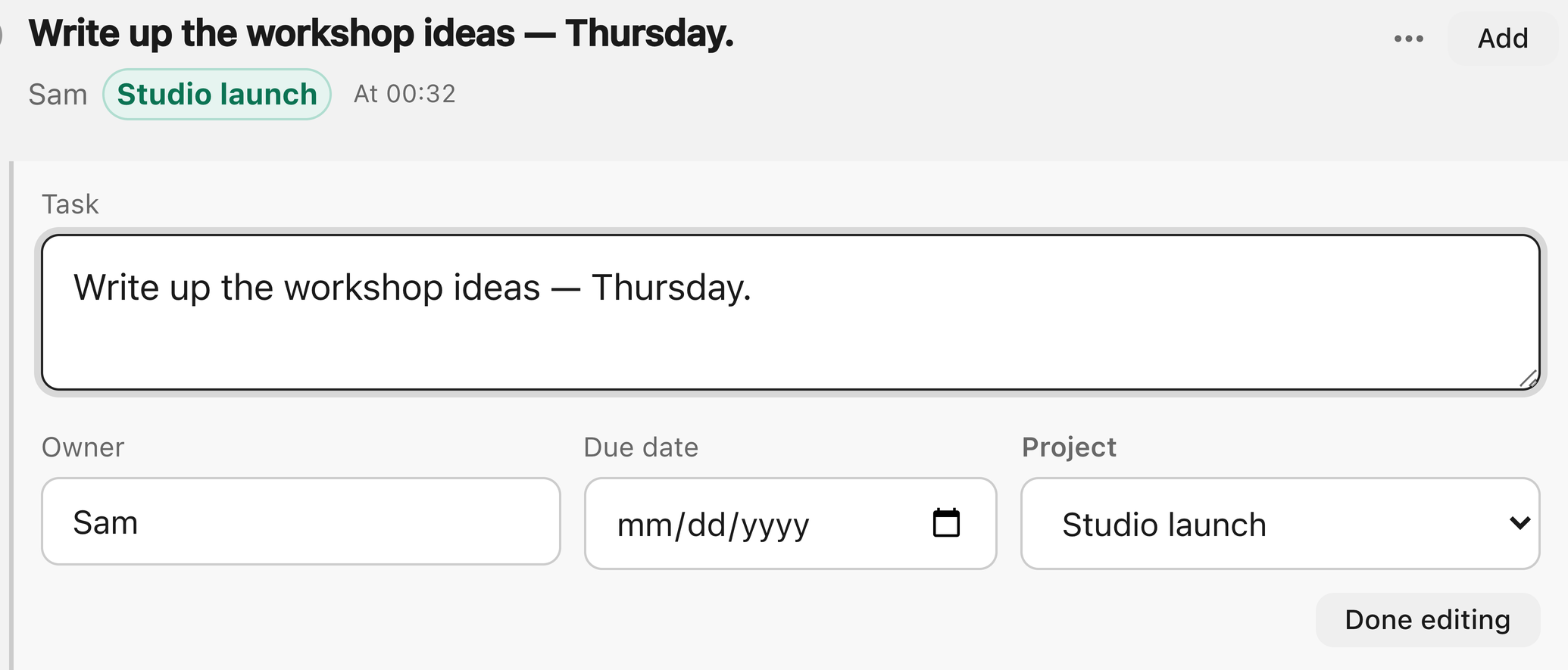
- Look under Suggested tasks for a follow-up you want to keep. Check the words against Transcript if the suggested wording is unclear.
- Review the task, owner, due date, and project. For example, an instruction to send a brief on Thursday needs a confirmed date and owner.
- Choose Add for the task you want to keep. Open Tasks afterward to check the saved entry.
If a date belongs on your calendar, review it separately. See Schedule tasks and events.
Was this article helpful?
Thanks. Glad it helped.
Thanks for telling us.Try the search, or the related topic in the sidebar.