
Choose spoken words or on-screen text
Open the video in My Saves. When available, select Transcribe for speech or captions. Use Read on-screen text for words visible in the picture.
Generating transcripts requires Spillit Pro. Reading on-screen text also needs macOS 13 or later. The options depend on the video, and fetching an online video needs a connection.
Find a passage and verify it
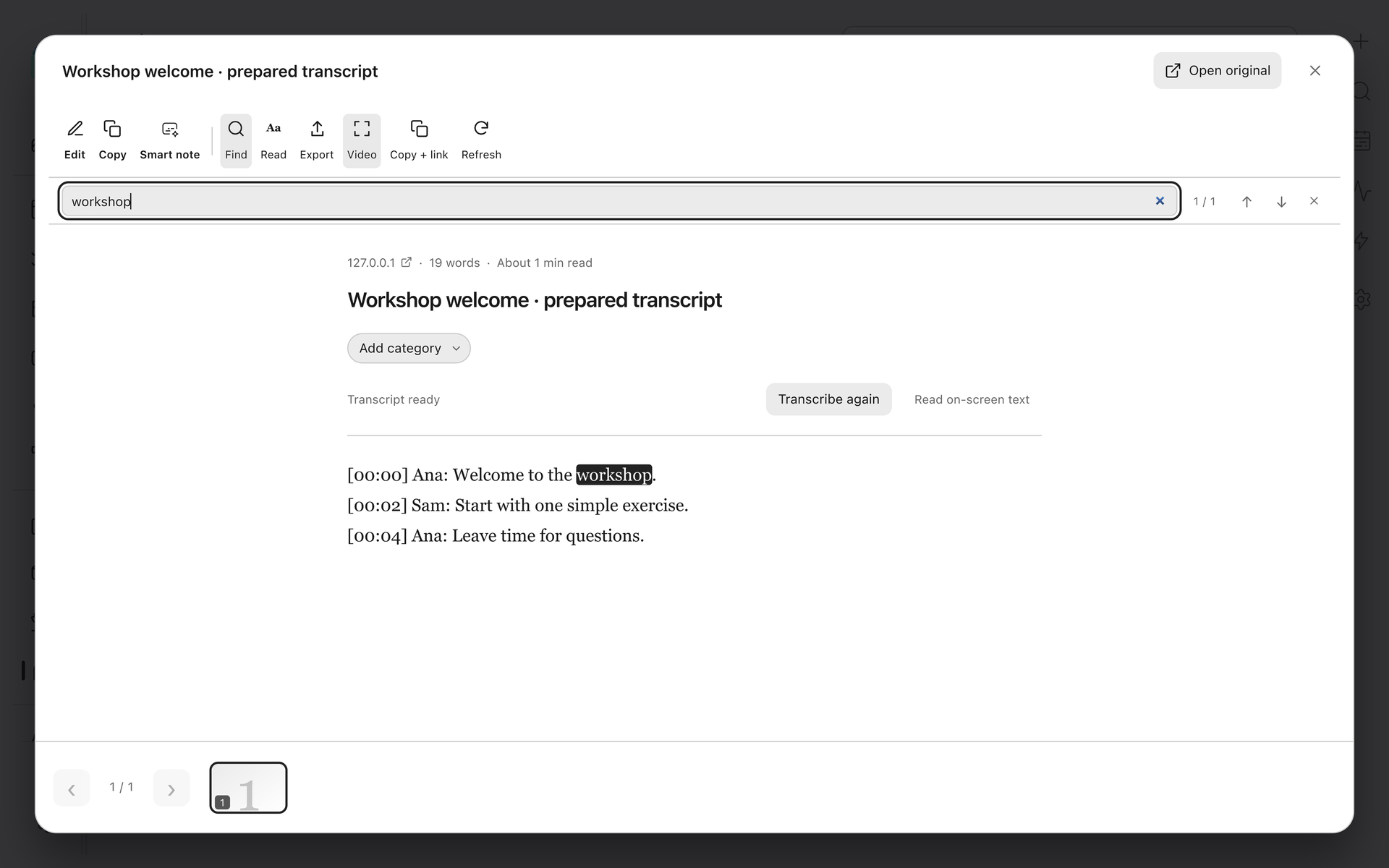
- Open the available transcript and choose Find in its toolbar.
- Search for a distinctive word or phrase.
- Select a timestamp to jump to that part of the video. Compare the transcript with what you hear or see.
Use Focus on text when you want more room to read. Under Read, choose Reading paragraphs for grouped paragraphs or Original text for the extracted lines.

Keep the text for later
| If you want | Choose |
|---|---|
| The full text and its source address on your clipboard | Copy + link |
| A document in your Transcriptions folder | Export → Save to My Files |
| A copy outside the workspace | Export → Download or Choose folder… |
| A note to continue writing in | Use the Smart Notes action where available. |
Copy + link includes the title and the entire transcript. Select and copy the passage yourself if you only need a quote.
Check names and quotations before sharing. For a video excerpt instead of text, see Trim and export a video.
Was this article helpful?
Thanks. Glad it helped.
Thanks for telling us.Try the search, or the related topic in the sidebar.