
Combine several PDFs into a single packet, reorganize one file, or extract content for an editable document.
Merge several files
- Open Merge in the PDF tools and select at least two PDFs.
- Drag the selected files into the order you want them to appear.
- Enter the output name and choose a folder under Save to.
- Choose Merge PDFs. The button includes the number of files you selected.
Open the result and check where one source ends and the next begins. For a workshop packet, check that the agenda comes before the worksheets.
Reorder, rotate, or remove pages
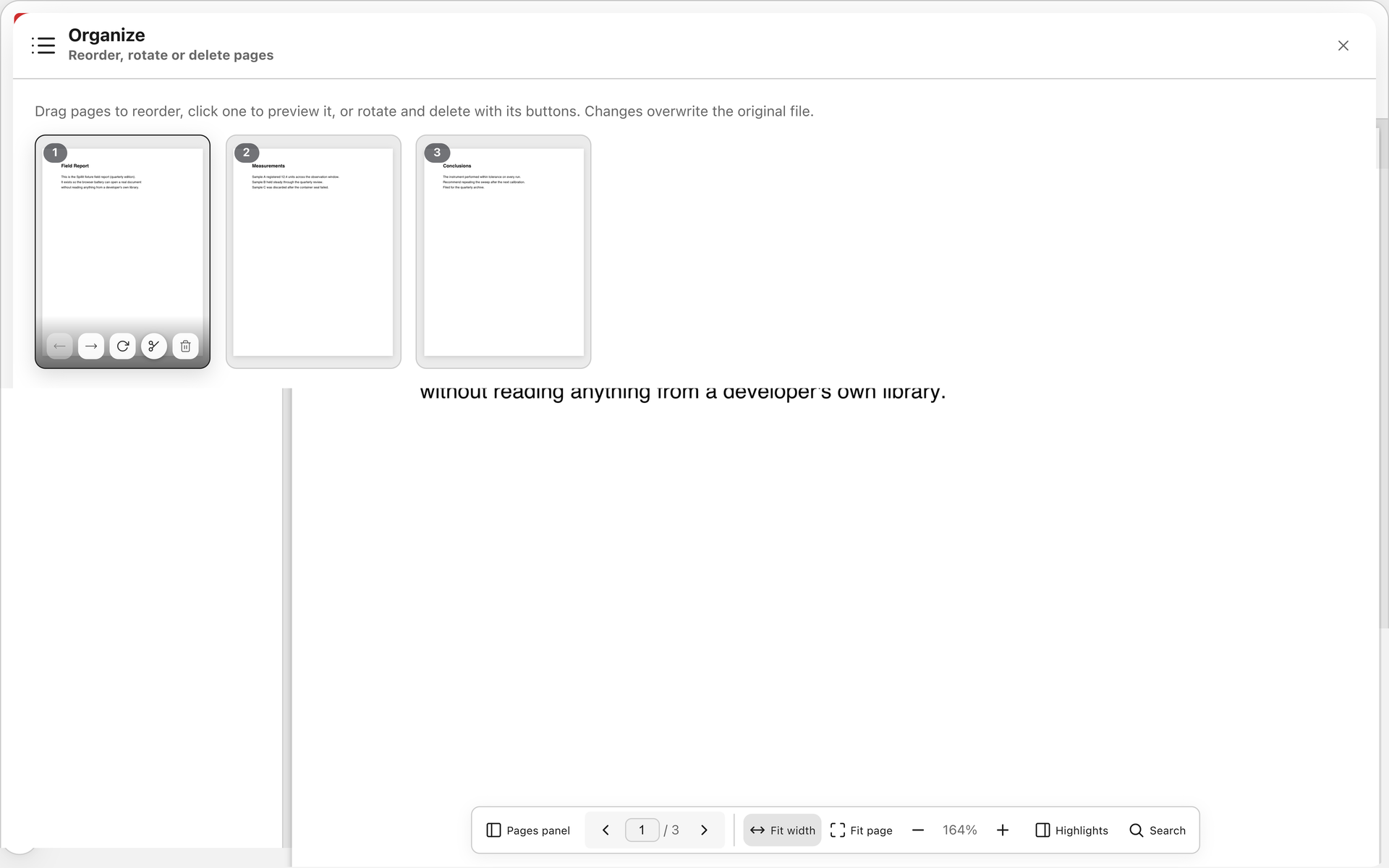
- Open a PDF saved in My Files and choose Organize.
- Drag a page thumbnail to move it. Use Move left or Move right for a single position change.
- Use Rotate 90° or Delete on the affected thumbnail. Click a thumbnail to preview its page before changing it.
- Choose Save as a copy for a separate file. Choose Save changes when the rearranged PDF should become the latest version.
Use Extract when you want to save only selected pages as their own output.
Choose a conversion format
| You want to keep | Choose | What to check |
|---|---|---|
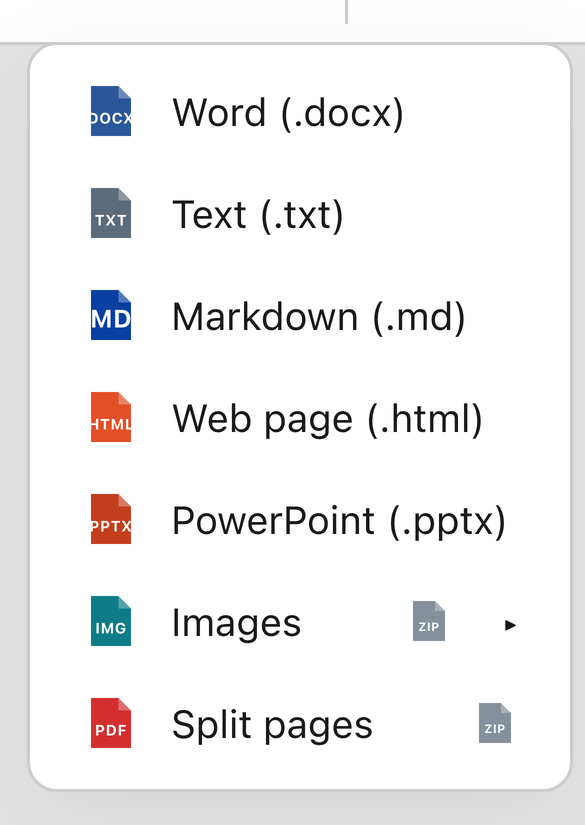
| Editable paragraphs and headings | Word | Headings, text order, and rebuilt layout |
| Data from tables | Excel | Columns, currency amounts, and totals |
| The look of each page | PowerPoint | Slide order and the text placed in speaker notes |
Open the PDF’s Export menu for Word or PowerPoint. For Excel, select the PDF in Workflows and add PDF tables to Excel.
PowerPoint uses an image of each page with extracted text in speaker notes.
For a repeated packet, save the merge and numbering steps as a workflow.
Was this article helpful?
Thanks. Glad it helped.
Thanks for telling us.Try the search, or the related topic in the sidebar.