
Prepare Zotero
Zotero exchange requires Spillit Pro. Keep Zotero open and enable its local API in Settings → Advanced. The local API lets apps on your computer read or write reference details.
Import selected references
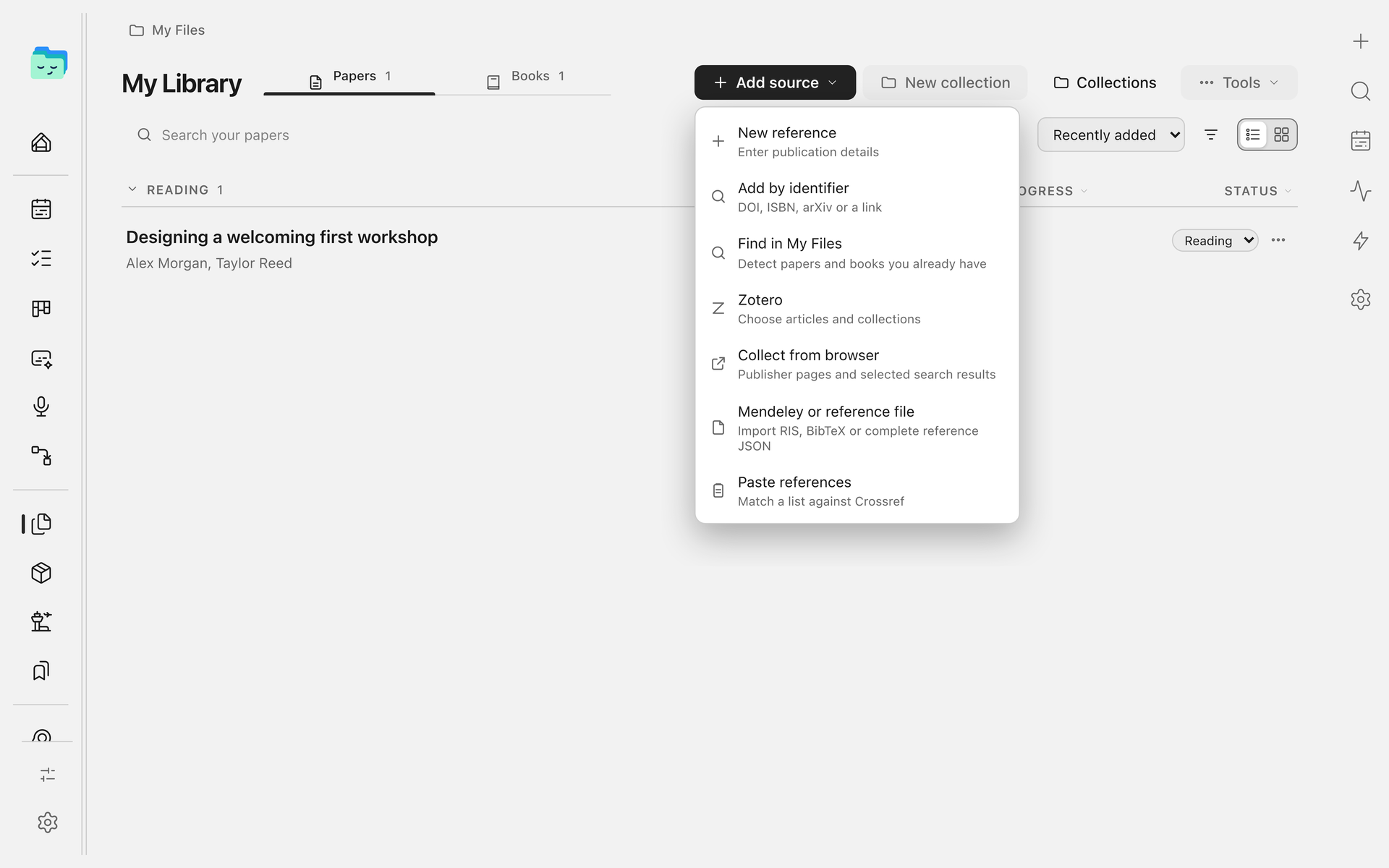
- In My Library, choose Add source → Zotero.
- Pick a collection or use Search Zotero articles in the import dialog.
- Check the items you want, then select Import with the displayed selection count.
- Open the imported references in Spillit and check the titles, names, and dates.
If the import dialog cannot reach Zotero, check that Zotero is still running and the local API is on. Choose Retry connection to try again.
Export to Zotero
- Select references in My Library, then choose Export to Zotero.
- Choose the destination under Collection and approve access in Zotero if asked.
- Select Export with the displayed paper count. Open the collection in Zotero to check the result.
Direct export requires Zotero 10 or later. For an older version, export a RIS file from Spillit and import it into Zotero. RIS is a text format for exchanging reference details.
The transfer moves reference details. Copy attachments separately and recreate any nested collection structure you need.
Was this article helpful?
Thanks. Glad it helped.
Thanks for telling us.Try the search, or the related topic in the sidebar.