
Open a PowerPoint deck from My Files to revise individual slides and rehearse the presentation in Spillit.
Find and edit the right slide
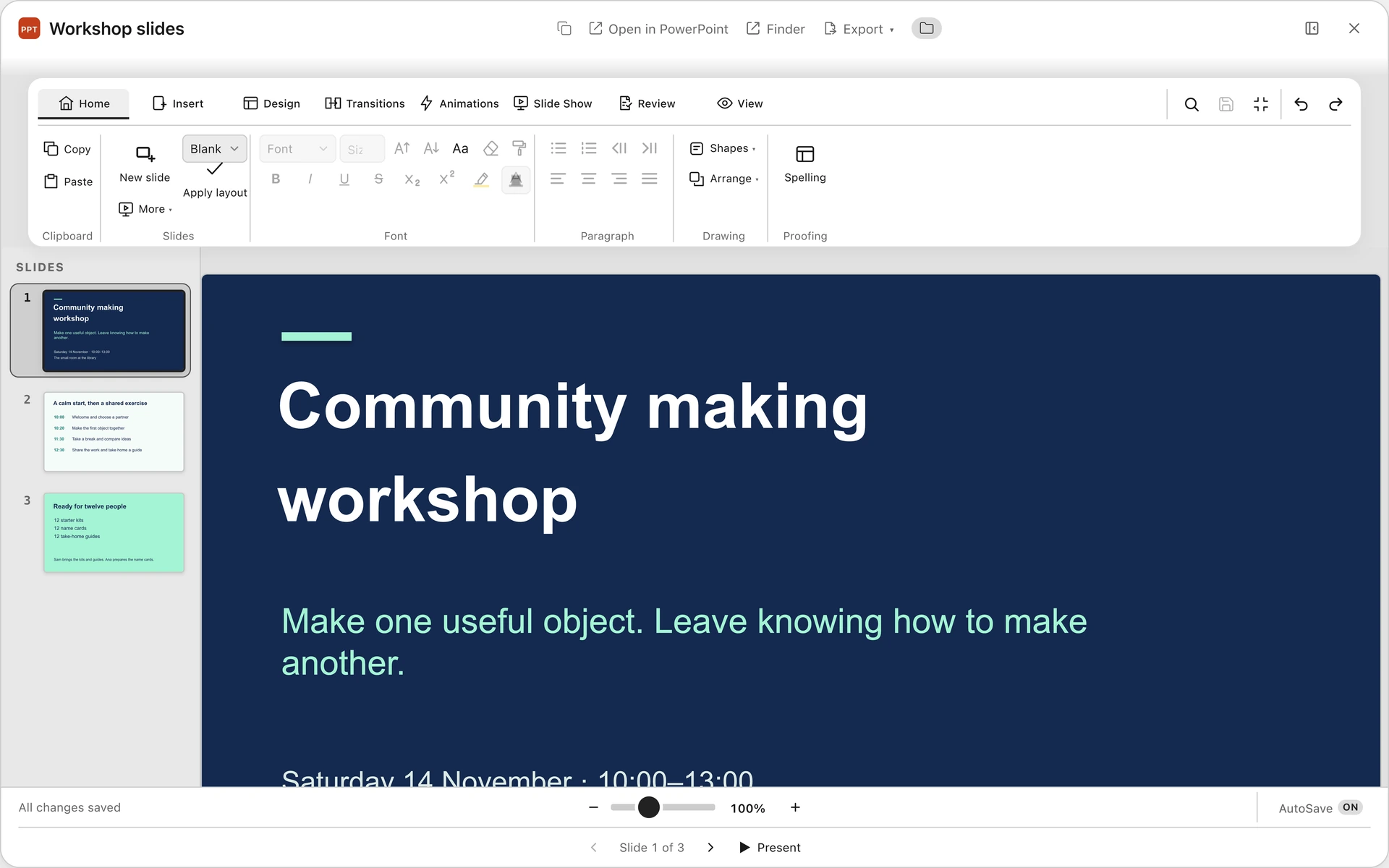
- Open a supported
.pptxfile. - Pick a slide from the thumbnails. Use View → Slide Sorter when you need to see the deck’s order at a glance.
- Choose Normal to return to the slide editor.
- Select text, a picture, a shape, or a table on the slide. Use the available controls to revise it.
- Choose Save after checking the slide.
For a short workshop deck, keep the outline on the opening slide and move detailed reminders to speaker notes. Review line breaks from the presentation view.
Add speaker notes
Open the notes area and add the cues you want to see while presenting. Keep them brief enough to glance at between slides.
Check that each cue sits under the intended slide. If your deck repeats a slide layout, the notes still belong to the individual slide.
Rehearse in the reader
- Choose Present. To begin on the slide you are editing, use Slide Show → From current slide.
- Advance through the deck. Check text, images, audio, video, and transitions wherever the deck uses them.
- Exit the presentation and fix anything that needs work. Save again before presenting.
If a slide looks different from your original, try opening it through Open in app and compare the result. Use that check before an important presentation.
Share a reading copy
Keep the .pptx for further editing. Choose Export to PDF for a reading copy. Open it to check the slide order.
Was this article helpful?
Thanks. Glad it helped.
Thanks for telling us.Try the search, or the related topic in the sidebar.