
Use the spreadsheet reader to change a workbook, check its calculations, and try a target value before sharing the result.
Edit a cell or formula
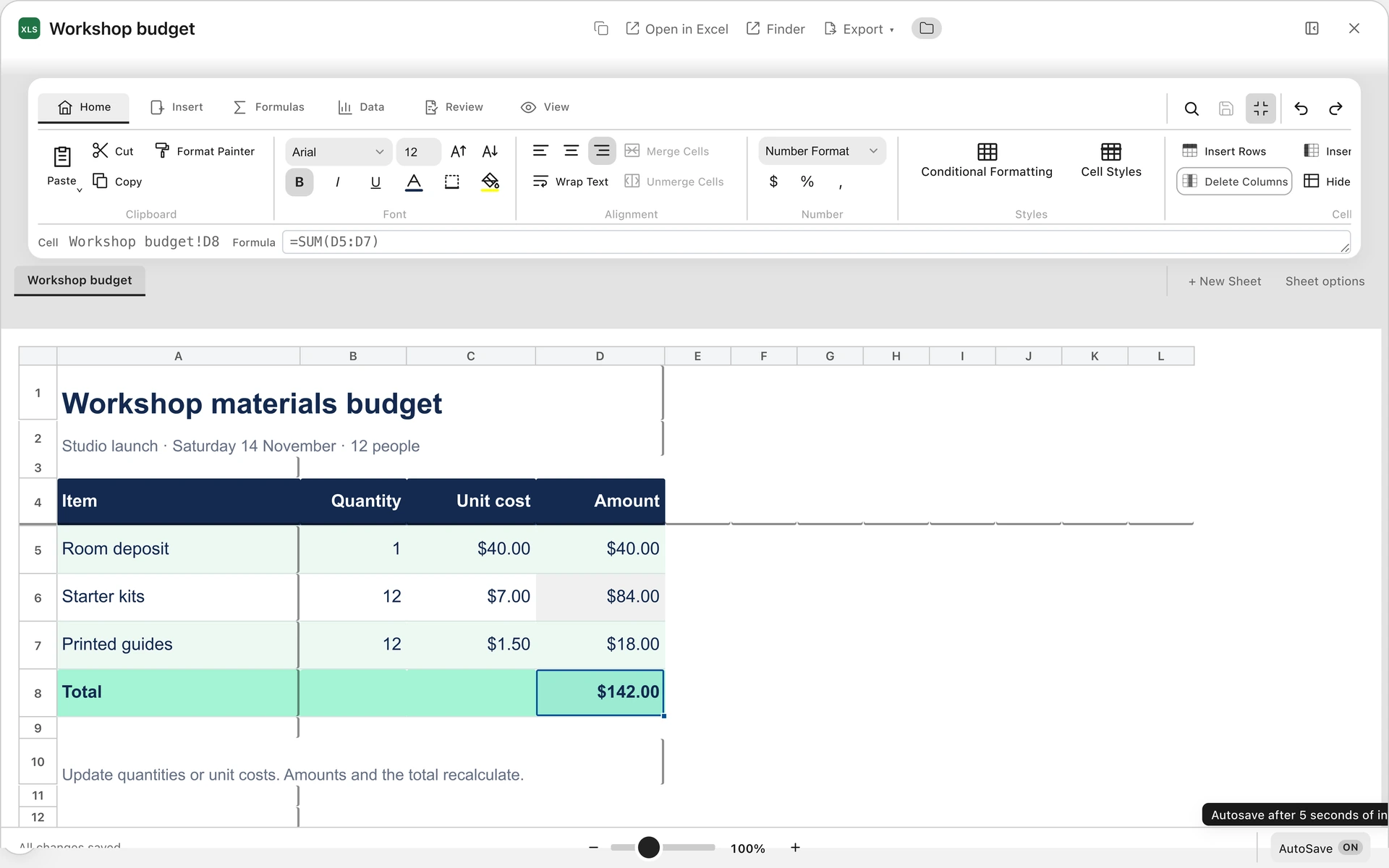
- Open an
.xlsxfile in My Files and select the sheet you want to change. - Select a cell to see its address and contents in the formula bar.
- Enter a value or a formula. A formula begins with
=, as in=SUM(D5:D7). - Press Enter to commit the change. Review the total and choose Save.
For a supply budget, change one line item first and confirm the total includes the new amount. Check the formula range if the total stays the same.
Keep the data easy to review
| Use | When it helps |
|---|---|
| Data Validation | Limit entries to approved values, such as a list of departments. |
| Conditional Formatting | Highlight values that meet a rule, such as expenses above a limit. |
| Pivot table | Summarize a table by group, such as expenses by department. |
After applying a new rule or summary, test it on one row you can check by hand.
Find an input with Goal Seek
Goal Seek changes one input cell to reach a target in a formula cell. Open it from the spreadsheet’s Data tools.
- In Set cell, enter the cell with the formula.
- In To value, enter the result you want.
- In By changing cell, enter the input cell on the same sheet.
- Choose OK. Review the new input and confirm the formula returns the intended value.
In this budget example, B3 multiplies the number of seats in B1 by the price per seat. Set B3 to 160 by changing B1.
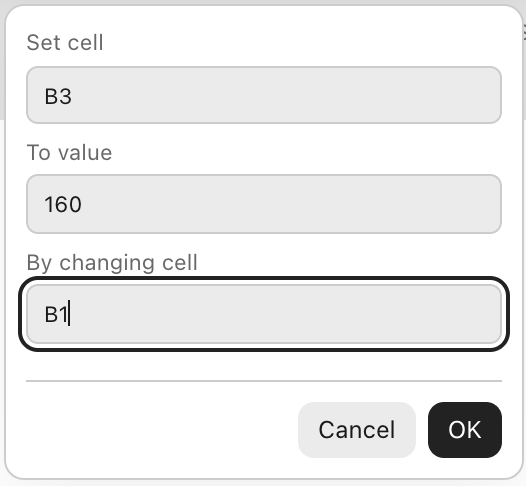
With a price of 20 per seat, the result is about 8 seats. Confirm that the total shows 160 before saving.
Before sharing the workbook
Reopen the saved file and check the affected formulas, chart data, and filters. Confirm any complex workbook in the application your recipient will use.
Was this article helpful?
Thanks. Glad it helped.
Thanks for telling us.Try the search, or the related topic in the sidebar.