
Find your account
- In the desktop app, open Settings.
- Open Account and find Spillit account. Enter your email and choose Email me a code.
- Enter the code from your inbox and choose Sign in.
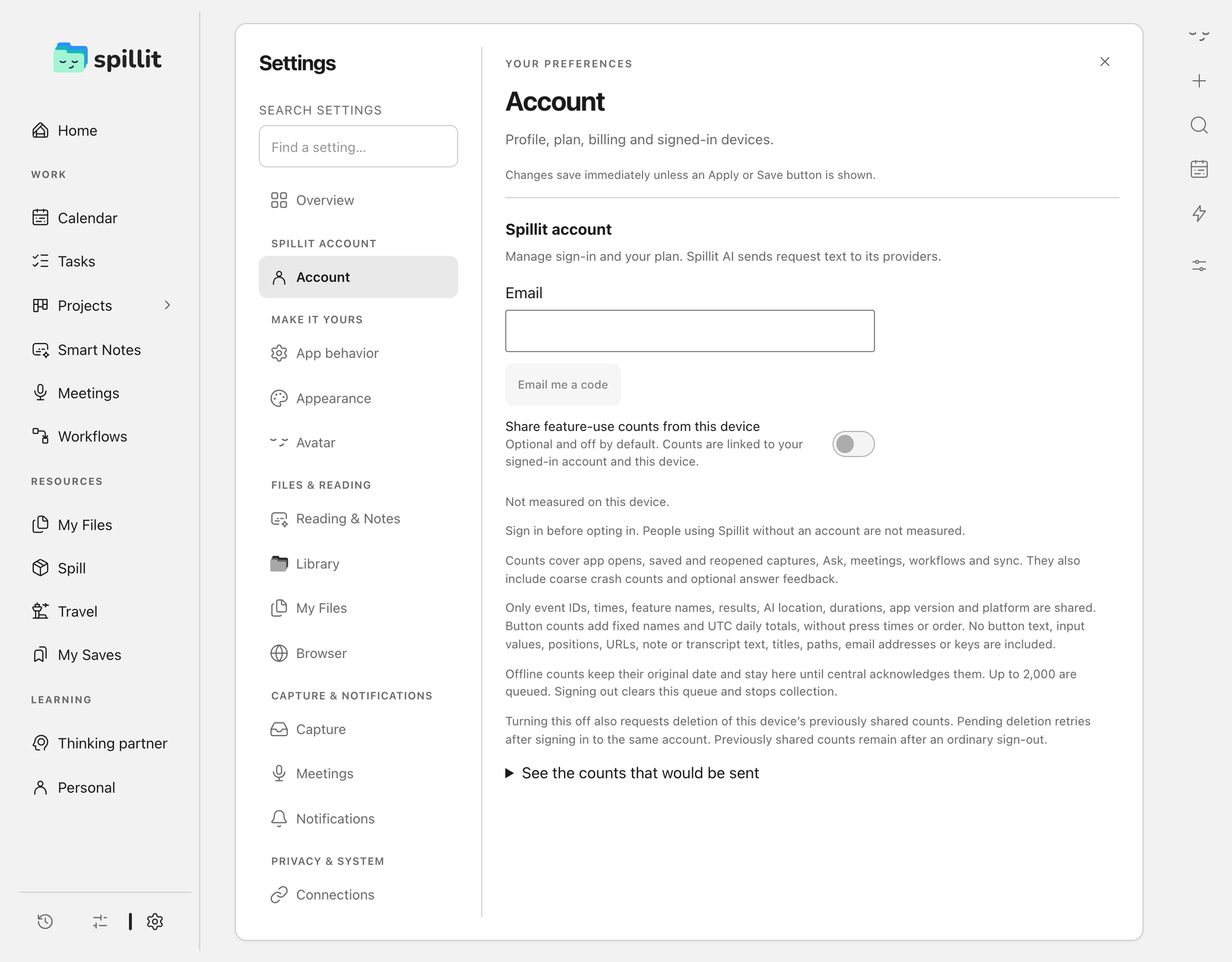
- In SpillitOpen Spillit account and choose Email me a code.
- In your inboxOpen the message sent to the address you entered.
- Back in SpillitEnter the code. Check that the account card shows you signed in.
If you see a Continue with option, you can use that provider to sign in through your browser.
Use the same account on devices you want to connect with Private sync. Each device needs its own approval or the recovery code.
Using Spillit Free
You can use Free without signing in. Compare Free and Pro to see which features need an account.
If the code doesn’t arrive
Check the address in the account card, then look in the spam or junk folder. Request a new code if the first message never arrives.
If you used a browser sign-in option, finish the prompt in the browser and return to Spillit. The account card should show you as signed in before you set up sync.
Was this article helpful?
Thanks. Glad it helped.
Thanks for telling us.Try the search, or the related topic in the sidebar.