
If the recording is silent
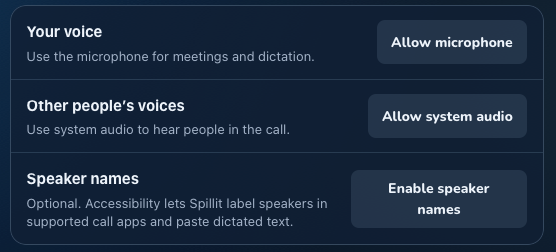
- Check that Spillit has microphone access in your Mac’s System Settings.
- Check the selected source in Meetings. Capturing an additional meeting app requires macOS 13 or later and audio permission.
- Make a brief test recording with your own audio and play it back.
If there is audio but no transcript
Check whether Spillit needs to download a speech model, the software that turns audio into text. A missing model can need an internet connection.
Optional speaker labels use Accessibility permission to read visible names and speaking indicators in supported meeting apps.
Match the symptom to its source
- Neither side is audibleCheck microphone permission and record a short microphone test.
- Only your voice is audibleCheck the selected meeting app and its audio permission.
- Playback works, but text is missingCheck for a model download or wait for transcription to finish.
- Words are right, but the speaker is wrongCompare the speaker labels with the original audio.
Open the practice recording afterward. Confirm that your own voice and the expected meeting audio are audible before recording another call.
Was this article helpful?
Thanks. Glad it helped.
Thanks for telling us.Try the search, or the related topic in the sidebar.