
Check both devices
- Make sure the devices can reach the internet and are signed in to the same Spillit account.
- Confirm that Private sync is on and that the device has been approved.
- If approval is pending, compare the six digits on both devices before you approve the request.
Check the item you expect to see
Try a supported record, such as a Smart Note. Personal note templates and meeting-to-document links stay on the device where they were created.
If you no longer have a device that can approve the request, see Recover access to Private sync.
Use the status on the device
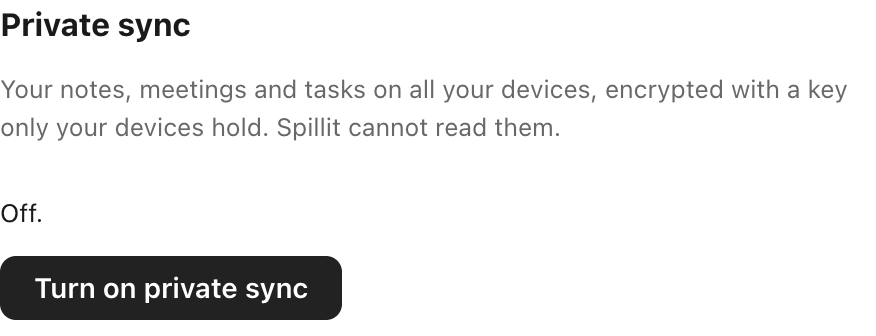
- Off.Check that Private sync is turned on for the account you intended to use.
- Waiting for approval on another deviceOpen Settings on an approved device. Compare the six digits before approving.
- On. This device syncs privately.Use Sync now if it appears. Check a supported record on both devices.
If the device still can’t join, keep any copies it already has. Use the recovery guide before making changes to the sync setup.
Was this article helpful?
Thanks. Glad it helped.
Thanks for telling us.Try the search, or the related topic in the sidebar.